How to find your School ID and RSS URL
Last updated by
2 min readClickView30th January, 2026
Summary
- Sign in to ClickView with an Administrator account.
- Select your name at the top right corner.
- Go to Settings from the drop-down menu.
- On the Settings page, choose RSS in the Integrations Section.
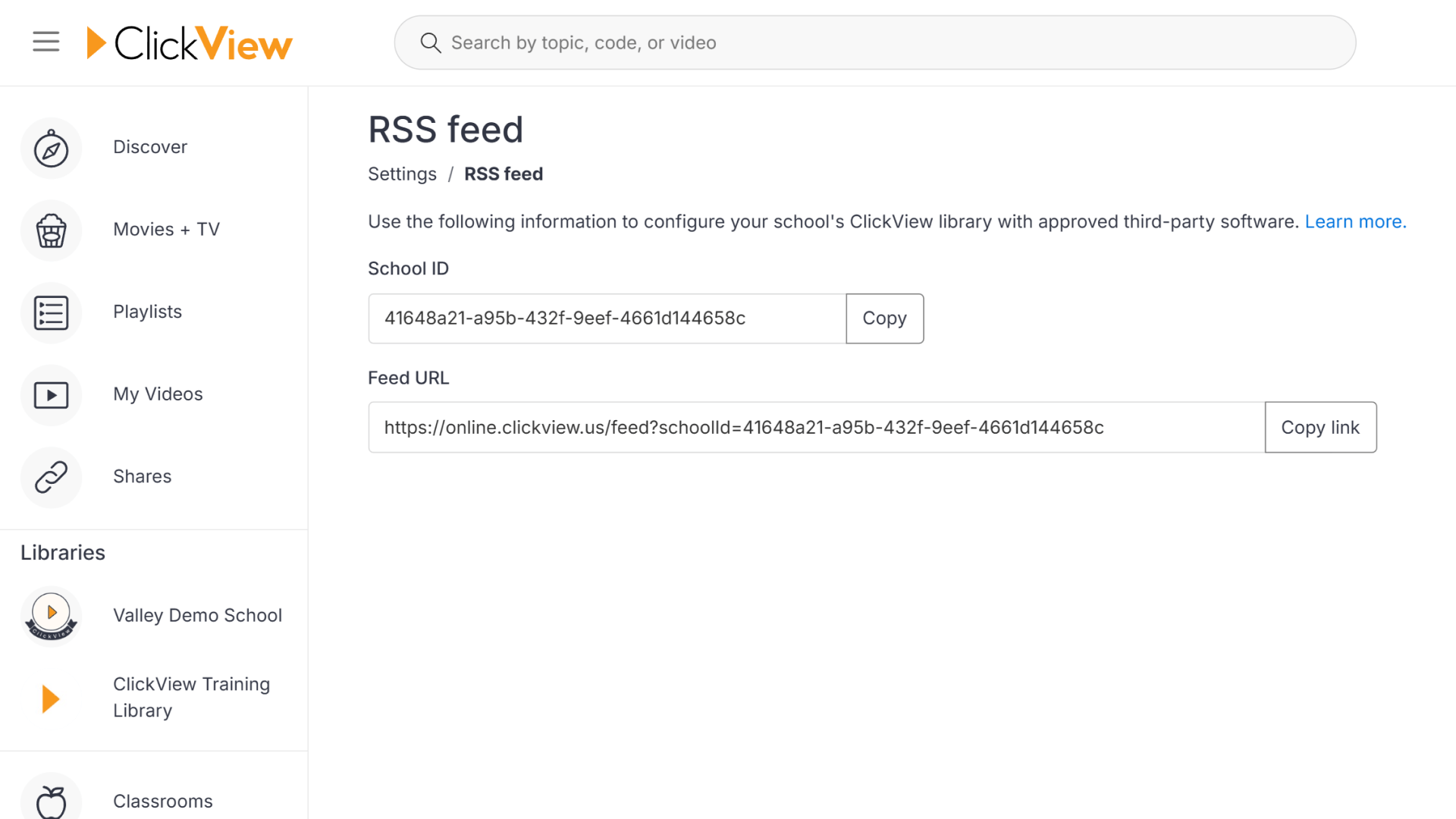
- The RSS Feed URL appears on the page.
- School ID is found after ‘=’ in the RSS URL.
star icon
Quick tip
Why might you be asked for your School ID instead of the full RSS URL?
Some third-party systems only need the School ID to link correctly with ClickView. This ID is the unique identifier at the end of your RSS Feed URL, so you can safely share just that value without providing the entire link.
How to get your School ID and RSS URL
If you need your School ID or RSS Feed URL for integrations with systems like Accessit, Infiniti, Schoolbox, Stile, or Oliver, follow these steps:
- Sign in to ClickView with an Administrator account.
- Select your name at the top right corner of the screen and select Settings from the drop-down menu.

- On the Settings page, select RSS from the Integrations Section.

- The RSS Feed URL will be displayed on the page.

- If you only require your School ID, copy all characters after the = sign in the URL.

Frequently asked questions
Yes, you must sign in with an administrator account to access these options in Settings.
The RSS option is found in the Integrations Section on the Settings page after selecting your name in the top right corner.
Your School ID appears after the ‘=’ character in the RSS Feed URL shown on the RSS page.
Get in touch
If you’re having trouble finding the right topics or videos, just reach out! Our team - 

 Akhil, Daniel, Jalaj, or any of us at ClickView - will be happy to help you get sorted.
Give feedback
Was this guide helpful?
Up Next

Embed a ClickView video in Toddle
This guide walks K–12 educators through setting up the ClickView integration in Toddle, embedding videos in assignments, and using interactive video grade passback.