Embed a ClickView video in Education Perfect
In this article
Last updated by
2 min readClickView8th July, 2026
Summary
- Start by editing a Smart Lesson or Exam in Education Perfect.
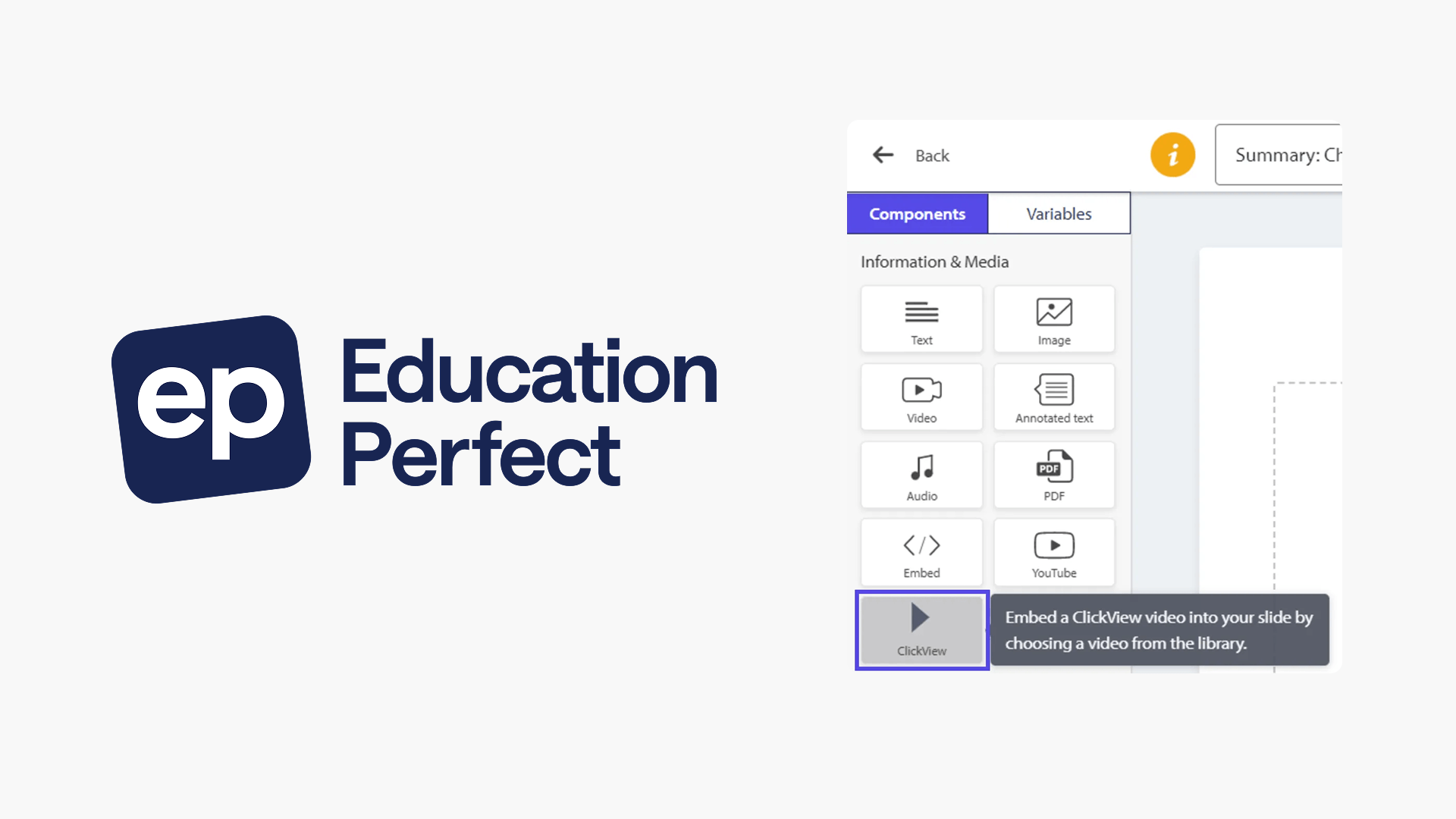
- Drag the ClickView component into your lesson slide.
- Sign in to ClickView if prompted by the dialogue.
- Navigate and click Embed on a video to select it.
- Adjust video size and click Done to add it to your slide.
- Use Preview Slide to view from a student perspective.
- Students are prompted to sign in to ClickView for access.
star icon
Quick tip
What happens when a student tries to access a ClickView video in Education Perfect?
Students will be prompted to sign in to their ClickView account before viewing resources if they are not already signed in. This maintains security and ensures only authorised students can access educational videos.
Embedding videos into Education Perfect lessons
- Begin creating or editing a Smart Lesson or Exam in Education Perfect.
- While in edit mode, drag the ClickView component into your chosen slide.
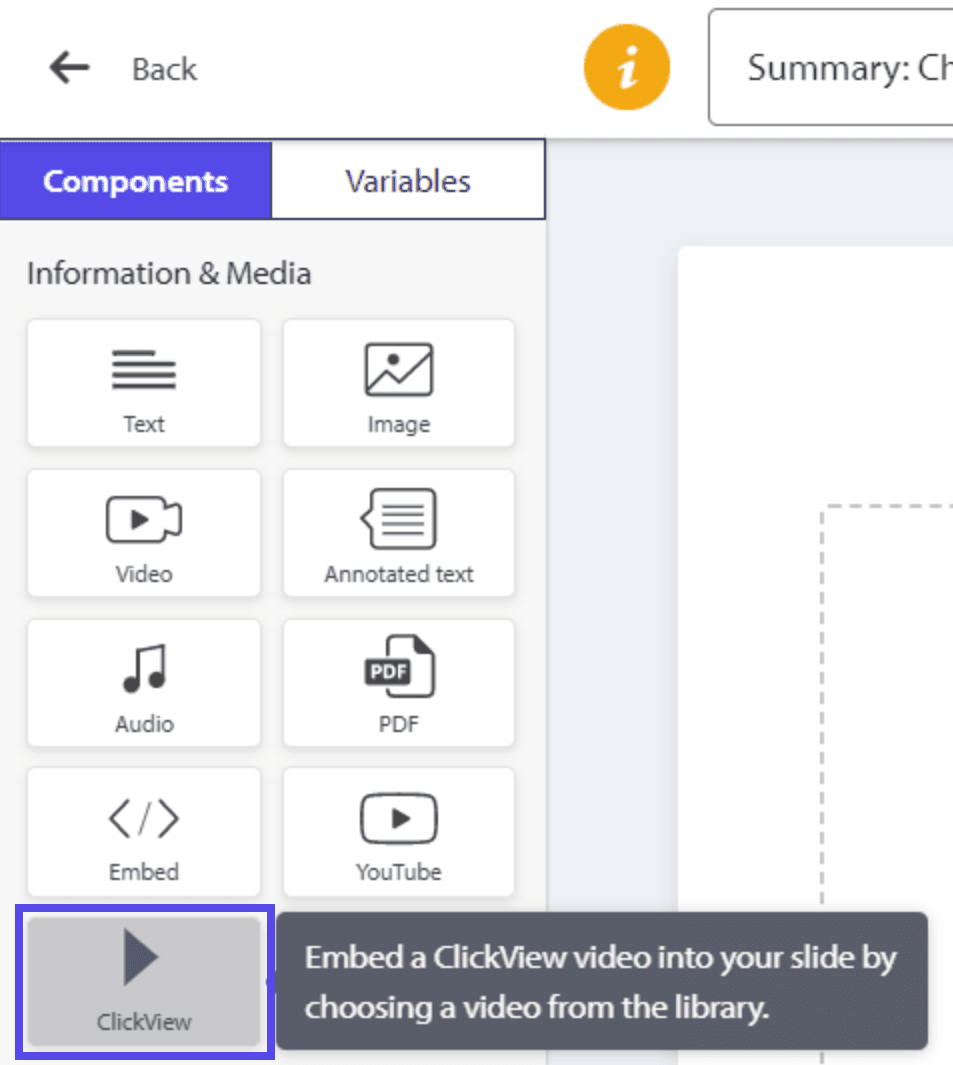
- The ClickView dialogue will appear. If you are not already signed in to ClickView, you will be prompted to sign in at this stage.
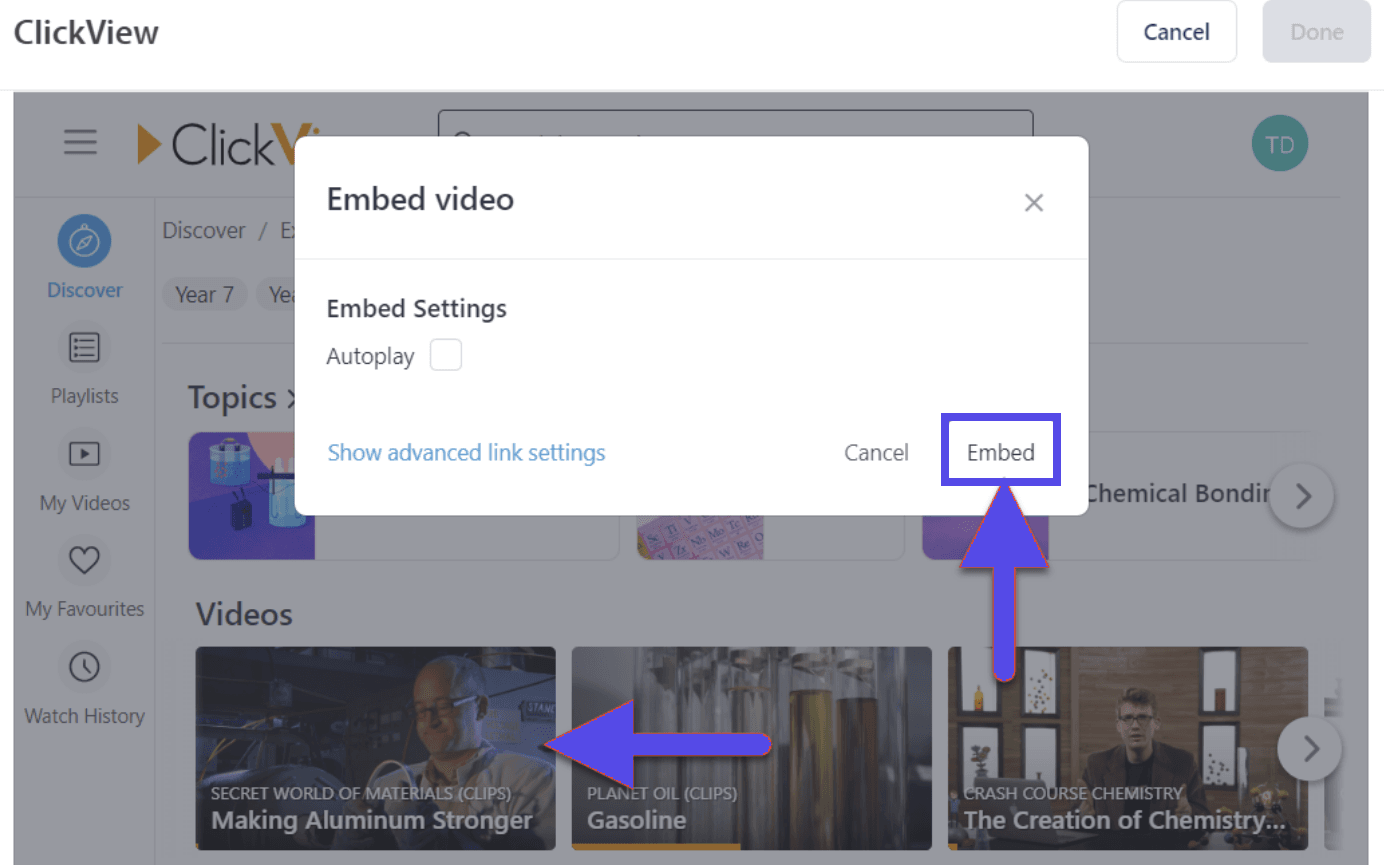
- Within the popup, browse ClickView resources, click on a video, and then click Embed to select it.
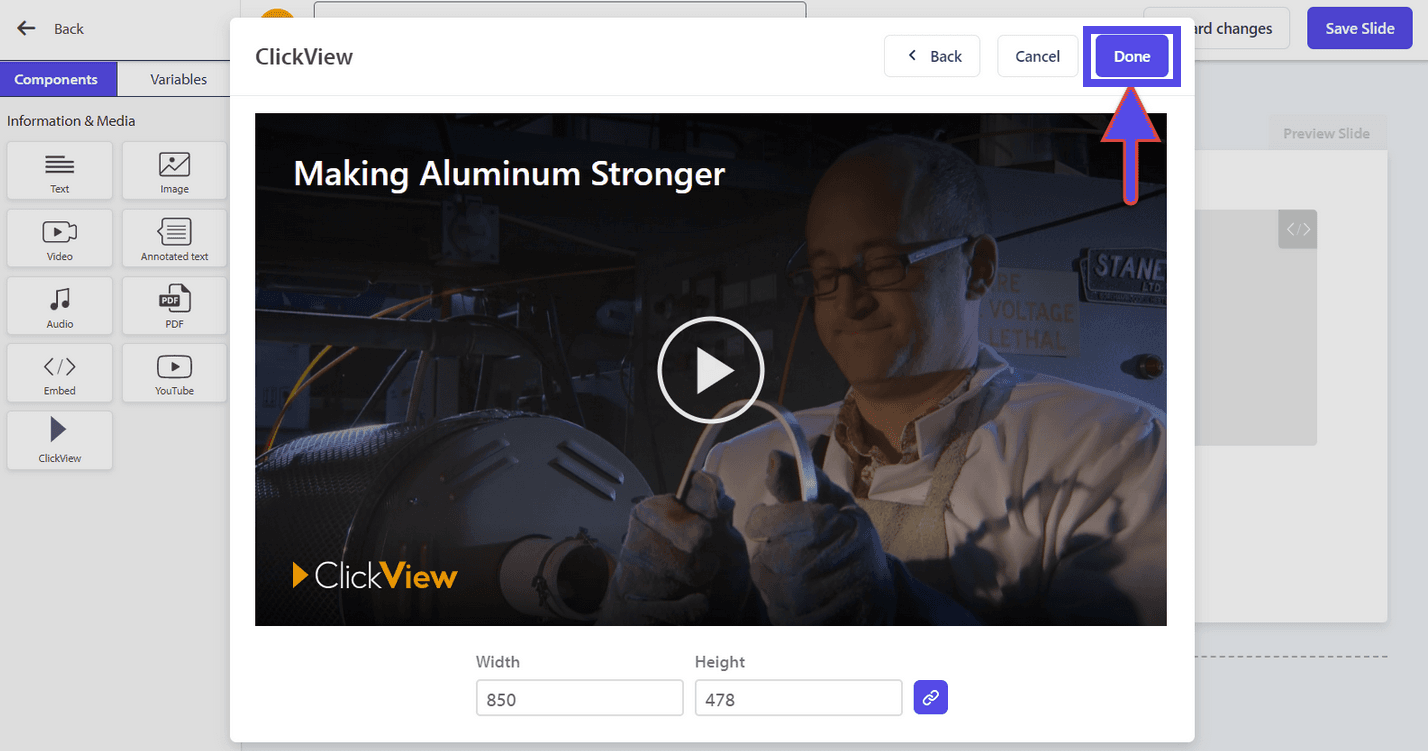
- You may adjust the video size as needed. When ready, click Done to insert the media into your lesson.
- Click Preview Slide to see the video as students would.
- Continue adding more lesson components if required.
How students access embedded videos
When students complete activities that use ClickView resources in Education Perfect, they will be prompted to sign in to their ClickView account if they have not done so already. This ensures secure access to all educational video content.
Frequently asked questions
Yes. Students must sign in to their ClickView account to access embedded videos within Education Perfect lessons.
Yes. You can adjust the video size in the ClickView popup before clicking Done.
Get in touch
If you’re having trouble finding the right topics or videos, just reach out! Our team - 


 Andrew, Nisch, Janice, Pfreya, or any of us at ClickView - will be happy to help you get sorted.
Give feedback
Was this guide helpful?
Up Next

Embed a ClickView video in Toddle
This guide walks K–12 educators through setting up the ClickView integration in Toddle, embedding videos in assignments, and using interactive video grade passback.