How to sign in to ClickView

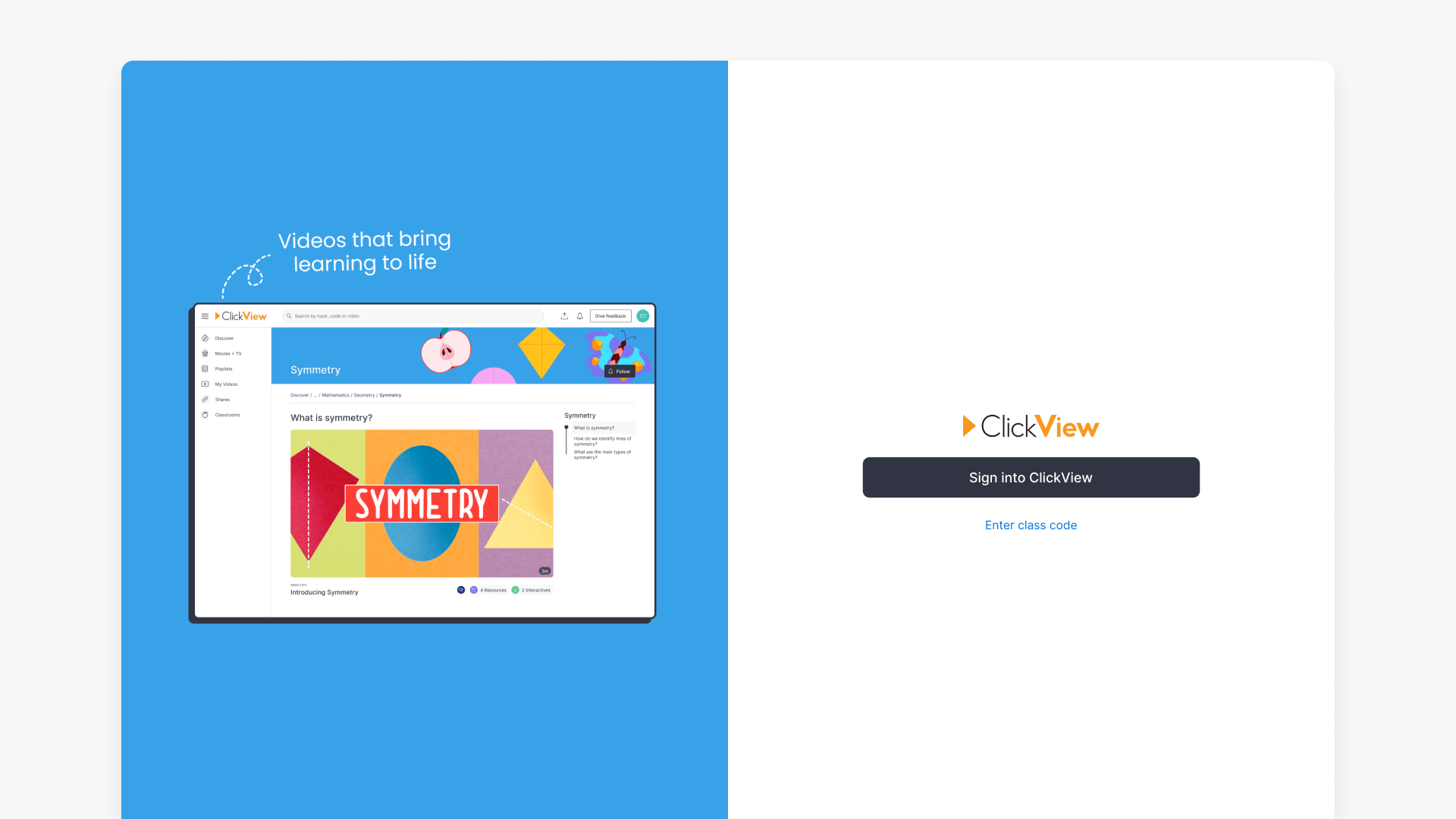
Summary
- Staff sign in using either Single Sign-On (SSO) or a local ClickView account, depending on your school’s setup.
- Students typically sign in using a class code provided by their teacher.
- If you are unsure which method to use, contact your school’s ClickView administrator.
Choose the right sign-in method
How you sign in depends on your role and your school’s configuration:
- Educators and school staff: Sign in with Single Sign-On (SSO) or a local ClickView account.
- Students: Sign in using a class code provided by a teacher.
Sign in with a local ClickView account (staff)
Use this method if your school does not use SSO, or if you have been given ClickView-specific sign in details.
- Go to clickview.net/au and click Sign in.

- Enter your ClickView username (often your school email address) and click “Continue”.

- Enter your password to complete sign in.

- If you forgot your password, click “Forgot your password?” to receive a password reset email.

If you do not know your username or password, contact your school’s ClickView administrator.
Sign in with Single Sign-On (staff)
Use this method if your school uses SSO.
- Go to clickview.net/au and click Sign into ClickView.

- Enter your school email address and click “Continue”. If you are already signed in to another school service, you may be signed in automatically and may not see all sign-in screens.

- Select your school if prompted.
- You will be redirected to your school’s authentication page to complete sign in. Enter your email address and password (the same credentials used for other services).
Examples of authentication sites are:- Microsoft 365

- Google Workspace

- ADFS

- RMUnify/Glow

- Okta

- OpenAthens

- Microsoft 365
Signing in using a class code (students)
Use this method if your teacher has provided a class code.
- Go to clickview.net/join and click Enter class code.

- Enter the five digit class code provided by your teacher.

- Follow the prompts to sign in using your username or email address.
- Once complete, you will see a confirmation screen.

Frequently asked questions
Get in touch
If you’re having trouble finding the right topics or videos, just reach out! Our team - 


 Andrew, Nisch, Janice, Pfreya, or any of us at ClickView - will be happy to help you get sorted.
Give feedback
Was this guide helpful?
Up Next
How to log in using Single Sign-On (SSO)
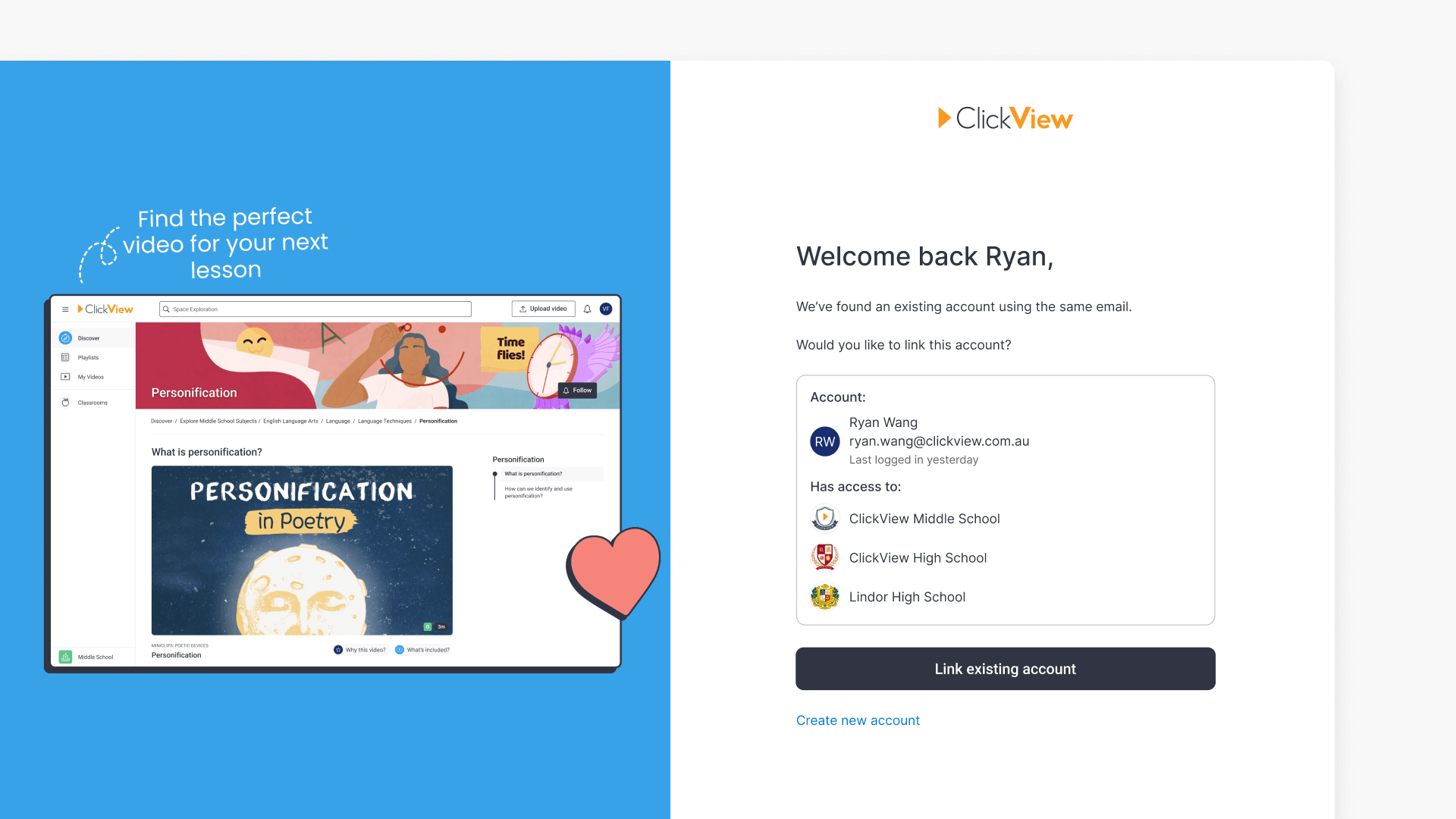
This article explains how to link a new SSO account to an existing ClickView account when using the same email address. Follow the steps for secure access and data continuity.