How to enable Theater Mode

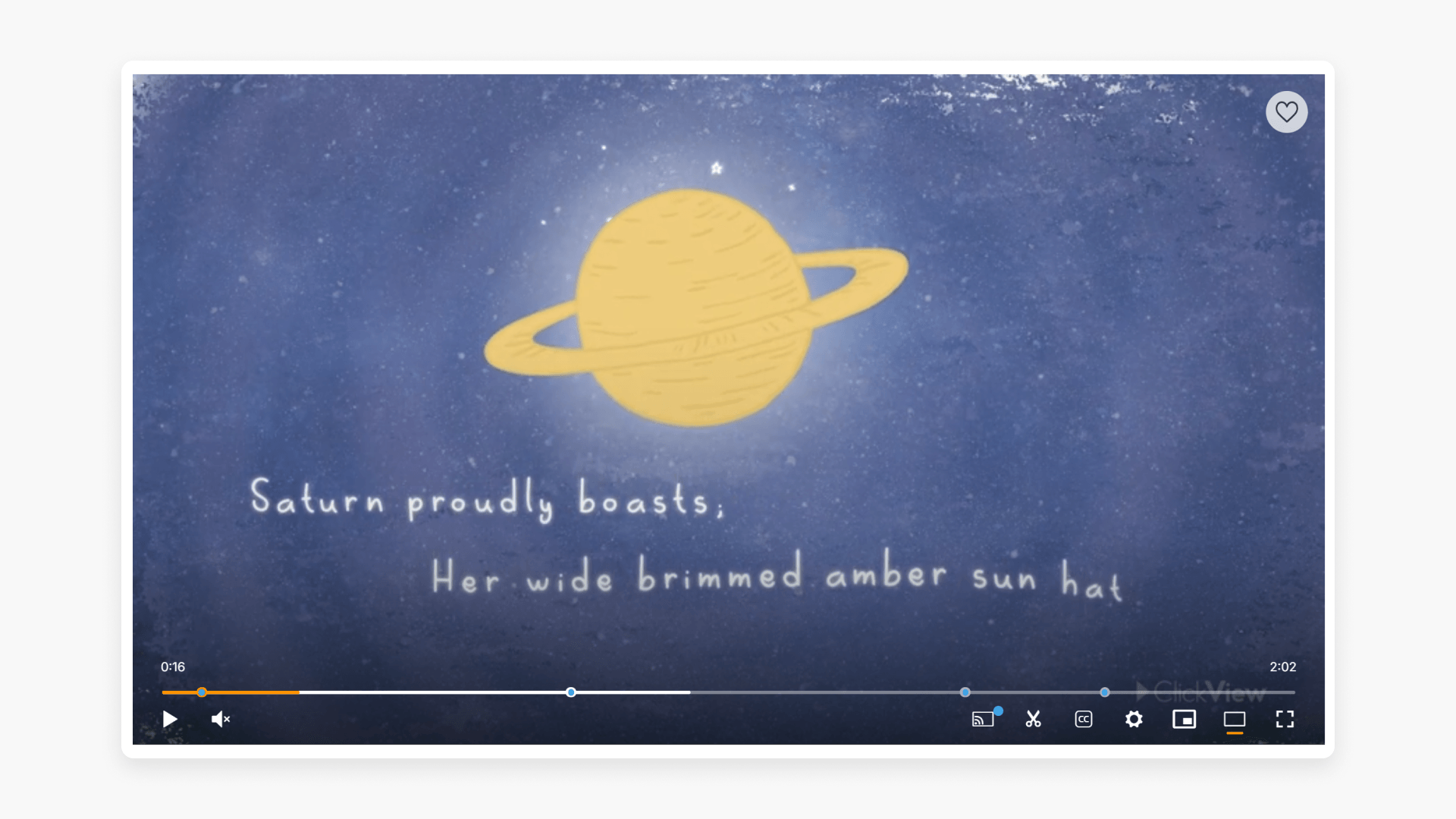
Summary
- Theater Mode expands the video player for focused viewing.
- Activate Theater Mode using the Theater Mode icon in the video player, or by pressing ‘T’.
- Works for videos and clips.
- Supports small and large screens for optimal display.
- Does not hide important controls or features in the player.
What is Theater Mode?
Theater Mode is a video playback option in ClickView that expands the video player for a cleaner, more immersive viewing experience. Theater Mode is available for all ClickView videos and clips, offering a wider, distraction-free layout that works on any device.
- Wider distraction-free layout: Focus on the video content without unnecessary on-screen elements.
- Optimized for any screen: Theater Mode balances usability and immersion across both small laptops and large desktop displays.
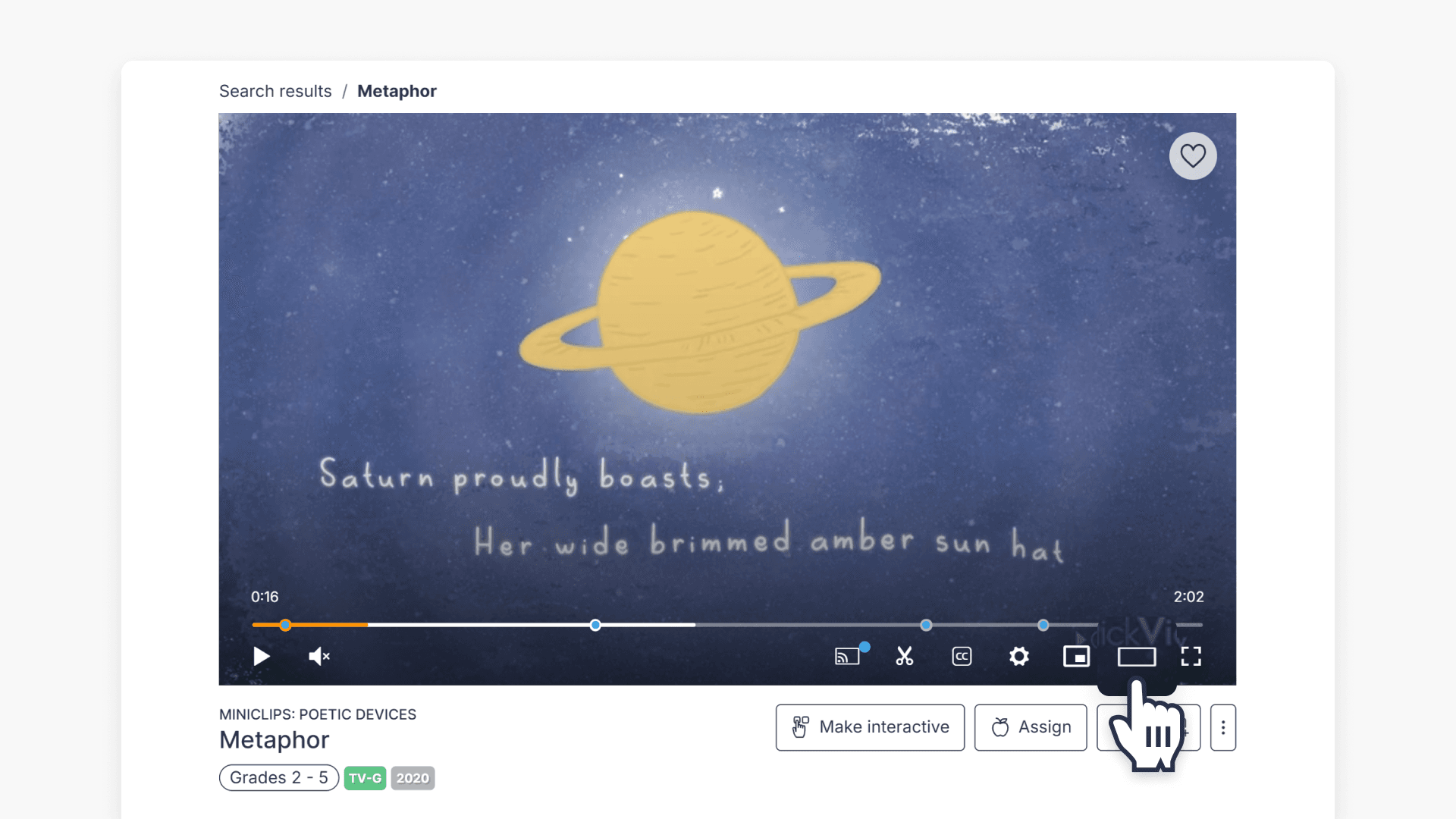
How to activate Theater Mode
- Click the Theater Mode icon on any video player.
- Or press “T” on your keyboard while the video is playing.
Once activated, the video player will expand within the interface, providing a clean and immersive experience. All important controls and features remain visible and usable while viewing.
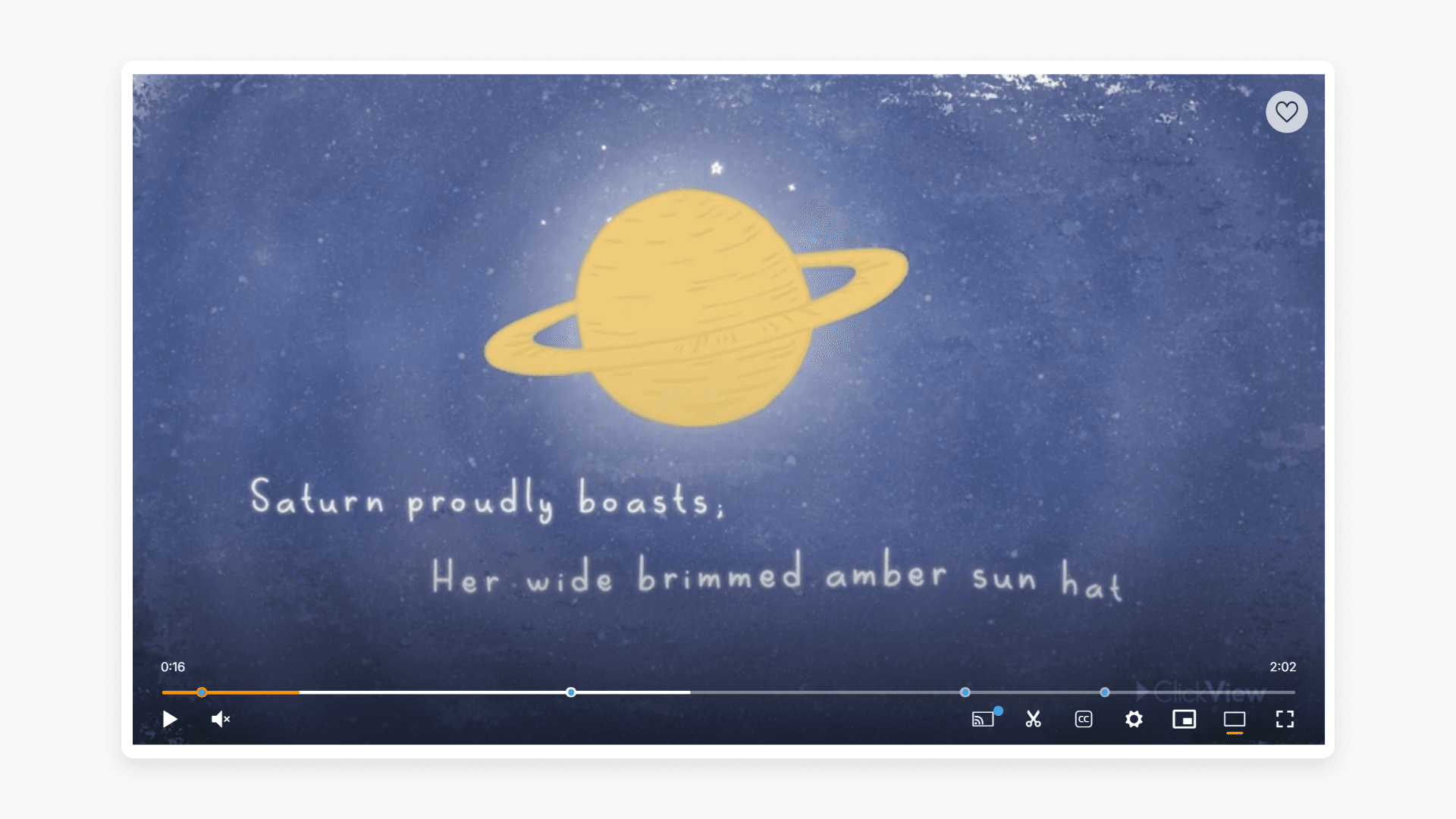
Theater Mode and default view comparison
Default view
- The standard layout embeds the video player within the full interface for balanced navigation and viewing.
Theater Mode
- Expanded video player increases visibility and focus on content.
- Compatible with all content types, including older 4:3 ratio videos.
Frequently asked questions
Get in touch
If you’re having trouble finding the right topics or videos, just reach out! Our team - 

 Akhil, Daniel, Jalaj, or any of us at ClickView - will be happy to help you get sorted.
Give feedback
Was this guide helpful?
Up Next
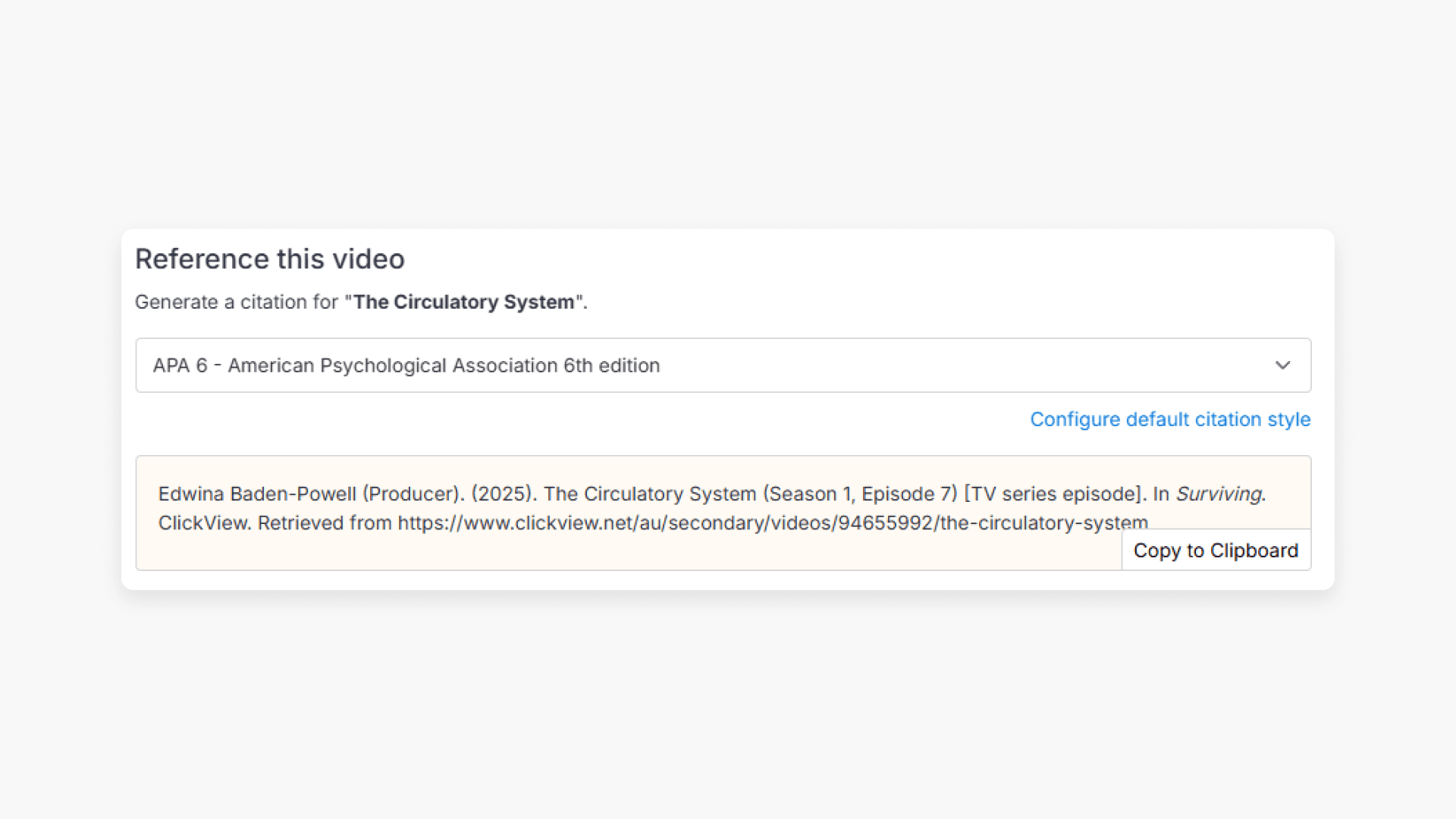
How citations work in ClickView
Summary How do I find citations for videos in ClickView? Every video in ClickView includes a citation. Open a video, scroll below the player, and find the Reference this video section. Select a citation style from the dropdown, and ClickView will generate the citation automatically, copy it to your clipboard, and use it anywhere. Every […]