How to embed videos
In this article
Last updated by
1 min readClickViewJanuary 30, 2026
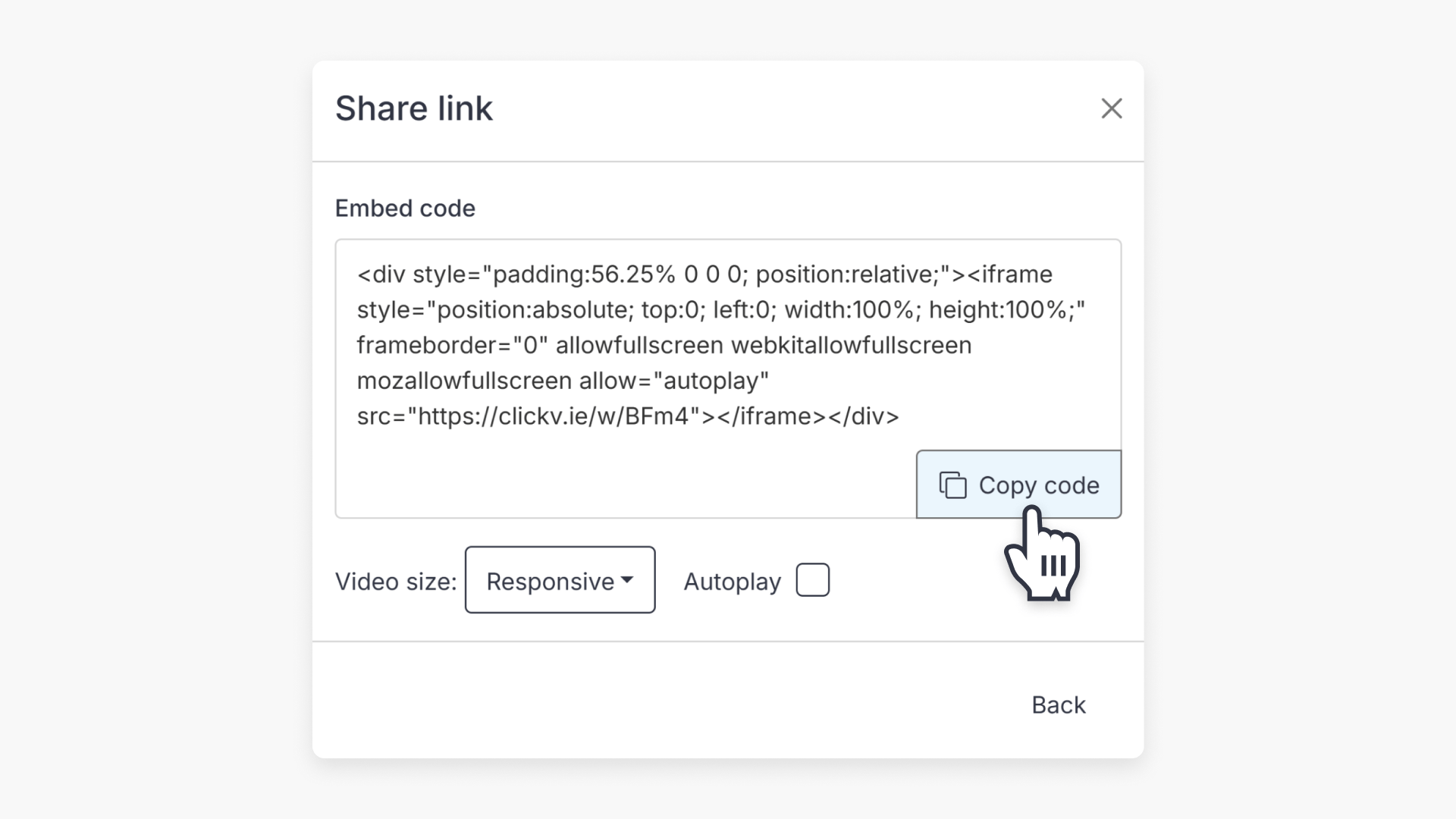
Summary
- Find the ClickView video you wish to share.
- Click the Share button to access sharing options.
- Select ‘Get embed code’ to view the embed code.
- Adjust video size and copy the code into the desired application.
star icon
Quick tip
When is embedding a video better than sharing a link?
Embedding is ideal when you want the video to appear seamlessly inside another platform, such as an LMS page or class website, without sending viewers elsewhere. This keeps students focused in one place and makes the video feel like part of the lesson content rather than a separate resource.
Steps to embed a video
- Find the ClickView video you want to embed in another application.
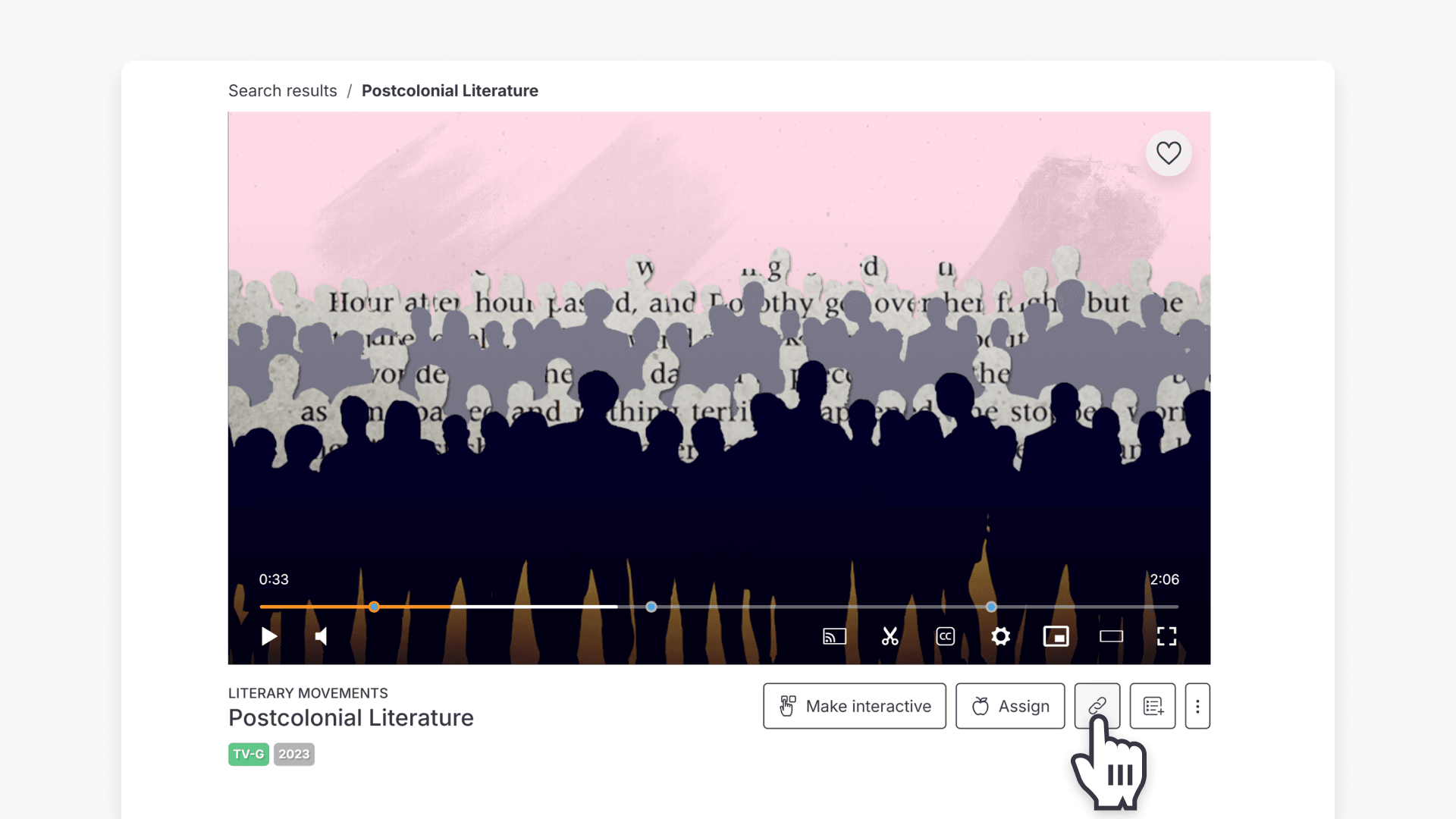
- Click Share button below the video player.
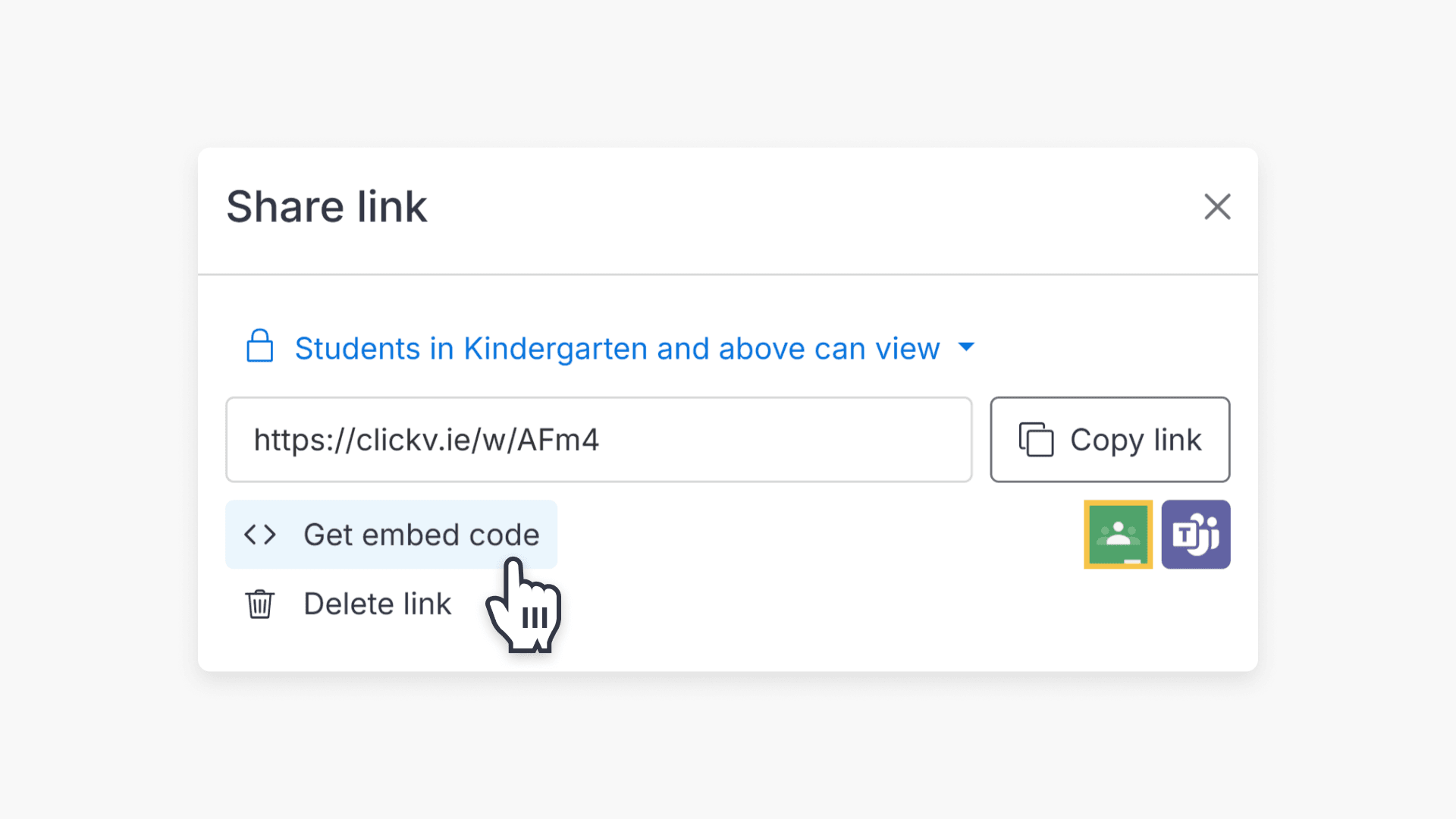
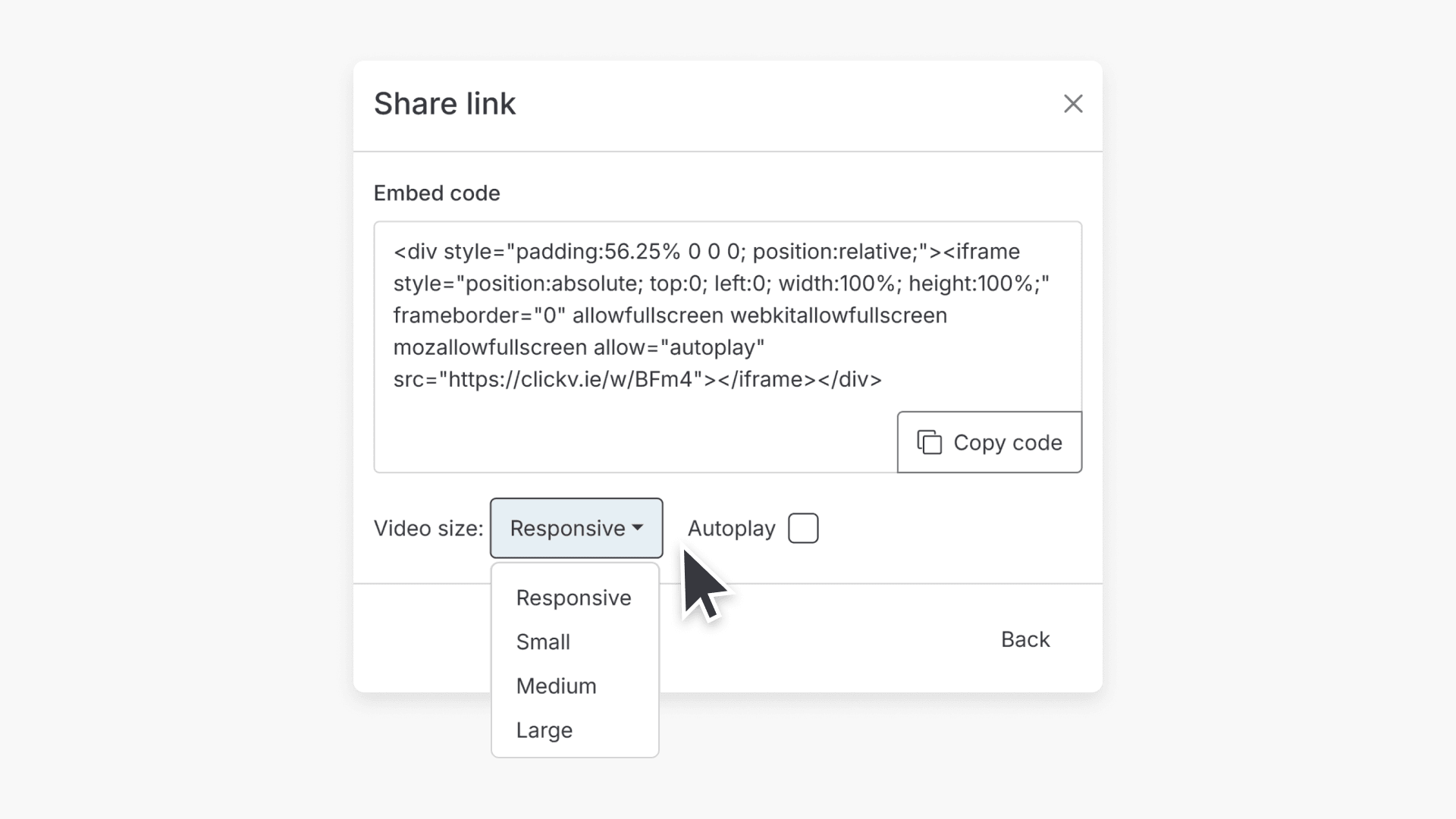
- In the Share link pop-up, click the Get embed code option.
- Copy the code that appears and paste it into your chosen blog, learning management system, or other application.
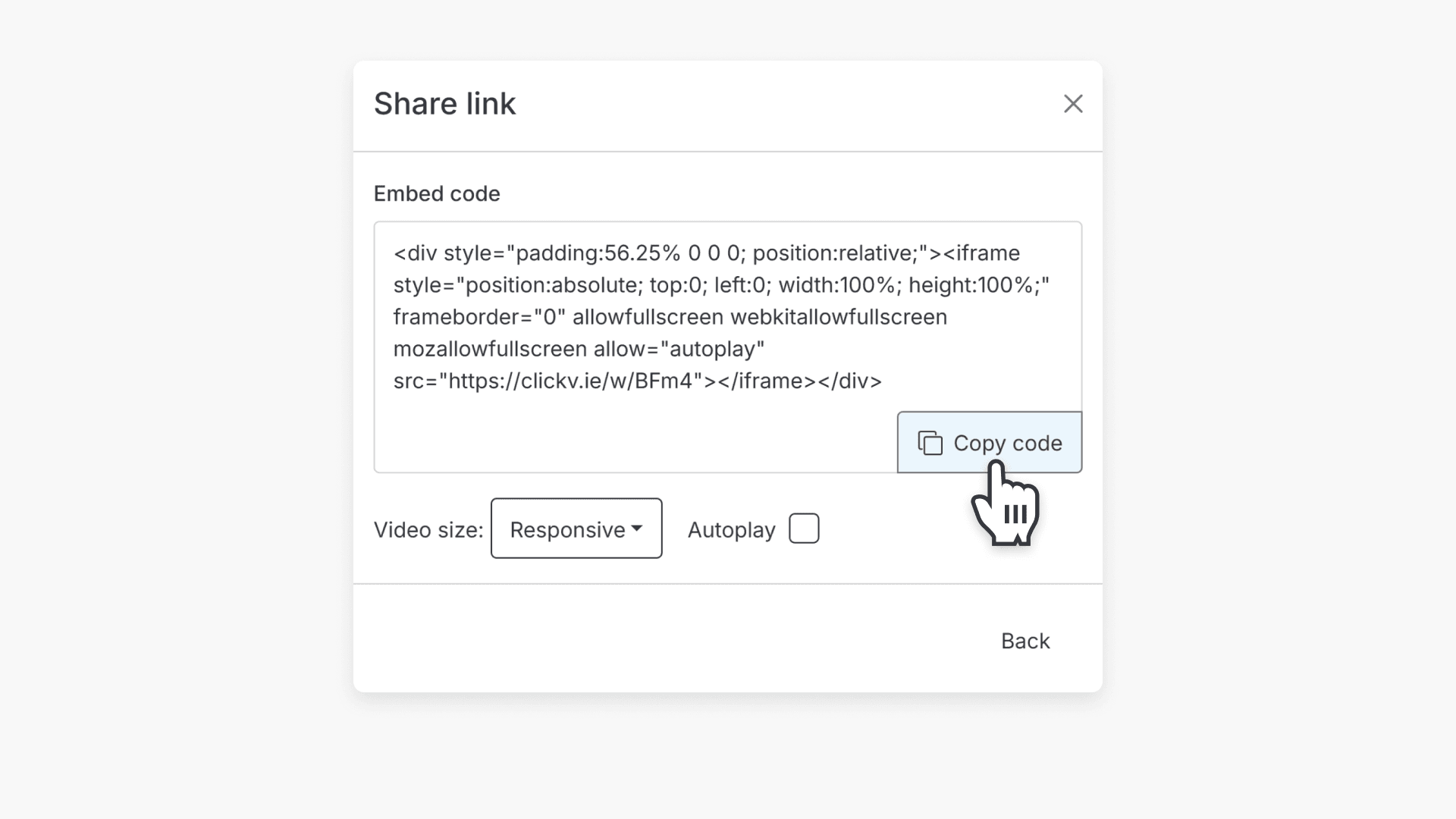
- To adjust the video size, use the video size drop-down menu before copying the code.
Frequently asked questions
Yes. Find your video, click “Share,” select “Embed,” then copy and paste the code into your blog.
Use the video size drop-down menu before copying the embed code to select your preferred size.
Get in touch
If you’re having trouble finding the right topics or videos, just reach out! Our team - 

 Akhil, Daniel, Jalaj, or any of us at ClickView - will be happy to help you get sorted.
Give feedback
Was this guide helpful?
Up Next
How to assign a video
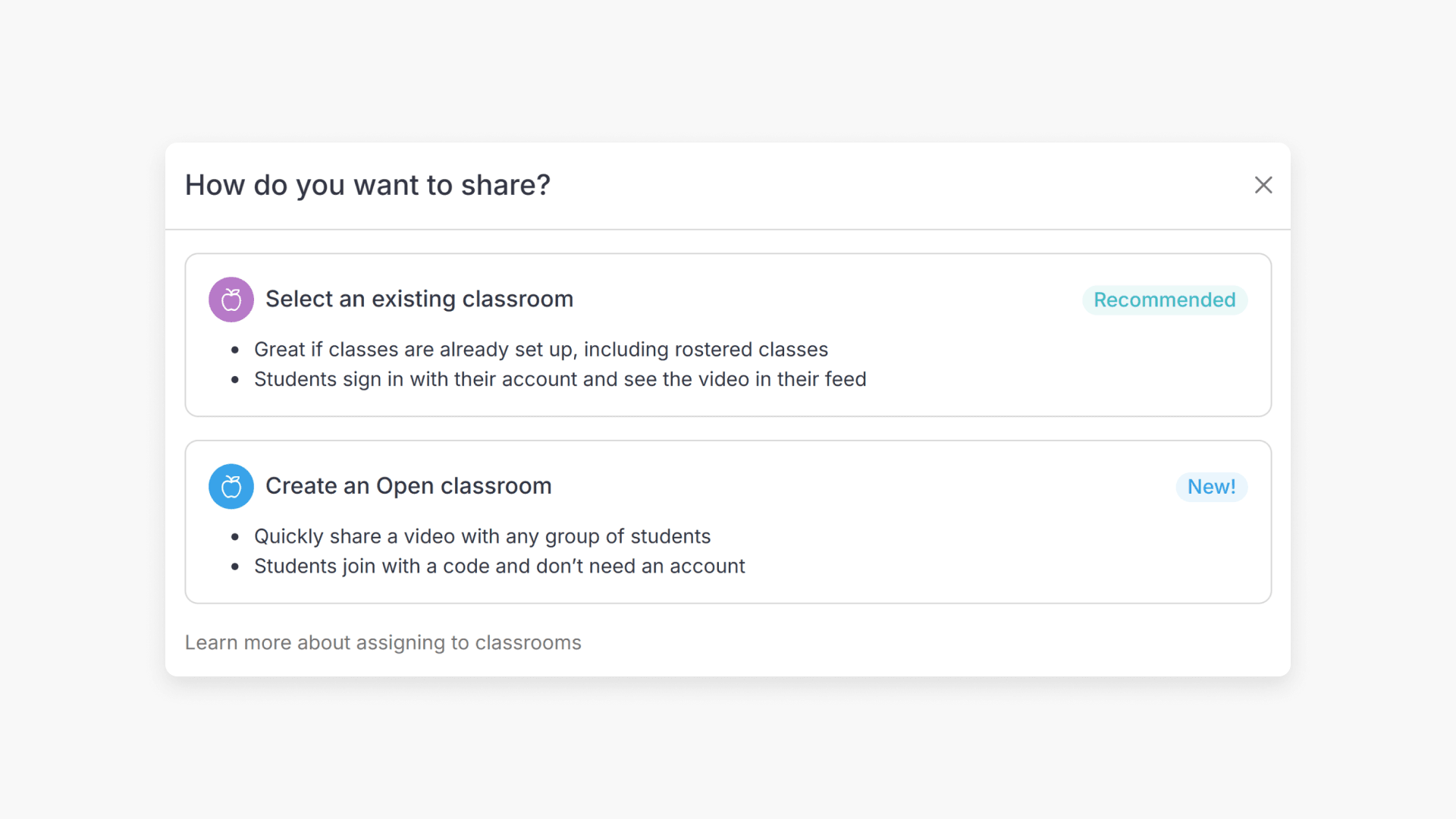
Summary How do I assign a video to a classroom in ClickView? Depending on how your school is set up, you can assign a video to an existing classroom or create an Open Classroom. If your school has rostering or classrooms already set up, select an existing classroom, and students sign in and see the […]