How teachers can manage video access

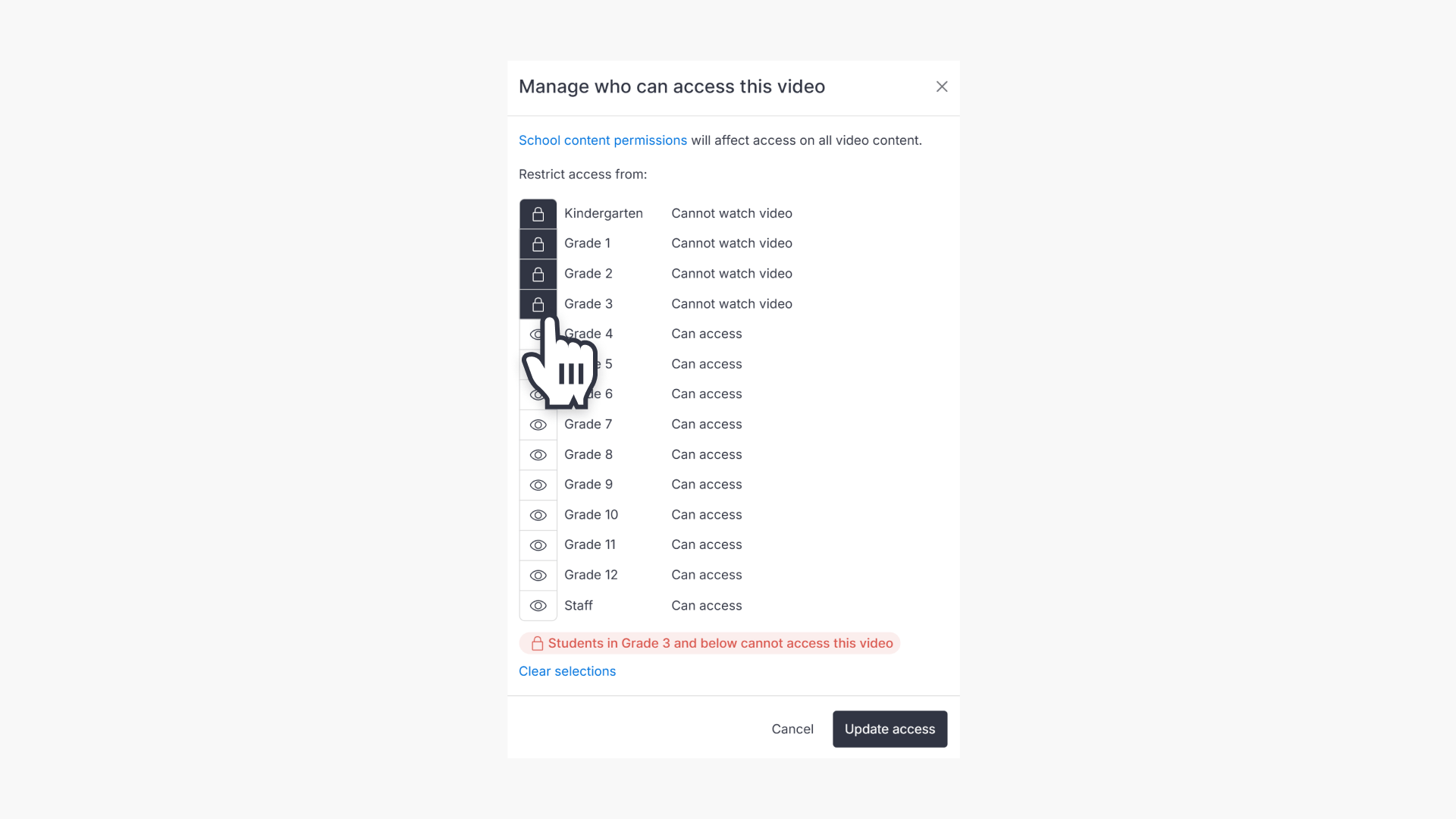
Summary
- Sign in to ClickView using your staff account.
- Locate your video by searching ClickView, or using ‘My Videos’.
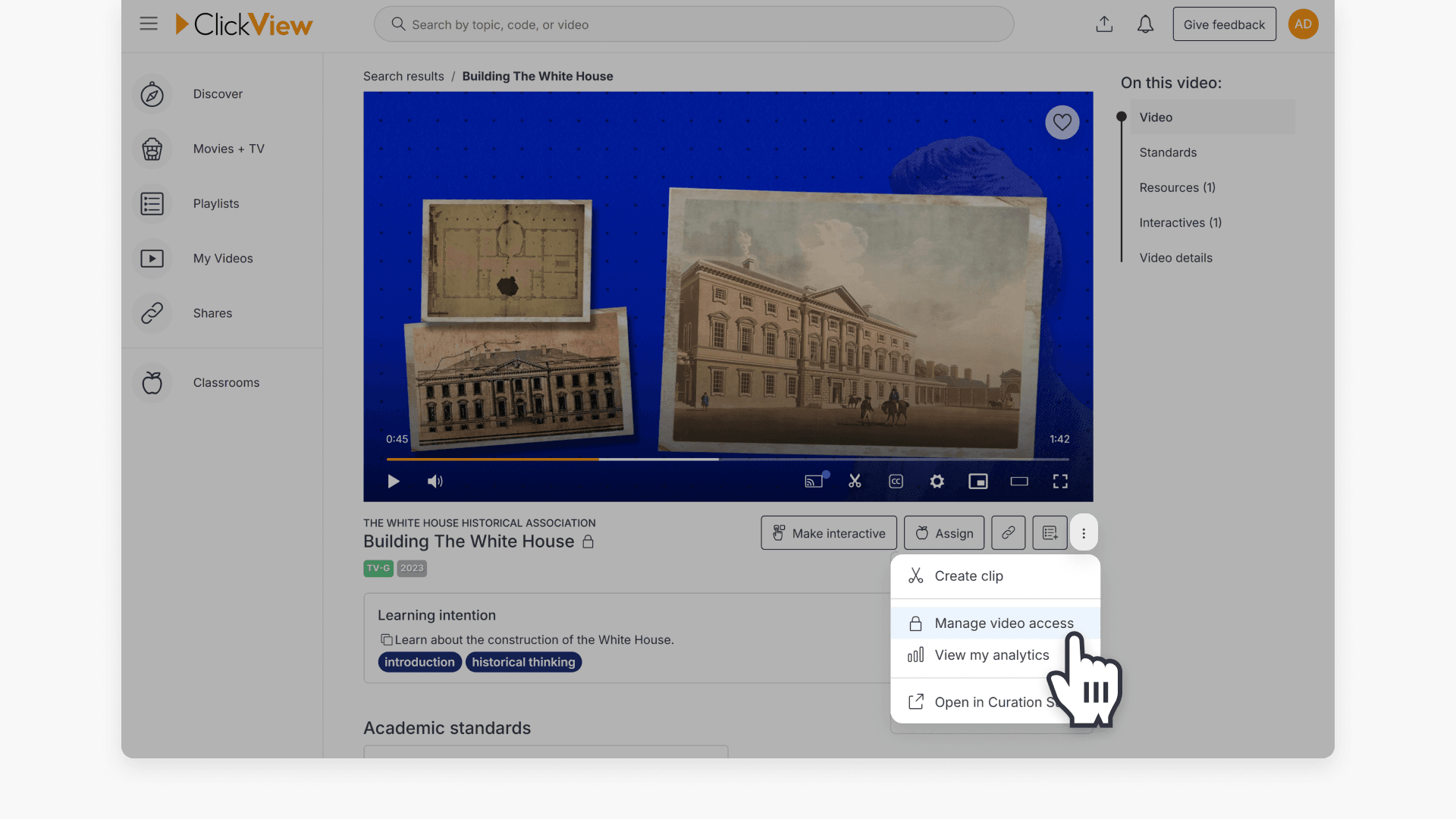
- Click the three dots and select ‘Manage video access’.
- Select the maximum grade level to restrict viewing.
- Use the eye icon to toggle restrictions for grade levels.
- Select Staff group to restrict access to staff and all students.
Managing video access restrictions
ClickView allows staff and administrators to restrict access to specific videos, ensuring that students and staff only see content appropriate for their grade levels or roles.
Steps to restrict video access
- Sign in to ClickView using your staff account.
- Locate your video. You can search for content or use a video from your collection in ‘My Videos’.
- With your video selected, click the three dots below the video to view the options, and choose ‘Manage video access’.
- In the manage access pop-up, select the maximum grade level you want to restrict access to.
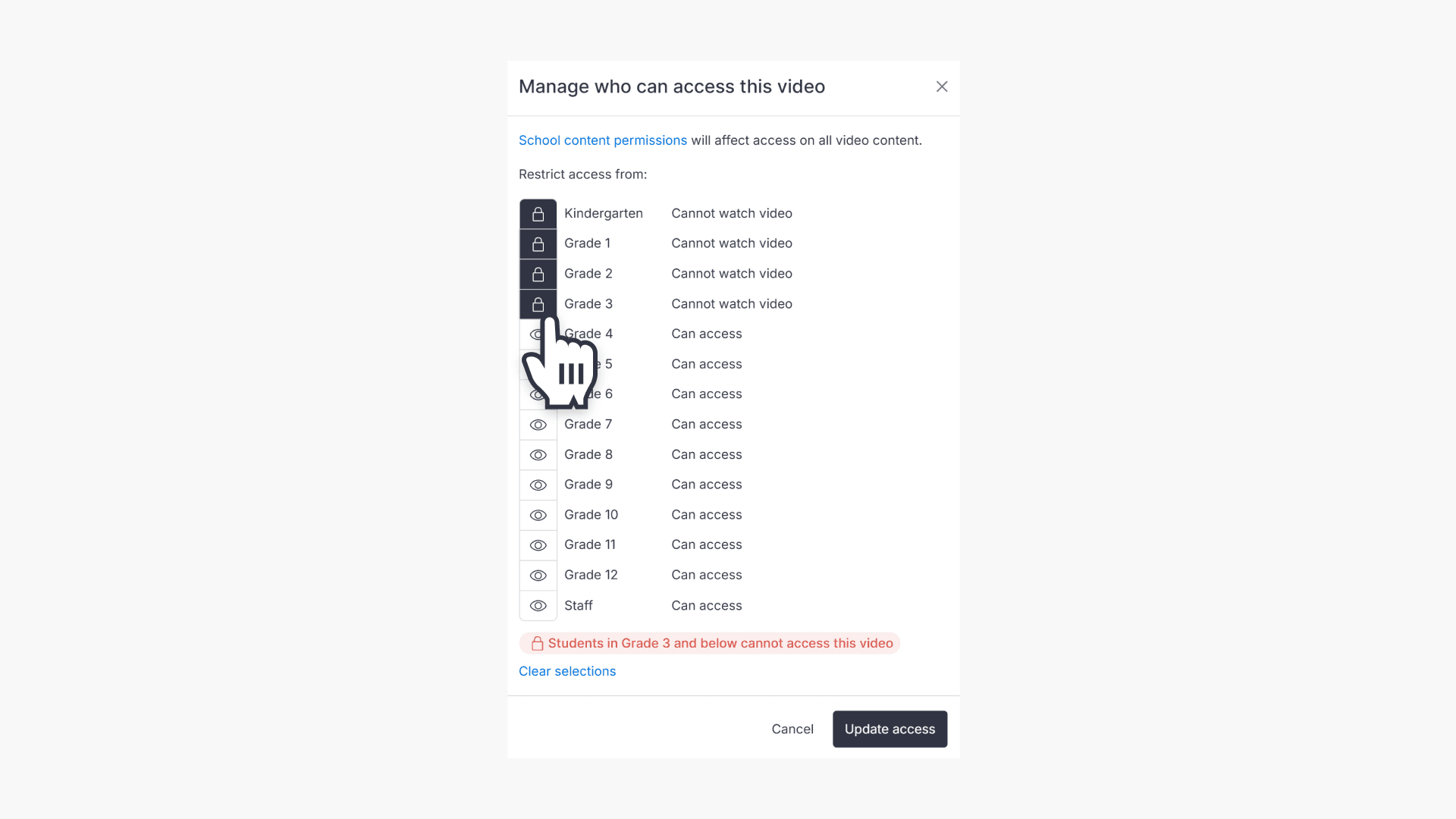
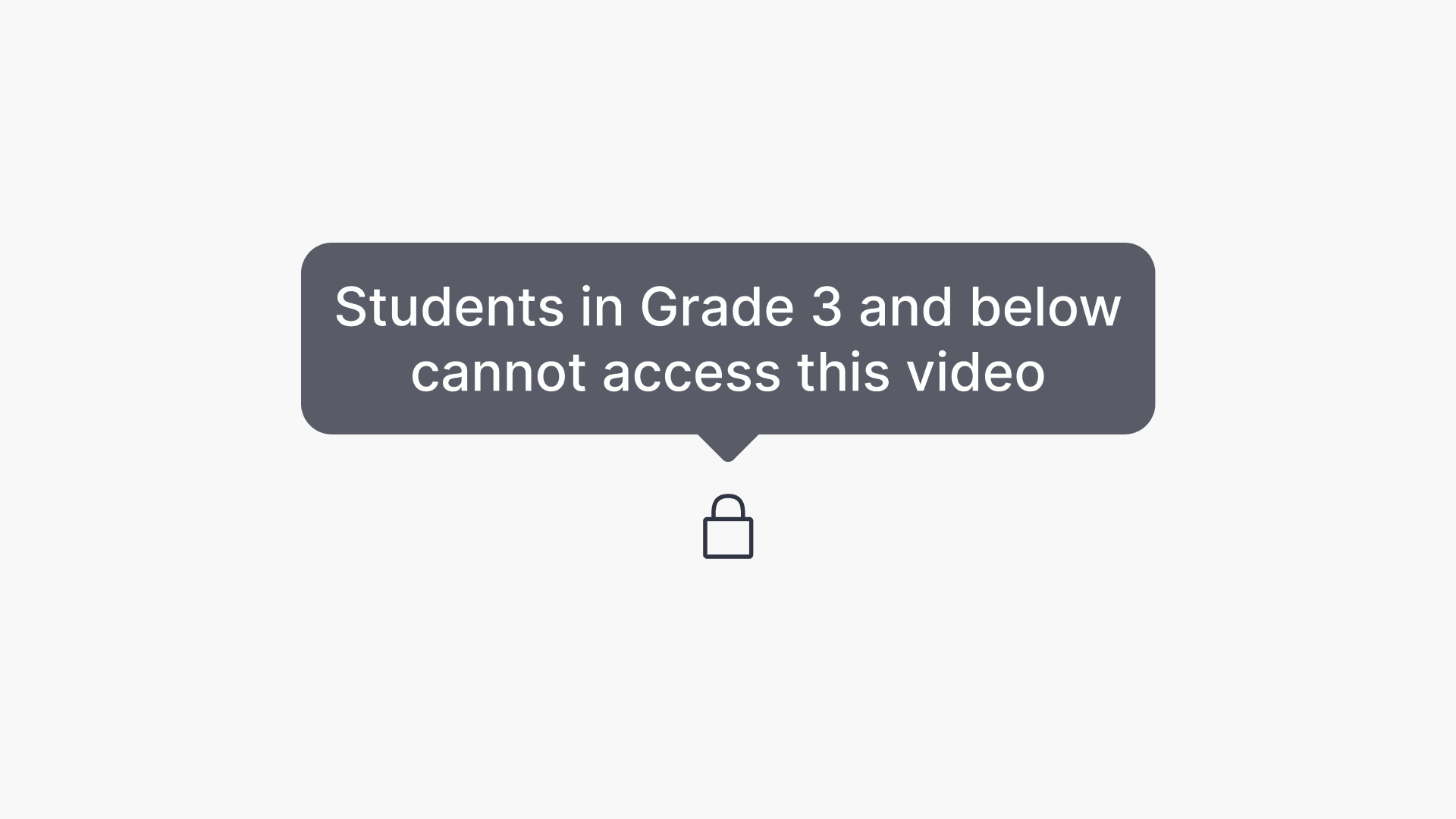
- To restrict a specific grade level, click the eye icon next to the grade, which changes it to a padlock. Students in that grade and below will not be able to view the video.
- To restrict the video entirely, select the Staff group. This stops all staff and students from viewing the video.
A helpful hint is displayed at the bottom of the ‘Manage video access’ screen to guide you with restrictions.
Identifying restricted videos
Any restricted video in ClickView will display a padlock icon and a restriction message in the search results, shown in a red banner for easy identification.
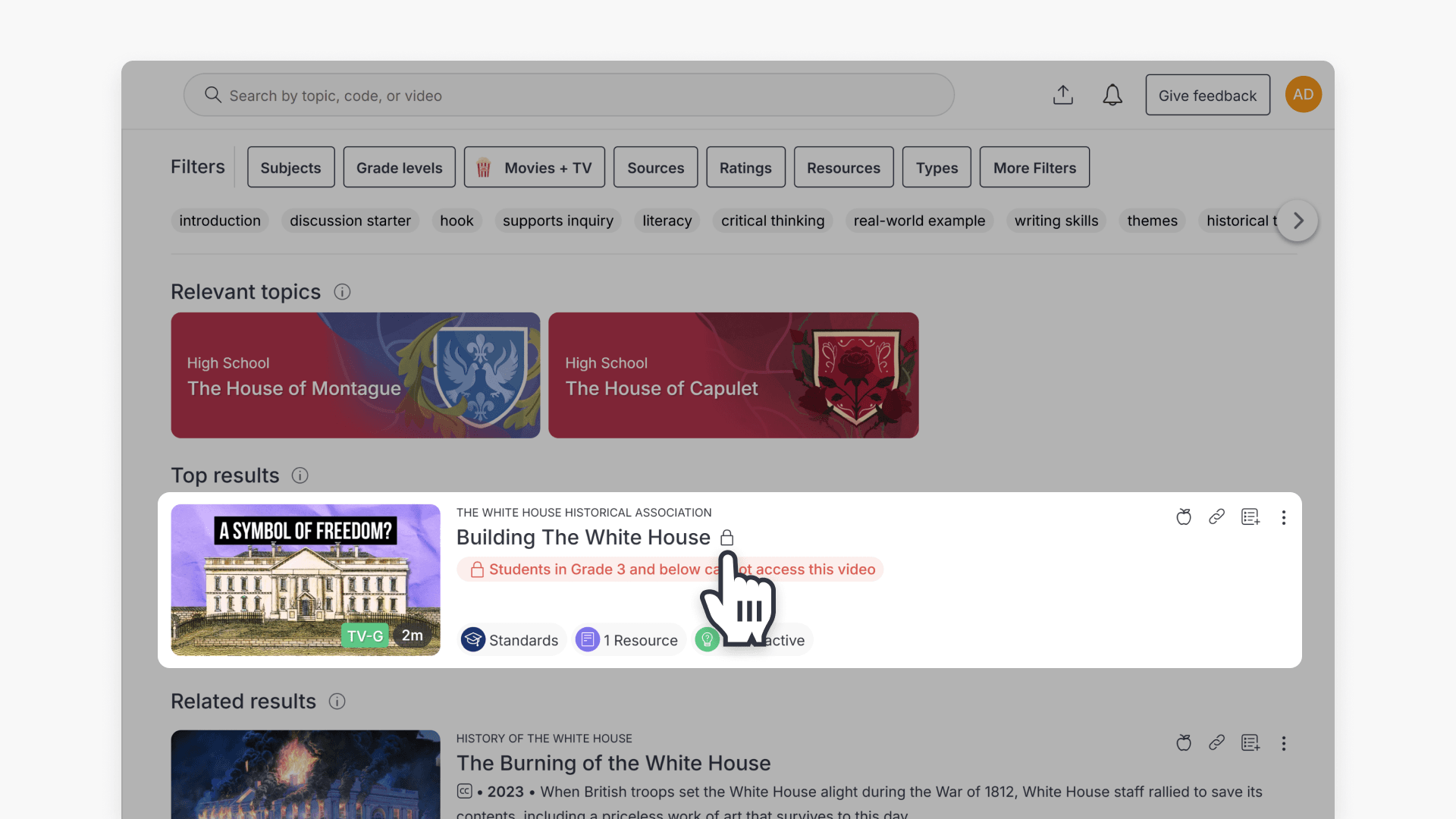
Restricted videos are also marked by a padlock icon next to the video title. Hovering over the padlock will show a tooltip describing the restriction.
Frequently asked questions
Get in touch
If you’re having trouble finding the right topics or videos, just reach out! Our team - 

 Akhil, Daniel, Jalaj, or any of us at ClickView - will be happy to help you get sorted.
Give feedback
Was this guide helpful?
Up Next
How to assign a video
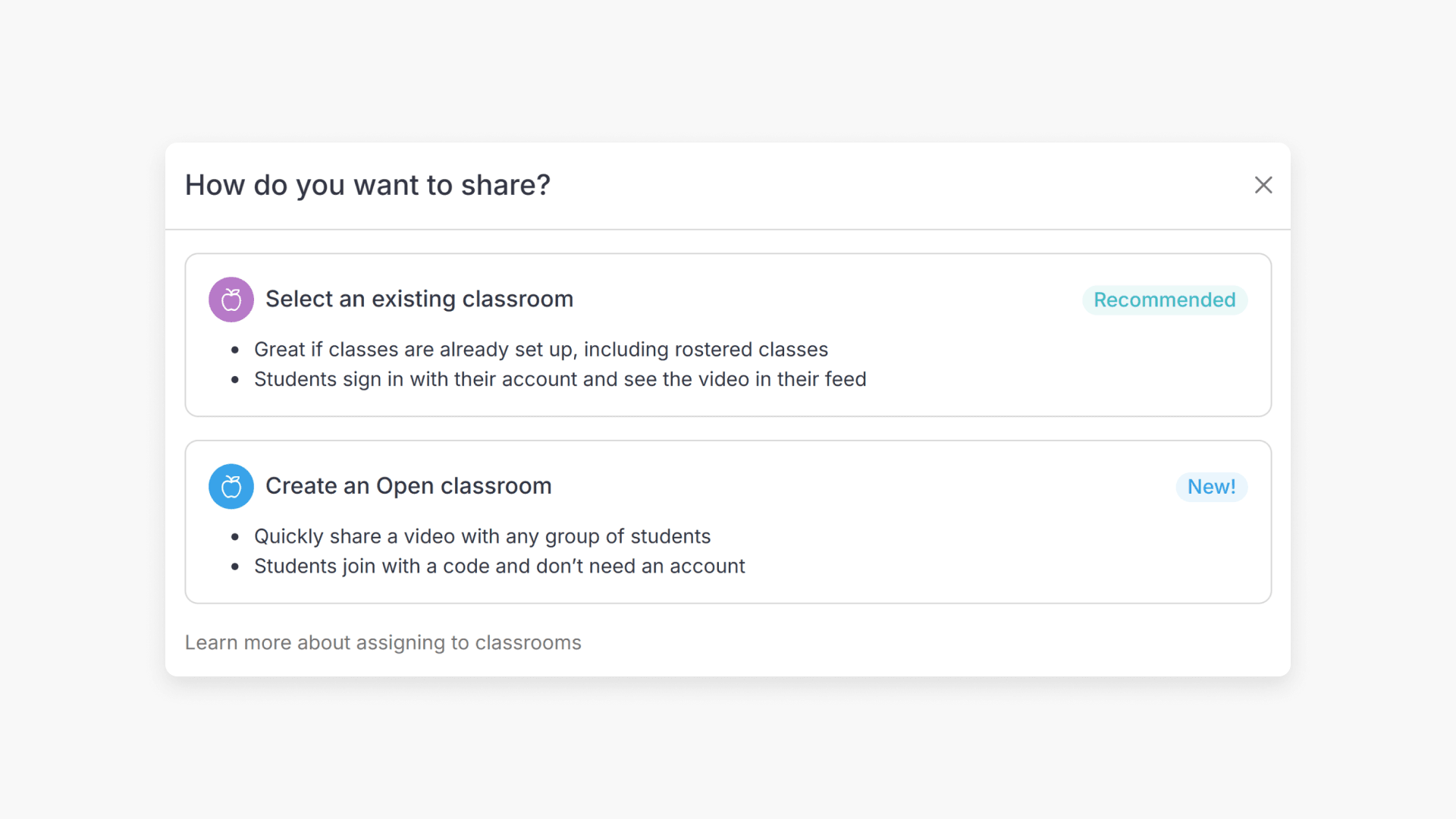
Summary How do I assign a video to a classroom in ClickView? Depending on how your school is set up, you can assign a video to an existing classroom or create an Open Classroom. If your school has rostering or classrooms already set up, select an existing classroom, and students sign in and see the […]