Ensuring high video quality for ClickView uploads

Summary
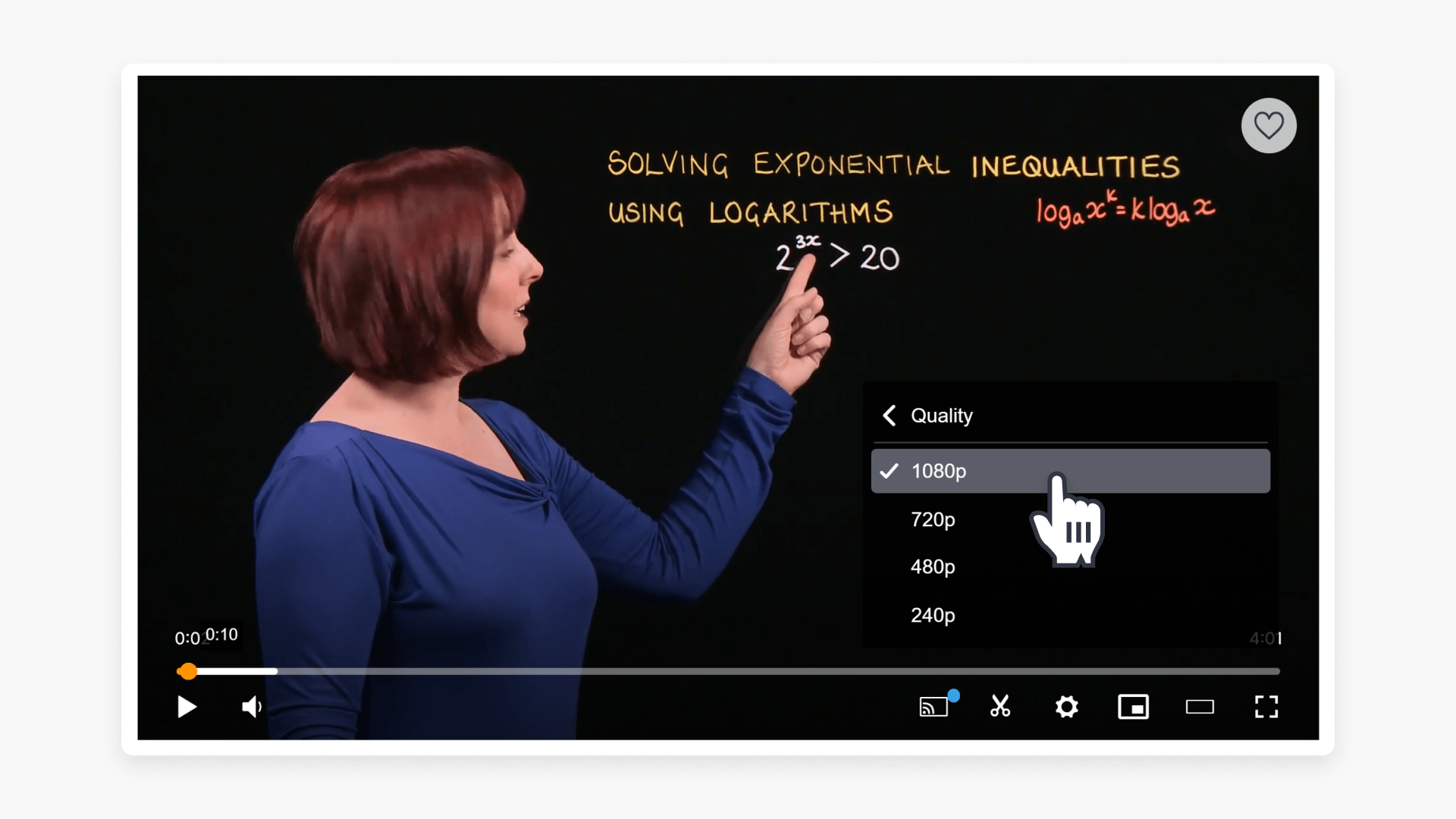
- ClickView supports 240p, 480p, 720p, and 1080p video resolutions, with a 16:19 aspect ratio.
- Processing occurs in increasing resolution after file upload.
- Lower resolutions appear first; higher ones may take longer.
- Videos display only at or below their original file resolution.
- Non-standard resolutions are downgraded to the nearest supported value.
What resolutions does ClickView support?
ClickView can process and display uploaded videos in 240p, 480p, 720p and 1080p, and uses a 16:19 aspect ratio.
How does processing work?
Processing runs in the background and occurs in order of increasing resolution. This means lower resolution versions of your video will be available to view before higher ones.
If you have just uploaded a video and cannot find a high-resolution copy yet, wait a little while until processing finishes, especially if the file is large or the video is long.
Resolution limits based on original video quality
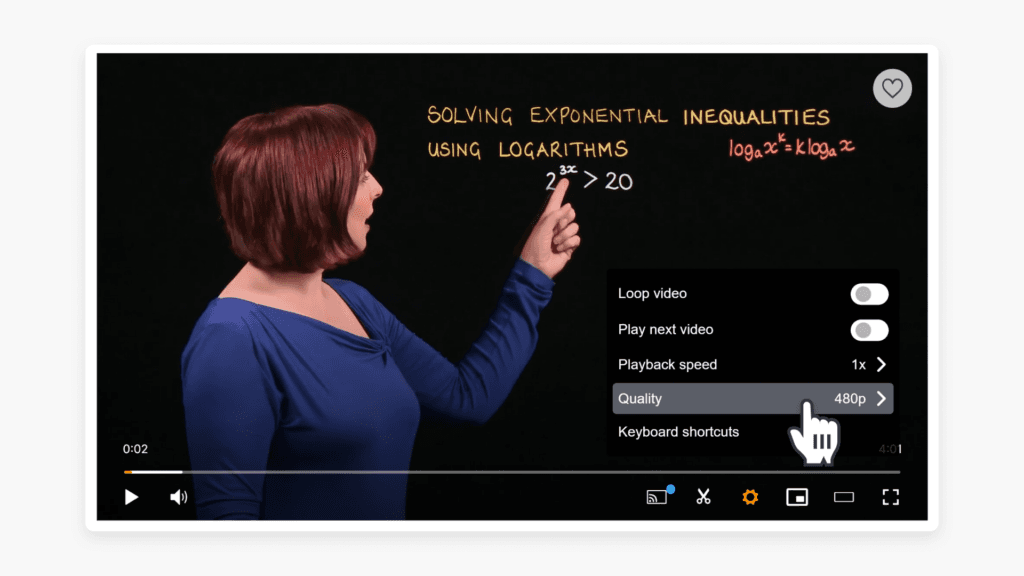
Videos can only be displayed in ClickView at a quality equal to or lower than the original video file.
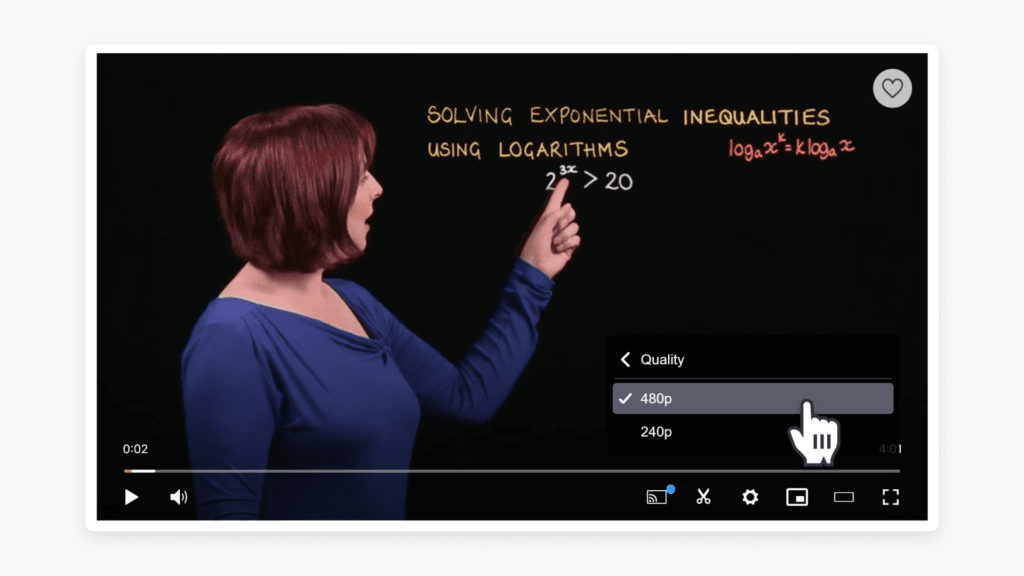
For example, if your original video file is smaller than the maximum dimensions (for example, 480p), then you will only have the option of viewing it in 240p or 480p – nothing higher.
If the original video file has a resolution between the listed values (for example, 576p), it will be downgraded to the closest supported value. For instance, a 576p file will be viewable at 240p and 480p.
What about aspect ratio support?
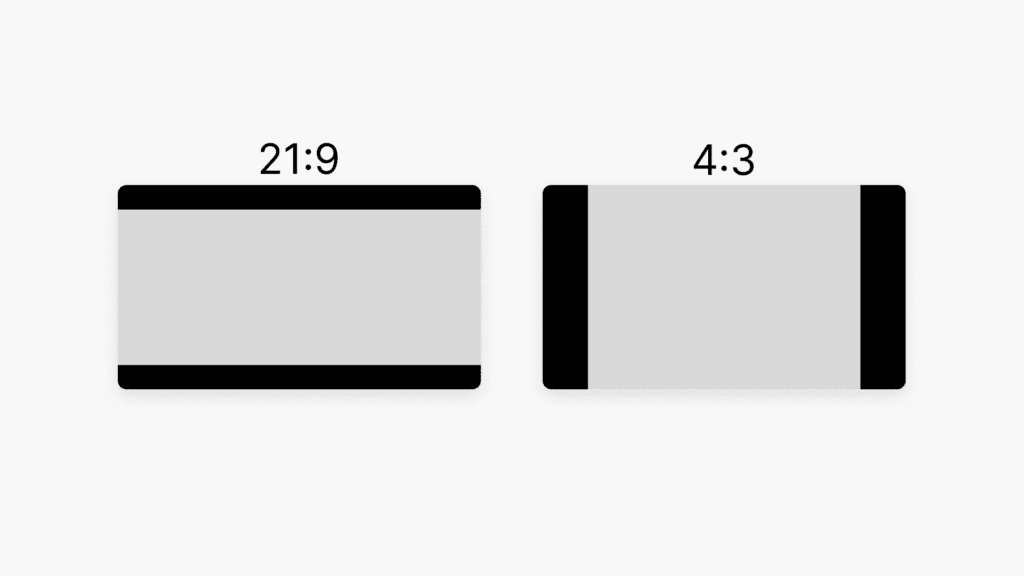
The ClickView video player uses a 16:19 aspect ratio. If the original video file is not in that shape (for example, ultra-wide 21:9 or standard television 4:3), then black bars will be added (letter-boxing or pillar-boxing) to fit the player. This may also affect which resolutions become available.
Tips for best upload results
To get the best results when uploading your video:
- Use the highest possible resolution in your original file.
- Use a 16:9 aspect ratio in the original file.
Frequently asked questions
Get in touch
If you’re having trouble finding the right topics or videos, just reach out! Our team - 


 Andrew, Nisch, Janice, Pfreya, or any of us at ClickView - will be happy to help you get sorted.
Give feedback
Was this guide helpful?
Up Next
How to use playlists for video organization
This article explains how to create, manage, and share playlists in ClickView. Discover how to organize videos, follow shared playlists, and streamline classroom content sharing with colleagues and students.