How to manage and share videos in My Videos

Summary
- Open My Videos from the main menu to access your saved content.
- View and manage your videos, clips, and interactive quizzes in one place.
- Use Share to create a share link.
- Share to Google Classroom or Microsoft Teams, or embed a video.
- Use Assign (not Share) to share a video with students through a ClickView classroom.
What is My Videos?
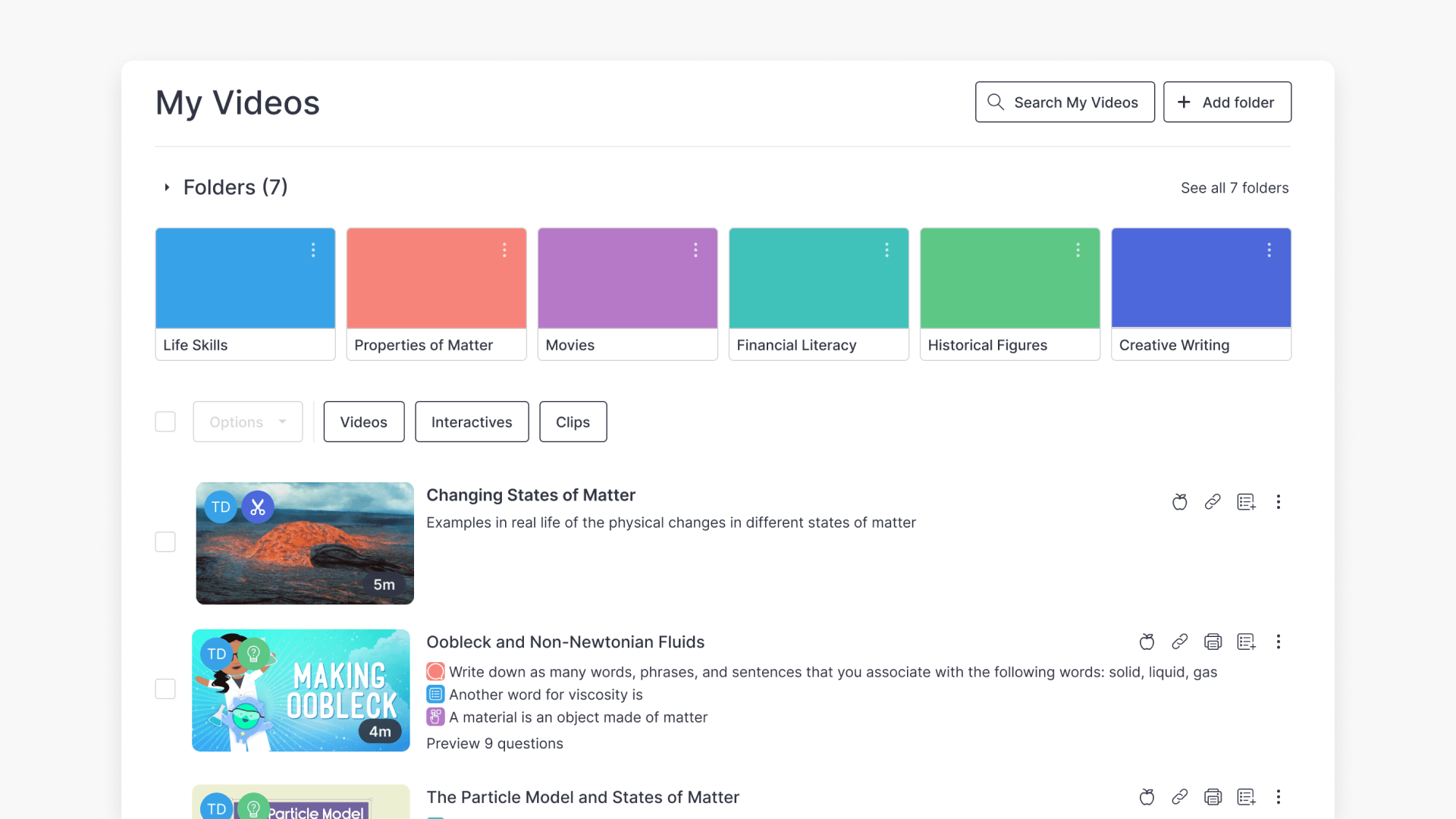
My Videos is your personal area in ClickView where you can store and manage your own content, including videos, clips, and interactive quizzes. You can also upload and create content that you can later share with others.
Access My Videos
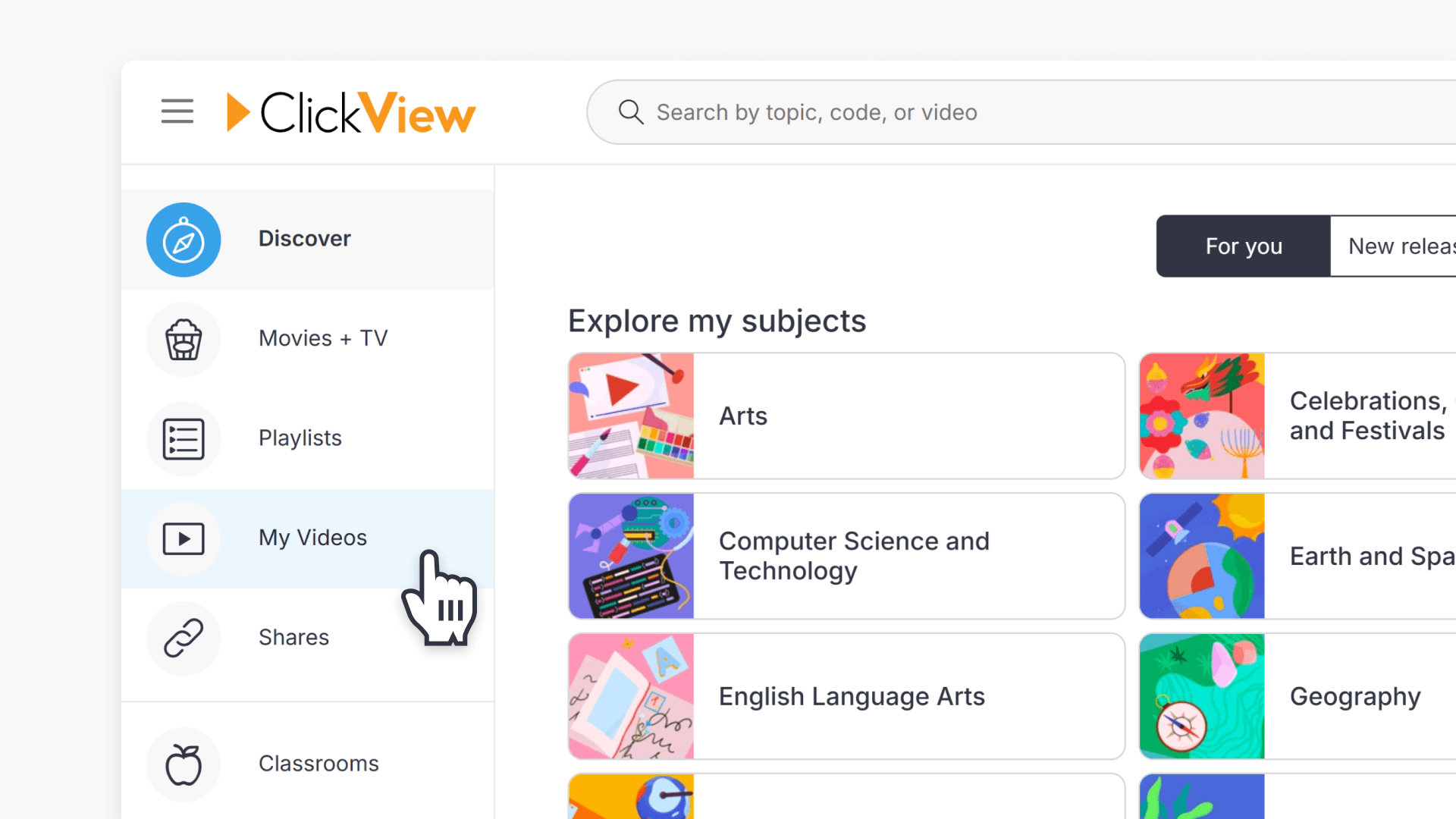
- Select My Videos in the main menu.
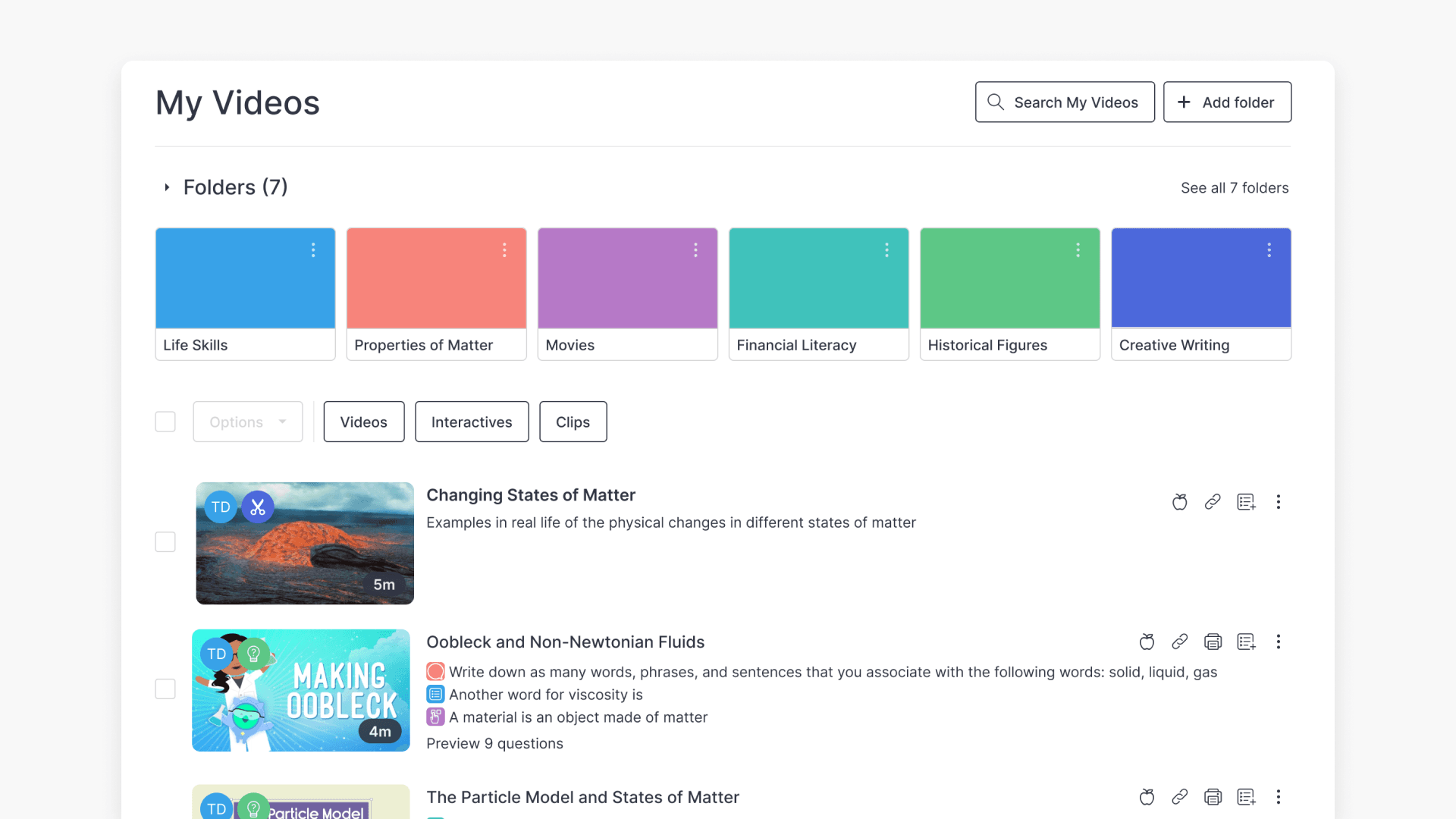
- Your saved content, including videos, clips, and interactive quizzes, appears in a list view.
For detailed steps on adding videos to My Videos, see How to upload your own videos.
Sharing videos from My Videos
You can share a video directly from My Videos using the Share icon. The Share icon is used to generate a link, share via integrations, or embed videos.
- Select My Videos in the main menu.
- Find the video you want to share.
- Click the Share icon to the right of your video title.
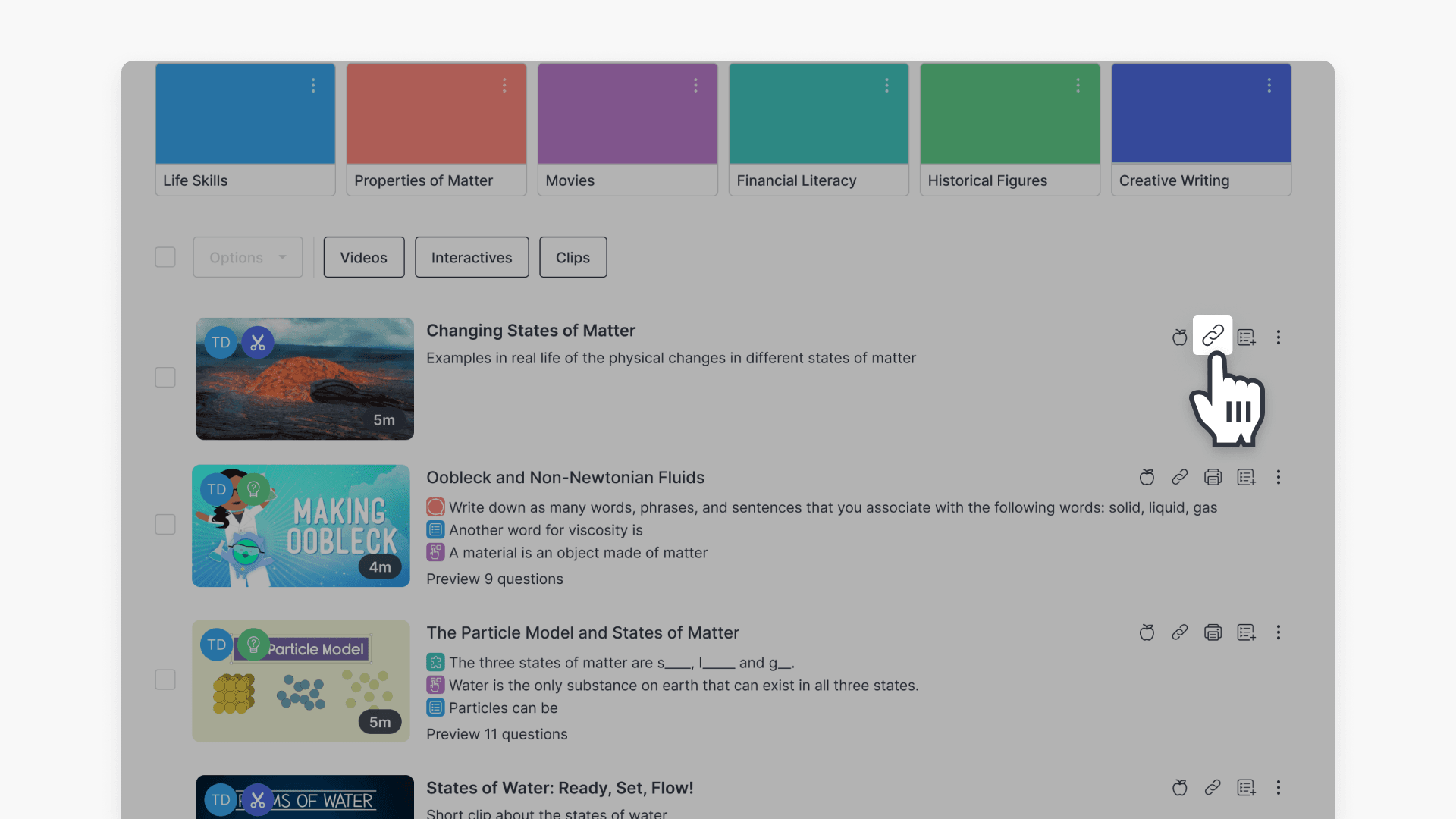
- Choose one of the available options:
- Generate a link (copy and send the link to viewers)
- Share to Google Classroom
- Share to Microsoft Teams
- Embed (copy the embed code into a supported page)
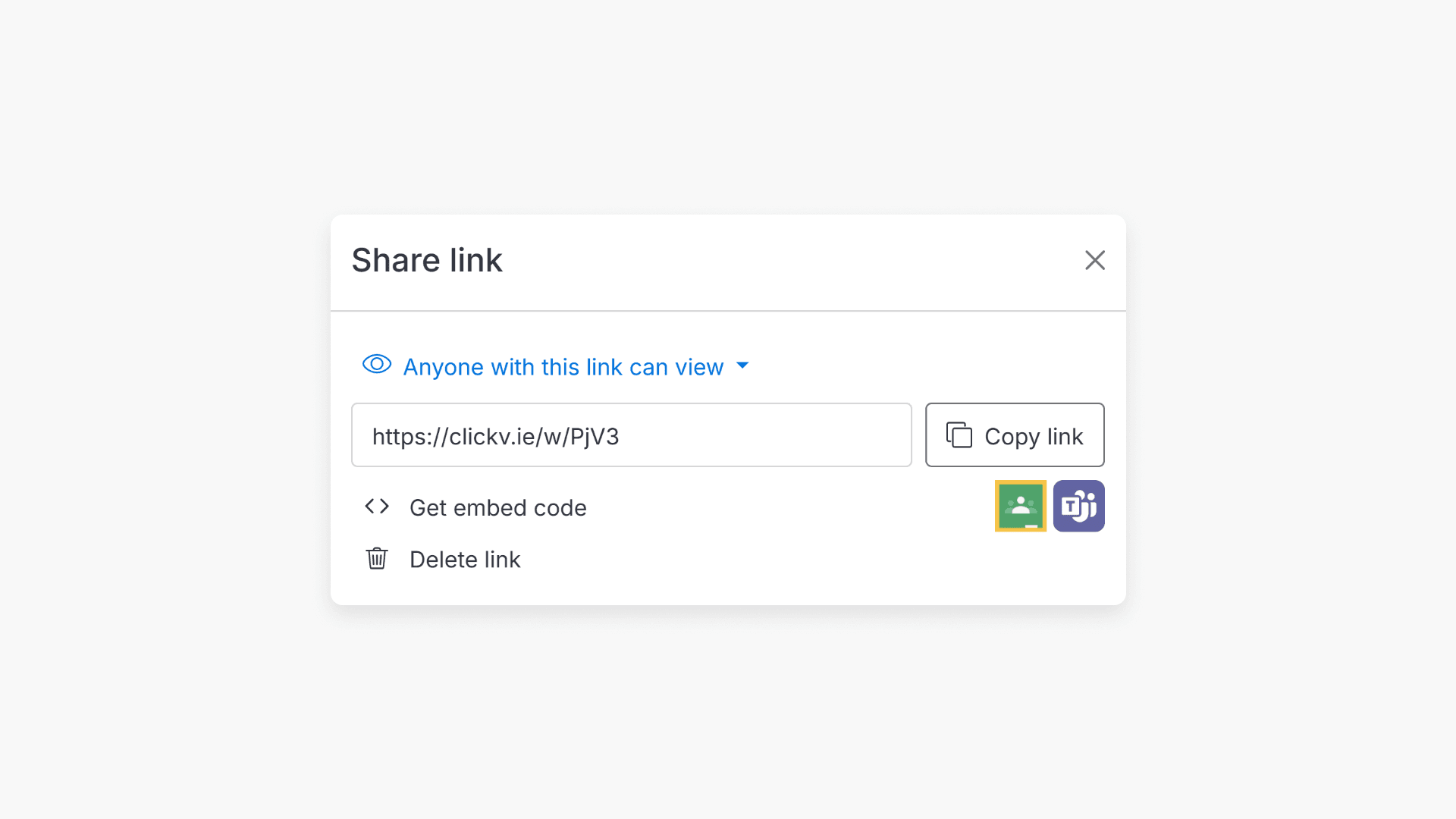
- Complete the share action based on the option you selected.
Assigning a video to a ClickView classroom
If you want students to access a video through ClickView, use Assign. This shares the video directly to a ClickView classroom for students (instead of generating a link).
- Return to My Videos
- Find the video you want to share.
- Select the Assign icon to the right of the video.
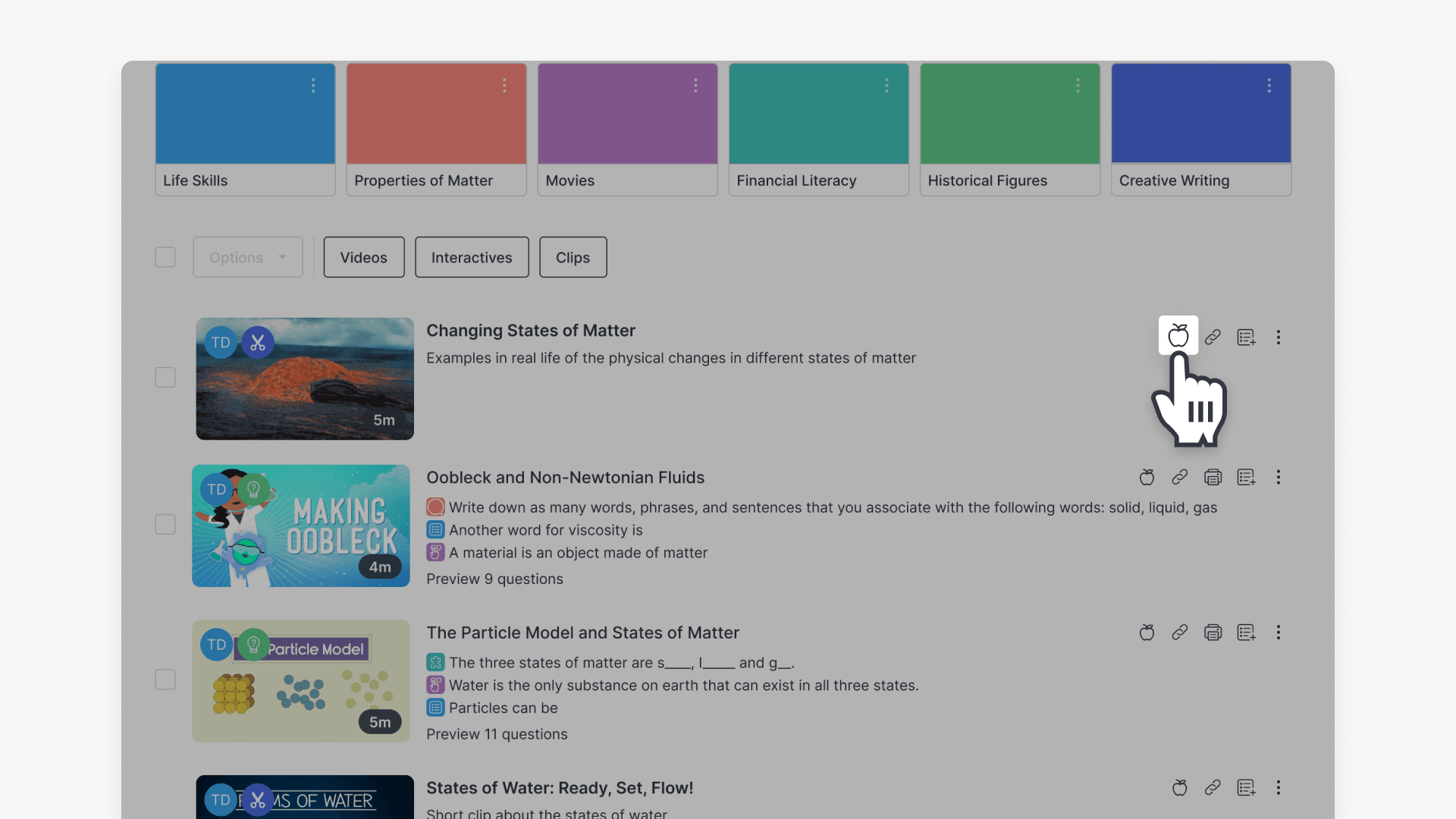
- In the How do you want to share? pop-up window, choose Select an existing classroom.
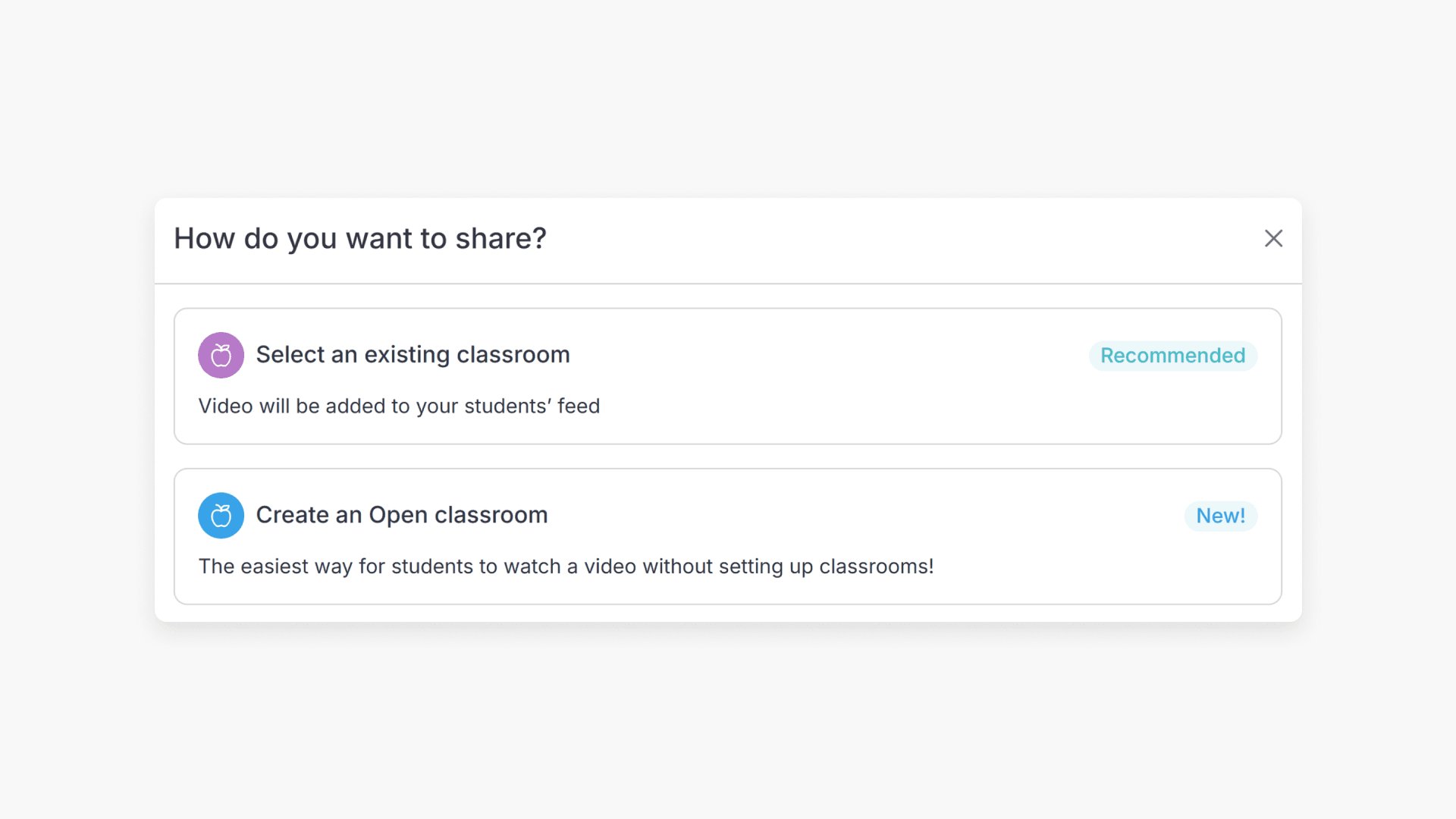
- Select the classroom you want to assign the video to. The video will be shared with students in that classroom.
Don’t have a classroom set up yet?
You can still share with students using an Open classroom, which lets you share with students without needing an existing classroom. For more details, see our Open classrooms article.
Frequently asked questions
Get in touch
If you’re having trouble finding the right topics or videos, just reach out! Our team - 


 Andrew, Nisch, Janice, Pfreya, or any of us at ClickView - will be happy to help you get sorted.
Give feedback
Was this guide helpful?
Up Next
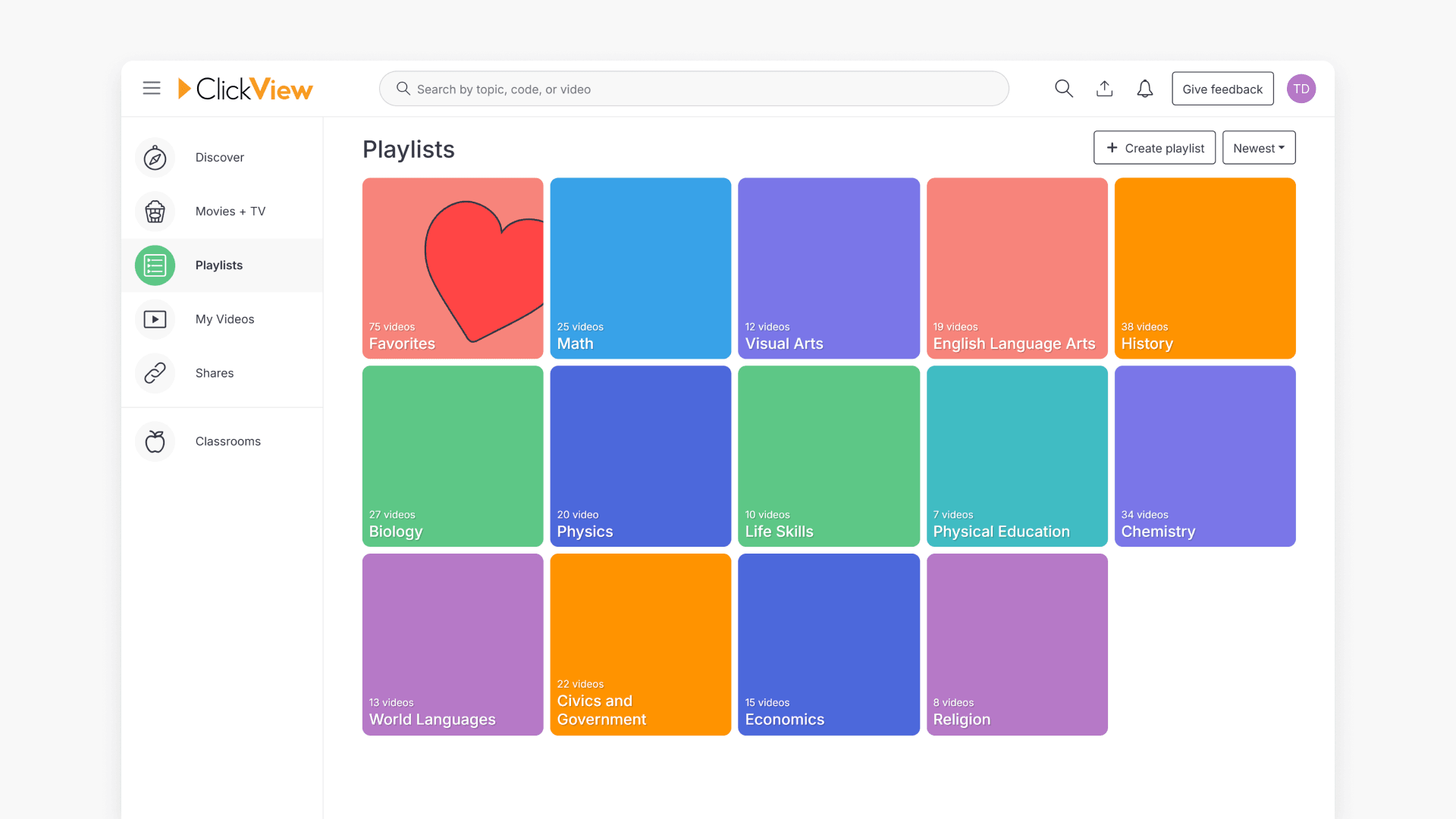
How to use playlists for video organization
This article explains how to create, manage, and share playlists in ClickView. Discover how to organize videos, follow shared playlists, and streamline classroom content sharing with colleagues and students.