How to add, delete, and merge video chapters

Summary
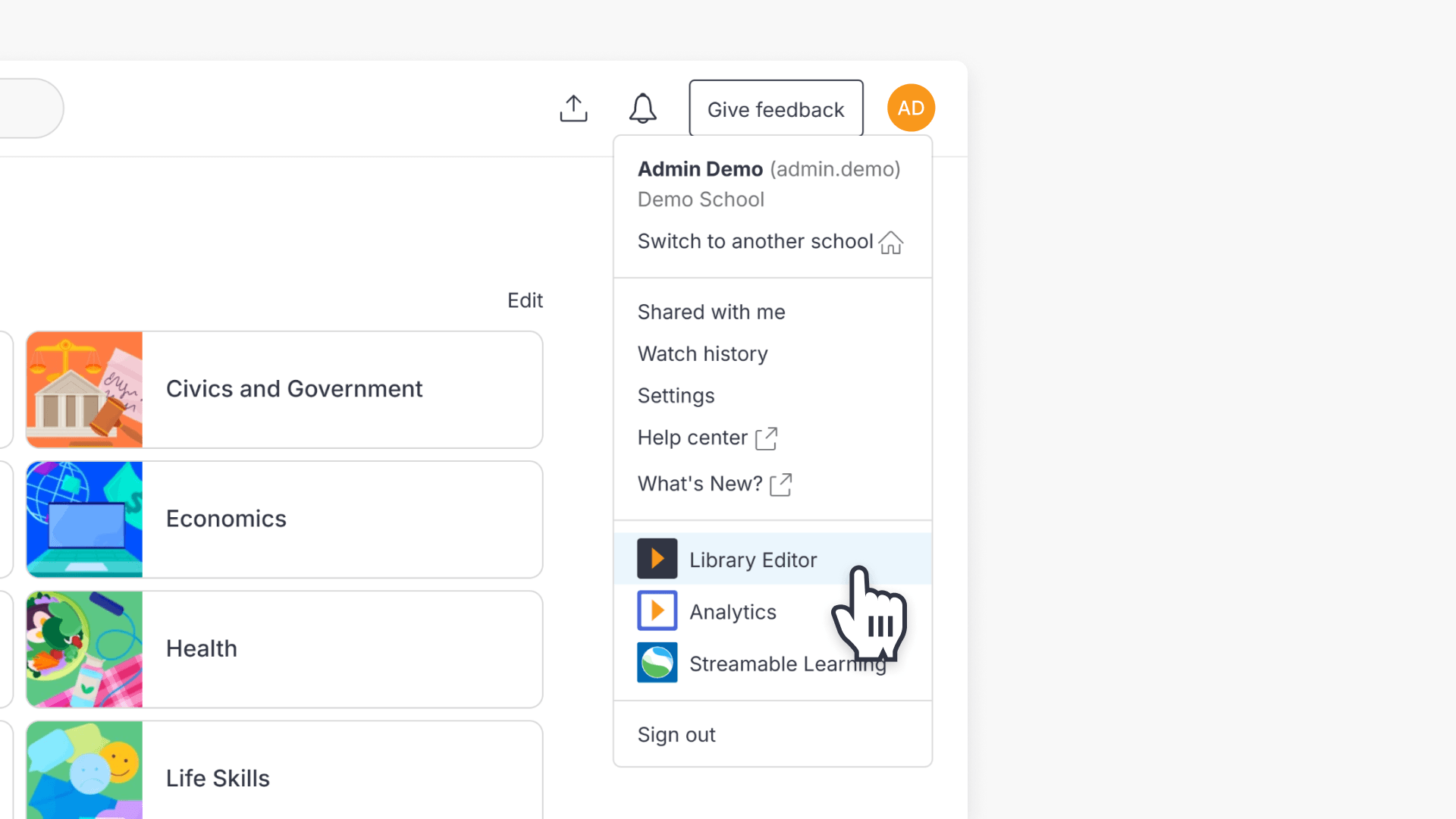
- Select Library Editor from the profile drop-down menu.
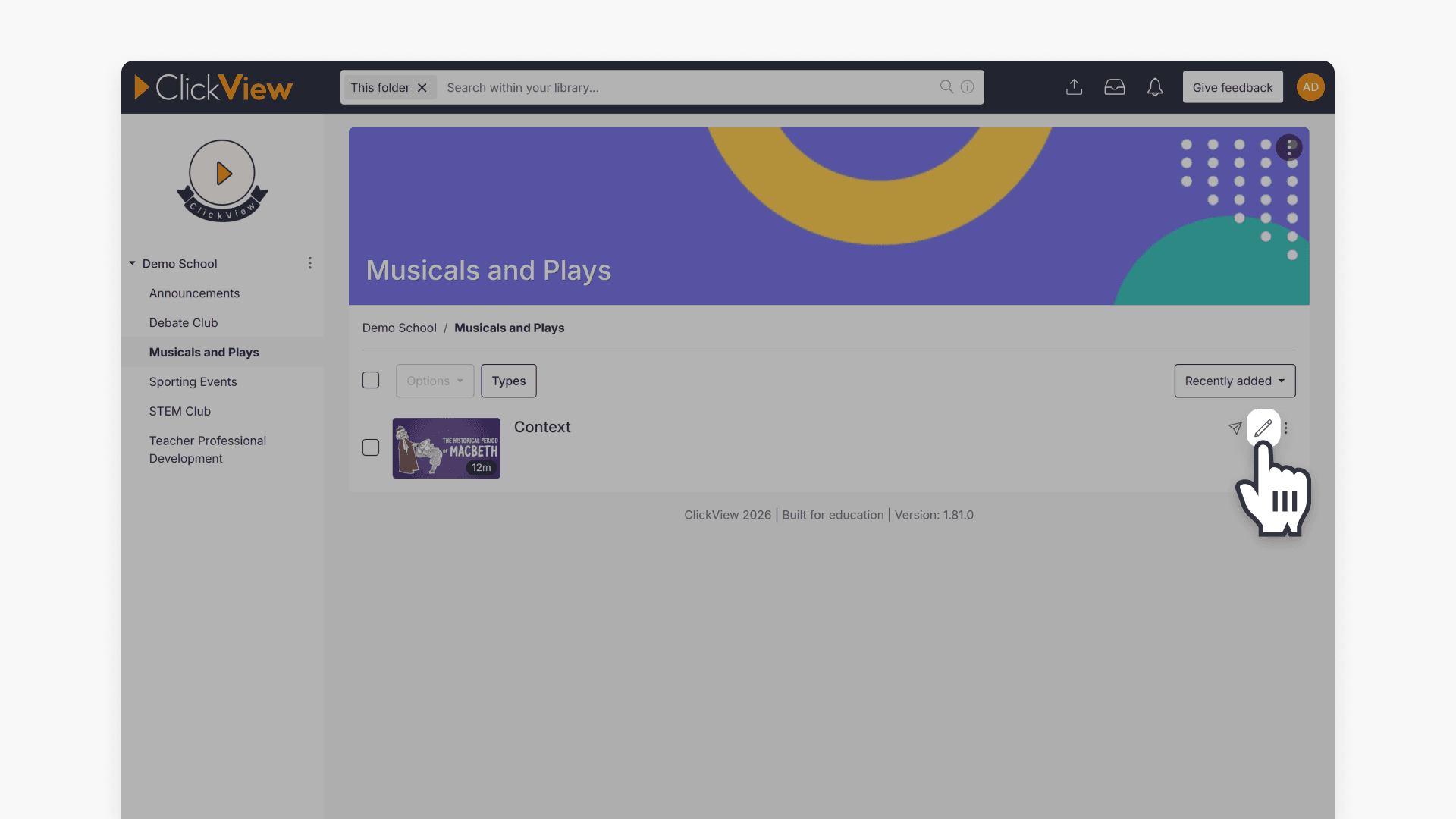
- Choose a video and click the Edit icon.
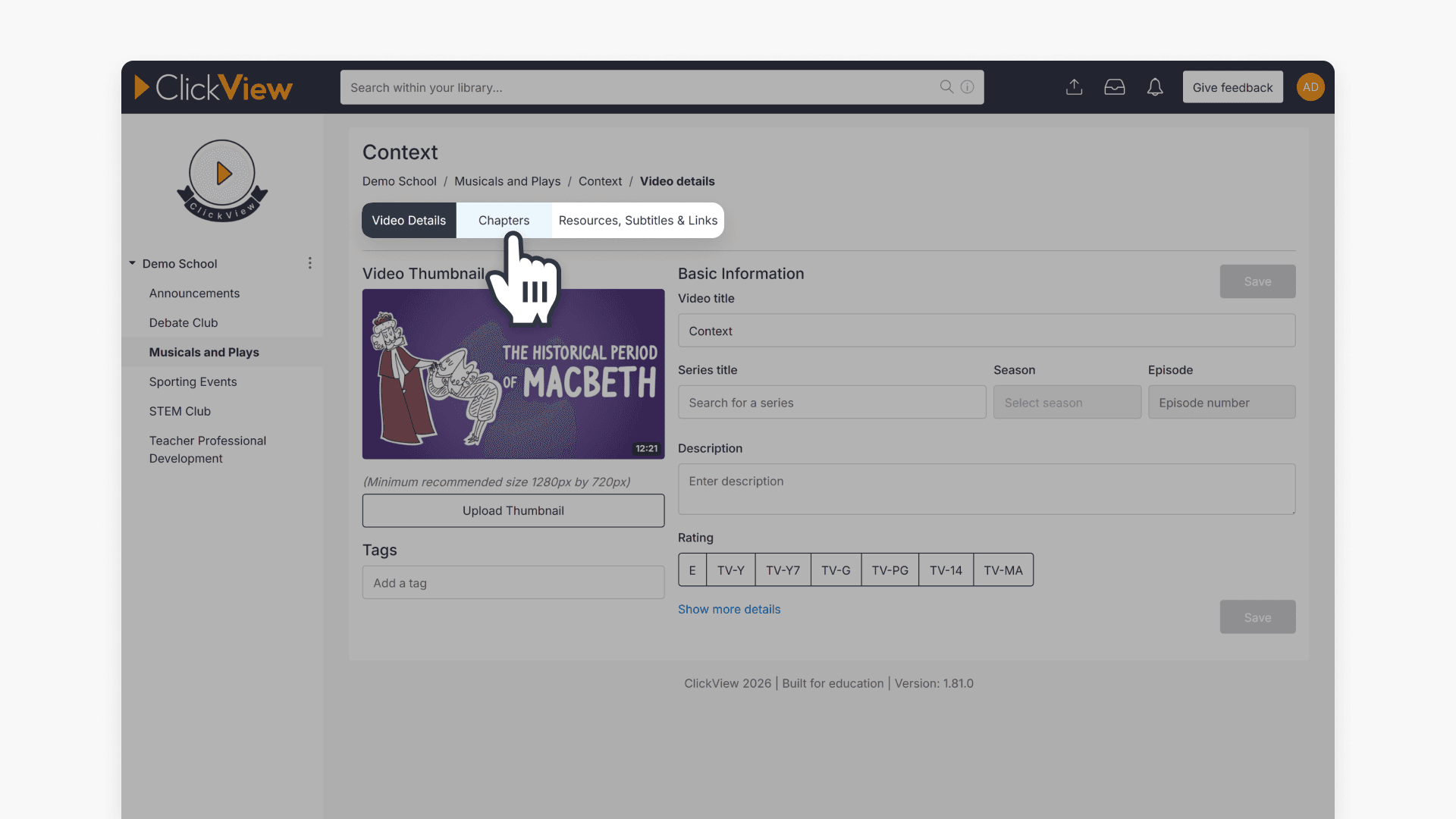
- Select the Chapters tab above the video title.
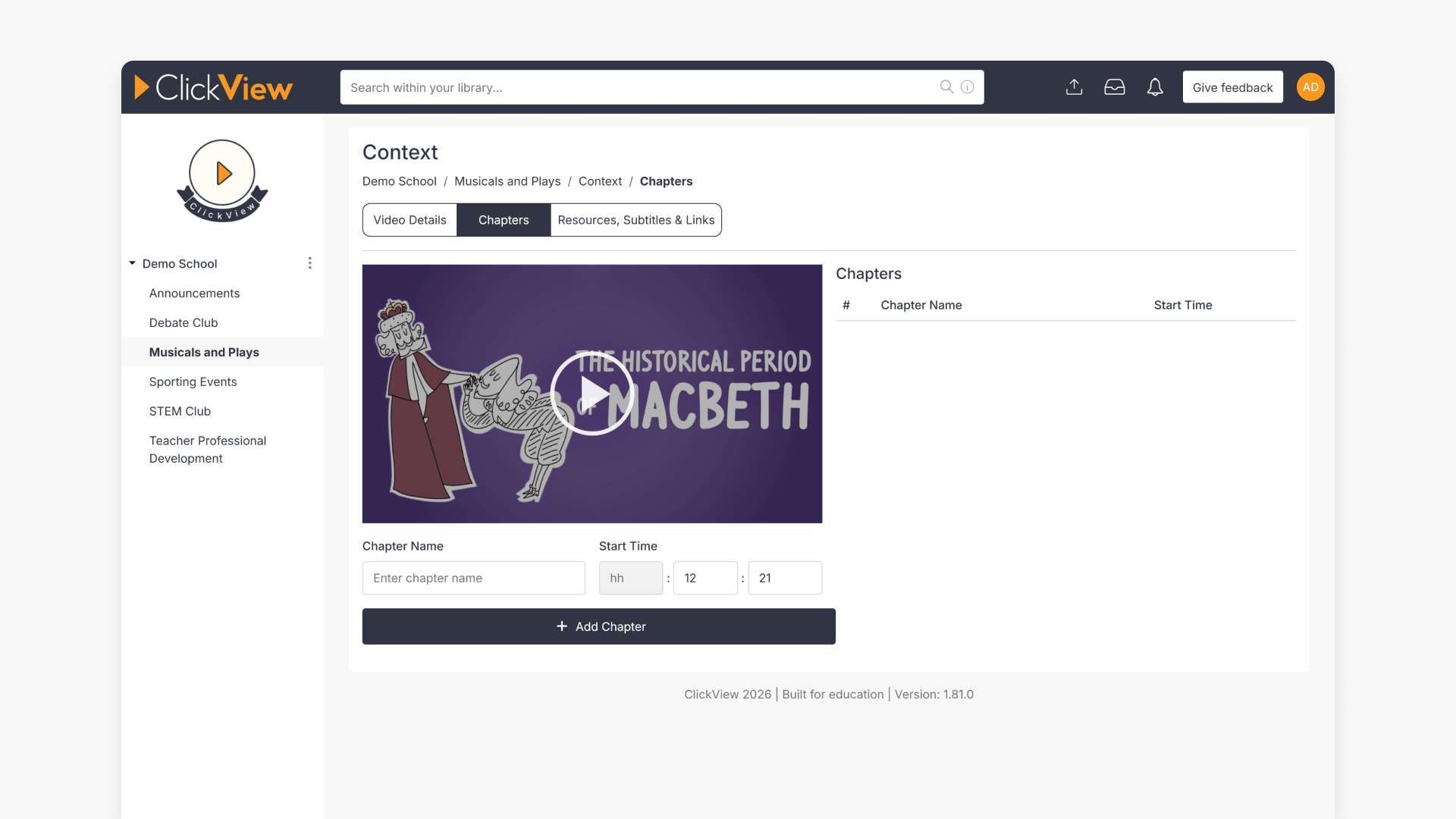
- Add chapters using Chapter Name and Start Time, then select + Add Chapter.
- Delete a chapter using the Bin icon.
- Merge chapters by deleting a chapter so the following chapter covers both segments.
Use chapters to organize a video into sections
Video chapters are named time markers that split a video into sections, making it easier for viewers to jump to the right part of the content. In ClickView, chapters are managed from the “Chapters” tab when editing a video in “Library Editor”.
Open a video in Library Editor
- Select Library Editor from the profile drop-down menu at the top right of your screen.
- Navigate to your chosen video and click the Edit icon.
- At the top of the video title, select the Chapters tab.
- You will now be presented with a screen where you can add, delete, and merge chapters.

Adding a chapter
- Enter the chapter name in the Chapter Name field.
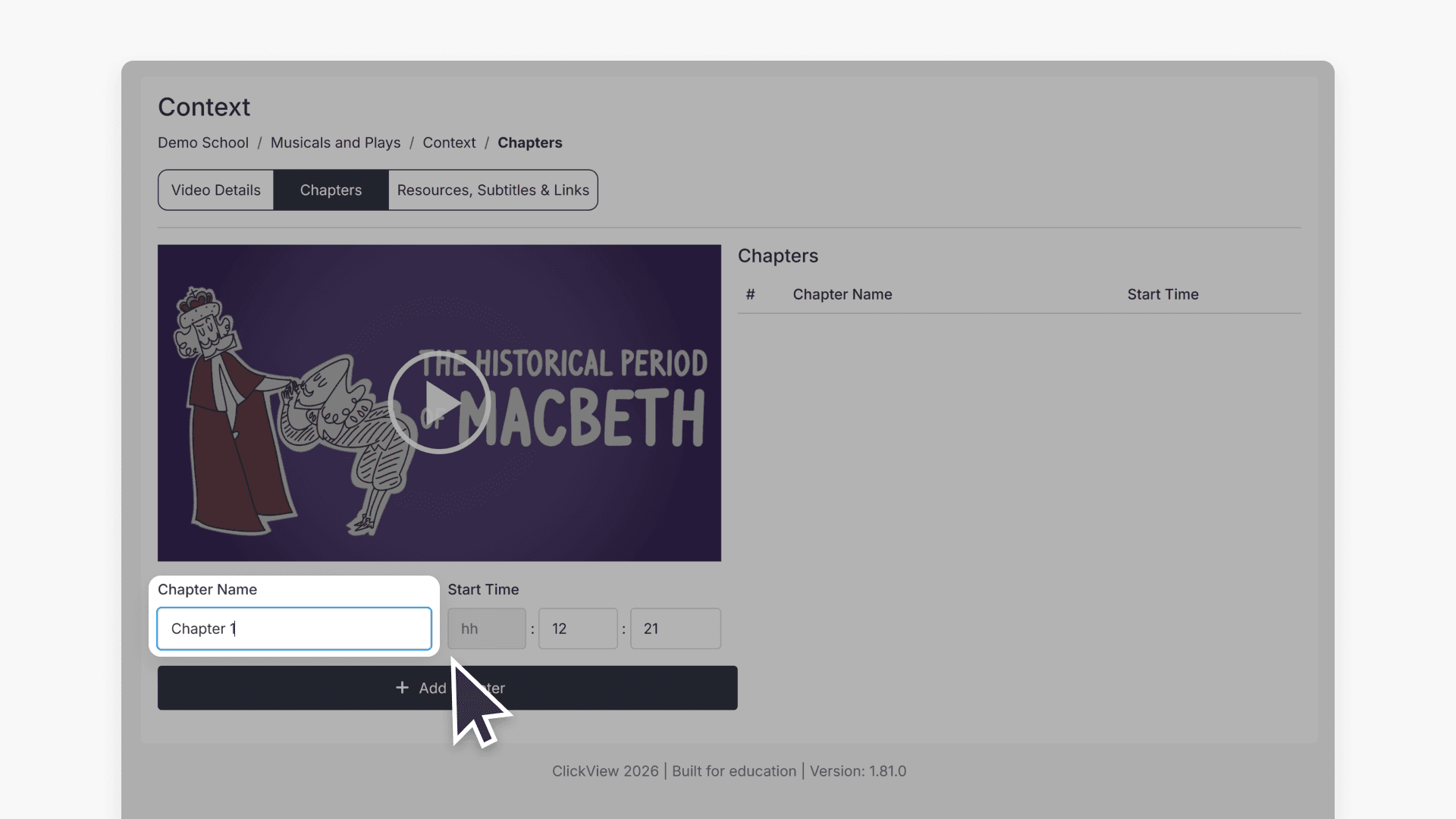
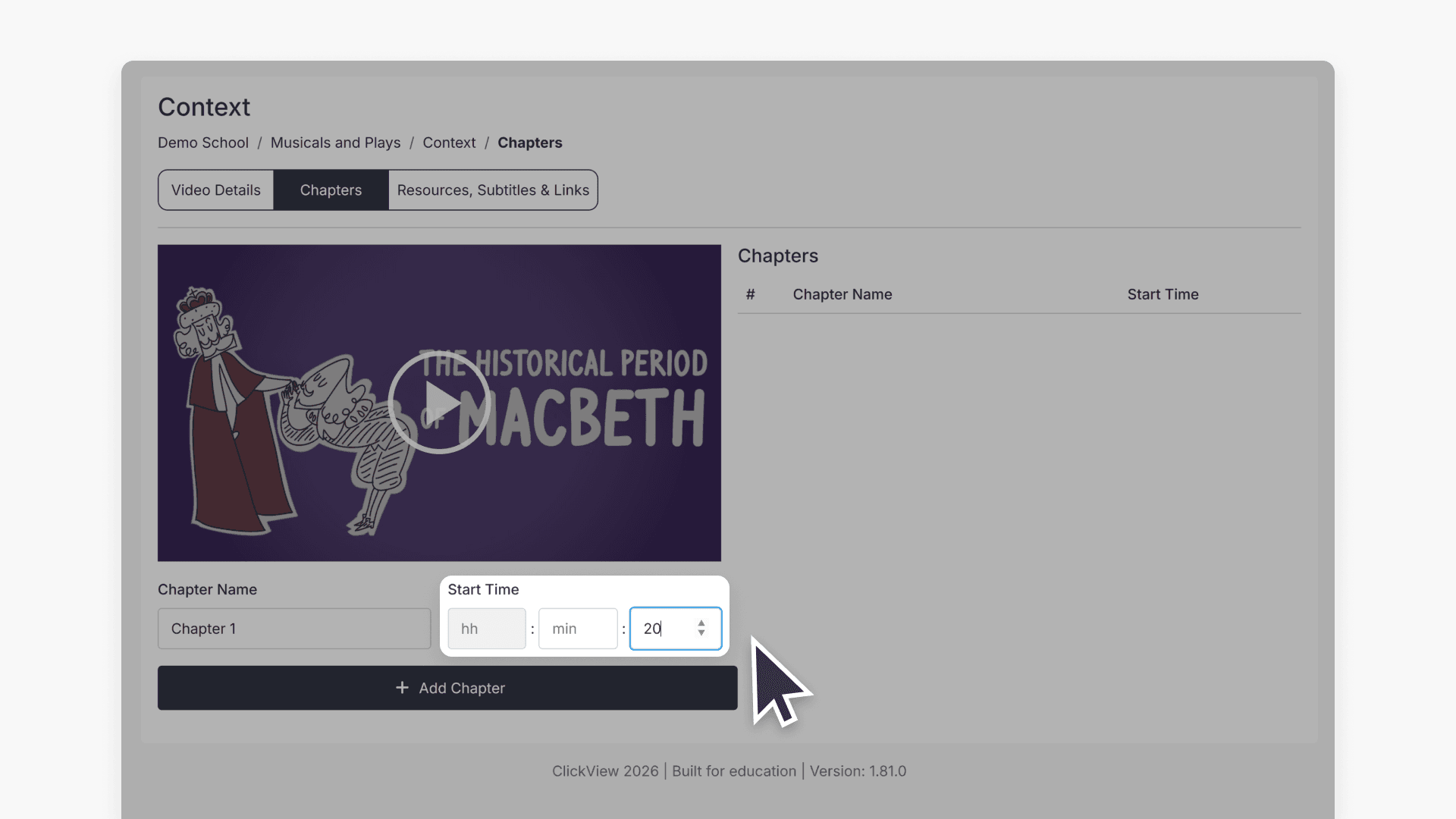
- Set the beginning of the chapter in the Start Time field. Use the arrows to adjust the exact minute or second.
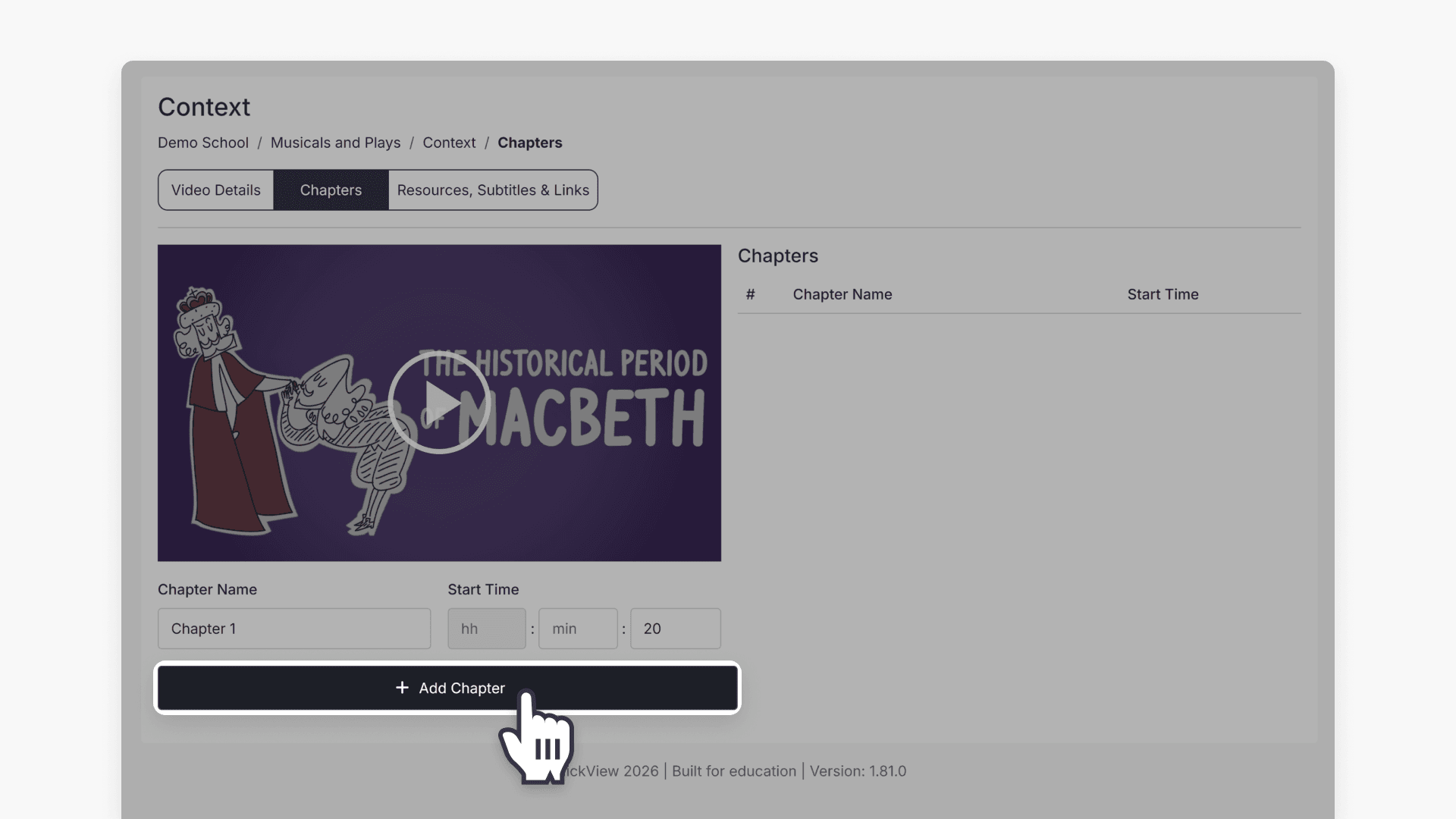
- Select + Add Chapter to create the chapter.
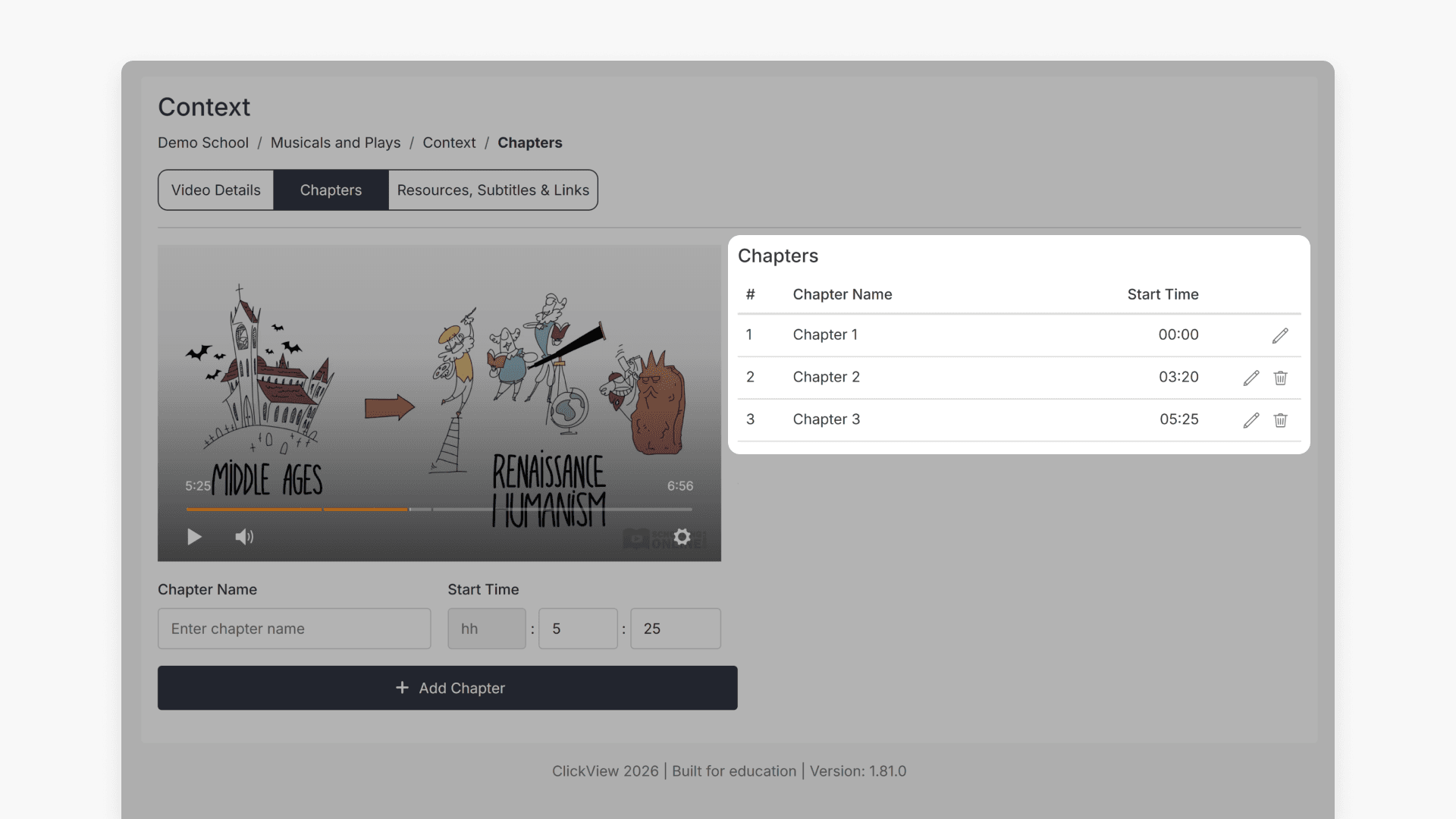
- New chapters will appear on the right-hand side of the video preview.
Deleting a chapter
Select the Bin icon next to the chapter you want to delete. Deleting a chapter only removes the chapter marker and does not remove any part of the actual video.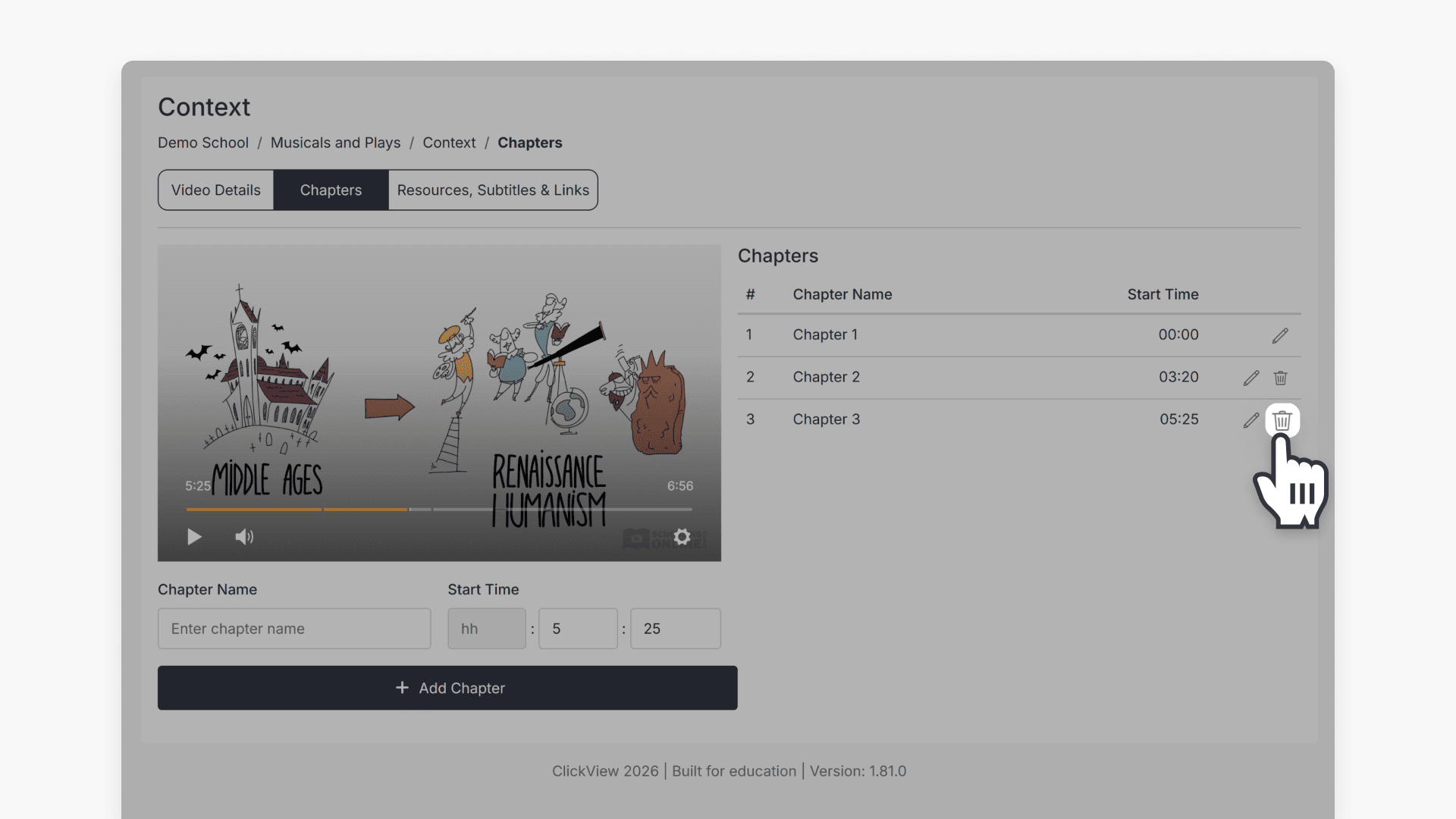
Merging chapters
To merge two chapters, delete the chapter you want merged. The following chapter will now cover both segments.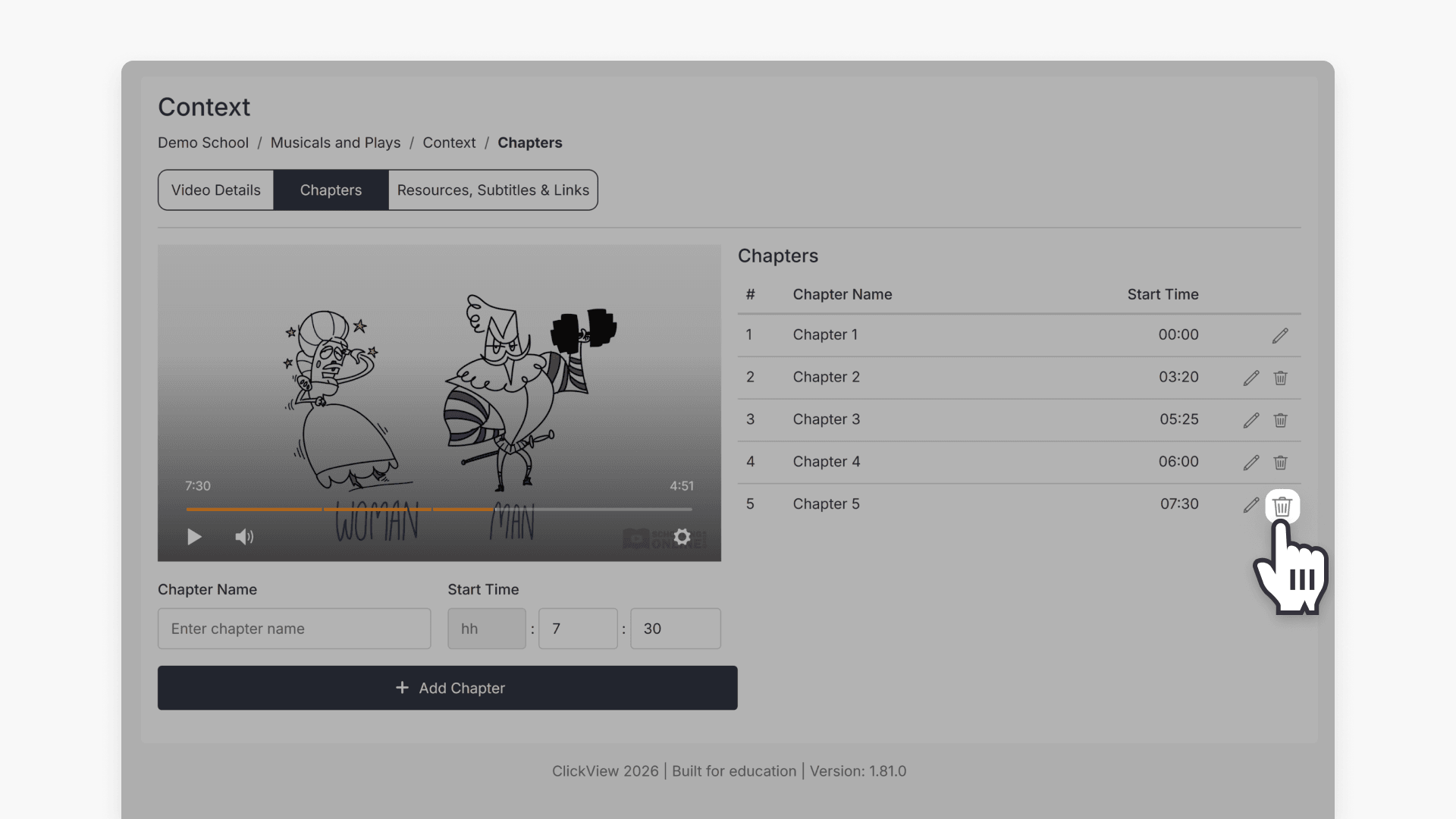
For example, if Chapter 4 covers 06:00-07:30 and you delete Chapter 5, Chapter 4 will now cover from 06:00 to the end of the video.
Frequently asked questions
Get in touch
If you’re having trouble finding the right topics or videos, just reach out! Our team - 

 Akhil, Daniel, Jalaj, or any of us at ClickView - will be happy to help you get sorted.
Give feedback
Was this guide helpful?
Up Next
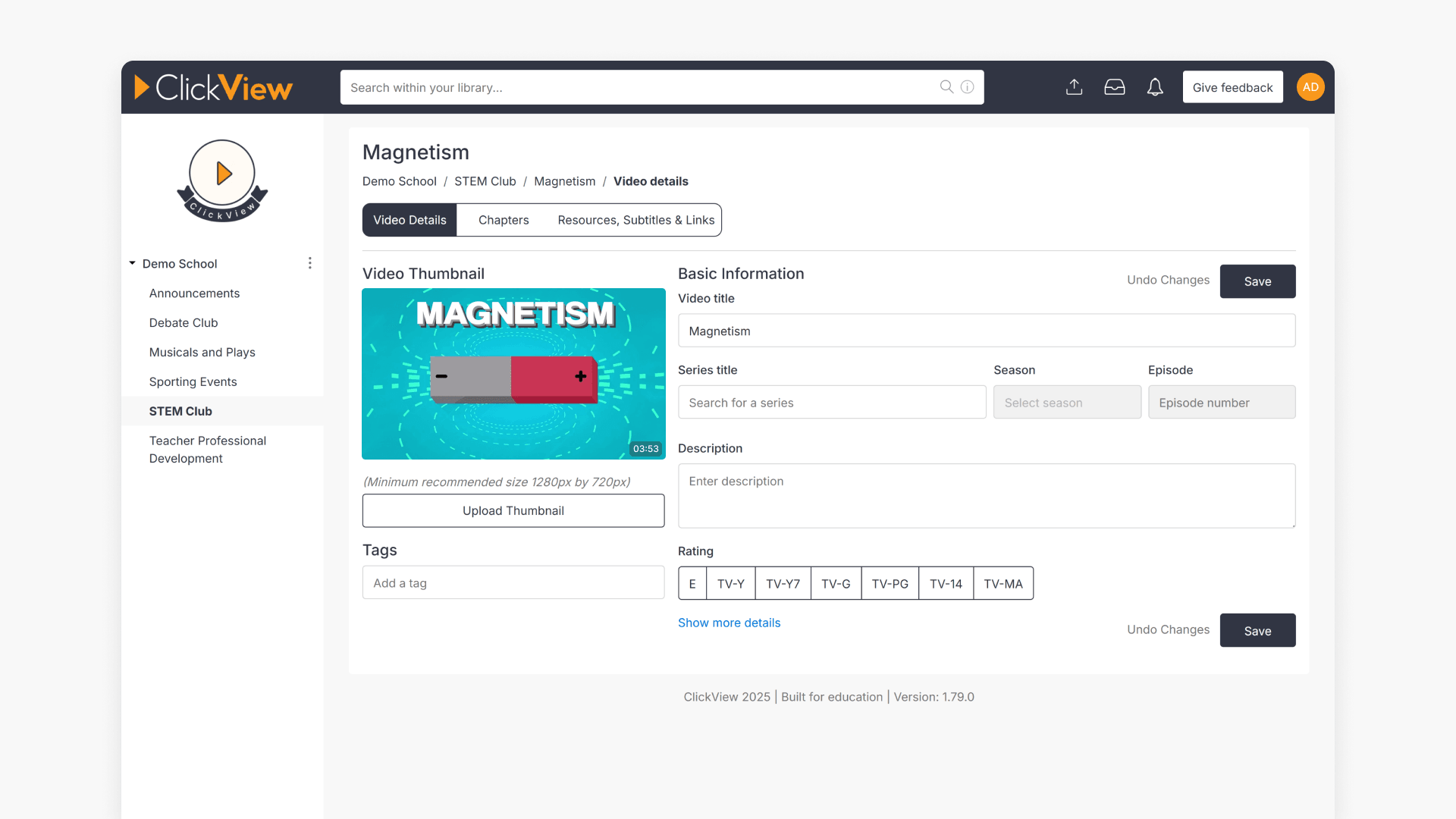
How to edit video metadata
This guide explains how to edit video metadata in ClickView’s Library Editor, covering program titles, advanced fields, and saving changes.