Manage staff requests to add videos to your library
In this article
Last updated by
2 min readClickViewJanuary 30, 2026
Summary
- Sign in as an administrator to manage requests.
- Enable or disable library requests using ‘Library request settings’.
- Access requests via the ‘in-tray’ icon in ‘Library Editor’.
- Review requests in the ‘Pending requests’ tab.
- Approve or reject videos using the respective buttons and notify submitters.
- Filter past requests by their status to track approvals and rejections.
star icon
Quick tip
How can managing staff requests help maintain library quality?
Reviewing requests before approval allows administrators to keep the library organized, relevant, and aligned with school standards. This process helps prevent duplicate content and ensures only appropriate, high-quality videos are added for staff and students to access.
How to enable staff requests to add content
- Sign in to ClickView as an administrator.
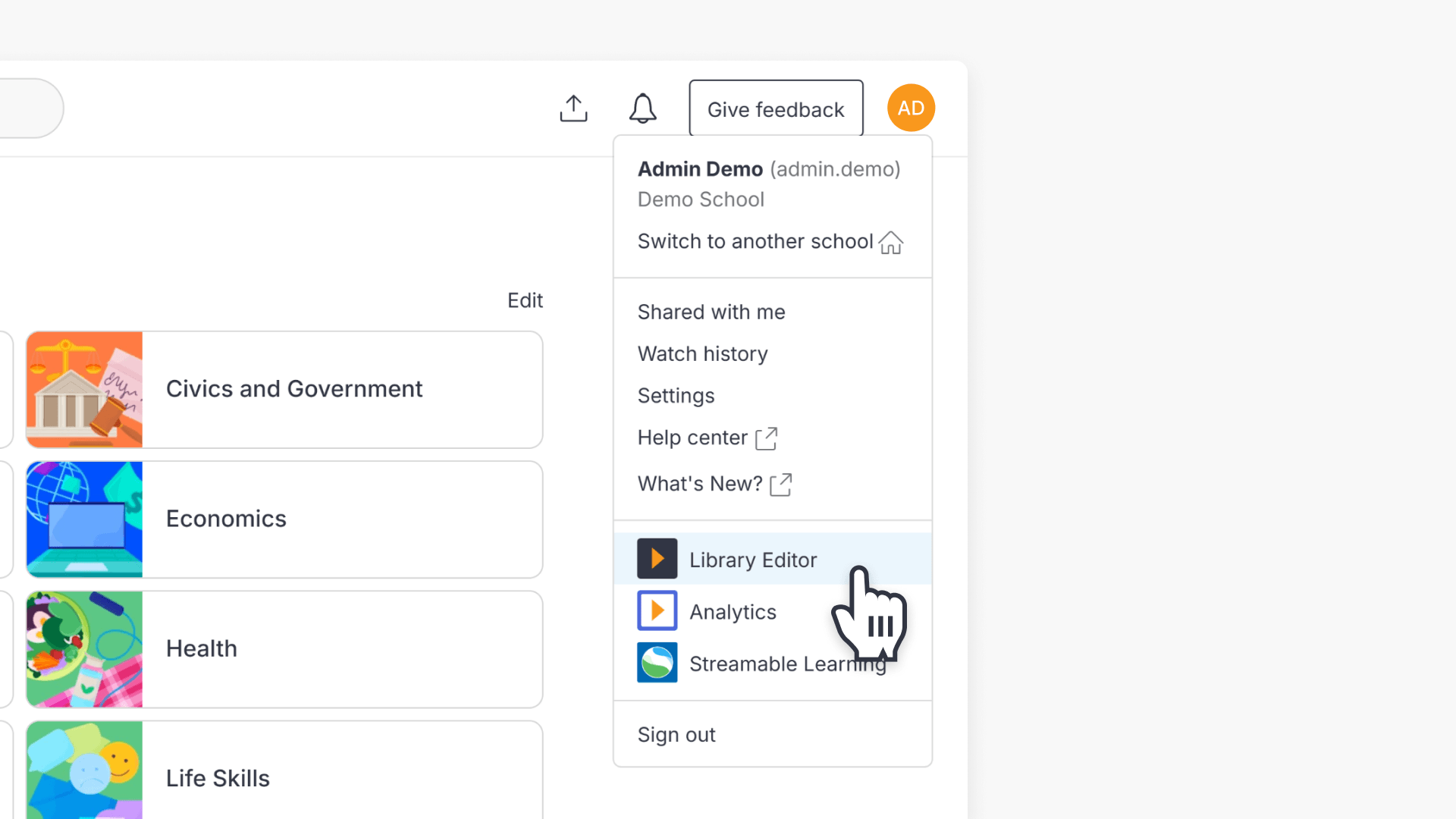
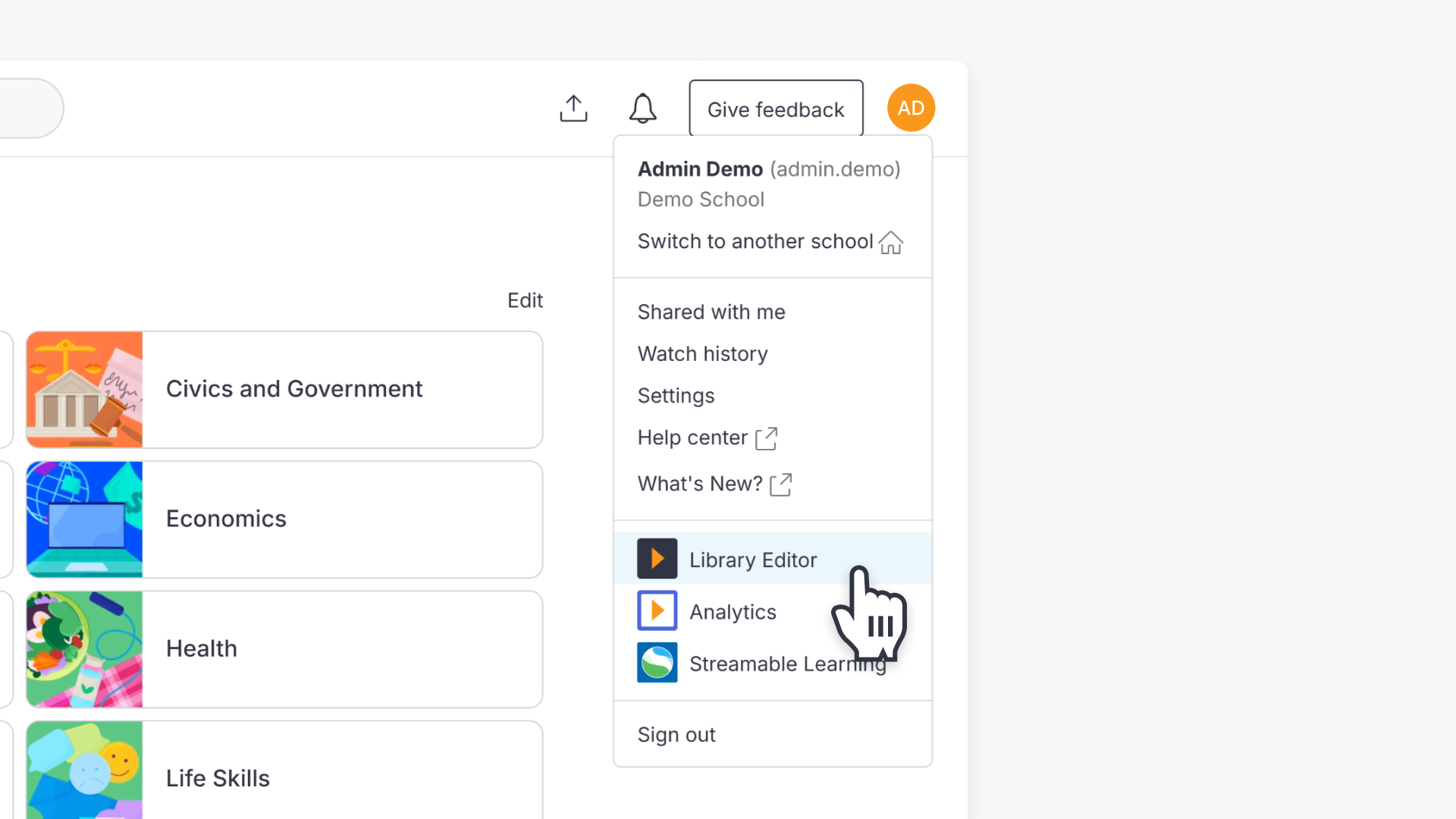
- Select your initials at the top right, then choose ‘Library Editor‘ from the list.
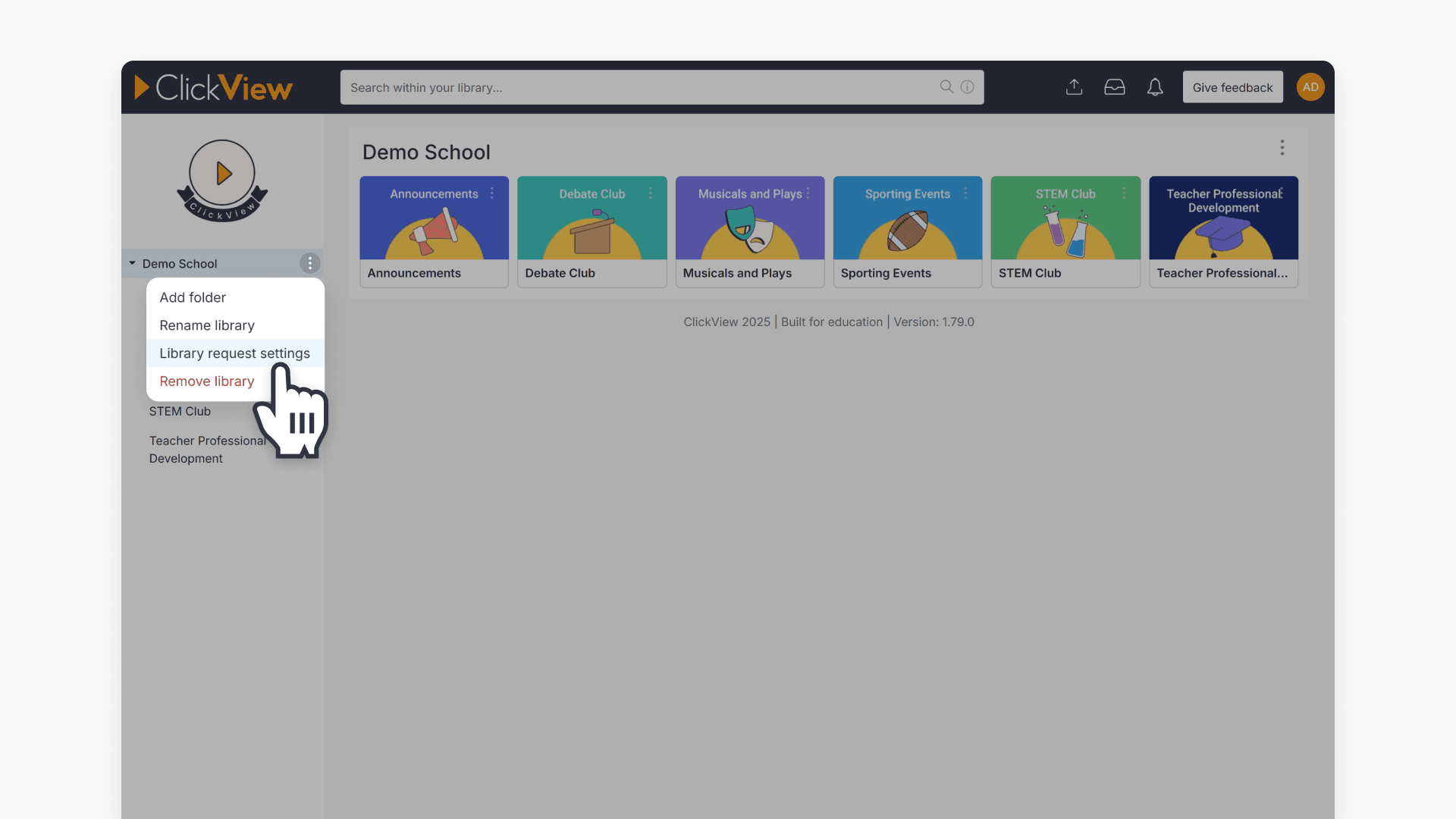
- In Library Editor, select the 3 dots next to your library name on the left, then choose ‘Library request settings‘.
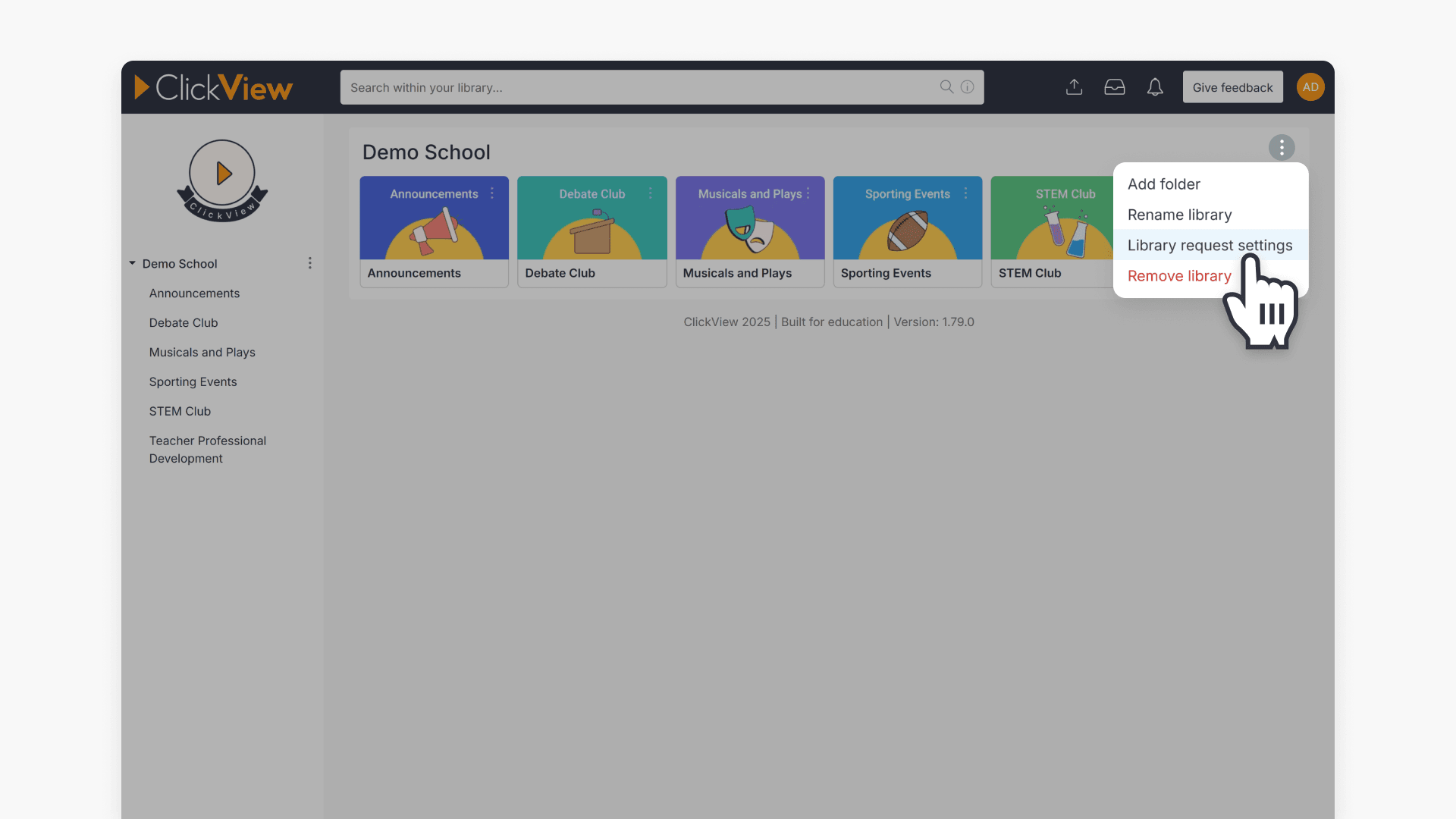
- Use the toggle button to enable or disable requests.
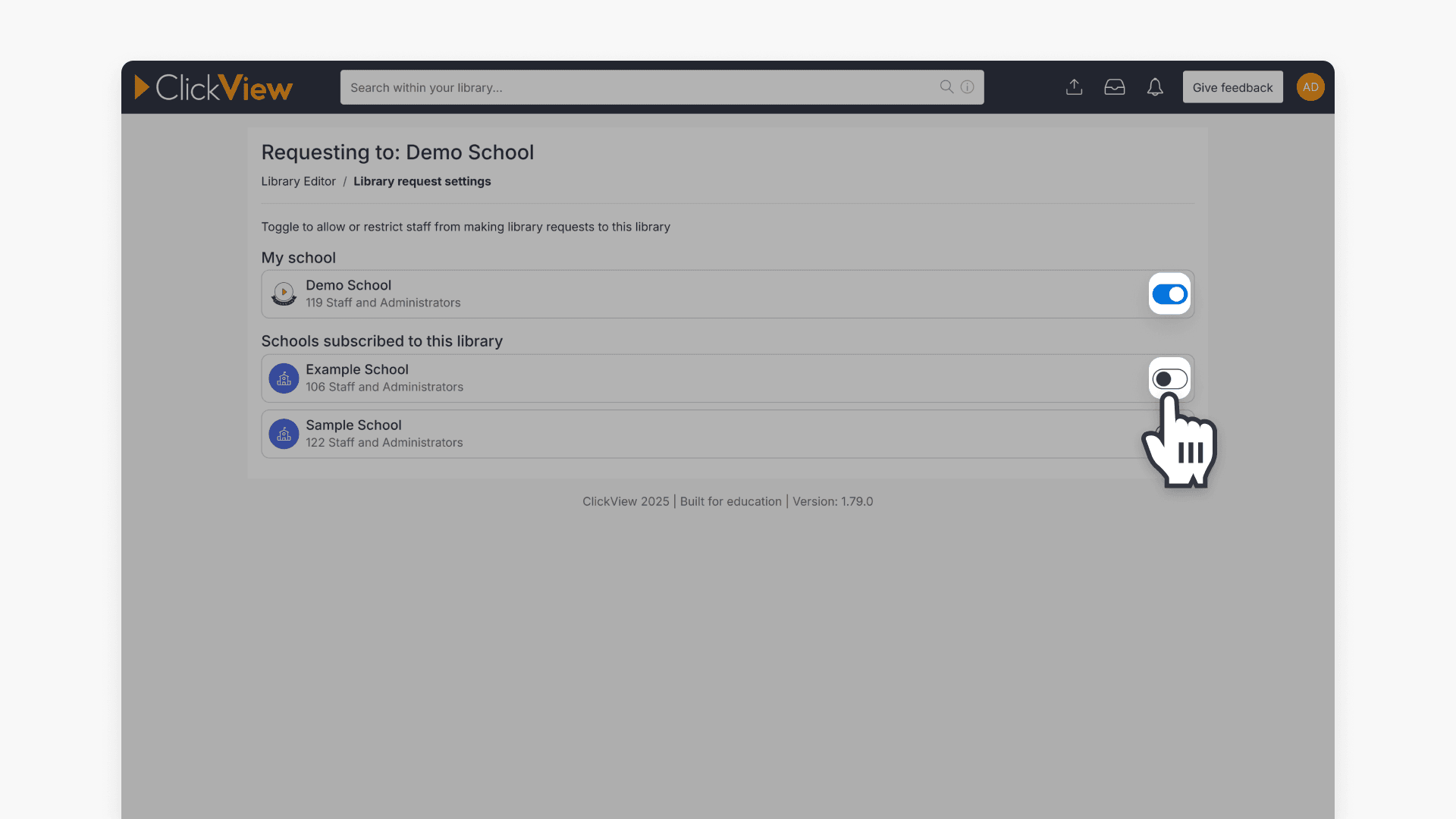
When enabled, staff can suggest videos for the library. If disabled, no suggestions can be submitted, but existing content remains visible.
Managing requests from staff members
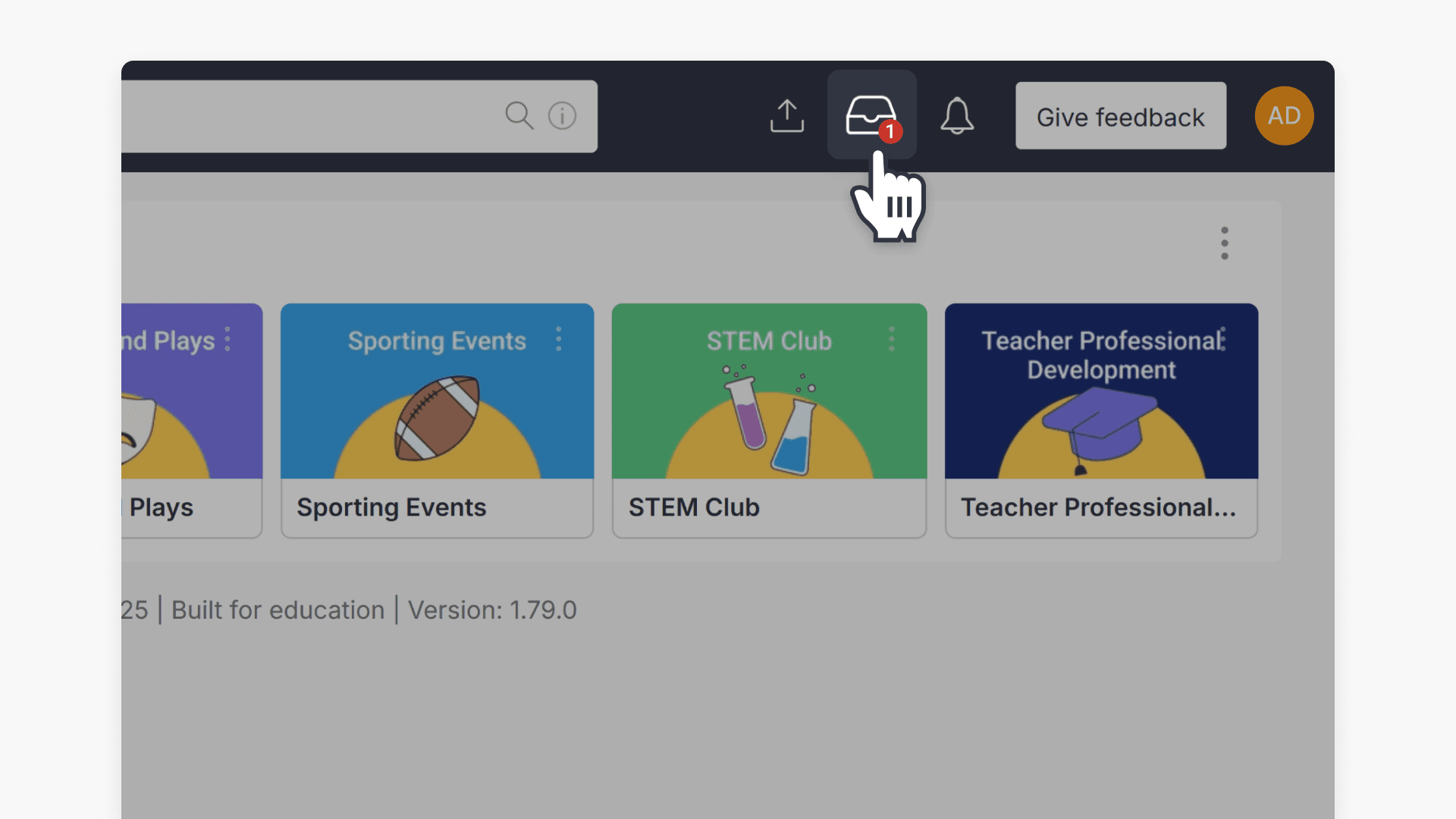
You’ll receive notifications about requests by email and via a visual indicator at the top of the screen within ClickView.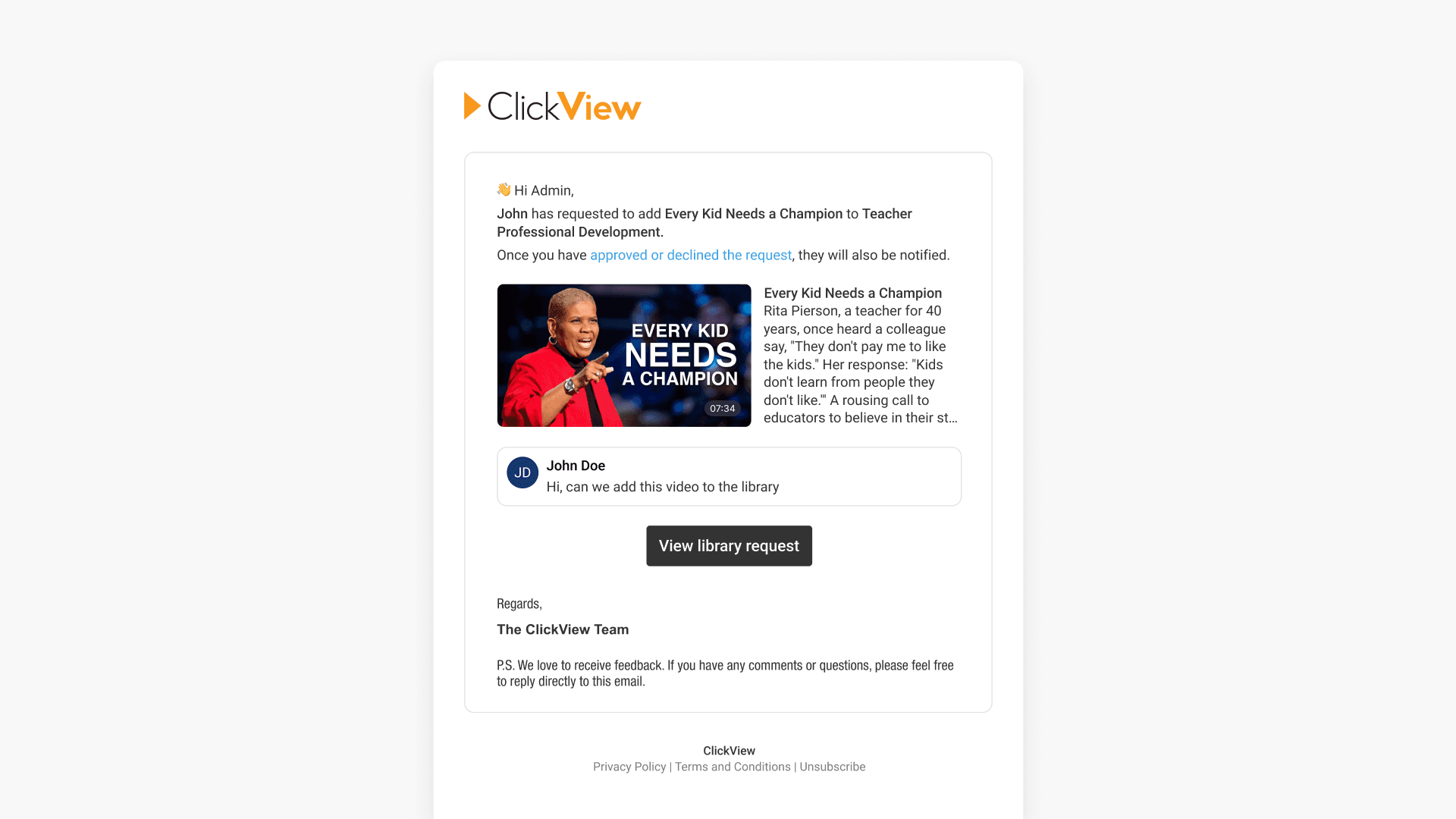
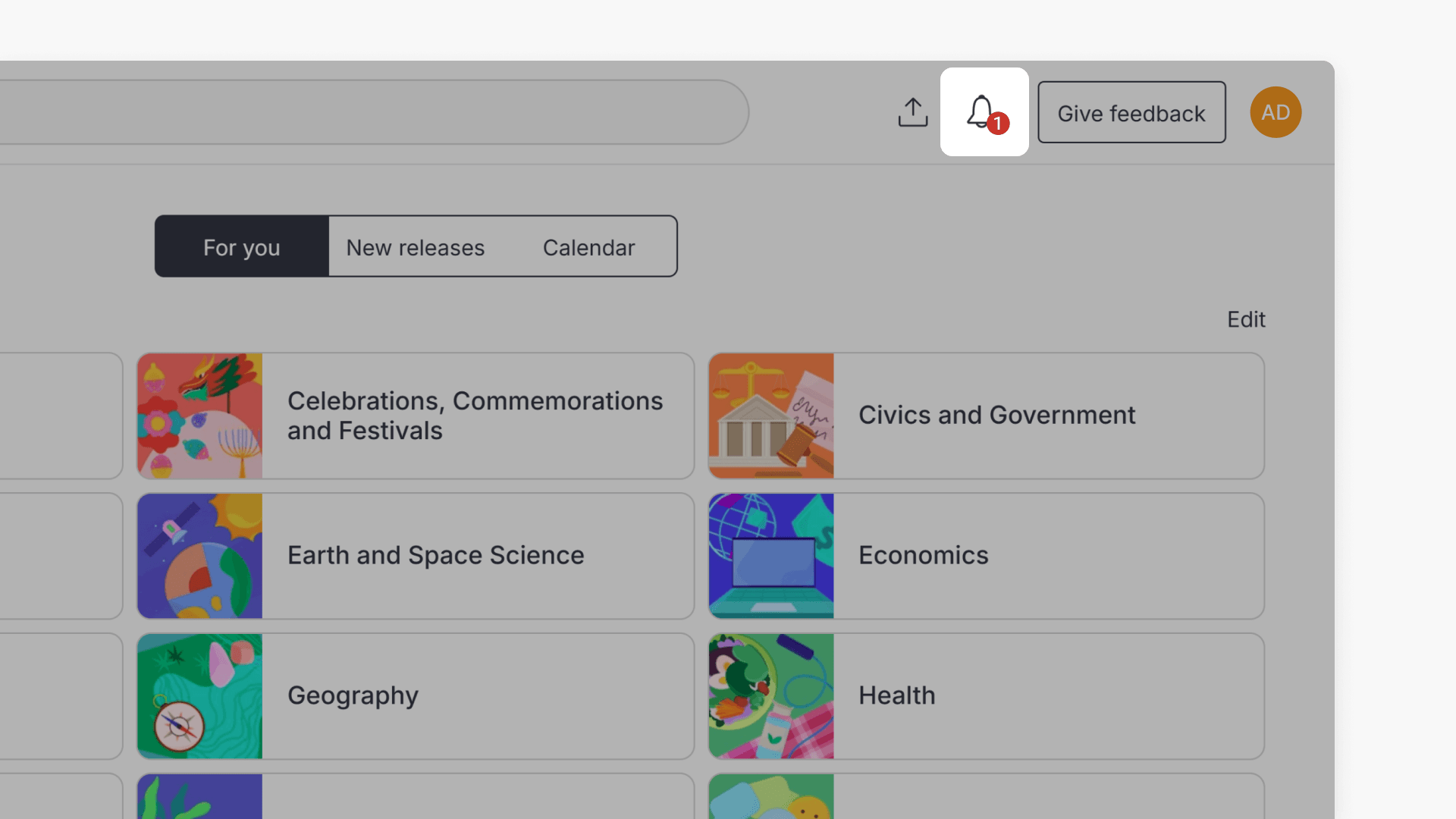
How to access and review requests
- Open ‘Library Editor‘.
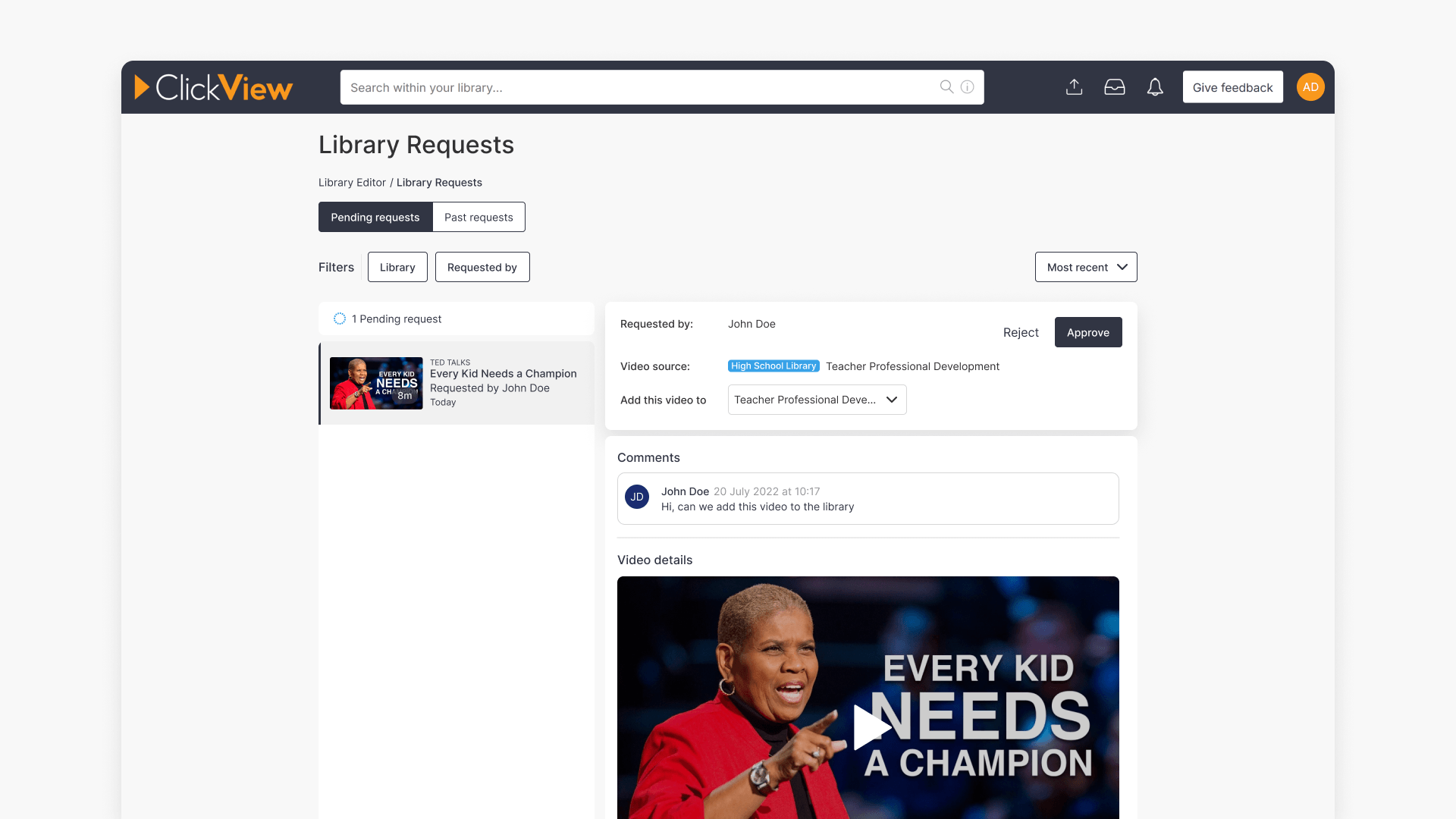
- Select the ‘in-tray‘ icon at the top.
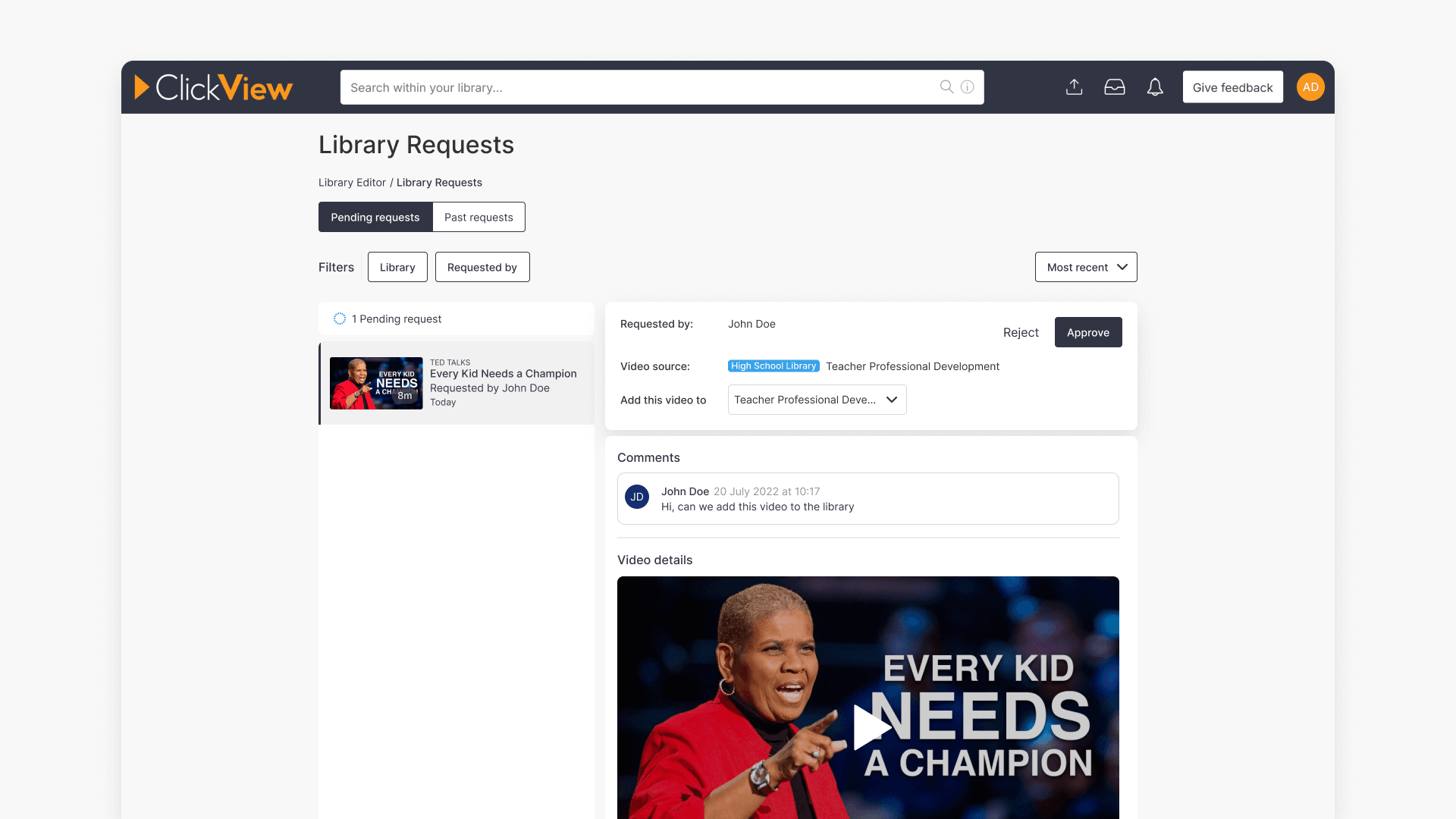
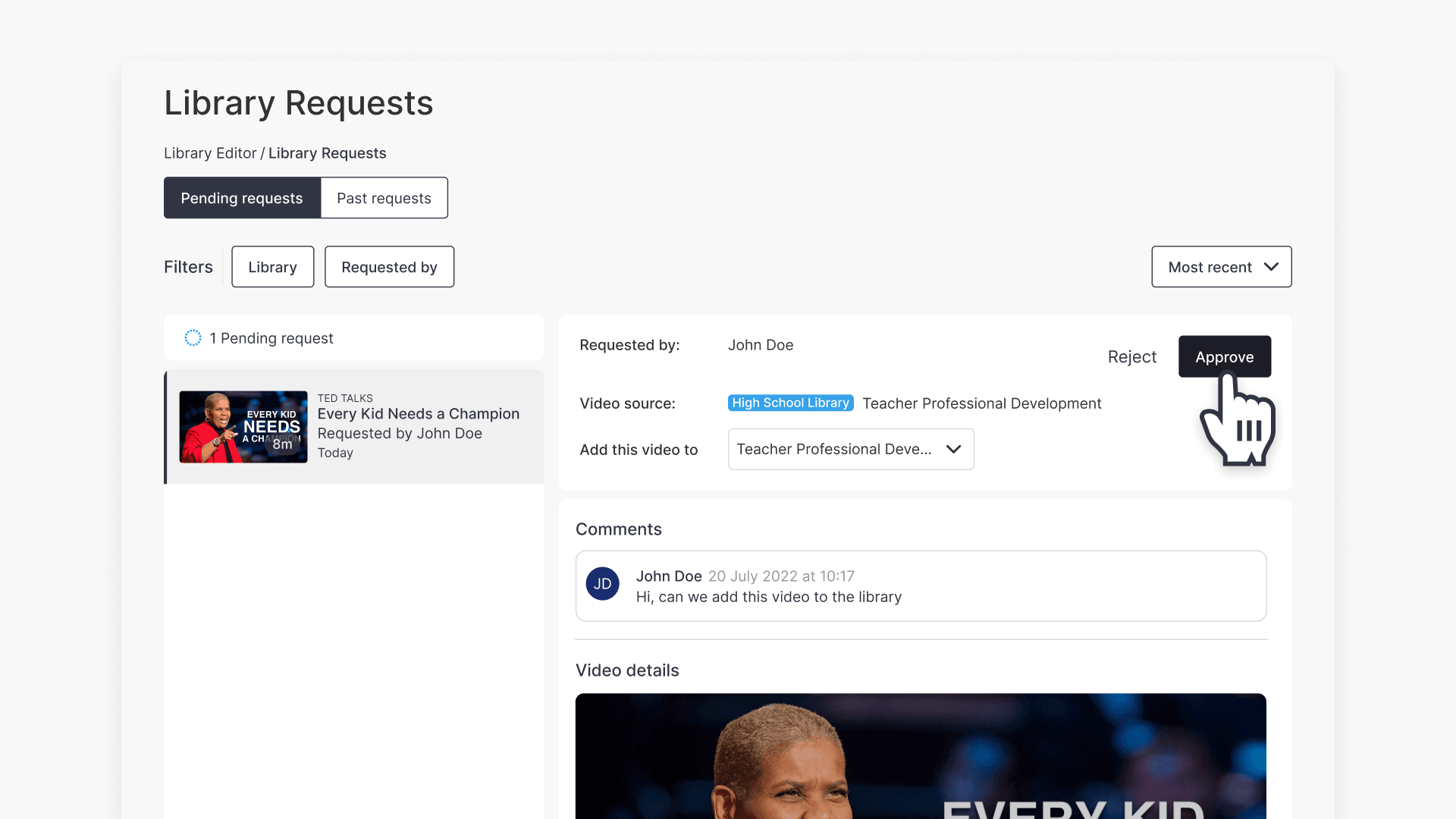
- Find all new staff requests in the ‘Pending requests‘ tab.
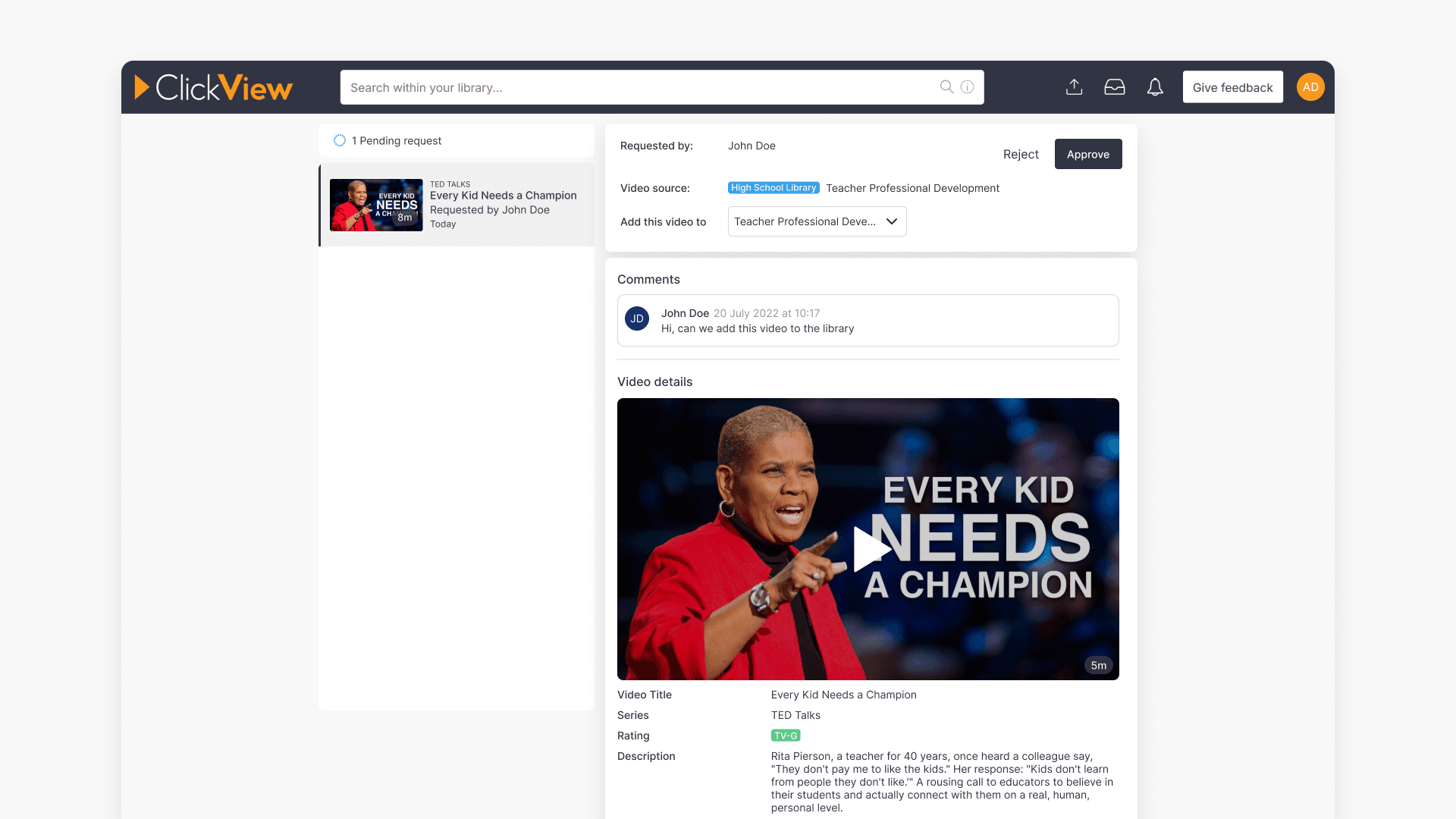
- Review details and comments below the video player.
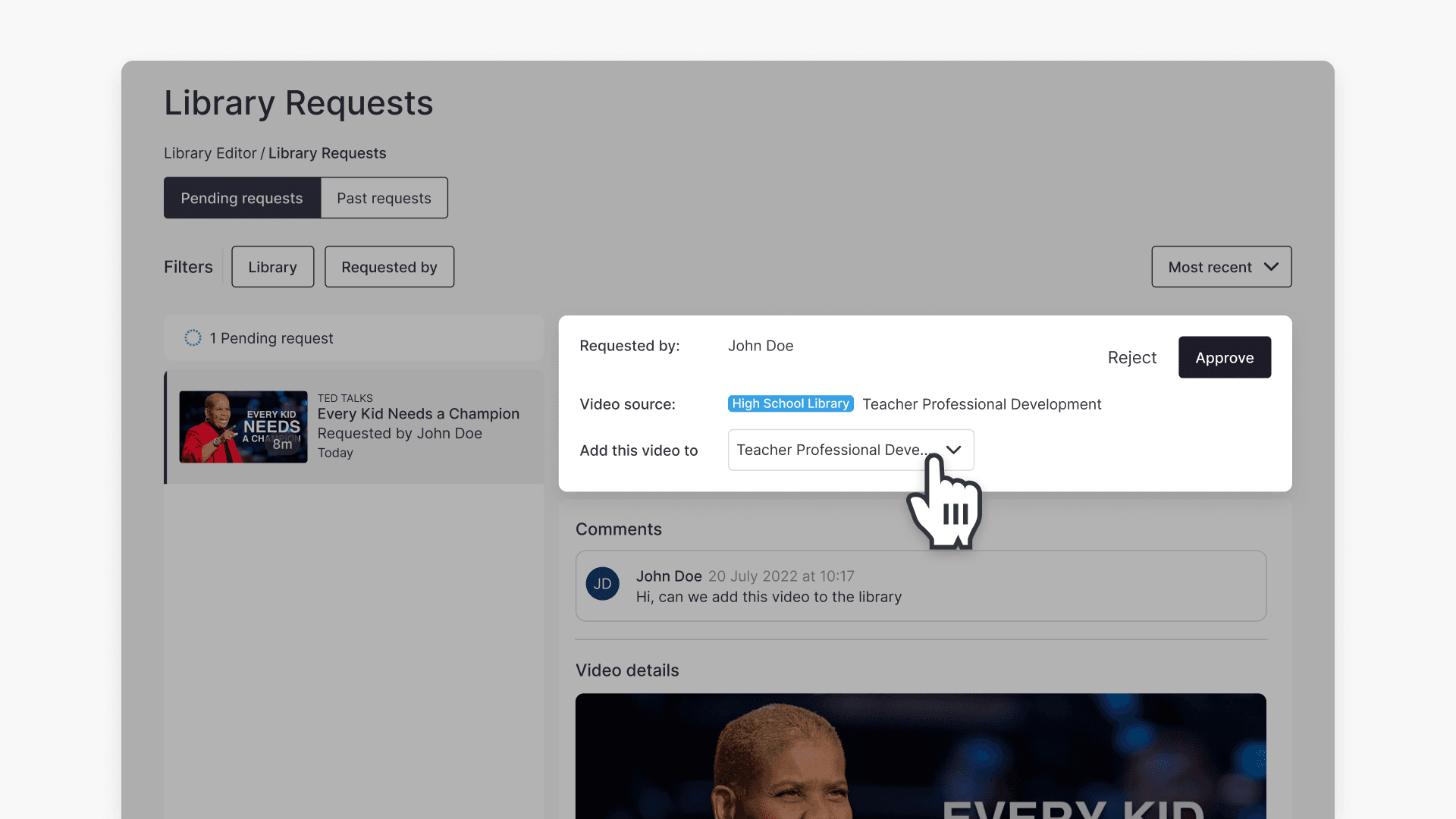
- To change the target folder, select one from the ‘Add this video to‘ drop-down menu.
How to approve or reject requests
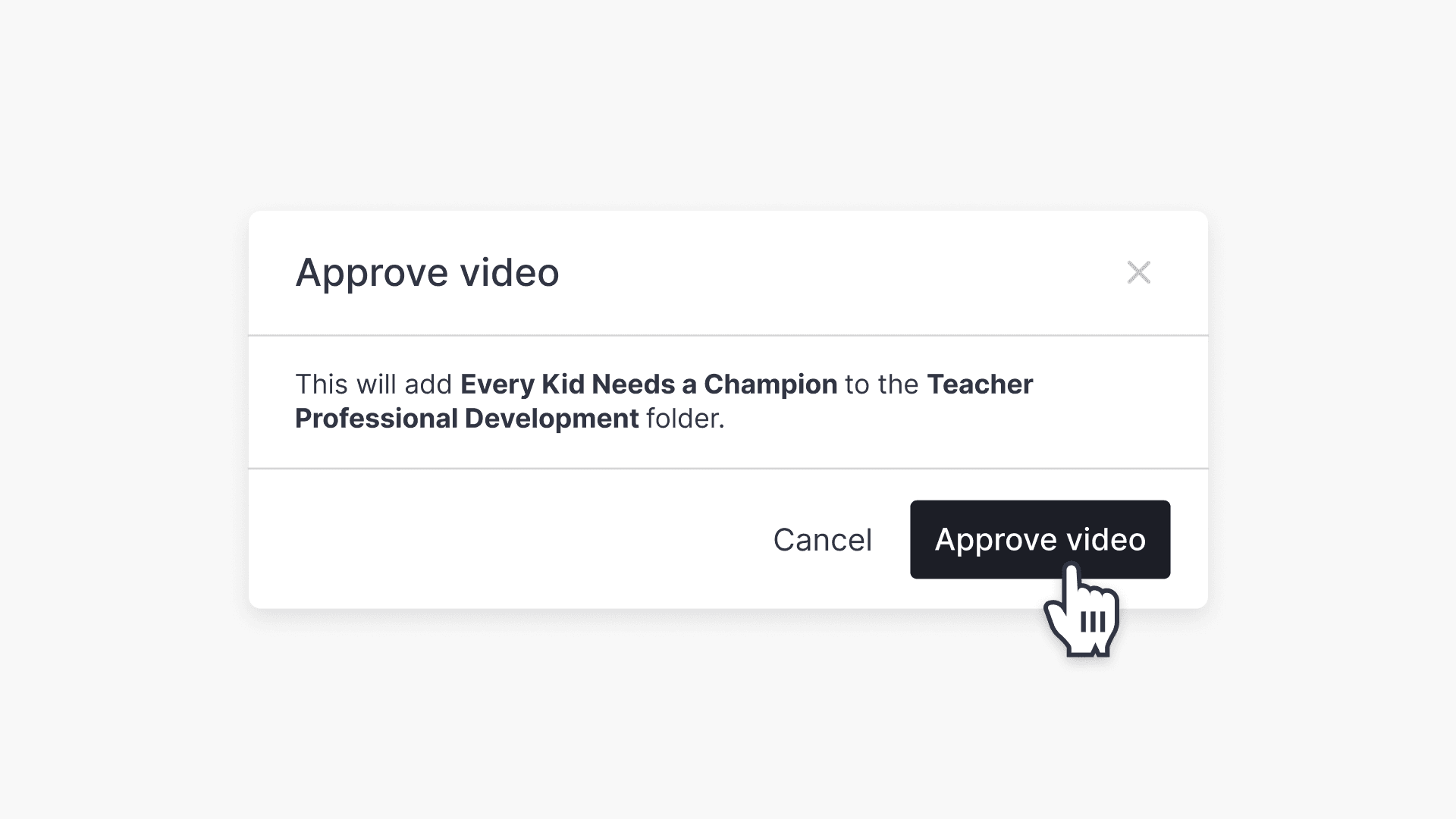
- To approve, press the ‘Approve‘ button and confirm when prompted. The video will be added to your library.
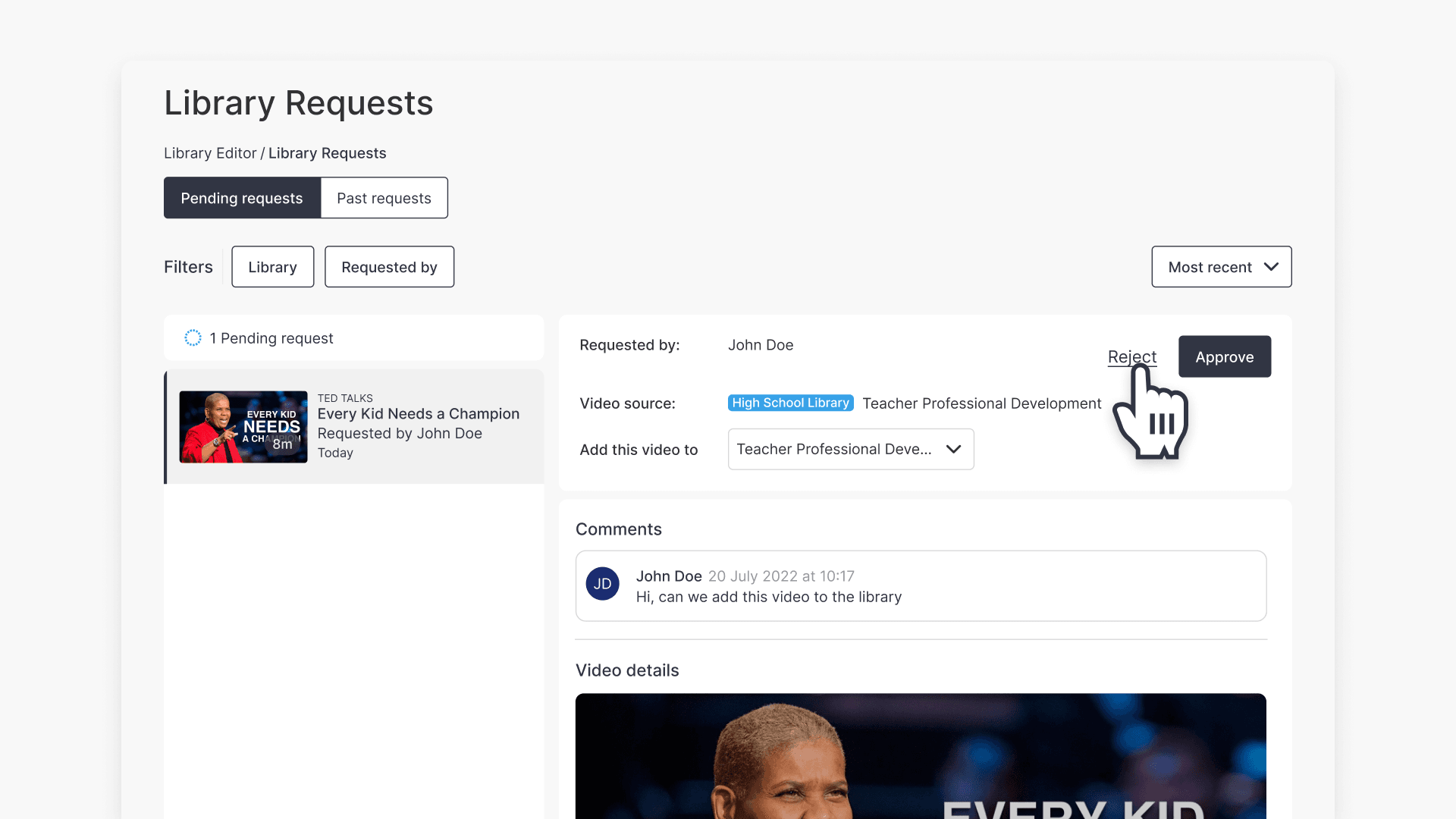
- To reject, press the ‘Reject‘ button and enter a message for the requester.
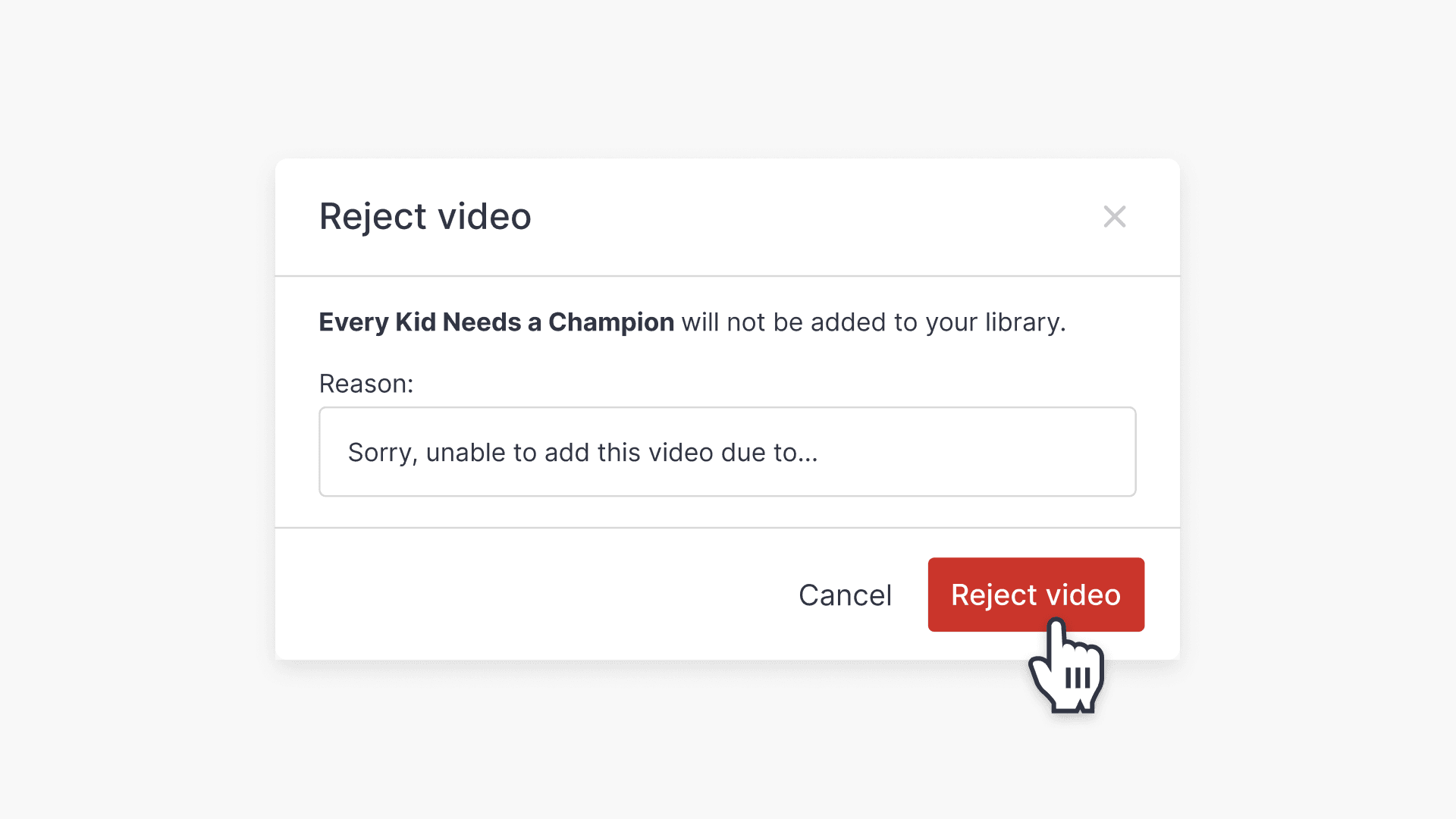
- Submitters will be notified via in-product notifications in ClickView and by email.
How to view previous requests
See details of past requests in the ‘Past requests‘ screen.
- Select the ‘Past requests’ tab.
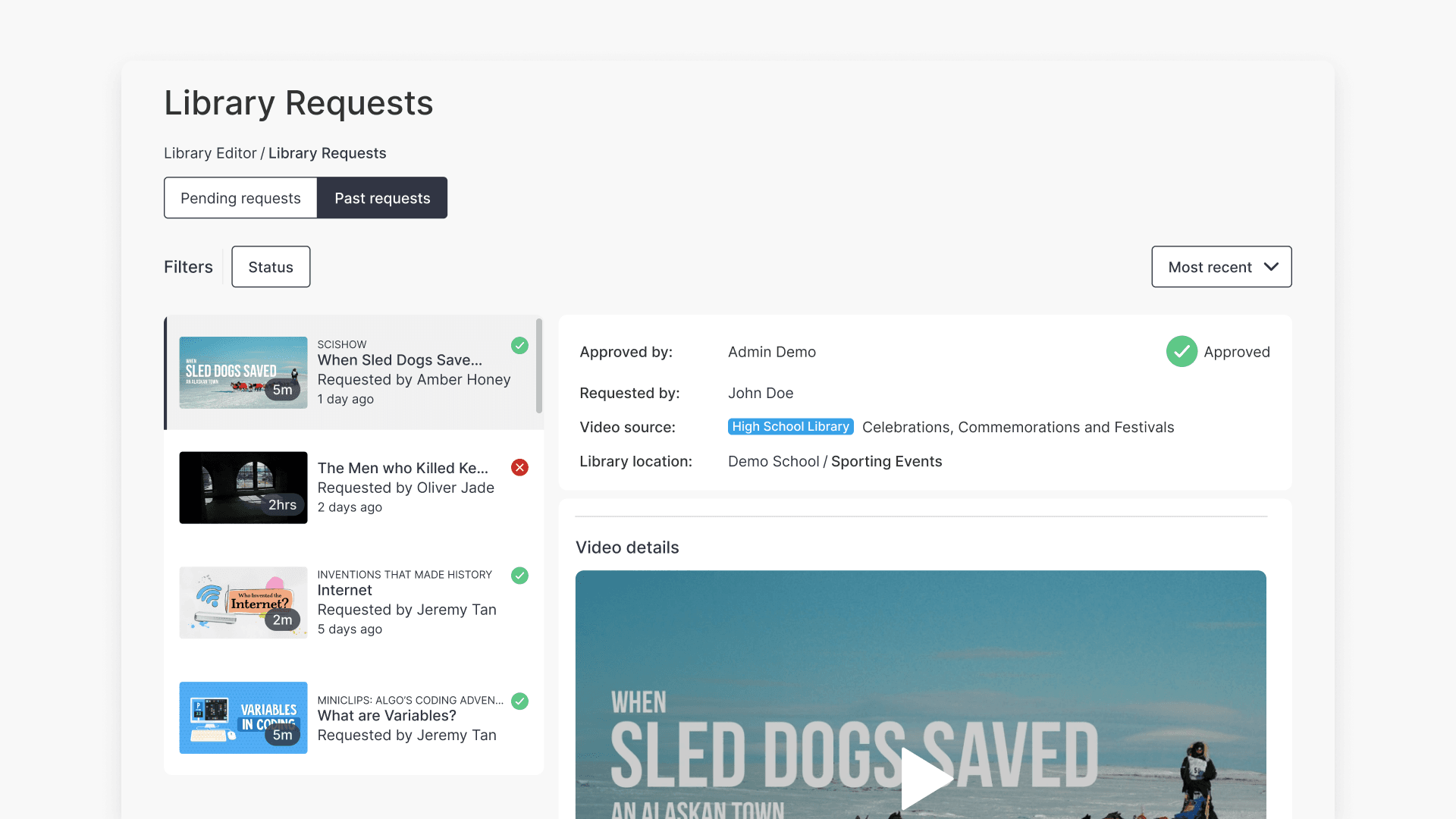
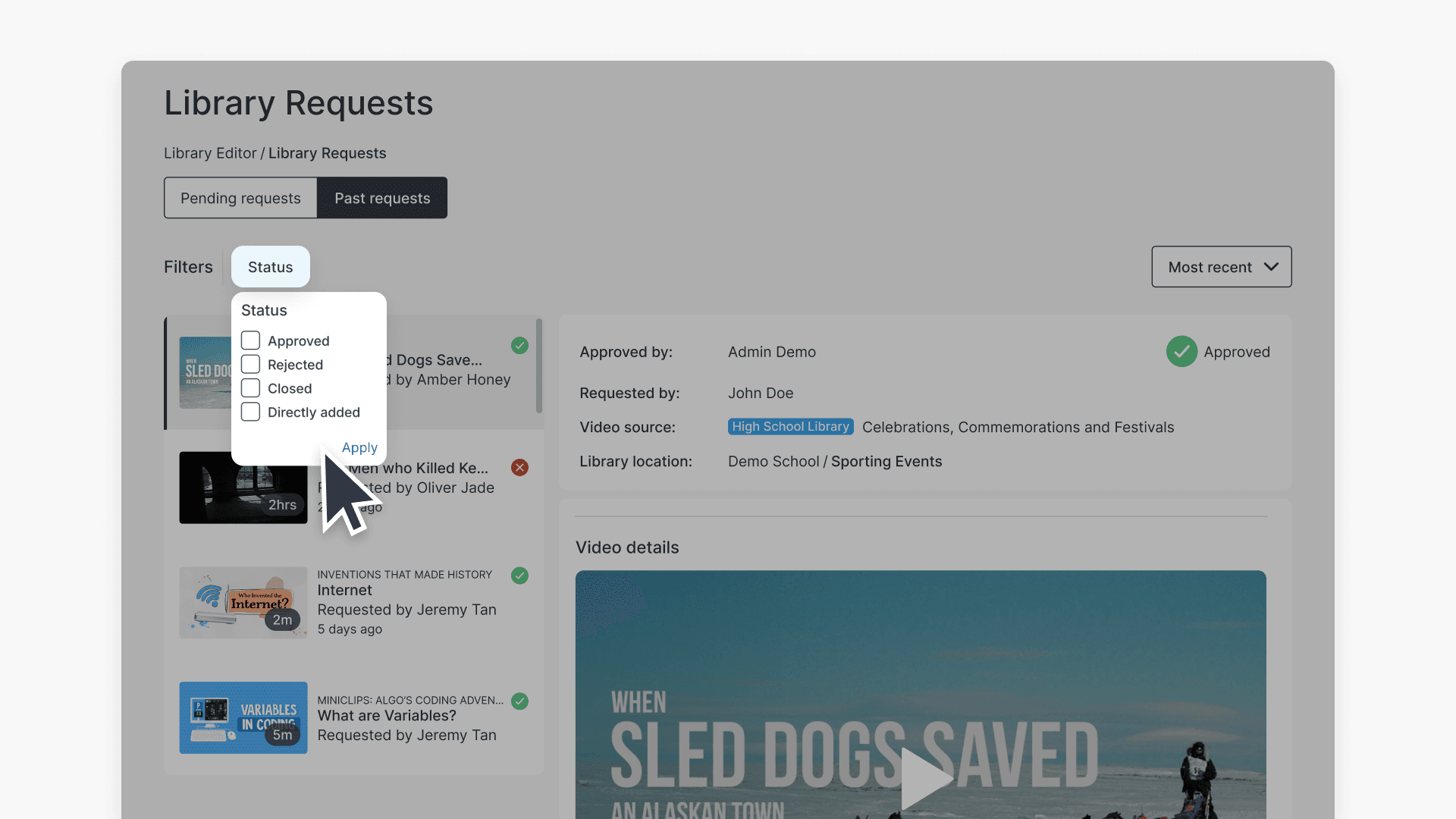
- Filter past requests using the Status filter to check which videos were approved or rejected.
Frequently asked questions
Only administrators can enable or disable library requests using ‘Library request settings’ in Library Editor.
You’ll receive notifications both by email and a visual indicator in ClickView and Library Editor.
Yes, select your desired folder from the ‘Add this video to’ drop-down menu before approval.
Go to the ‘Past requests’ screen and use the Status filter to view previous approvals and rejections.
Get in touch
If you’re having trouble finding the right topics or videos, just reach out! Our team - 

 Akhil, Daniel, Jalaj, or any of us at ClickView - will be happy to help you get sorted.
Give feedback
Was this guide helpful?
Up Next
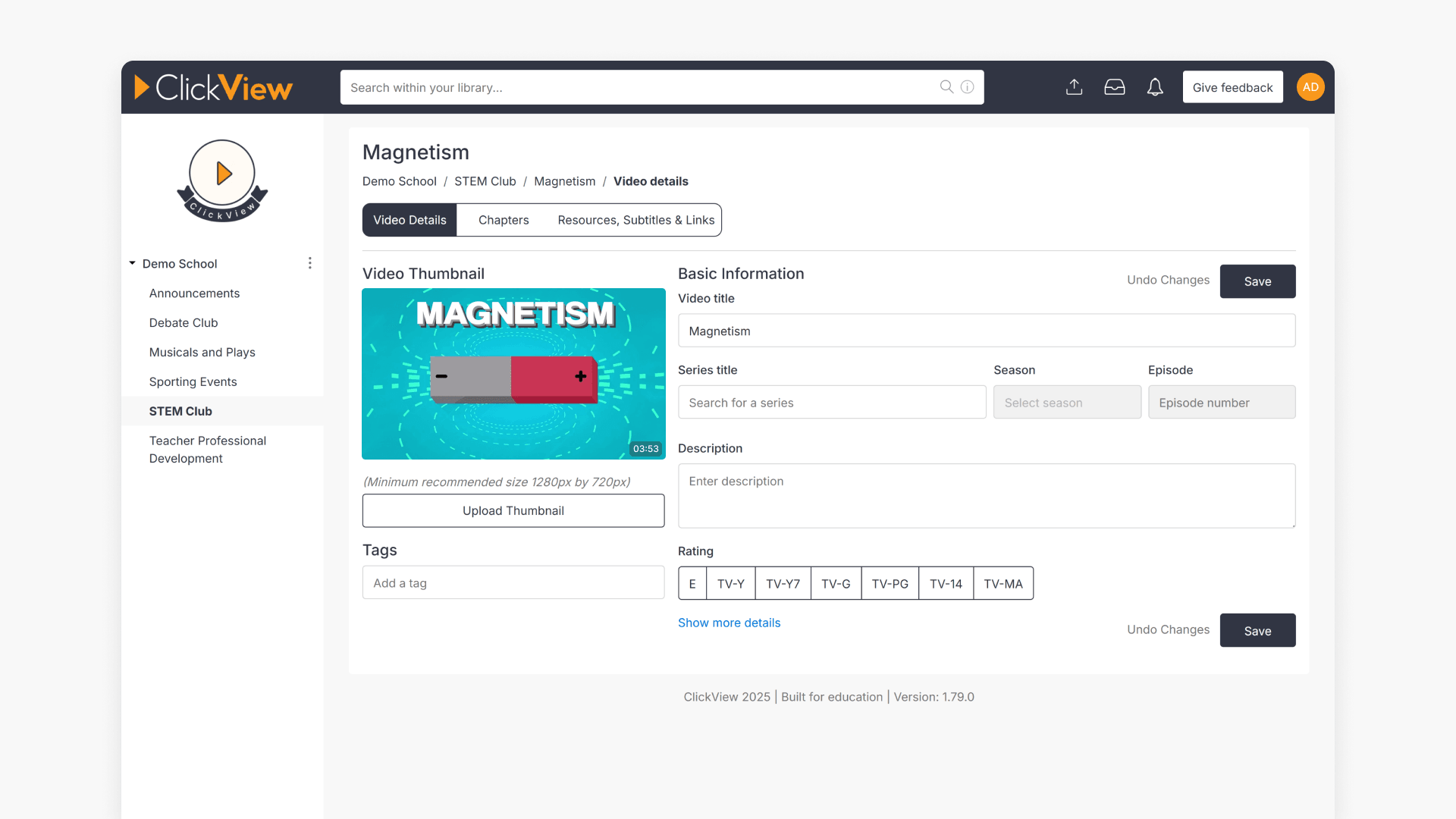
How to edit video metadata
This guide explains how to edit video metadata in ClickView’s Library Editor, covering program titles, advanced fields, and saving changes.