How to embed a video from your school library
In this article
Last updated by
2 min readClickViewJanuary 30, 2026
Summary
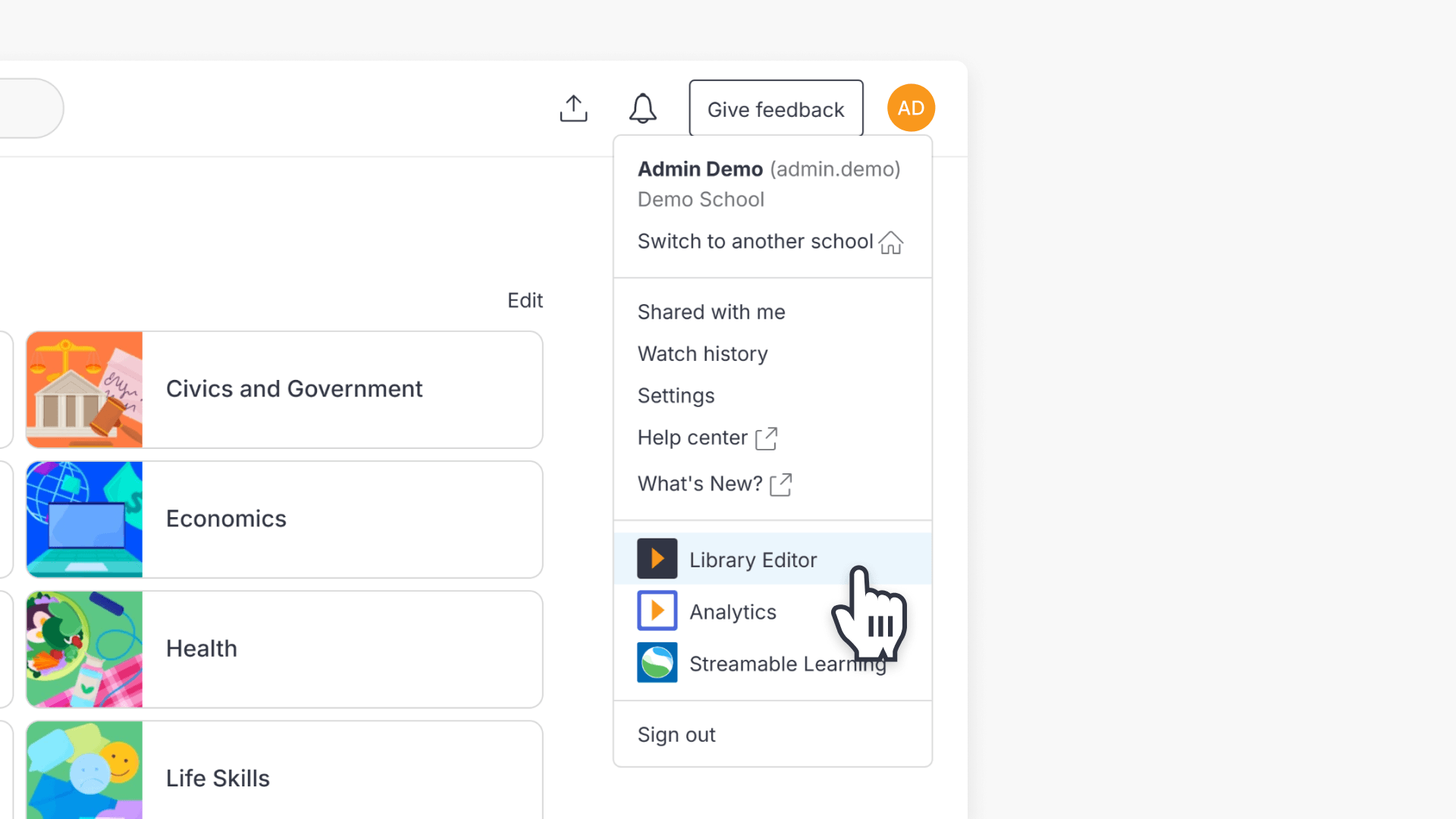
- Open Library Editor from your profile menu.
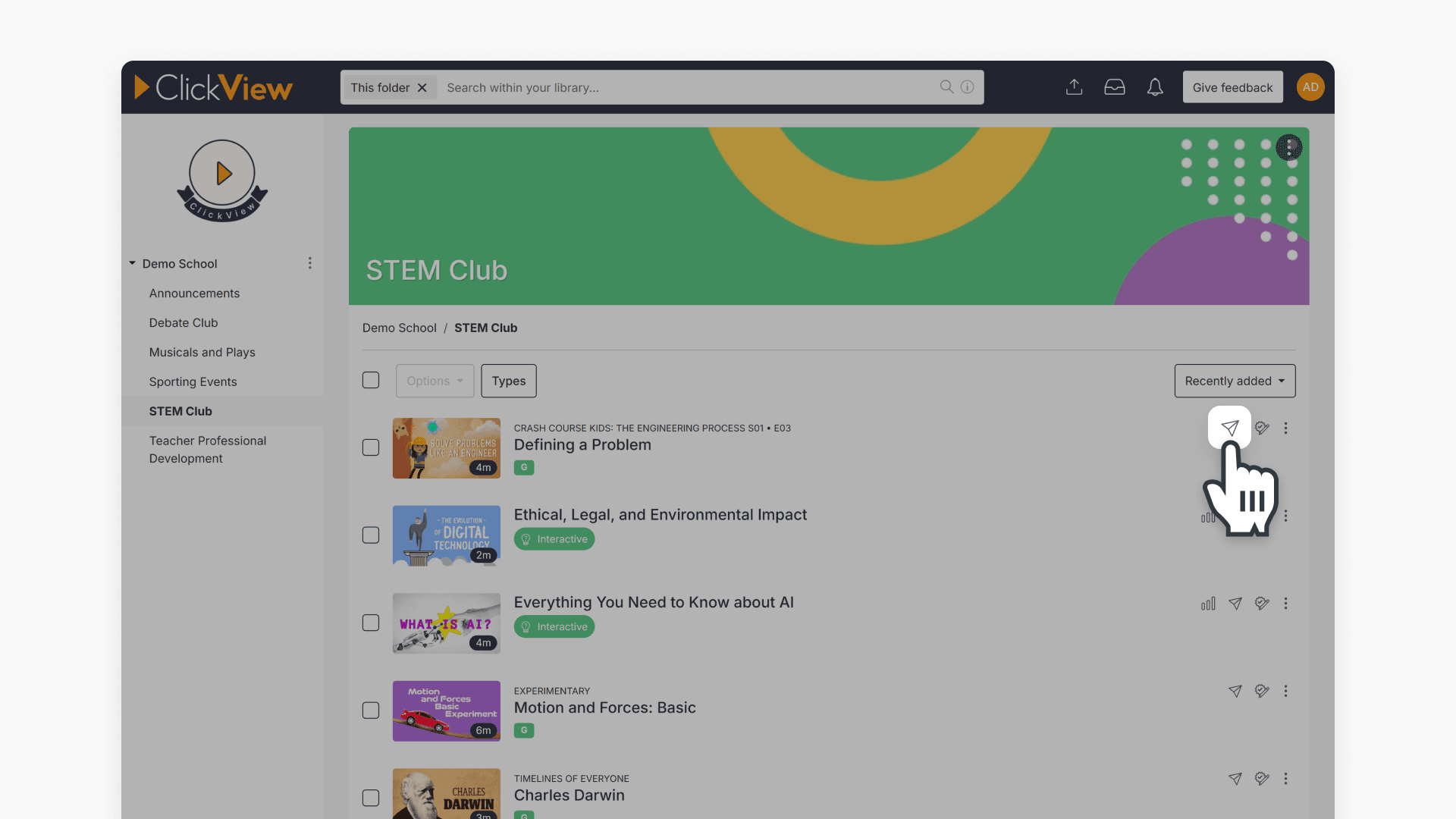
- Find your video and select the Share icon.
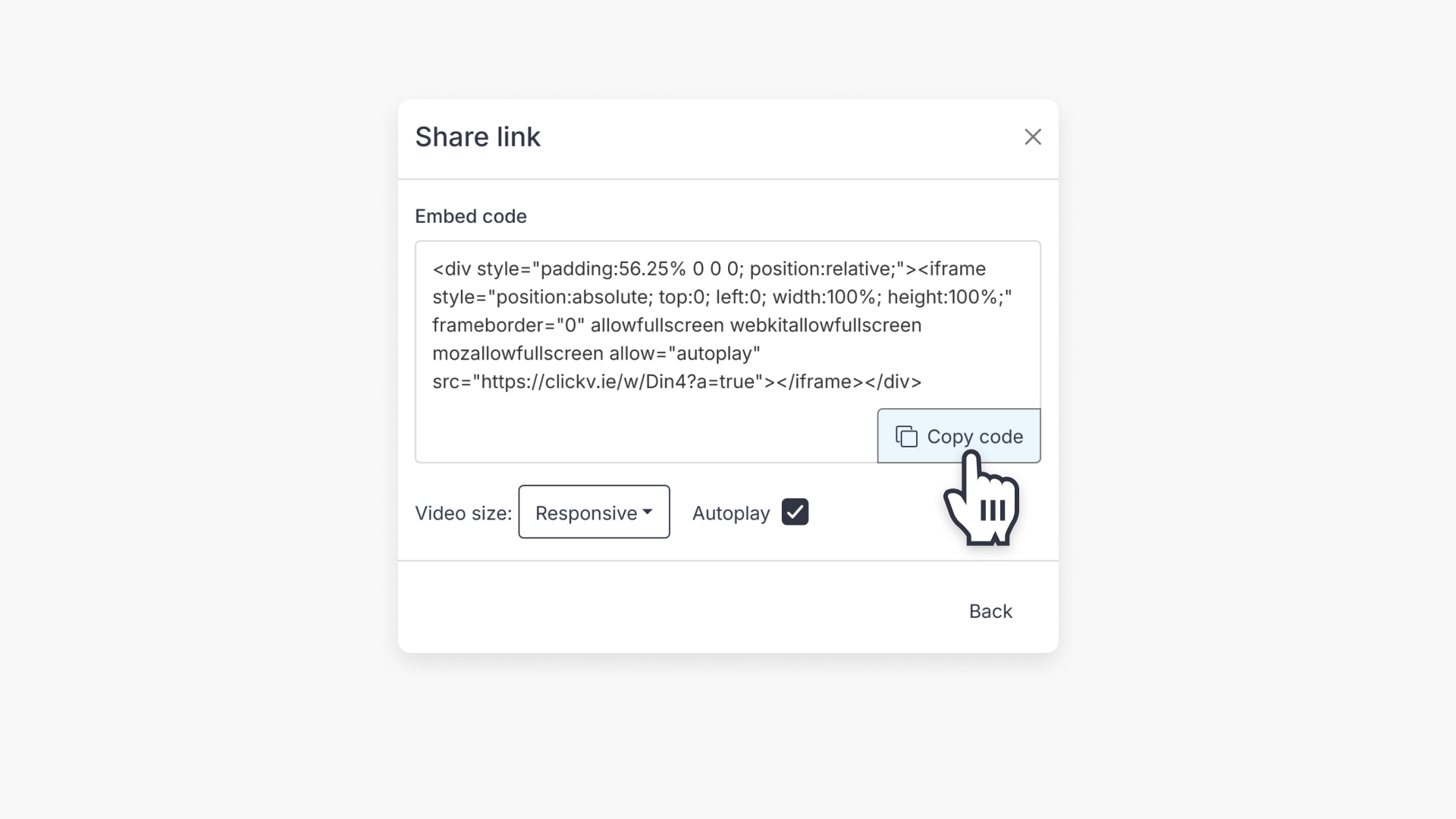
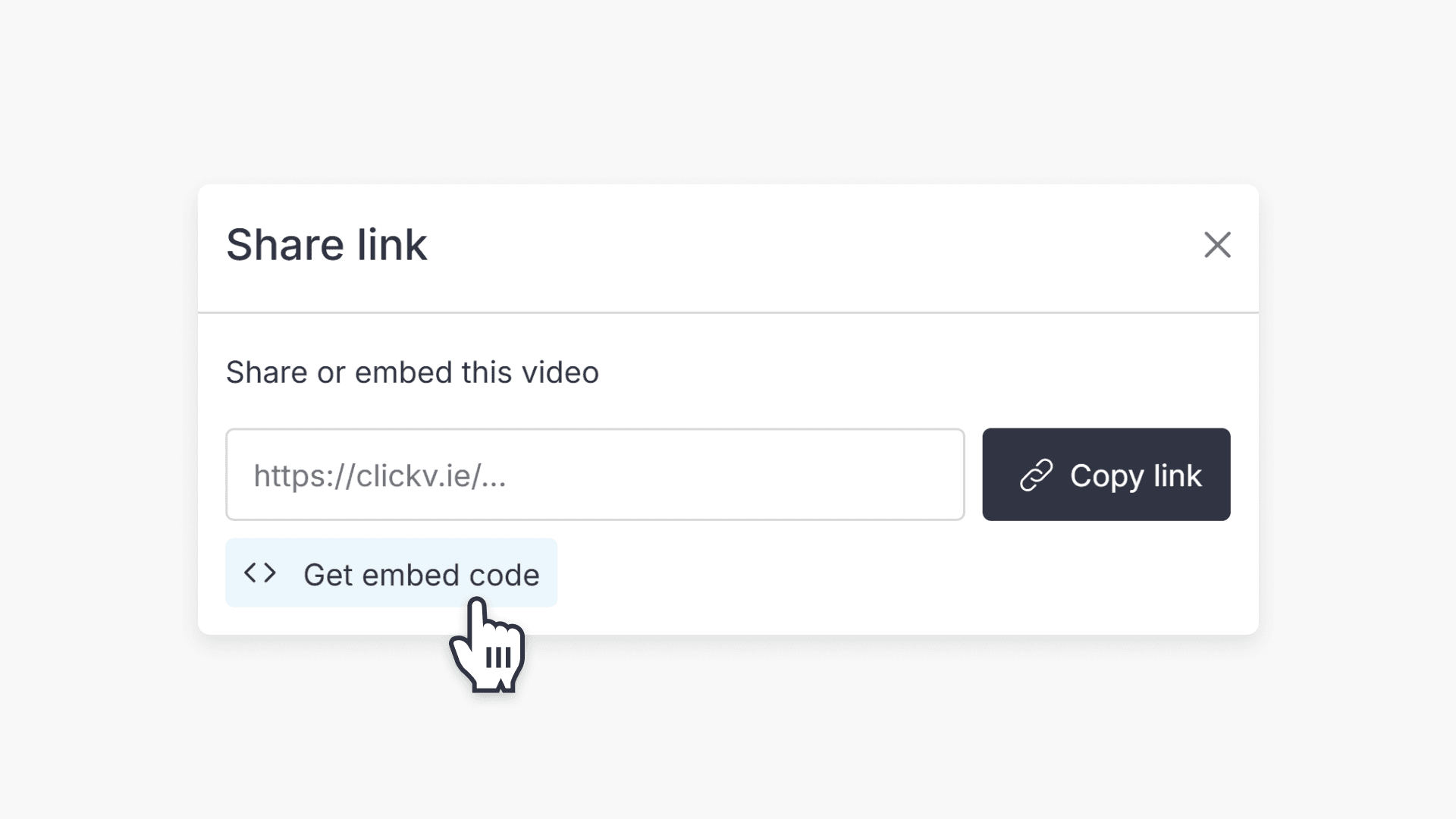
- Select Get embed code, then select Show Options to adjust settings.
- Choose a player size and optionally enable Autoplay.
- Copy the embed code and paste it into your website, LMS, blog, or other platform that supports embeds.
star icon
Quick tip
In ClickView, should I use Autoplay for embedded videos?
Autoplay can be helpful for short announcements, but many browsers and platforms limit autoplay (especially with sound). If autoplay doesn’t work reliably, leave it off and let viewers start playback manually.
Where you can embed a ClickView video
You can use the embed code anywhere your platform supports embedded video, such as:
- Learning management systems (LMS) pages and modules
- School or district websites
- Teacher blogs or class webpages
- Intranet pages and staff portals
- Any online tool that accepts an embed code
Tip: If your platform only accepts links (not embeds), use a share link instead of an embed code.
Steps to get an embed code
- Select your profile (top right of the screen), then navigate to Library Editor.
- Locate the video you want to embed and select the Share icon.
- Select Get embed code.
- Select Show Options to view and adjust embed settings.
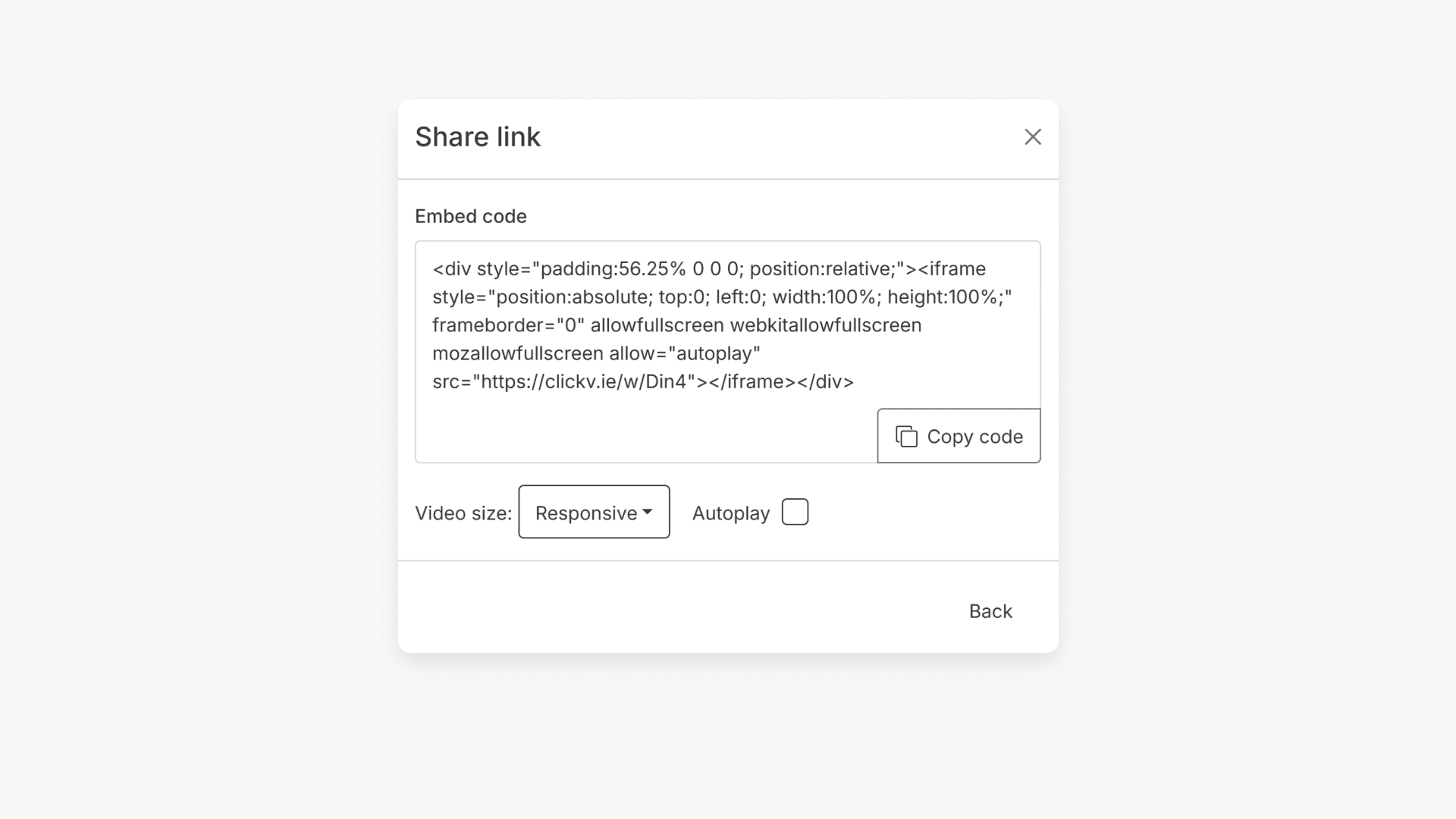
- Choose your preferred Video size. If available, select Autoplay to start playback automatically.
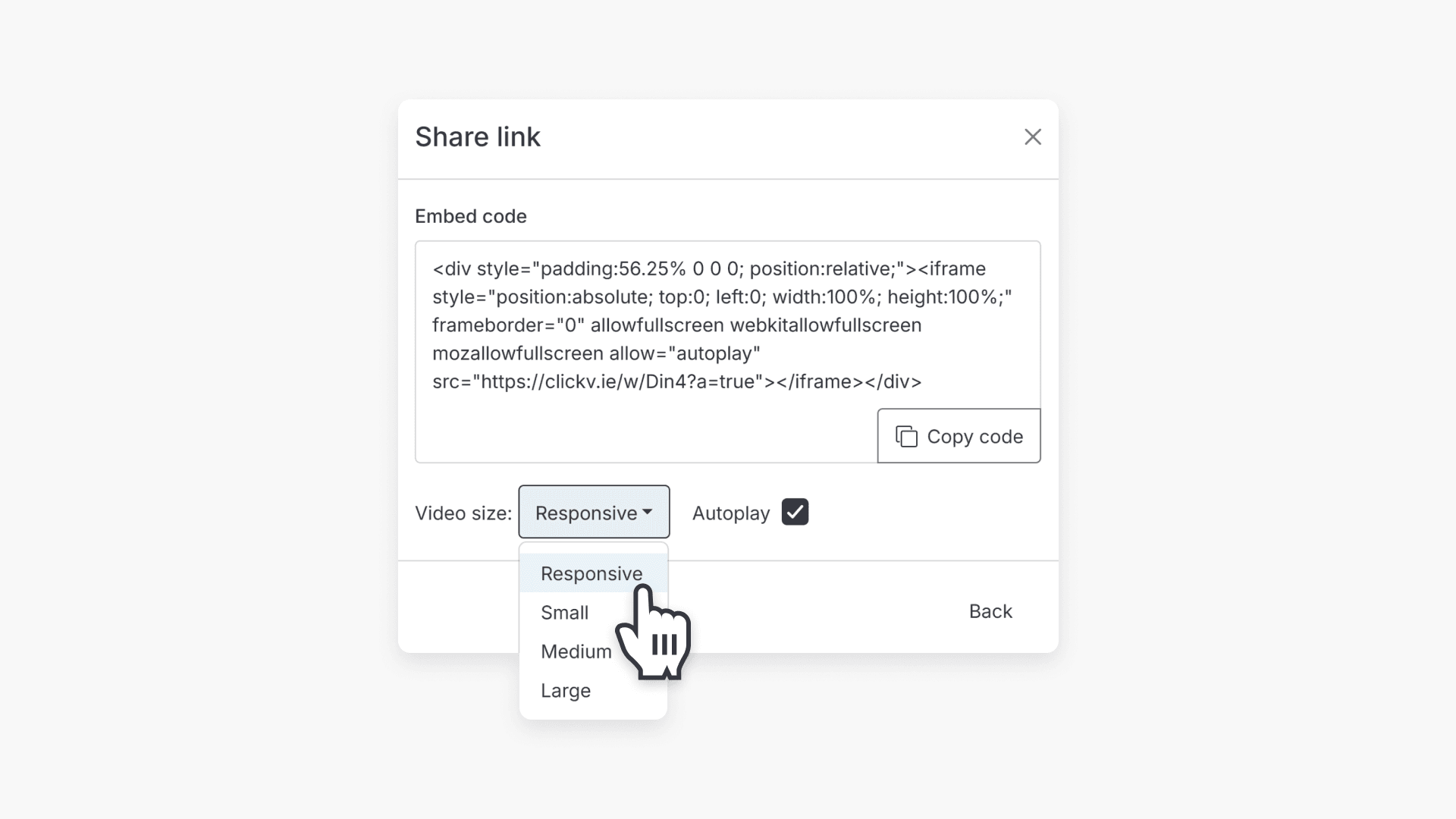
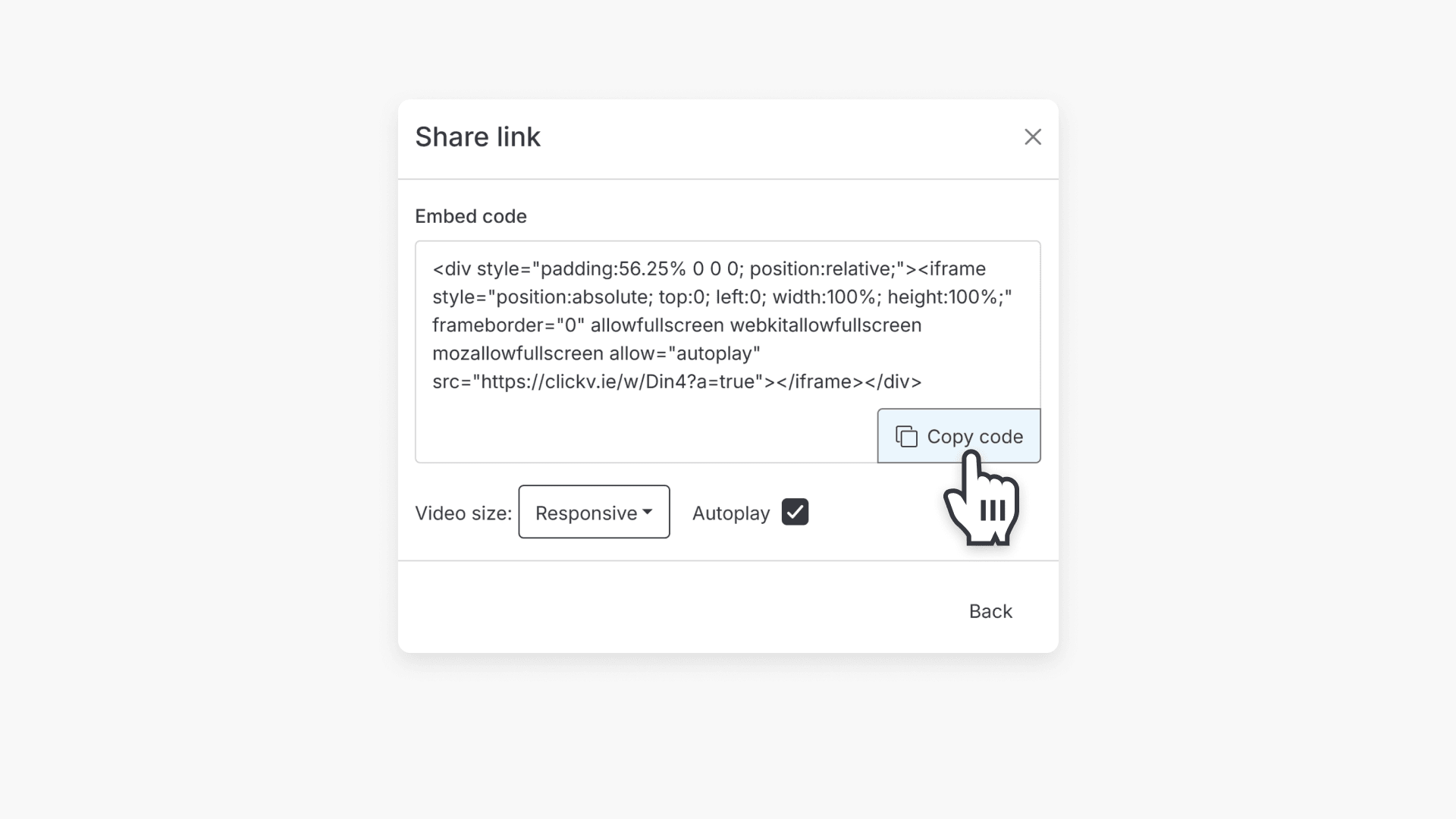
- Copy the embed code.
Paste the embed code into your platform
In your website builder, LMS, or blog editor:
- Open the page where you want the video to appear.
- Find the option to insert embedded content (often called “Embed,” “HTML,” or “iframe”).
- Paste the embed code (Embed URL) and save or publish your page.
Note: The exact steps vary by platform, but the embed code is used the same way in most tools.
Frequently asked questions
Yes. In the embed options, select Autoplay (if available) before copying the embed code.
In Library Editor, select the video’s Share icon, then select Get embed code. The embed code is shown in the sharing settings.
Your platform must support embedded content (for example, an embed/HTML block). If it does not, you may need to share the video using a link instead.
Get in touch
If you’re having trouble finding the right topics or videos, just reach out! Our team - 


 Andrew, Nisch, Janice, Pfreya, or any of us at ClickView - will be happy to help you get sorted.
Give feedback
Was this guide helpful?
Up Next
How to edit video metadata
This guide explains how to edit video metadata in ClickView’s Library Editor, covering program titles, advanced fields, and saving changes.