Edit folder thumbnail and banner images
In this article
Last updated by
2 min readClickViewJanuary 30, 2026

Summary
- Sign in to Library Editor with an administrator account.
- Navigate to the folder you want to edit.
- Click the three dots icon and select ‘Edit Images.’
- Choose ‘Upload Thumbnail’ or ‘Upload Banner.’
- Select your image file and area to display.
- Image size guidelines: 1280×720 for thumbnails, 1200×222 for banners.
star icon
Quick tip
How can custom folder images improve library navigation?
Using clear, consistent thumbnails and banners makes it easier for staff and students to recognize folders at a glance. Visual cues help users find the right content faster, especially in large or heavily structured school libraries.
Steps to change folder images
- Sign in to Library Editor with an administrator account.
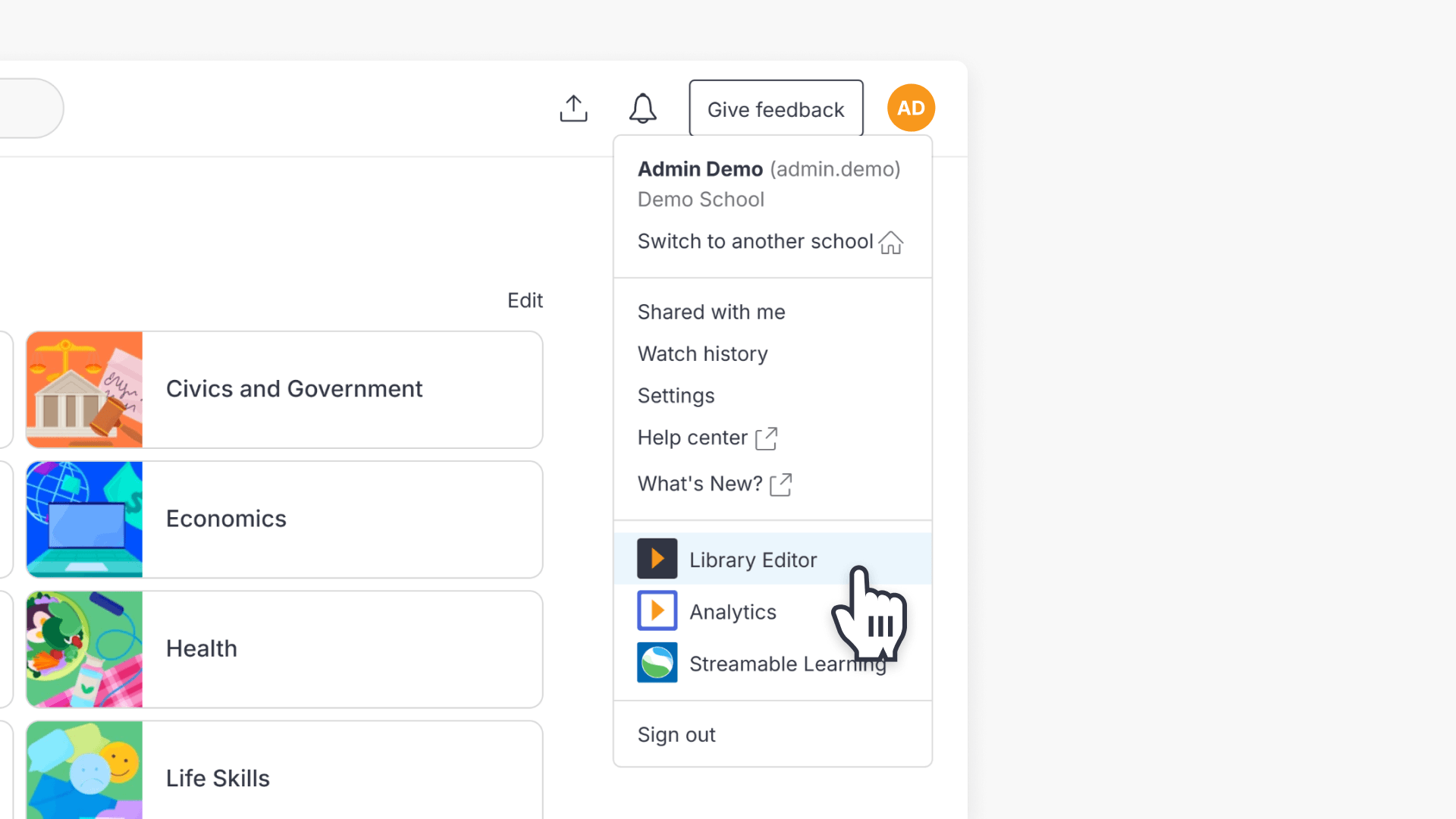
- Navigate to the folder you want to edit.
Click the three dots icon next to the folder name.
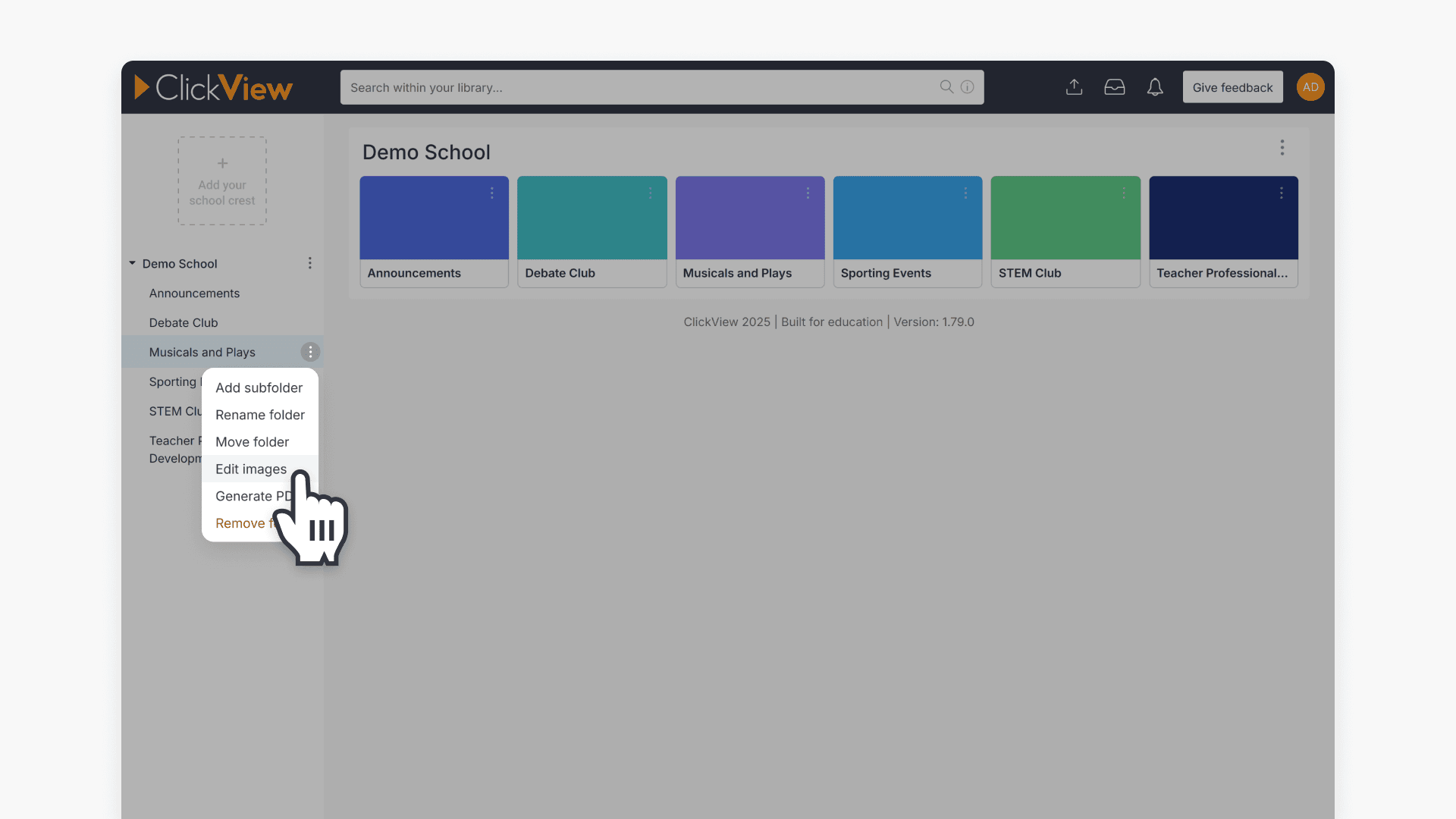
Select Edit Images.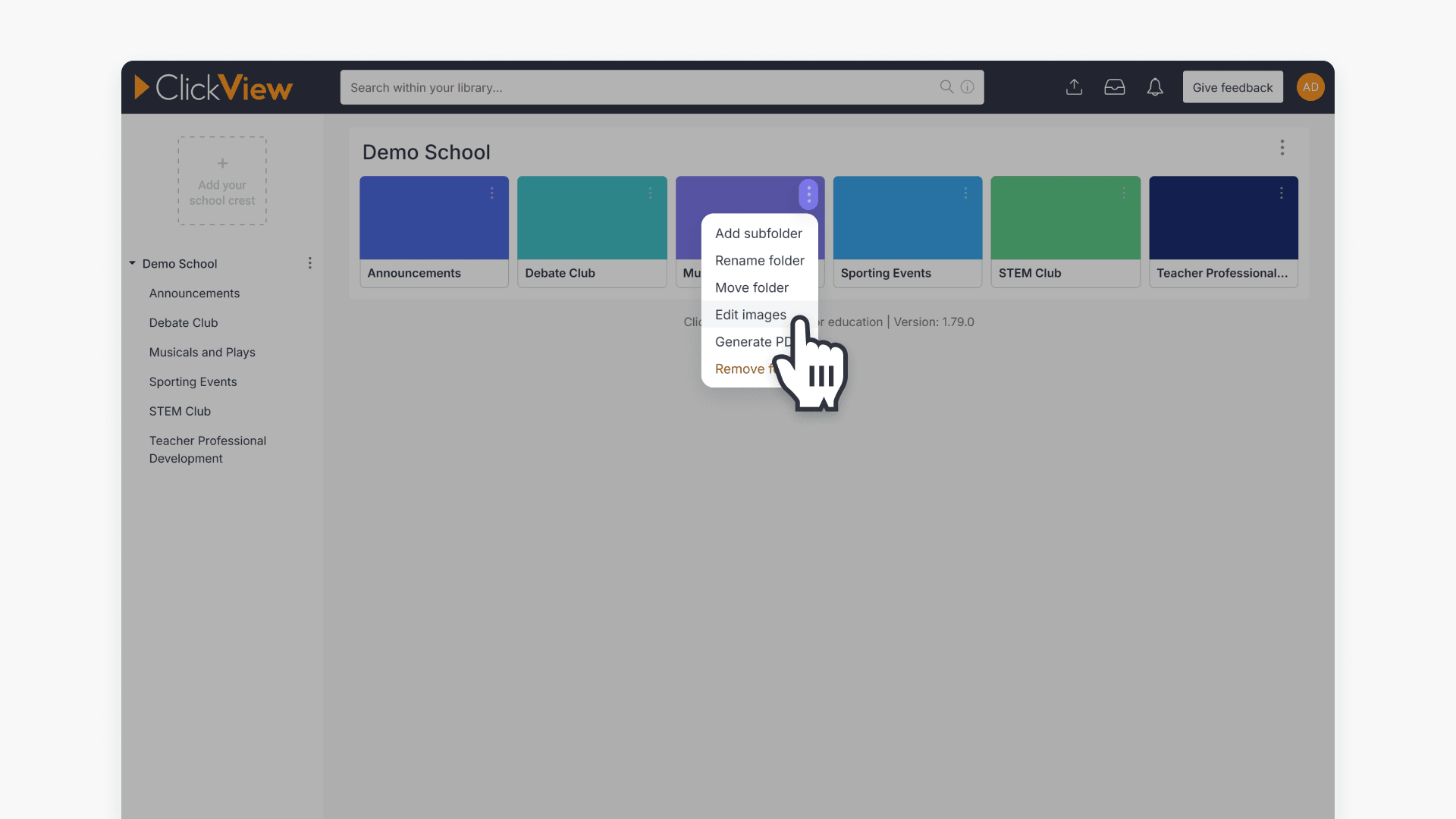
Alternatively, you can use the folder menu on the left.
- Click Upload Thumbnail or Upload Banner.
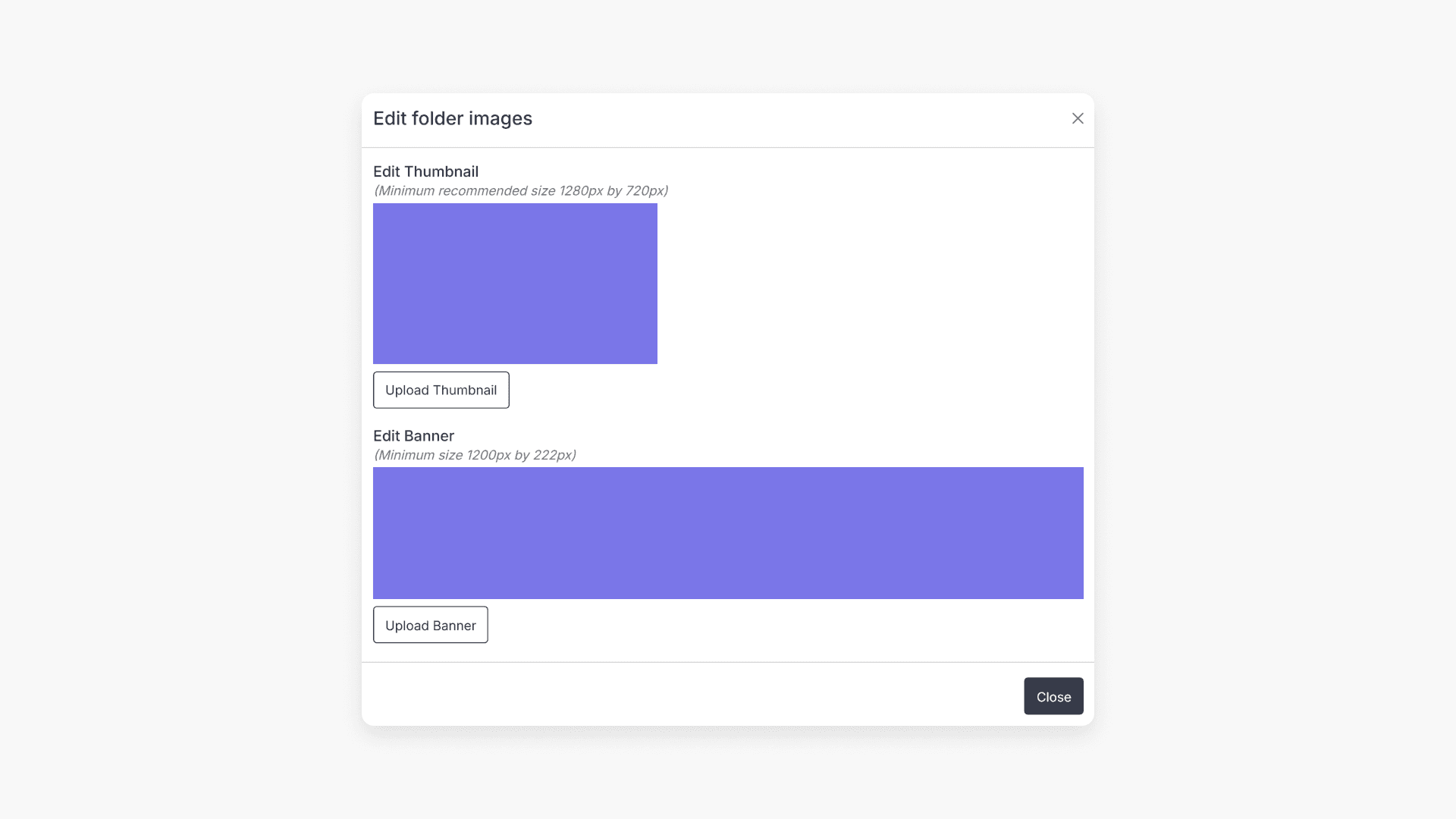
- Choose an image file from your computer. Select the area you want to display.

- Your folder will display the new thumbnail or banner image.
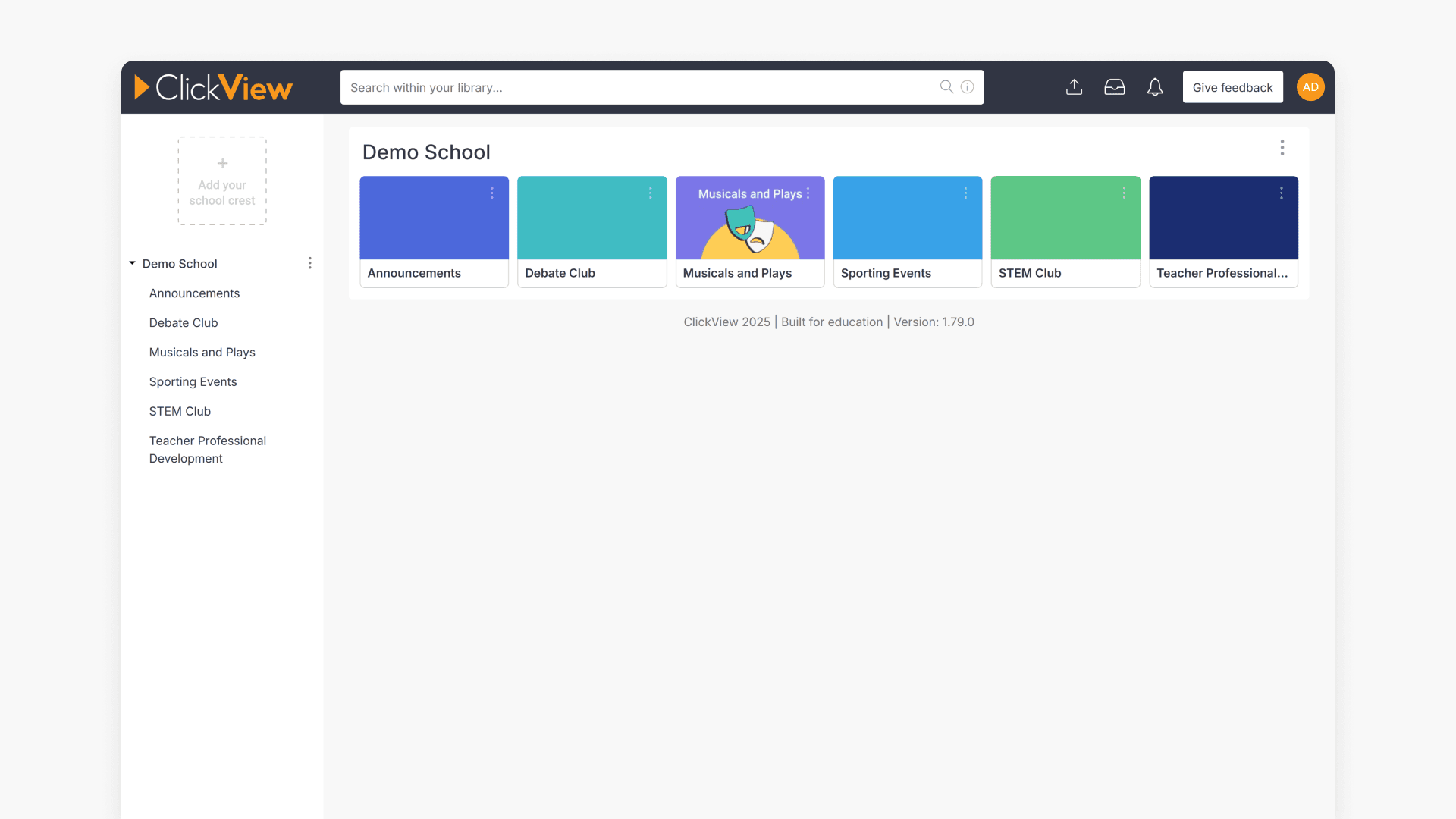
Image size requirements
- Thumbnail images: 1280px wide x 720px high
- Banner images: 1200px wide x 222px high
Frequently asked questions
Standard formats like JPG and PNG are supported.
Yes. Only users with administrator accounts can edit folder thumbnail and banner images.
Yes. After selecting your image, you can choose the area you want to display.
Thumbnail images must be at least 1280×720 pixels and banner images must be at least 1200×222 pixels.
Get in touch
If you’re having trouble finding the right topics or videos, just reach out! Our team - 

 Akhil, Daniel, Jalaj, or any of us at ClickView - will be happy to help you get sorted.
Give feedback
Was this guide helpful?
Up Next
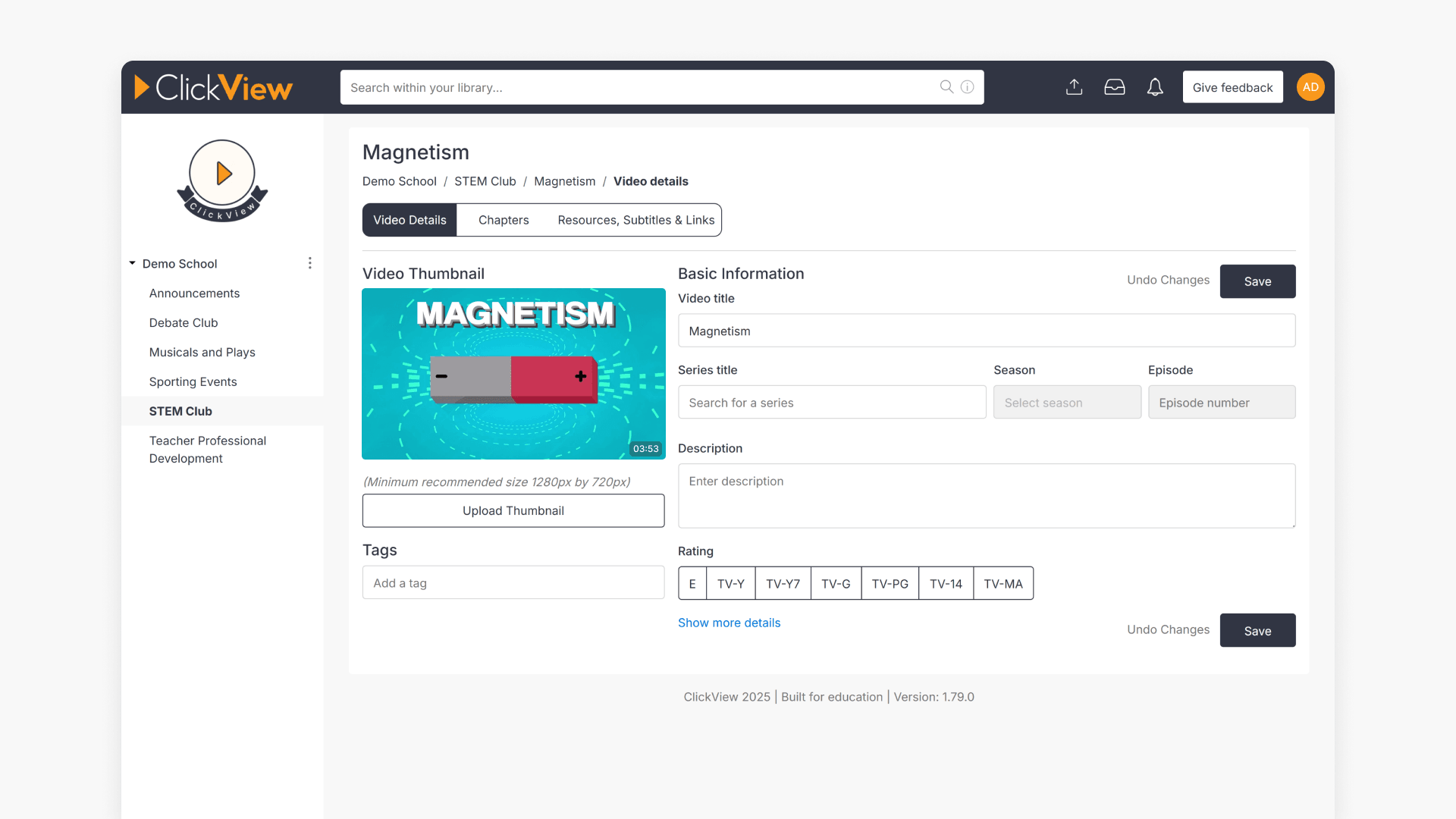
How to edit video metadata
This guide explains how to edit video metadata in ClickView’s Library Editor, covering program titles, advanced fields, and saving changes.