How to find videos with downloadable resources

Summary
- Many ClickView videos have Teacher Packs, Q&A, and Activities.
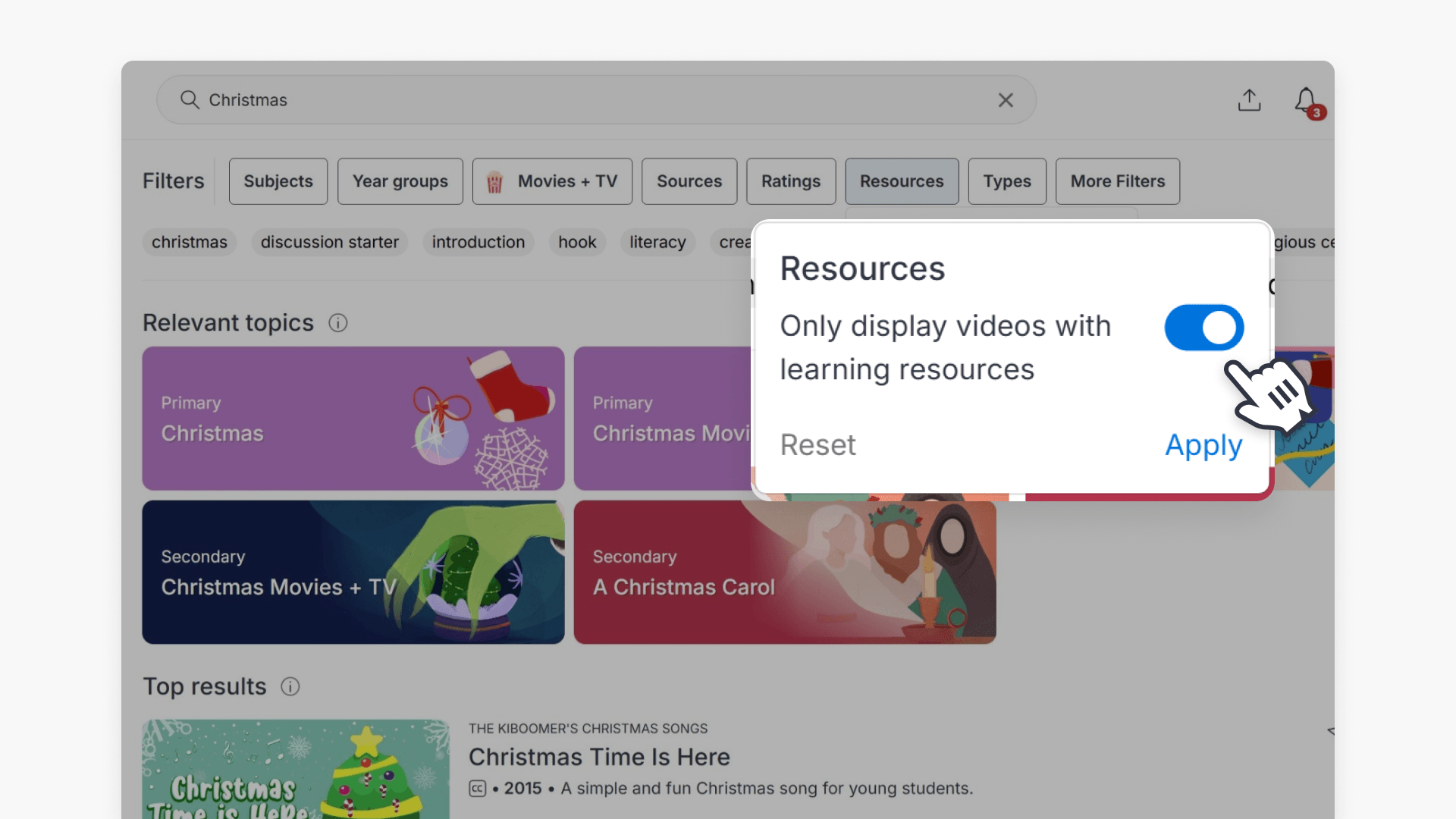
- Click the filter labeled “Resources” on the search page.
- Turn the toggle on for resources-inclusive videos only.
- Filtered results show only videos with downloadable resources.
- You can learn more about search filters in the additional guide.
Filter for videos with teaching resources
ClickView offers many videos with downloadable teaching resources designed to enhance lesson planning. These resources include Teacher Packs, Q&A, and Activities.
How to filter for videos with resources
- While searching for content, locate and click the Resources search filter.
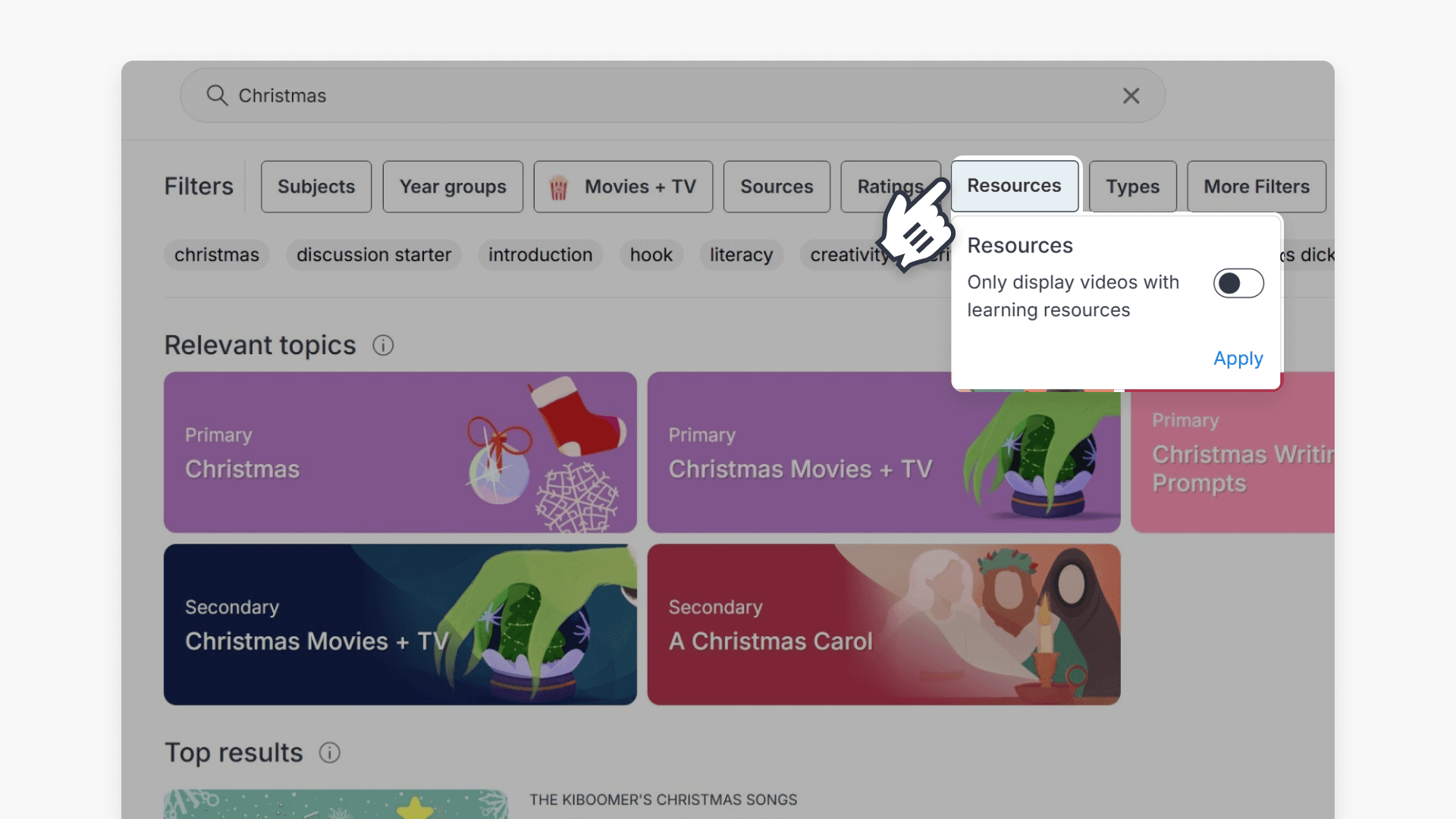
- Turn on the toggle to display resources-inclusive videos only in the search results.
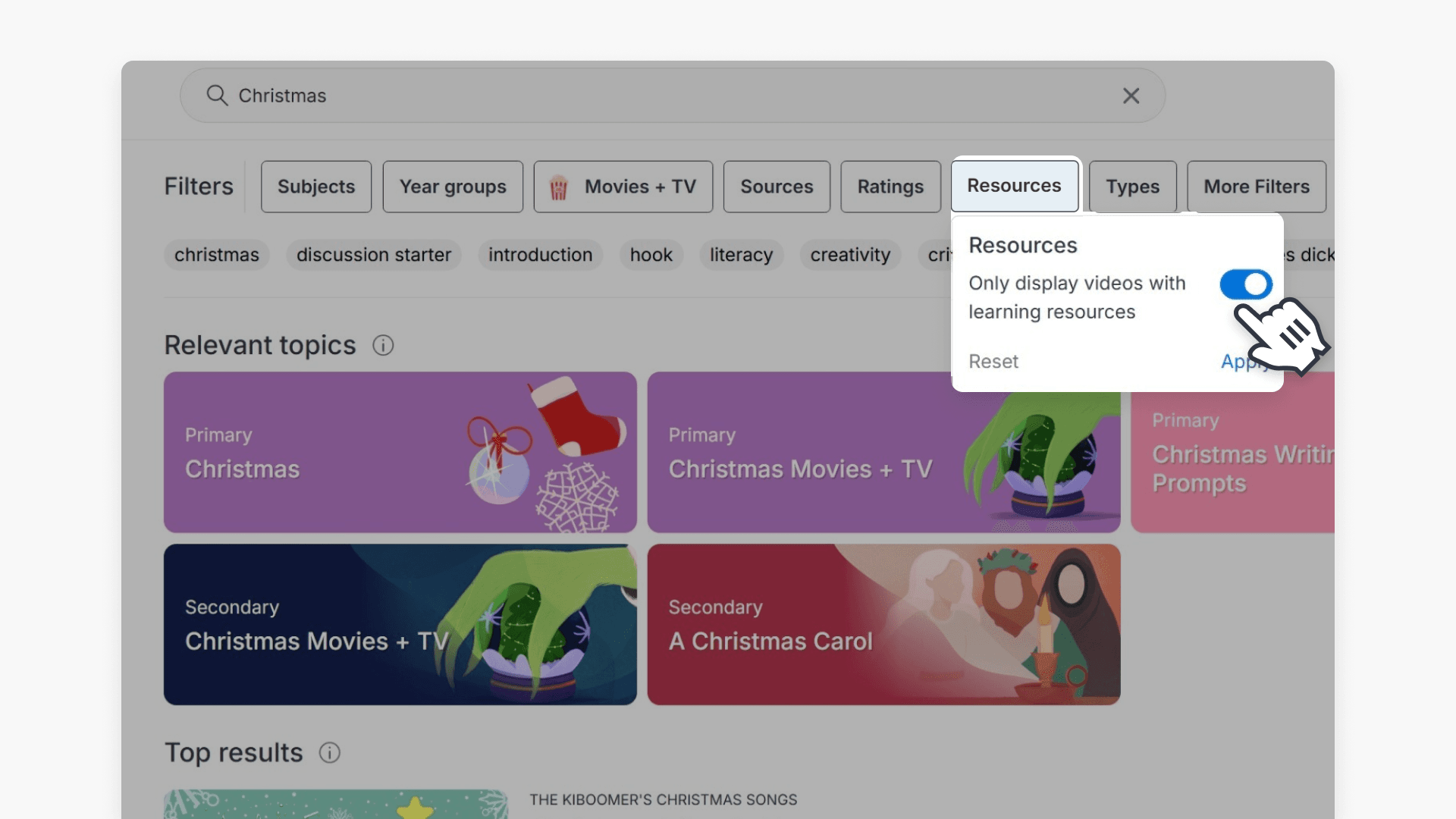
- Once the filter is applied, your results will show only videos that include downloadable resources.
For more details about search filters, see How to use ClickView search.
Frequently asked questions
Get in touch
If you’re having trouble finding the right topics or videos, just reach out! Our team - 

 Akhil, Daniel, Jalaj, or any of us at ClickView - will be happy to help you get sorted.
Give feedback
Was this guide helpful?
Up Next
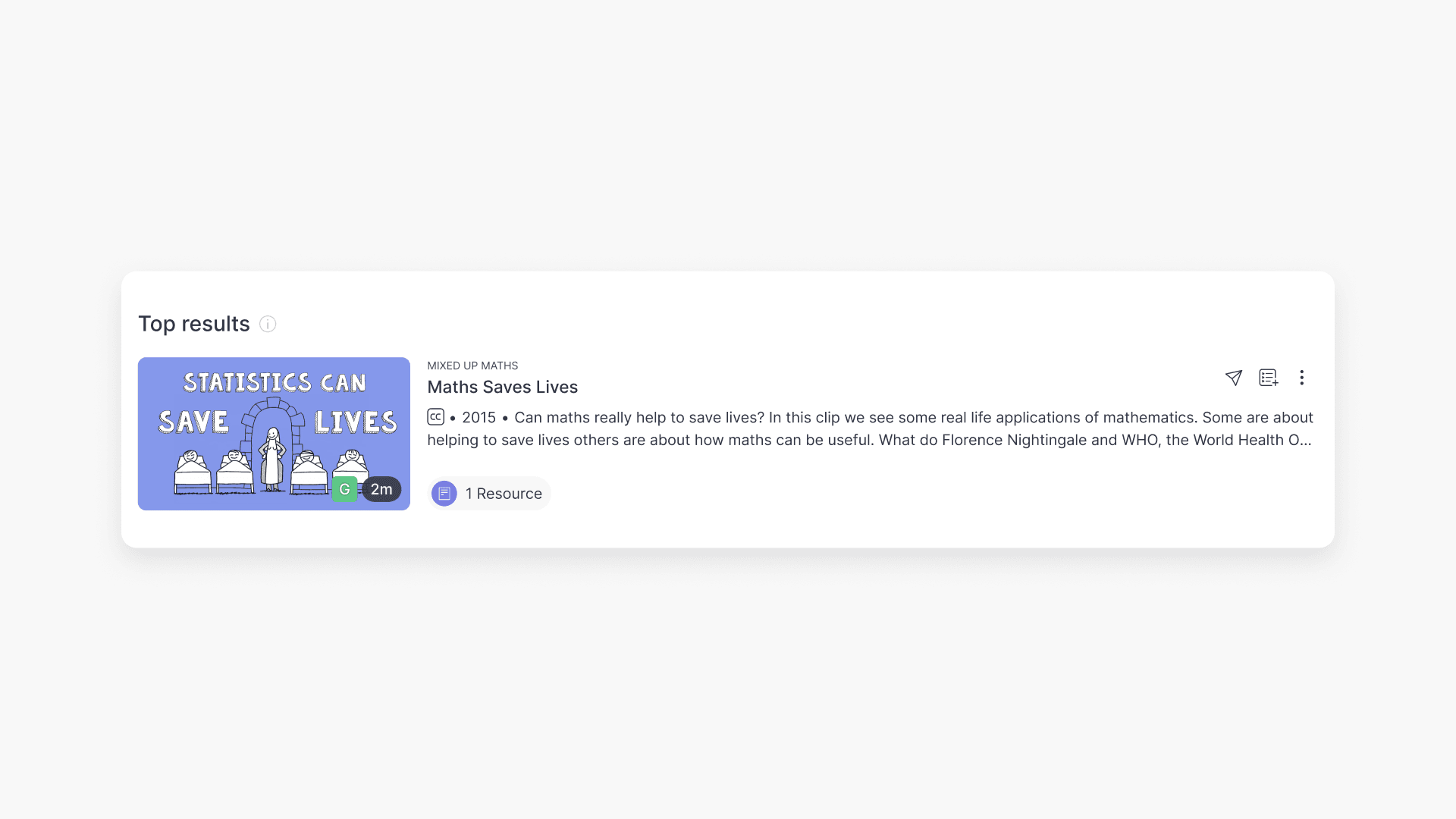
Understanding video classification ratings
Summary What classification ratings does ClickView use for videos? ClickView follows the classifications supplied by Australian broadcasters (such as Channel 7, ABC, and SBS), in line with the ‘classify once’ principle. Ratings include E (Exempt), G (General), PG (Parental Guidance), M (Mature), MA15+ (Mature Accompanied), and R18+ (Restricted). What is video classification? Video classification shows […]