How to enable Theatre Mode


Summary
- Theatre Mode expands the video player for focused viewing.
- Activate Theatre Mode using the Theatre Mode icon in the video player, or by pressing ‘T’.
- Works for videos and clips.
- Supports small and large screens for optimal display.
- Does not hide important controls or features in the player.
What is Theatre Mode?
Theatre Mode is a video playback option in ClickView that expands the video player for a cleaner, more immersive viewing experience. Theatre Mode is available for all ClickView videos and clips, offering a wider, distraction-free layout that works on any device.
- Wider distraction-free layout: Focus on the video content without unnecessary on-screen elements.
- Optimised for any screen: Theatre Mode balances usability and immersion across both small laptops and large desktop displays.

How to activate Theatre Mode
- Click the Theatre Mode icon on any video player.
- Or press “T” on your keyboard while the video is playing.
Once activated, the video player will expand within the interface, providing a clean and immersive experience. All important controls and features remain visible and usable while viewing.
Theatre Mode and default view comparison
Default view
- The standard layout embeds the video player within the full interface for balanced navigation and viewing.
Theatre Mode
- Expanded video player increases visibility and focus on content.
- Compatible with all content types, including older 4:3 ratio videos.

Frequently asked questions
Get in touch
If you’re having trouble finding the right topics or videos, just reach out! Our team - 


 Andrew, Nisch, Janice, Pfreya, or any of us at ClickView - will be happy to help you get sorted.
Give feedback
Was this guide helpful?
Up Next
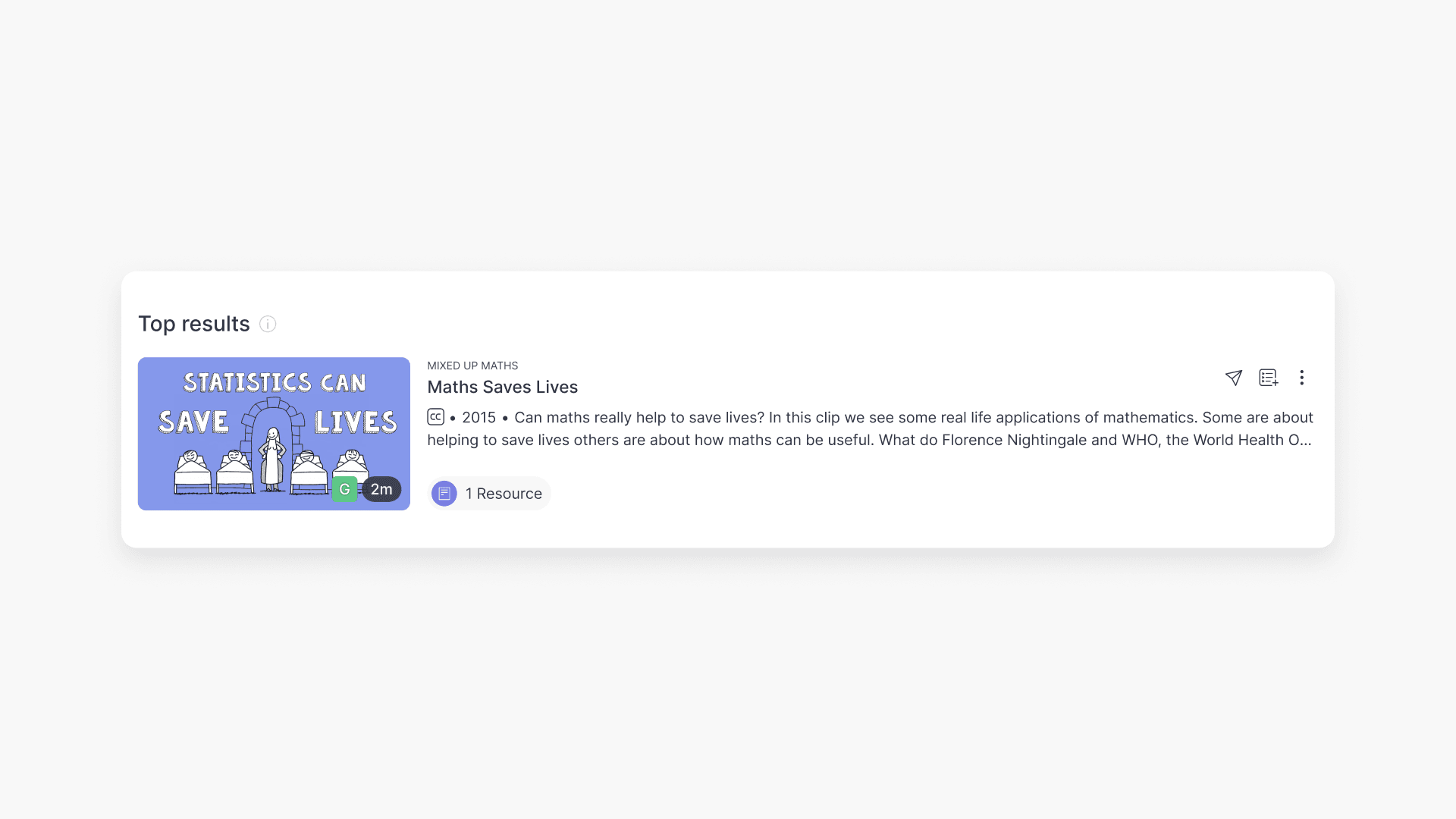
Understanding video classification ratings
Summary What classification ratings does ClickView use for videos? ClickView follows the classifications supplied by Australian broadcasters (such as Channel 7, ABC, and SBS), in line with the ‘classify once’ principle. Ratings include E (Exempt), G (General), PG (Parental Guidance), M (Mature), MA15+ (Mature Accompanied), and R18+ (Restricted). What is video classification? Video classification shows […]