How to adjust video playback speed

Summary
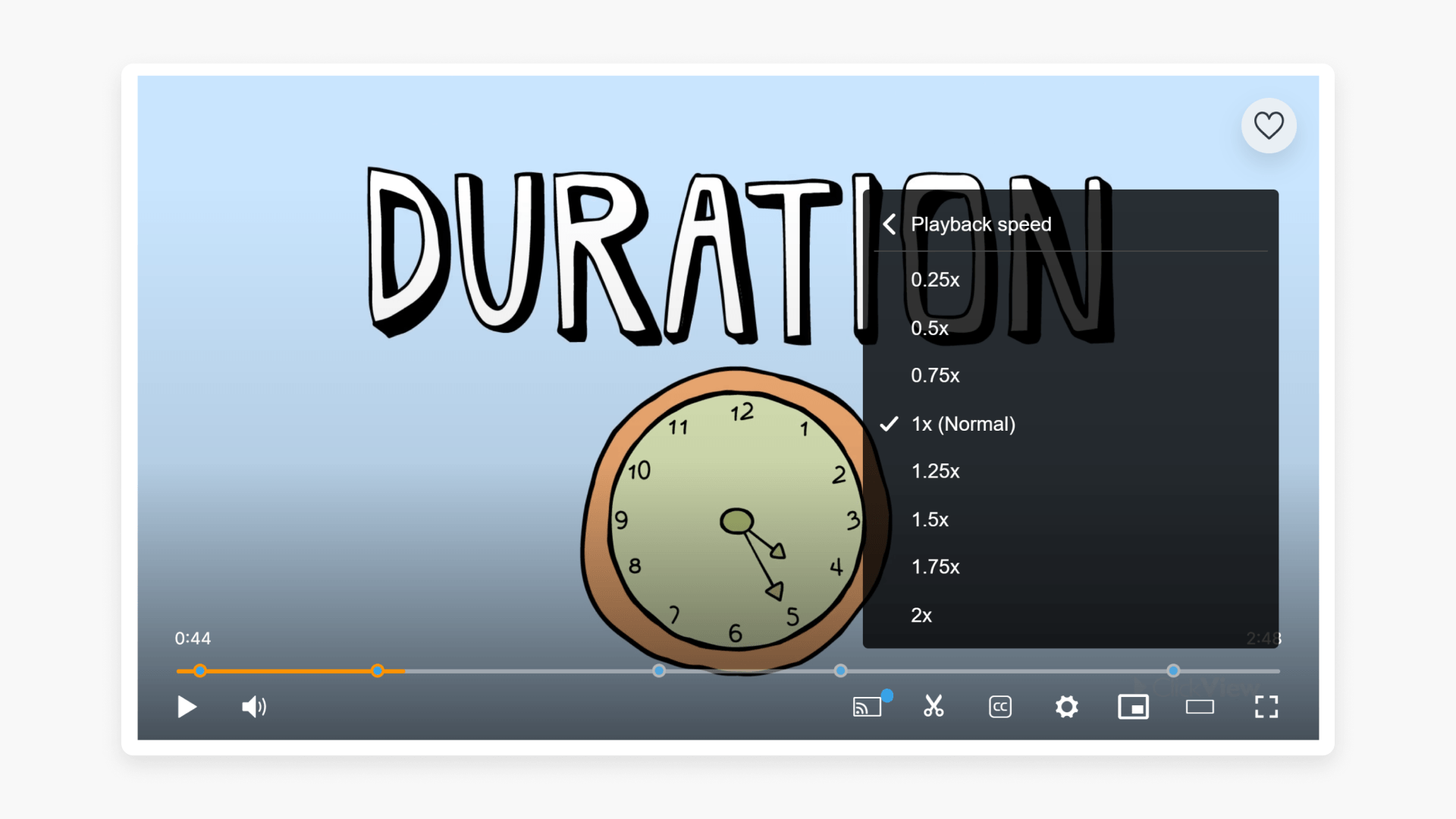
- Select the gear icon in the video player controls
- Choose ‘Playback speed’ from the menu
- Select your preferred speed: 0.25x, 0.5x, 0.75x, 1x (Normal), 1.25x, 1.5x, 1.75x or 2x
- Your video will play at the selected speed
- Speeds allow you to slow down or speed up video playback
Understanding playback speed options
Adjusting the playback speed in ClickView enables you to slow down or speed up videos according to your classroom needs. This feature lets you focus on key sections at a slower pace for better student comprehension or review content more quickly for lesson planning.
How to adjust playback speed
- Select the gear icon in the video player controls, then choose Playback speed.

- Select your preferred playback speed from the options:

- 0.25x – 0.25 times slower than normal speed
- 0.5x – 0.5 times slower than normal speed
- 0.75x – 0.75 times slower than normal speed
- 1x (Normal) – Default speed
- 1.25x – 1.25 times faster than normal speed
- 1.5x – 1.5 times faster than normal speed
- 1.75x – 1.75 times faster than normal speed
- 2x – 2 times faster than normal speed
- Your video will continue to play at your selected speed.
Frequently asked questions
Get in touch
If you’re having trouble finding the right topics or videos, just reach out! Our team - 

 Akhil, Daniel, Jalaj, or any of us at ClickView - will be happy to help you get sorted.
Give feedback
Was this guide helpful?
Up Next
Understanding video classification ratings
Summary What classification ratings does ClickView use for videos? ClickView follows the classifications supplied by Australian broadcasters (such as Channel 7, ABC, and SBS), in line with the ‘classify once’ principle. Ratings include E (Exempt), G (General), PG (Parental Guidance), M (Mature), MA15+ (Mature Accompanied), and R18+ (Restricted). What is video classification? Video classification shows […]