How to download printable resources

Summary
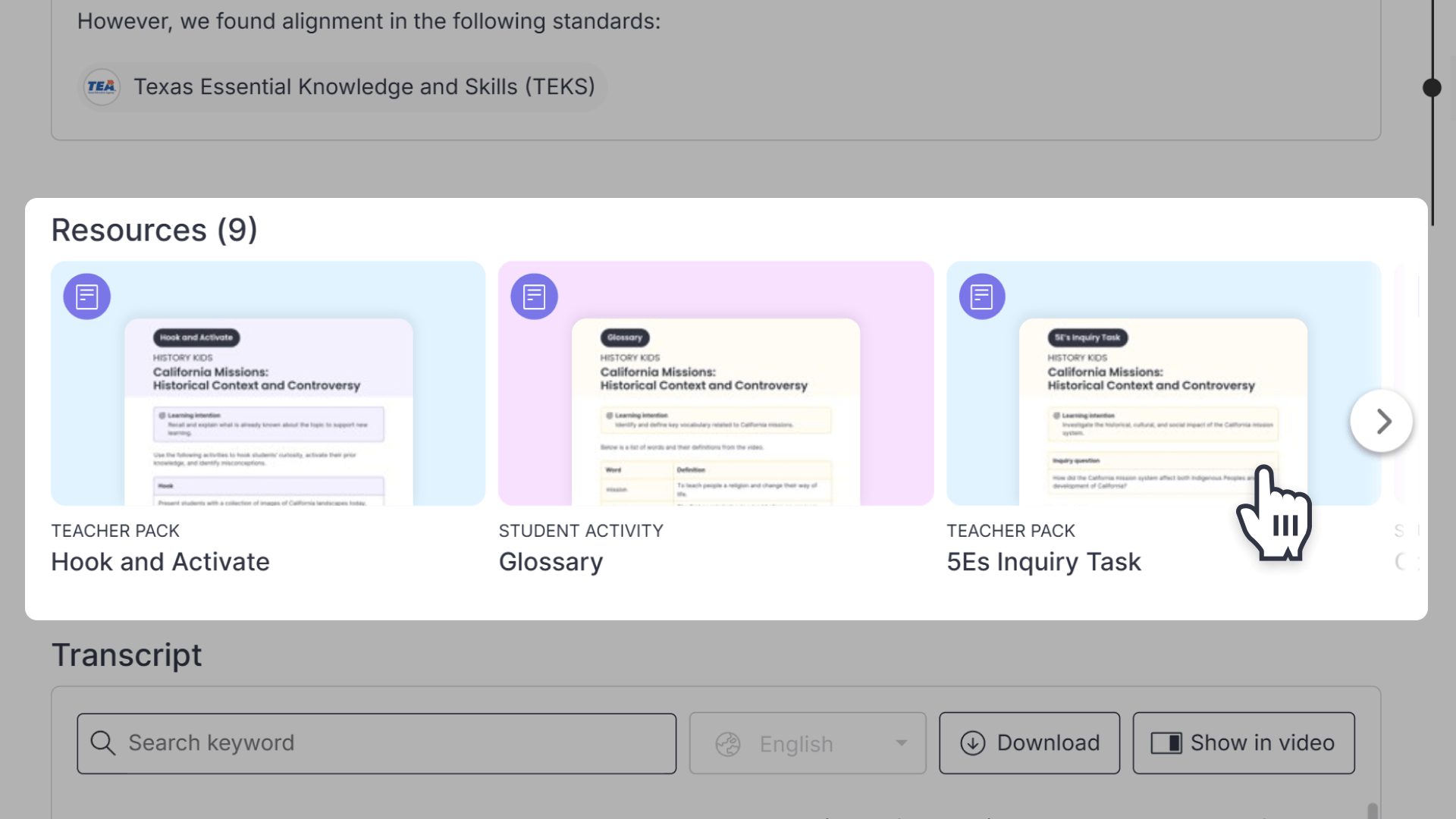
- Resources are found under the Resources section below the video curriculum.
- Teacher packs and worksheets may be available for download.
- Click a resource to preview it before downloading.
- Use the Download button in the bottom right of the preview popup to download.
- Downloaded resources are accessible on your computer outside of ClickView.
Finding and downloading resources from videos
Many ClickView videos include downloadable resources such as teacher packs and student worksheets, designed to support lesson planning and delivery.
Follow these steps to download resources from a video:
- Locate resources within a video:
Open a video. Scroll down below the video player. You will find available resources listed below the video curriculum within the Resources section.
- Preview a resource:
Click on a resource name (e.g., Student Activity) or the thumbnail to open a preview window.
- Download the resource:
In the bottom right of the preview popup, click Download.
- Access your downloaded document:
Once downloaded, the resource is saved to your computer and ready to use outside of ClickView.
Frequently asked questions
Get in touch
If you’re having trouble finding the right topics or videos, just reach out! Our team - 

 Akhil, Daniel, Jalaj, or any of us at ClickView - will be happy to help you get sorted.
Give feedback
Was this guide helpful?
Up Next
Understanding video classification ratings
Summary What classification ratings does ClickView use for videos? ClickView follows the classifications supplied by Australian broadcasters (such as Channel 7, ABC, and SBS), in line with the ‘classify once’ principle. Ratings include E (Exempt), G (General), PG (Parental Guidance), M (Mature), MA15+ (Mature Accompanied), and R18+ (Restricted). What is video classification? Video classification shows […]