How to add videos to your school library

Summary
- Sign in to ClickView and open the video you want to request.
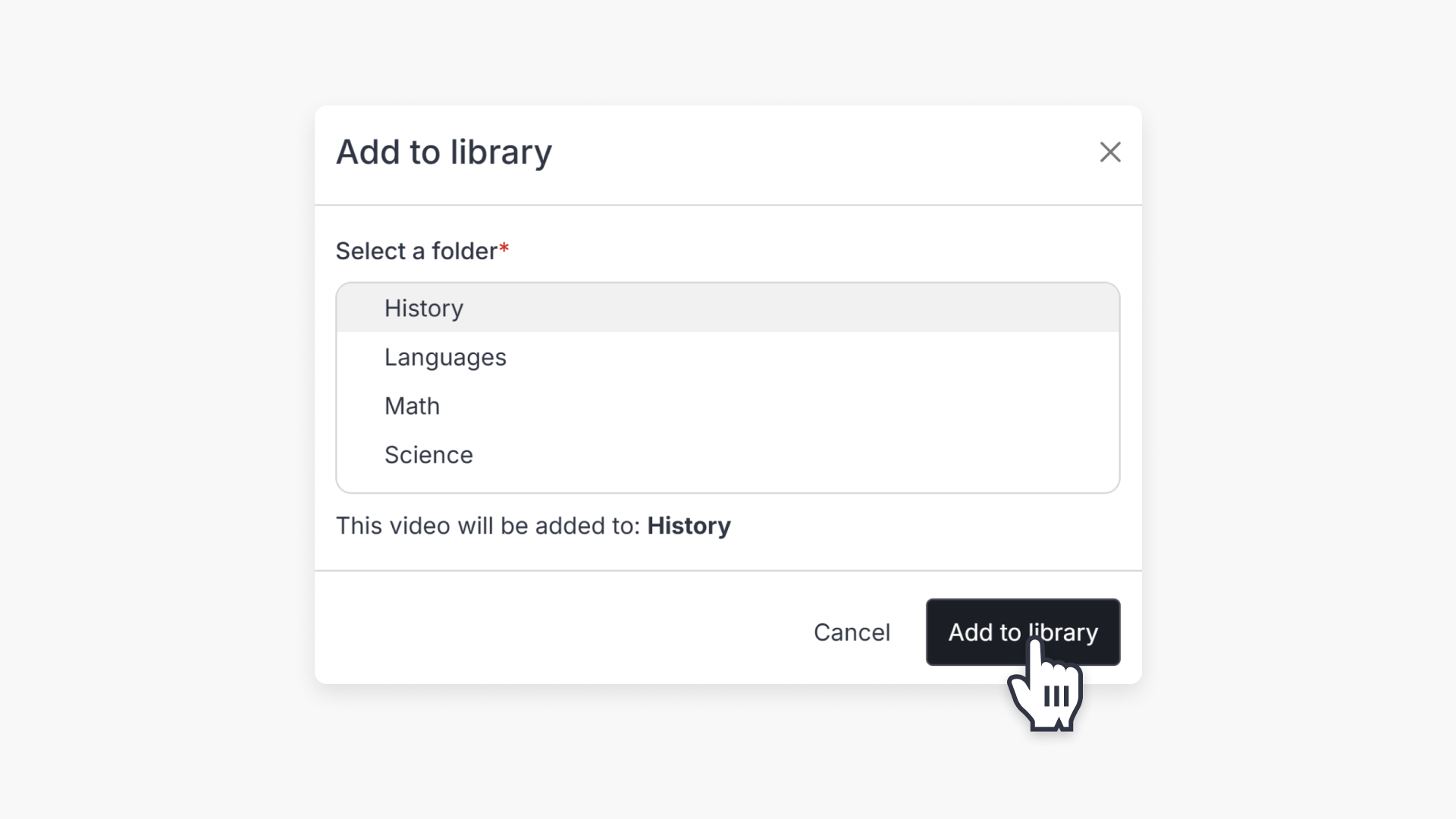
- Click the three vertical dots and select ‘Add to library.’
- Select an appropriate folder and add a message to the admin (if you wish).
- Click “Add to library” to send the request to your ClickView Admins.
- Look for the notification at the bottom right hand-side of the page.
Add a video to your school library
All staff can follows these steps to add videos from the ClickView Libraries or their My Videos to their school library. ClickView Admins have the final say and will review staff videos first and either approve or reject the addition.
- Sign in to ClickView.
- Find the video you wish to add from ClickView Libraries or your Playlists.
- Select the three vertical dots, then click ‘Add to library’.

- Select an appropriate folder to add the video to and add message to your school’s ClickView admin, if you wish.

- Click Add to library.

What happens after you send a request
A notification will pop up at the bottom right hand-side of the page notifying you that a request has been sent to your ClickView Admins. They will either approve or reject your request.

If you are a ClickView Administrator and wish to approve requests please see Manage staff requests.
Frequently asked questions
Get in touch
If you’re having trouble finding the right topics or videos, just reach out! Our team - 


 Andrew, Nisch, Janice, Pfreya, or any of us at ClickView - will be happy to help you get sorted.
Give feedback
Was this guide helpful?
Up Next
How to assign a video
Summary How do I assign a video to a classroom in ClickView? Depending on how your school is set up, you can assign a video to an existing classroom or create an Open Classroom. If your school has rostering or classrooms already set up, select an existing classroom, and students sign in and see the […]