How to vote on feature requests
In this article
Last updated by
2 min readClickView30th January, 2026
Summary
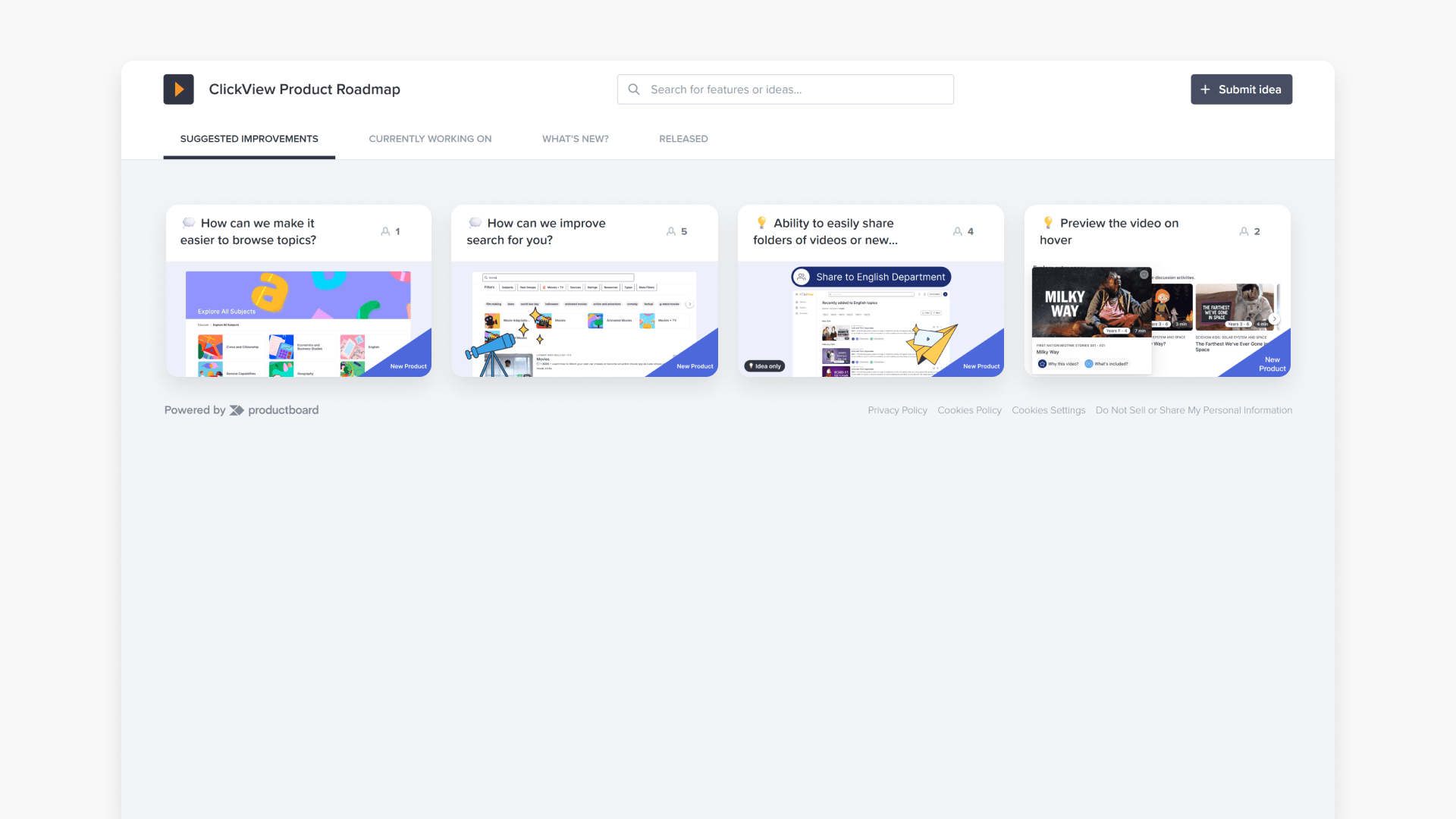
- Visit the ClickView Product Roadmap
- Click ‘+Submit idea’ for new requests
- Fill in your information and your request details
- Select the importance level and enter your email address
- Vote or comment on existing requests via the ‘Suggested Improvements’ tab
star icon
Quick tip
In ClickView, what should I include to get more support for my feature request?
Use a clear title, choose the importance level carefully, describe the problem you’re trying to solve, and include key details like who it affects and what success looks like, so the request is easier to assess and prioritise.
Submitting a new feature request or feedback
Educators and administrators can submit feature requests or provide feedback to help improve ClickView. Follow the step-by-step instructions below for submitting a new feature request or how to vote for an existing request.
Submit via the Product Roadmap
- Visit our Product Roadmap.
- At the top of the page, click the ‘+Submit idea’ button.

- In the ‘Submit new idea’ window, fill out the text box with:
- Your idea: Briefly explain what you want, why you need it, and how it would improve your ClickView experience.Importance: Choose the importance level that best fits your request.Your email address: Enter a valid email address so your submission can be verified.

- Click the ‘Submit’ button. An email will be sent to your inbox.

- Please check your inbox and click the ‘Confirm email’ button to complete validation.

- After confirmation, your feature request is submitted.

Submit via email
Alternatively, you can submit your feature request by email.
- Prepare an email with these details:
- Your school name
- Your name and email address
- Your request: Summarise your request and include a short explanation of the problem it solves.
- Benefits of the change: How will the request help?
- Send the above details to ClickView Product Support at support@clickvieweducation.com.
- You will receive an automated email acknowledgment.
Submit feedback on an existing feature request
- Visit our Product Roadmap.
- On the ‘Suggested Improvements’ tab, select an existing feature request.

- Choose the importance level for your feedback.

- In the text box, provide a short summary of why you would like to see this feature and how it will improve your ClickView experience.

- Enter your email address and click ‘Submit’.

- Check your email and confirm using the ‘Confirm email’ button.

- Your feedback is now added to the feature request.

Frequently asked questions
Yes, you can submit by contacting Product Support (support@clickvieweducation.com) with your request details.
Yes, you will receive an automated acknowledgment and must validate your email after submission.
In Product Board, select the ‘What’s New?’ tab, choose the feature, and provide your feedback as shown.
Get in touch
If you’re having trouble finding the right topics or videos, just reach out! Our team - 


 Andrew, Nisch, Janice, Pfreya, or any of us at ClickView - will be happy to help you get sorted.
Give feedback
Was this guide helpful?
Up Next
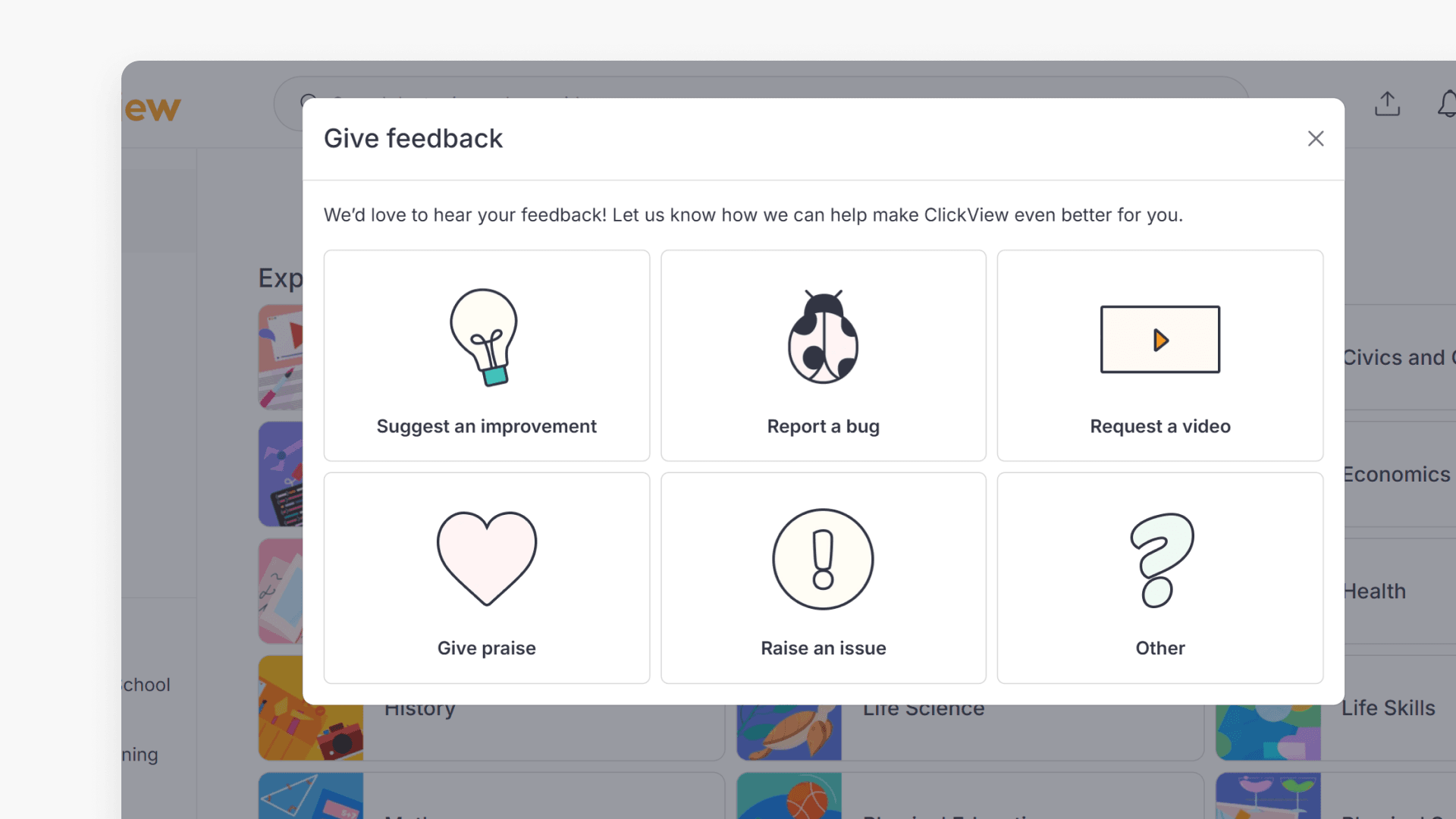
How to submit feedback in ClickView
Discover three methods to provide feedback within ClickView, including detailed options for suggestions, bugs, ideas, and general comments. This guide outlines each in-product feedback path with step-by-step visuals.