How to enable Apple TV and pair devices

Summary
- Install the ClickView app on your Apple TV.
- Your ClickView administrator needs to enable Apple TV under ClickView Settings.
- Open the app on Apple TV and note the on-screen PIN.
- In ClickView, pair and Activate the device using the PIN.
- Cast videos using the cast icon in the ClickView player.
Before you begin
- You need the ClickView app installed on your Apple TV.
- A ClickView administrator must enable Apple TV integration before devices can be paired.
Install ClickView on your Apple TV device
Download and install the latest version of the ClickView app onto your Apple TV.
Enable Apple TV integration
A ClickView administrator must enable Apple TV integration:
- In ClickView, go to Settings.
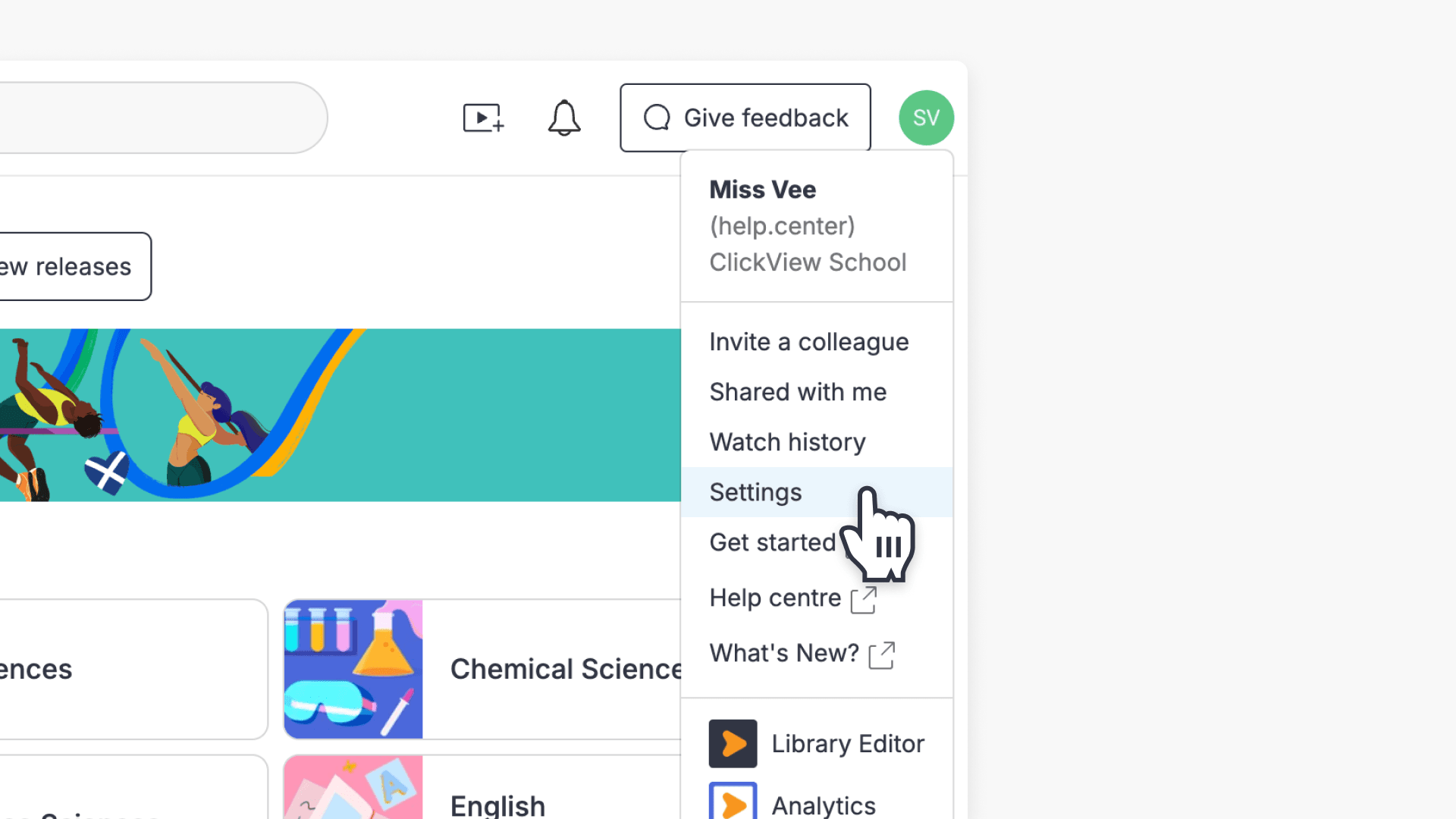
- Then go to Integrations > Player cast integrations.

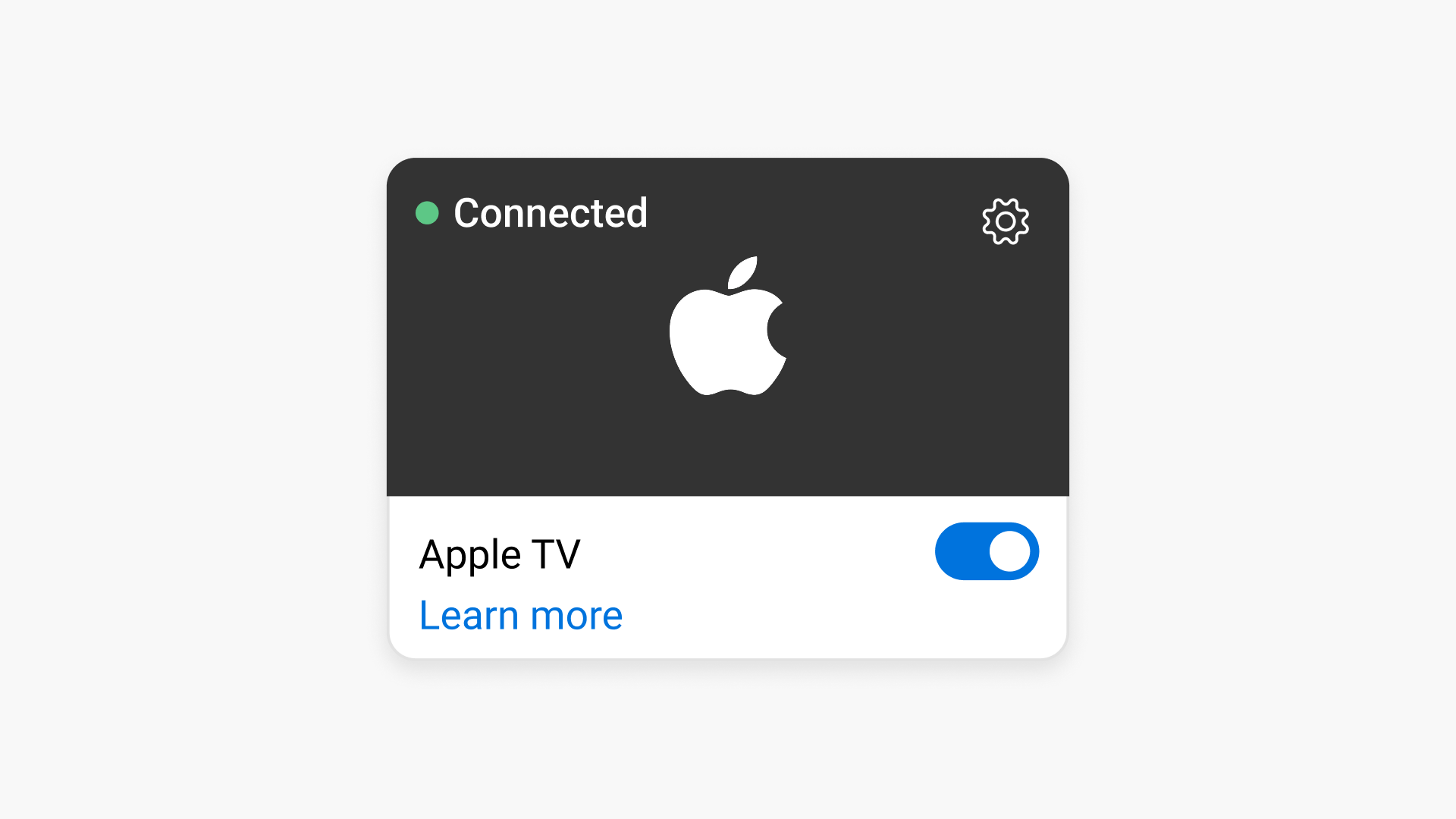
- Click the toggle in the Apple TV tile to enable the integration.

Pair your Apple TV
- Open the ClickView app on your Apple TV.
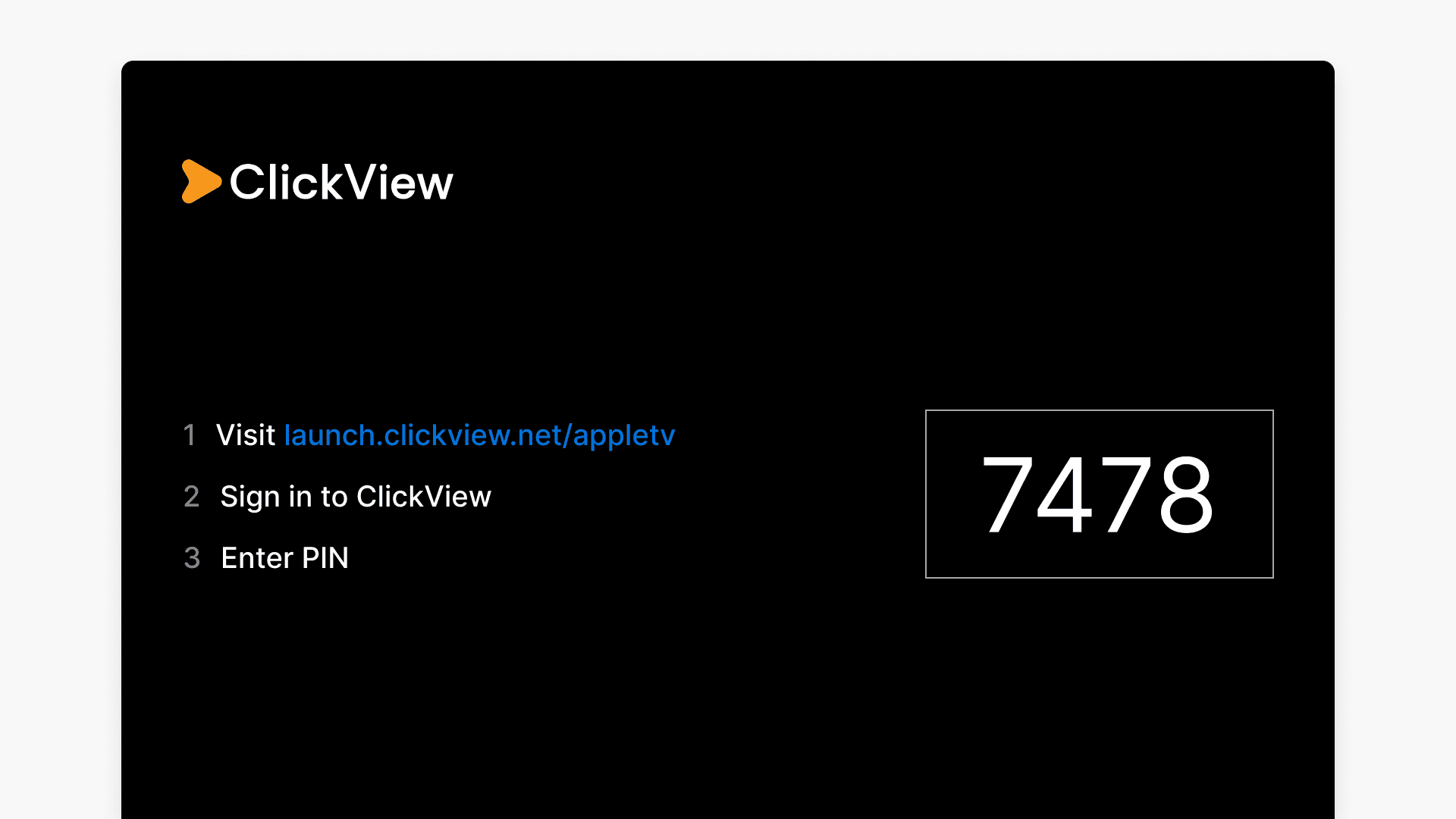
- When prompted, note the PIN displayed on the screen.
Pair Apple TV devices in ClickView
After Apple TV integration is enabled, your ClickView administrator can follow these steps:
- In ClickView, select the cog icon to pair a device.

- Enter the device name and the PIN from the Apple TV screen.

- Click the Activate button.
- Confirm the paired device appears in the device list.

Cast videos to Apple TV
Once the device is paired, teachers can cast videos and clips by selecting the cast icon in the ClickView player.

Troubleshooting
If the PIN is not accepted or pairing fails, confirm the ClickView app on your Apple TV is set to the correct region for your school:
- On Apple TV, go to Settings > Apps

- Then select the ClickView app.
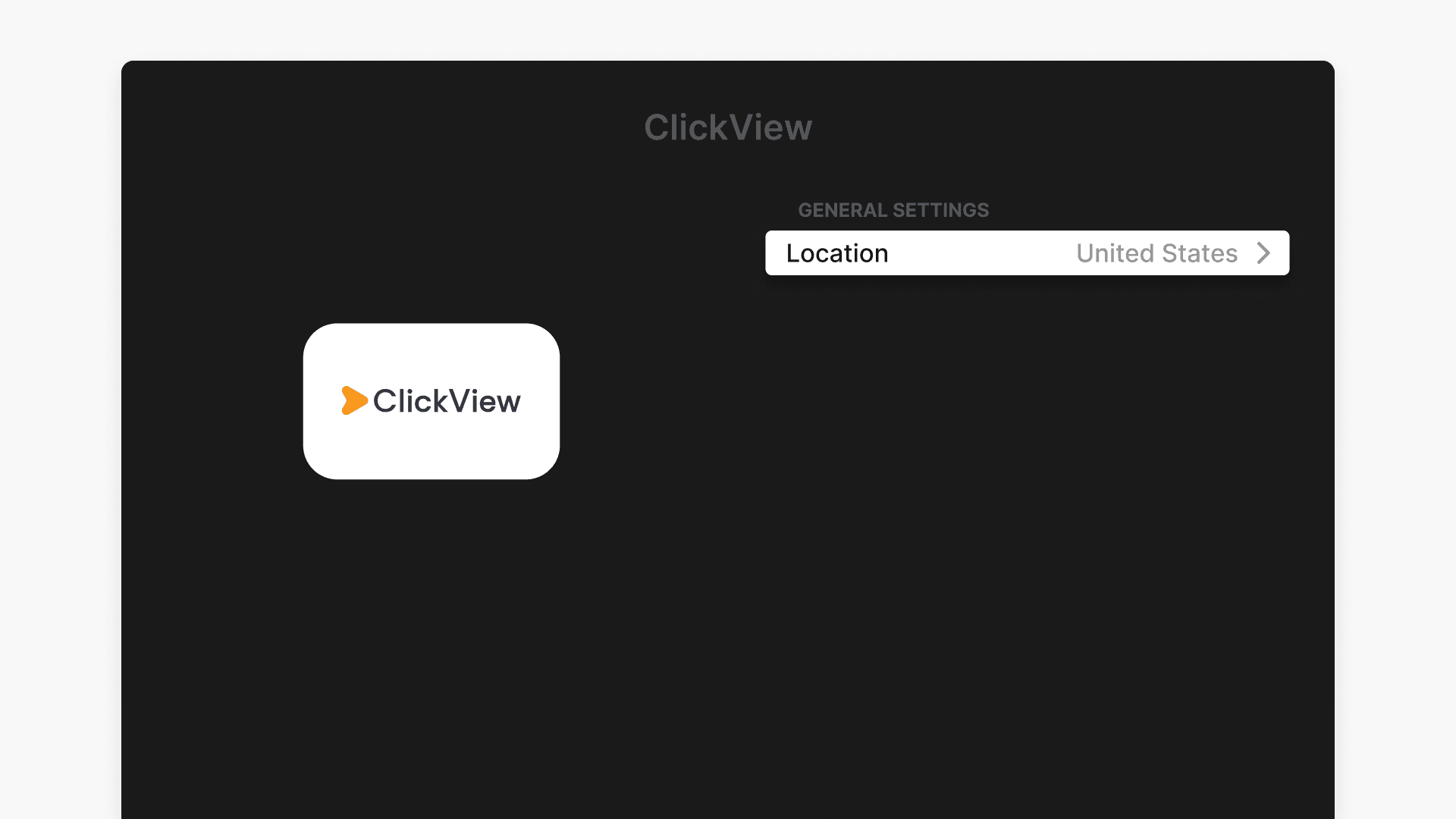
- Under General Settings, select Location.
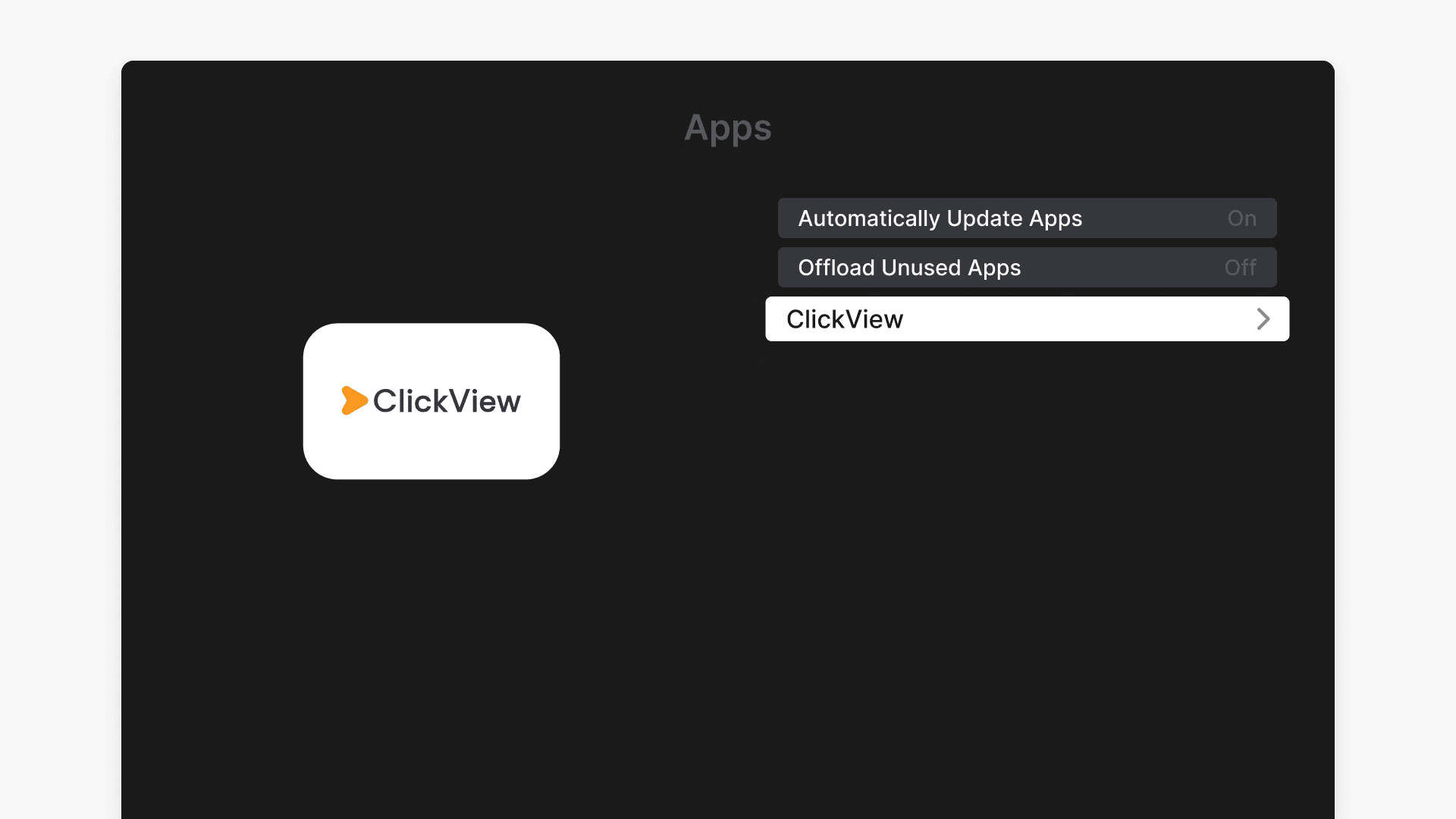
- Set Location to the correct region for your school.

Frequently asked questions
Get in touch
If you’re having trouble finding the right topics or videos, just reach out! Our team - 


 Andrew, Nisch, Janice, Pfreya, or any of us at ClickView - will be happy to help you get sorted.
Give feedback
Was this guide helpful?
Up Next
How to cast ClickView videos with Vivi
This article explains how to enable and configure the Vivi integration in ClickView, set up devices in Vivi Central, cast videos to Vivi, and resolve common issues.