How students can view shared videos
In this article
Last updated by
2 min readClickViewFebruary 7, 2026
Summary
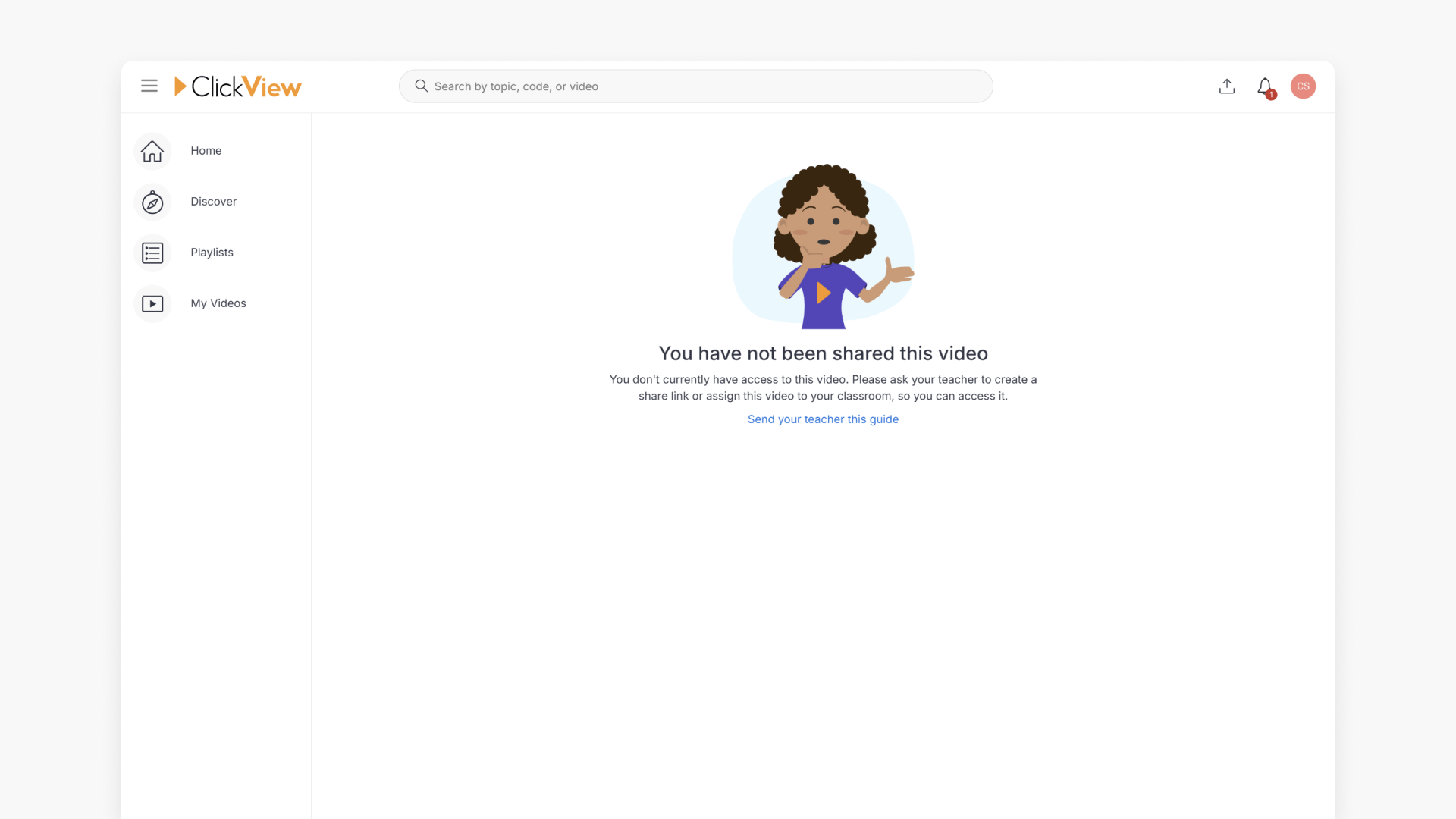
- Students see ‘You have not been shared this video’ when access isn’t provided.
- Teachers can use ‘Create a share link’ or ‘Assign the video to a classroom’.
- Students should notify their teacher if a video can’t be accessed.
- Sharing videos allows teachers to track student engagement and responses.
Why can’t I view a video in ClickView?
If you see the message You have not been shared this video, your teacher has not yet provided access. The main cause for this is when a direct video link was shared, your teacher did not use ‘Create a share link’ or ‘Assign the video to a classroom’.
What can students do to get access?
- Inform your teacher. Let your teacher know you can’t view the video.
- Share this information. Provide this guidance to your teacher to help resolve the issue.
What can teachers do to share a video?
Teachers can enable student viewing in two ways:
- Create a share link. Provide the link to your students for instant access.
- Assign the video to a classroom. This makes the video available to assigned students in ClickView.
Once either method is used, students can view the video immediately.
For detailed instructions, see the step-by-step guide on how to share videos in ClickView.
Why is video sharing important?
- Protecting students: Sharing ensures only appropriate content is accessible, helping prevent accidental viewing of unsuitable material.
- Teacher control: You have full control over who accesses the video and can update or revoke access if needed.
- Visibility and engagement: Sharing allows you to monitor which students have watched the video and view their responses to interactive content.
Frequently asked questions
This message appears when a teacher has not shared or assigned the video to the student in ClickView.
Teachers should use ‘Create a share link’ or ‘Assign the video to a classroom’ to enable student access.
Sharing provides protection, teacher control, and enables engagement tracking in ClickView.
Get in touch
If you’re having trouble finding the right topics or videos, just reach out! Our team - 

 Akhil, Daniel, Jalaj, or any of us at ClickView - will be happy to help you get sorted.
Give feedback
Was this guide helpful?