How to mark interactive video student responses
In this article
Last updated by
2 min readClickViewJanuary 30, 2026
Summary
- Open the ‘Shares’ tab and locate your interactive video.
- Select the bar graph icon and choose ‘View results.’
- Use dashboard tabs: Insights dashboard, Student list, Questions and Heatmap.
- Multiple-choice, true/false, and missing word questions are auto-marked.
- If your quiz container open ended questions, you will be prompted to mark them manually.
Steps to mark student answers
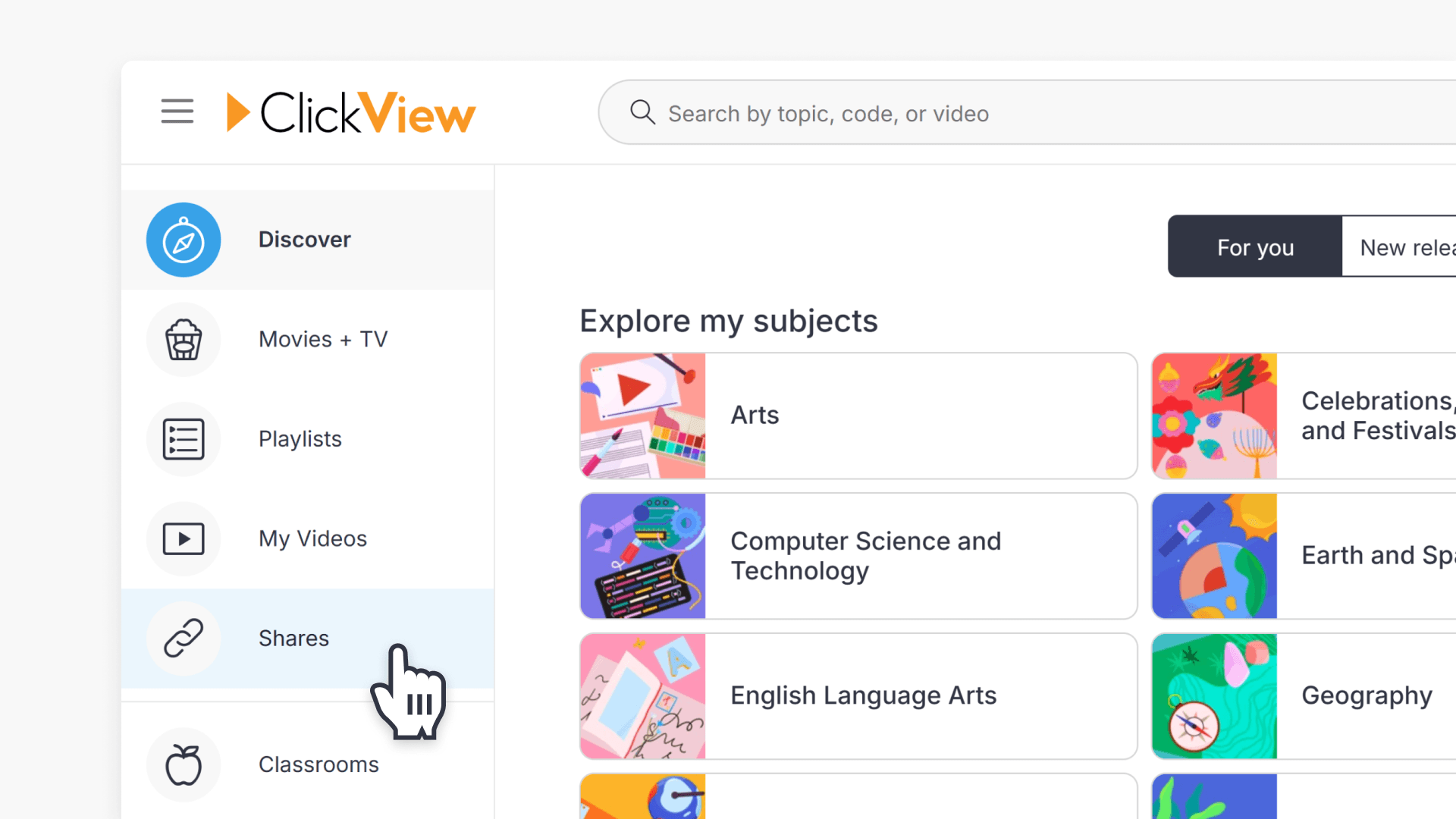
- Click on the Shares tab on the left side of the screen.
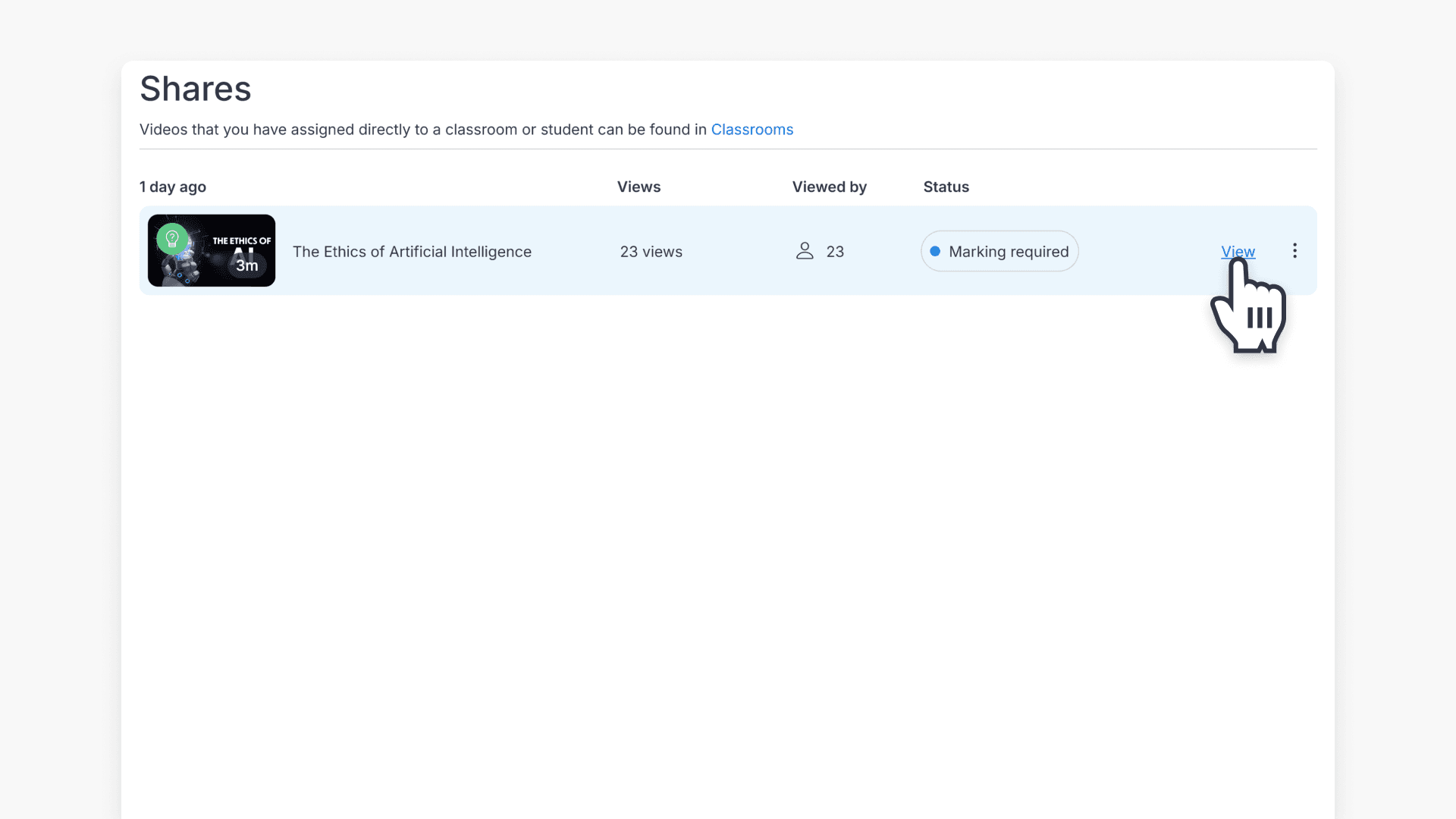
- Locate the interactive video you want to review. Hover over the interactive video and click View.
- This brings you to the Shares dashboard page, with tabs for:
- Insights
- Students
- Questions
- Heatmap
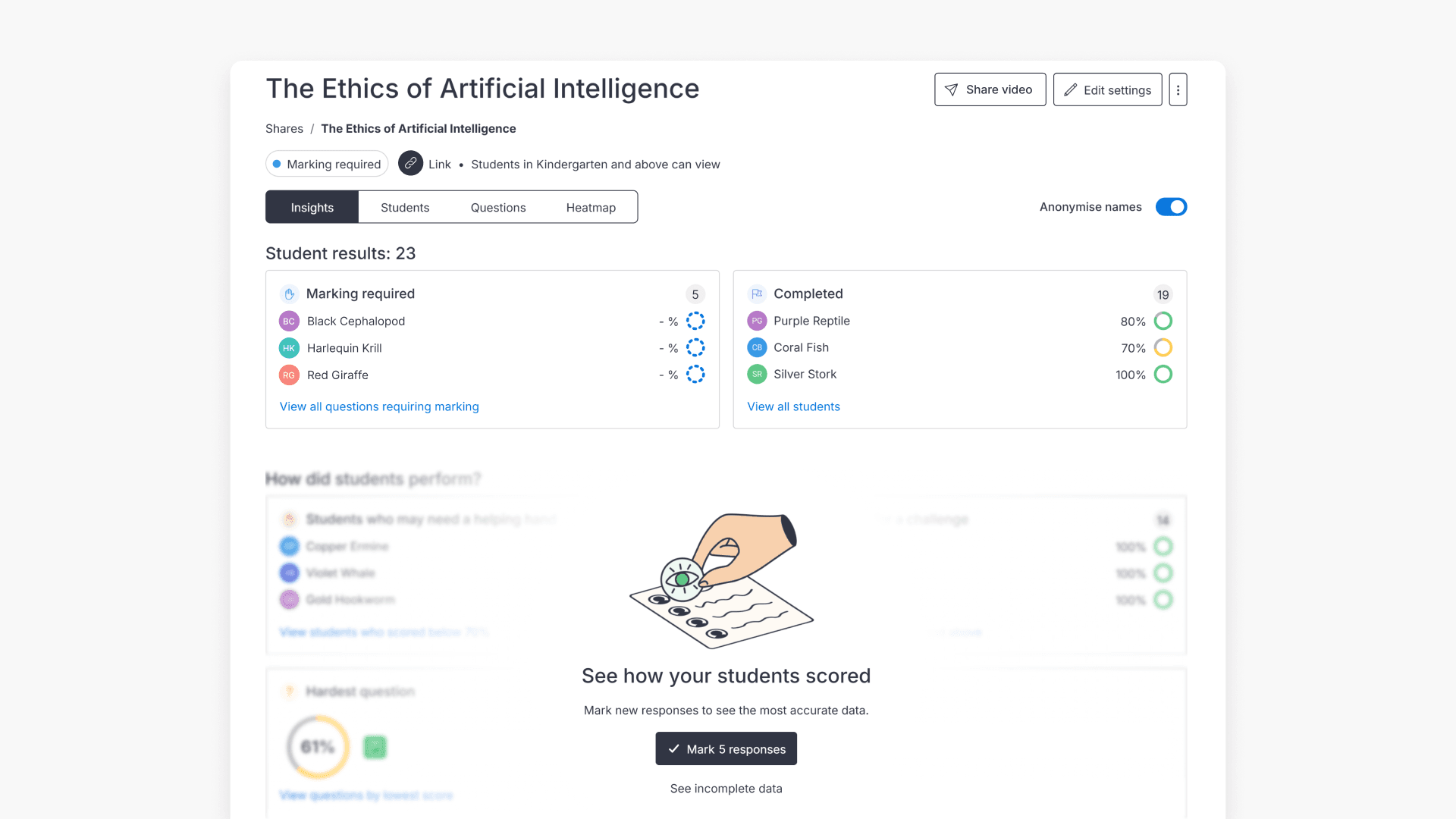
- All multiple-choice, true/false, and missing word questions are automatically marked.
Marking student responses
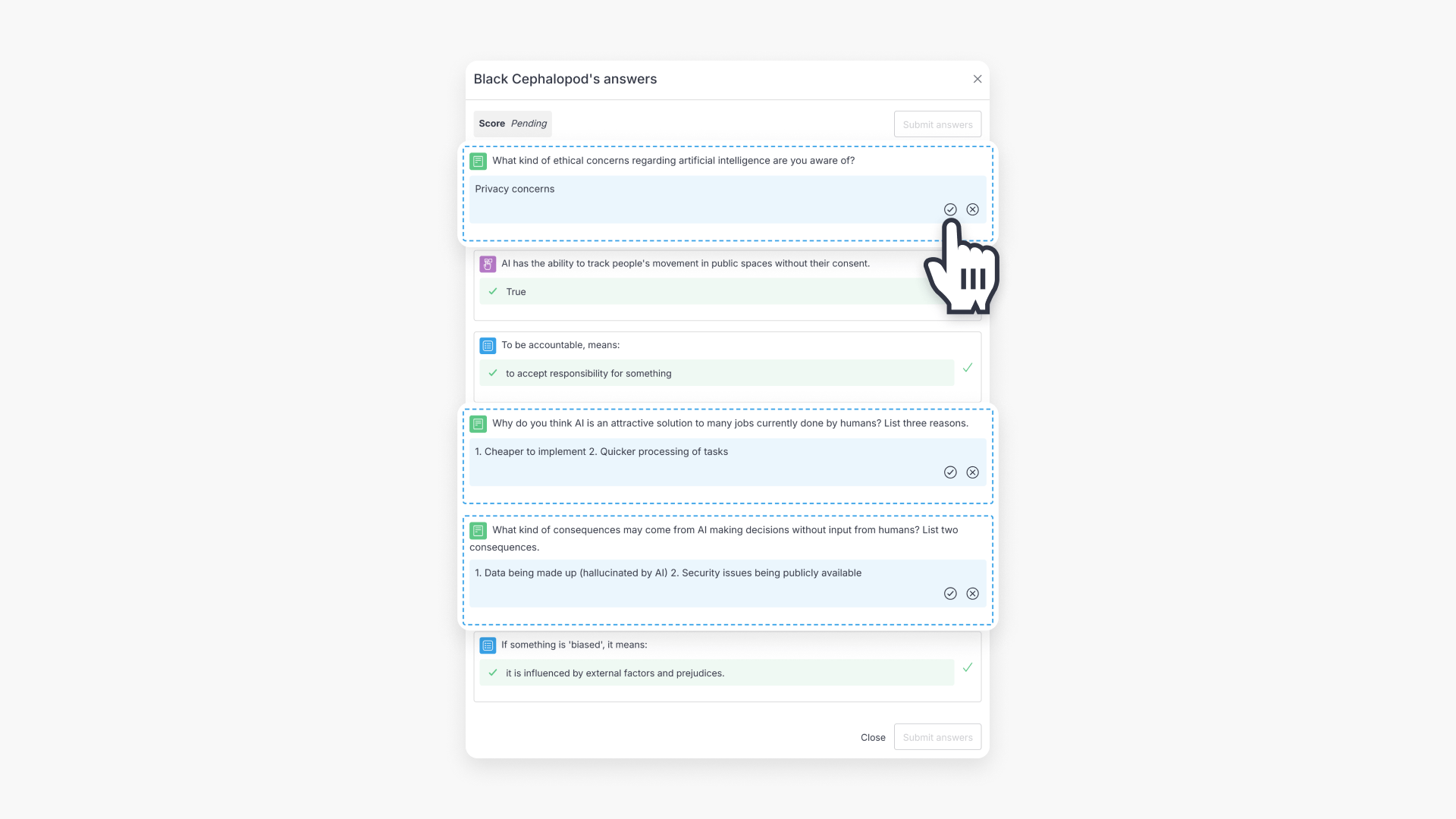
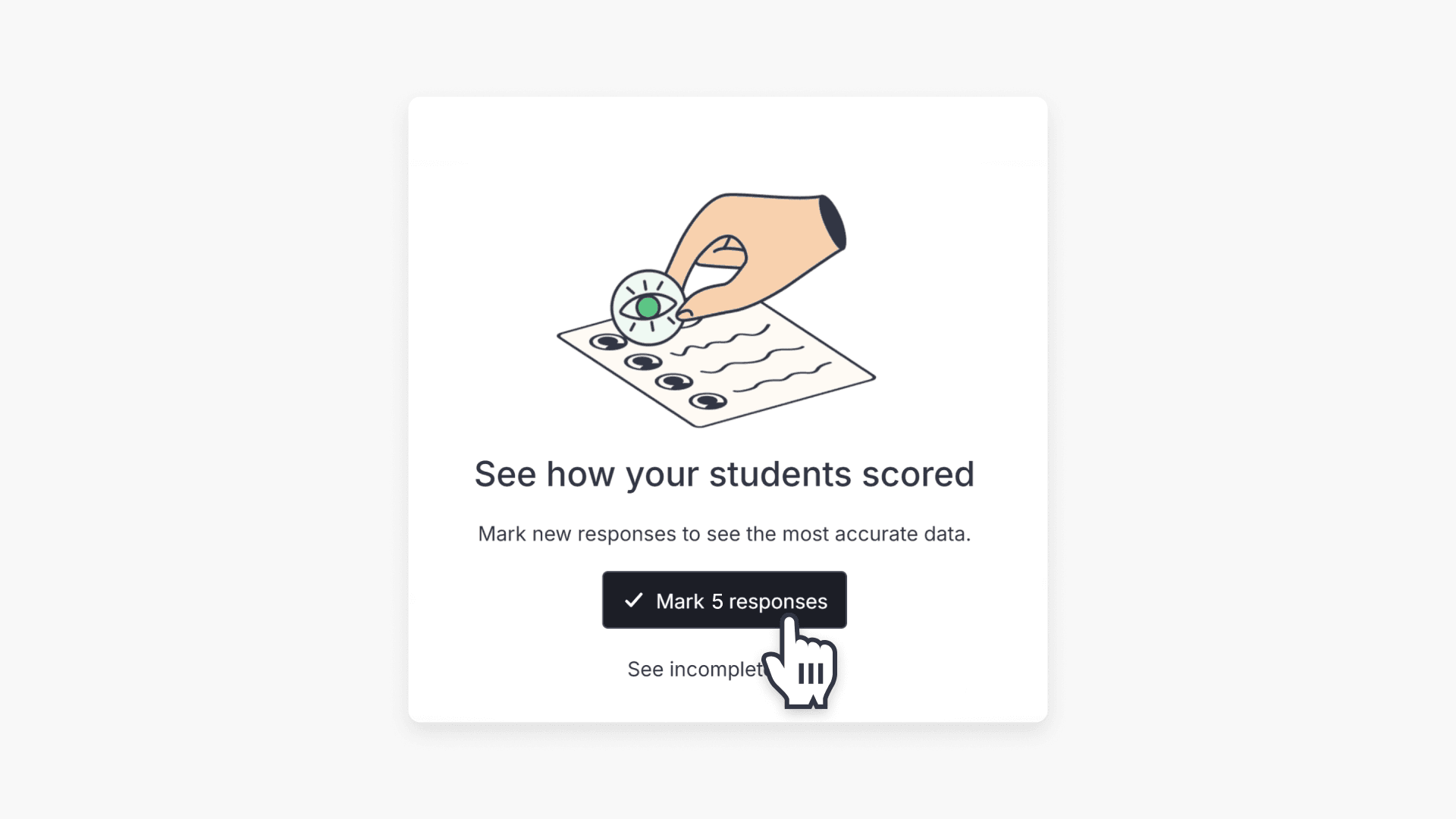
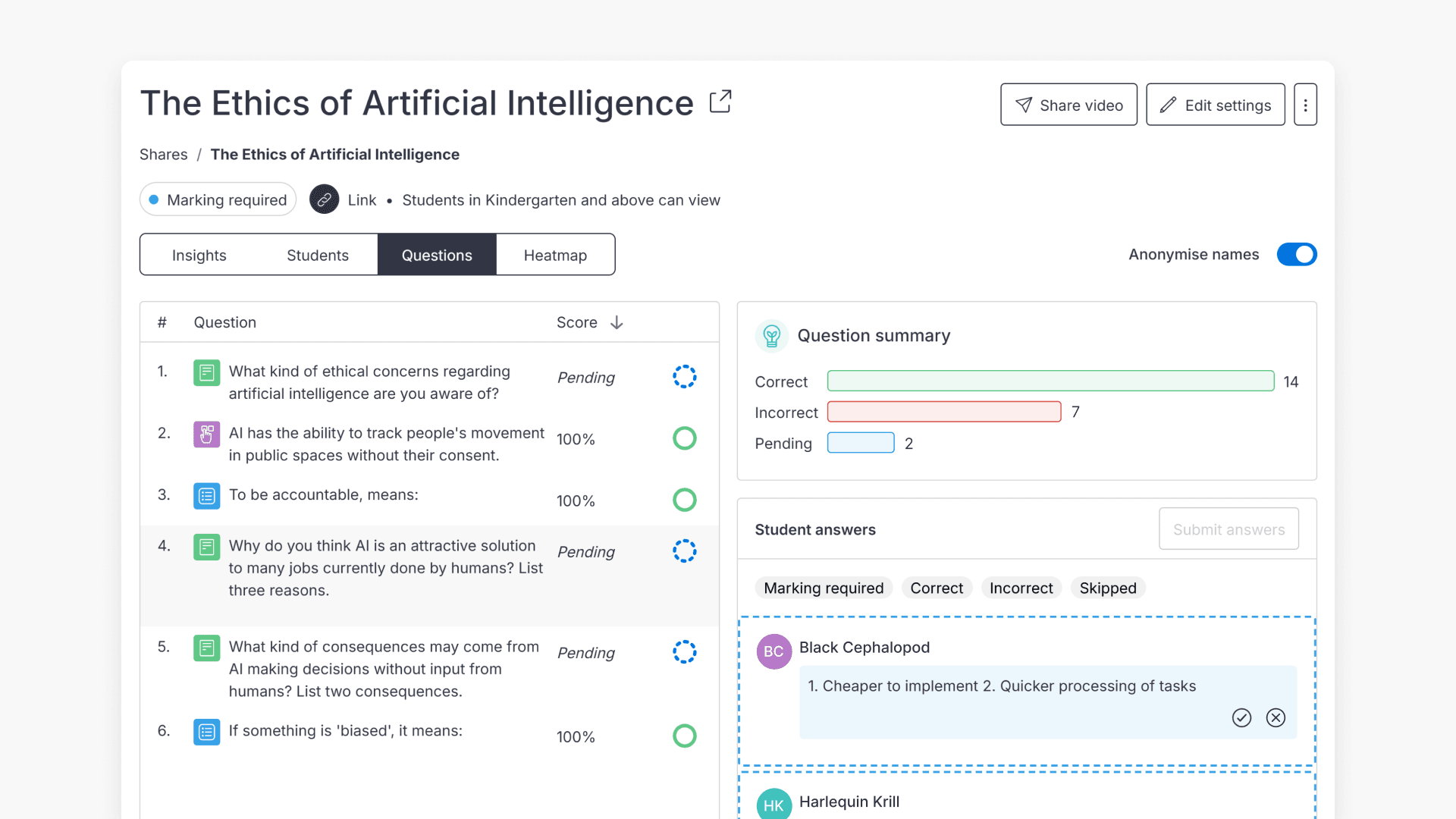
- To mark responses to open-ended questions, click Mark responses.
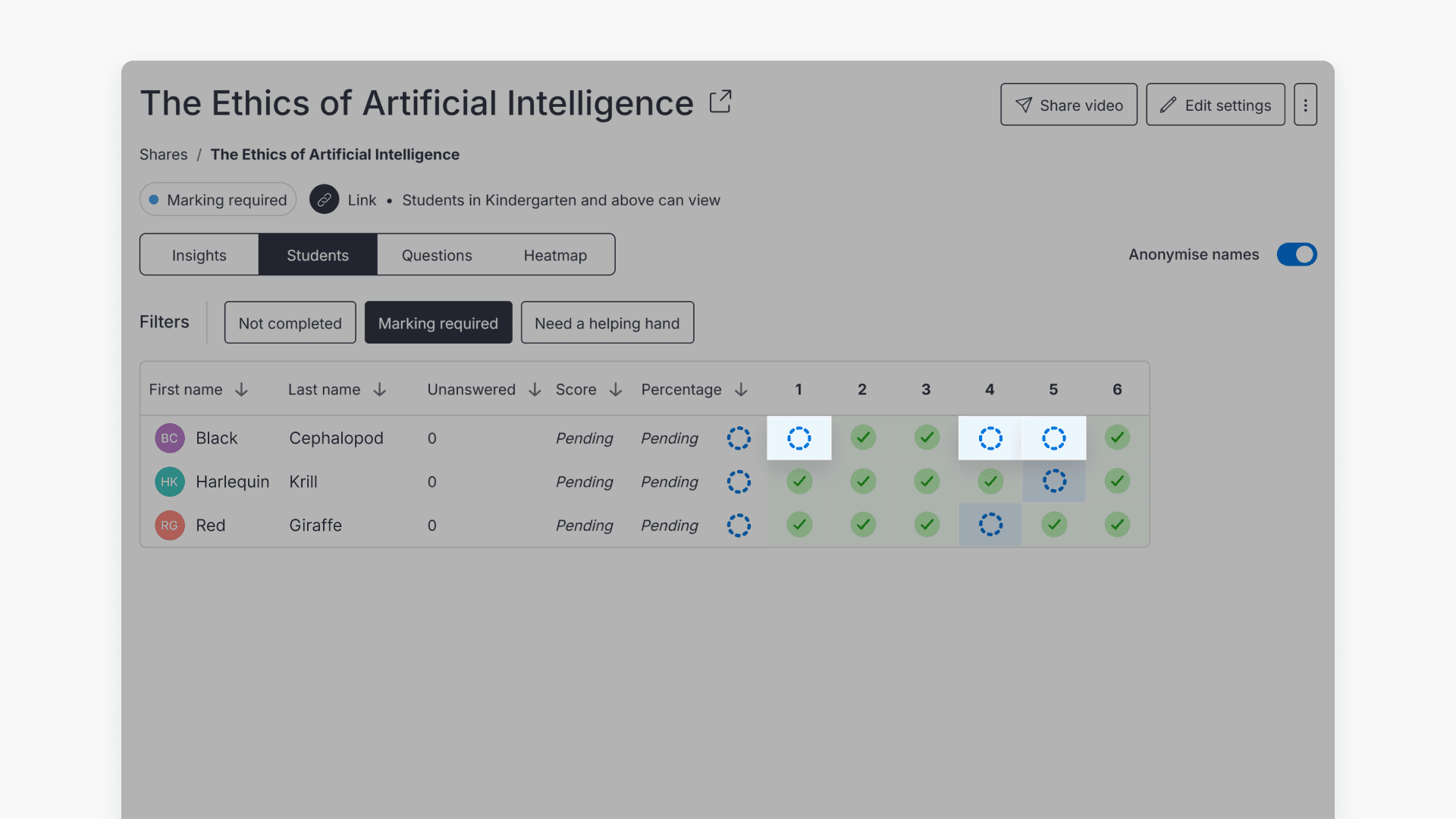
- Click on the question number with the pending icon to view student answers.
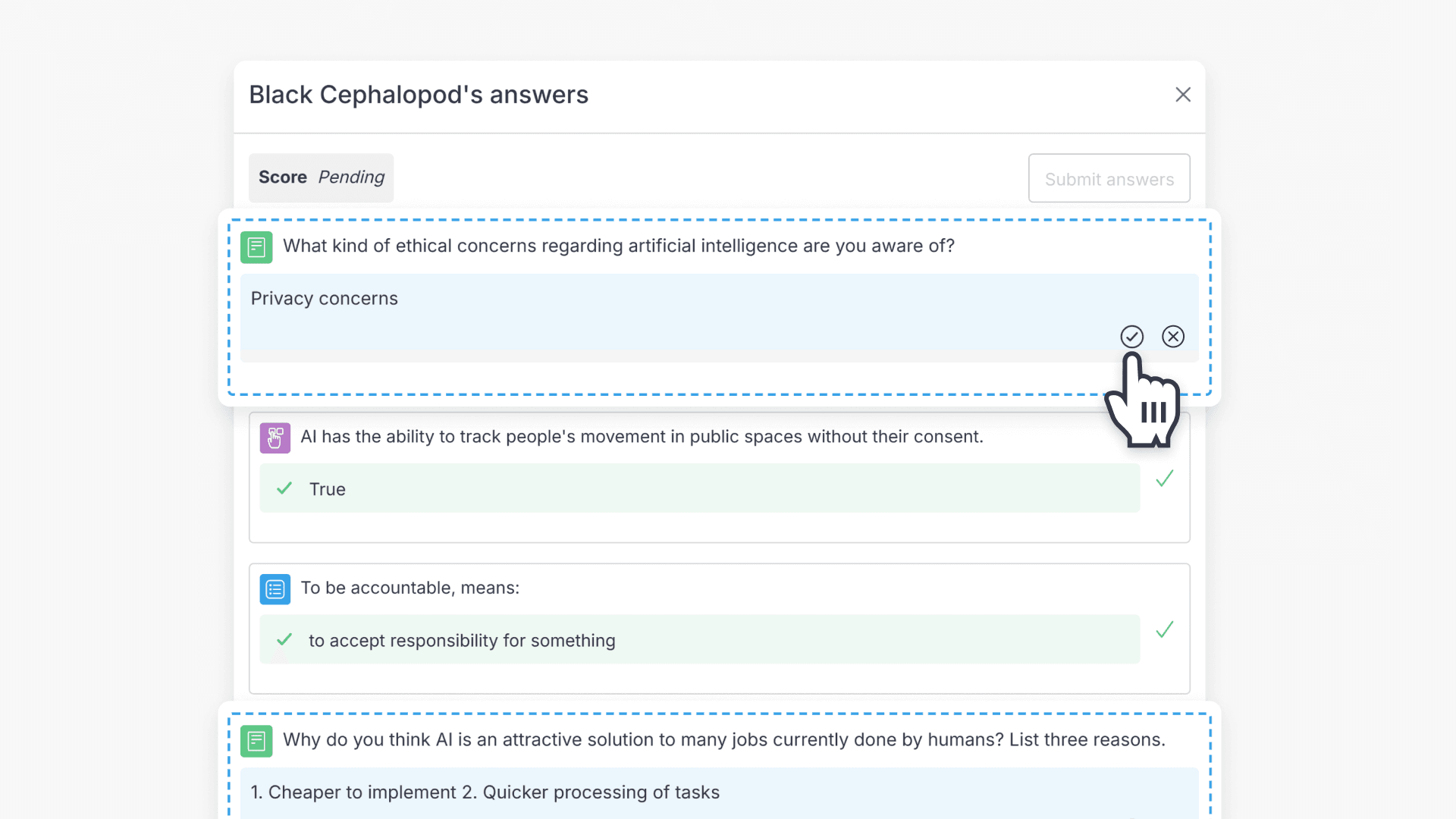
- This opens the answers pop-up tab for the selected student. Use the Check mark for correct answers and the Cross mark for incorrect ones.
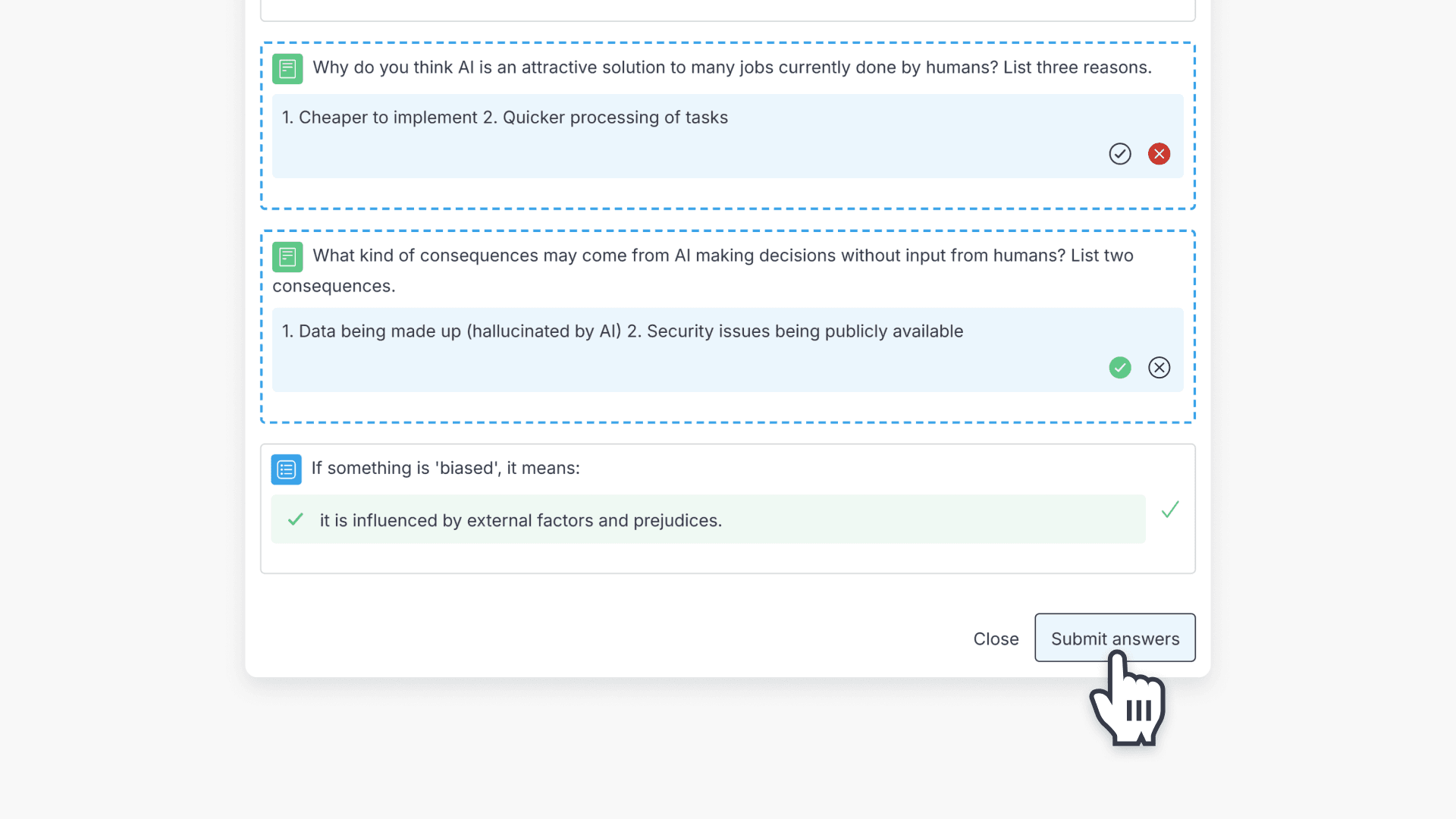
- Click Submit answers to save your marks.
Using the students and questions tabs
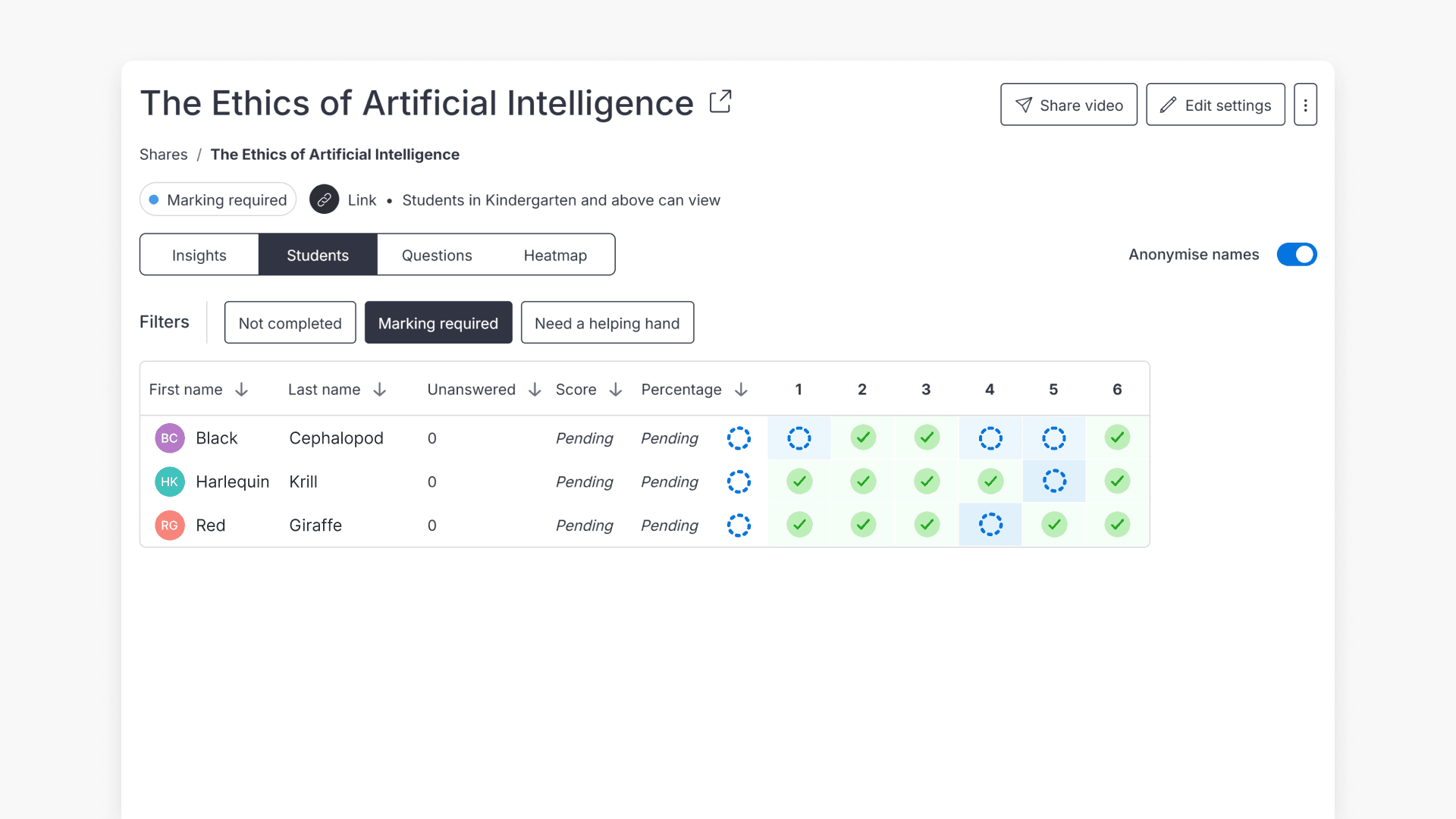
- Students tab: Shows all users who have attempted the interactive, including unanswered questions, total score, percentage, and question list. Results can be filtered by Not Completed, Marking required, or users needing a helping hand.
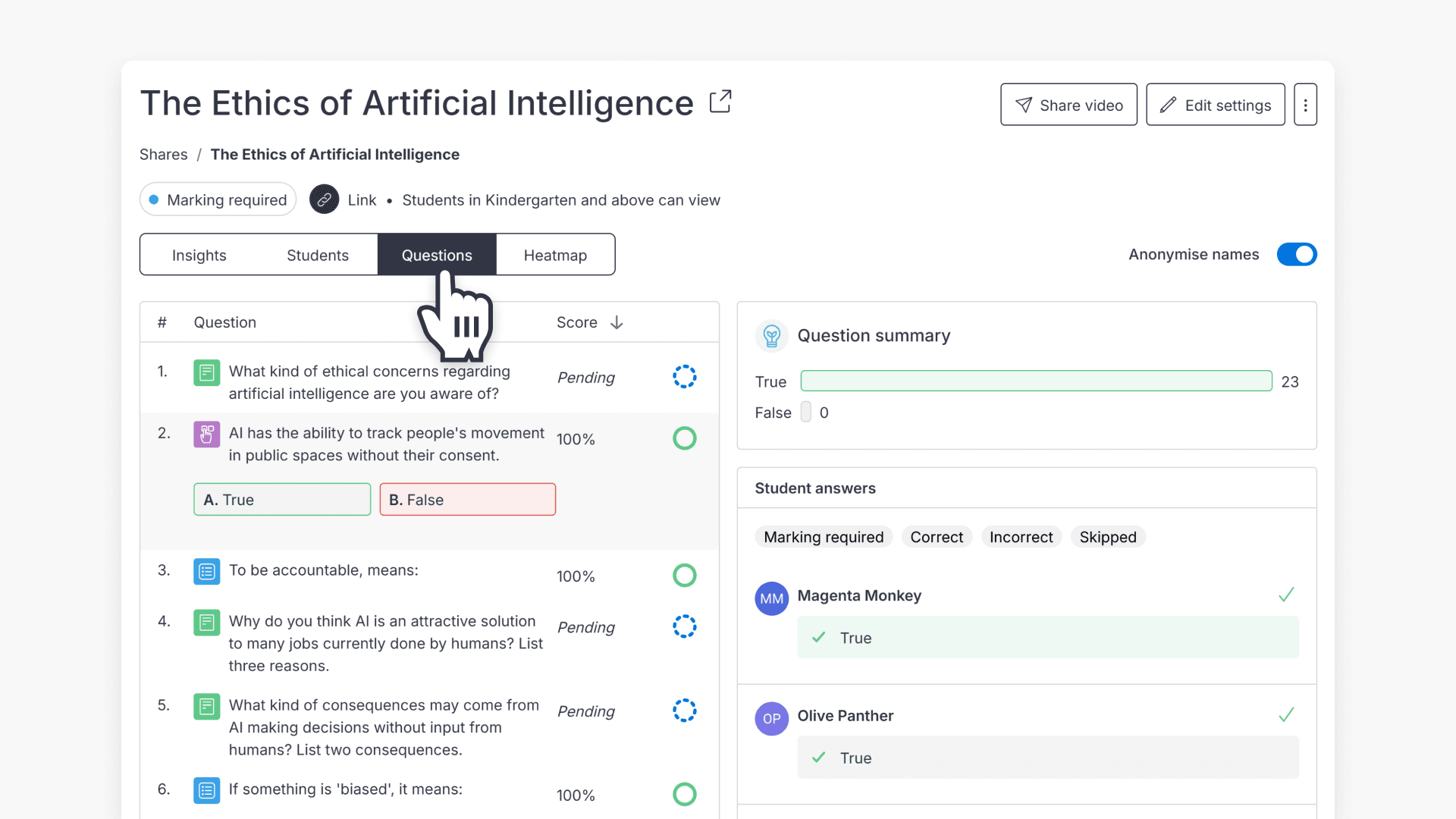
- Questions tab: Displays questions with summarized score percentages and graphs. Click a question to see a breakdown of correct and incorrect answers and the student answer list.
Frequently asked questions
Yes, these question types are marked automatically in ClickView.
Use the Mark Response option to view and mark student responses as correct or incorrect.
Check the Student list tab for scores, unanswered questions, and filtering options.
Yes, the Questions tab provides percentage graphs and detailed student answer lists for each question.
Get in touch
If you’re having trouble finding the right topics or videos, just reach out! Our team - 


 Andrew, Nisch, Janice, Pfreya, or any of us at ClickView - will be happy to help you get sorted.
Give feedback
Was this guide helpful?
Up Next
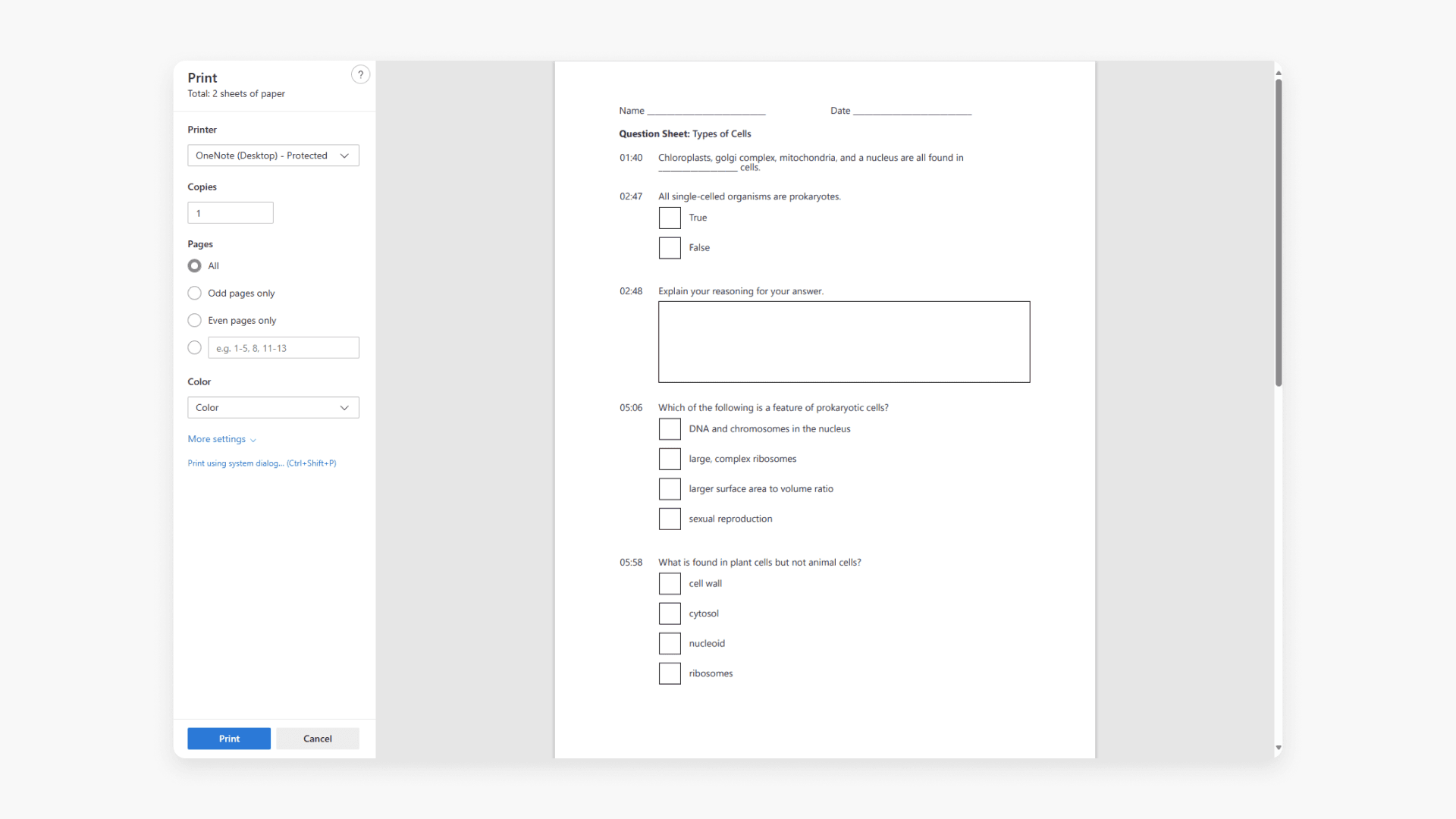
How to print an interactive video worksheet
Discover how to print a worksheet in ClickView. A worksheet lists every interactive video question and when it appears for students.