How to submit feedback in ClickView
In this article
Last updated by
2 min readClickViewJanuary 30, 2026
Summary
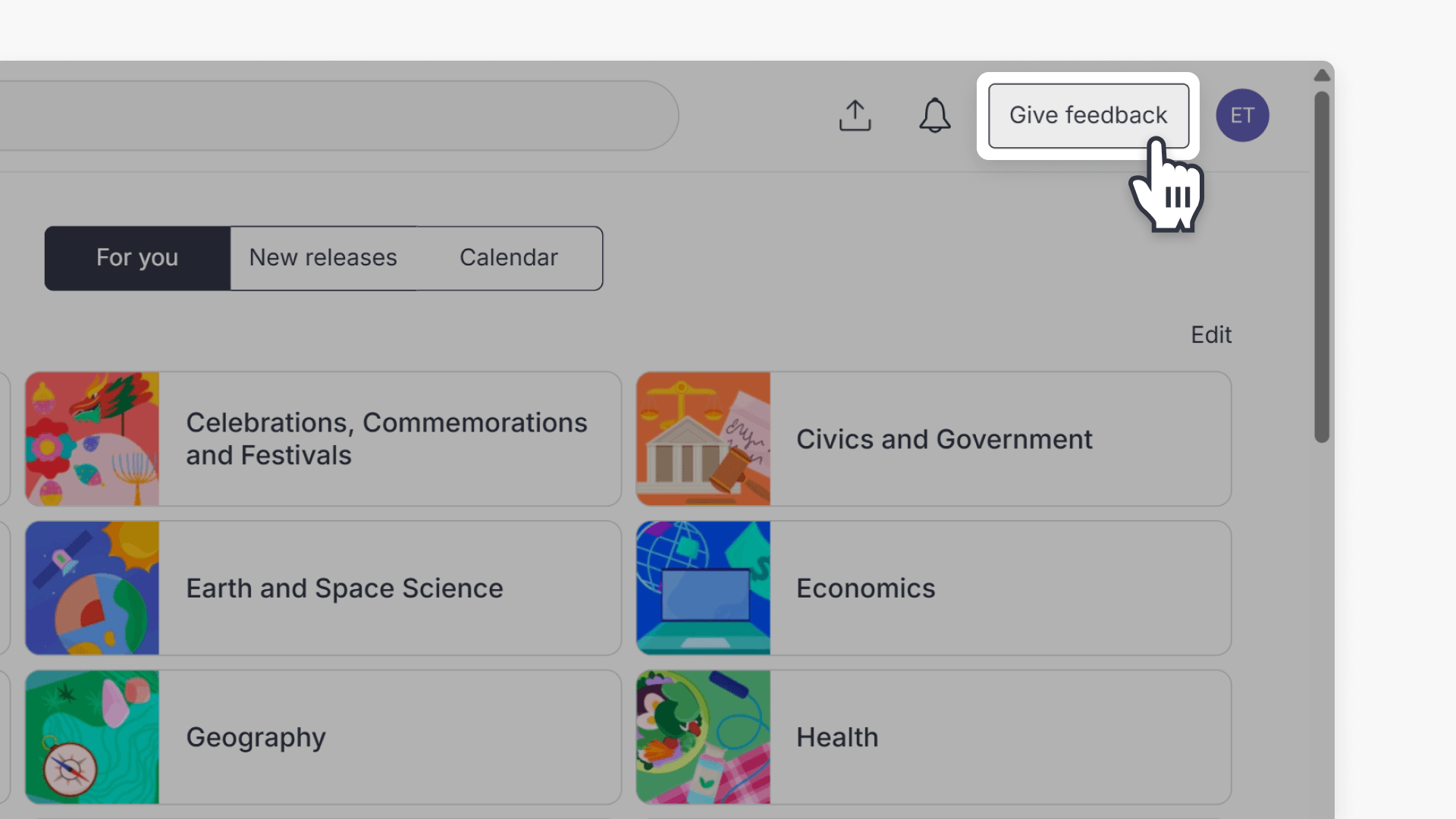
- Click the ‘Give feedback’ button next to your initials.
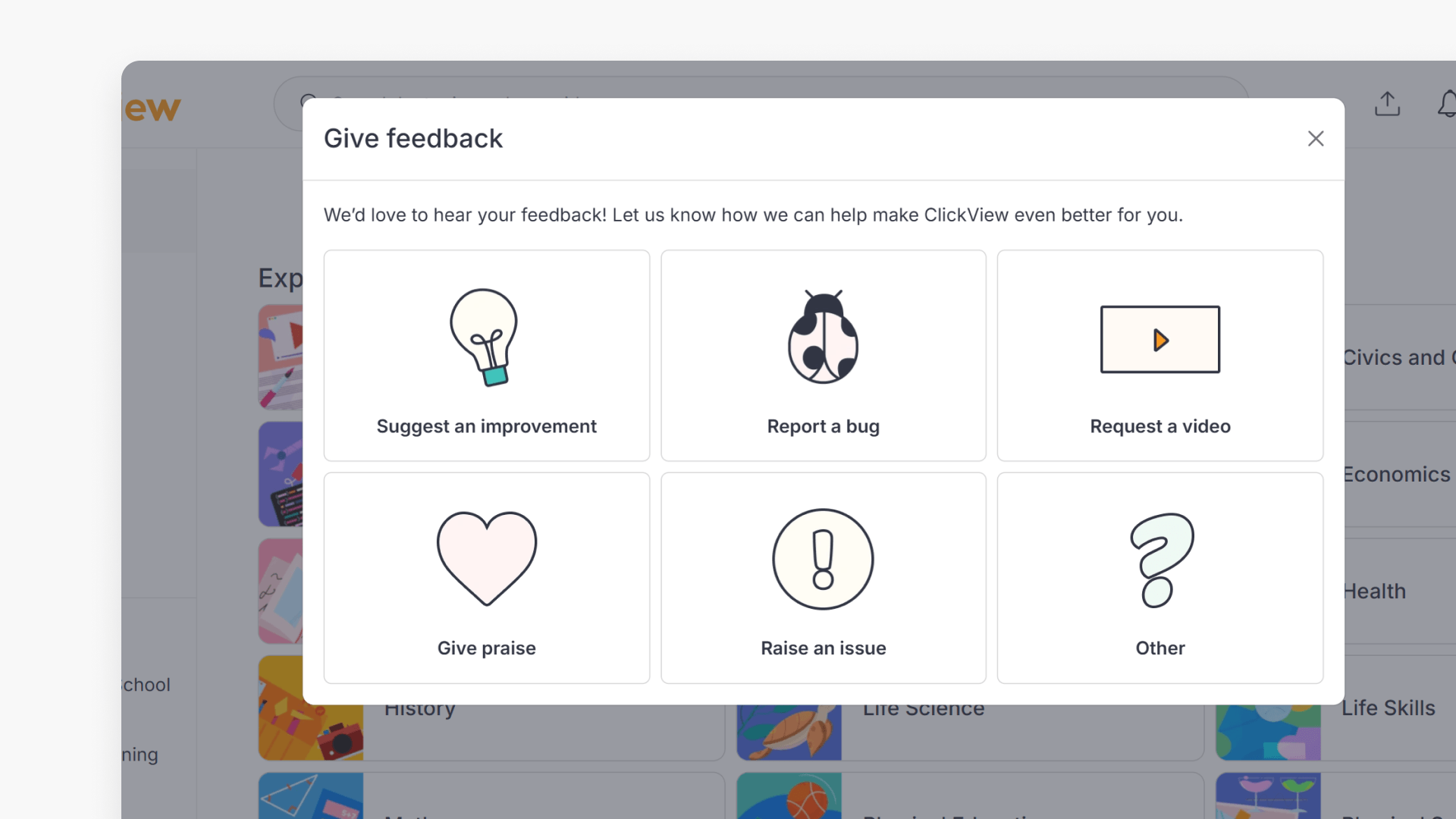
- Choose from six feedback types, including ‘Suggest an improvement’ and ‘Report a bug.’
- Access the ‘What’s New?’ section to visit the Product Roadmap and use ‘Submit idea.’
- On the ‘Discover’ landing page, scroll to the bottom for feedback prompts.
- After choosing ‘Yes’ or ‘No,’ enter feedback in the feedback box provided.
Ways you can provide feedback
ClickView values user input to continuously improve and refine its educational video platform. There are three main ways to submit feedback directly within ClickView:
‘Give feedback’ section
- Click the ‘Give feedback’ button next to your initials in the top right corner.
- Select from six feedback options:
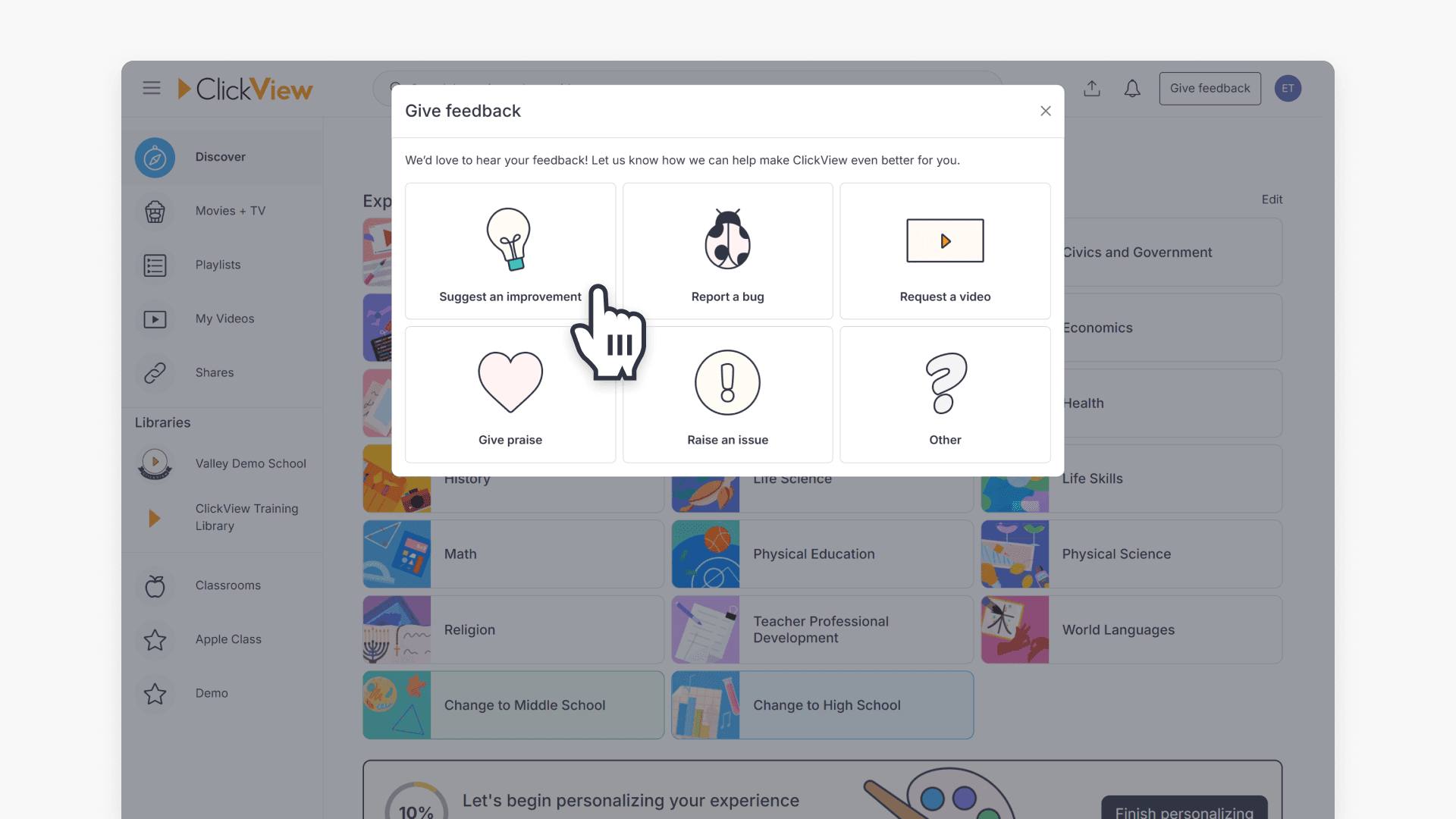
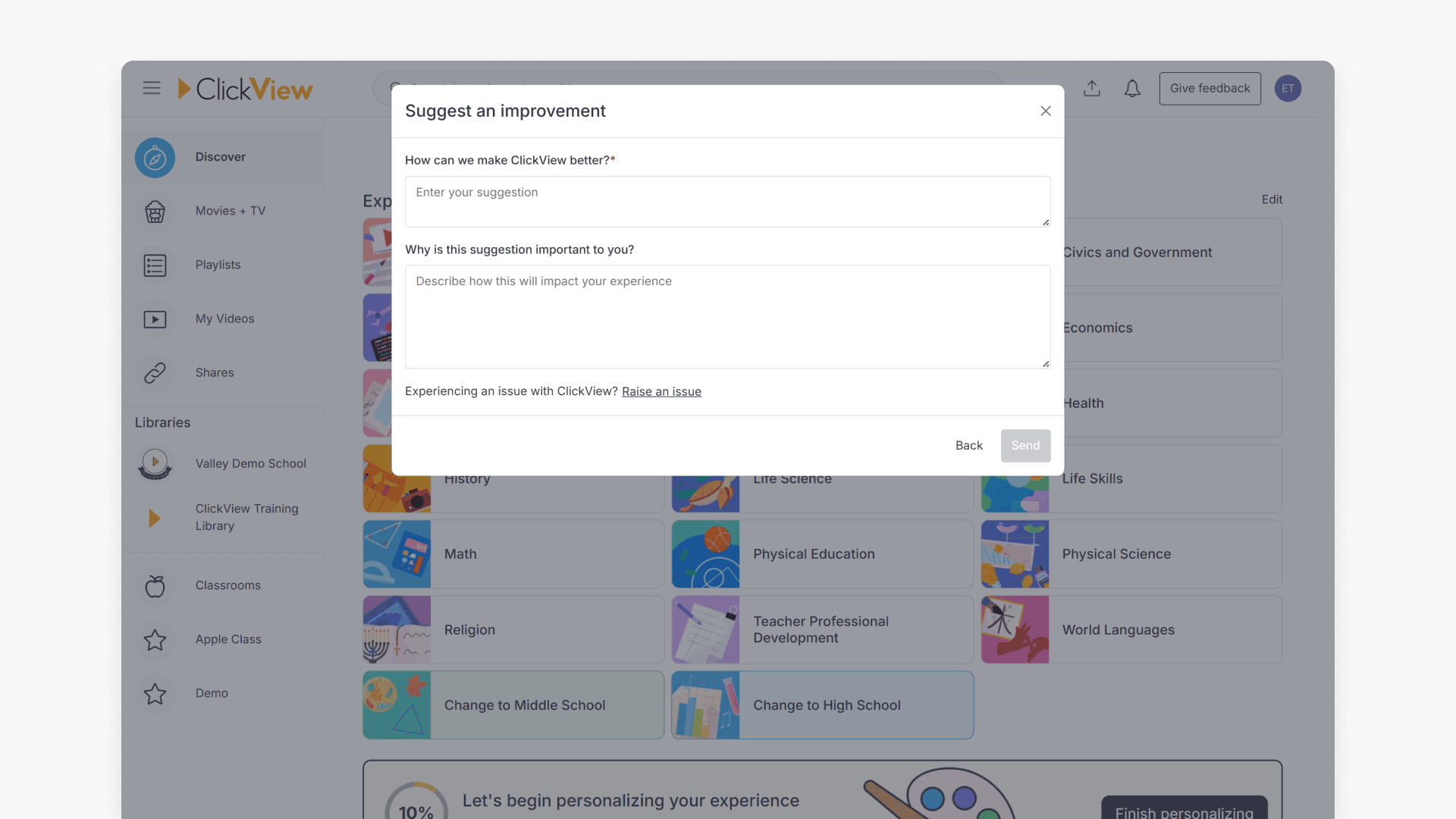
- Suggest an improvement: Complete the feedback form to share ideas for enhancements.
- Report a bug: Fill in details about the bug, attach screenshots, and provide your contact information.
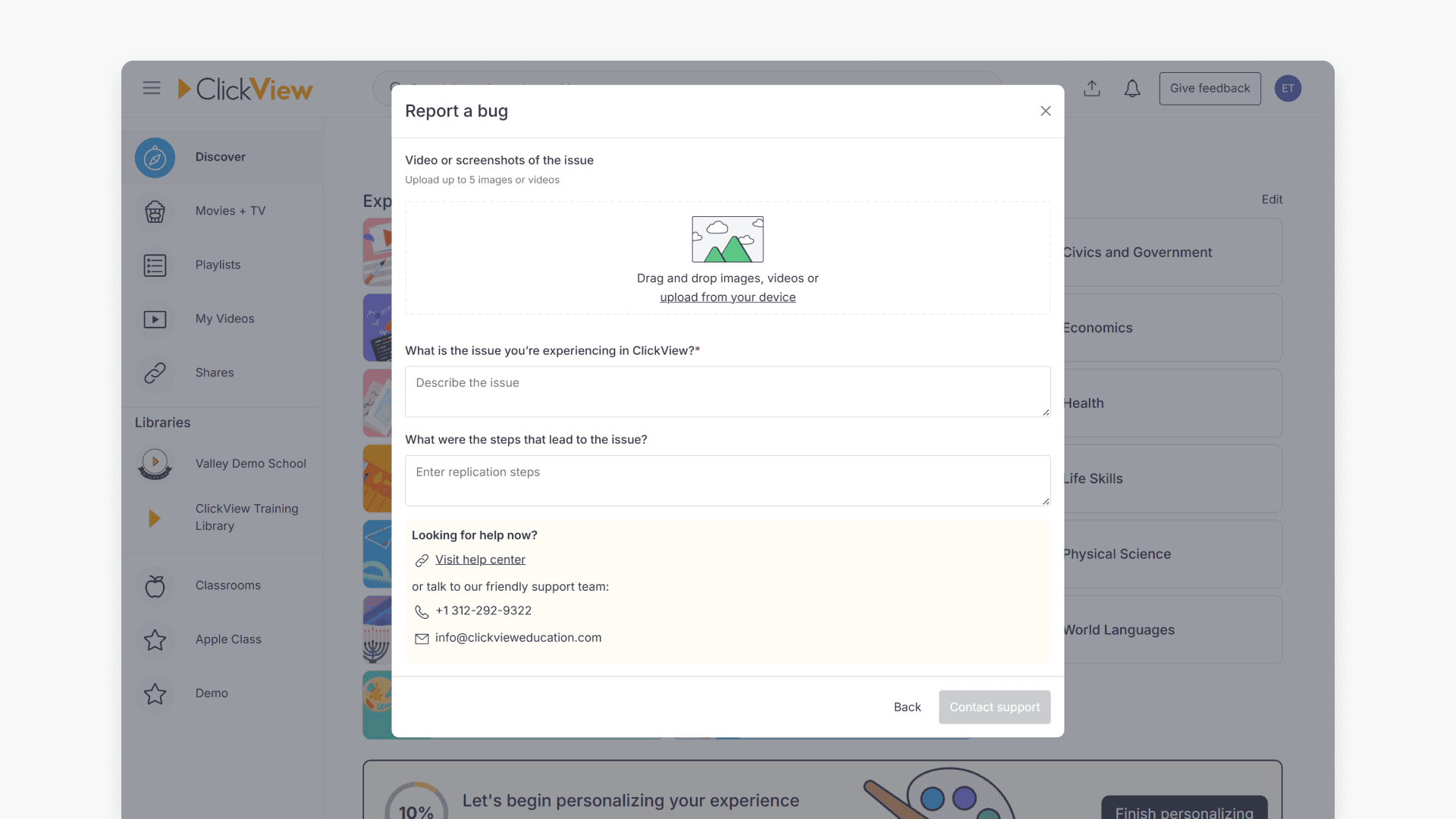
- Request a video: For more information, see ClickView’s guide on video requests.
- Give praise: Send positive feedback about your ClickView experience.
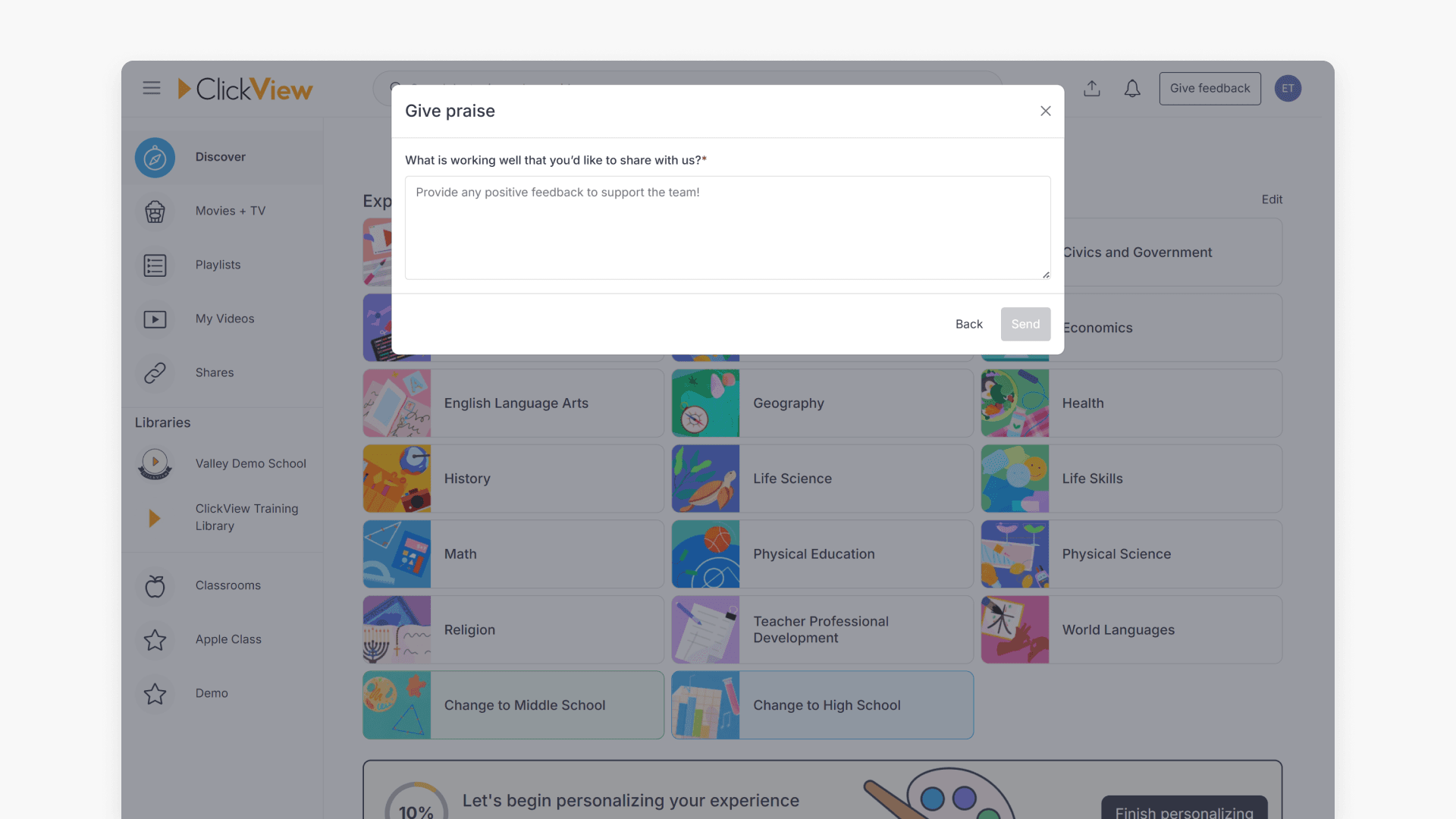
- Raise an issue: Submit general issues using the ‘Raise an issue’ option.
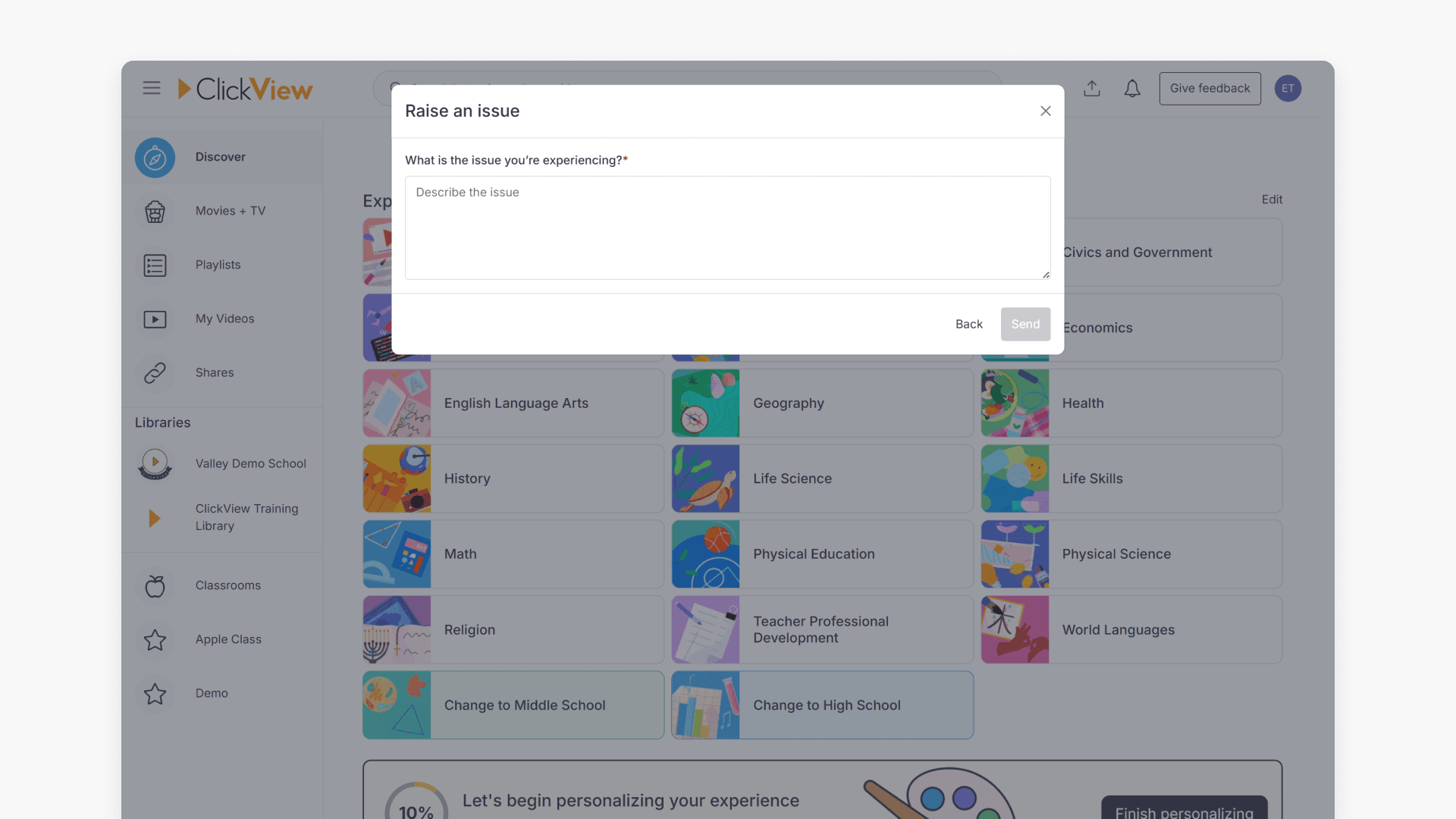
- Other: Use this for questions or additional comments.
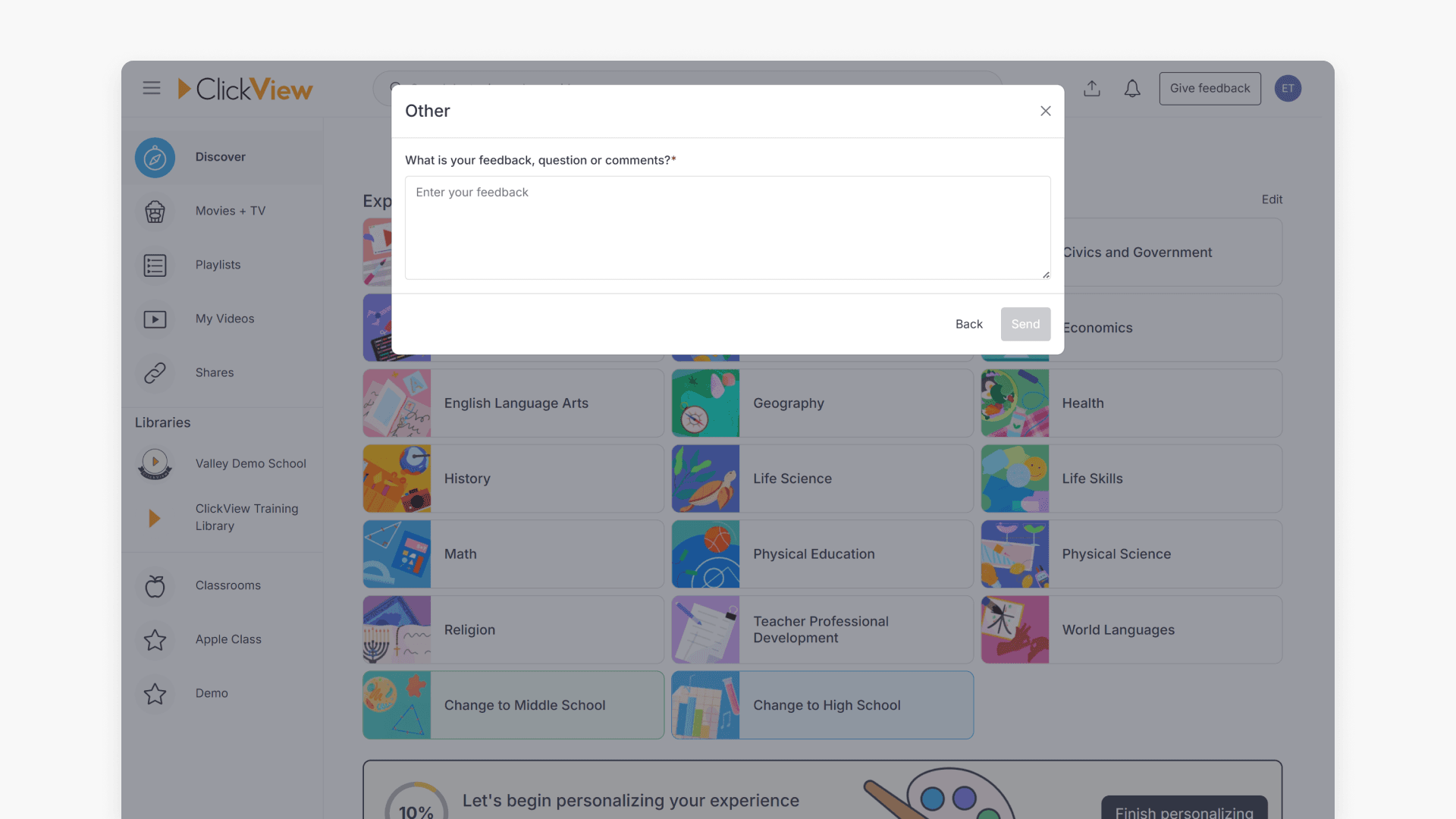
- Suggest an improvement: Complete the feedback form to share ideas for enhancements.
‘Whats New?’ section
- Click your initials in the top-right corner, then choose the ‘Whats New?’ section.
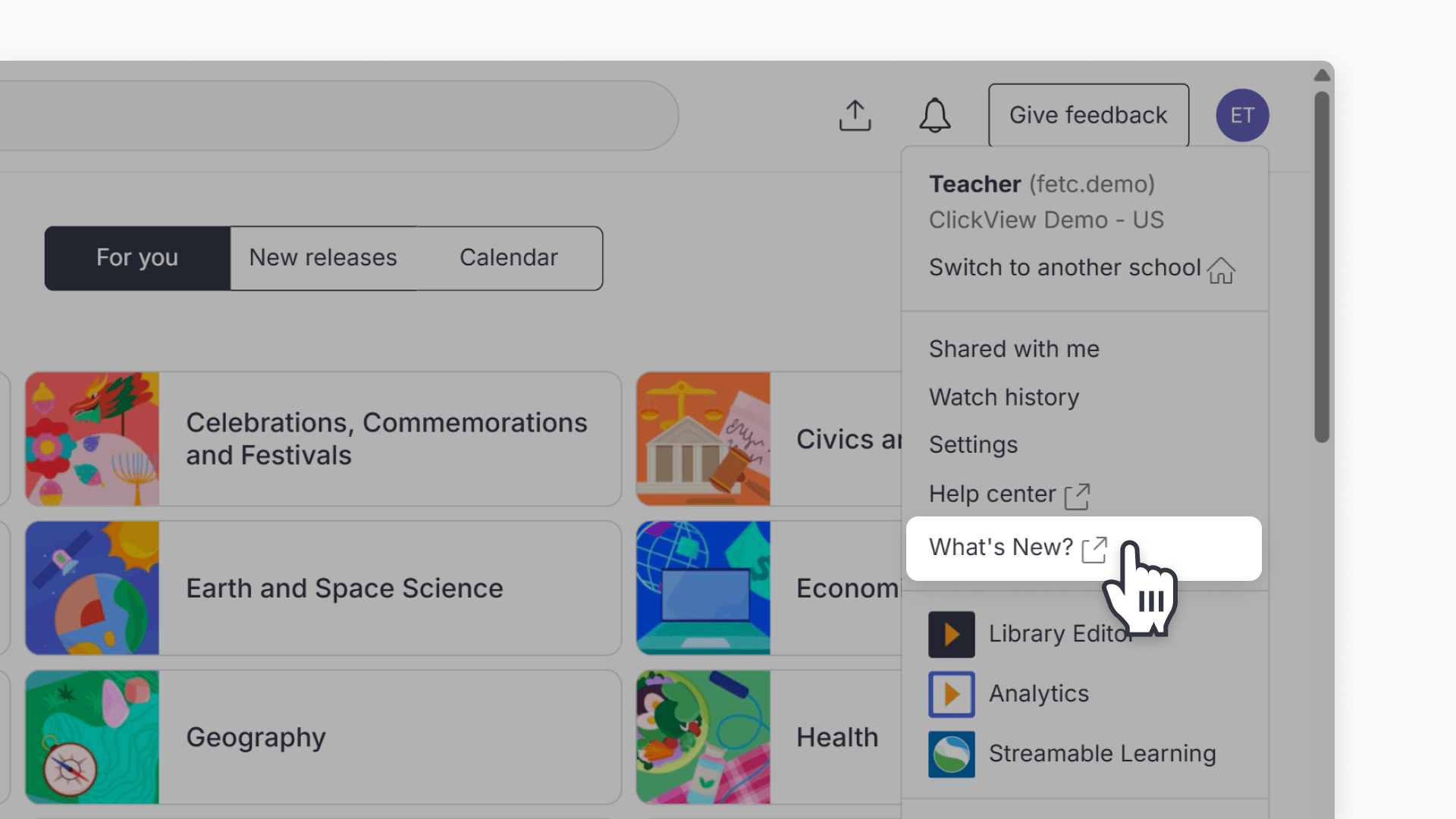
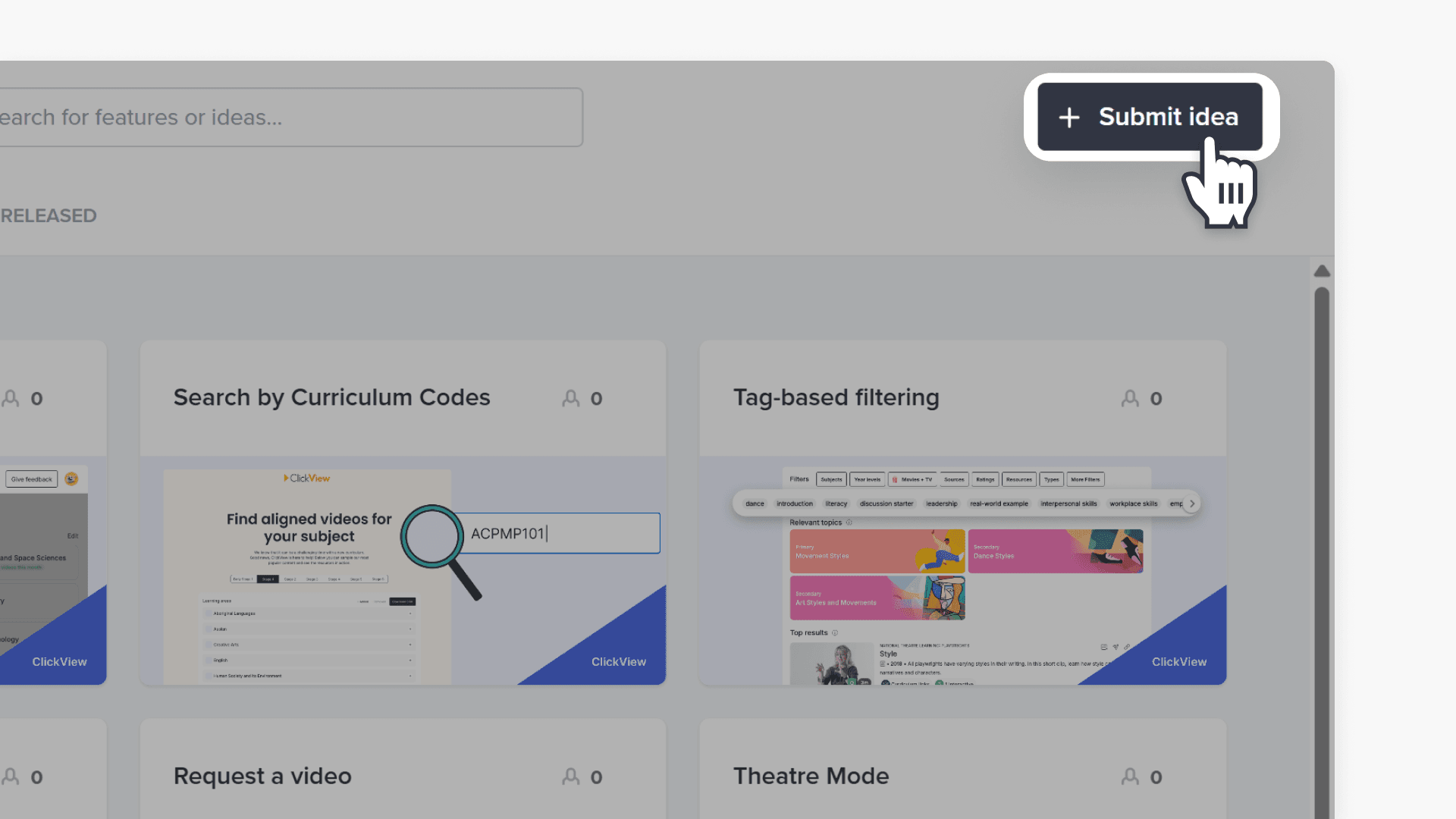
- This will take you to the ClickView Product Roadmap. Click the ‘Submit idea’ button.
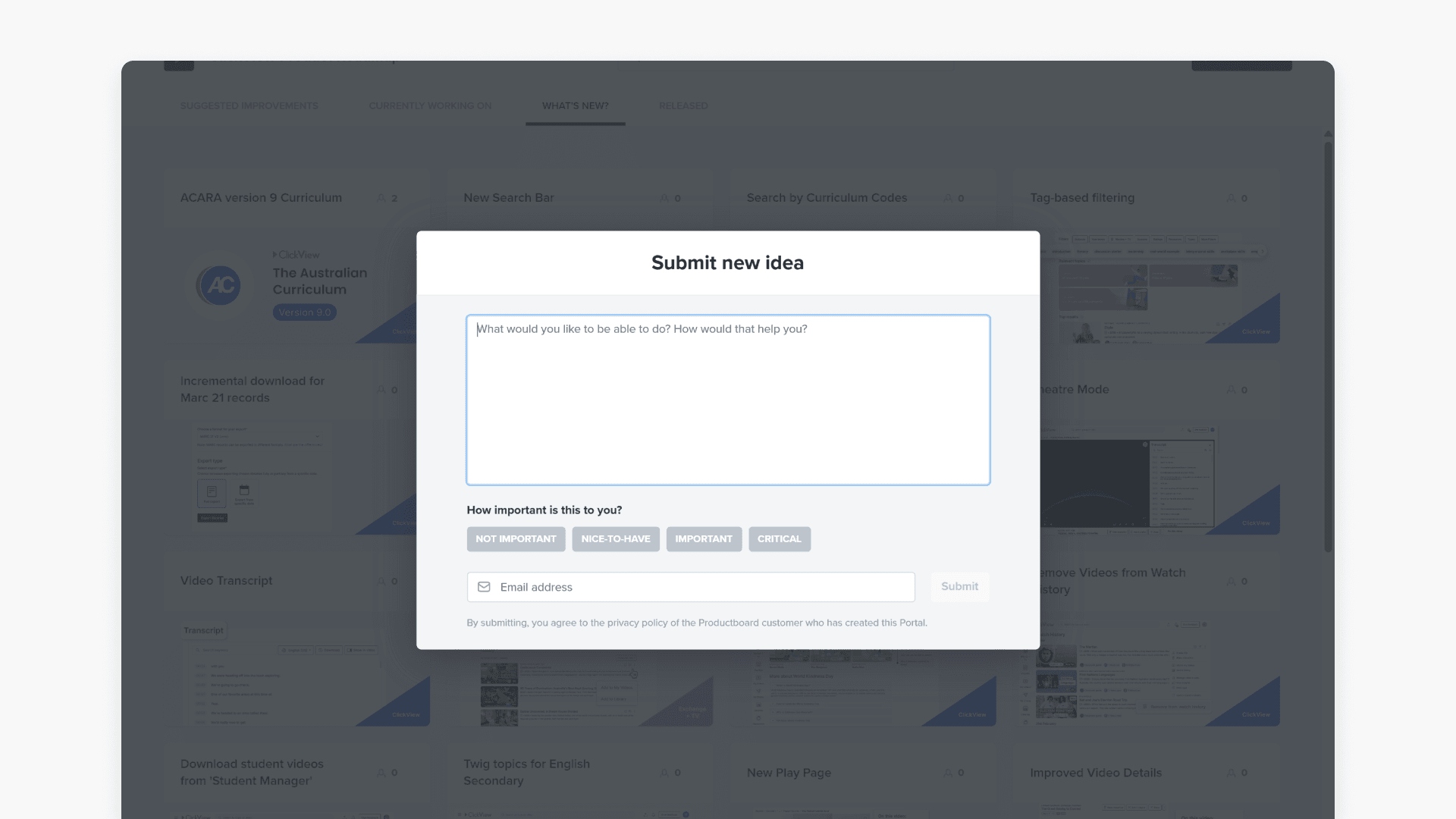
- A feedback page for new ideas will appear.
Bottom of the ‘Discover’ page
- After signing in, on the ‘Discover’ landing page, scroll to the bottom to find the feedback prompt.
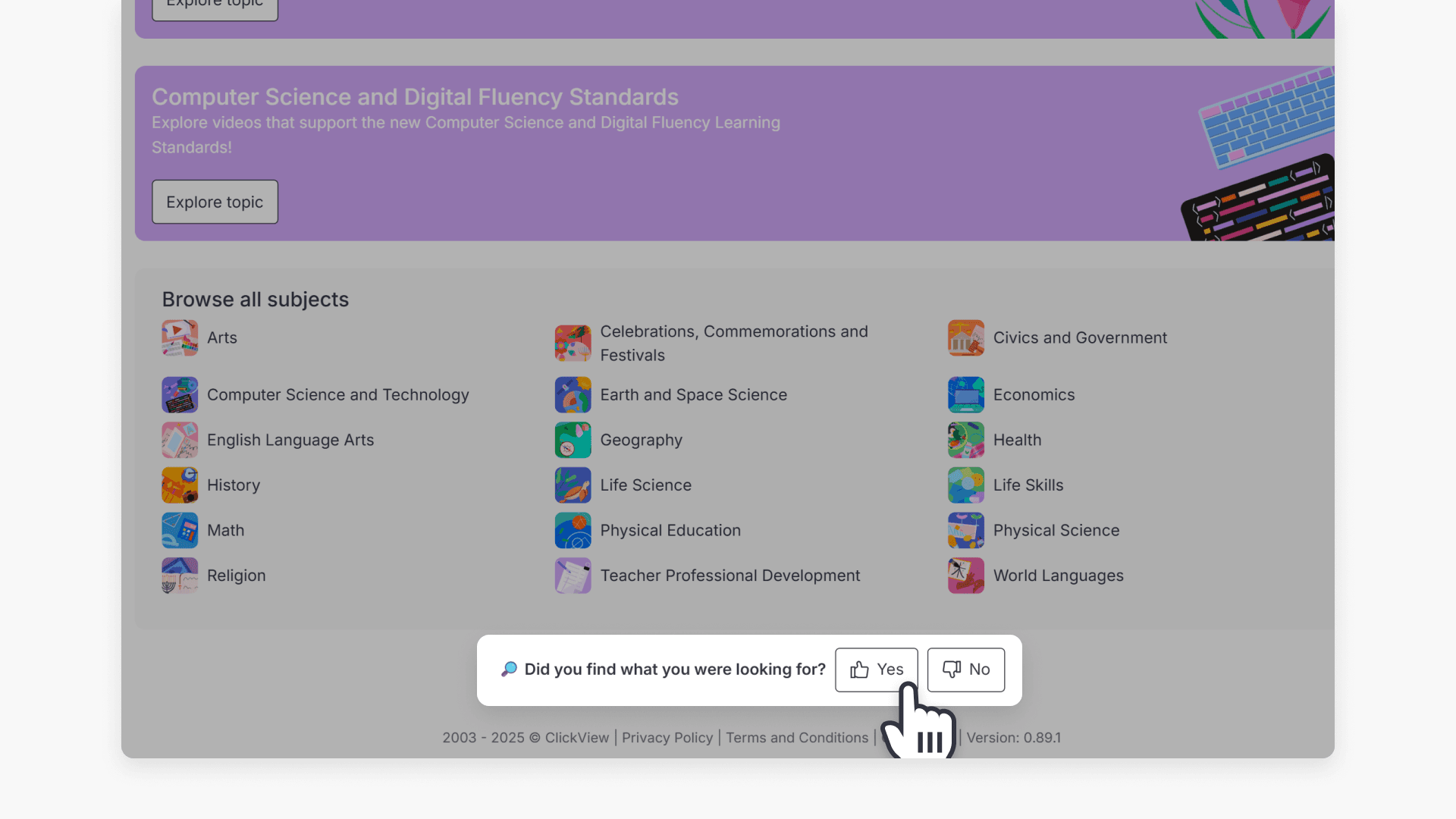
- Click either Yes or No to open the feedback box.
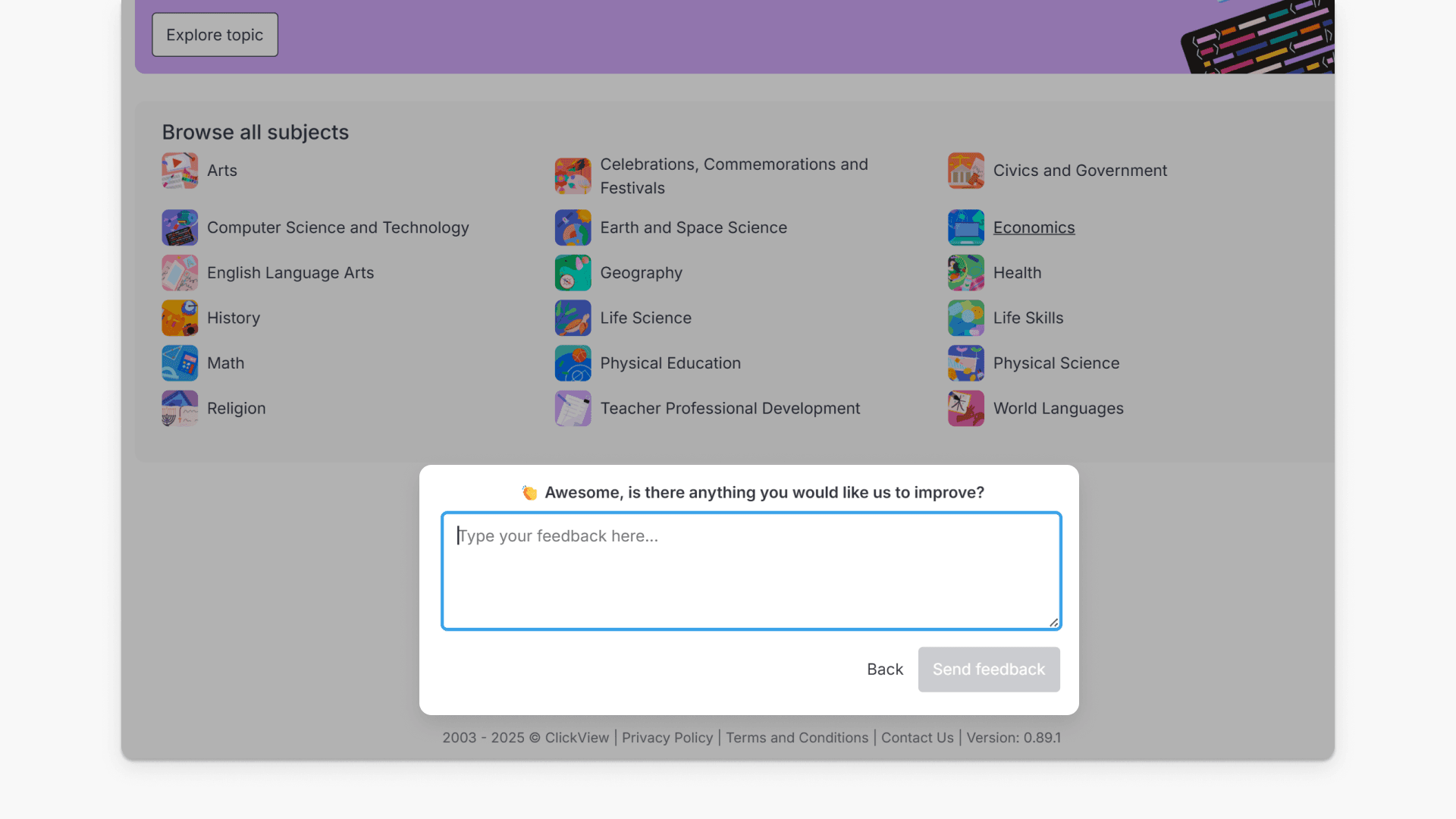
- Type your feedback in the box and submit.
Frequently asked questions
The ‘Give feedback’ button is next to your initials at the top right of the ClickView interface.
Yes, use the ‘Whats New?’ section from your initials menu to visit the Product Roadmap and submit ideas.
Yes, scroll to the bottom of the ‘Discover’ landing page and choose Yes or No for the feedback prompt.
Get in touch
If you’re having trouble finding the right topics or videos, just reach out! Our team - 


 Andrew, Nisch, Janice, Pfreya, or any of us at ClickView - will be happy to help you get sorted.
Give feedback
Was this guide helpful?
Up Next
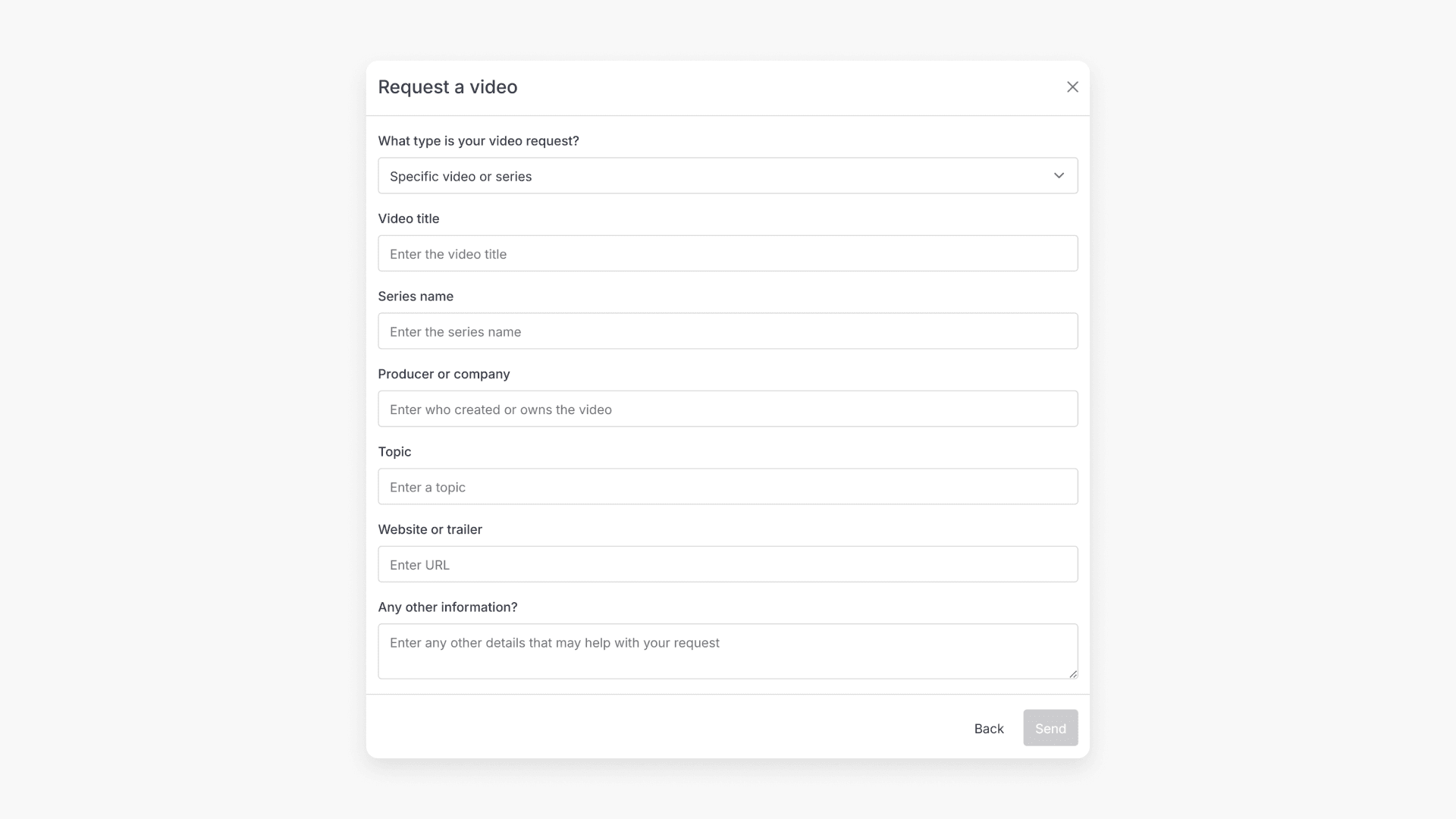
How to request a video not in ClickView
This article explains how educators can request a video that is not currently available in ClickView. It covers the step-by-step process, from accessing the request form to submitting your details, including how content is reviewed and what happens after submission.