How to vote on feature requests

Summary
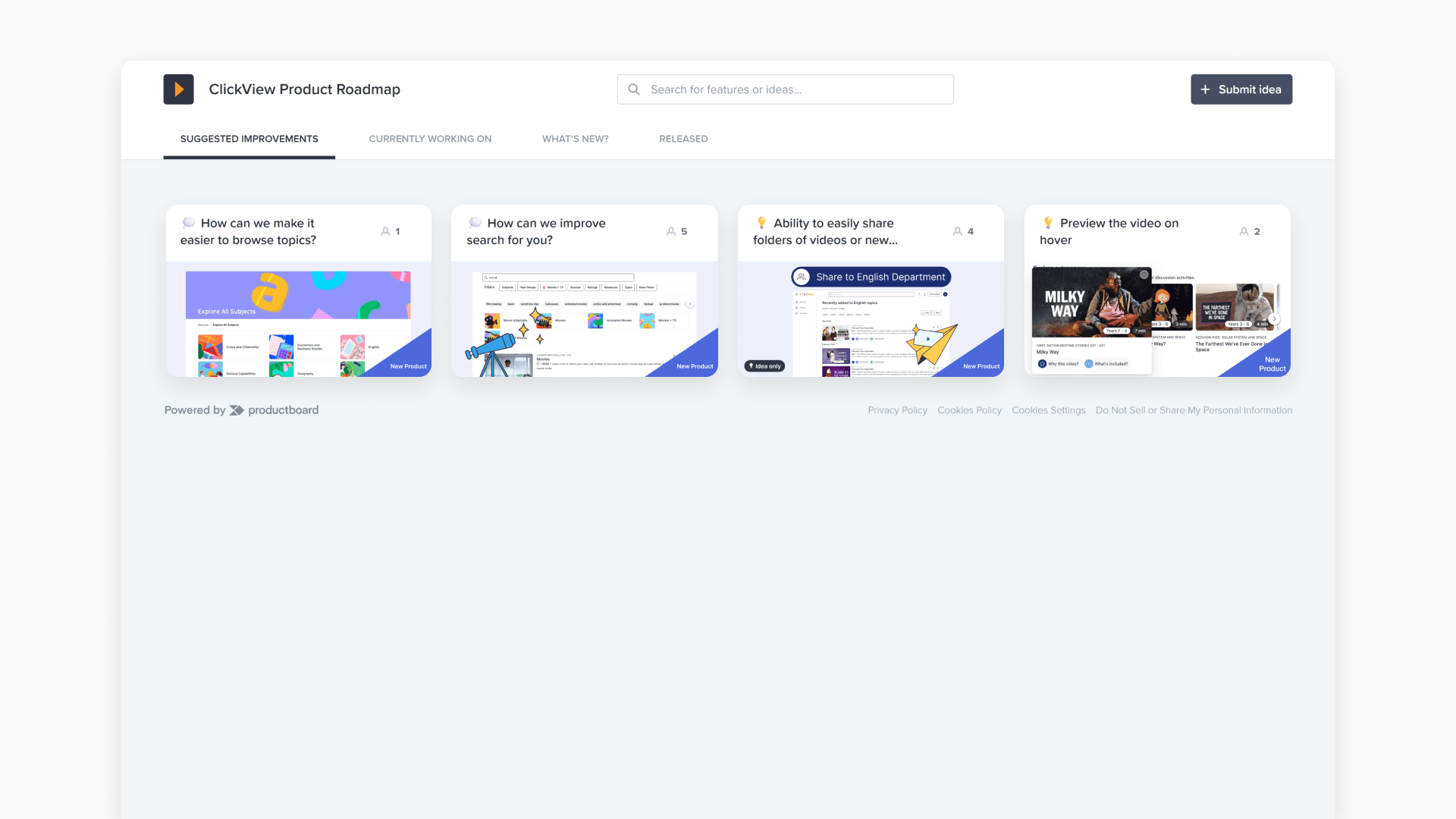
- Visit the ClickView Product Roadmap
- Click ‘+Submit idea’ for new requests
- Fill in your information and your request details
- Select the importance level and enter your email address
- Vote or comment on existing requests via the ‘Suggested Improvements’ tab
Submitting a new feature request or feedback
Educators and administrators can submit feature requests or provide feedback to help improve ClickView. Follow the step-by-step instructions below for submitting a new feature request or how to vote for an existing request.
Submit via the Product Roadmap
- Visit our Product Roadmap.
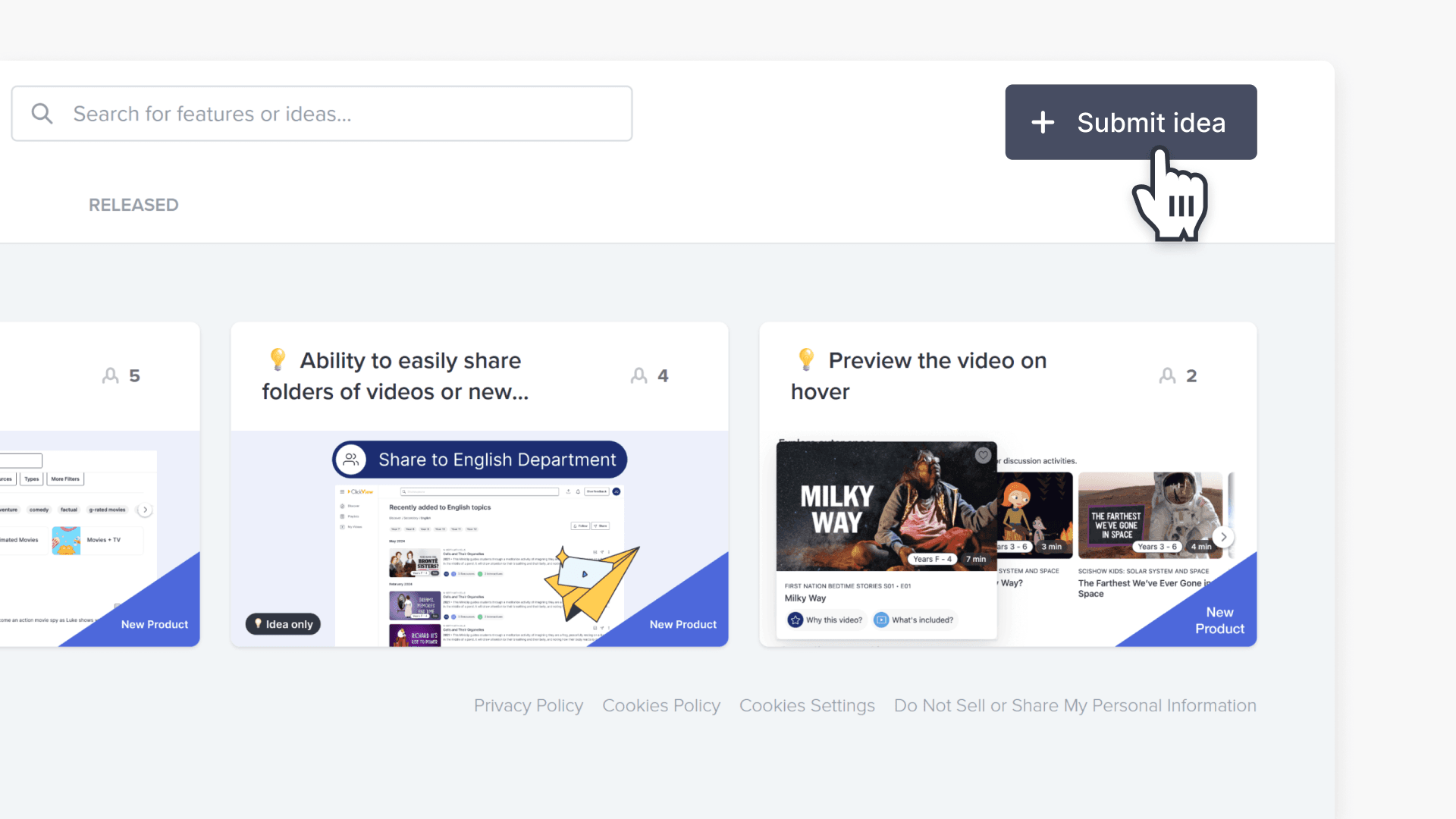
- At the top of the page, click the ‘+Submit idea’ button.
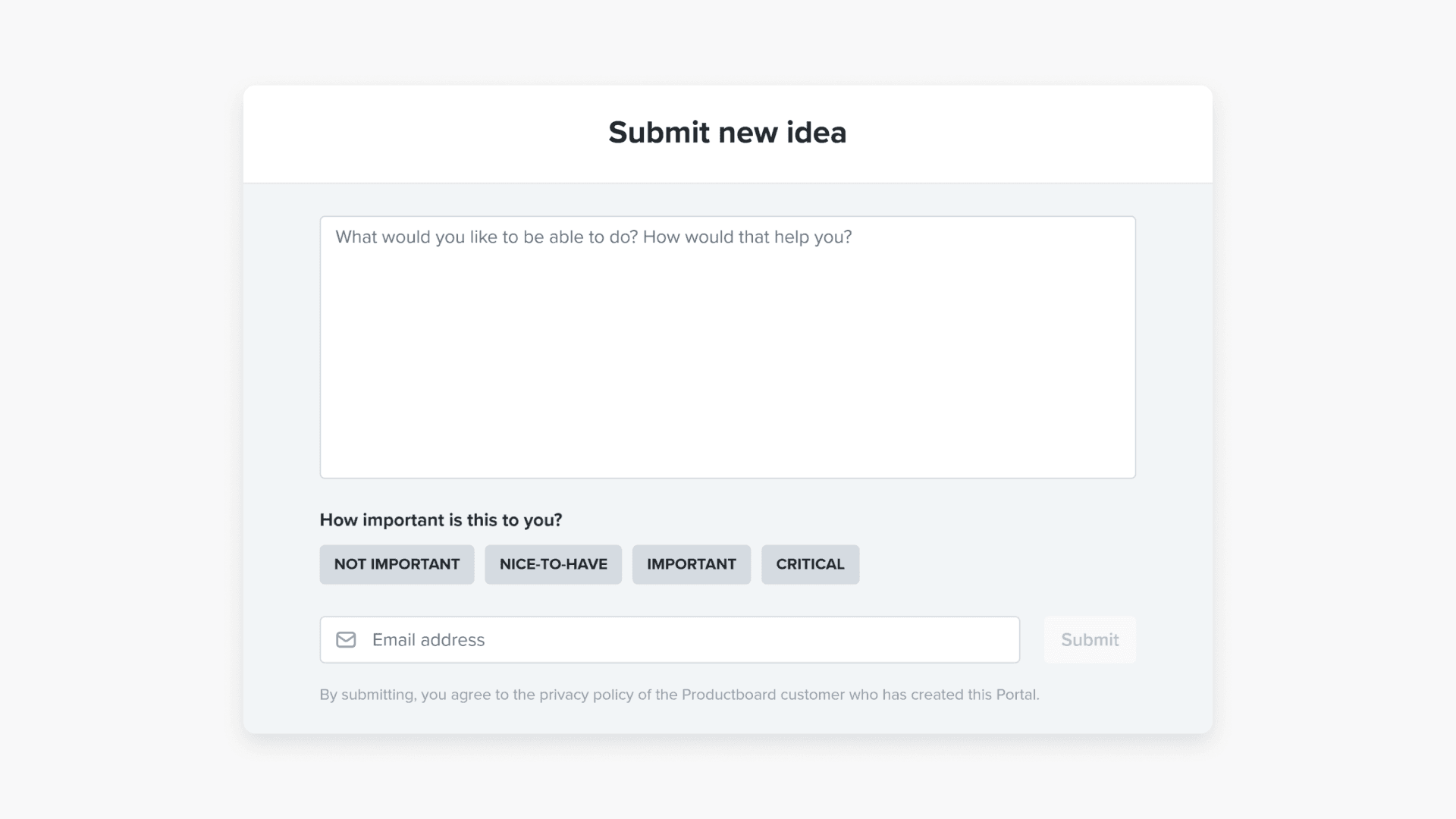
- In the ‘Submit new idea’ window, fill out the text box with:
- Your idea: Briefly explain what you want, why you need it, and how it would improve your ClickView experience.Importance: Choose the importance level that best fits your request.Your email address: Enter a valid email address so your submission can be verified.
- Click the ‘Submit’ button. An email will be sent to your inbox.
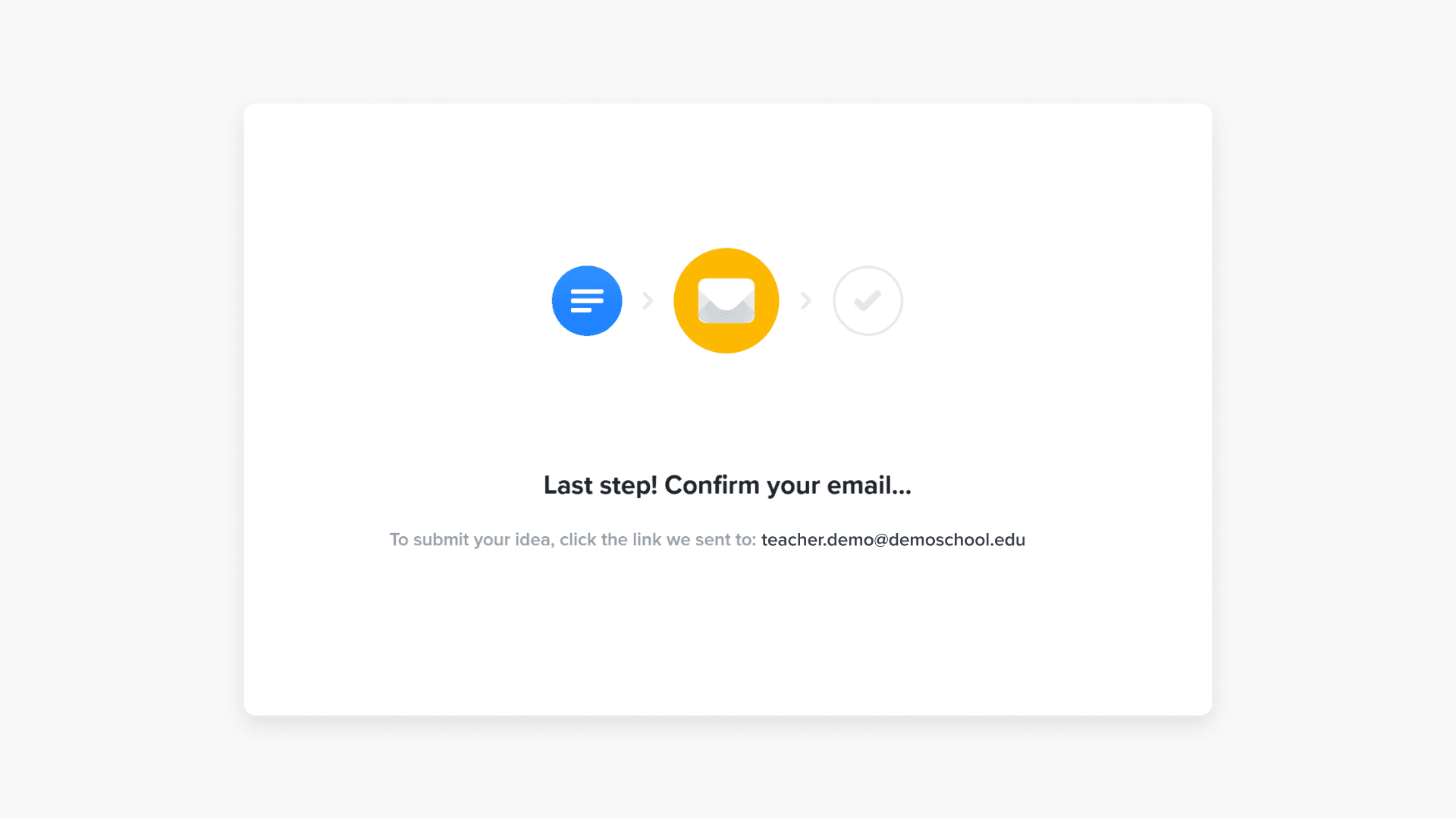
- Please check your inbox and click the ‘Confirm email’ button to complete validation.
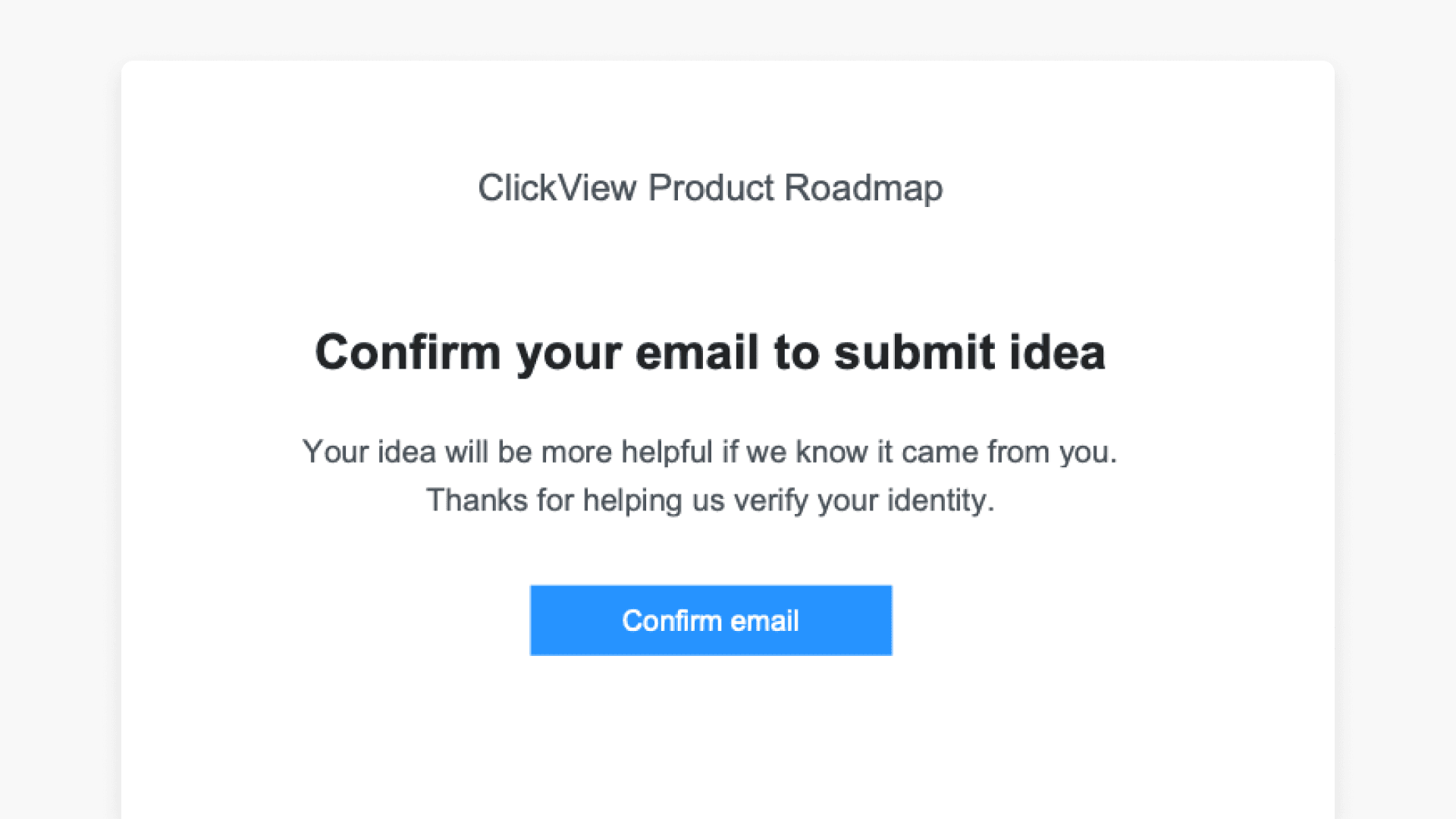
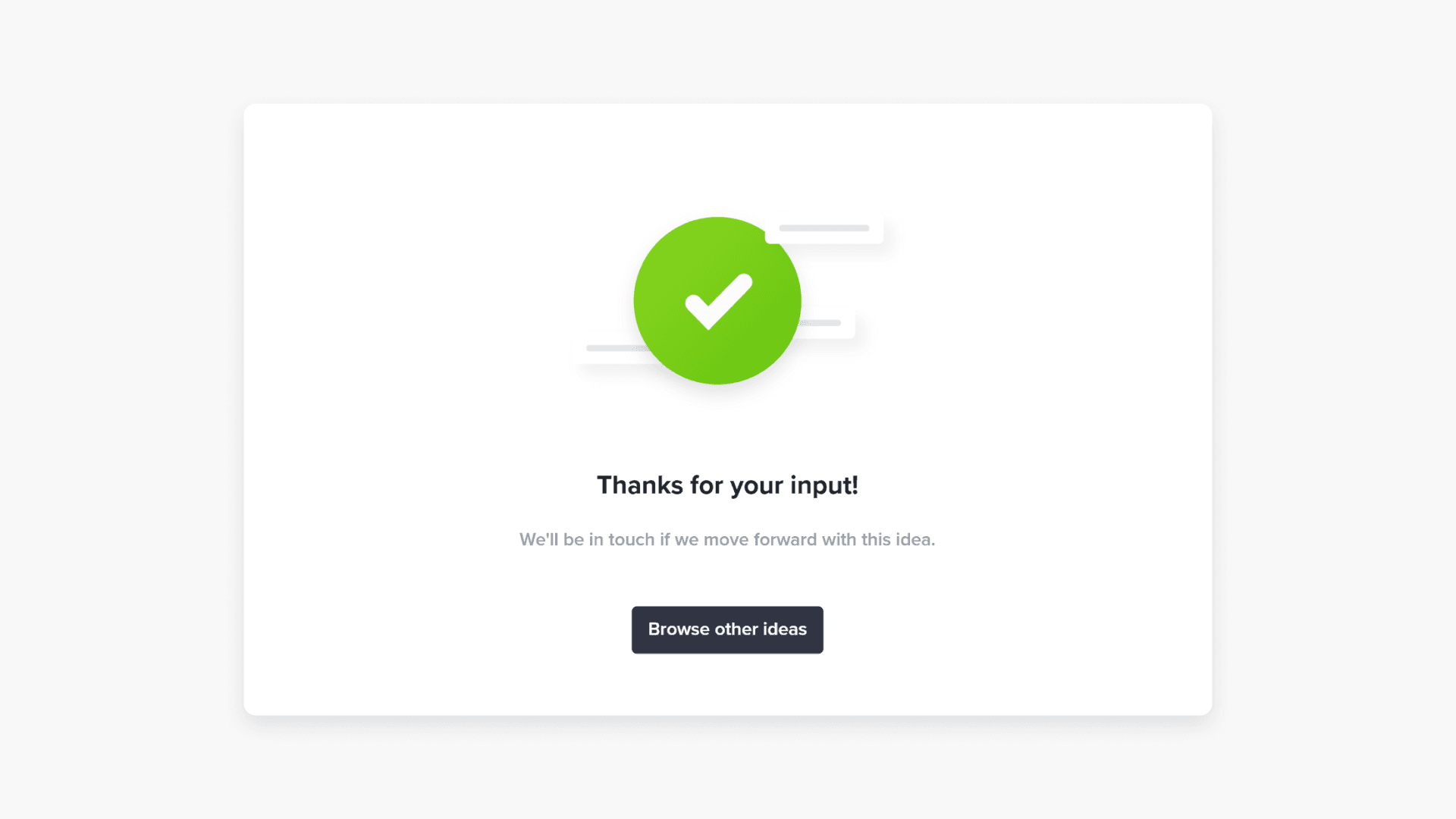
- After confirmation, your feature request is submitted.
Submit via email
Alternatively, you can submit your feature request by email.
- Prepare an email with these details:
- Your school or district name
- Your name and email address
- Your request: Summarize your request and include a short explanation of the problem it solves.
- Benefits of the change: How will the request help?
- Send the above details to ClickView Product Support at support@clickvieweducation.com.
- You will receive an automated email acknowledgment.
Submit feedback on an existing feature request
- Visit our Product Roadmap.
- On the ‘Suggested Improvements’ tab, select an existing feature request.
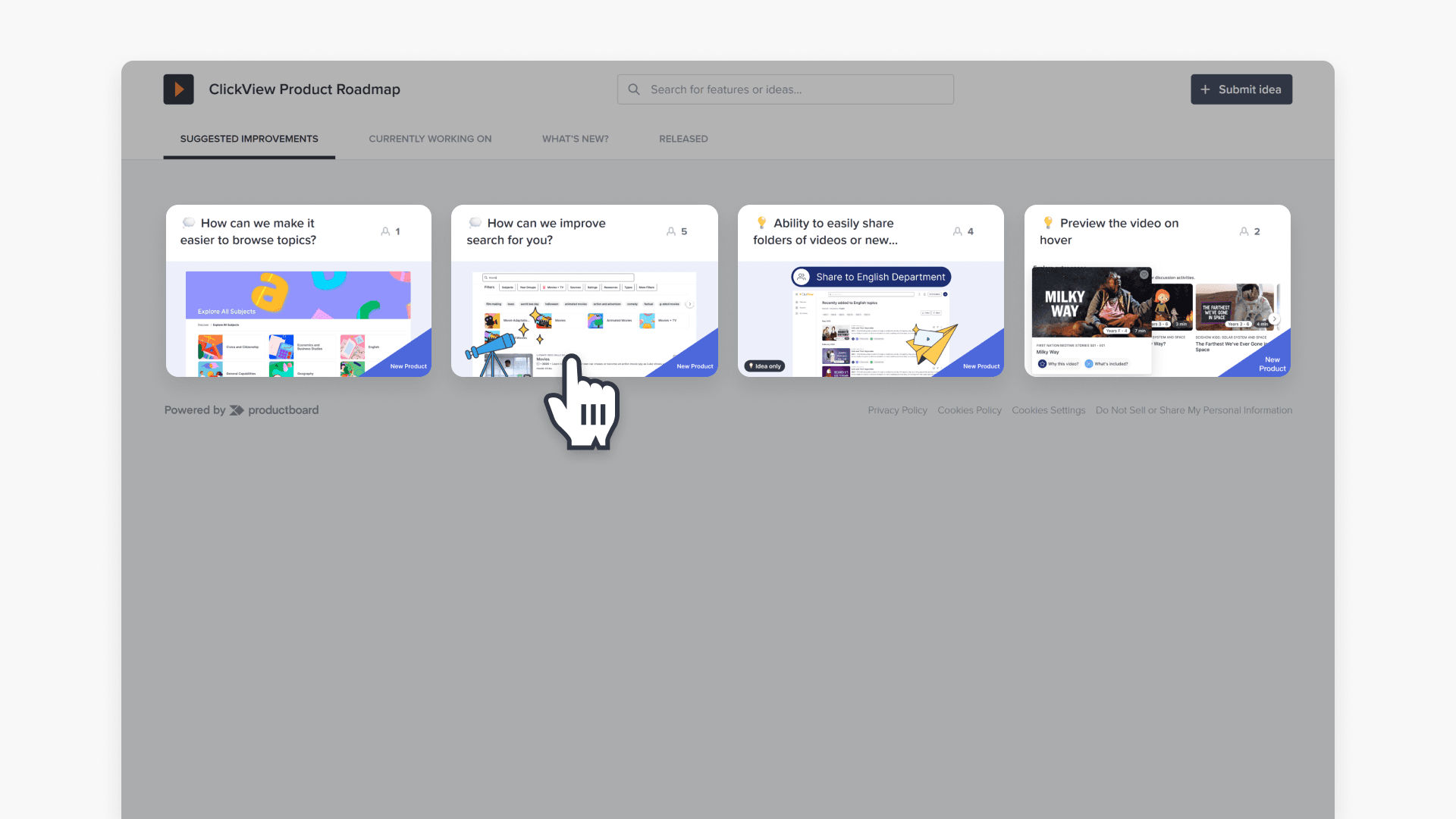
- Choose the importance level for your feedback.
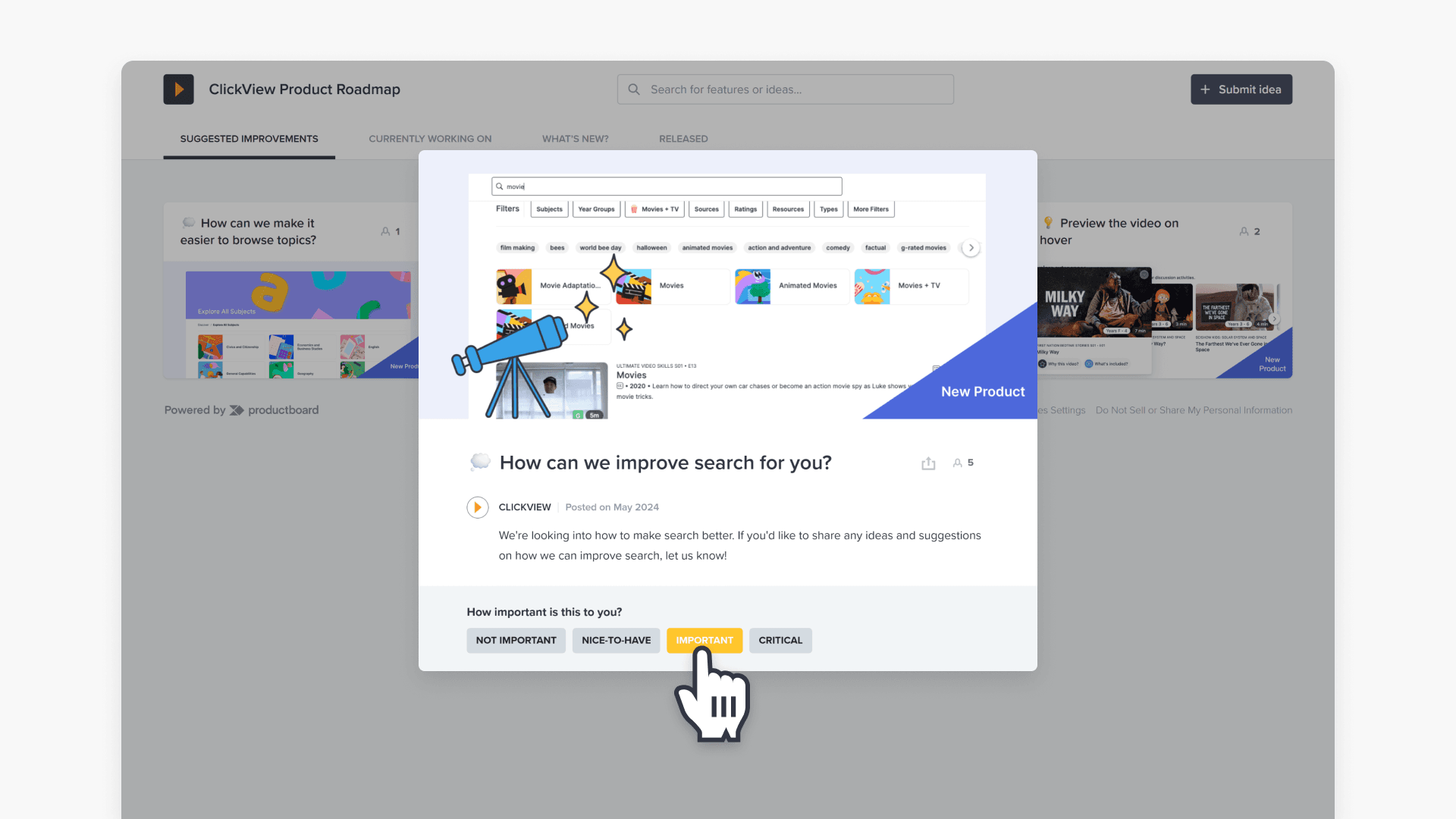
- In the text box, provide a short summary of why you would like to see this feature and how it will improve your ClickView experience.
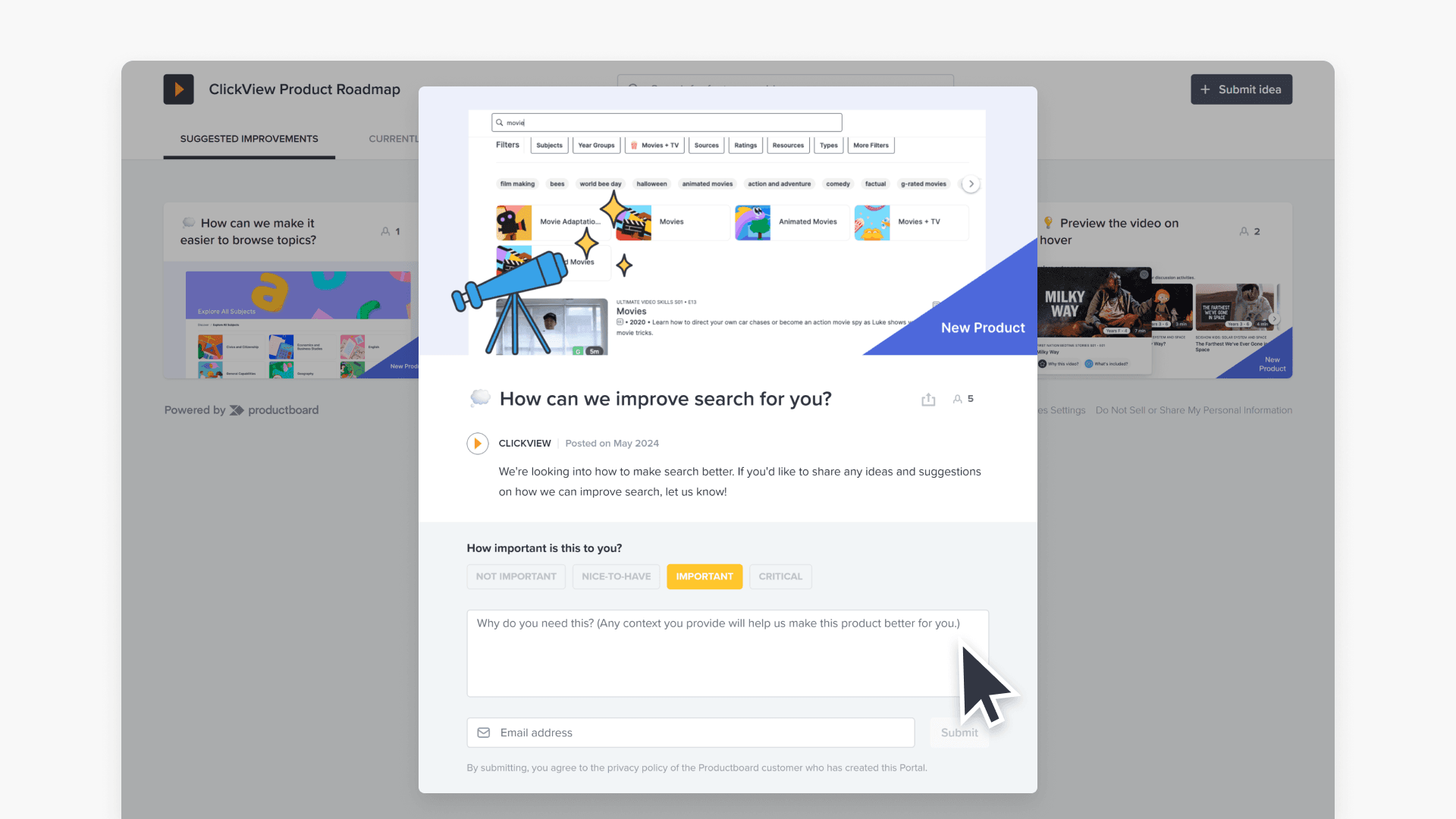
- Enter your email address and click ‘Submit’.
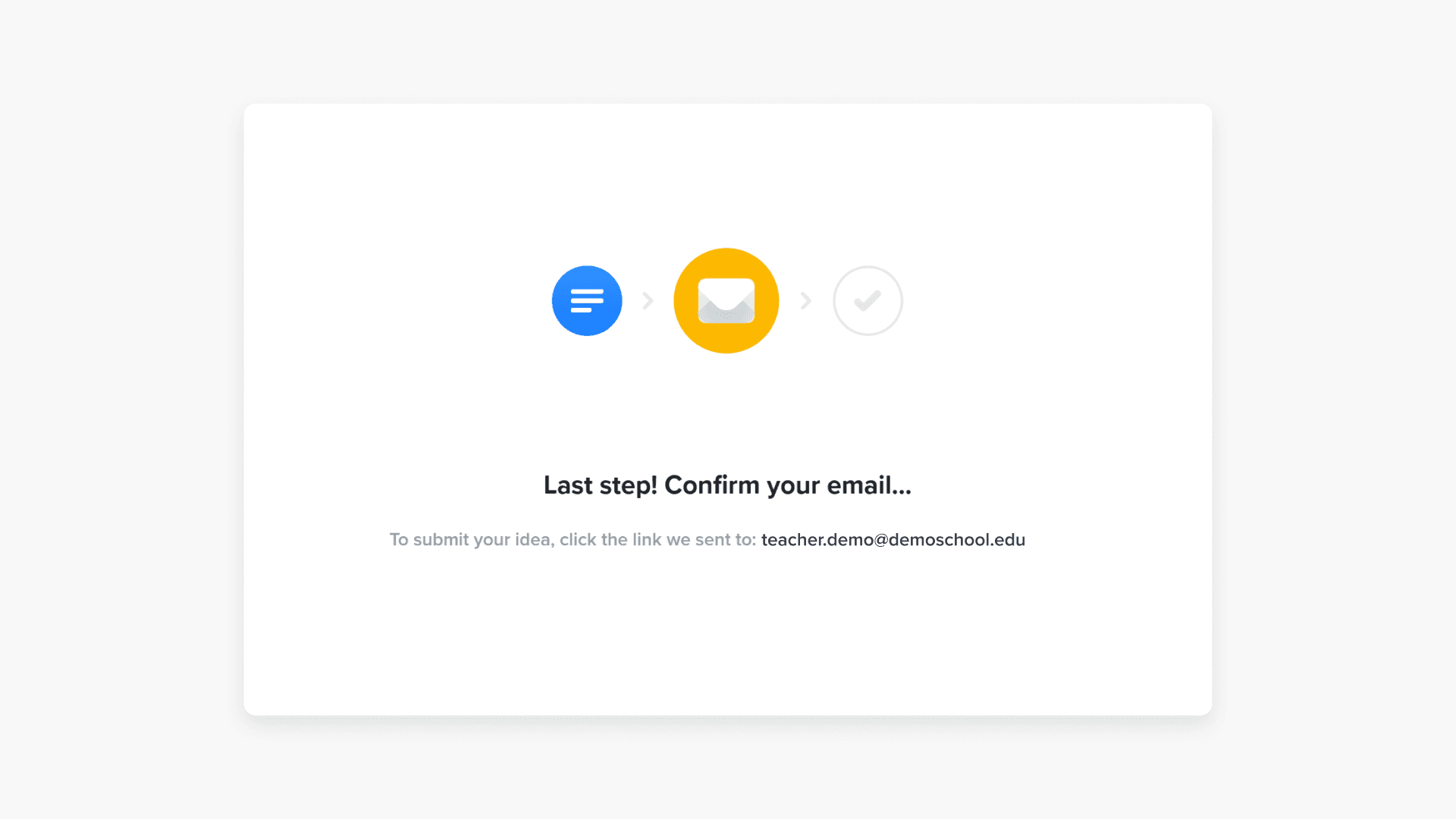
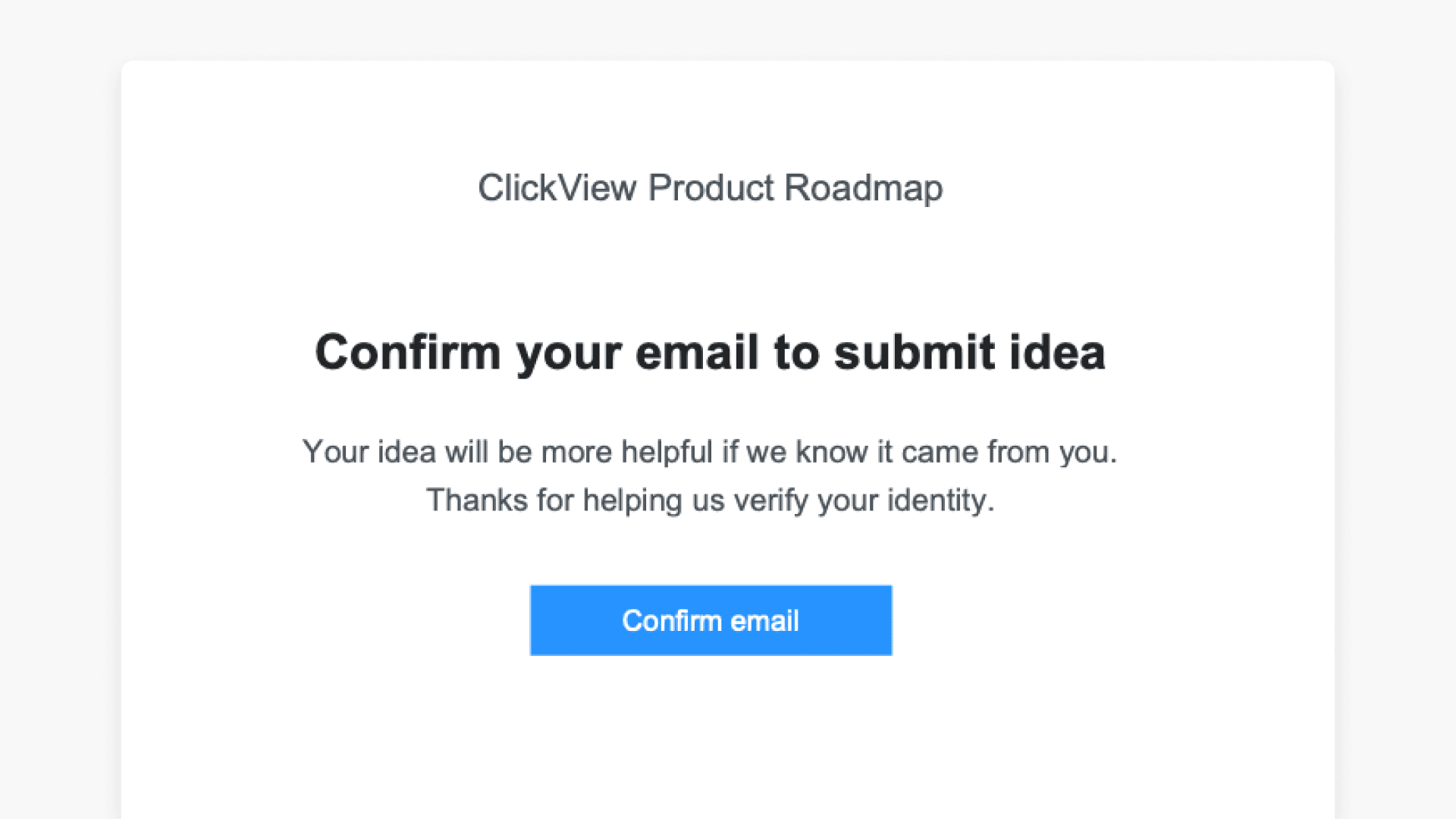
- Check your email and confirm using the ‘Confirm email’ button.
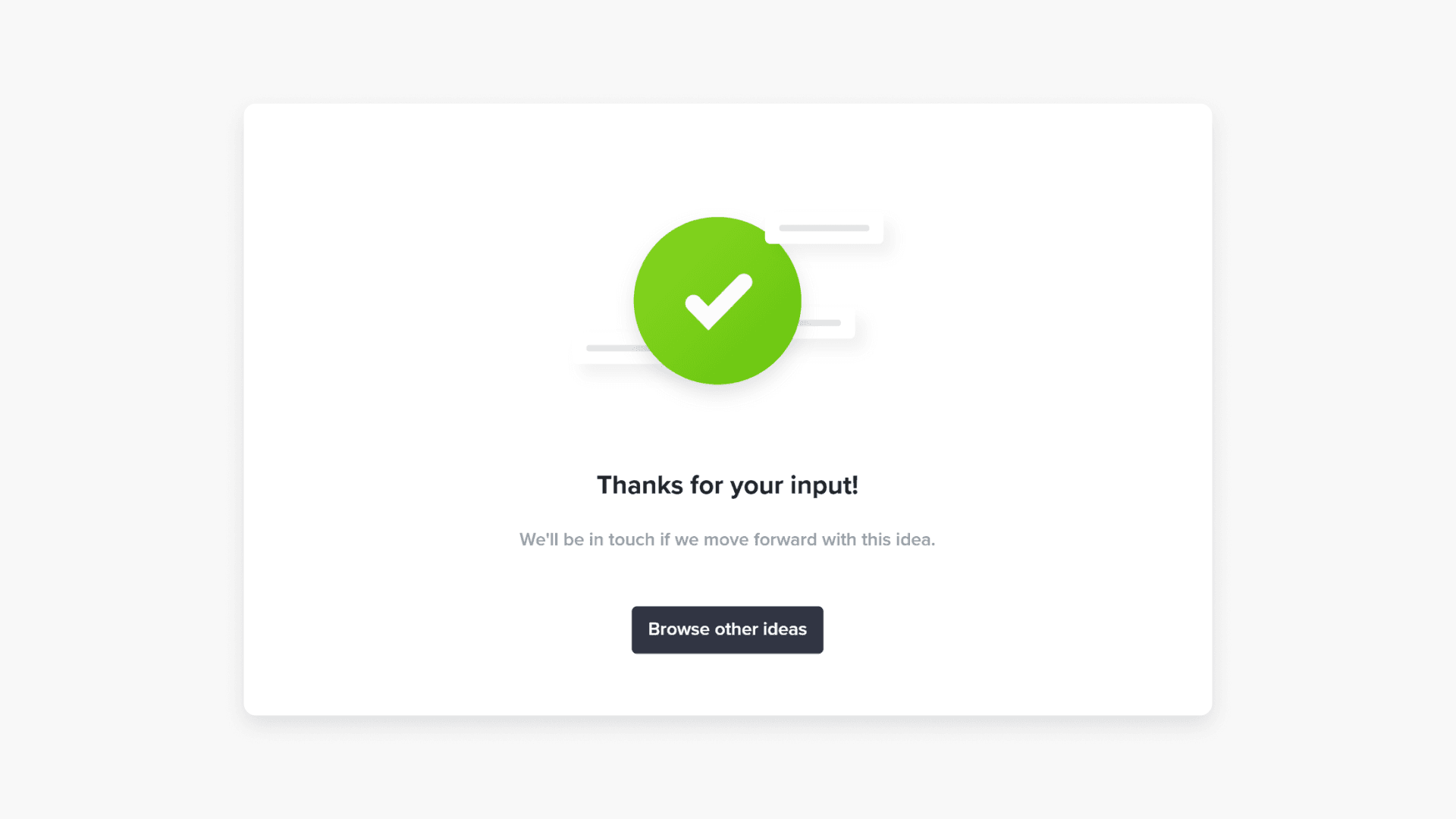
- Your feedback is now added to the feature request.
Frequently asked questions
Get in touch
If you’re having trouble finding the right topics or videos, just reach out! Our team - 


 Andrew, Nisch, Janice, Pfreya, or any of us at ClickView - will be happy to help you get sorted.
Give feedback
Was this guide helpful?
Up Next
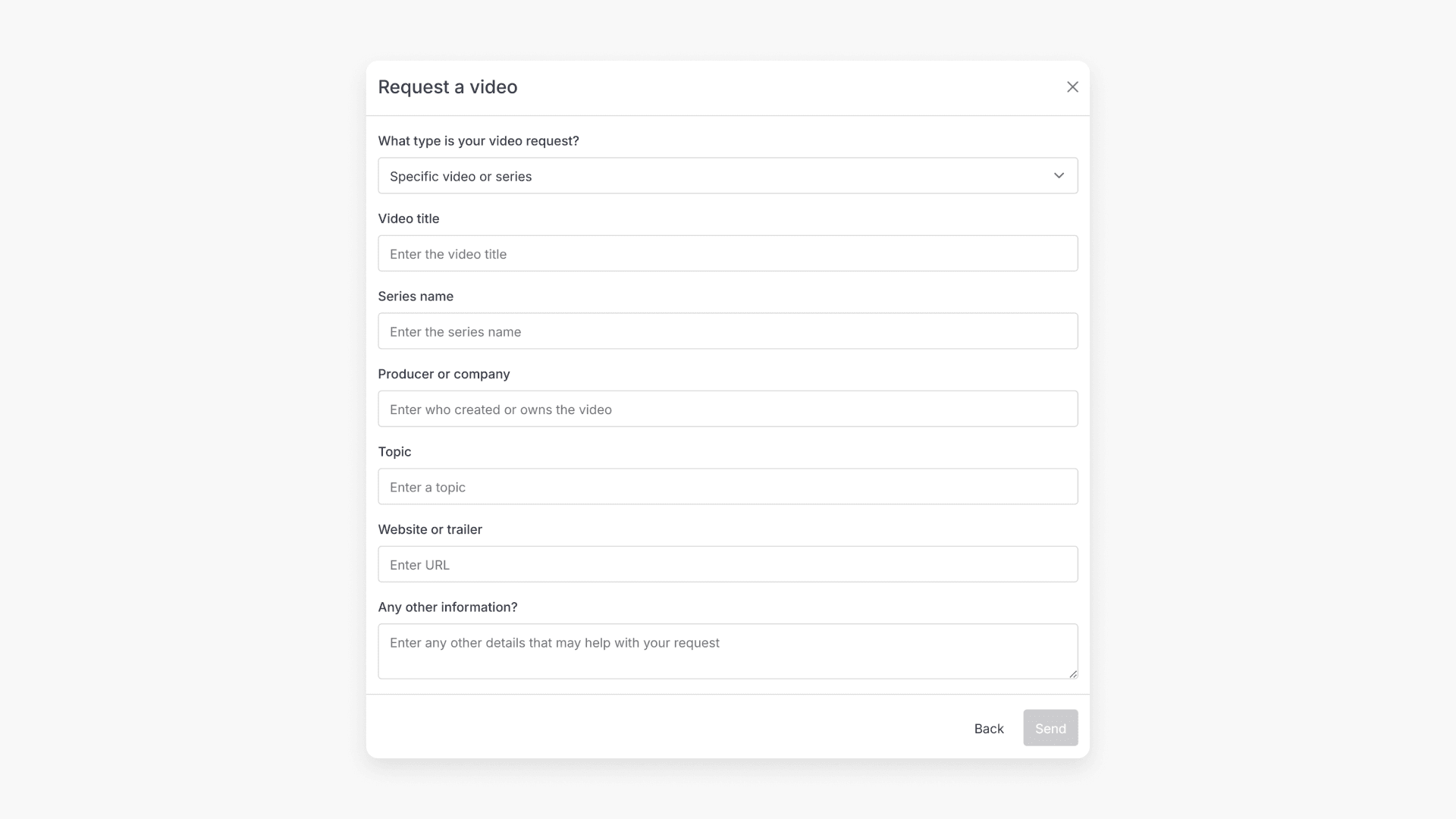
How to request a video not in ClickView
This article explains how educators can request a video that is not currently available in ClickView. It covers the step-by-step process, from accessing the request form to submitting your details, including how content is reviewed and what happens after submission.