How to create and use Open classrooms

Summary
- Open classrooms allow teachers to share videos without classroom setup.
- Select ‘Create an Open classroom’ to create a one-off session for any group.
- Enable ‘Prevent skipping ahead’ for interactive video control.
- Enable ‘Instant feedback’ for student response feedback.
- Manage student sign in and rating restrictions for access.
- Share using share link, join code, QR code, embed code, or integrations options.
What are Open classrooms?
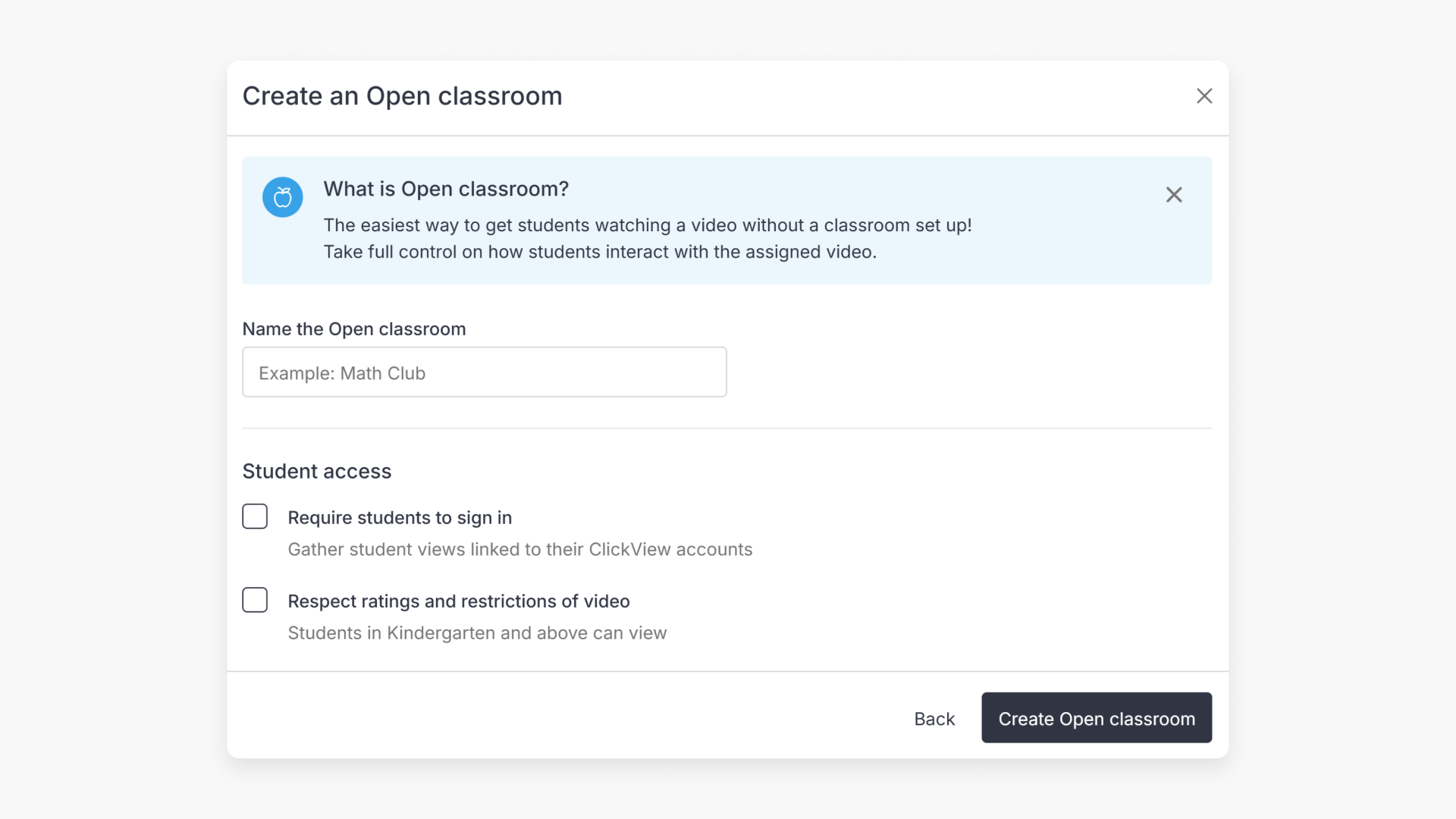
Open classrooms provide teachers with a simple way to share educational videos with students without having to set up classrooms in ClickView. Teachers remain in control of how students interact with each assigned video.
How to use Open classrooms
To assign a video or interactive activity to students:
- Click the ‘Assign’ button below the video player.

- Select the ‘Create an Open classroom’ option.
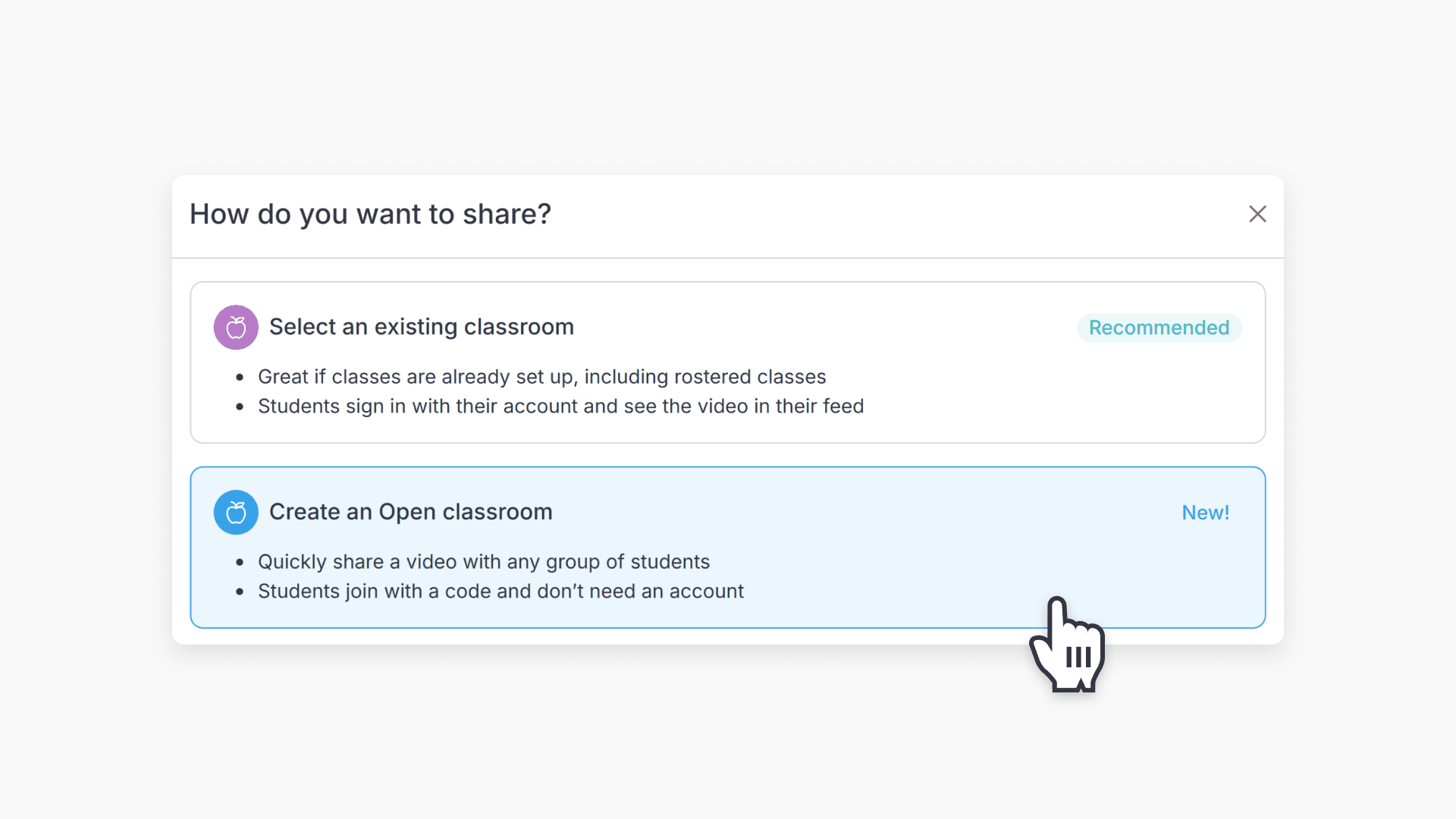
This presents several configuration options for both video playback and student access.
Video setting options
- Prevent skipping ahead: Enable this to stop students from skipping through the video.
- Enable instant feedback: Allow students to see feedback immediately after each response on interactive quizzes.
Student access options
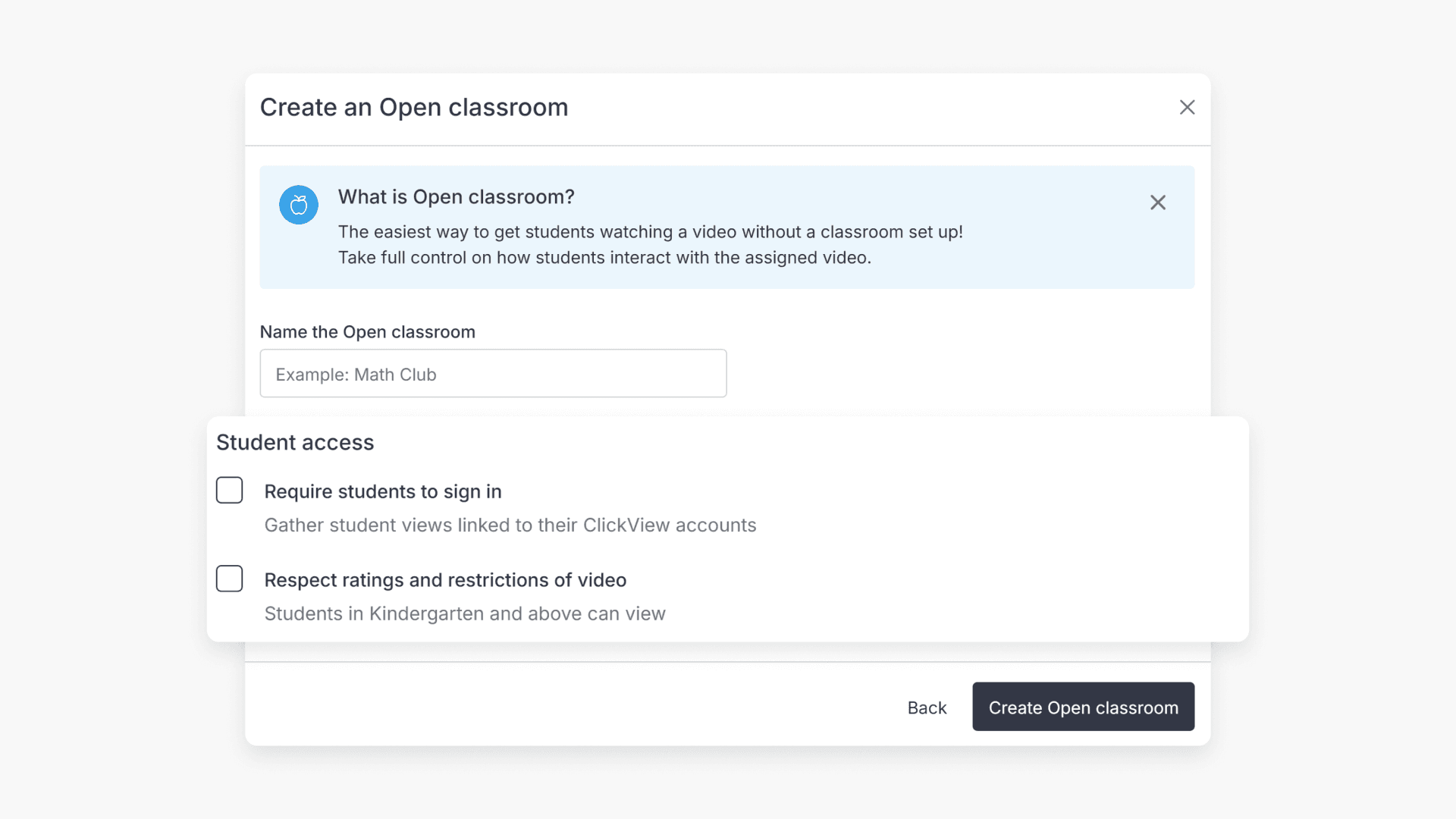
- Require students to sign in: Keep this unchecked to let students watch videos without signing in—a useful choice for younger grades.
- Respect ratings and restrictions of the video: Leave this unchecked to allow sharing of higher-rated content with selected students who have permission, even if the rating exceeds their grade’s usual maximum.
Once you finish selecting your desired settings, you can share the video with students using multiple options:
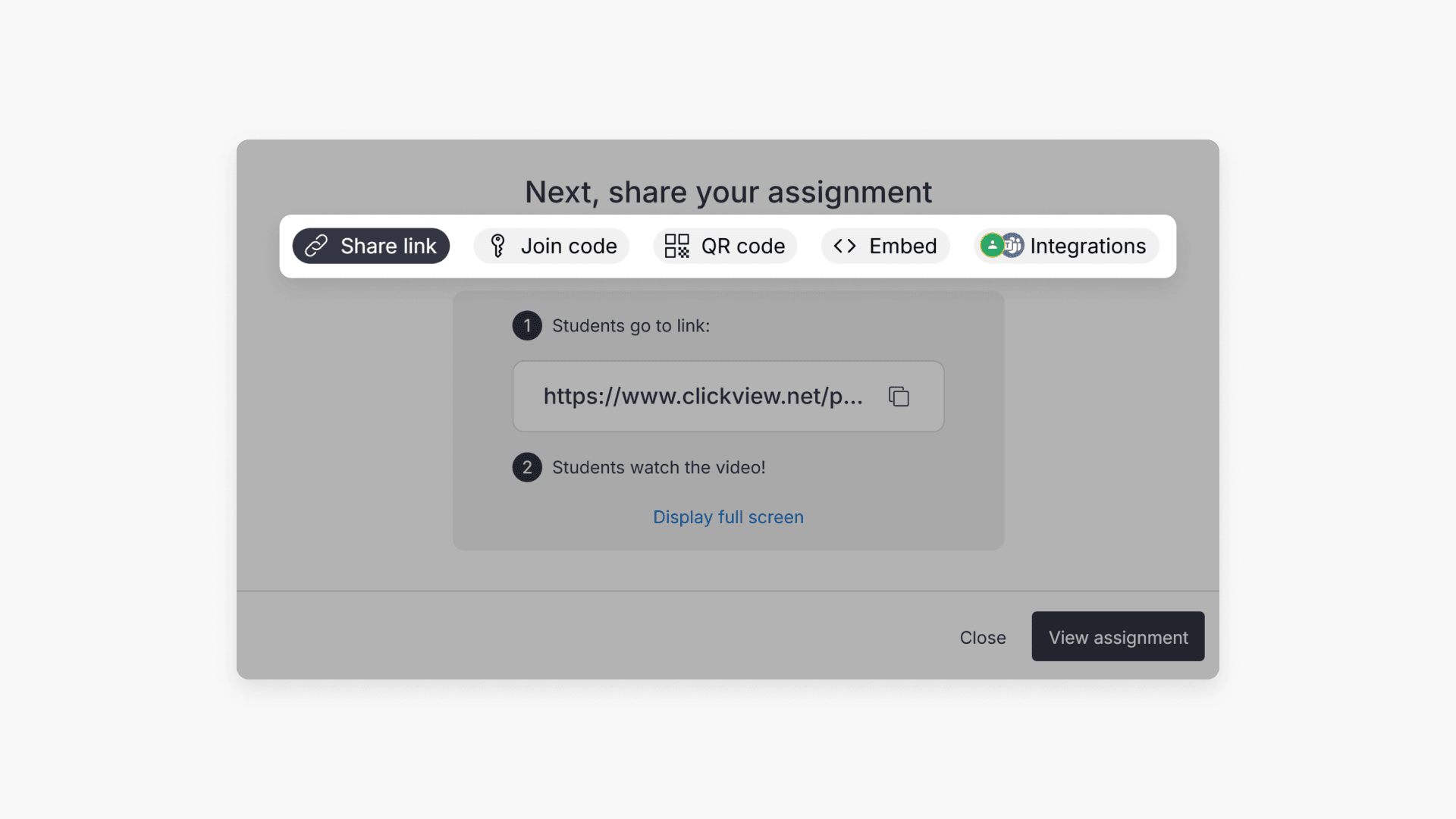
- Share link: Generate a unique link for students.

- Join code: Provide students with a code to join.

- QR code: Display a scannable QR code for instant access.

- Embed code: Copy the code to embed the video onto other platforms.

- Integrations: Use available integrations for seamless sharing.

Frequently asked questions
Get in touch
If you’re having trouble finding the right topics or videos, just reach out! Our team - 


 Andrew, Nisch, Janice, Pfreya, or any of us at ClickView - will be happy to help you get sorted.
Give feedback
Was this guide helpful?
Up Next
How to set up and manage classrooms
This article explains how to create and manage classrooms in ClickView, including step-by-step instructions for adding students and staff, using classroom codes, and archiving classrooms.