How to create Groups in your classrooms

Summary
- Click the ‘Groups’ tab in the classroom.
- Use the + Create groups button to name and create your groups.
- Select students using check boxes in the ‘Students’ tab.
- Click the Groups icon to assign selected students to a group.
- Share content directly with specific groups.
What are groups?
Groups are smaller sets of students inside a classroom. They help you organize students by learning needs, reading level, project team, or any other cohort, so you can share the right ClickView content with the right students.
Why use groups for differentiated learning?
Student abilities and learning needs vary within each classroom. Creating groups allows you to provide tailored instruction and resources, ensuring that fast finishers, those needing extra support, or any specific cohort receives appropriate materials. With ClickView, grouping students simplifies blended learning and content sharing.
How to create a group
- Click the ‘Classrooms’ menu item.
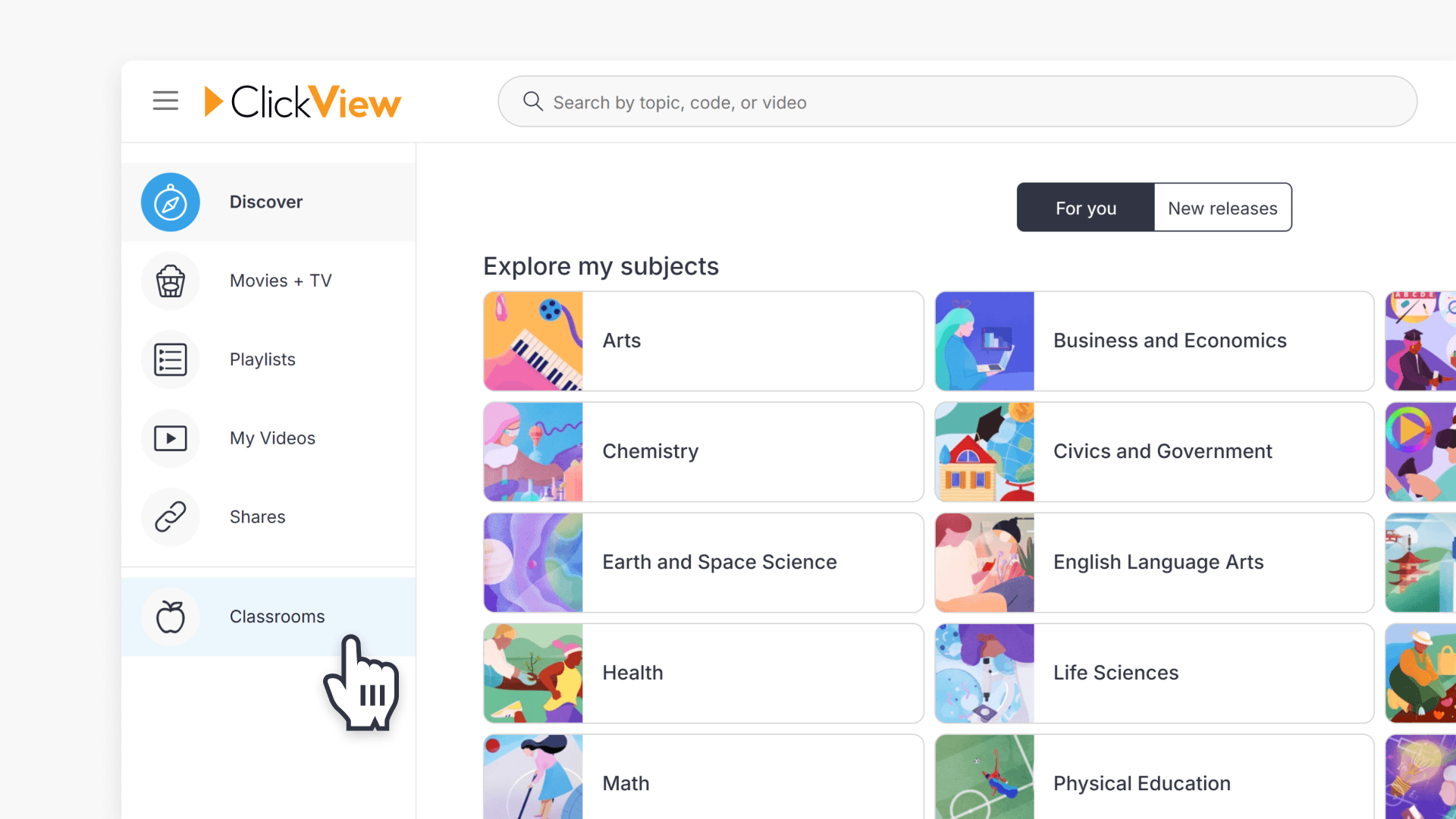
- Open one of your Classrooms and go to the Manage Classroom screen.
- Click on the Groups tab in the top left.
- Click the + Create groups button.

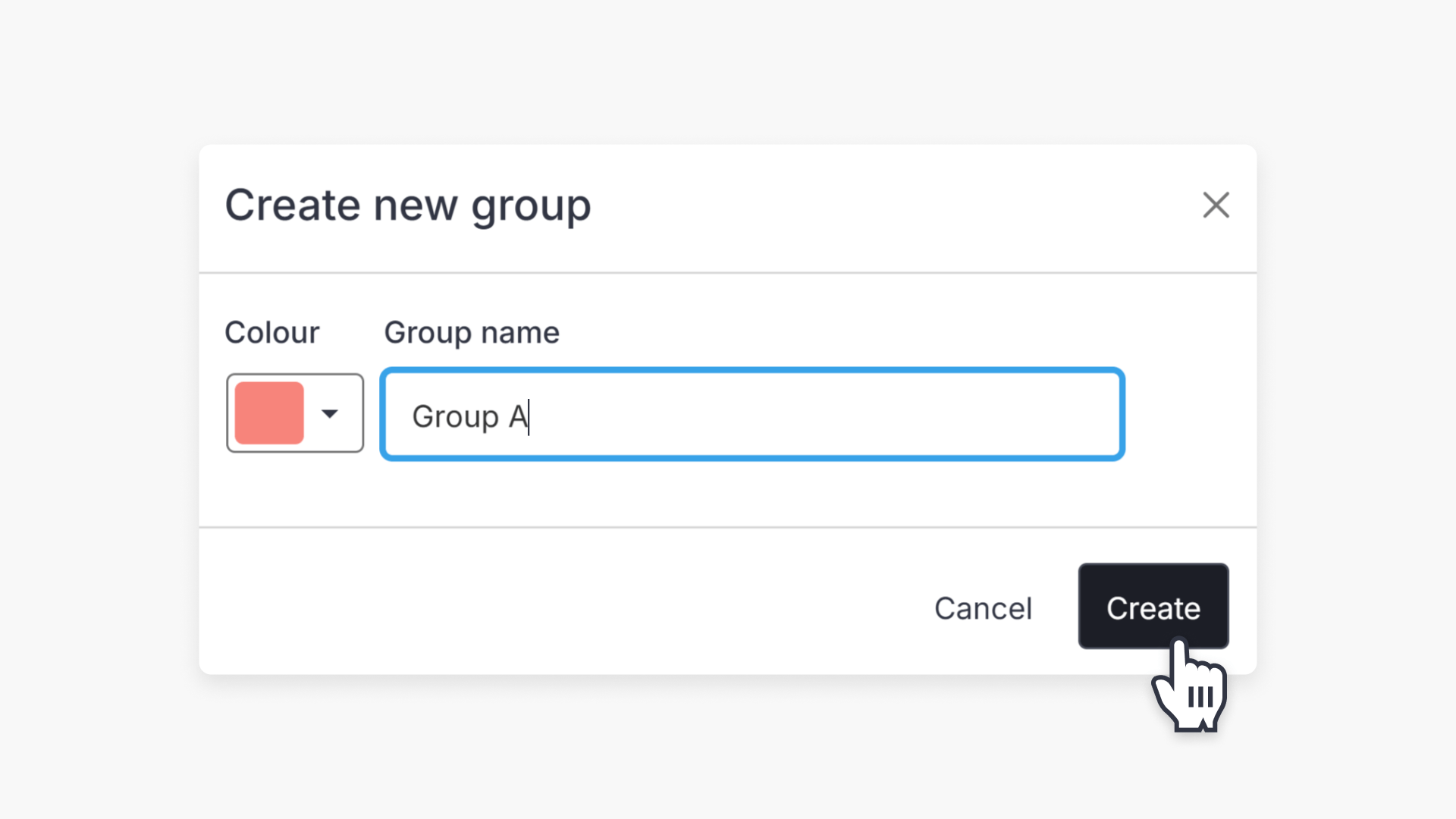
- Enter a group name and choose a colour.

- Click the Create button.
- Repeat this process for each group you need.
How to add students to groups
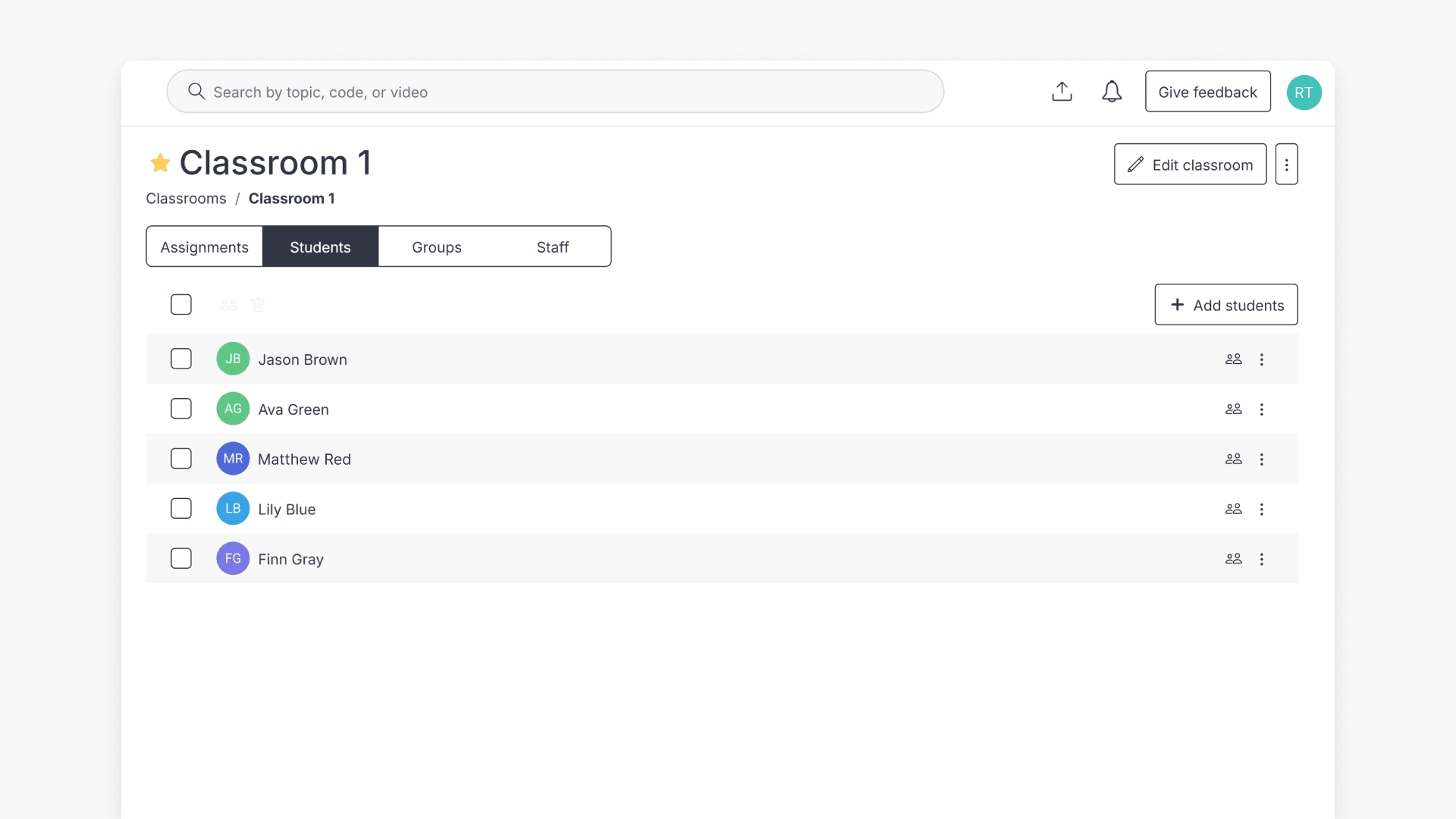
- From the Students tab, select students by ticking the check boxes on the left side of the student list. You may select an individual or multiple students at once.

- Once selected, click the Groups icon. For multiple students, use the group icon at the top; for individual students, use the group icon on the right.

- Select the group you want to assign the students to. They will be added to the chosen group.

- Continue grouping students as needed.

How to share content with your groups
Sharing different content with student groups is straightforward. After your groups are created, you can easily share resources tailored to each group. Learn more on how to share a video.
Frequently asked questions
Get in touch
If you’re having trouble finding the right topics or videos, just reach out! Our team - 


 Andrew, Nisch, Janice, Pfreya, or any of us at ClickView - will be happy to help you get sorted.
Give feedback
Was this guide helpful?
Up Next
How to set up and manage classrooms
This article explains how to create and manage classrooms in ClickView, including step-by-step instructions for adding students and staff, using classroom codes, and archiving classrooms.