Share videos using the iOS app

Summary
- Browse for the video you want to share.
- Select the Share icon under the video.
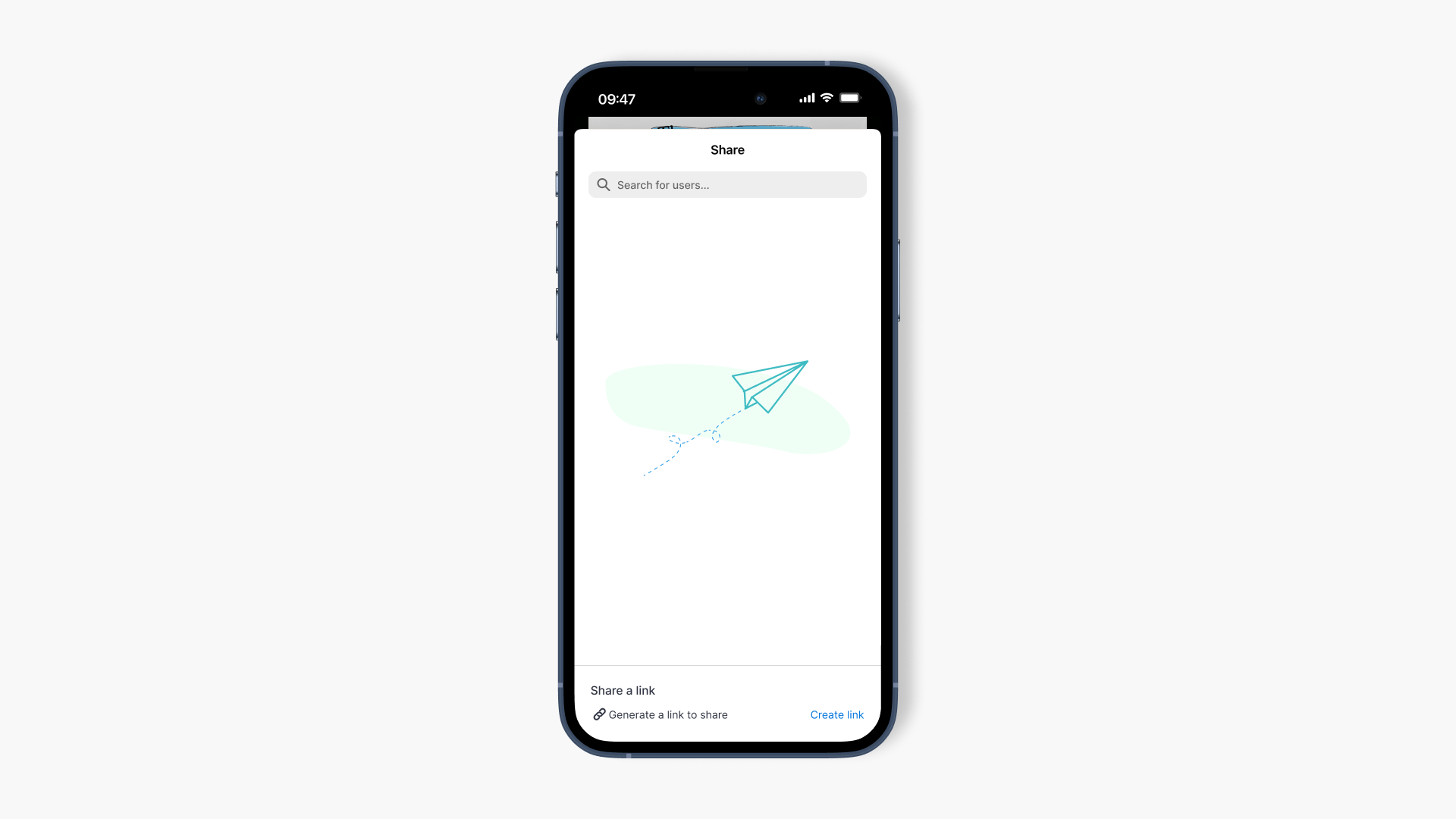
- Choose Create link to copy a share link, or share directly with users or Classrooms.
- Confirm the recipient has access to ClickView before sending.
Steps for sharing videos in the iOS app
Sharing in the ClickView iOS app helps you quickly send the right video to the right audience, whether that is a specific user, a Classroom, or anyone with a share link. Use the steps below to create a link you can paste into your LMS, email, or message, or share directly within ClickView.
- Browse for any video you wish to share.
- Click on the Share icon under the video.

- Select Create link to generate a link to share with your students.

- You can search for users or Classrooms to share.

- Alternatively, you can send a video share link to individuals.

Tips for sharing
- If you are sharing to a larger group, the share link option is often the fastest way to distribute a video.
- If someone cannot view the video, confirm they can access ClickView and that they are using the correct account before trying again.
After you share
Once the link is created or the video is shared, you can paste the link wherever your students access learning materials, or rely on direct sharing to deliver the video to the intended users or Classrooms.
Frequently asked questions
Get in touch
If you’re having trouble finding the right topics or videos, just reach out! Our team - 


 Andrew, Nisch, Janice, Pfreya, or any of us at ClickView - will be happy to help you get sorted.
Give feedback
Was this guide helpful?
Up Next
Record and upload a video in the iOS app
This article explains how to use the ClickView app to record a video on your device, upload it to My Videos, and complete video details for easy sharing.