How to use Student reach metrics in ClickView Analytics

Summary
- Sign in with an Administrator account to access Analytics.
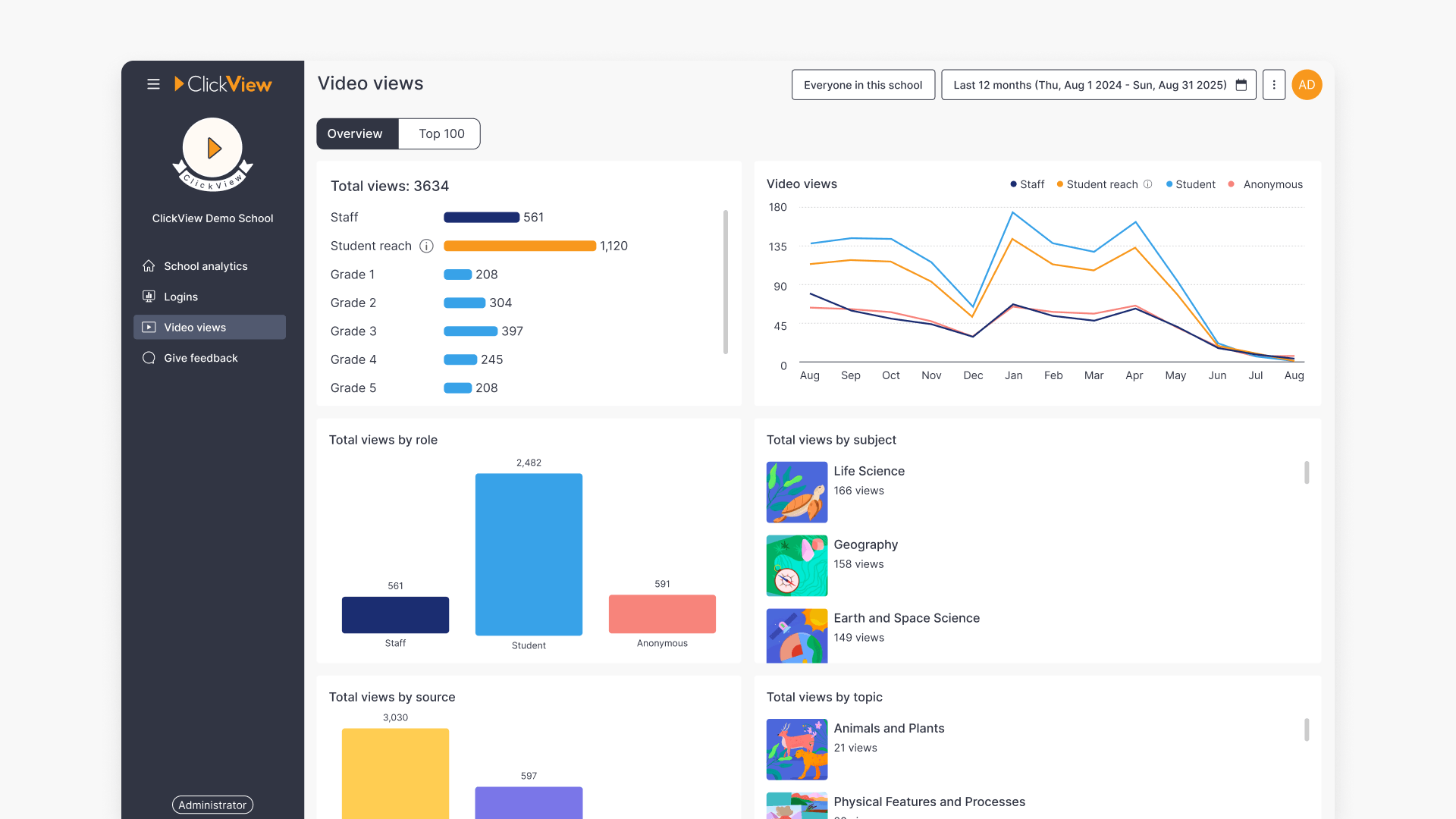
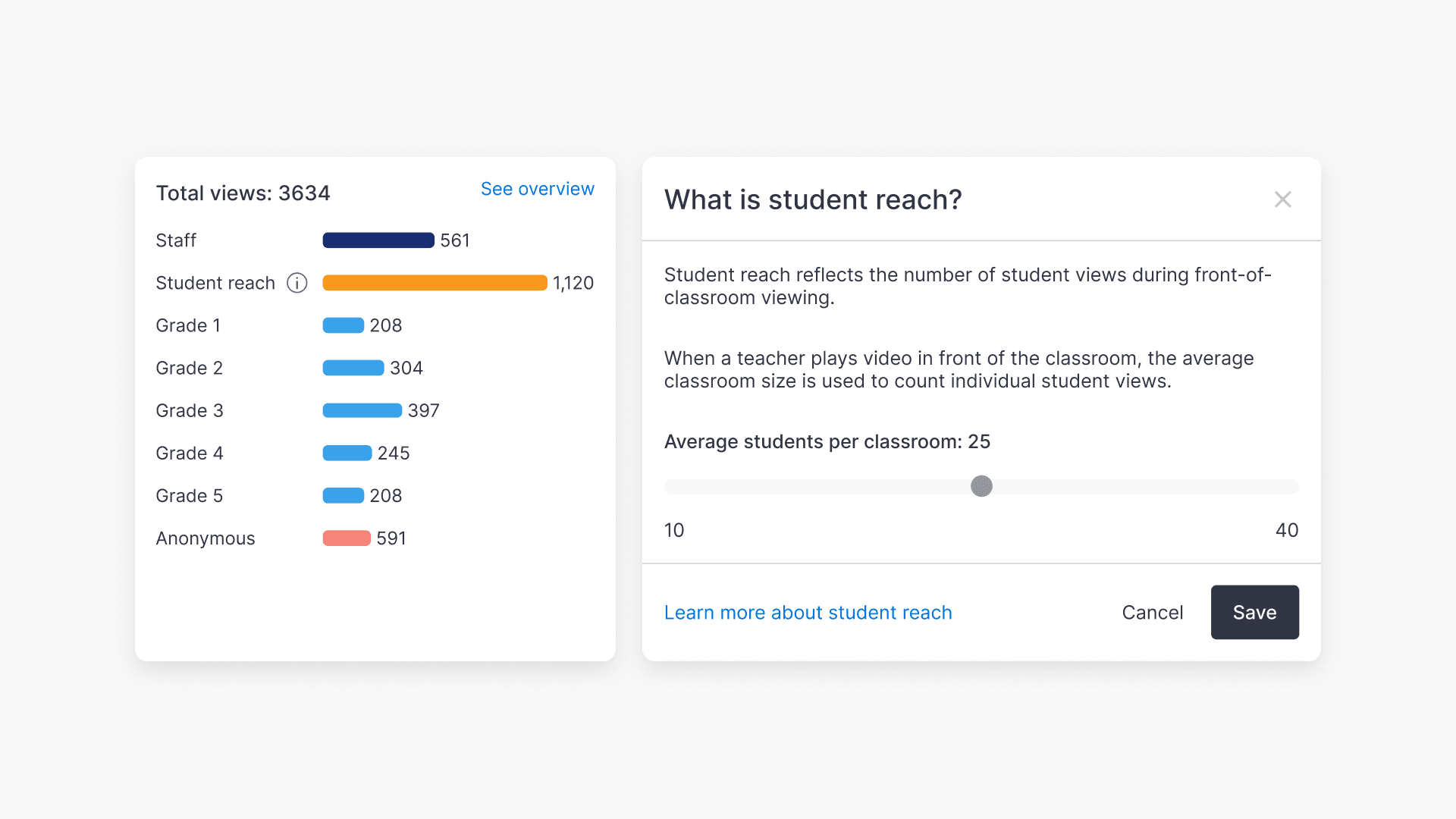
- Student reach shows how many students were impacted by teacher-led, front-of-classroom viewing sessions.
- Student reach appears on the School analytics dashboard, the Video views dashboard, and individual Video dashboards.
- You can adjust the average classroom size using the cog icon (⚙️) and range slider.
Understanding Student reach
ClickView usage in schools often includes a mix of 1-to-1 viewing and teacher-led, front-of-classroom playback. Student reach provides administrators with clearer insight into how videos are used during classroom sessions.
Student reach more accurately reflects how many students viewed videos during teacher-led sessions. These front-of-classroom sessions are identified using the following criteria:
- Videos continuously watched by staff members for longer than 10 minutes
- OR, videos where the staff member watched more than 90% of the total video
Once identified, these numbers are multiplied to take into account a typical classroom size of 25 students to give an overall Student reach metric.
Where Student reach metrics are available
Student reach metrics are highlighted in multiple areas of Analytics.
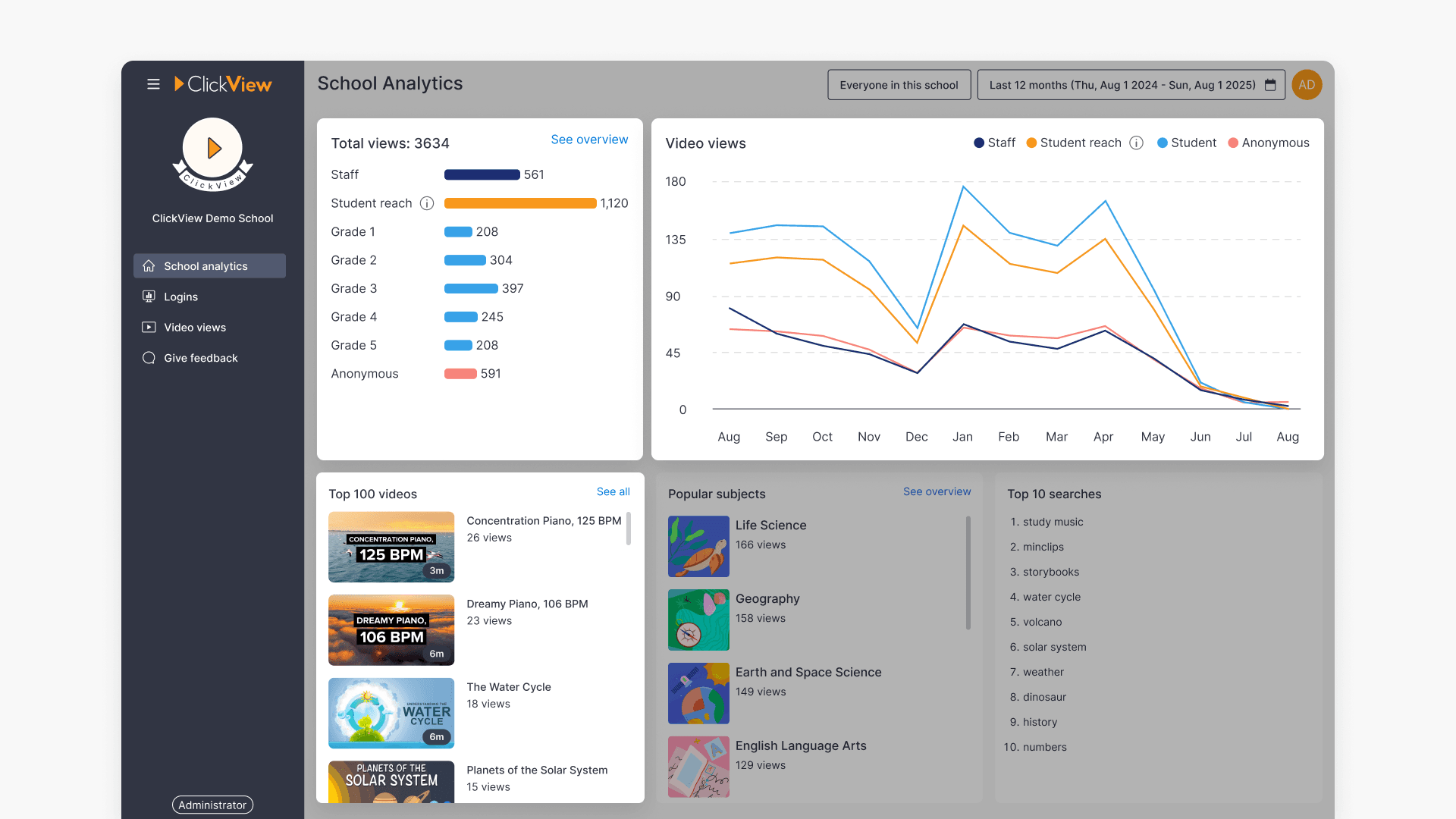
School analytics dashboard
- Total views bar chart (additional bar)
- Video views histogram (additional line)
View numbers in the Top 100 videos list include Student reach views as well as regular 1-to-1 user views.
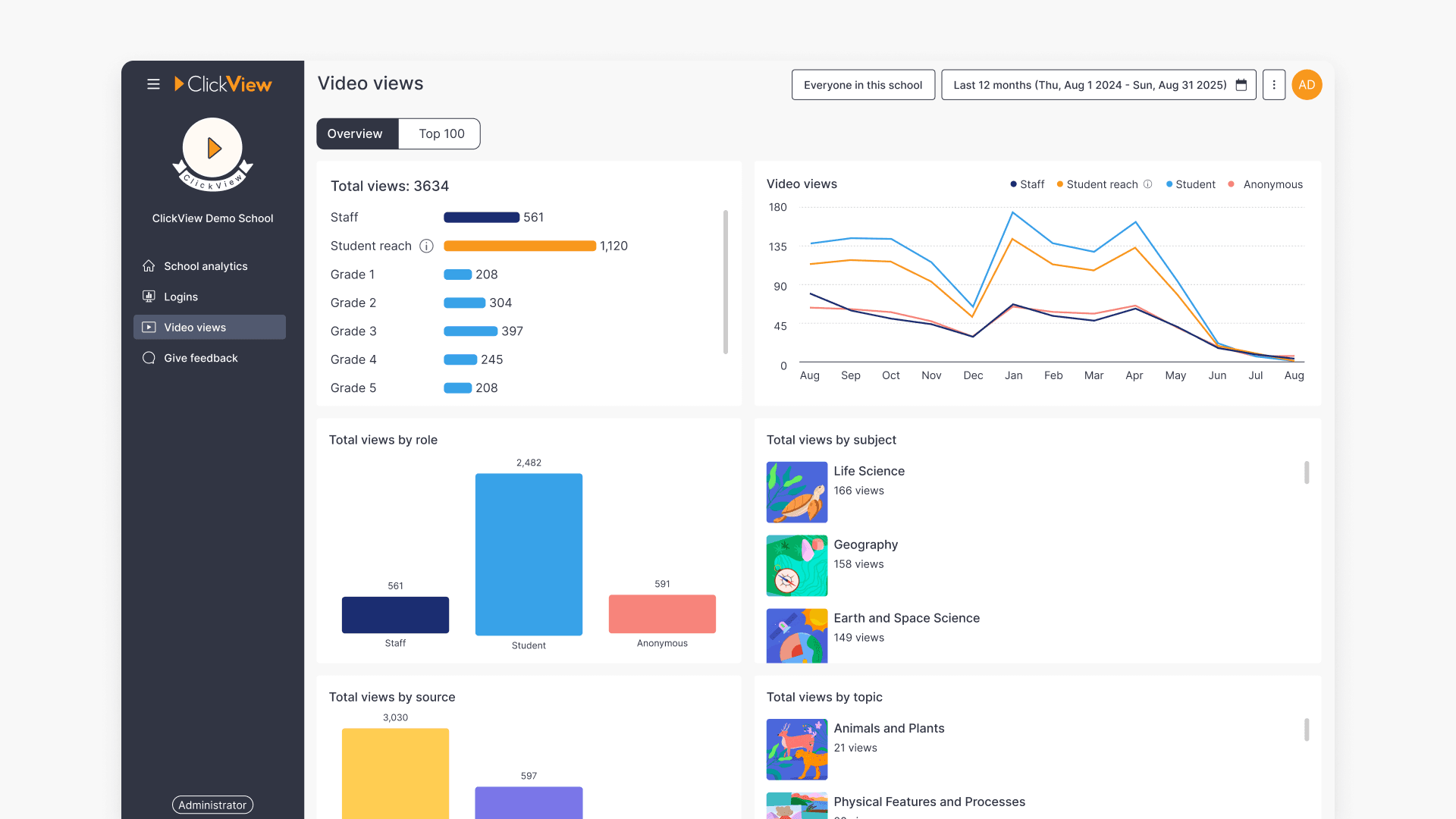
Video views dashboard
- Total views bar chart (additional bar)
- Video views histogram (additional line)
- Total views by role (integrated into role numbers)
- Total views by source (integrated into source numbers)
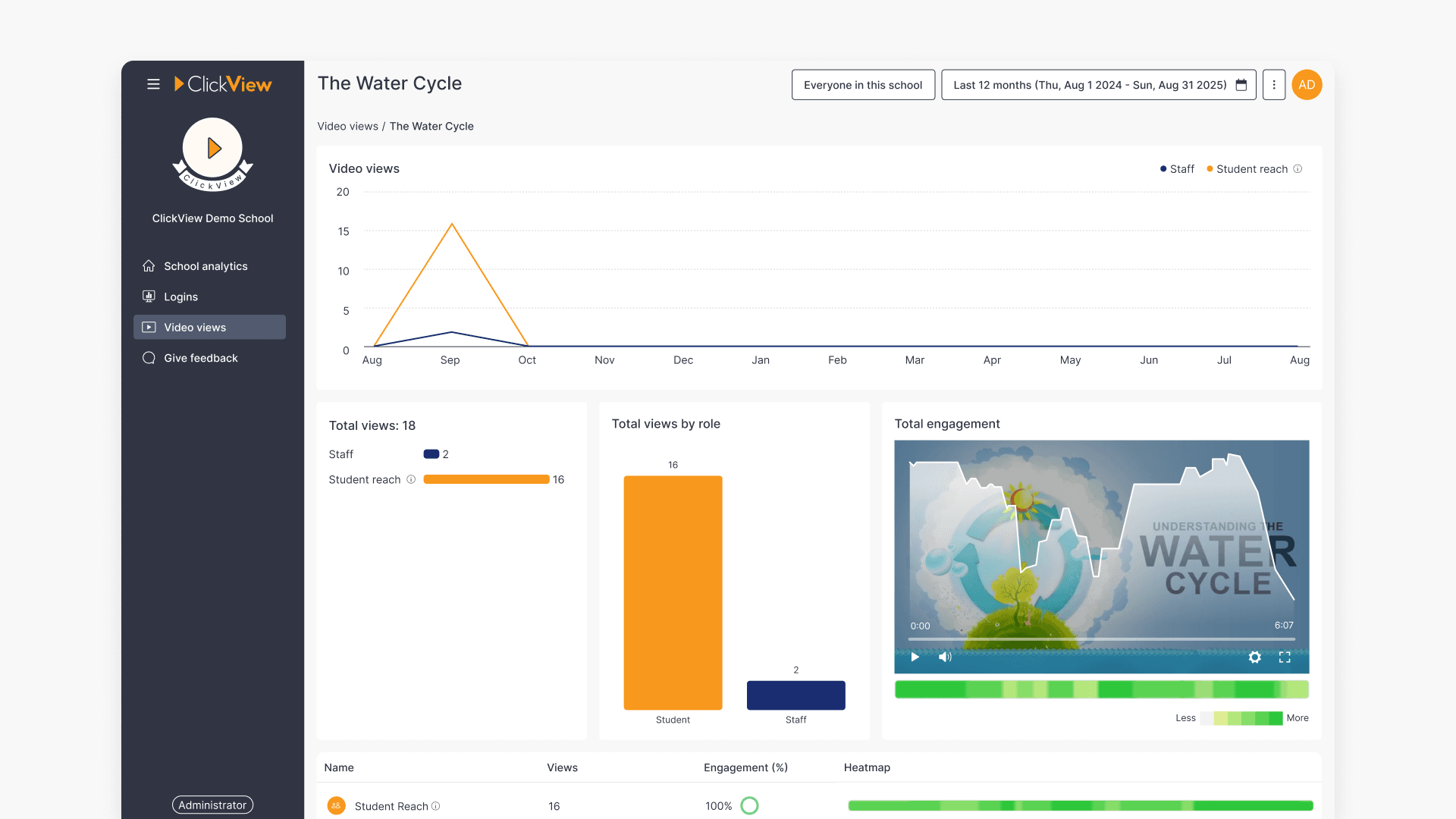
Individual Video dashboard
The Video dashboard for individual videos includes Student reach data in all of the histograms, charts and heatmaps.
Adjusting classroom size
Student reach metrics are calculated using an average classroom size of 25.
To adjust the average classroom size for your school, select the cog icon (⚙️) next to any Student reach metric and adjust the number using the range slider provided.
Once saved, the analytics suite will refresh to reflect the new selection. This new classroom size will be saved for all administrators in your school.
Frequently asked questions
Get in touch
If you’re having trouble finding the right topics or videos, just reach out! Our team - 

 Akhil, Daniel, Jalaj, or any of us at ClickView - will be happy to help you get sorted.
Give feedback
Was this guide helpful?
Up Next
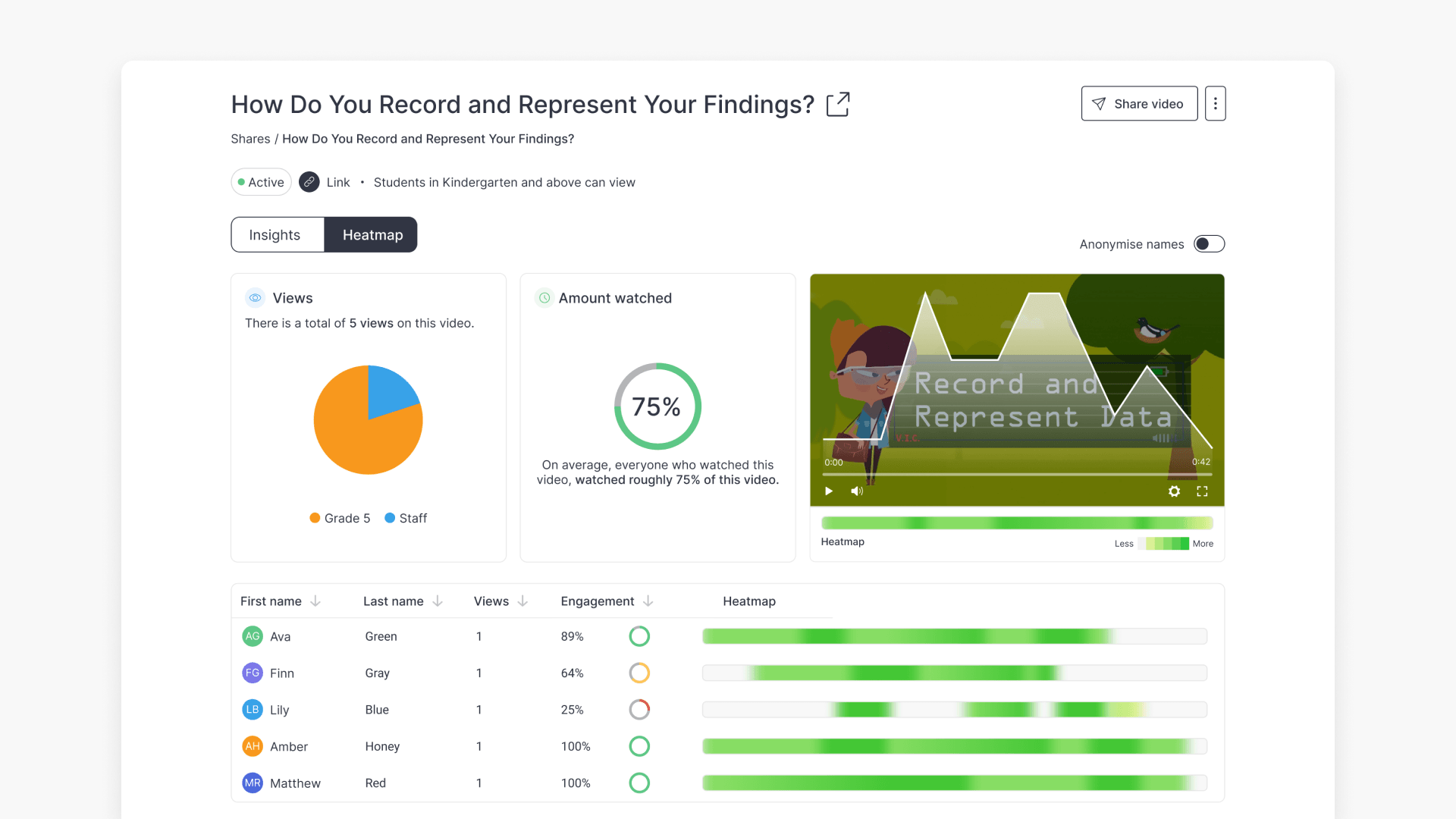
How to access shared video analytics
Discover how to access, view, and interpret analytics for shared and interactive videos in ClickView, including Insights, Heatmap, student engagement data, and detailed question analytics.