Install and set up ClickView Local Cache

Summary
- Local Cache downloads and stores videos for local streaming.
- Minimum requirements: 2GB RAM, 2GHz (2 cores), 100GB disk, Windows 10/Server 2016, 64-bit.
- Download the local cache installer.
- Run the MSI and follow the setup wizard instructions.
- Configure path, proxy, sign in, admin credentials, cache name, and storage location.
- Set disk size and complete configuration in the Admin Console.
What is Local Cache?
Local Cache is designed to download and store videos from ClickView, allowing your campus to stream videos locally. This ensures reliable playback for all ClickView videos, conserves bandwidth, and provides secure access via HTTPS. Key features include:
- Secure: Supports HTTPS to protect your data.
- Intelligent: Downloads only the content you watch while efficiently managing disk usage and bandwidth.
- Cache everything: Delivers all ClickView content reliably and quickly in the classroom.
Minimum specifications for installation
- Minimum RAM: 2GB
- Minimum CPU processor: 2 GHz (2 cores)
- Disk space: 100GB
- Minimum OS version: Windows 10 (Desktop) or Windows Server 2016 (Server)
- CPU architecture: 64-bit only
Download the Local Cache installer
Download the installer here. After downloading, follow the steps below to configure and setup Local Cache.
Install and set up Local Cache
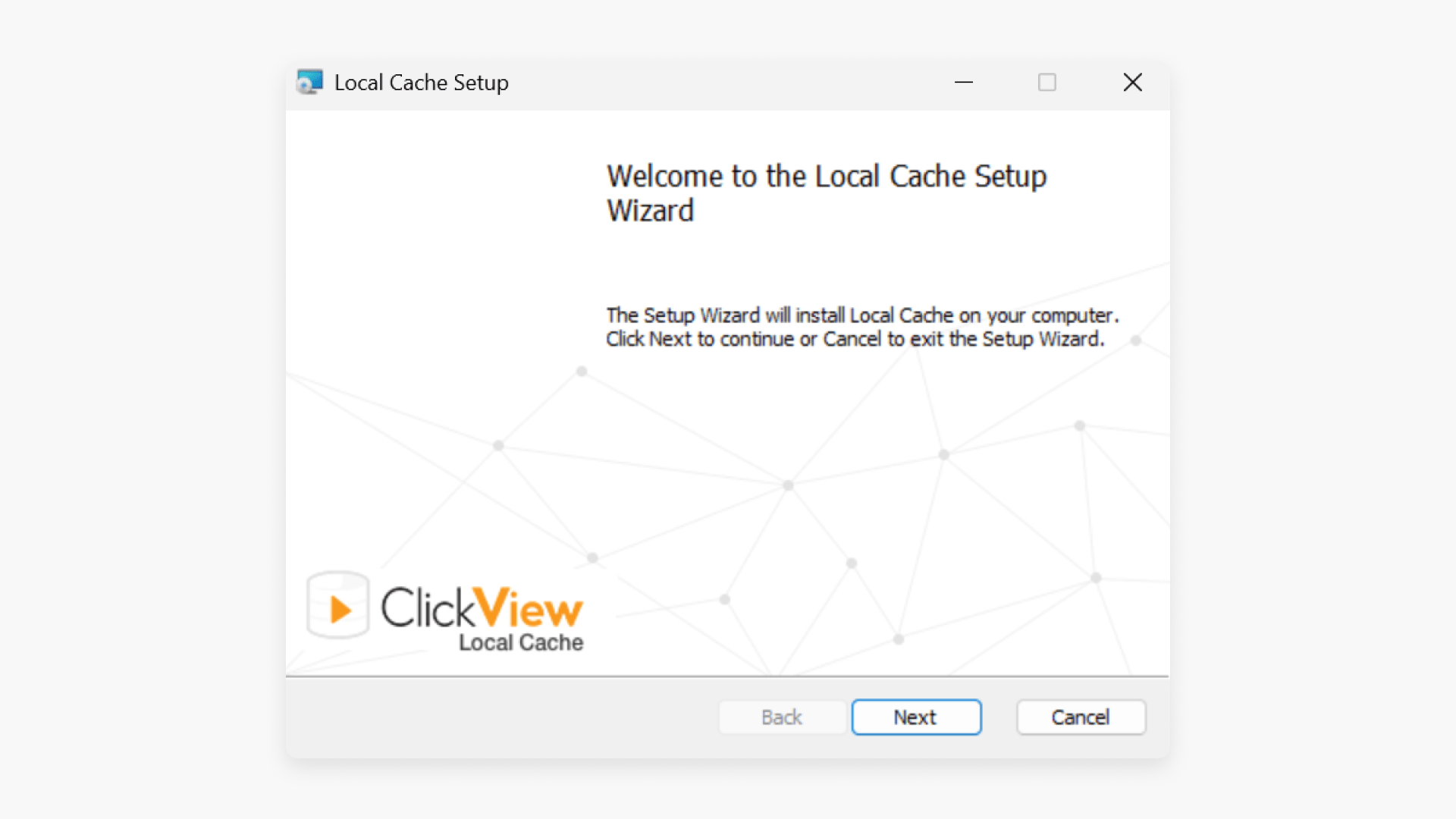
- Run the installer: Run the MSI file you downloaded.
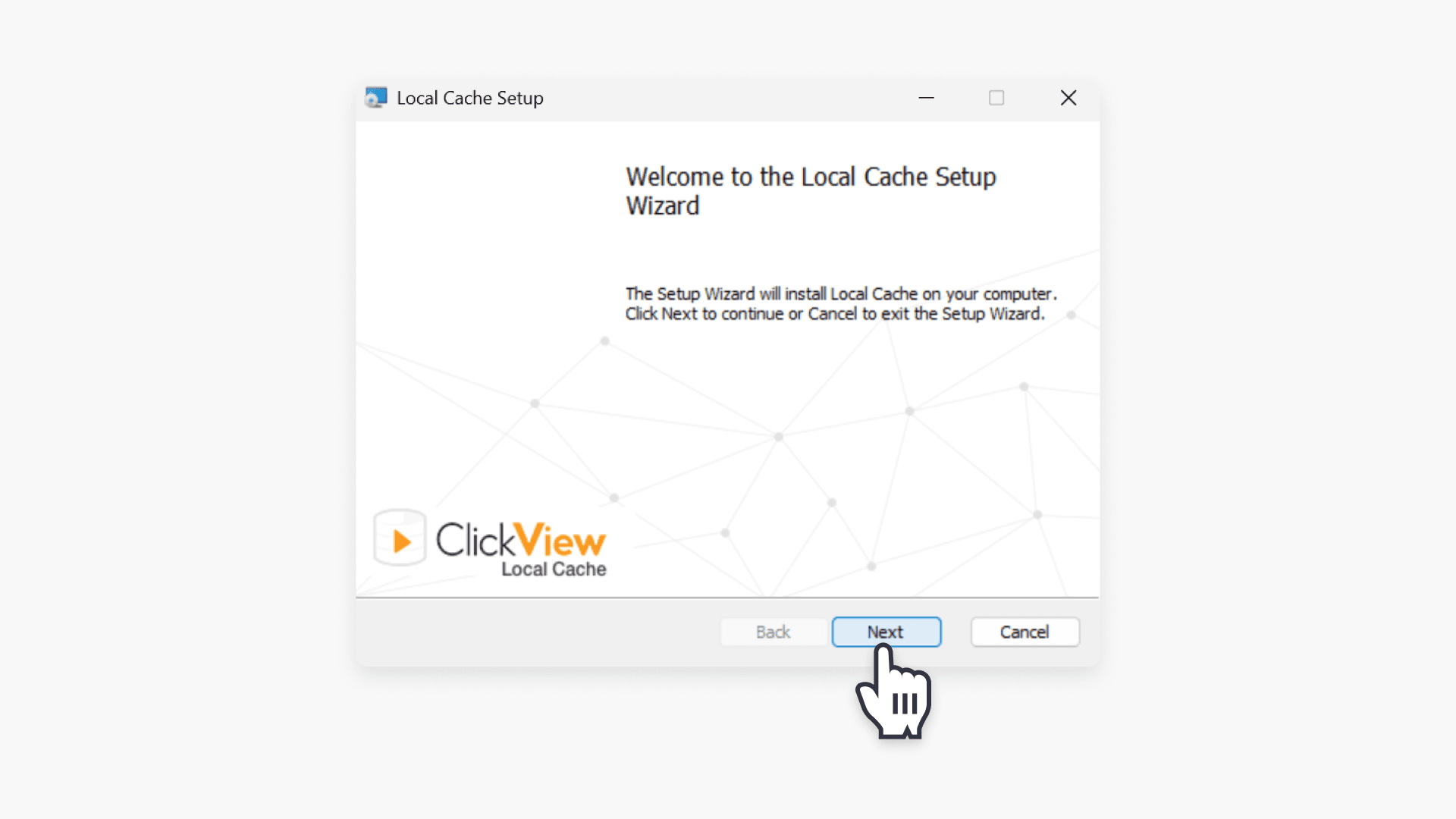
- End-User License Agreement: Follow the setup wizard prompts and accept the EULA.
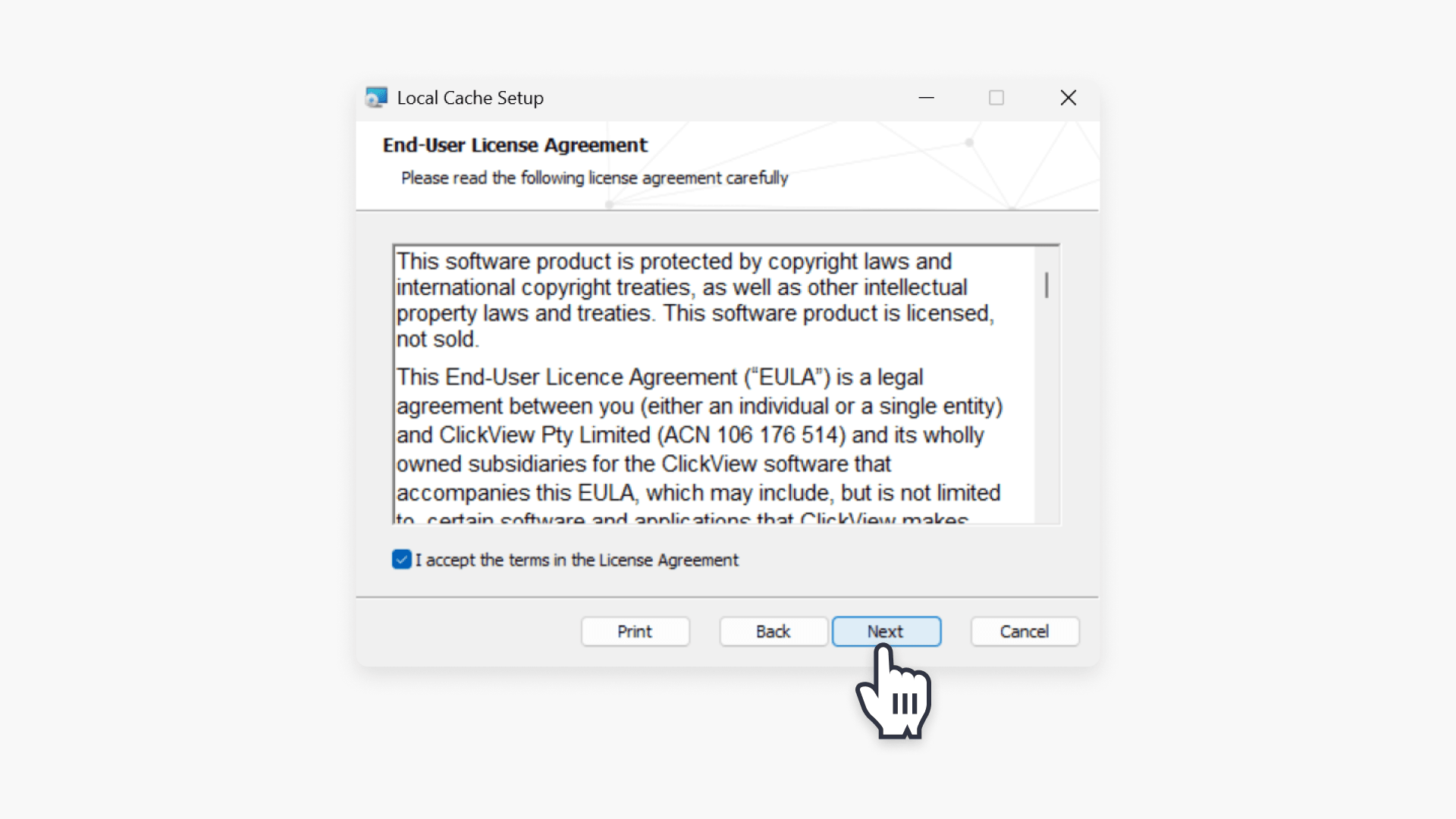
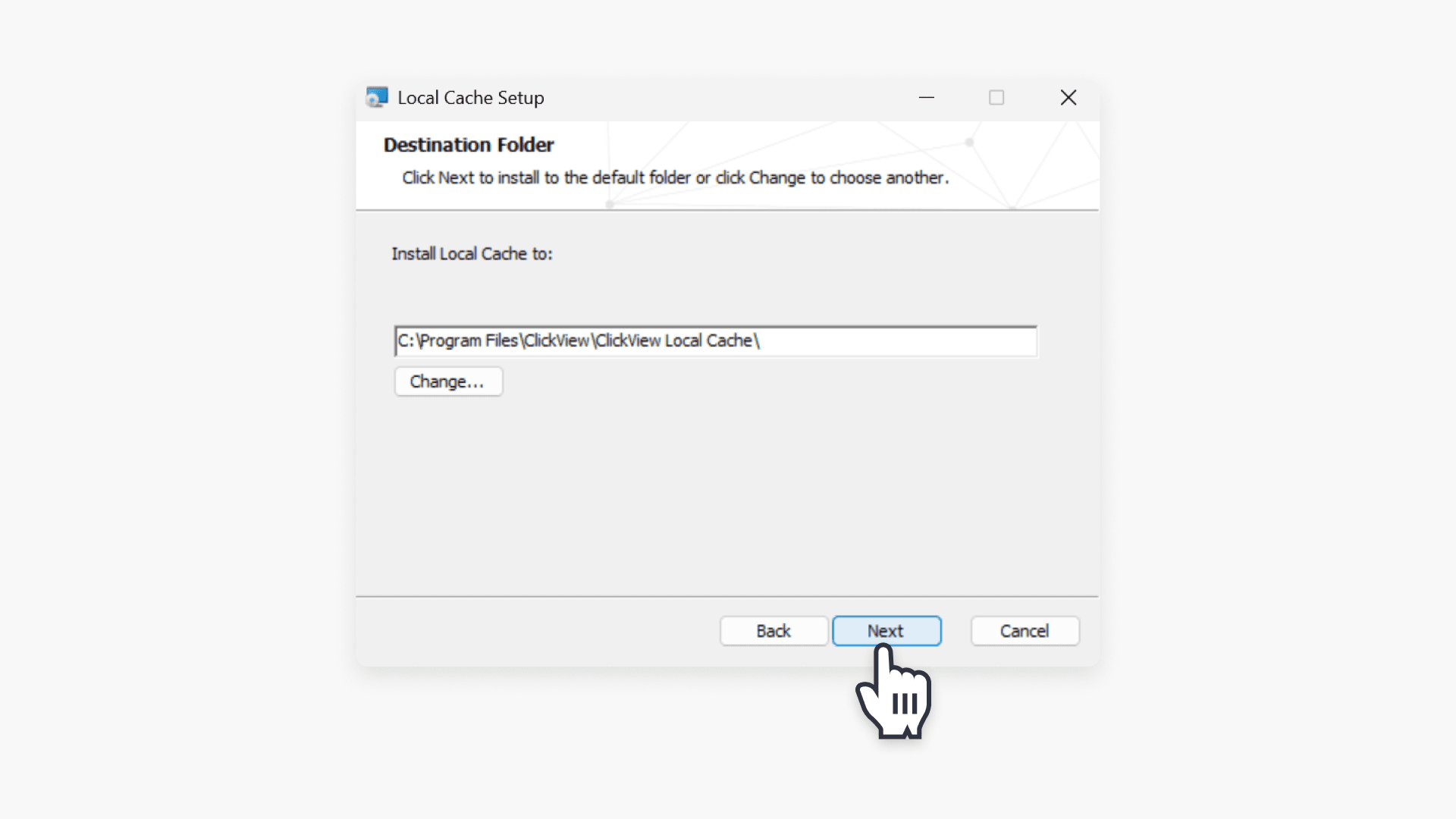
- Define install path: Choose the desired installation directory. We recommend the default path in most cases.
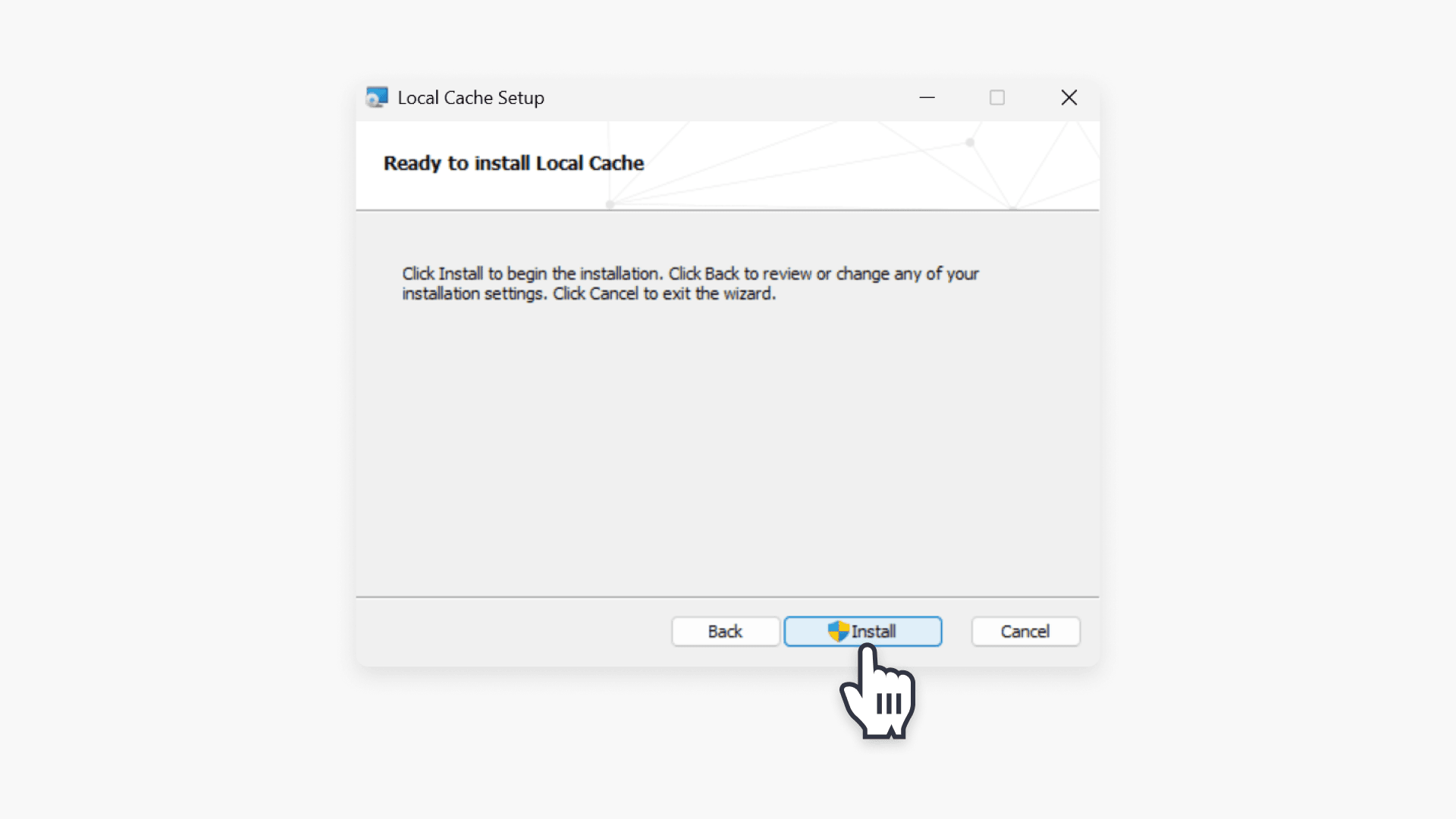
- Install: Select Install.
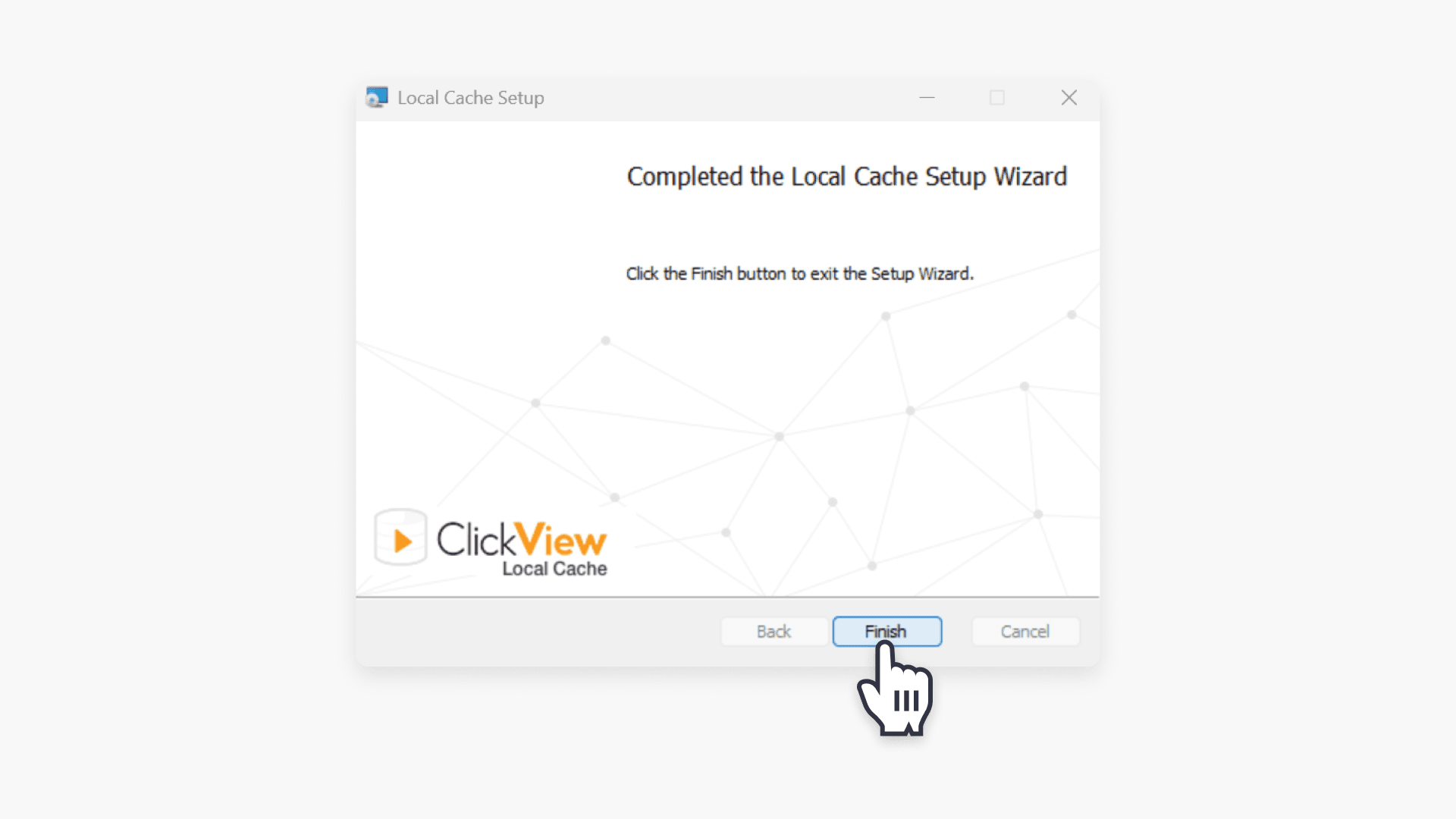
- Finish installation: Once the installation has completed, select the Finish button.
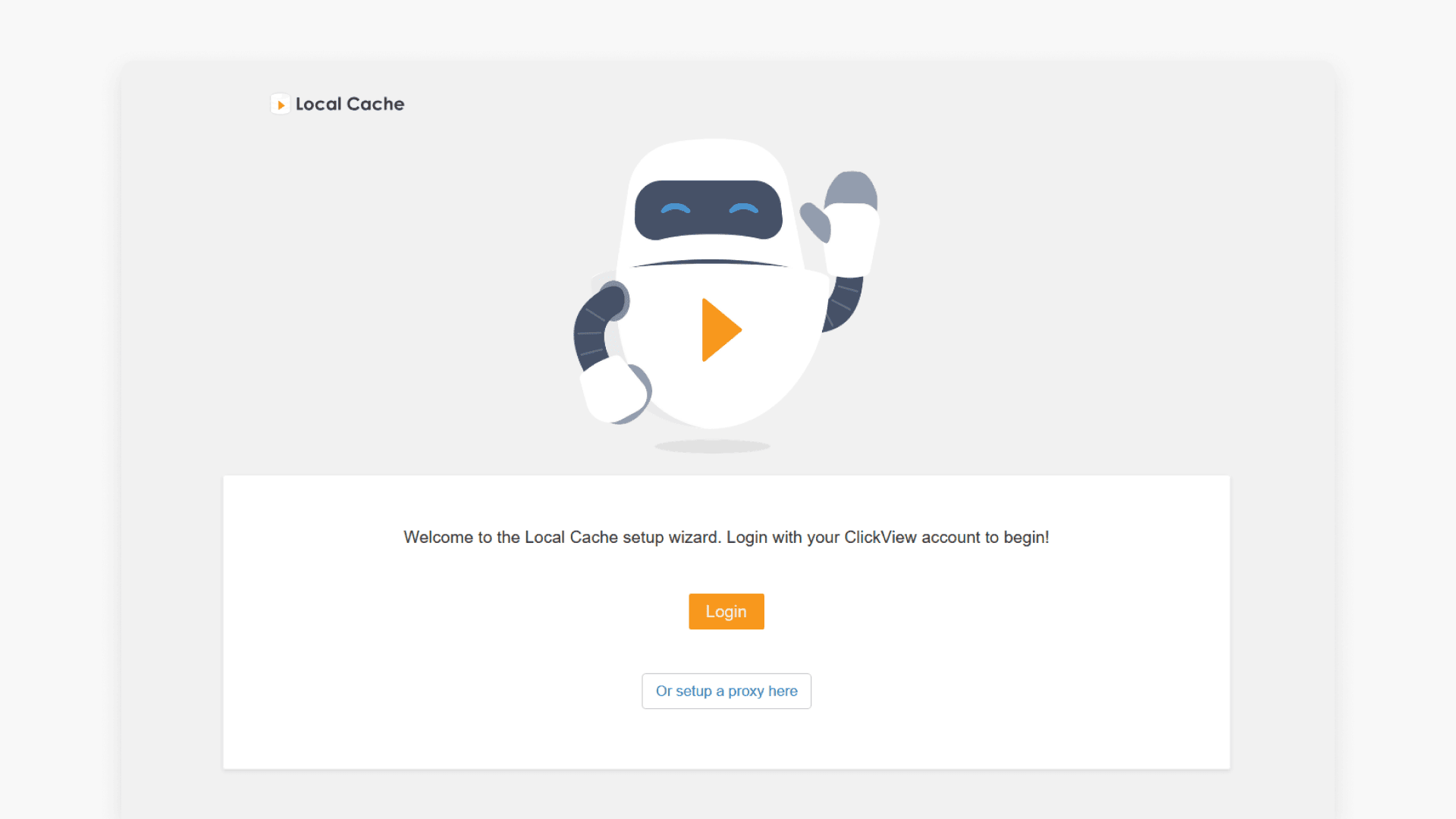
- Wait for setup completion: The wizard runs connectivity checks and you’ll be redirected to http://localhost:9054/setup in your browser for further configuration.
Note: The setup wizard will perform several connectivity checks.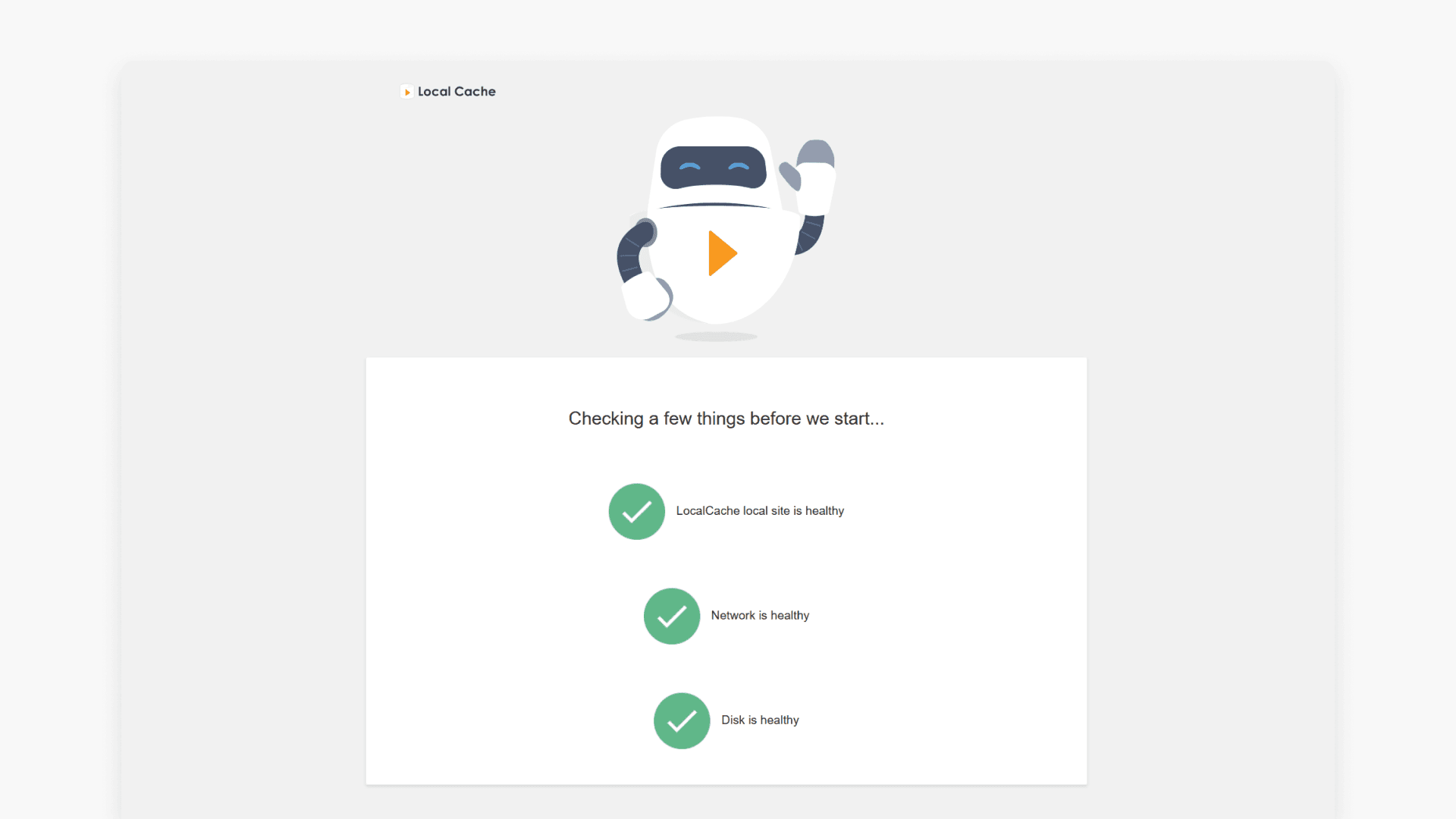
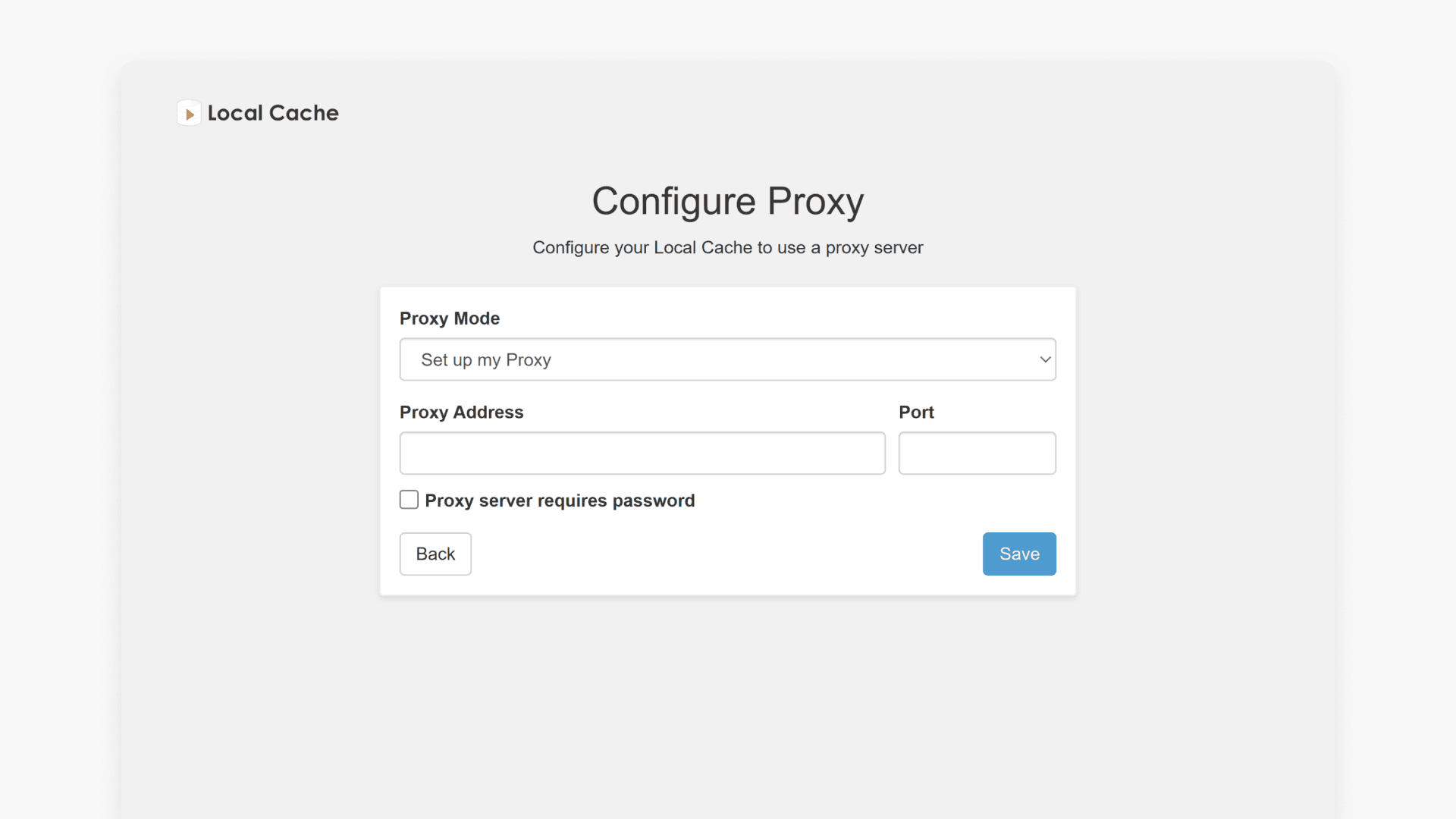
- Set up proxy (if prompted): If any of the above checks fail, the setup wizard will prompt you to enter proxy details and sign into your ClickView account.
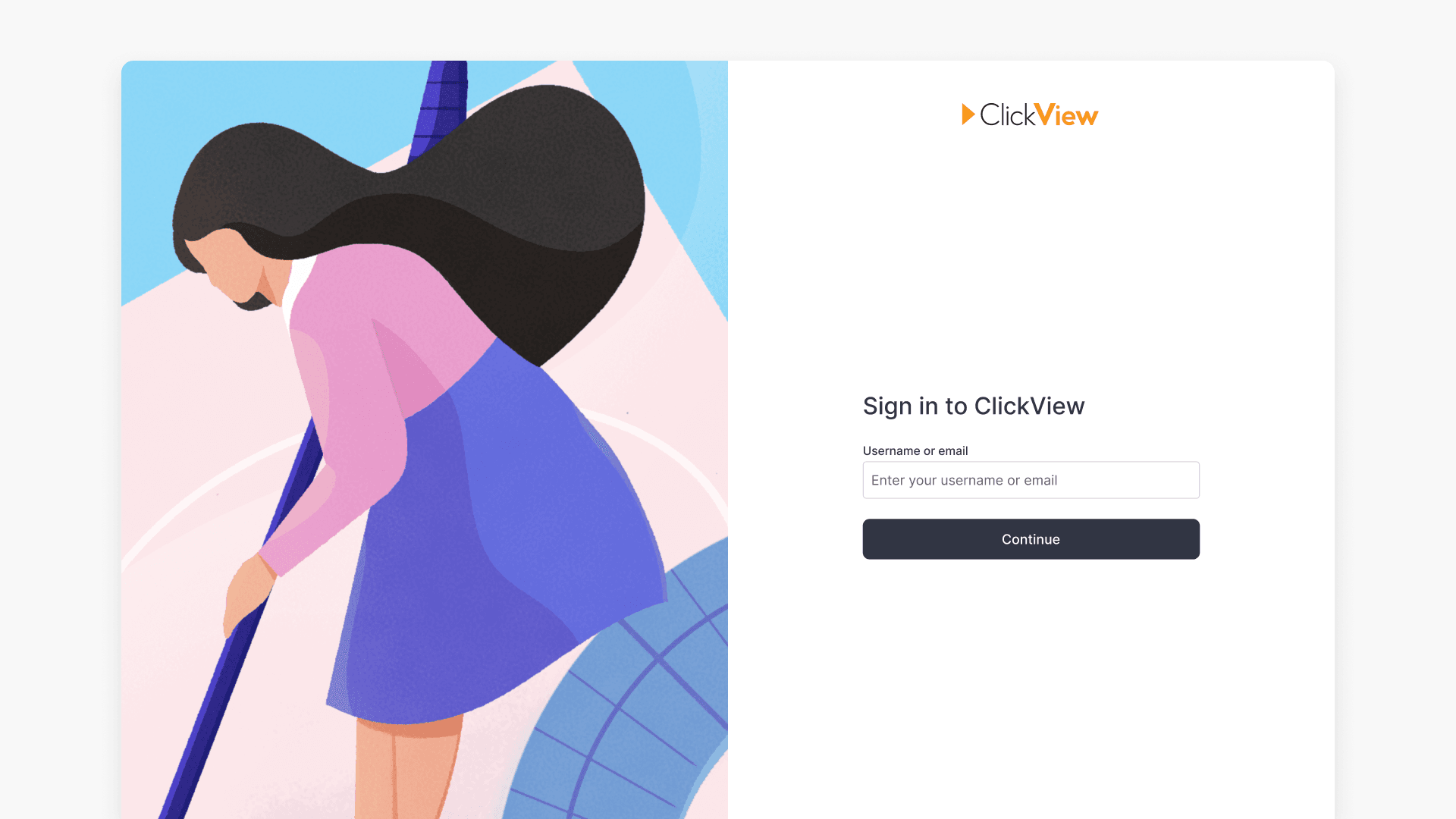
- Sign in to your ClickView account: Enter your ClickView account credentials. SSO accounts will be redirected to the relevant identity provider after entering your email address.
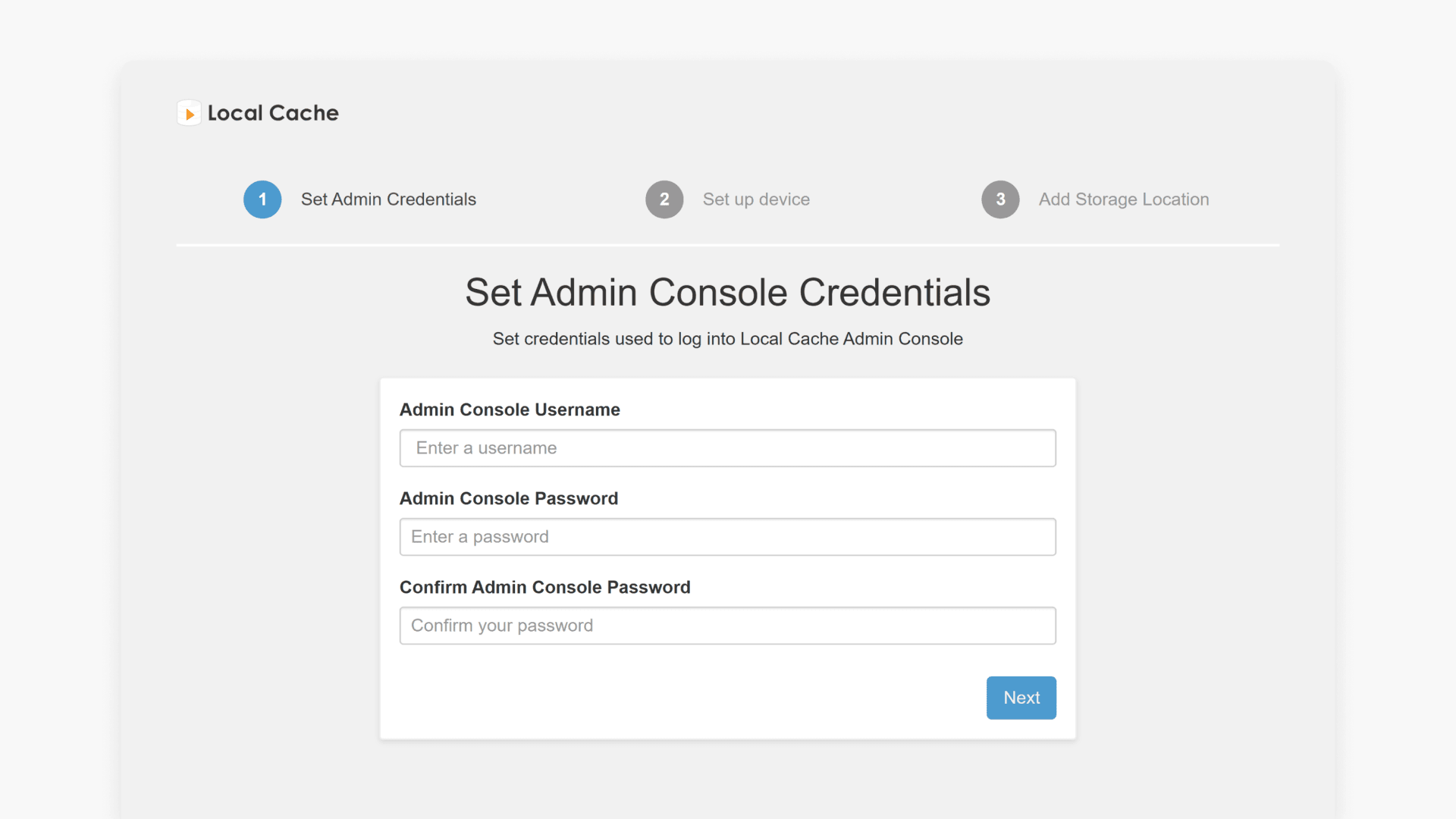
- Set administrator credentials: Define a set of credentials for the Admin Console. Store these somewhere secure for future sign-in.
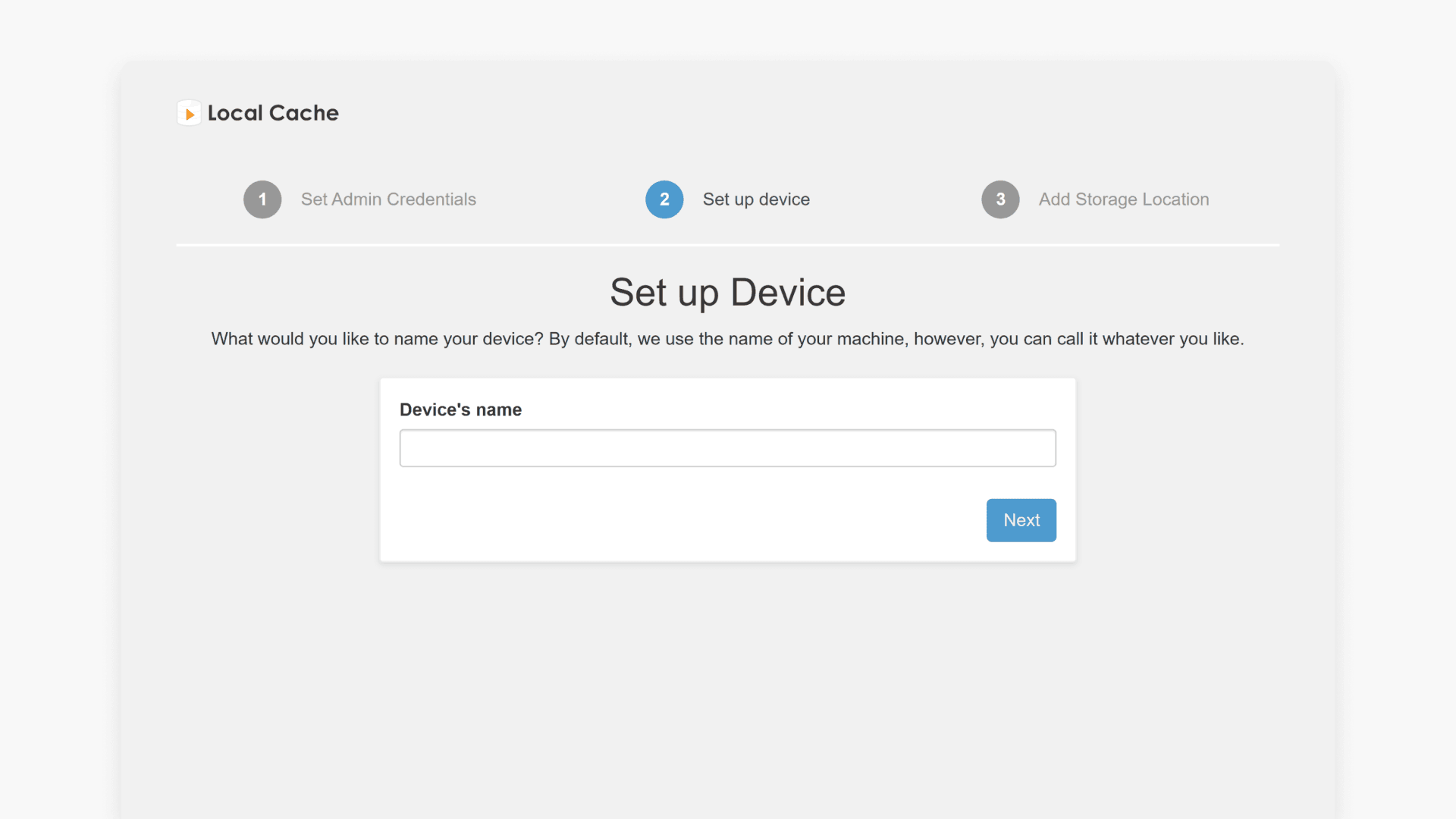
- Name your device: Create a name to identify this Local Cache instance, especially useful for multiple installations.
- Choose storage location: Select a folder for Local Cache files. Use a directory with no existing files or subfolders (we recommend an empty folder in your C: drive). UNC paths are not supported.
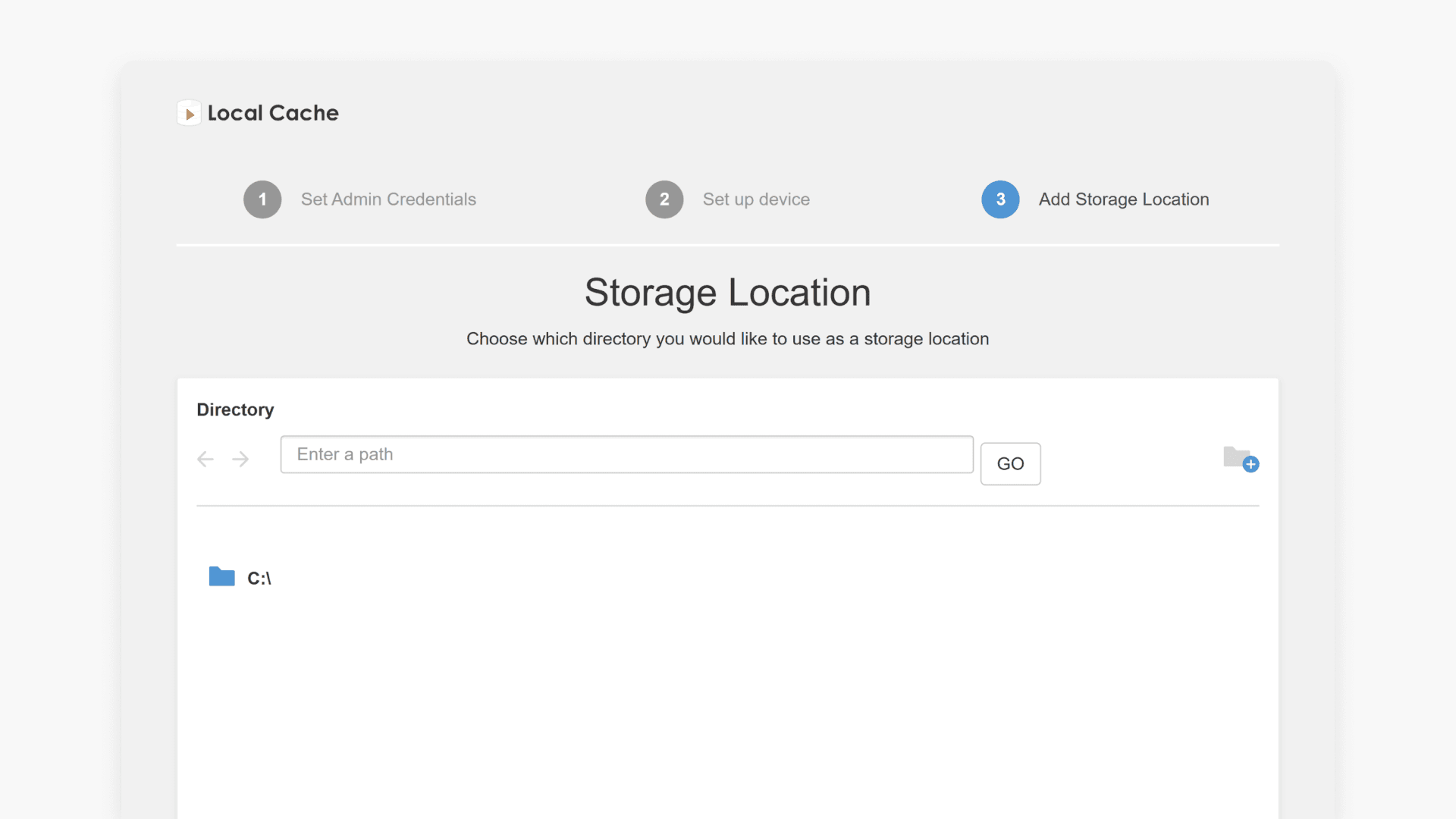
- Set disk size: Specify the disk size for Local Cache. At least 100GB is recommended.
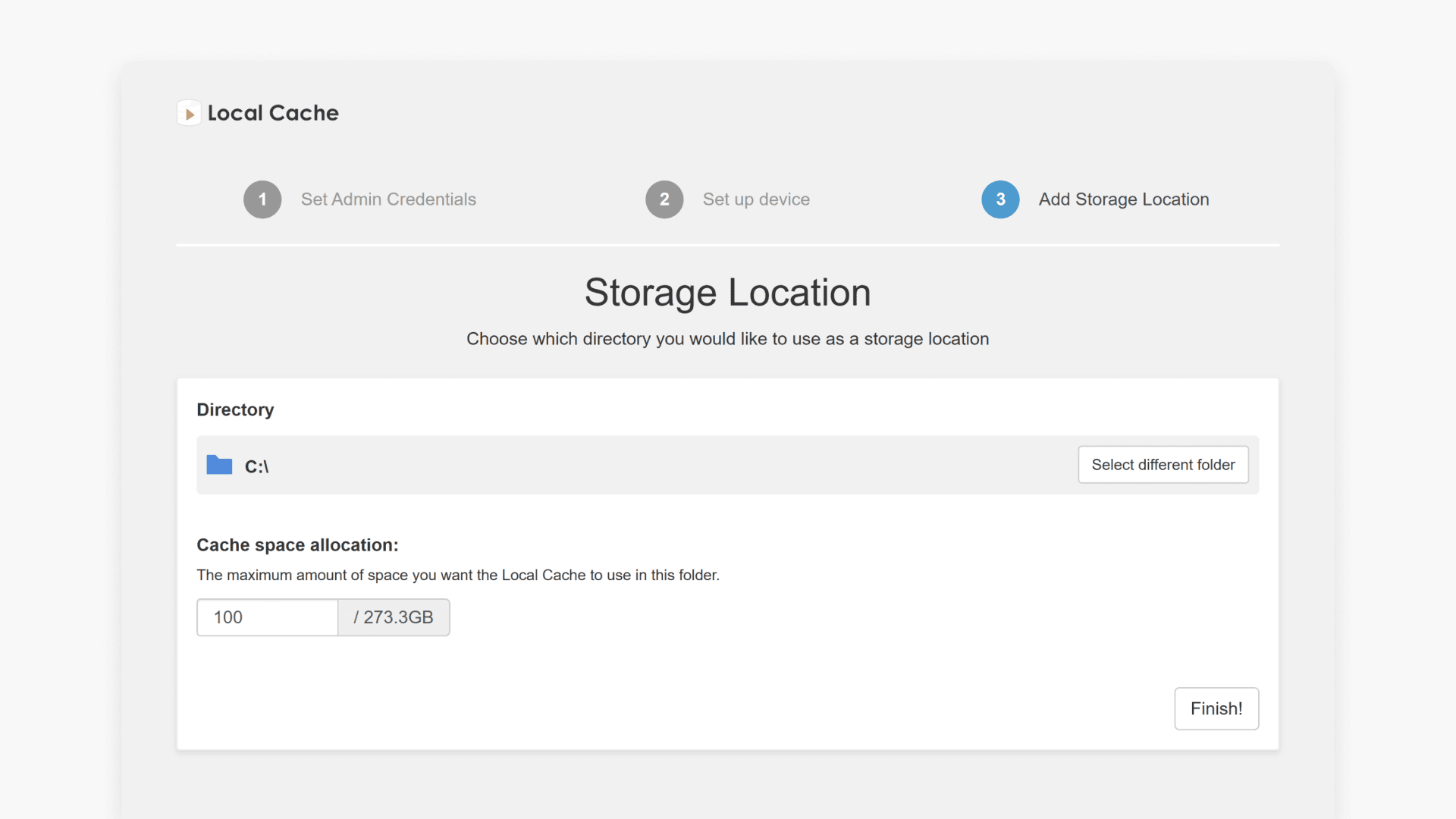
- Complete setup: Once finished, you will be redirected to the Admin Console to manage Local Cache.
For more information on using the Admin Console, see this guide.
Frequently asked questions
Get in touch
If you’re having trouble finding the right topics or videos, just reach out! Our team - 

 Akhil, Daniel, Jalaj, or any of us at ClickView - will be happy to help you get sorted.
Give feedback
Was this guide helpful?
Up Next
How to update ClickView Local Cache
This guide explains the step-by-step process to check and update Local Cache to the newest version in ClickView for schools and districts.