Configure proxy settings for Local Cache

Summary
- Access proxy settings in the Local Cache Admin Console.
- Use the Proxy tab to direct Local Cache traffic through your proxy server.
- Enter the proxy address in the address bar, and add HTTPS if needed.
- For authentication, tick the checkbox and enter the username and password.
- Test the connection by pressing the Save button; view the status message.
- The online icon shows a successful network connection; red means offline.
Accessing proxy settings in the Local Cache Admin Console
To set up your proxy configuration, open the Local Cache Admin Console by navigating to http://localhost:9054 in your browser.
Understanding the Proxy tab
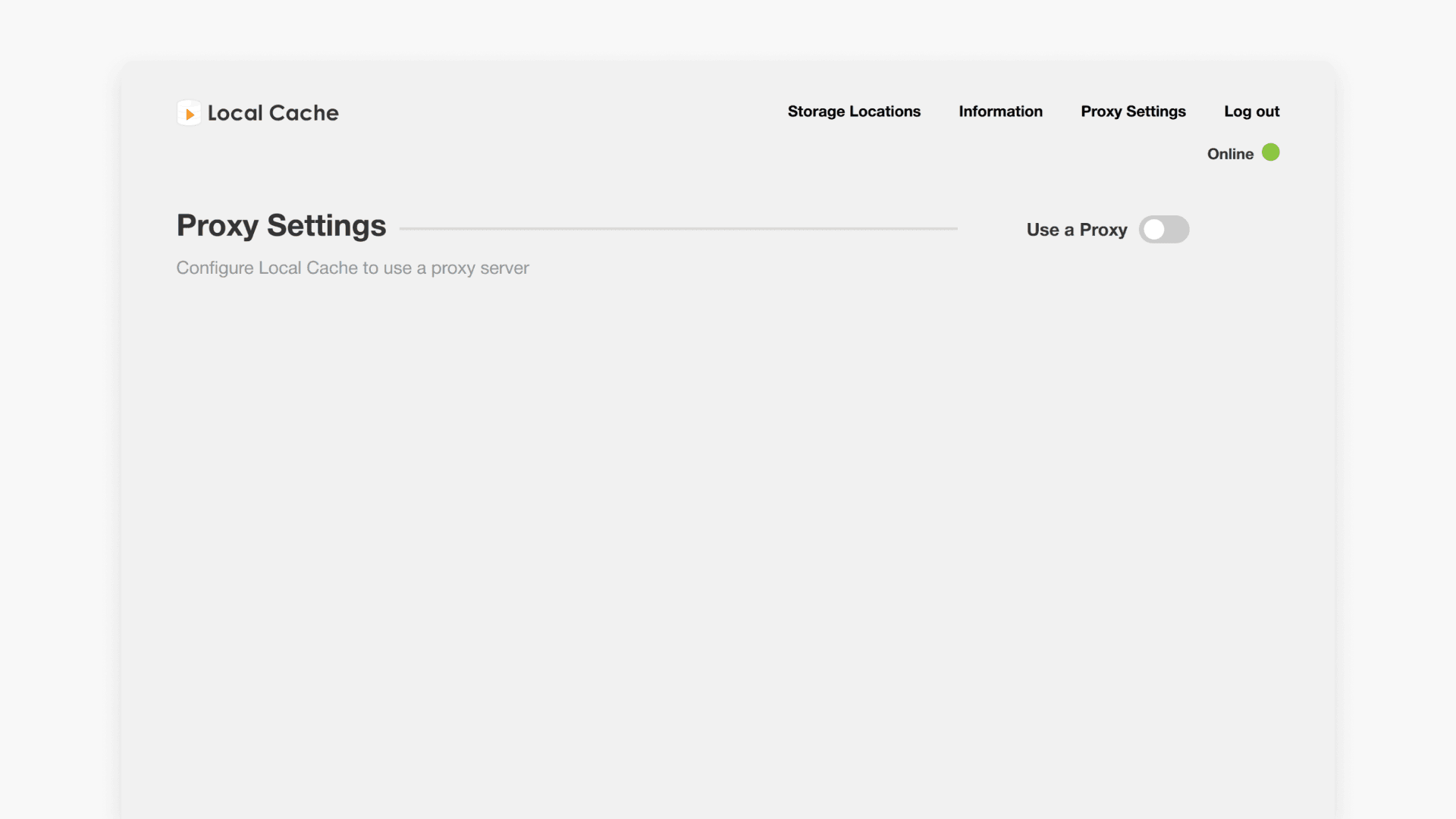
The Proxy tab is used to direct Local Cache traffic through your institution’s proxy server for proper network routing.
Configuring Local Cache to use a proxy server
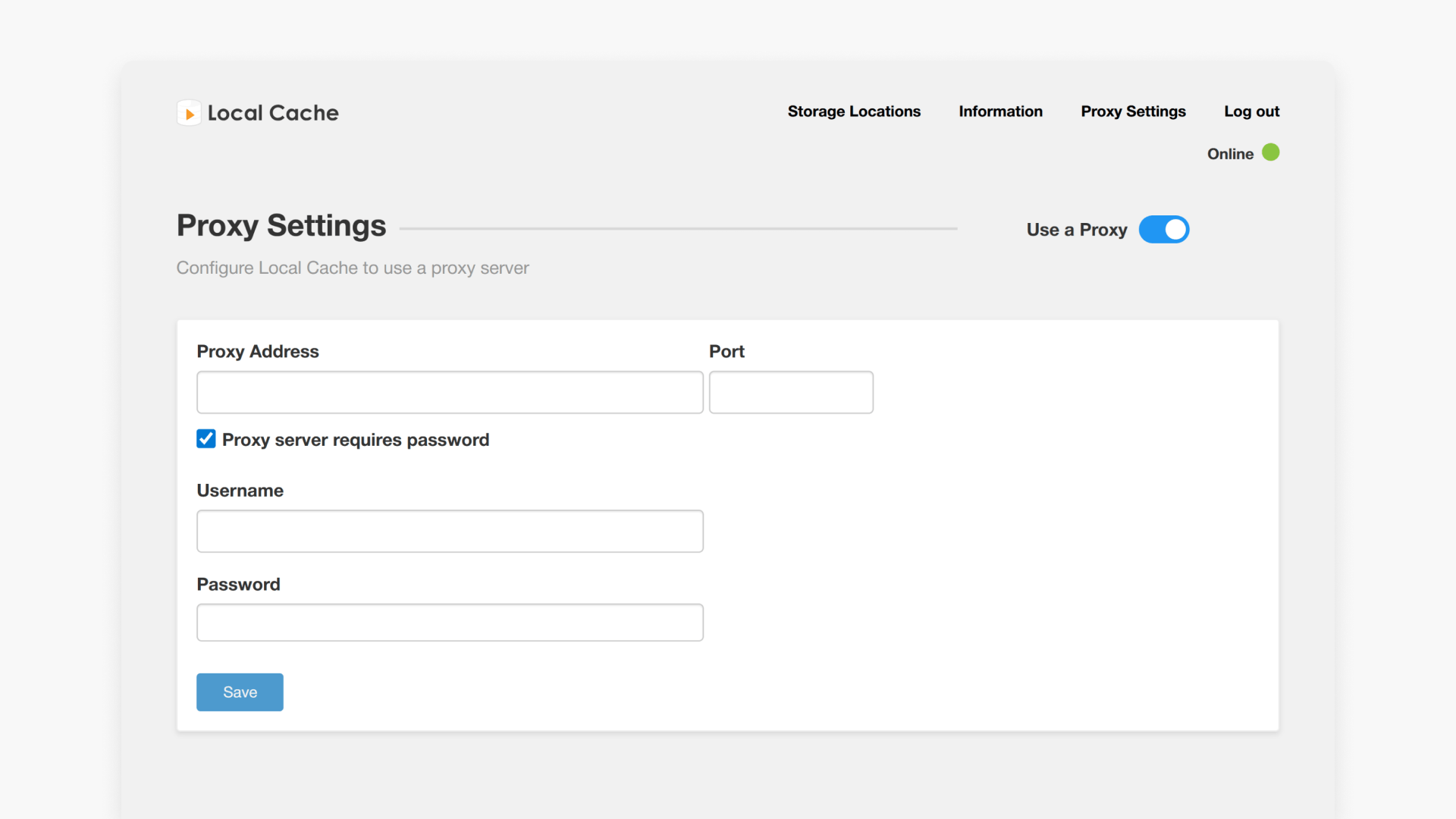
- Enter your proxy address in the address bar. By default, HTTP is used. If you require HTTPS, enter it manually before the proxy address.
- If authentication is needed, tick the checkbox and provide your username and password in the fields shown.

Testing your proxy connection
After configuring your settings, press the Save button. The Local Cache will immediately test your proxy connection and display a status message beside the Save button.
Understanding online and offline icons
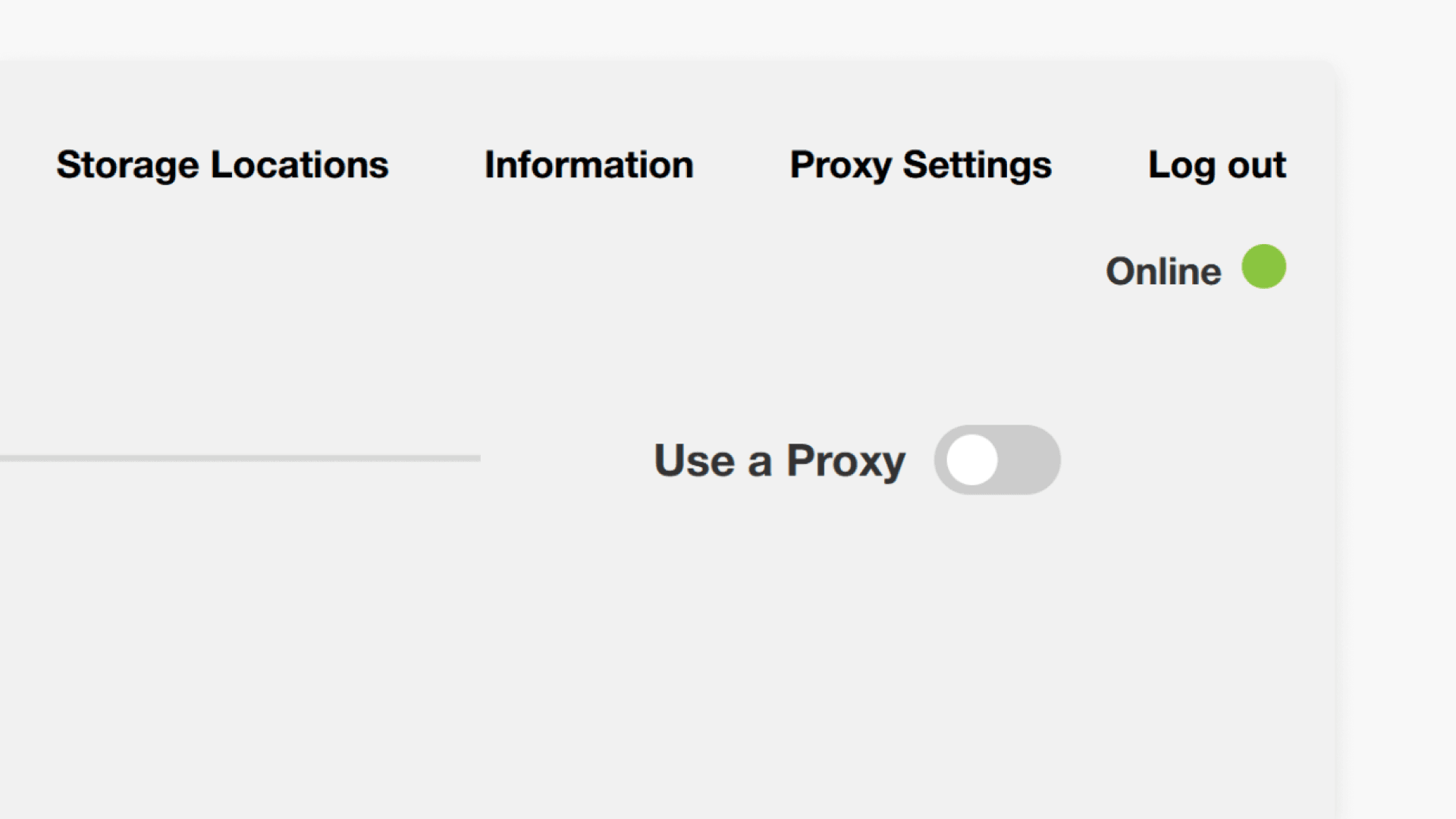
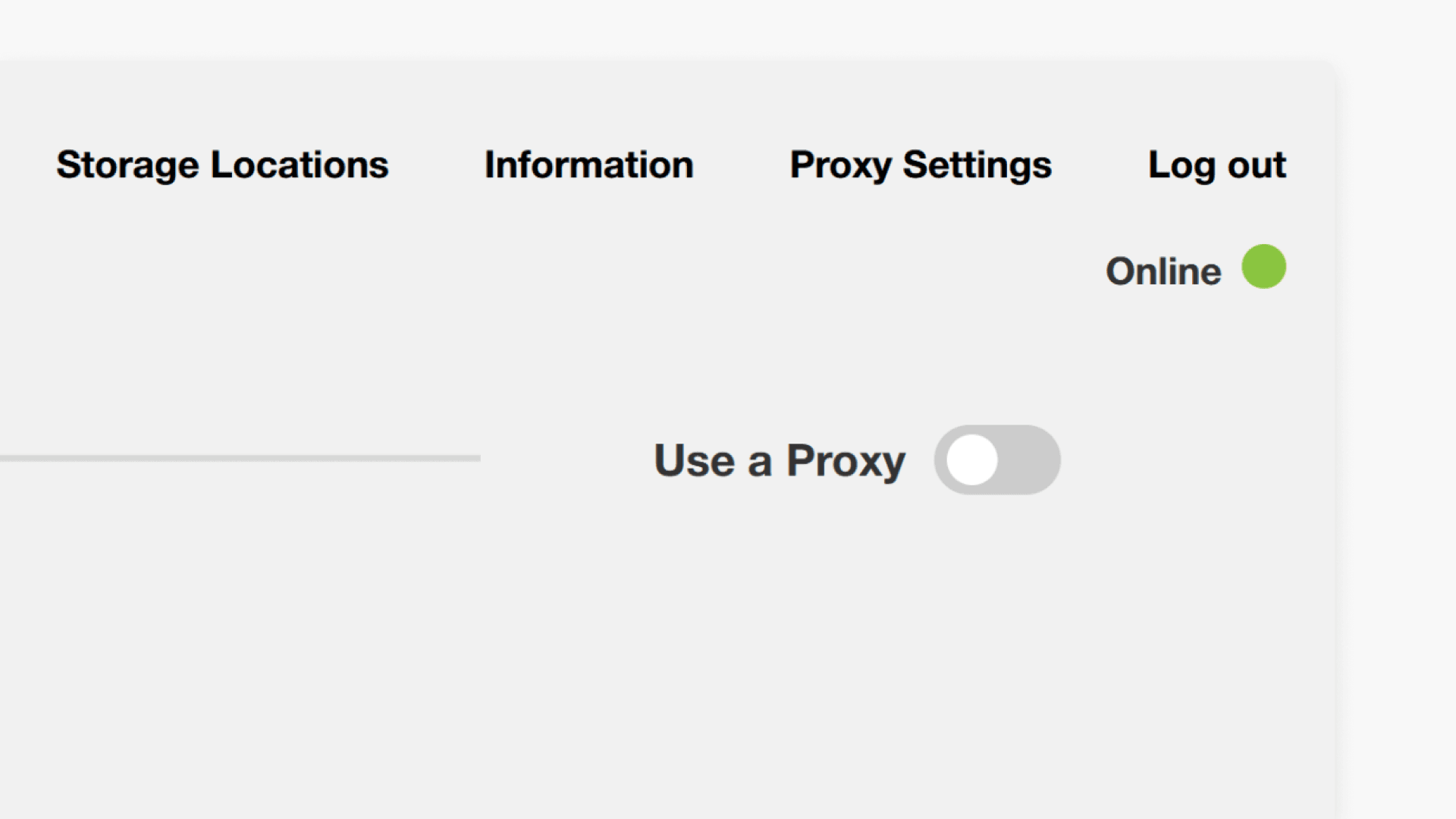
The online icon indicates Local Cache is running and connected to the network. If the icon is red and shows ‘offline’, Local Cache cannot access the network.
Frequently asked questions
Get in touch
If you’re having trouble finding the right topics or videos, just reach out! Our team - 

 Akhil, Daniel, Jalaj, or any of us at ClickView - will be happy to help you get sorted.
Give feedback
Was this guide helpful?
Up Next
How to update ClickView Local Cache
This guide explains the step-by-step process to check and update Local Cache to the newest version in ClickView for schools and districts.