Install the ClickView plugin for Moodle

Summary
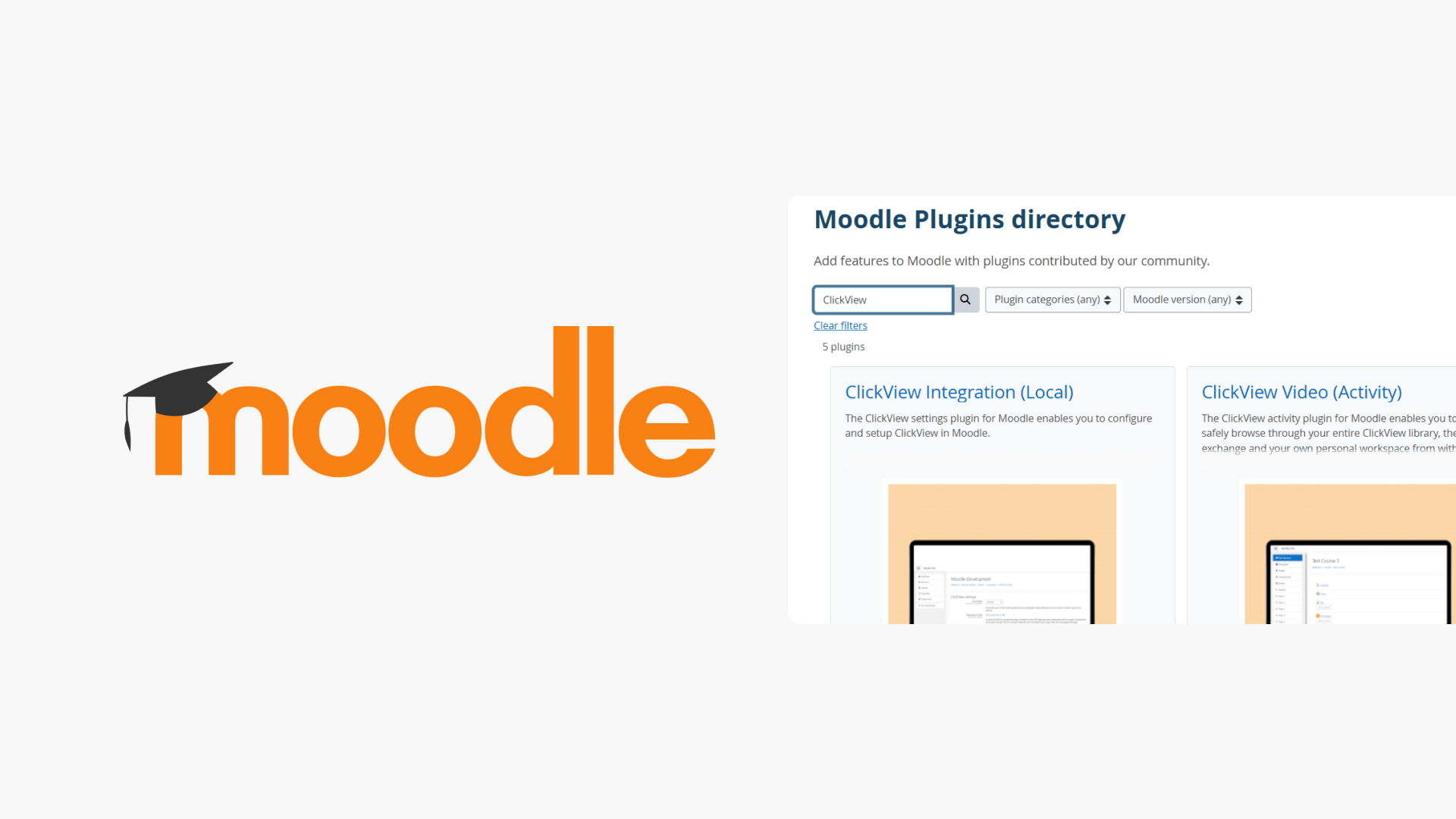
- Go to the Moodle plugins directory.
- Download “ClickView Video (Activity)” and “Embed ClickView Video” plugins.
- Log in to Moodle and use Site administration > Plugins > Install plugins.
- Upload the zip file and follow prompts to complete installation.
- Select your sign-in region/country during setup.
Step-by-step installation guide
The ClickView Plugin for Moodle allows educators to easily access their ClickView video library, classroom resources, and personal videos directly within Moodle. This integration makes it simple to embed videos and share them safely with students.
Download the Moodle plugin
- Go to the Moodle plugins directory.

- Search for “ClickView”. Download both the “ClickView Video (Activity)” and the “Embed ClickView Video (Atto/TinyMCE)” plugin for your HTML editor. The “ClickView Integration (Local)” dependency will be prompted during installation.

- Choose “Download” or “Versions” on the plugin page.

- Click “Download” and select the latest version. The file will download as a zip file.

Install the plugin in Moodle
- Sign in to Moodle and go to Site administration > Plugins > Install plugins.

- Click “Choose a file”.

- In the file picker, select Upload a file > Choose a file and upload the zip.

- Add any extra details if prompted.

- Select “Upload this file”.

- Select “Install plugin”.

- Review the plugin validation report and click “Continue”.

- If you see the Current Release Information screen, scroll down and click “Continue”.

- If prompted, install the “ClickView Integration (Local)” dependency.

- Click “Upgrade Moodle database” when prompted.

- Click “Continue”.

Complete the setup
- Select your sign-in region/country.

- If your school uses Single Sign On, locate your school ID in ClickView’s RSS feed URL and enter it.

- Select “Save changes”.

Frequently asked questions
Get in touch
If you’re having trouble finding the right topics or videos, just reach out! Our team - 

 Akhil, Daniel, Jalaj, or any of us at ClickView - will be happy to help you get sorted.
Give feedback
Was this guide helpful?
Up Next
How to access ClickView videos in Monarch
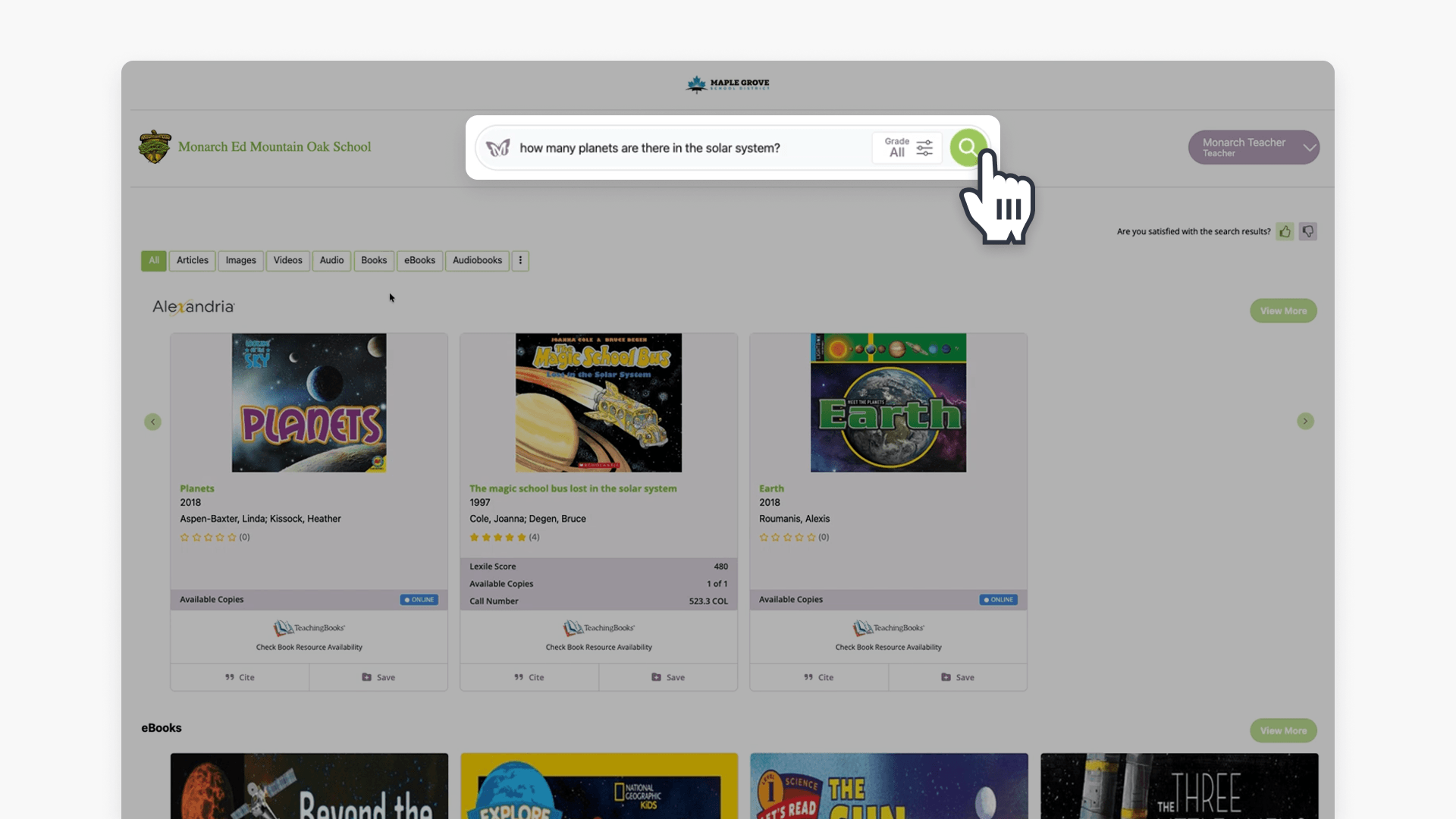
Summary How do I find ClickView videos in Monarch? Search for a topic in Monarch Digital Content Discovery Engine and ClickView videos appear in the results alongside content from your other subscribed providers. Filter by format to narrow to ClickView content, then select a video to open it directly in ClickView with access to quizzes, […]