How to access ClickView videos in Monarch

Summary
- Monarch Digital Content Discovery Engine returns ClickView videos alongside content from your other subscribed providers when you search.
- Search Monarch using natural-language queries or keywords to find relevant ClickView videos.
- Use the format filter to narrow results to videos, articles, images, eBooks, or audiobooks.
- Select a ClickView video in the results to open it directly in ClickView.
- From ClickView, you can access interactive quizzes, downloadable worksheets, playlists, and other learning resources.
If your school uses both ClickView and Monarch Digital Content Discovery Engine, you can find ClickView videos directly in Monarch search results. This article explains how the integration works, how to search for ClickView videos in Monarch, and what happens when you select one.
About the Monarch integration
ClickView is available as a content provider in Monarch Digital Content Discovery Engine. For schools using both products, Monarch brings ClickView videos into a single search alongside books, eBooks, and other resources, making it easier to discover relevant ClickView content in one place.
Using Monarch doesn’t change how you access ClickView. Teachers and librarians can continue to go directly to ClickView as usual. Monarch is an additional discovery option for schools that want to streamline how they search across providers.
Monarch surfaces all ClickView videos, not a subset. Once you select a video, you’re taken directly to ClickView, where you can access all resources, interactives, and playlists as usual.
Note: Monarch results don’t include a source label, so ClickView videos appear in the results alongside content from your other subscribed providers without being visually distinguished.
Prerequisites
Before ClickView videos appear in Monarch search, your school needs:
- An active ClickView subscription
- Active Monarch Digital Content Discovery Engine access
- The Monarch integration enabled by your Monarch account manager
There’s nothing to set up on the ClickView side. Contact your Monarch account manager to request the integration. Once enabled, ClickView videos appear in Monarch search automatically.
Finding ClickView videos in Monarch
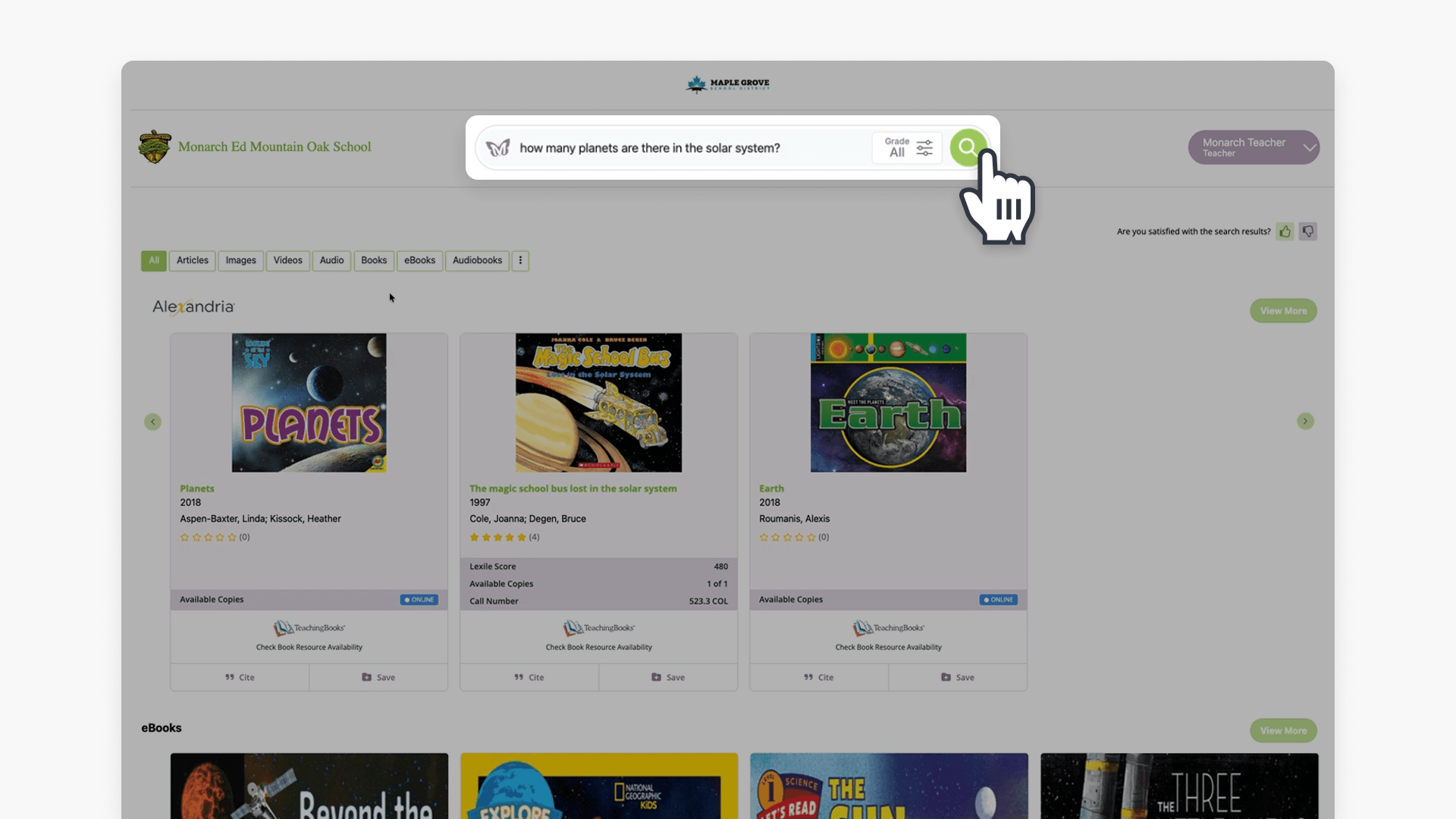
- In Monarch, select the magnifying glass icon (🔍) and enter your search term. You can use keywords or a natural-language query, for example: “how many planets are there in the solar system?”
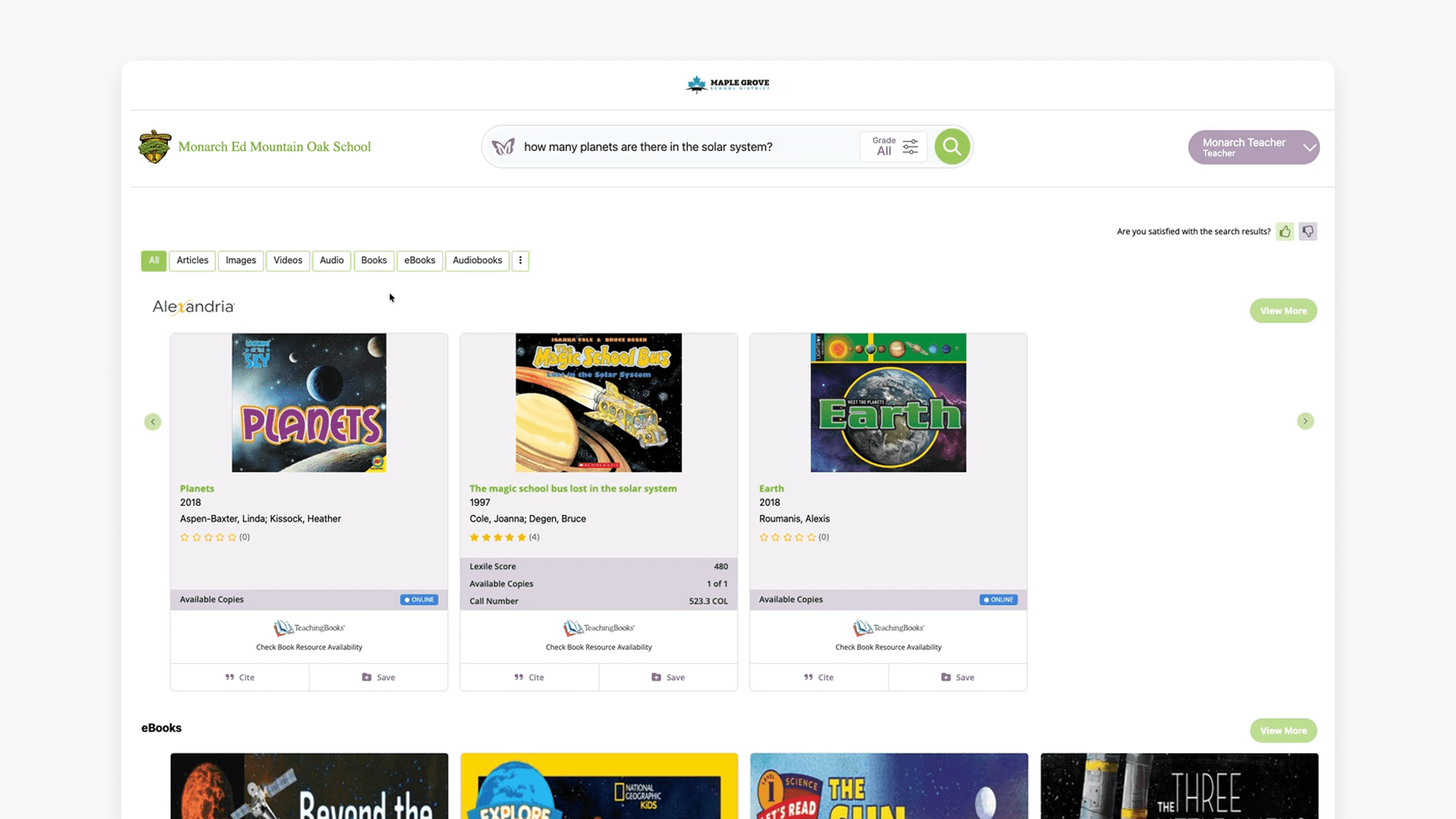
- Review the results. Monarch returns content from all of your school’s subscribed providers, including ClickView.
- To narrow your results, use the format filter. The available formats are Articles, Images, Videos, Audio, Books, eBooks, and Audiobooks. Select Videos to see only video results.
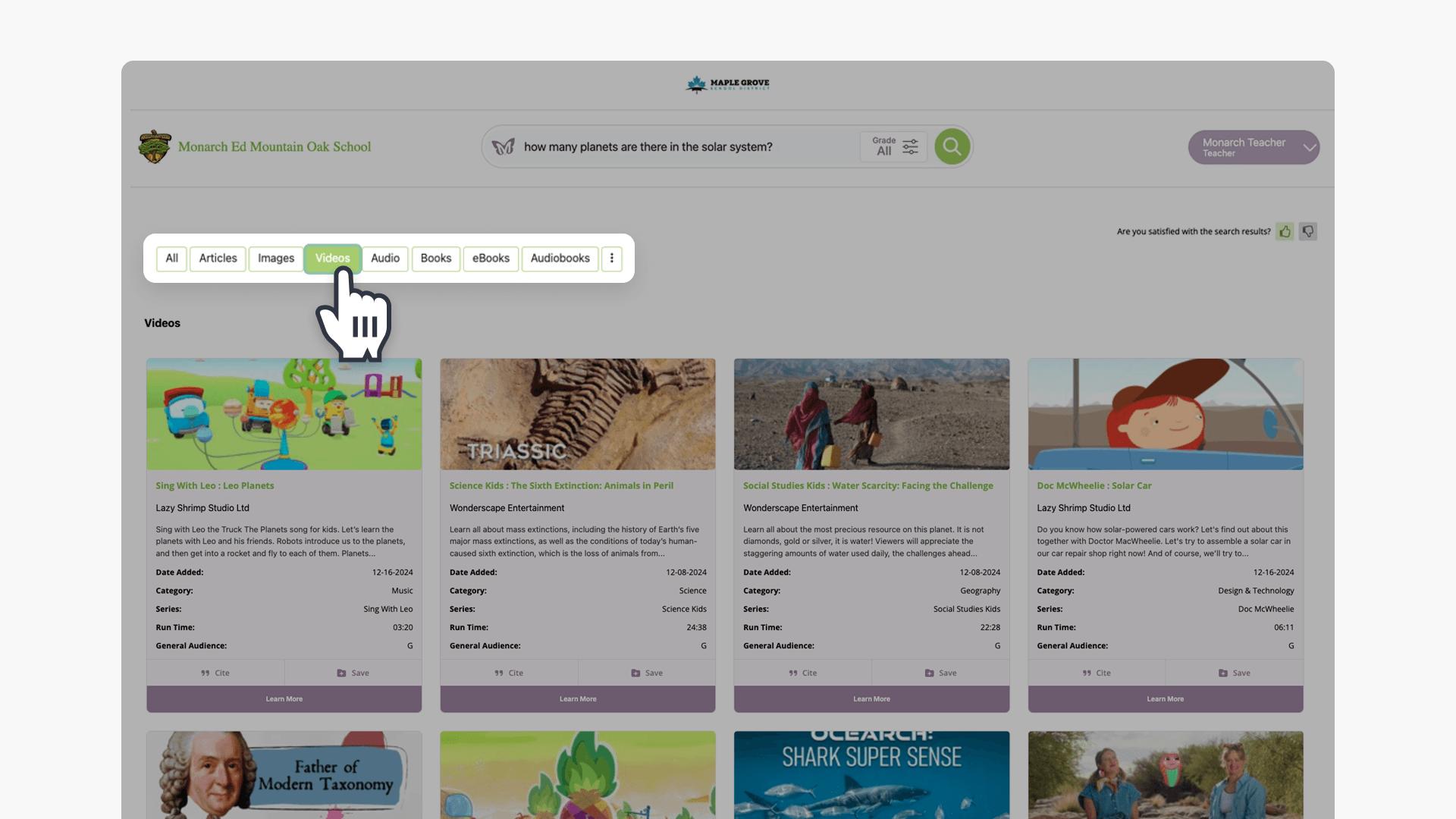
- Select a ClickView video in the results. The video opens directly in ClickView in a new tab.
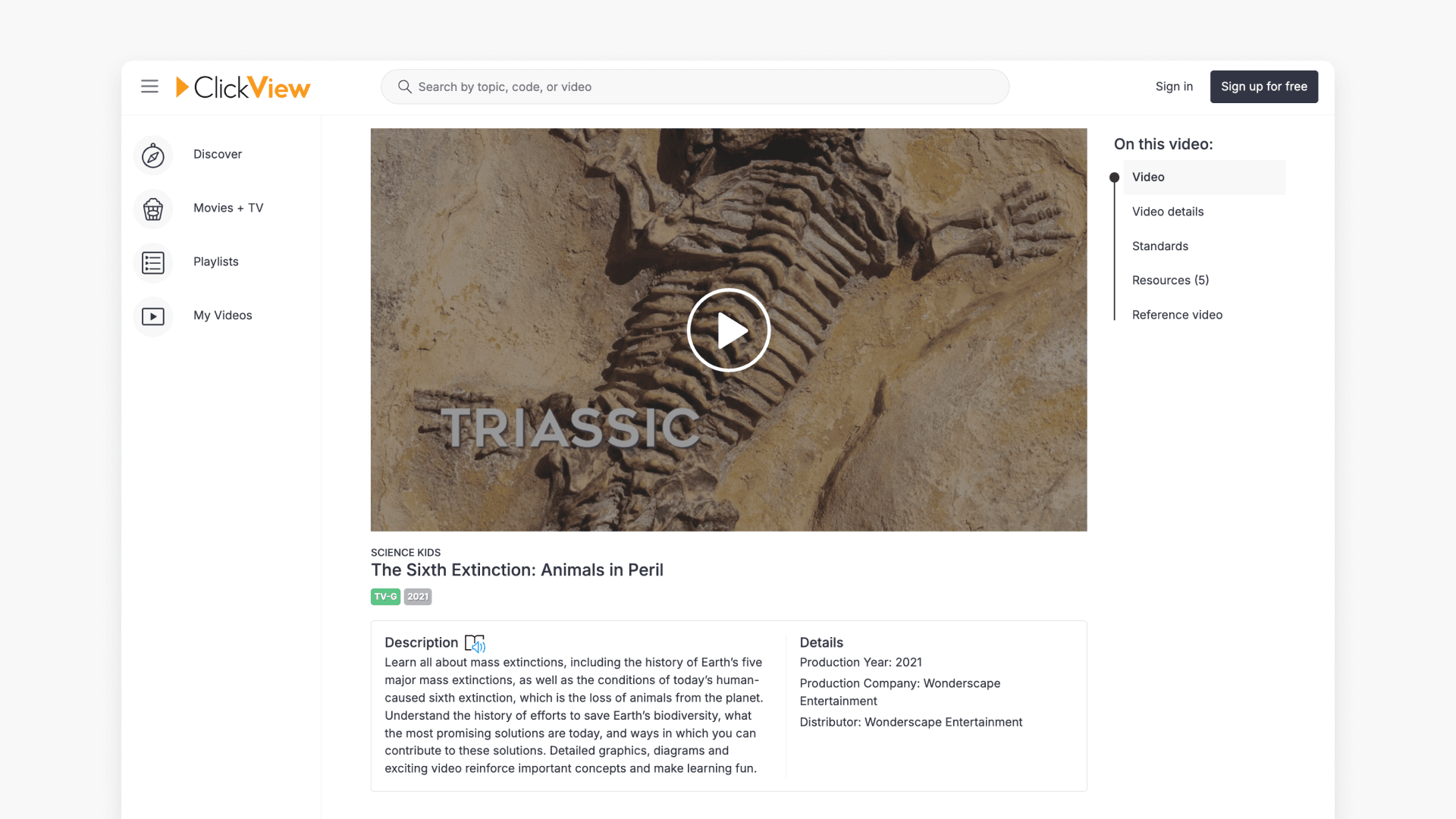
- Press play on the ClickView video. If you’re not already signed in to ClickView, you’ll be prompted to sign in before playback starts. If you’re already signed in, playback starts right away.
Once you’re on ClickView, you have full access to the standard ClickView experience, including interactive quizzes, downloadable worksheets, playlists, and other learning resources.
Frequently asked questions
Get in touch
If you’re having trouble finding the right topics or videos, just reach out! Our team - 


 Andrew, Nisch, Janice, Pfreya, or any of us at ClickView - will be happy to help you get sorted.
Give feedback
Was this guide helpful?
Up Next
How to enable Grade Passback in Canvas
This article explains how educators can enable the Grade Passback feature with ClickView interactive videos in Canvas, providing automatic student scoring for assignments.