Embed a ClickView video in D2L Brightspace
In this article
Last updated by
2 min readClickViewJuly 8, 2026
Summary
- Sign in to Brightspace as the administrator.
- Select the cog icon and choose ‘Remote Plugins.’
- Select ‘New Remote plugin’ to add ClickView.
- Set Plugin Type to ‘Insert Stuff’ and Name to ‘ClickView.’
- Complete Launch Point URL and Icon URL, leaving other fields blank.
- Add Org Units as needed, then select ‘Save.’
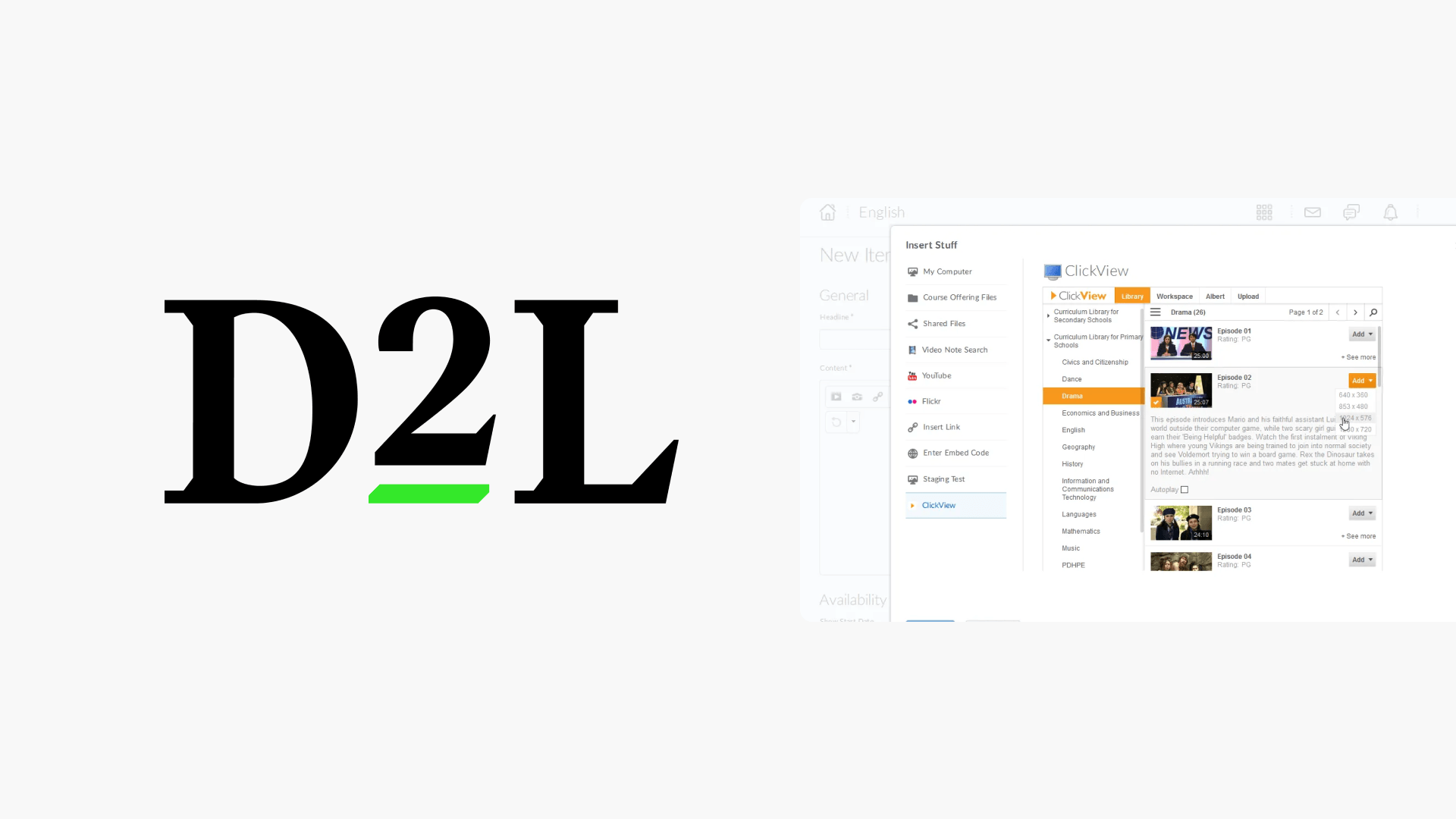
- Use the ‘Insert Stuff’ button in course editor to embed videos.
- Check ‘Always trust this URL’ and ‘Allow’ for first-time use.
- Click ‘Add’ to embed a video and select resolution.
star icon
Quick tip
What should I do if ClickView doesn’t appear in the “Insert Stuff” menu?
Confirm that the ClickView remote plugin has been saved with the correct Plugin Type (Insert Stuff) and region-specific Launch Point URL, and that it has been assigned to the relevant Org Units in Brightspace.
Configuring the ClickView plugin in Brightspace
- Sign in to your Brightspace portal as the administrator. Locate the cog icon at the top right of the screen for administrative access.
- Select the cog and choose Remote Plugins from the drop-down list.
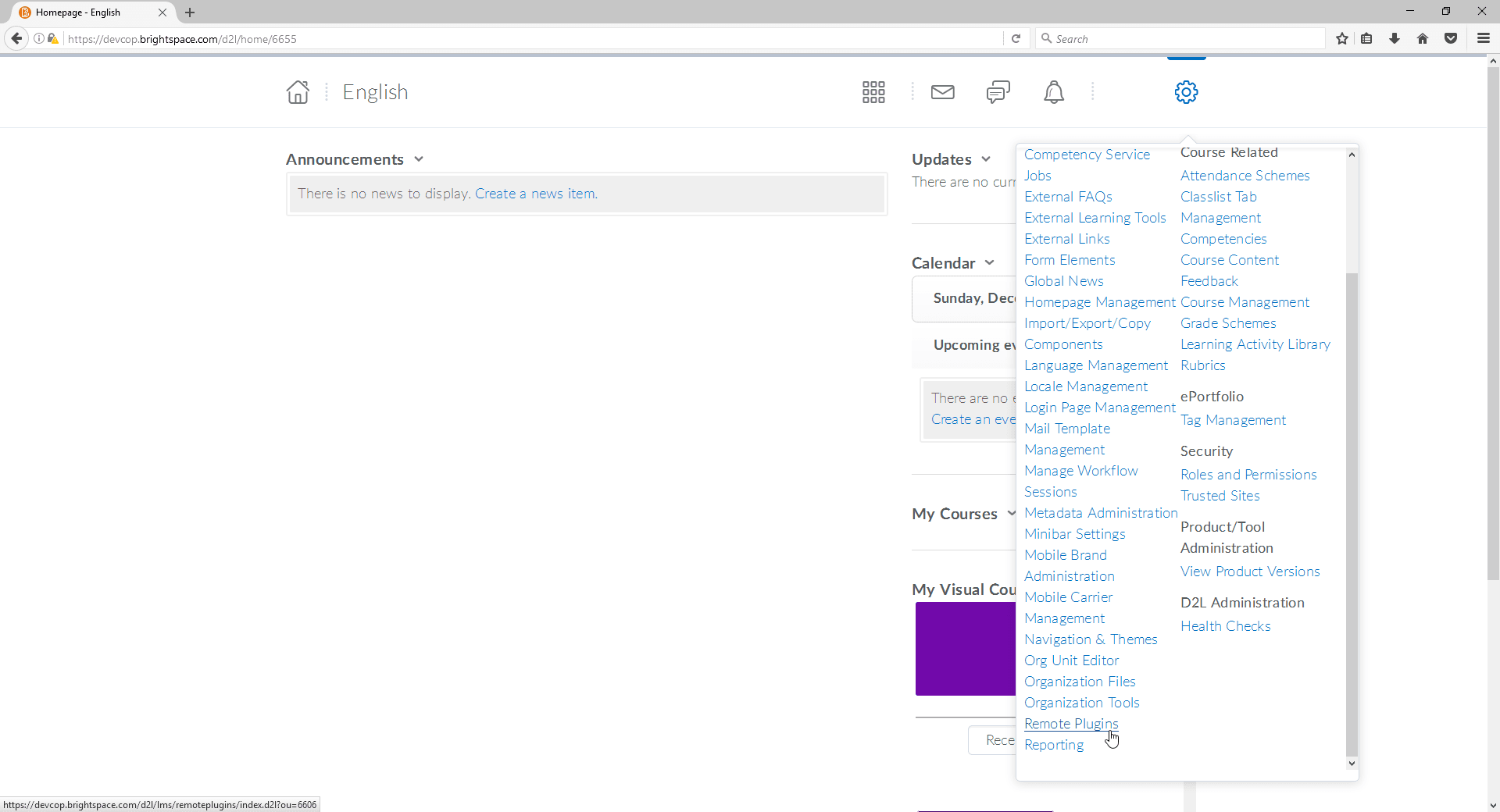
- On the Remote Plugins page, select New Remote plugin to add ClickView.
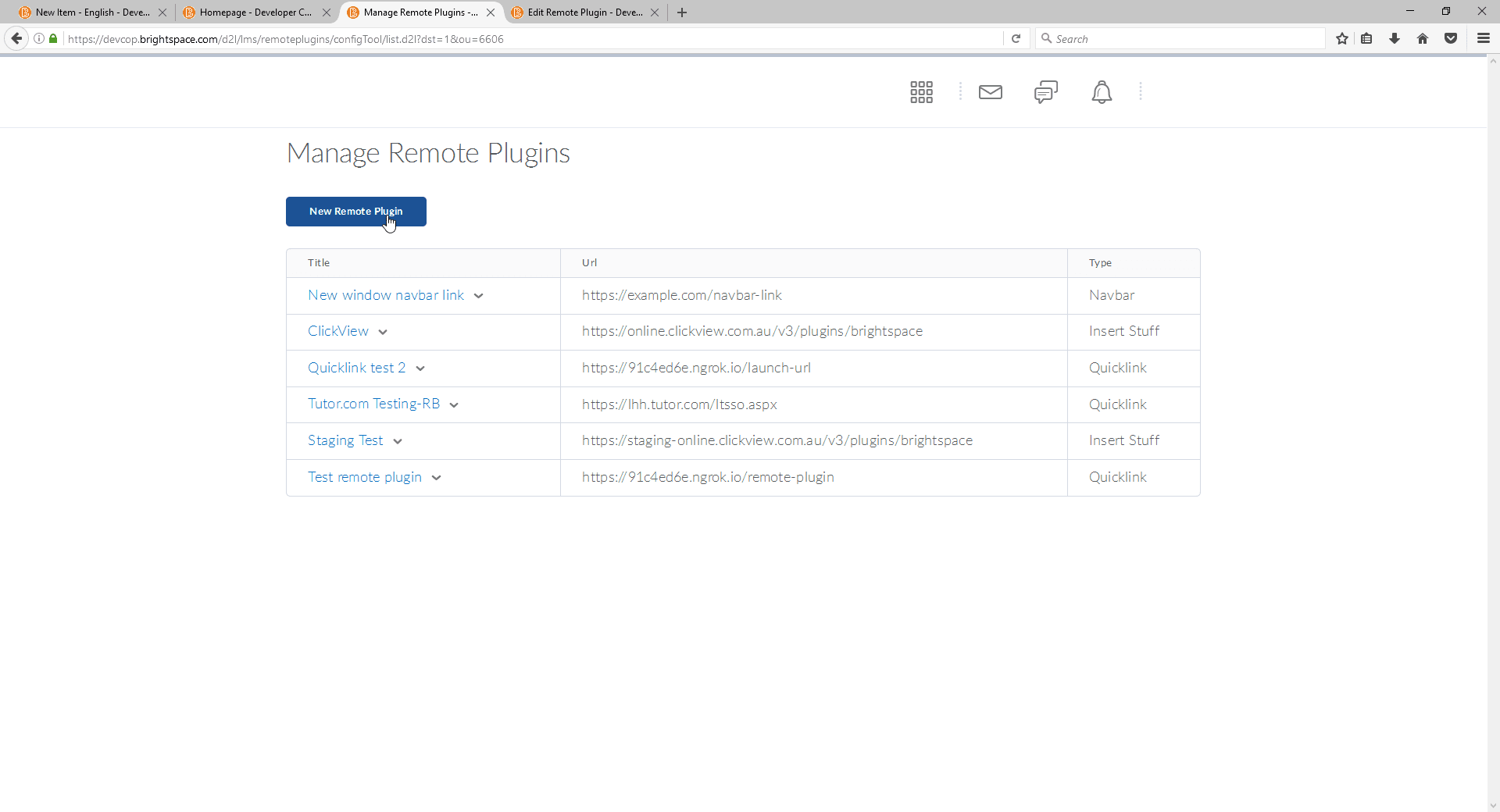
- Fill out the form as follows:
- Plugin Type: ‘Insert Stuff’
- Name: ClickView
- Launch Point URL:
- AU: https://online.clickview.com.au/v3/plugins/brightspace
- UK: https://online.clickview.co.uk/v3/plugins/brightspace
- NZ: https://online.clickview.co.nz/v3/plugins/brightspace
- Icon URL: https://cvcdn.blob.core.windows.net/cv-online/images/clickview-logo-brightspace.png
- Leave all other fields blank.

- To assign the plugin to specific organizational units, select Add Org Units at the bottom of the form.
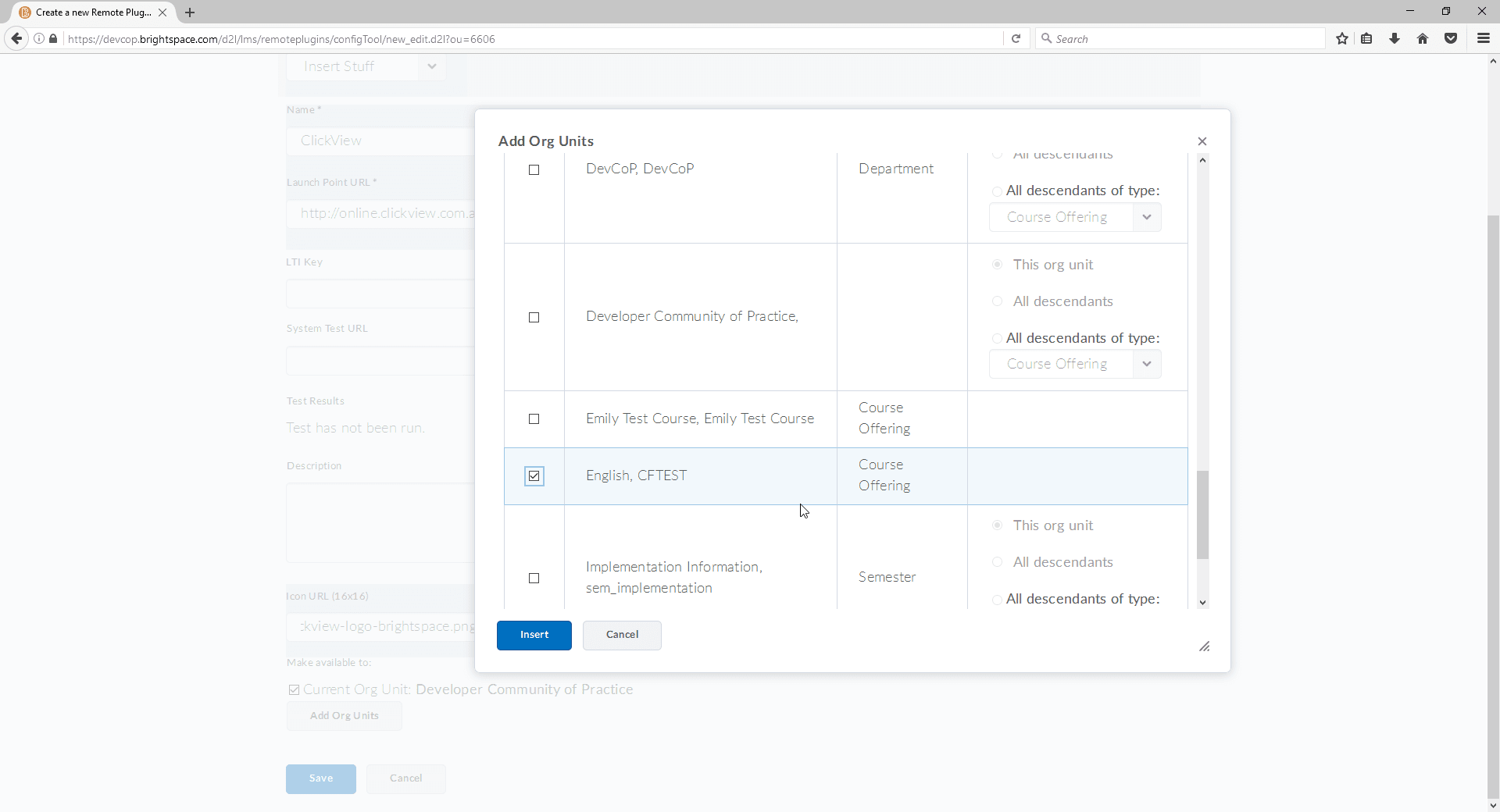
- When finished, select the Save button to complete configuration.
Embedding videos in Brightspace courses
- When creating content for a course, select the Insert Stuff button in the text editor.
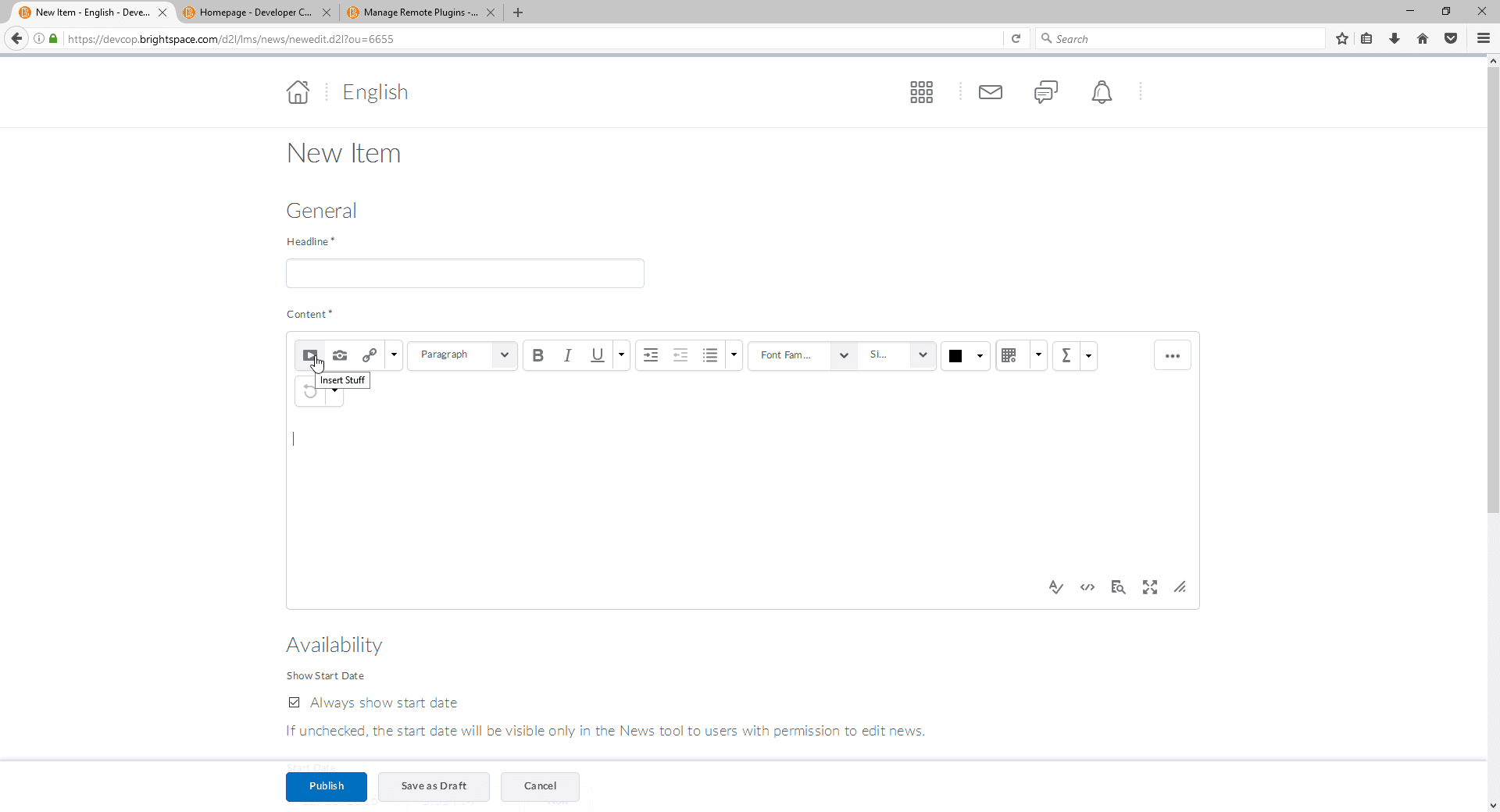
- A list of available plugins will appear. Choose the ClickView plugin.
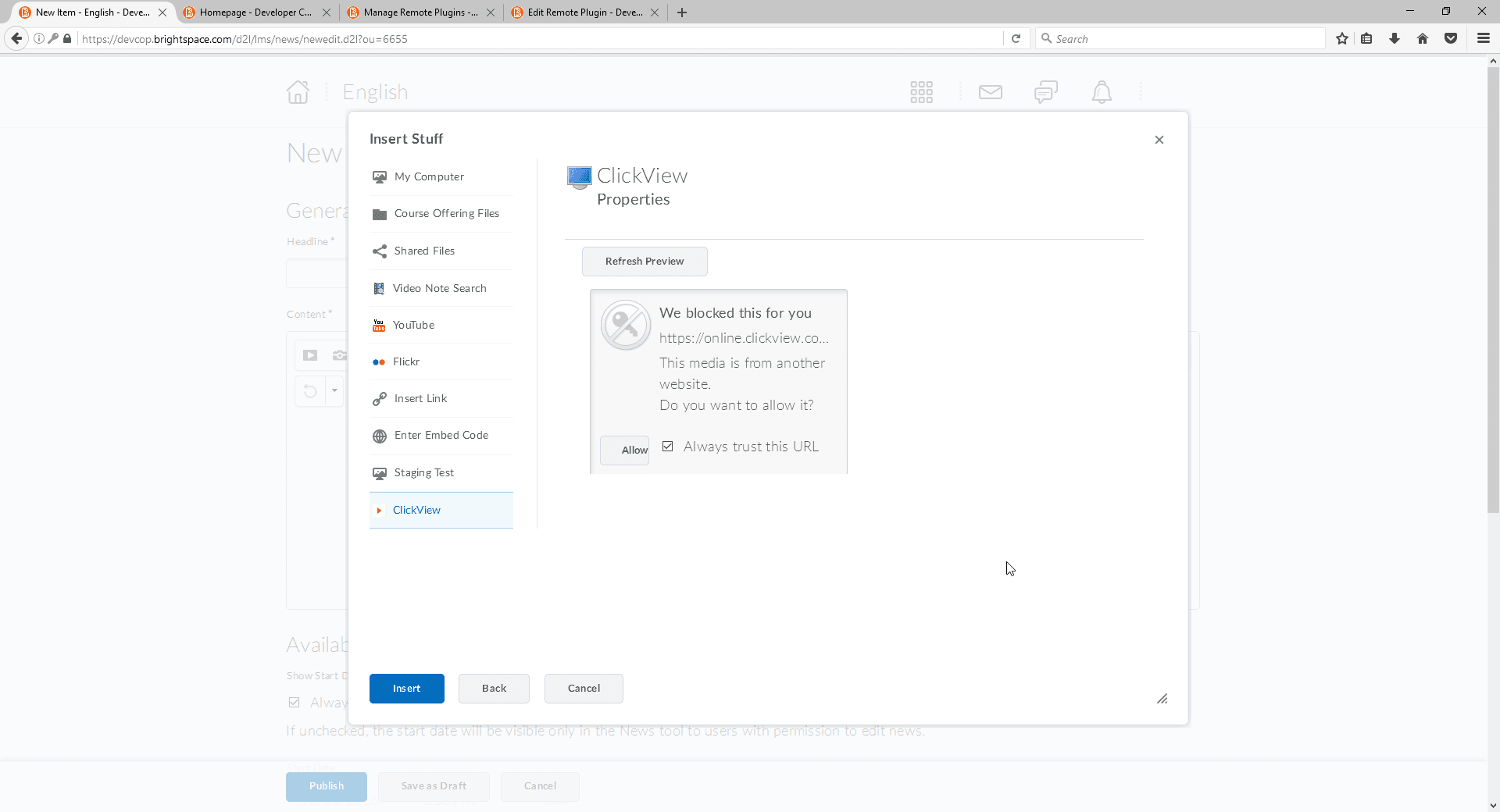
- The first time you use ClickView, check Always trust this URL and select Allow.
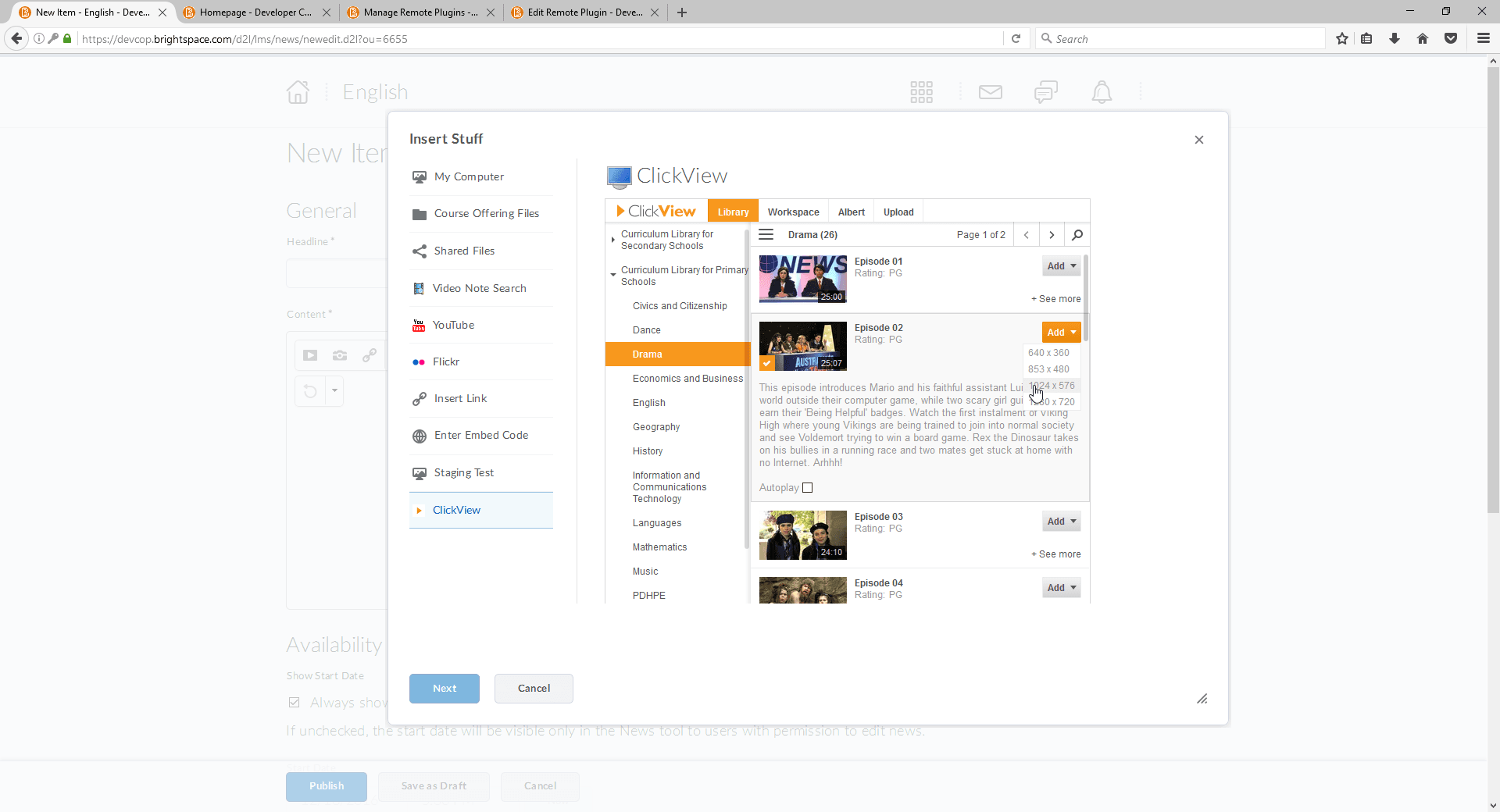
- Find the video you want to embed, select Add, and choose the desired video resolution.
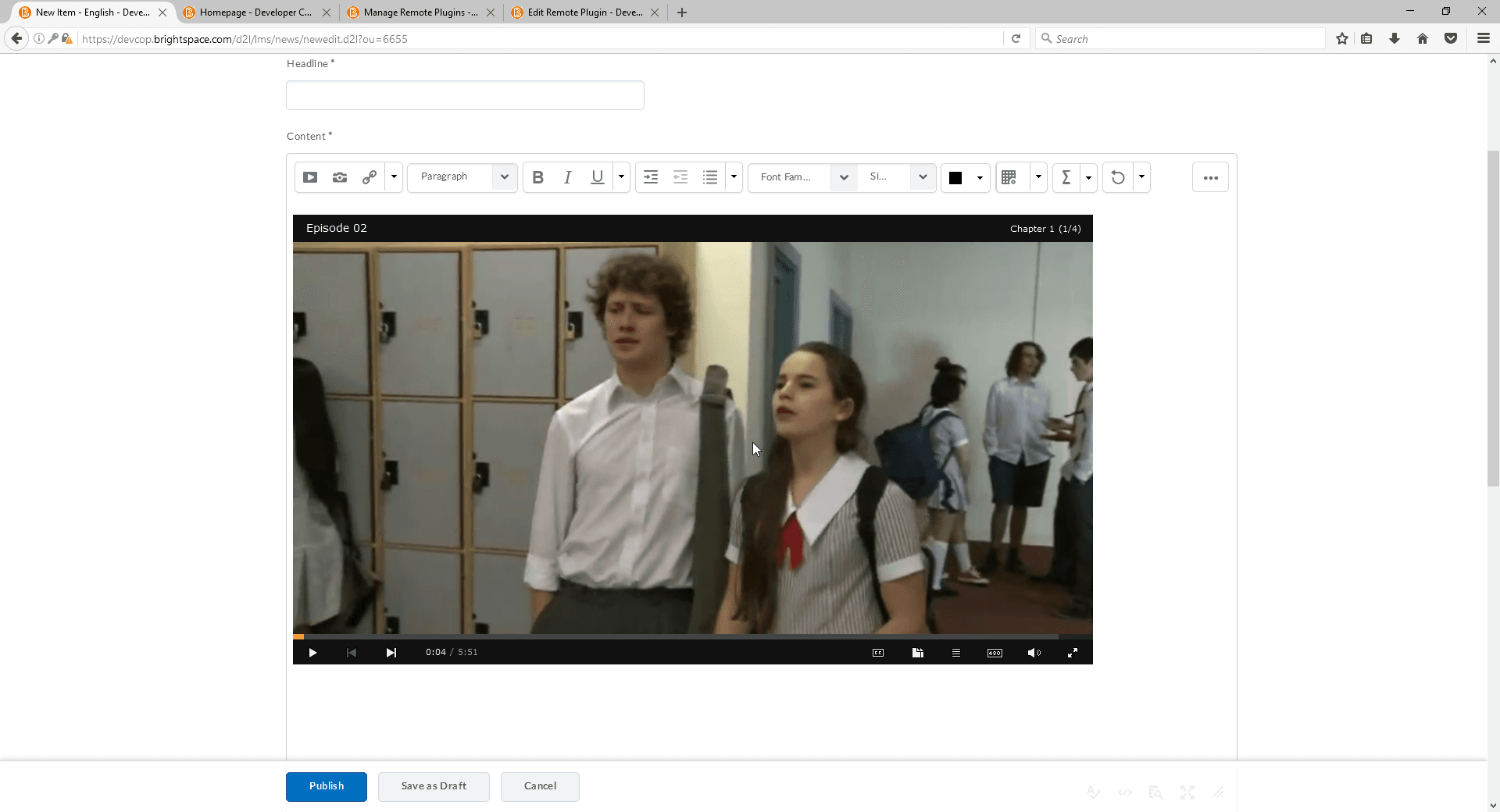
- You can now continue to add content or publish the page for student use.
Frequently asked questions
Yes, select ‘Add Org Units’ at the bottom of the form during setup to assign units.
No, you only need to check ‘Always trust this URL’ the first time you use the ClickView plugin in Brightspace.
Match your region to its Launch Point URL: AU, UK, or NZ, as listed in the configuration instructions.
Get in touch
If you’re having trouble finding the right topics or videos, just reach out! Our team - 


 Andrew, Nisch, Janice, Pfreya, or any of us at ClickView - will be happy to help you get sorted.
Give feedback
Was this guide helpful?
Up Next
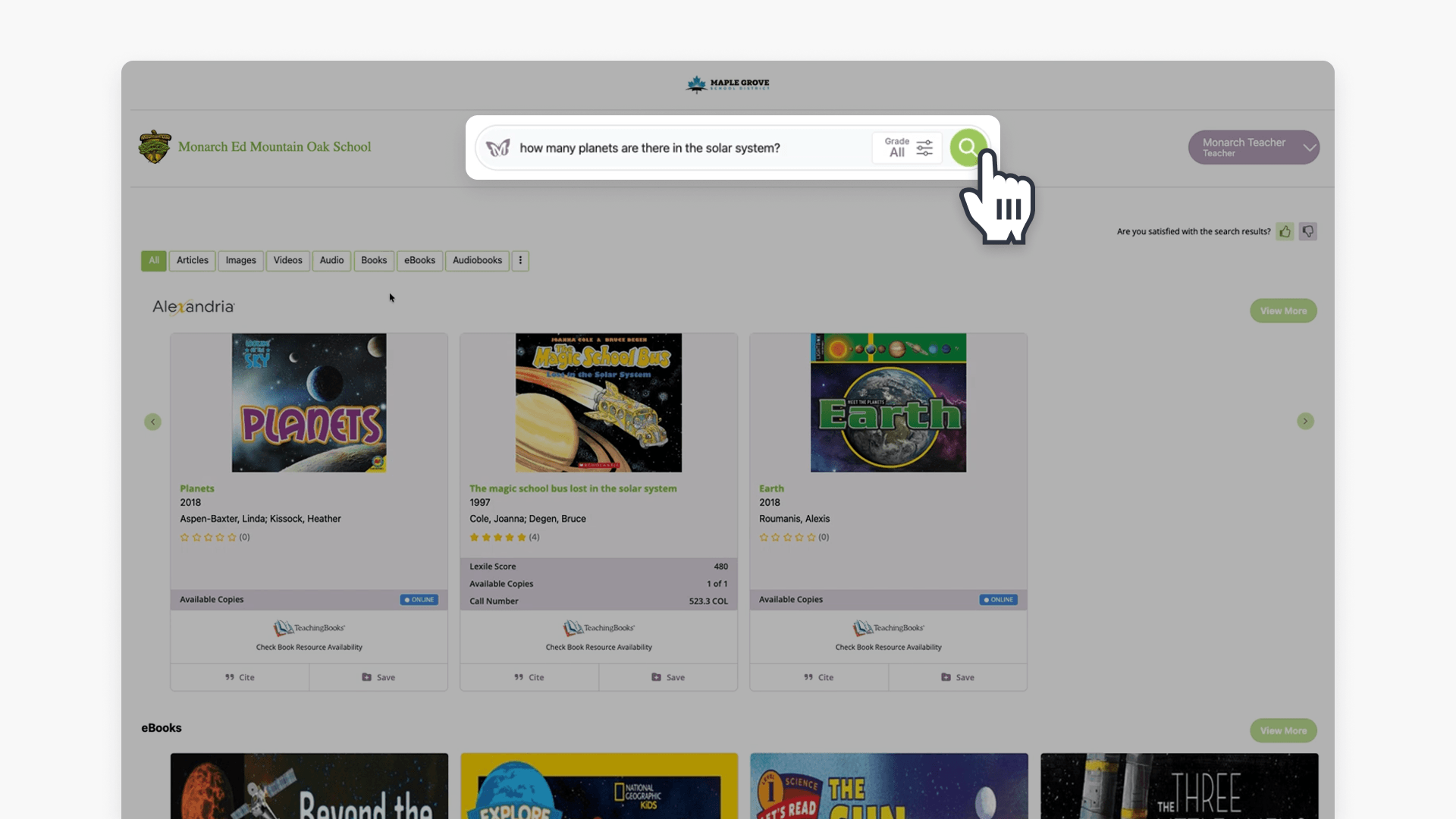
How to access ClickView videos in Monarch
Summary How do I find ClickView videos in Monarch? Search for a topic in Monarch Digital Content Discovery Engine and ClickView videos appear in the results alongside content from your other subscribed providers. Filter by format to narrow to ClickView content, then select a video to open it directly in ClickView with access to quizzes, […]