How to cast ClickView videos with Apple TV
Last updated by
2 min readClickViewFebruary 2, 2026
Summary
- The ClickView tvOS app is available for Apple TV (4th gen and later).
- Open the ClickView tvOS app on Apple TV to prepare for playback.
- Sign in to ClickView and select the video you want to display.
- Click the TV icon on the video to access device options.
- Select ‘Play on device’ to show the video on Apple TV.
- Control playback using the Apple TV remote or the ClickView video player.
star icon
Quick tip
Can I control video playback while watching on Apple TV?
Yes, video playback can be controlled using the Apple TV remote or the video player within ClickView.
Steps to display videos on Apple TV
Note: The ClickView tvOS app supports only Apple TV (4th gen and later).
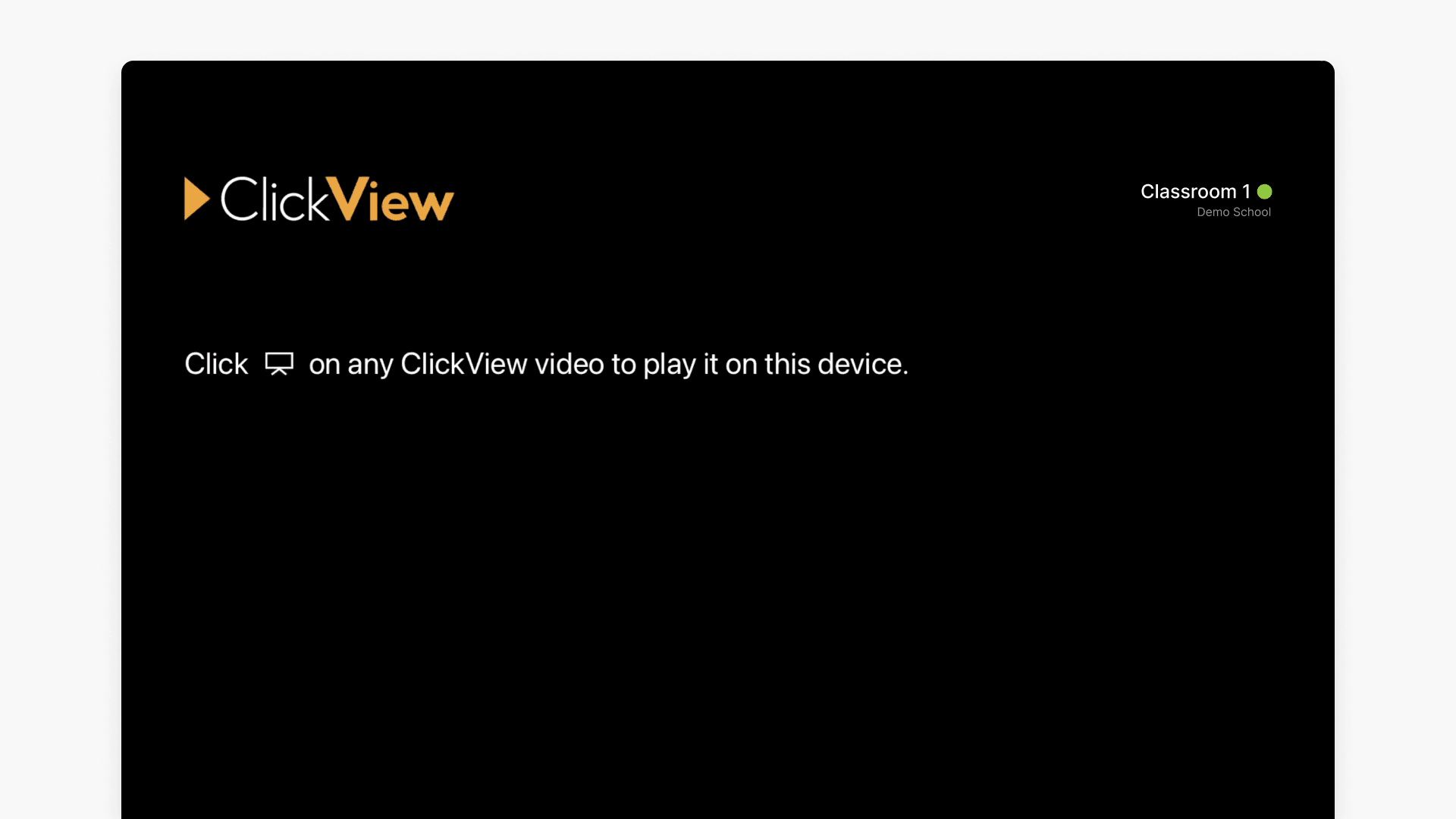
- Open the ClickView tvOS app on your Apple TV. If your Apple TV is activated, you will see a screen indicating that your device is ready to play videos.
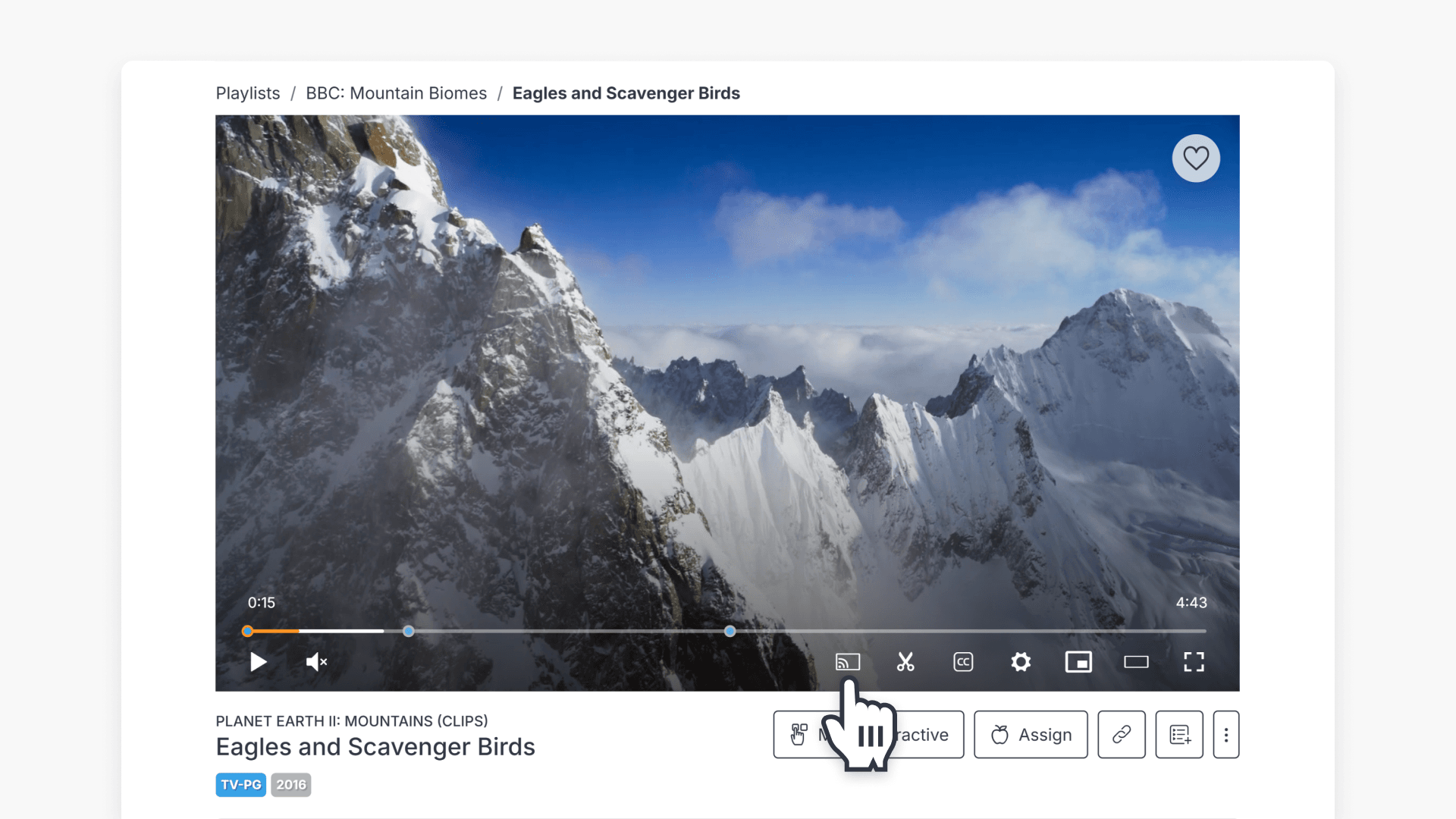
- Sign in to ClickView and select the video you want to view.
- Click the TV icon located at the bottom right-hand side of the video.
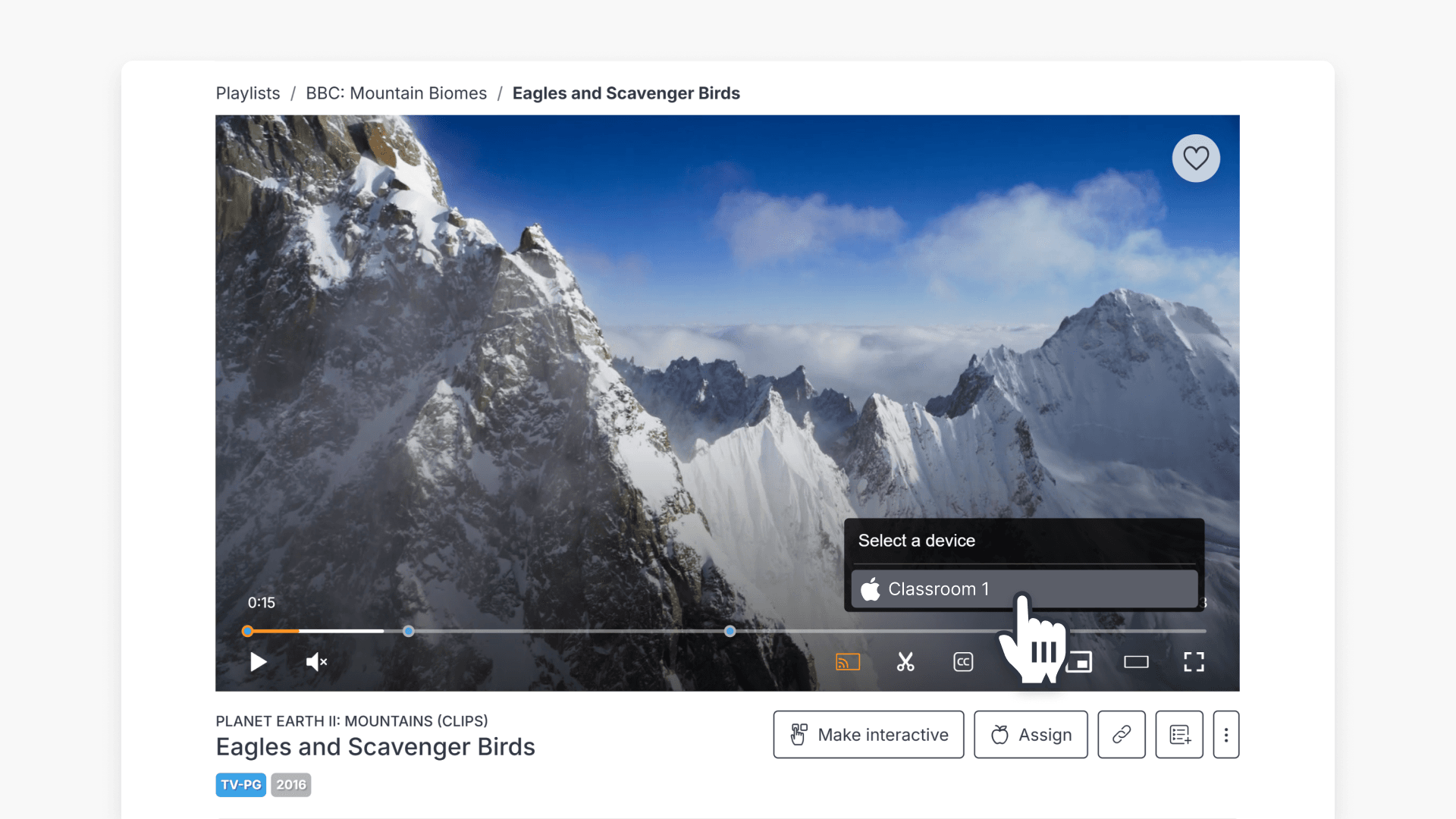
- Find the name of the device you want to send the video to and select the corresponding ‘Play on device’ link.
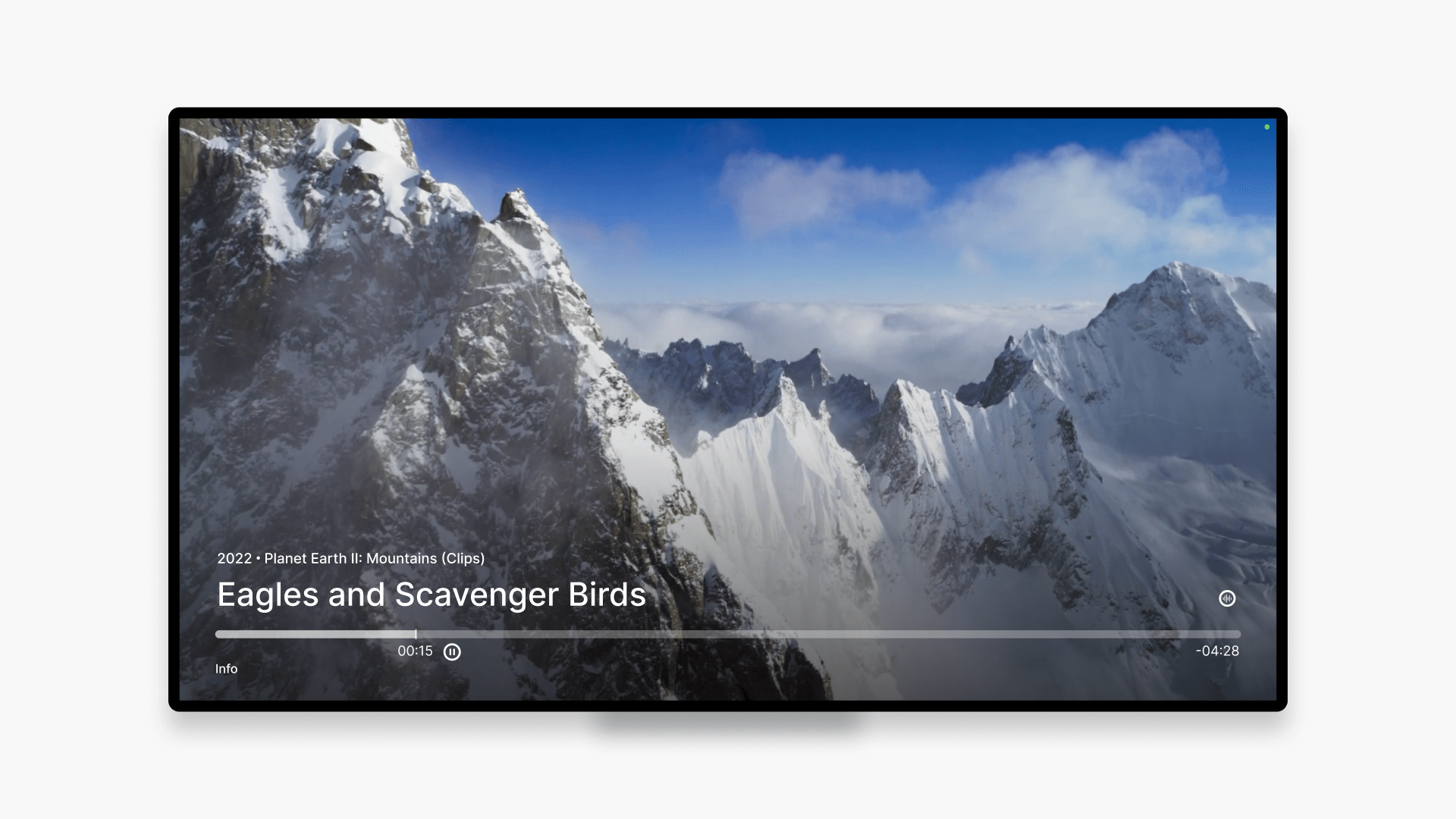
- Your ClickView video will play on the selected Apple TV. You can control the video using the Apple TV remote or the ClickView video player.

Frequently asked questions
The ClickView tvOS app is only available for Apple TV (4th gen and later).
Get in touch
If you’re having trouble finding the right topics or videos, just reach out! Our team - 

 Akhil, Daniel, Jalaj, or any of us at ClickView - will be happy to help you get sorted.
Give feedback
Was this guide helpful?
Up Next
How to cast ClickView videos with Vivi
This article explains how to enable and configure the Vivi integration in ClickView, set up devices in Vivi Central, cast videos to Vivi, and resolve common issues.