How to cast ClickView videos with Vivi

Summary
- ClickView admins enable Vivi in Integrations > Player cast integrations.
- Link accounts from the Vivi tile then sign in (Vivi login or SSO).
- In Vivi Central, confirm devices meet requirements (Model 100/200 and firmware 3.7.0+).
- Enable Content Integration API Override on a test device, then switch on Content Integration API organization-wide.
- In the Vivi app, go to Play Content, then cast from ClickView using the cast icon.
Set up and use Vivi integration
ClickView supports Vivi playback, allowing educators to cast videos and clips directly to Vivi devices at school.
Enable your Vivi integration
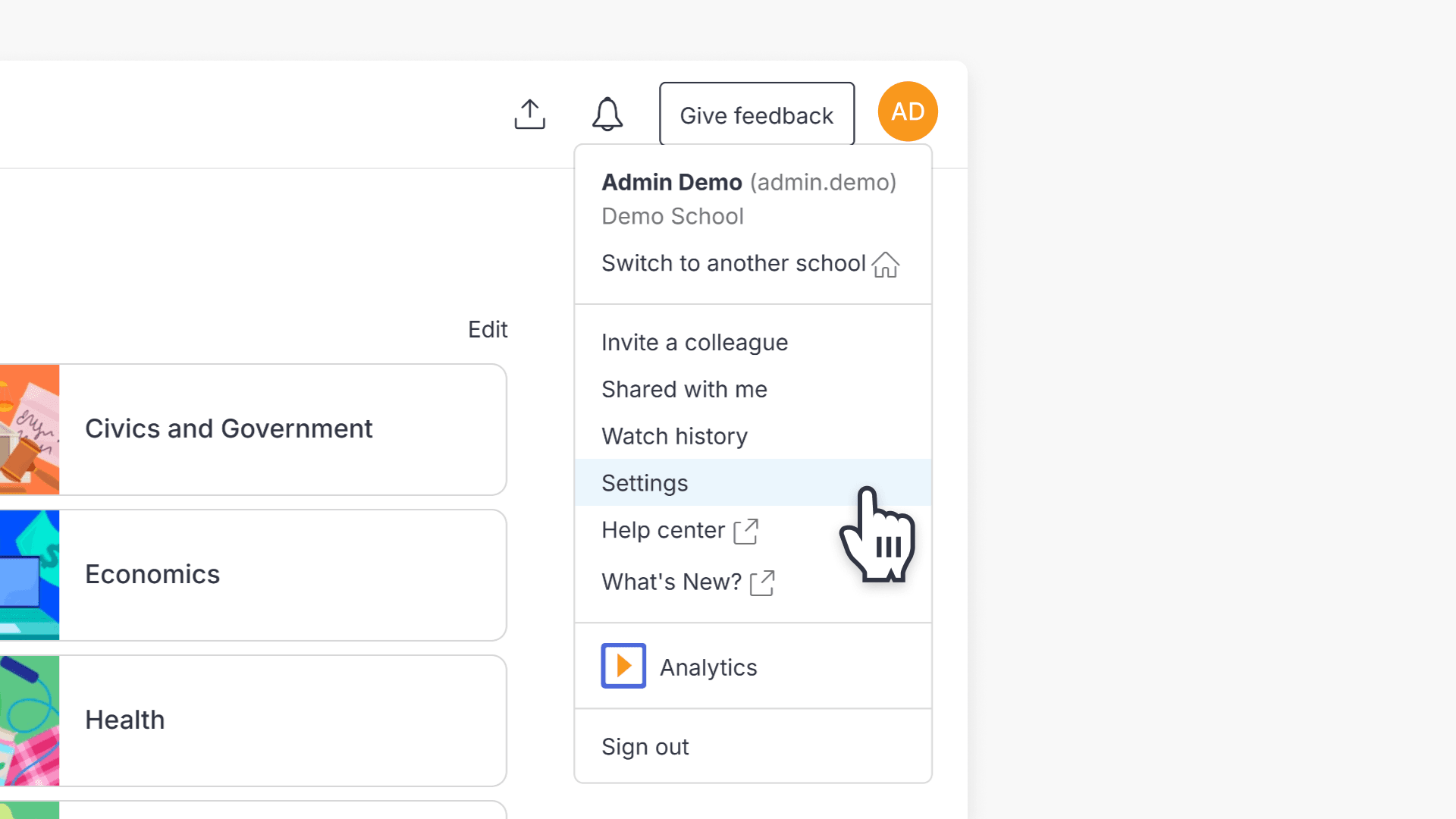
- Sign in to ClickView as an administrator.
- Select Settings.
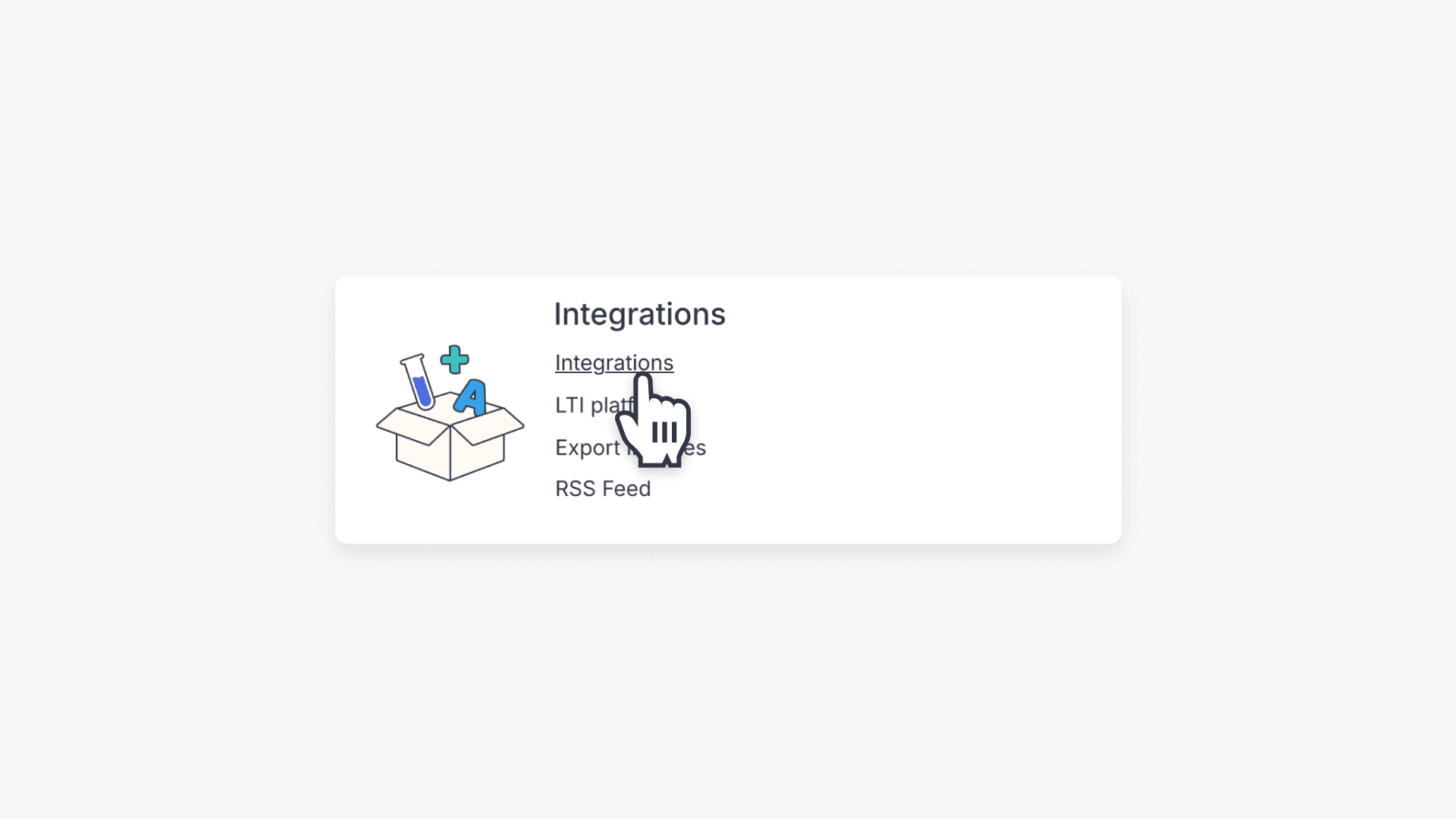
- Select Integrations.
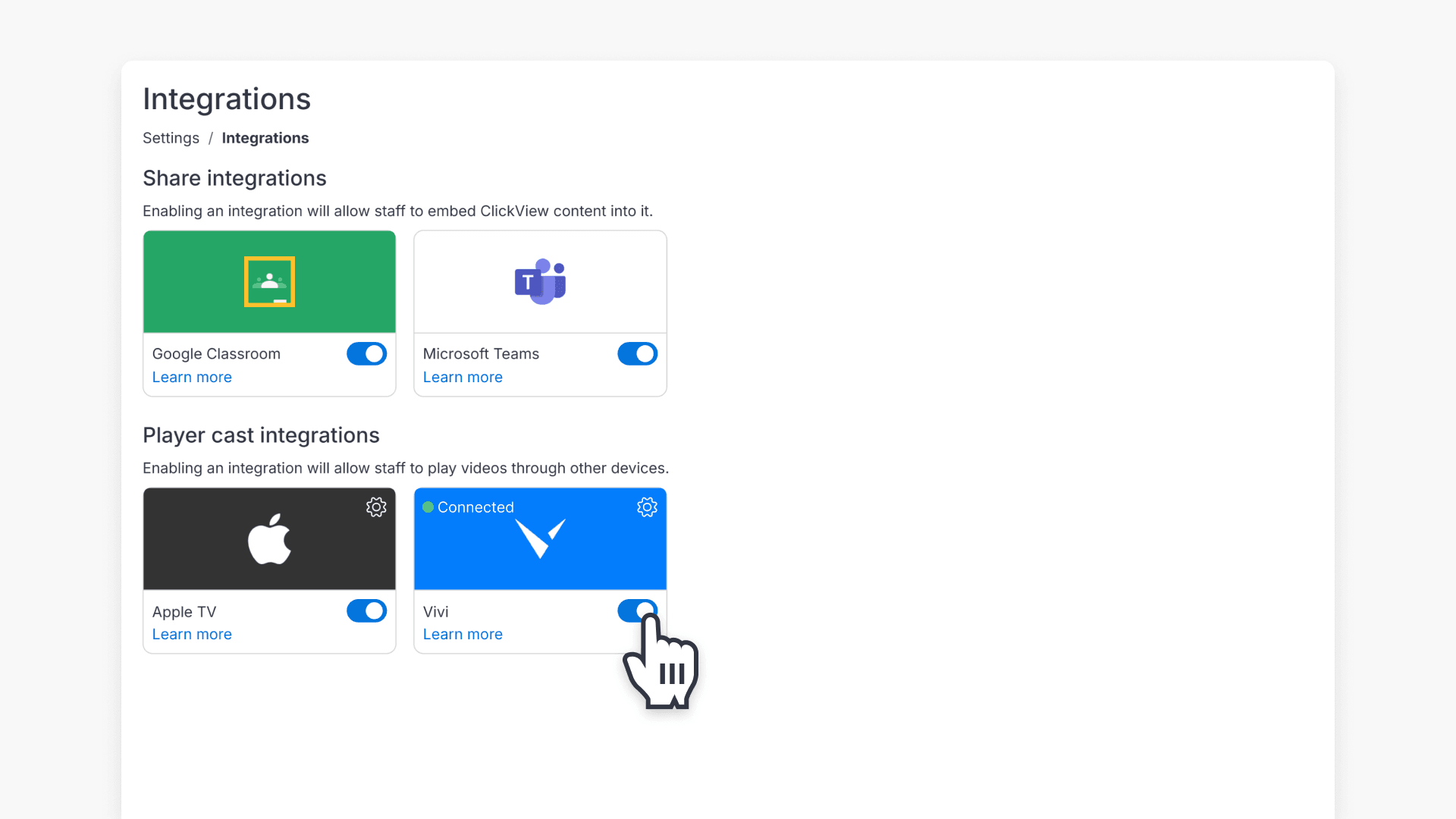
- Select Player cast integrations. Turn on Enable Vivi.
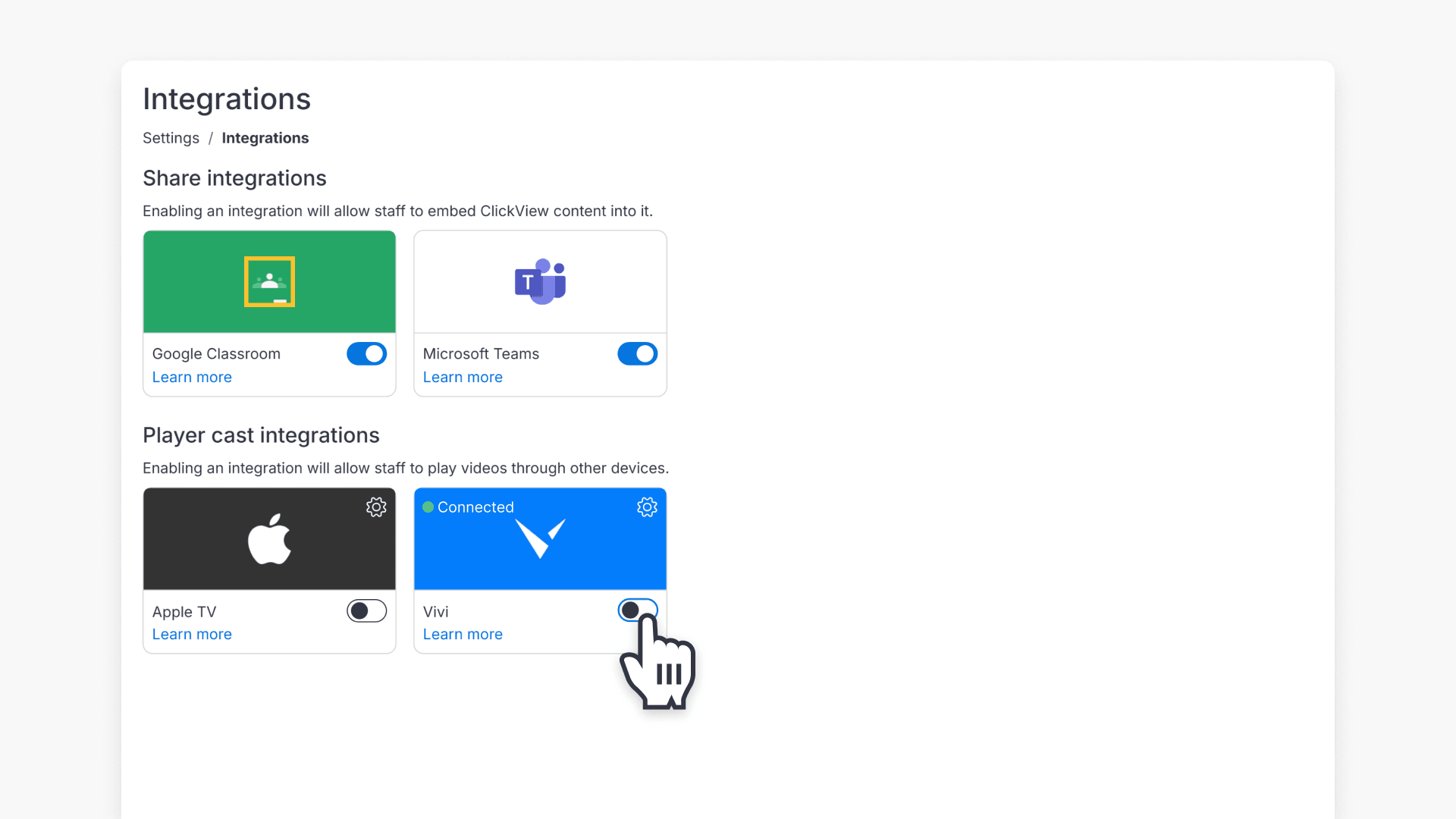
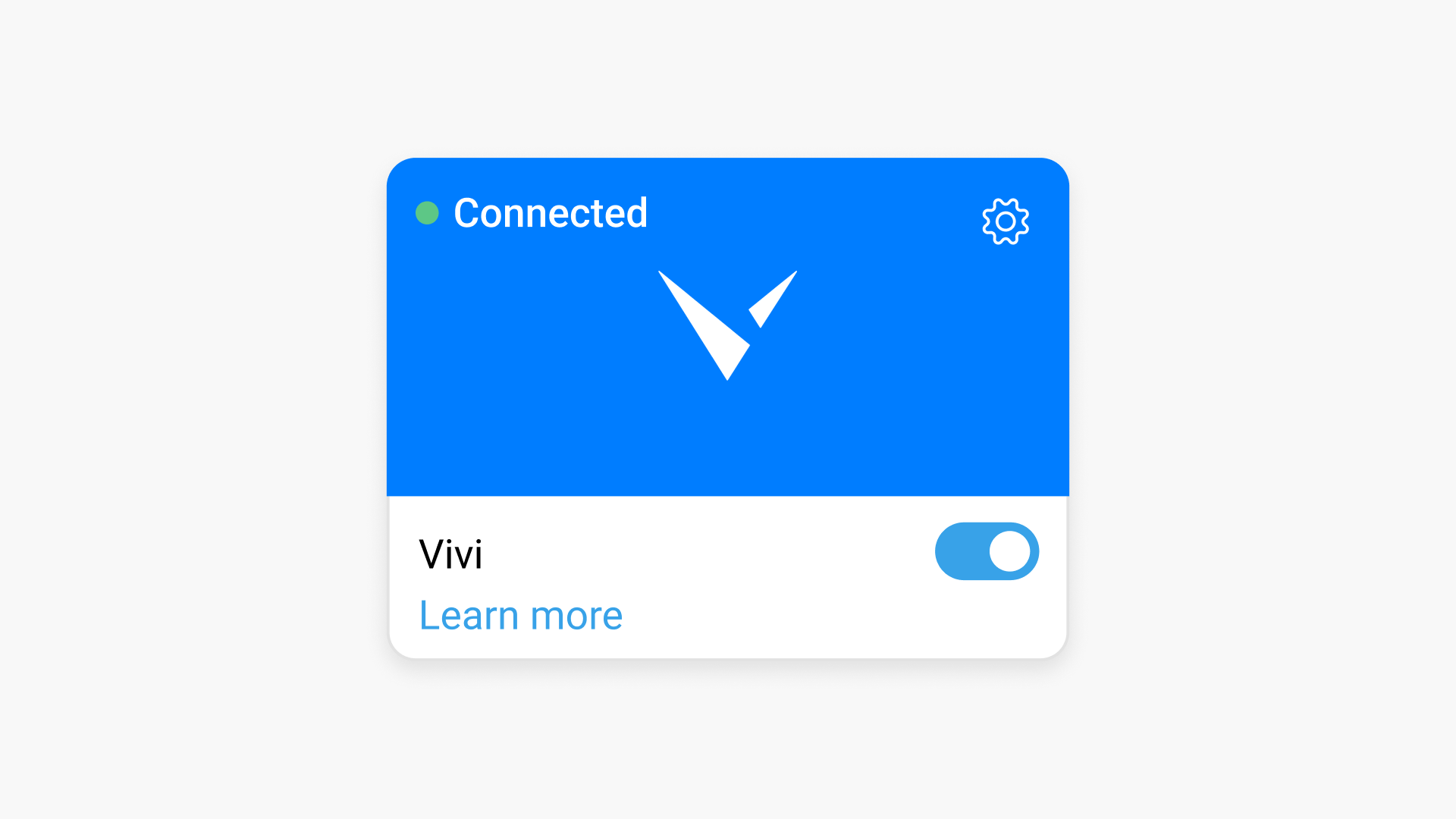
- If your Vivi account is not linked, the Vivi integration tile shows Not Connected.
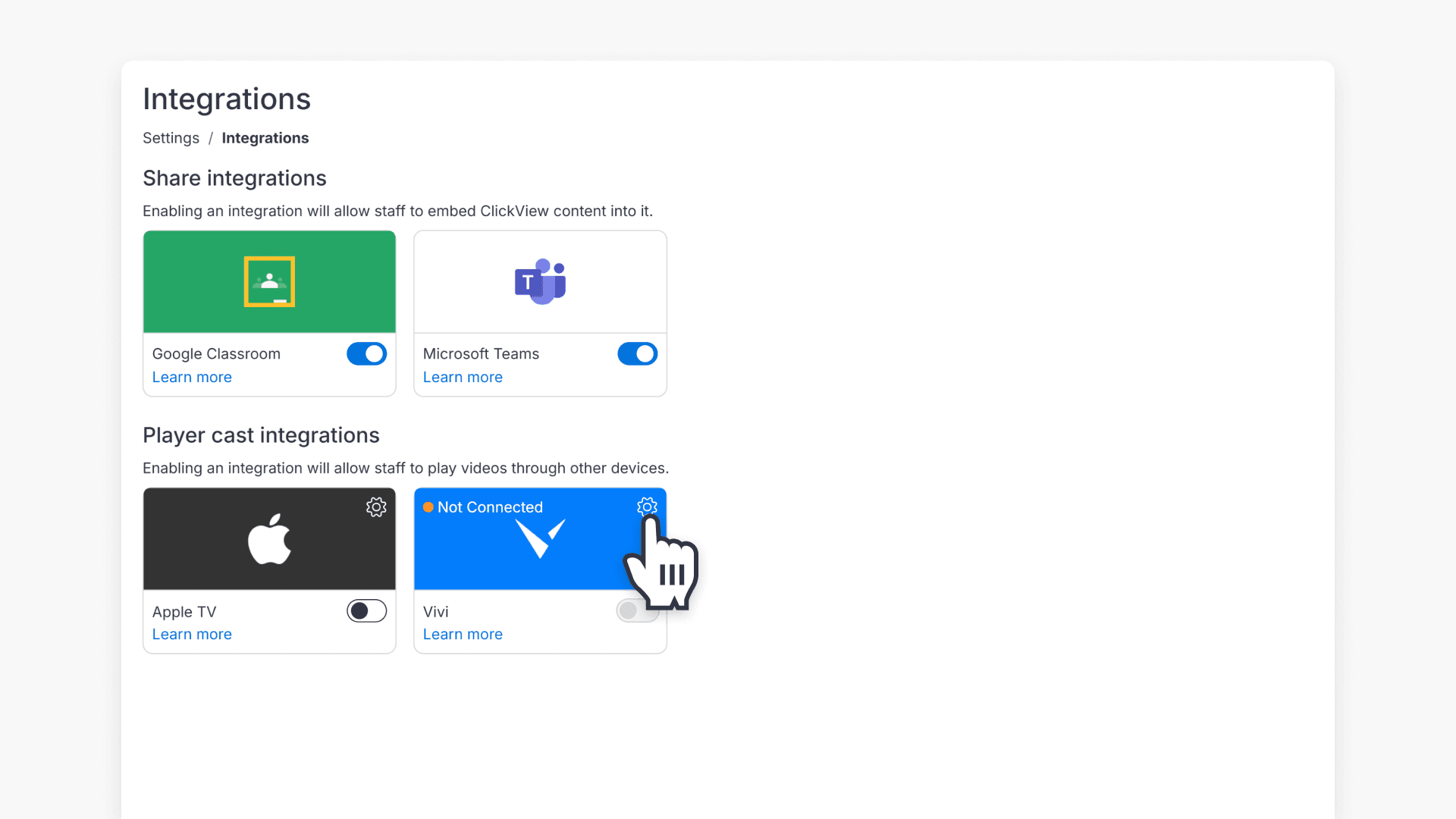
How to link your ClickView and Vivi accounts
- In the Vivi integration tile, select the cog icon.
- In Vivi settings, select Connect to Vivi.
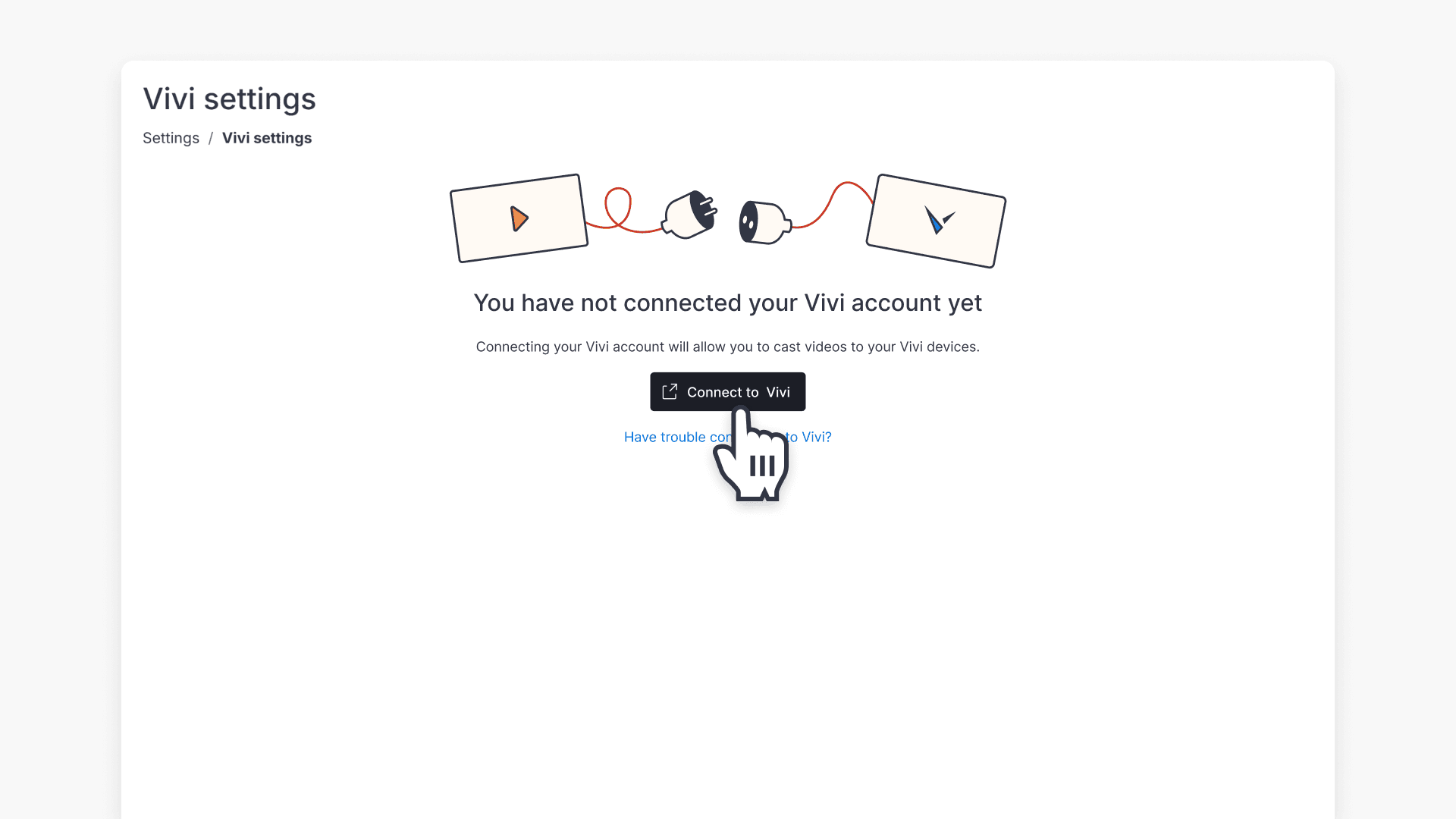
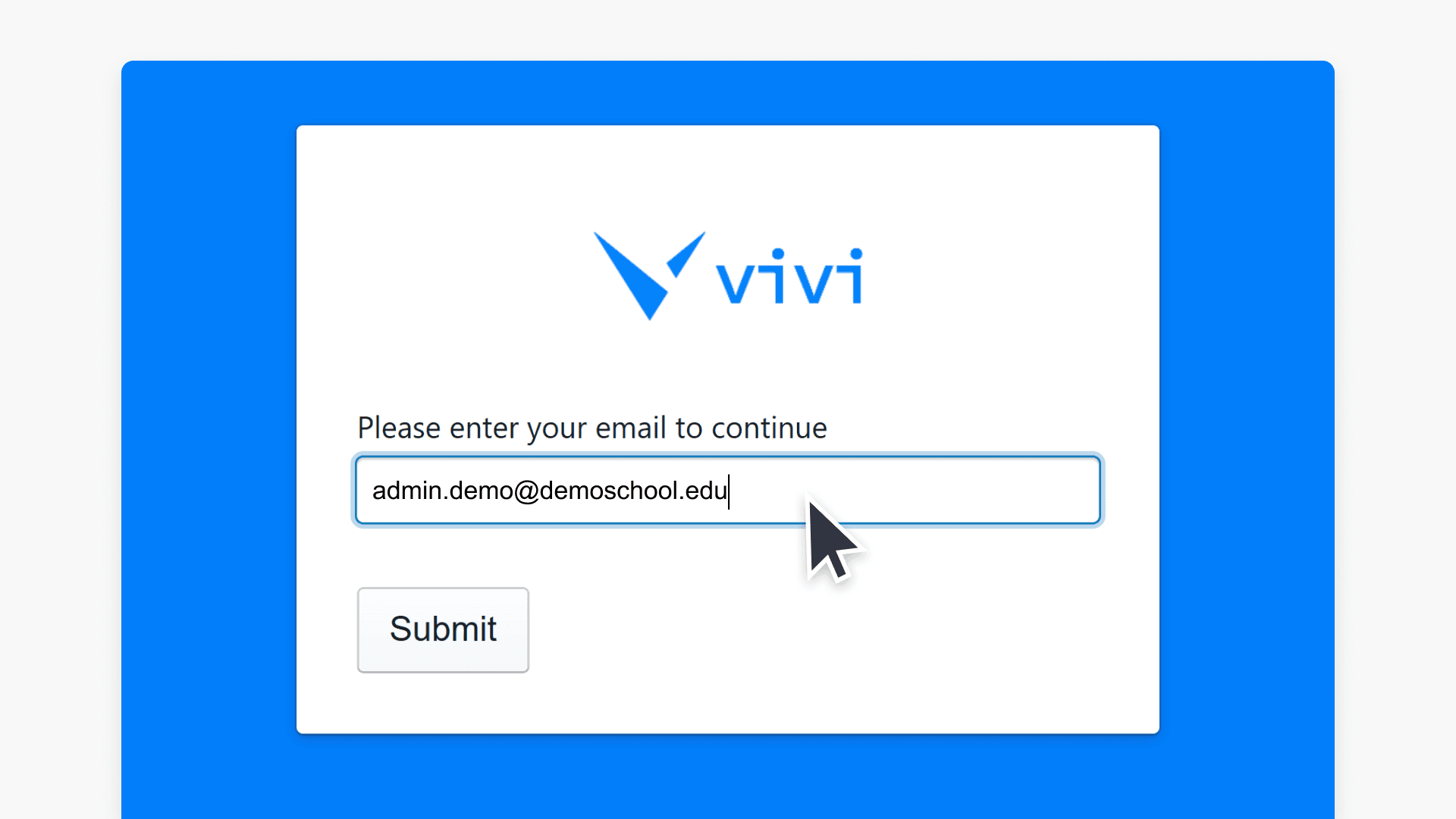
- Sign in with your Vivi credentials. If your school uses single sign-on, sign in through your identity provider.
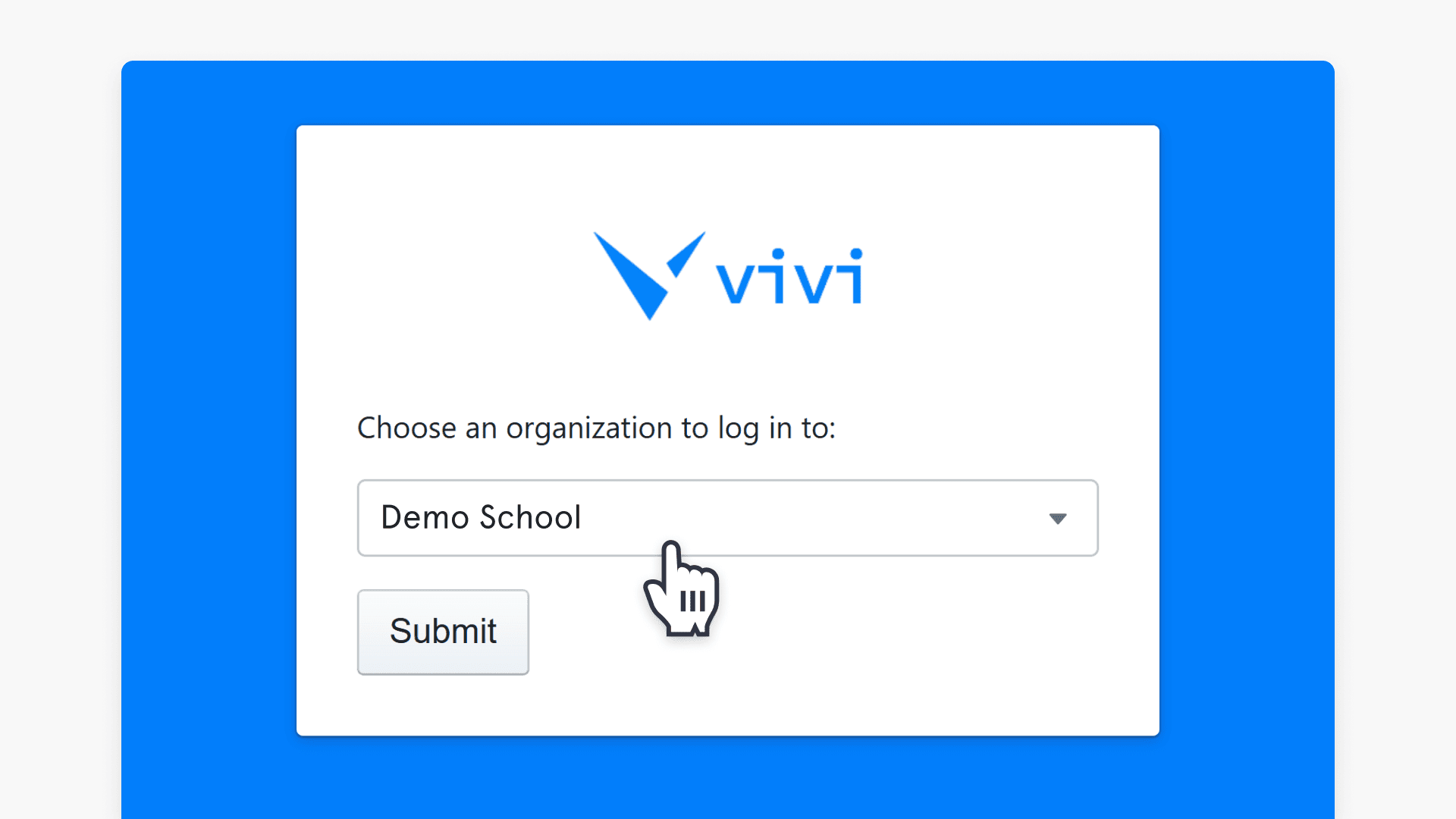
- Select your school from the drop-down list.
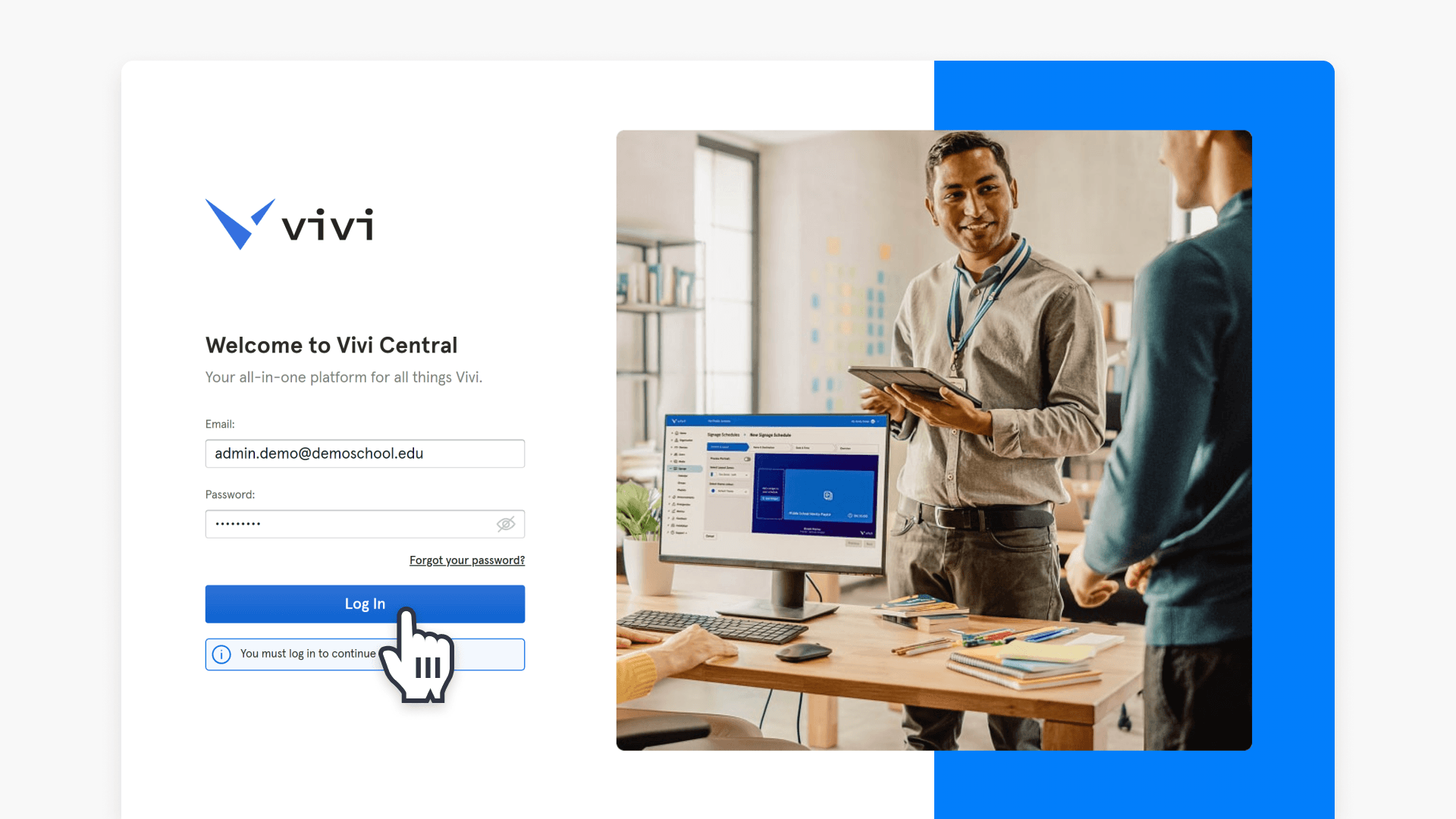
- When prompted, sign in to Vivi Central.
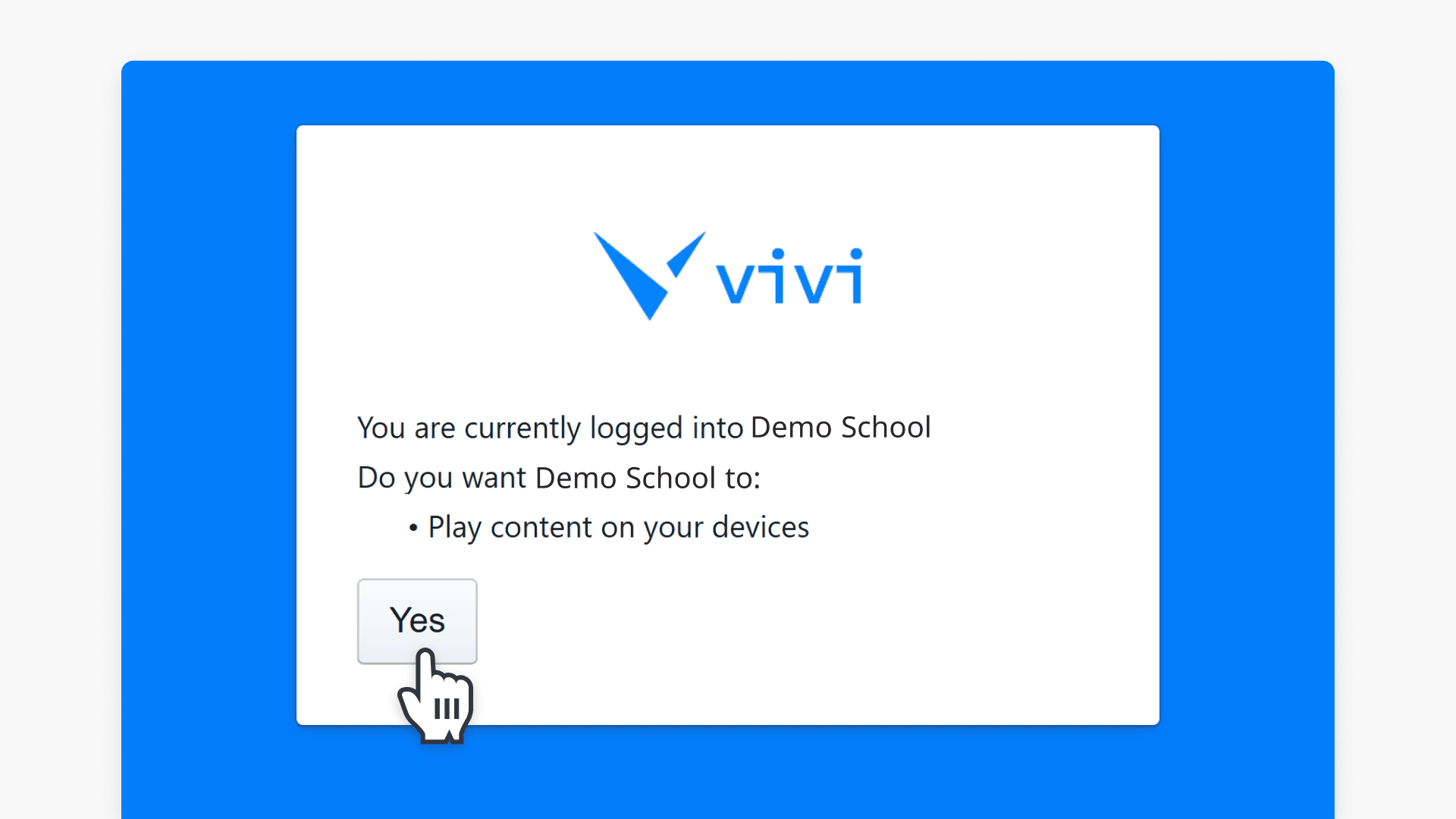
- When prompted, confirm the connection by selecting Yes to allow your ClickView school account to connect to your Vivi account.
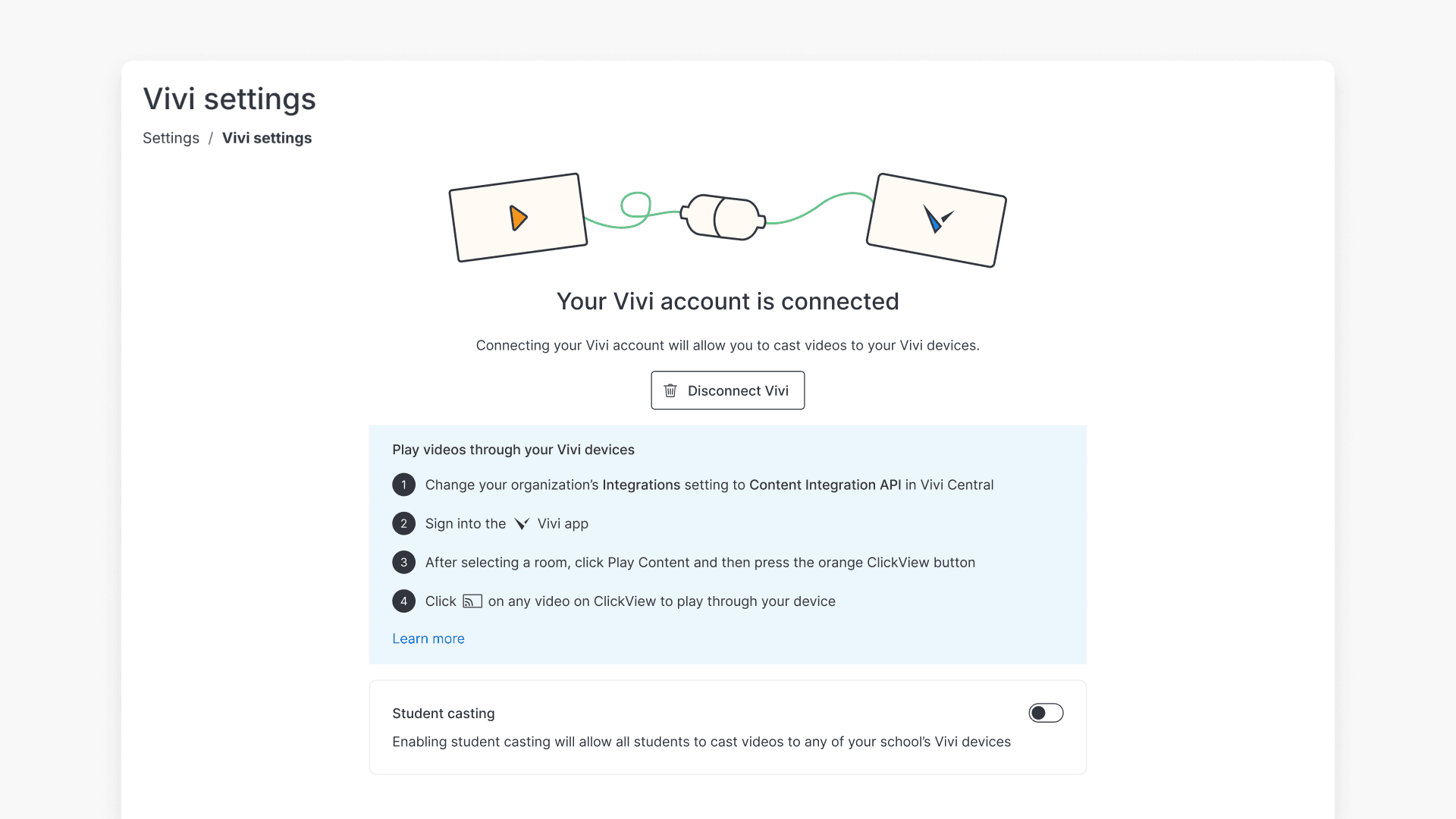
- Return to ClickView in your browser. Your Vivi account now displays as connected in Vivi settings.
- Turn on Enable Vivi (if it is not already enabled).
Configure support for ClickView in Vivi Central
To cast videos, Vivi devices must meet these requirements:
- Vivi Model 100 or 200 series device
- Vivi Firmware 3.7.0 or higher
You can configure device firmware in Vivi Central.
Configure a single Vivi device
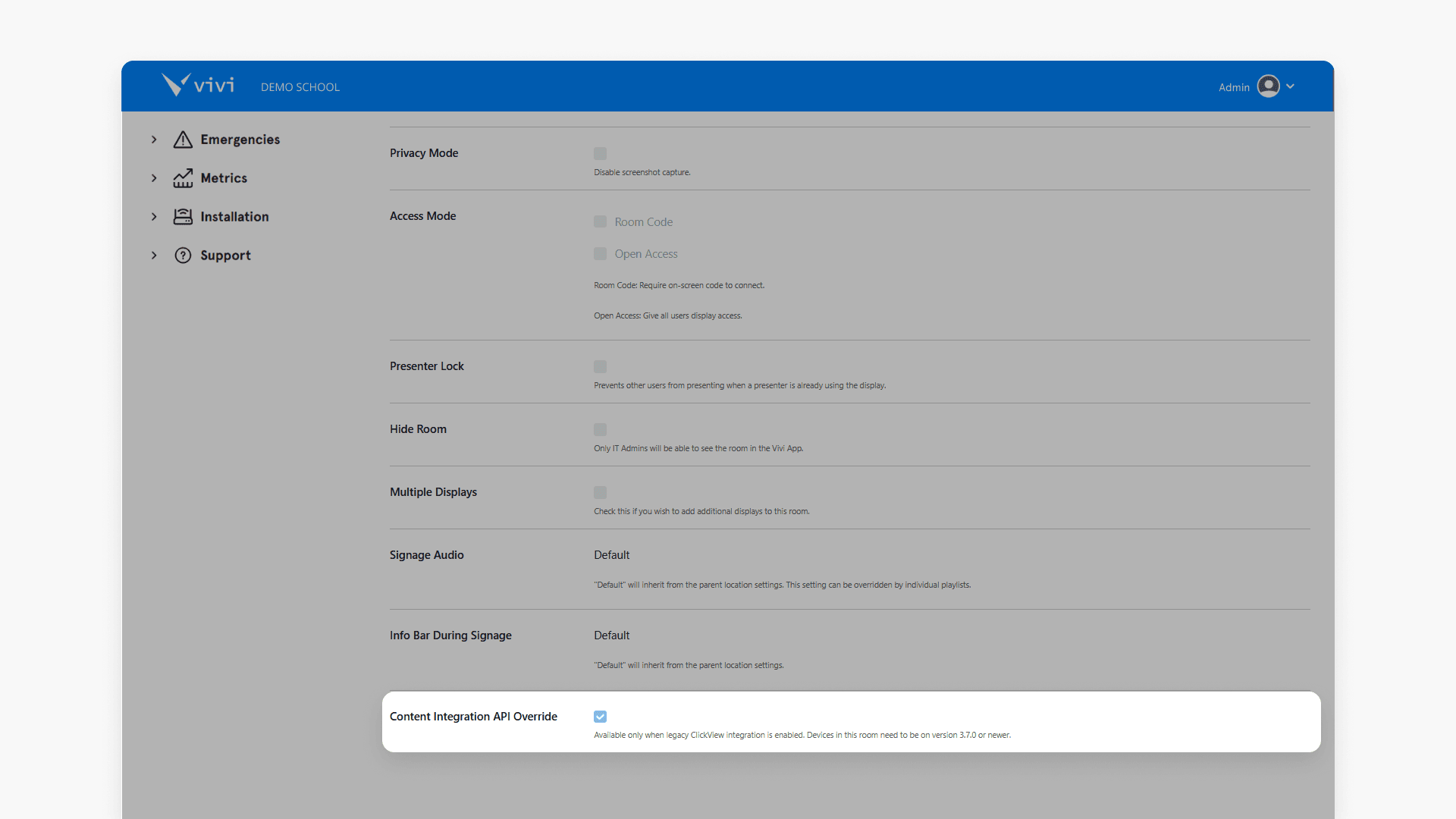
- In Vivi Central, enable Content Integration API Override on the device.
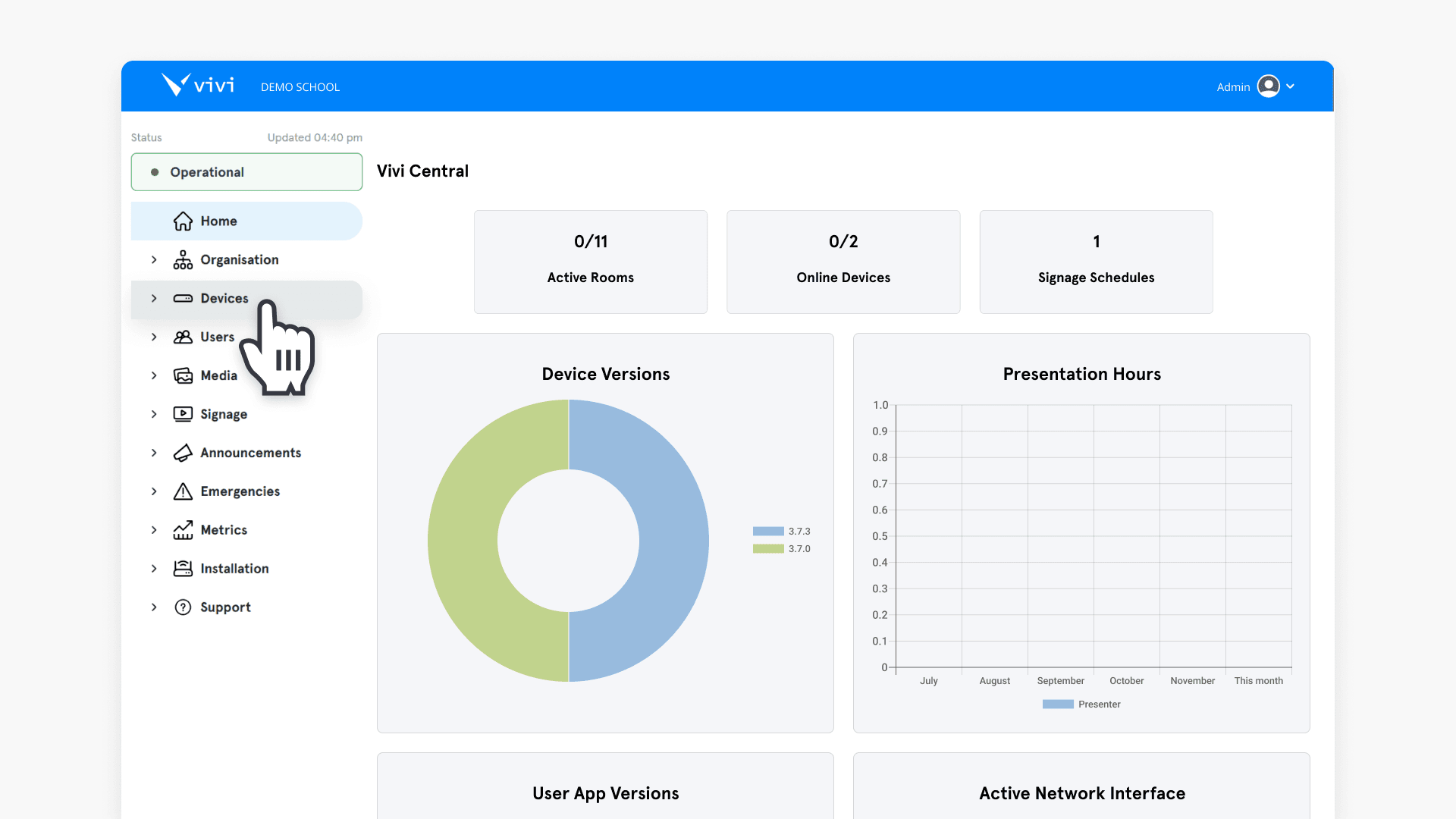
- Select Devices.
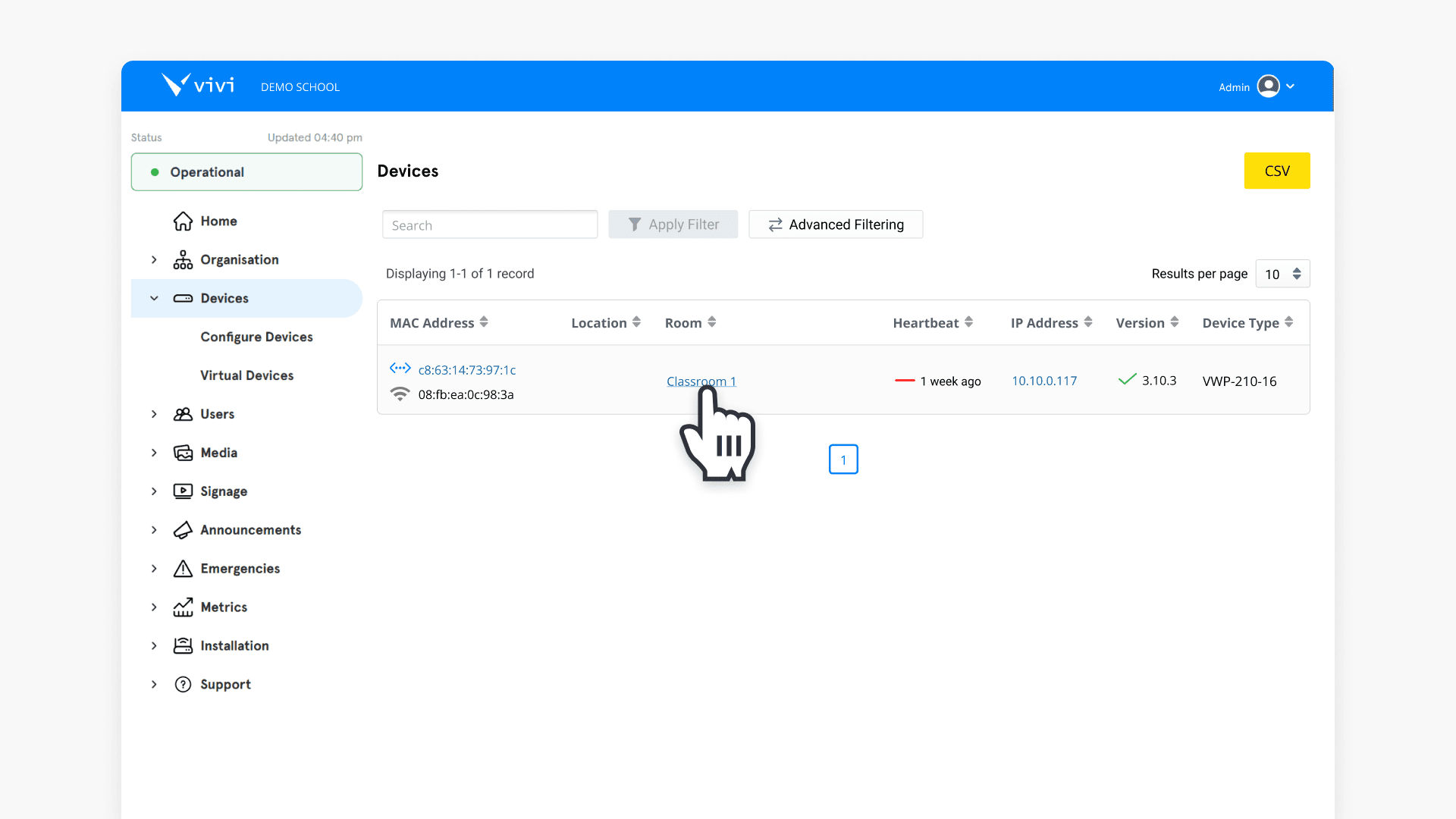
- Select your device.
- Scroll to Content Integration API Override and tick the checkbox.
Configure all Vivi devices
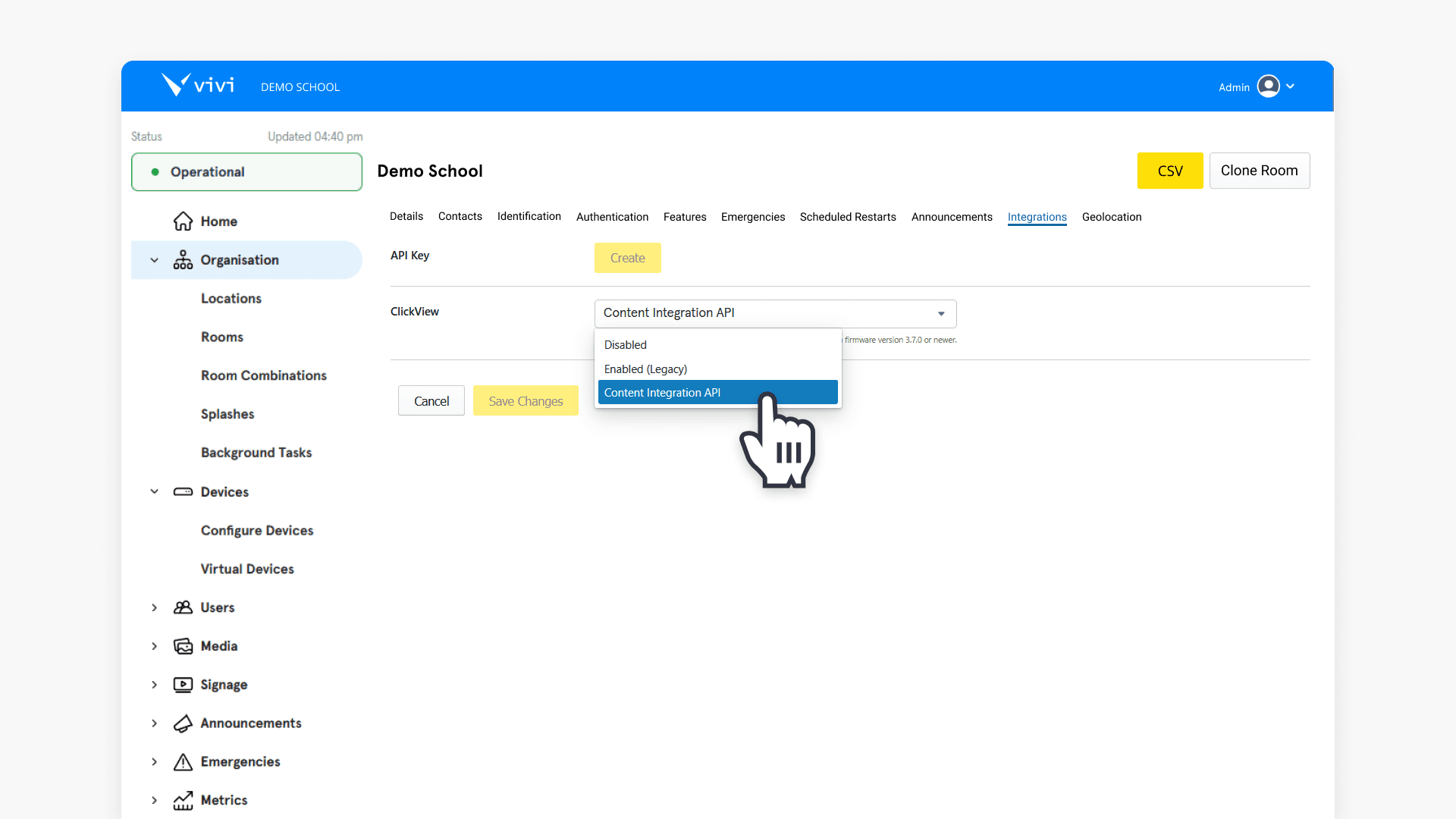
After you test with a single device, enable Content Integration API for all devices from the Integrations page in Vivi Central.
Note: All Vivi devices will use the latest ClickView. Older integrations will become inactive.
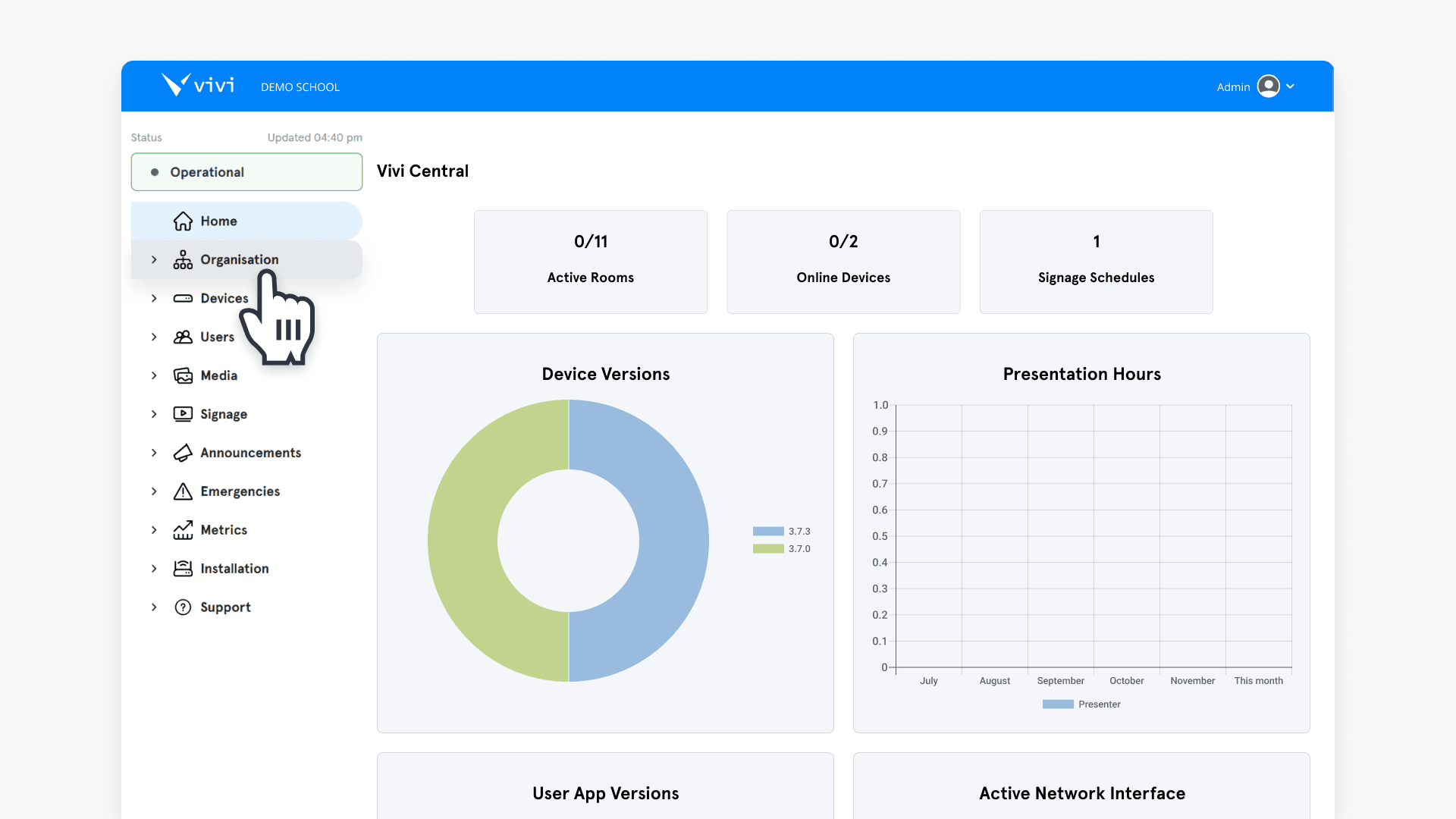
- From Vivi Central, select Organisation.
- Select the Integrations tab.
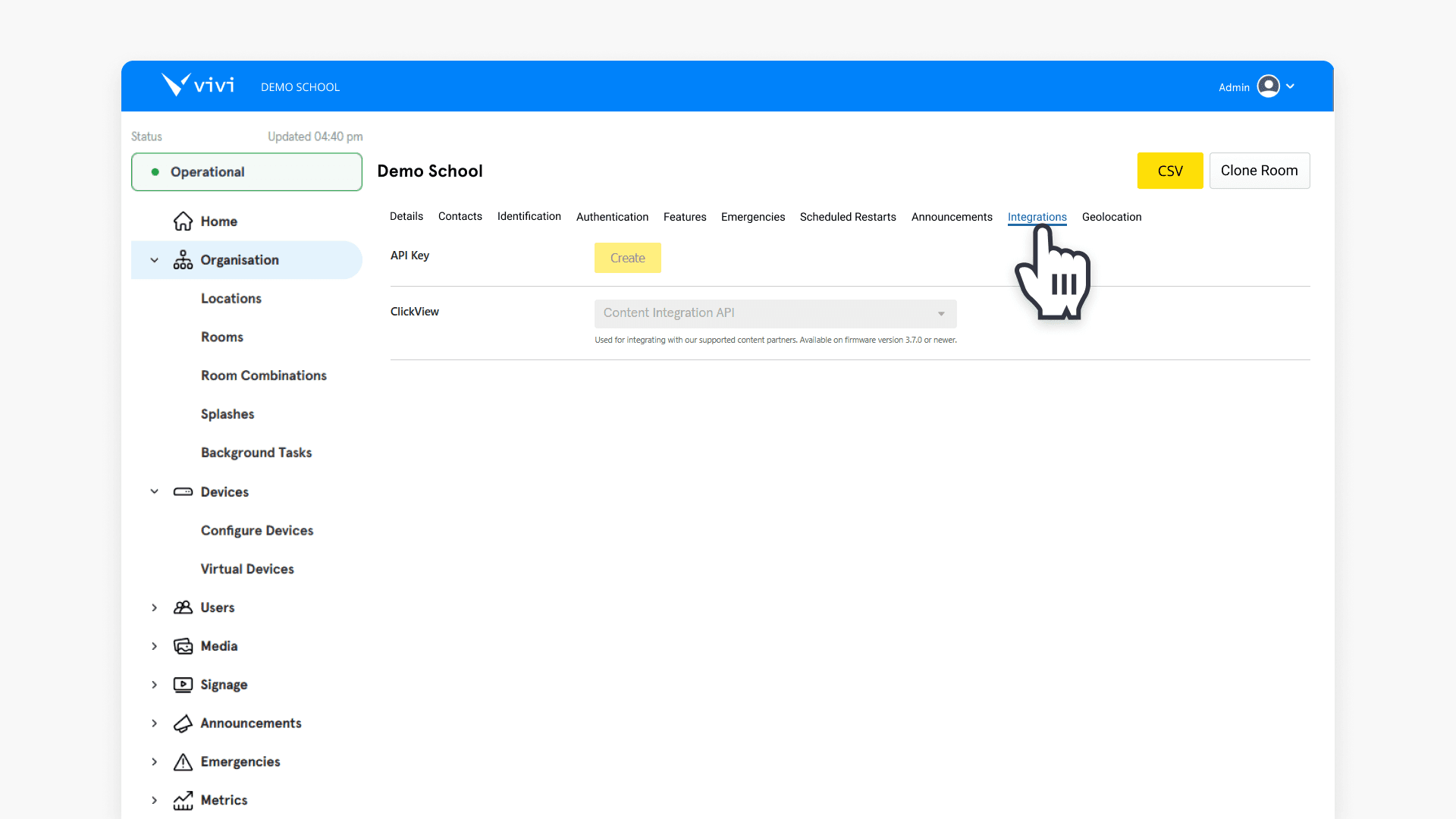
- In the ClickView section, choose Content Integration API. Select Save Changes.
Casting videos to Vivi devices
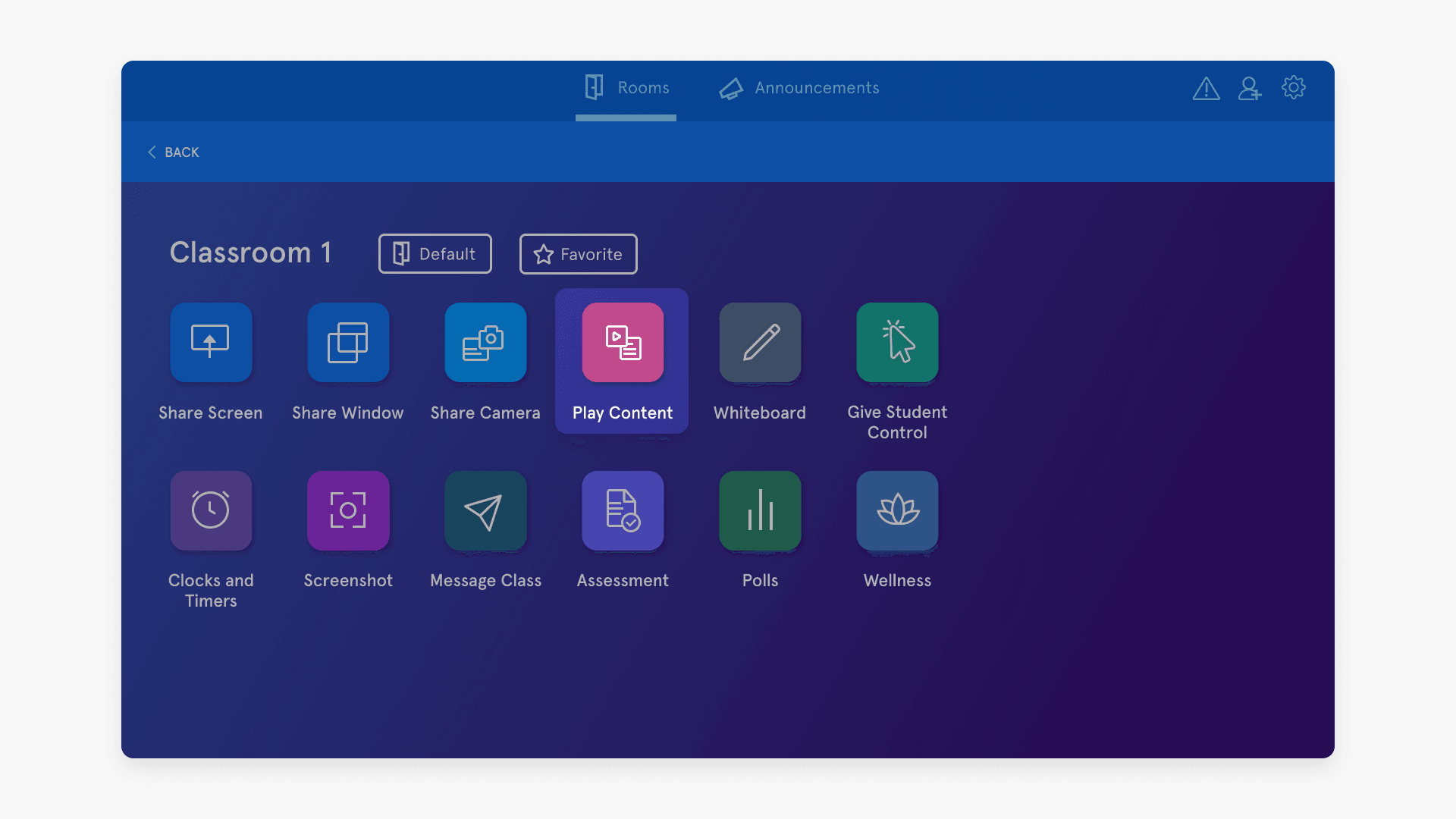
- Open the Vivi app.
- Select Play Content.
- Select + Create Playlist, then select the orange ClickView button.
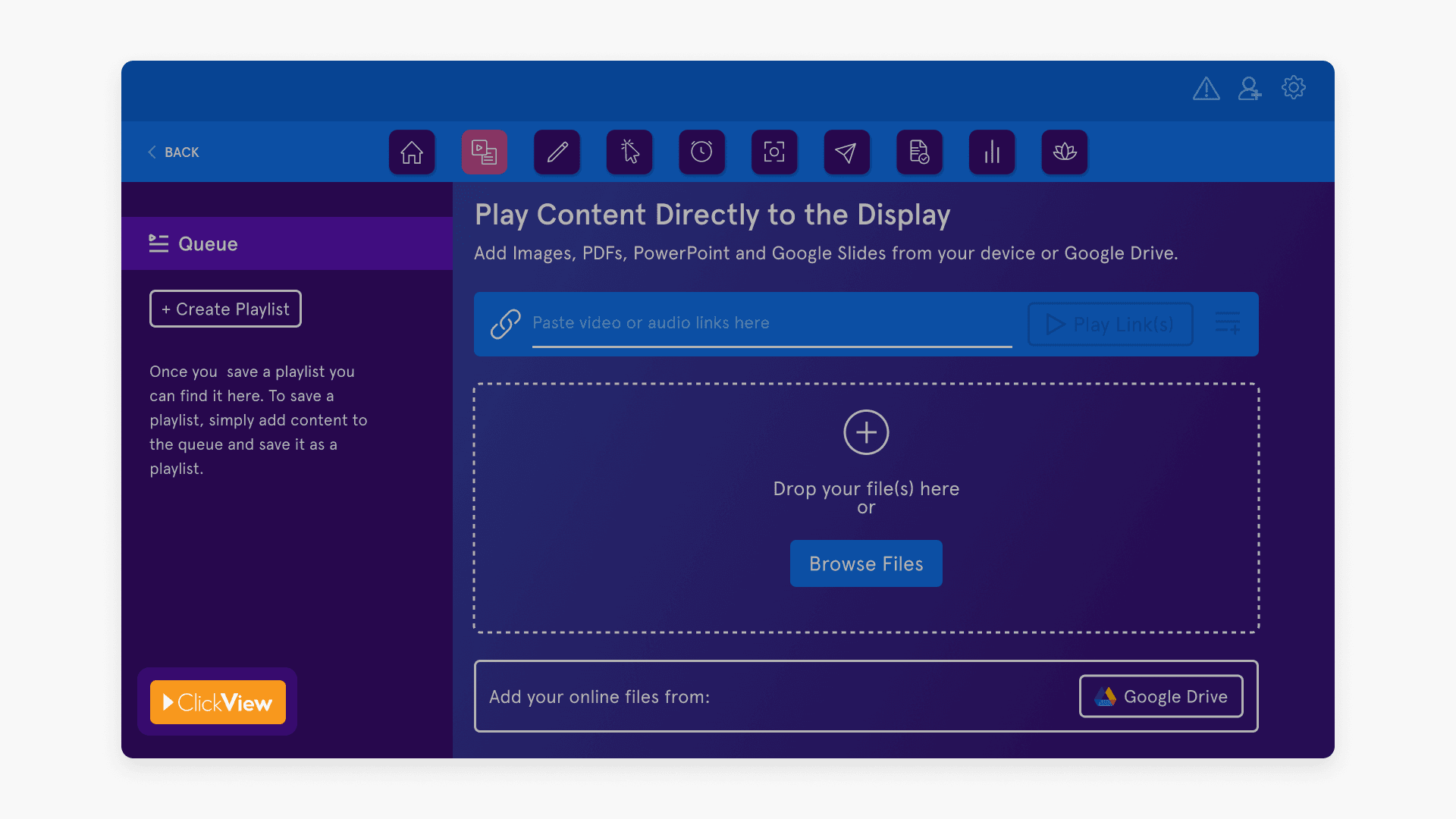
- Confirm the Vivi device enters ClickView mode and is available for casting.
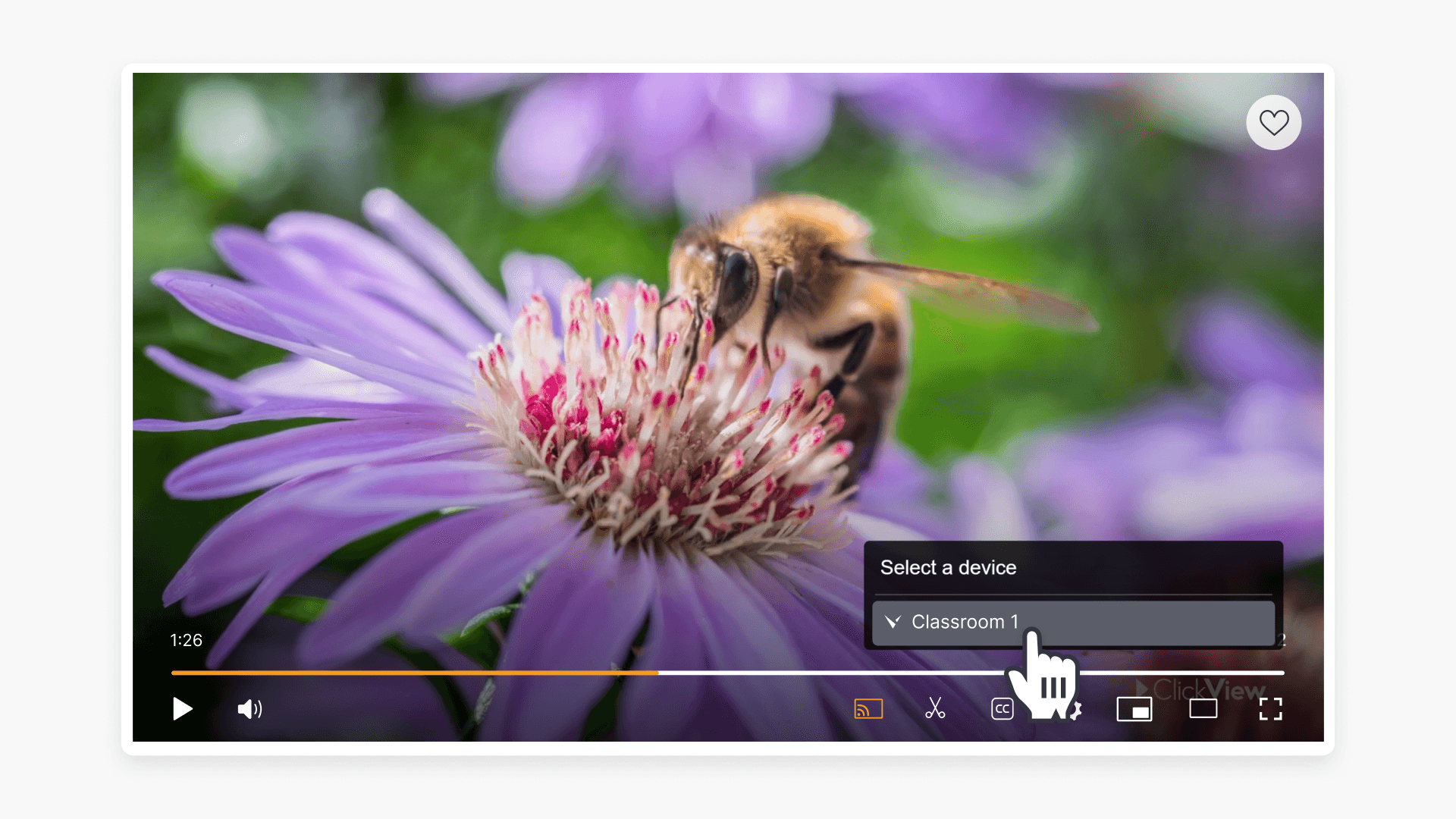
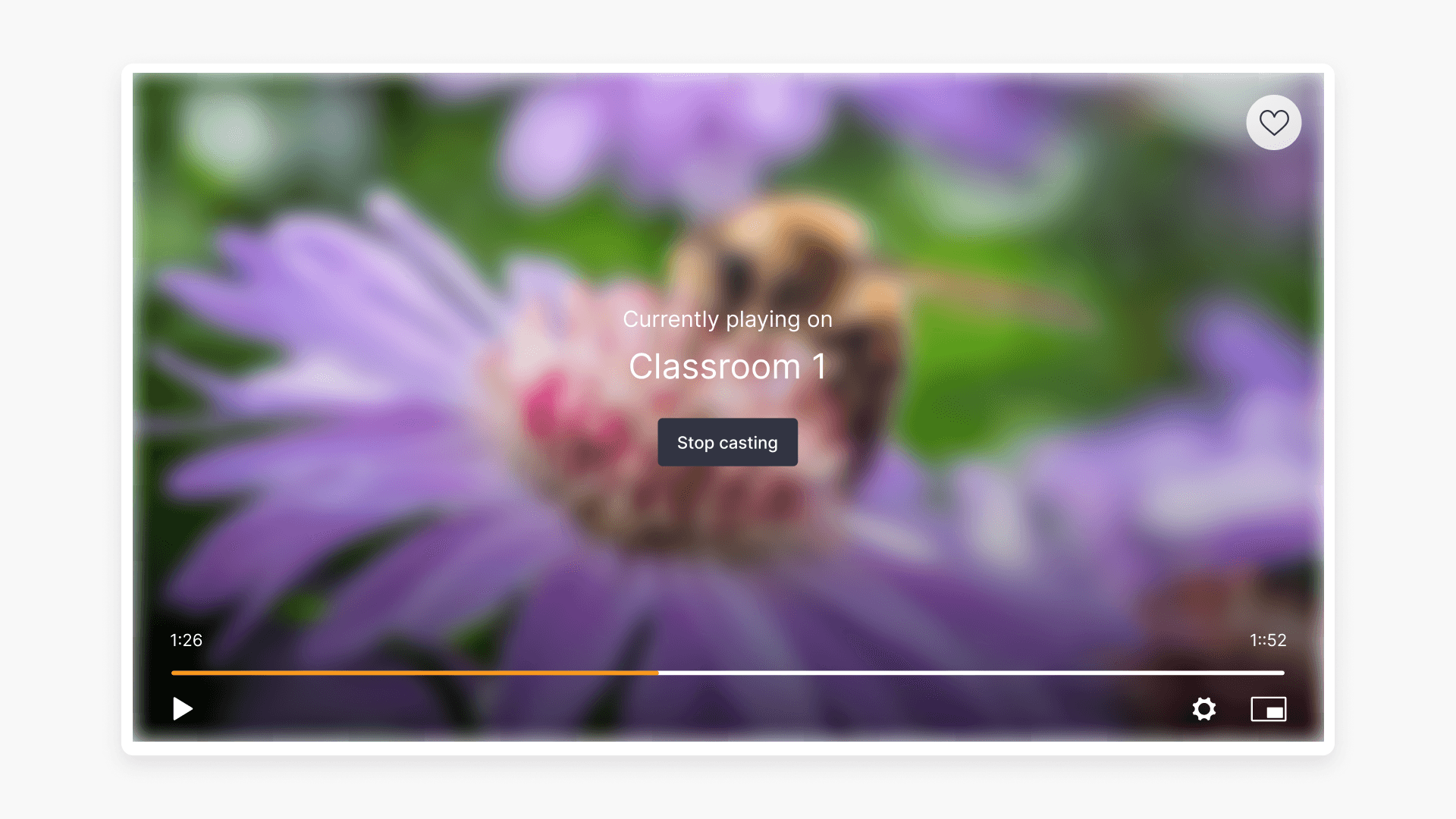
- In ClickView, play a video or clip and select the cast icon in the player.
Troubleshooting
Problems signing into Vivi
- If you have trouble signing in, log out of Vivi Central first, then repeat the account linking process.
- If issues persist, raise a support ticket within Vivi Central.
Playback issues
- Whitelist inbound and outbound traffic to wss://*.vivi.io and https://integrations.clickviewapp.com.
- Ensure each Vivi device is connected to the internet.
- Make sure Content Integration API Override is enabled for the room in Vivi Central.
Frequently asked questions
Get in touch
If you’re having trouble finding the right topics or videos, just reach out! Our team - 

 Akhil, Daniel, Jalaj, or any of us at ClickView - will be happy to help you get sorted.
Give feedback
Was this guide helpful?
Up Next
How to enable Apple TV and pair devices
Enable Apple TV playback in ClickView by installing the app, pairing your device, and following admin setup. This guide provides step-by-step instructions for US schools to cast videos and resolve common issues.