How to manage grade level rollover with SSO

Summary
- SSO allows real-time management of grade levels in ClickView.
- Pick a rollover method based on your Active Directory security group structure.
- Method 1 involves managing grade levels within Active Directory only.
- Method 2 involves making updates within ClickView only.
- Grade level mappings should only be edited by your ClickView Administrator with SSO knowledge.
Choosing and performing grade-level rollover
Maintaining accurate grade level mappings ensures correct access for students in ClickView. If your institution uses Single Sign-On (SSO), you can update security groups directly.
Choosing the correct rollover method
The method for rolling over grade levels depends on your current level structure.
Method 1: Grade-based security groups
If your levels are organised by grade (e.g., ‘Grade 1’, ‘Grade 2’, … ‘Grade 12’), you must migrate each student to the next grade level within Active Directory. No changes are needed within ClickView. Incoming students should be added to the lowest grade level, and outgoing students removed as appropriate.
Method 2: Class year security groups
If your levels are structured by class year (e.g., ‘Class of 2020’, ‘Class of 2021’, … ‘Class of 2030’), you must perform a grade level rollover within ClickView. This requires each grade level in ClickView to move up by one, and manually adding the new level for incoming students.
To perform a grade level rollover, follow the step-by-step instructions below.
How to roll over grade levels in ClickView (Method 2)
- Sign in to ClickView with an Administrator account.
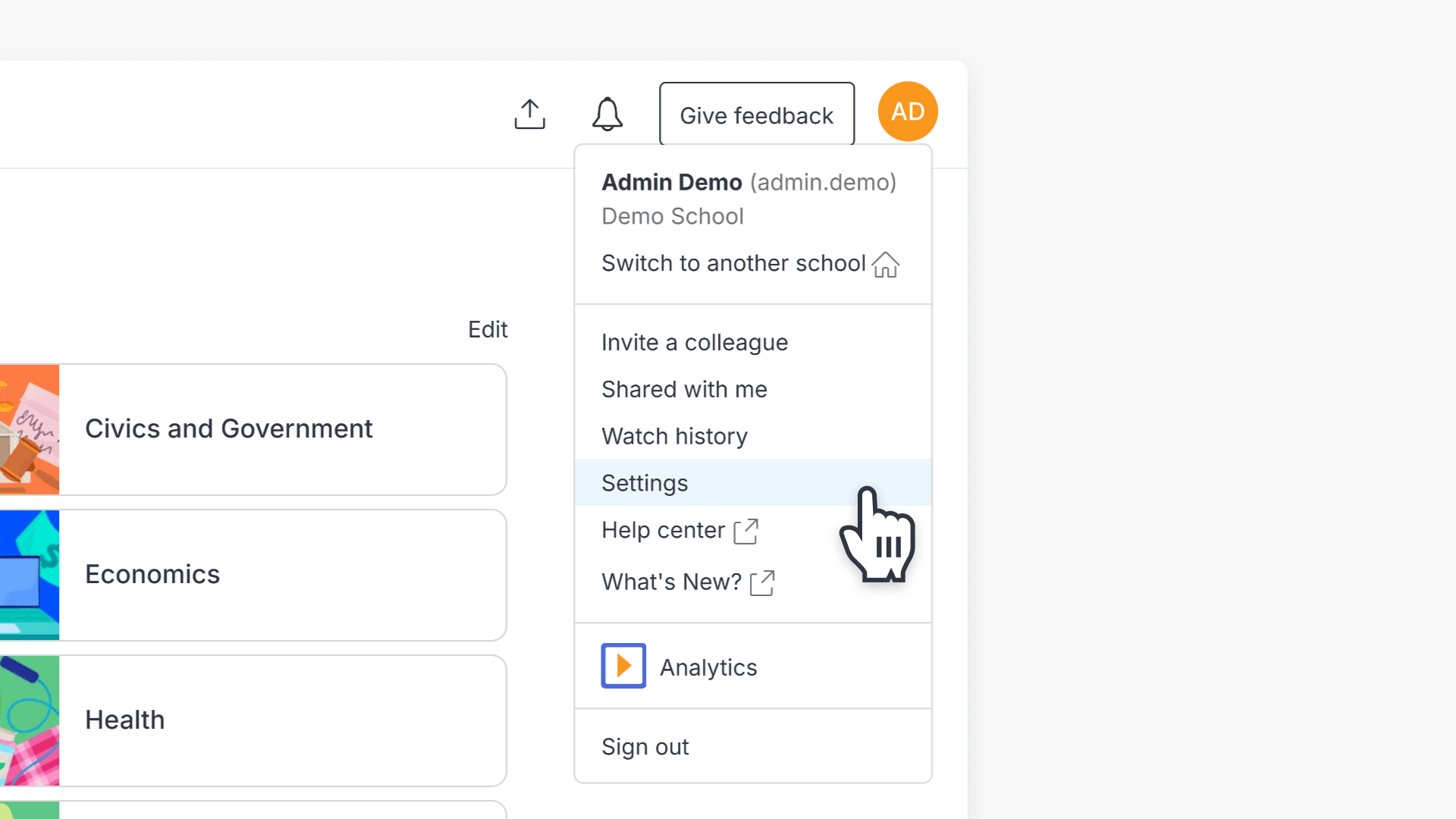
- Click on your avatar at the top right of the screen and choose Settings.
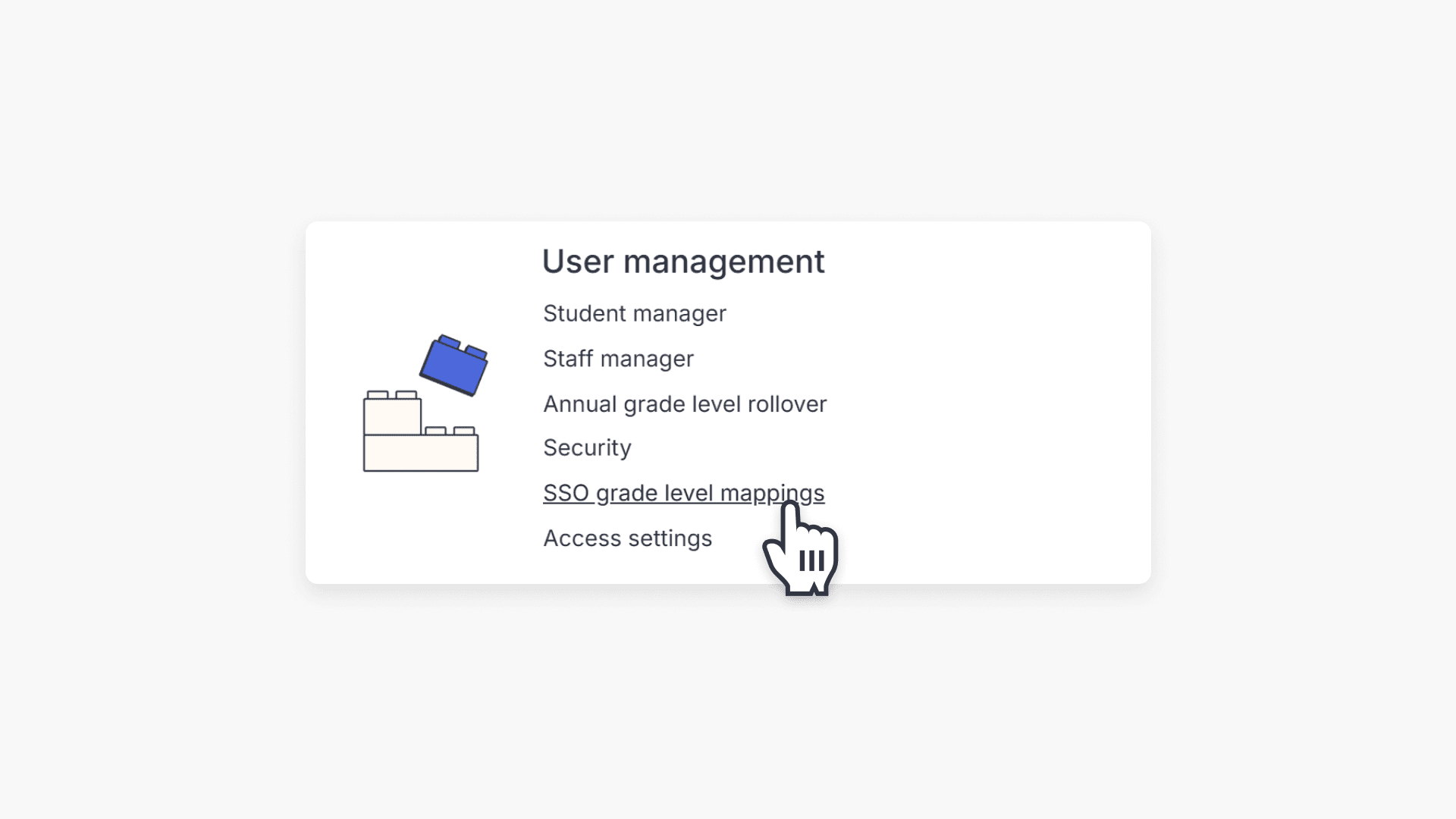
- On the Settings page, select SSO grade level mappings under the User management section.
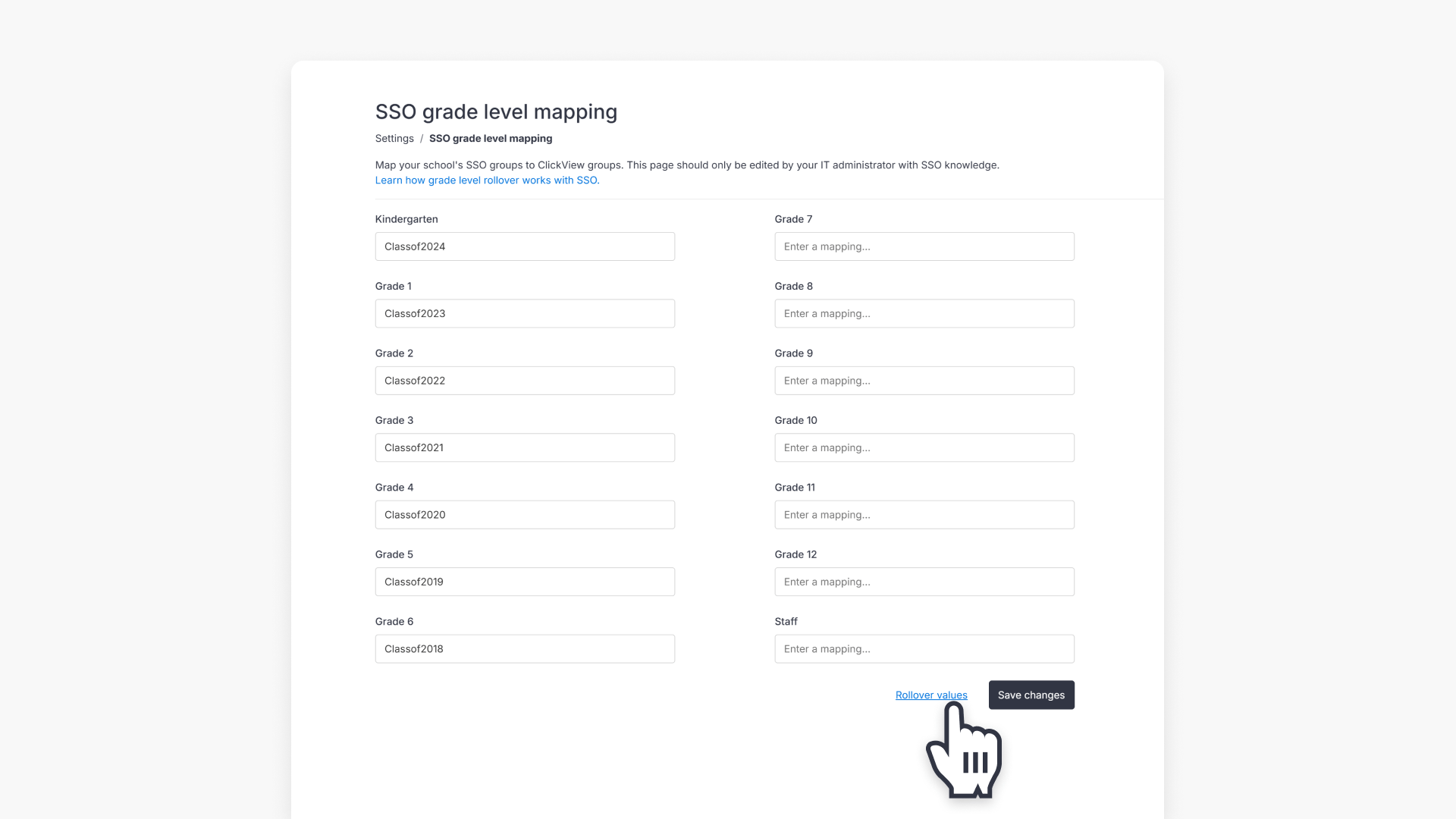
- Review the mapping screen. Ensure each security group from Active Directory is matched to the correct grade level in ClickView.
- Click Rollover values to move each value to the next grade level for the annual rollover.
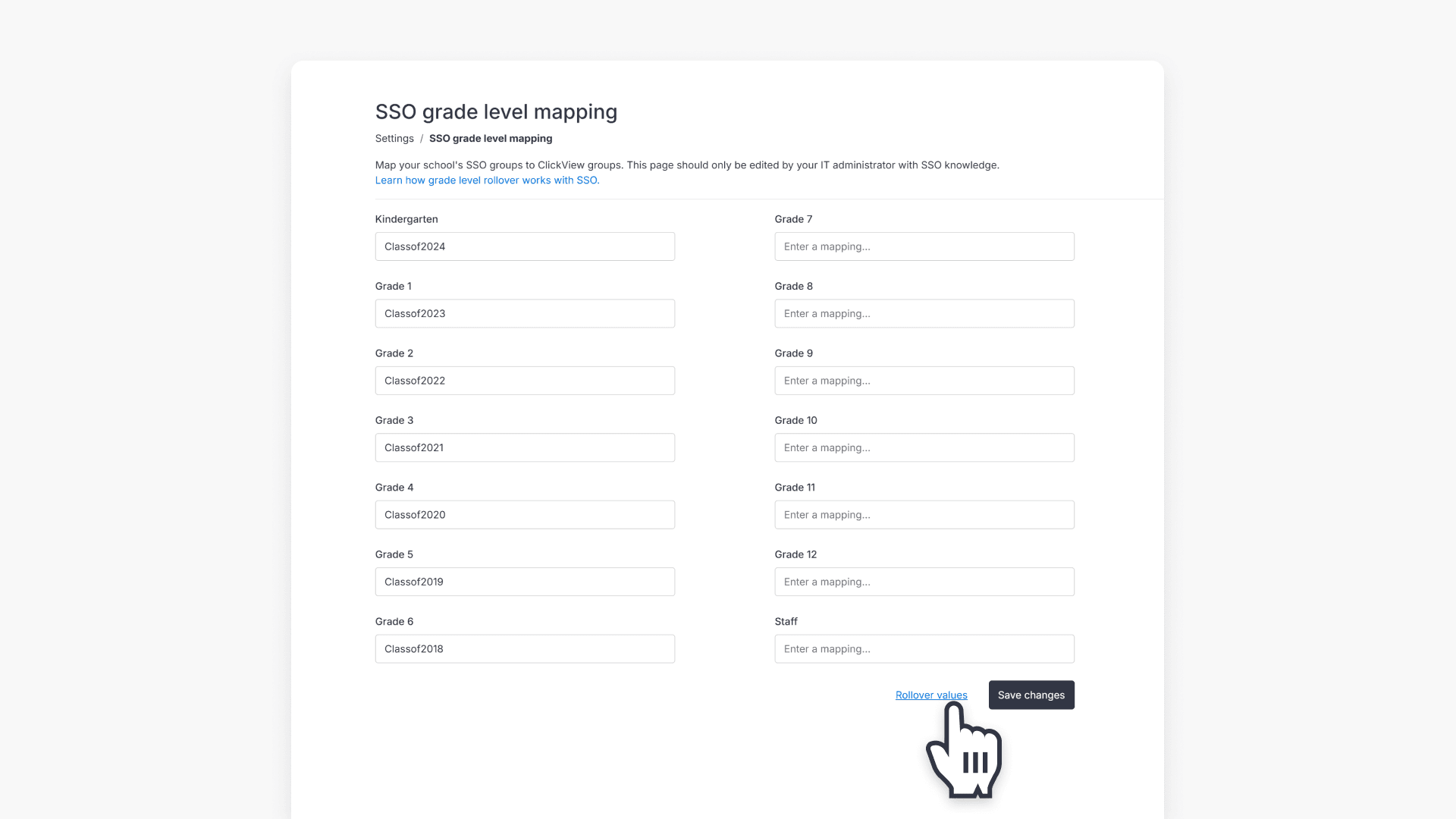
- Cycle out the oldest grade (for example, Grade 6) and refer to your Active Directory for the new security group name to populate the now-empty first grade level (for example, Kindergarten).
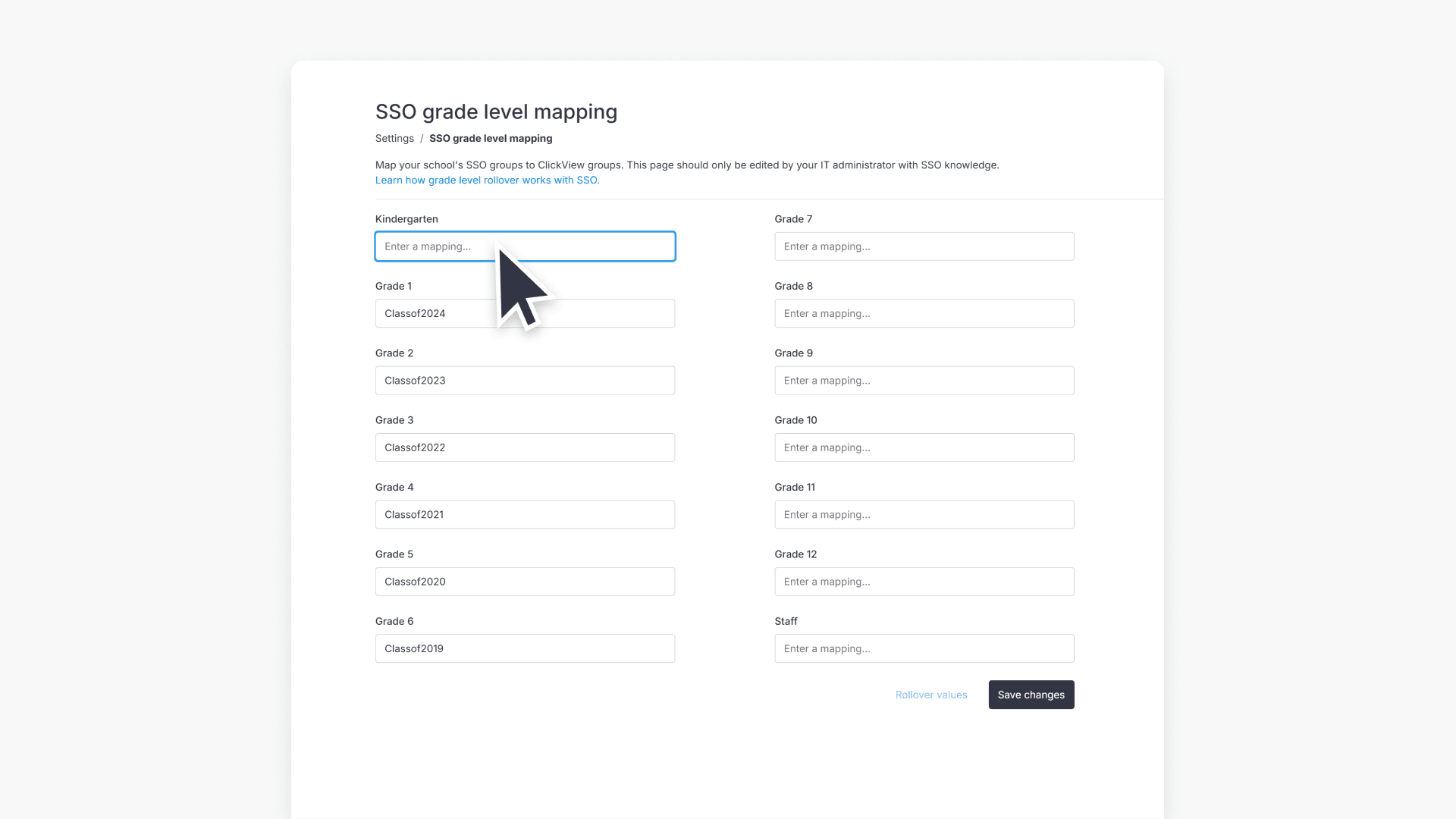
- Click Save changes to apply your updated grade level mappings.
Frequently asked questions
Get in touch
If you’re having trouble finding the right topics or videos, just reach out! Our team - 


 Andrew, Nisch, Janice, Pfreya, or any of us at ClickView - will be happy to help you get sorted.
Give feedback
Was this guide helpful?
Up Next
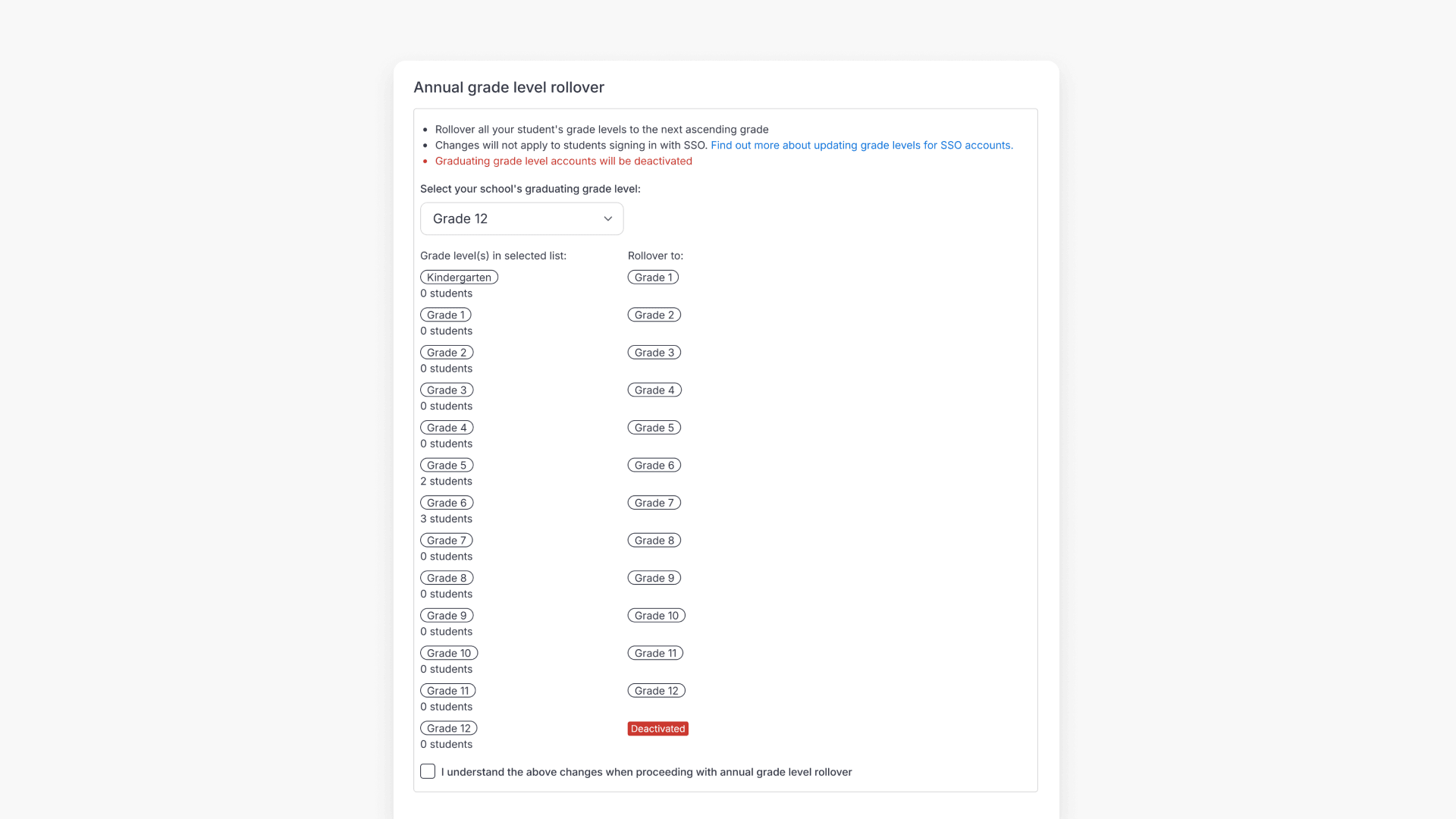
How to perform an annual grade rollover for students
This article explains how administrators can use ClickView’s annual grade rollover feature to update all student accounts to the next grade level, including best practices for backing up data before making changes.