How to set up SAML2 SSO for your school

Summary
- Expose required attributes over your IdP for SAML2 federation.
- Attributes include email, given name, display name, memberOf, cn, surName.
- Complete the onboarding form.
- Specify changes to email addresses on the onboarding form.
- Contact Product Support for further guidance.
Required SAML2 attributes for integration
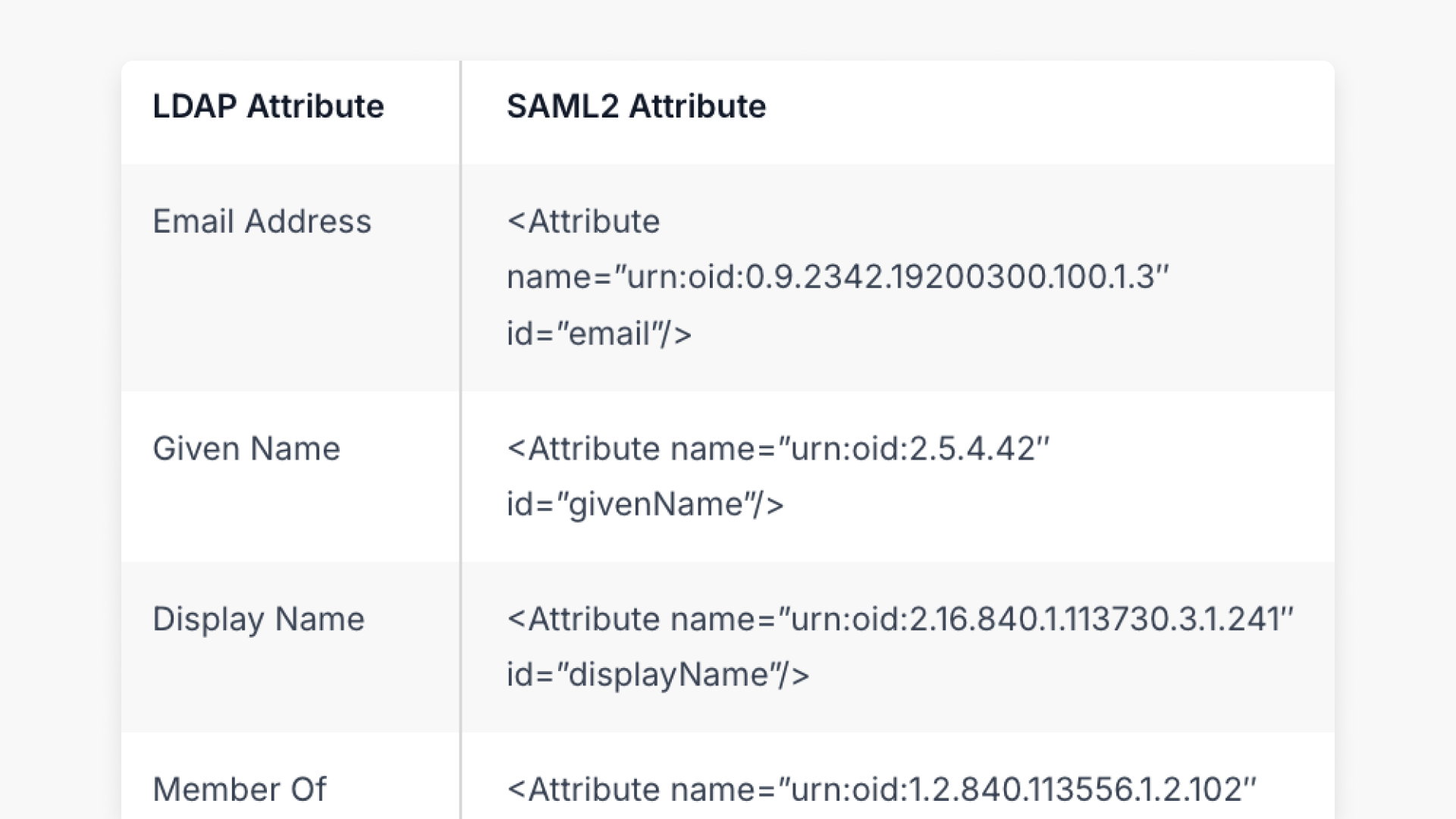
To successfully integrate your school’s identity provider (IdP) with ClickView using the SAML2 protocol, certain attributes must be exposed for federation. Please ensure the following SAML2 attributes are available:
| LDAP Attribute | SAML2 Attribute |
|---|---|
| Email Address | <Attribute name=”urn:oid:0.9.2342.19200300.100.1.3″ id=”email”/> |
| Given Name | <Attribute name=”urn:oid:2.5.4.42″ id=”givenName”/> |
| Display Name | <Attribute name=”urn:oid:2.16.840.1.113730.3.1.241″ id=”displayName”/> |
| Member Of | <Attribute name=”urn:oid:1.2.840.113556.1.2.102″ id=”memberOf”/> |
| First Name or cn (Common Name) | <Attribute name=”urn:oid:2.5.4.3″ id=”cn”/> |
| Sn or Surname | <Attribute name=”urn:oid:2.5.4.4″ id=”surName”/> |
Completing the onboarding form
Once the required SAML2 attributes are exposed, help set up Single Sign On for your school or district by completing the onboarding form for your region. Select your country for the correct form:
Specifying email address changes
If your school’s implementation of SSO will change the email addresses that users currently use for ClickView access, specify this on the onboarding form. This step helps ClickView determine if users’ existing materials, such as personal videos and playlists, need to be migrated during SSO activation.
Getting support
If you’re unsure whether email addresses will change or need guidance during setup, contact Product Support before beginning SSO configuration.
Frequently asked questions
Get in touch
If you’re having trouble finding the right topics or videos, just reach out! Our team - 

 Akhil, Daniel, Jalaj, or any of us at ClickView - will be happy to help you get sorted.
Give feedback
Was this guide helpful?
Up Next
How to set up Google Workspace SSO for your School using the new SAML process
Summary How do I set up Google Workspace SAML SSO for ClickView at my school? To set up SAML SSO for ClickView, create a custom SAML app in your Google Workspace Admin console and send your SSO URL, Entity ID, and certificate to ClickView Support, who will reply with your school-specific ACS URL and Entity […]