Manage video access and restrictions with Content Review

Summary
- Only ClickView Administrators can enable Content Review or change review settings.
- Go to Settings and select Content Review and Restrictions.
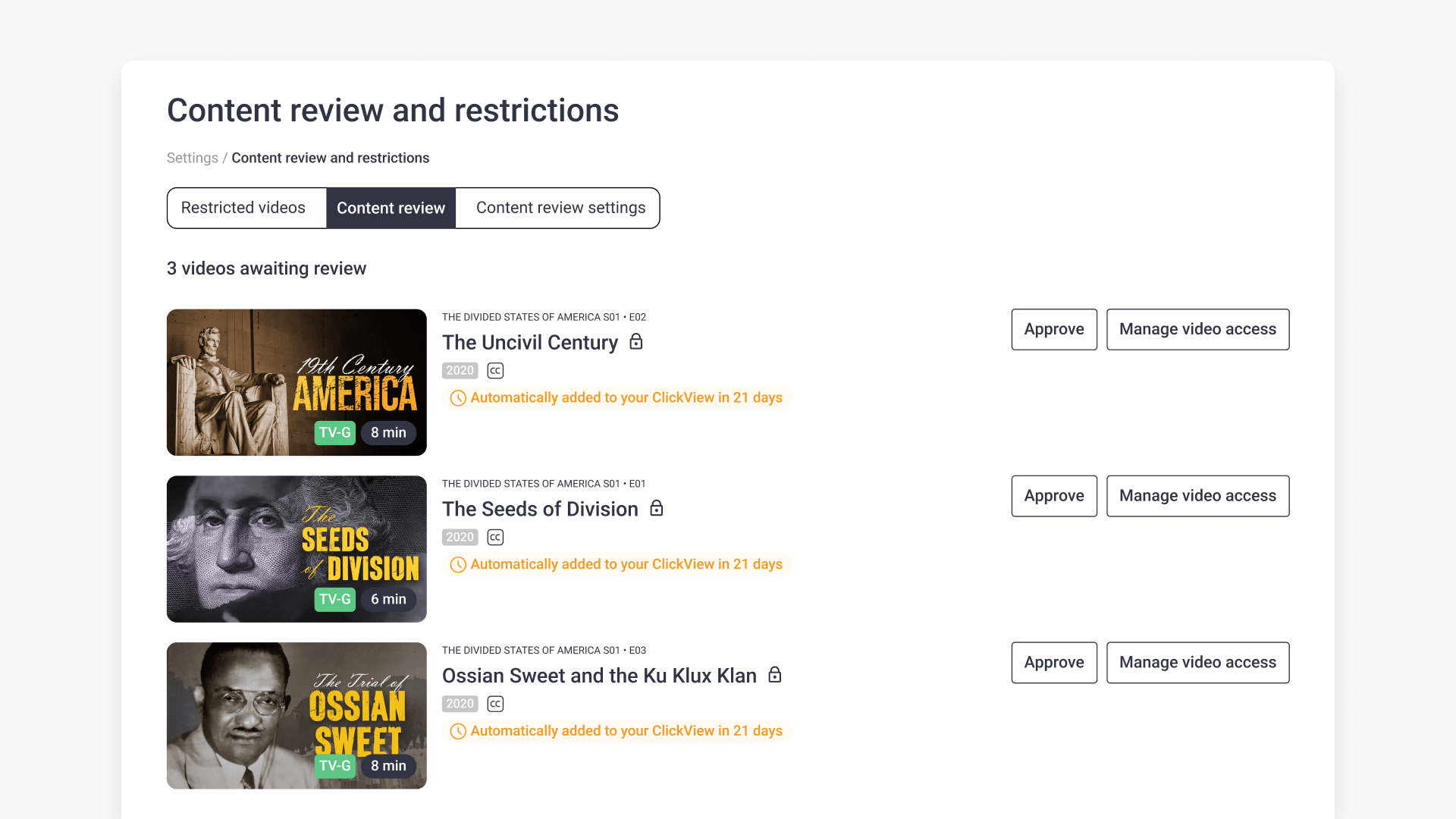
- Review new videos, then select Approve or Manage video access.
- View and edit restricted videos in the Restricted videos tab.
- Enable Content Review and choose a review period (14, 21, or 30 days).
- Use Approve all videos to add all pending videos to your library at once.
What is Content Review?
Content Review lets administrators review newly added ClickView videos before they become available in your school libraries. If Content Review is enabled, administrators have a set period (14, 21, or 30 days) to take action.
If no action is taken before the review period ends, the video becomes available in your libraries automatically.
Open Content review and restrictions
- Sign in to ClickView using an Administrator account.
- Open Settings.
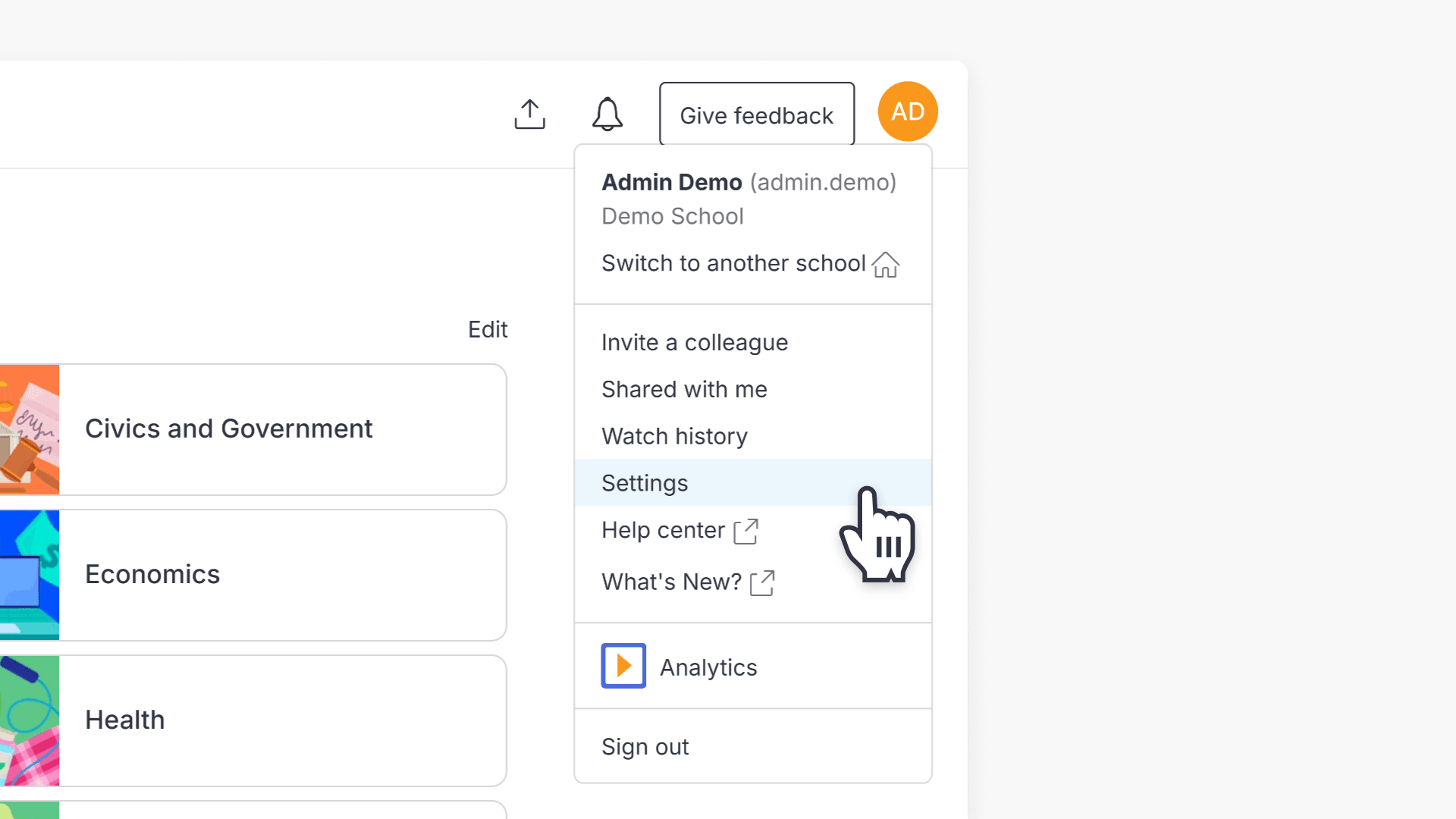
- Select Content review and restrictions under Video security.

Content review and restrictions includes these tabs:
- Restricted videos
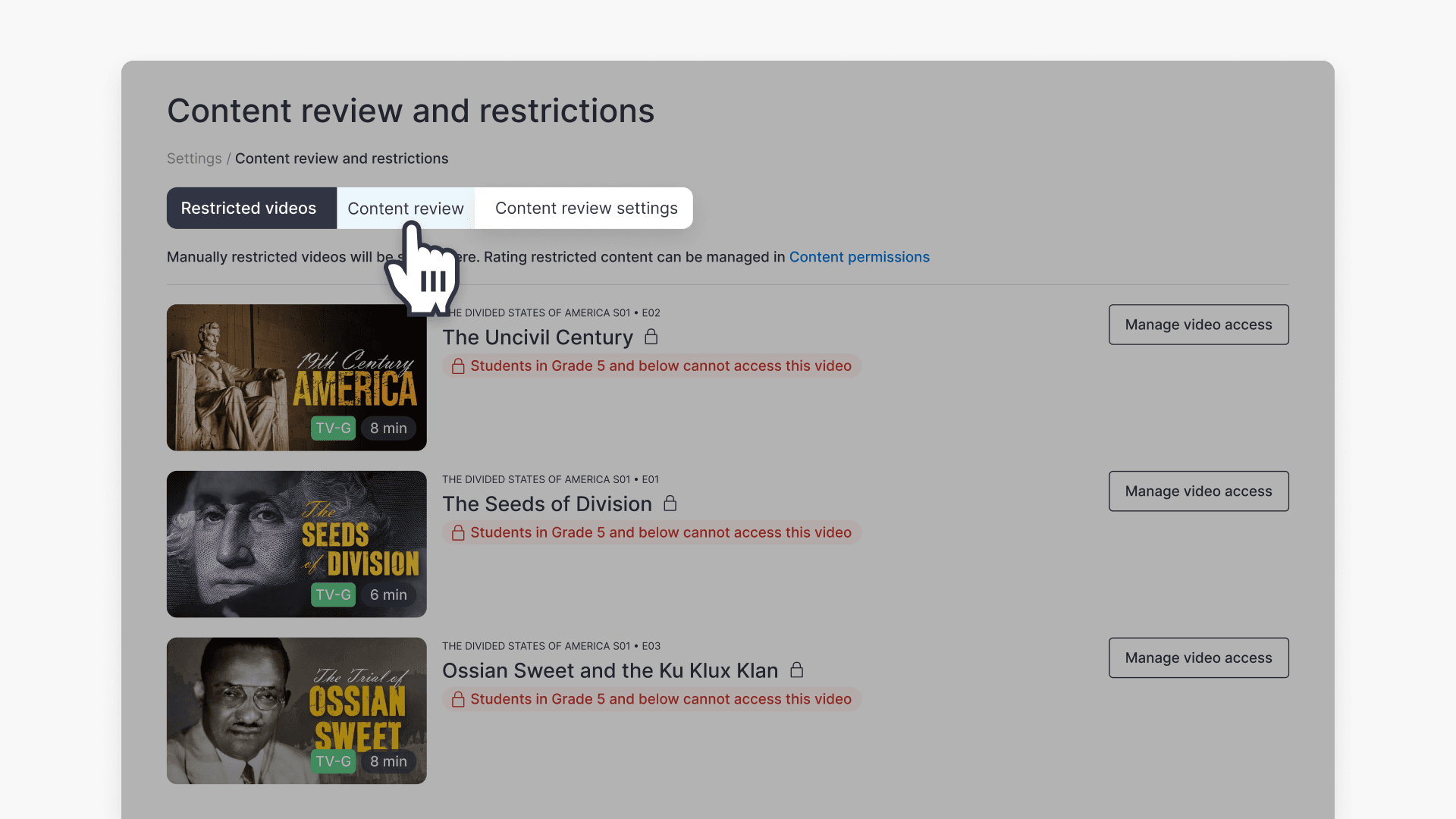
- Content review
- Content review settings
Manage restricted videos
Use the Restricted videos tab to view and update videos that already have restrictions applied.
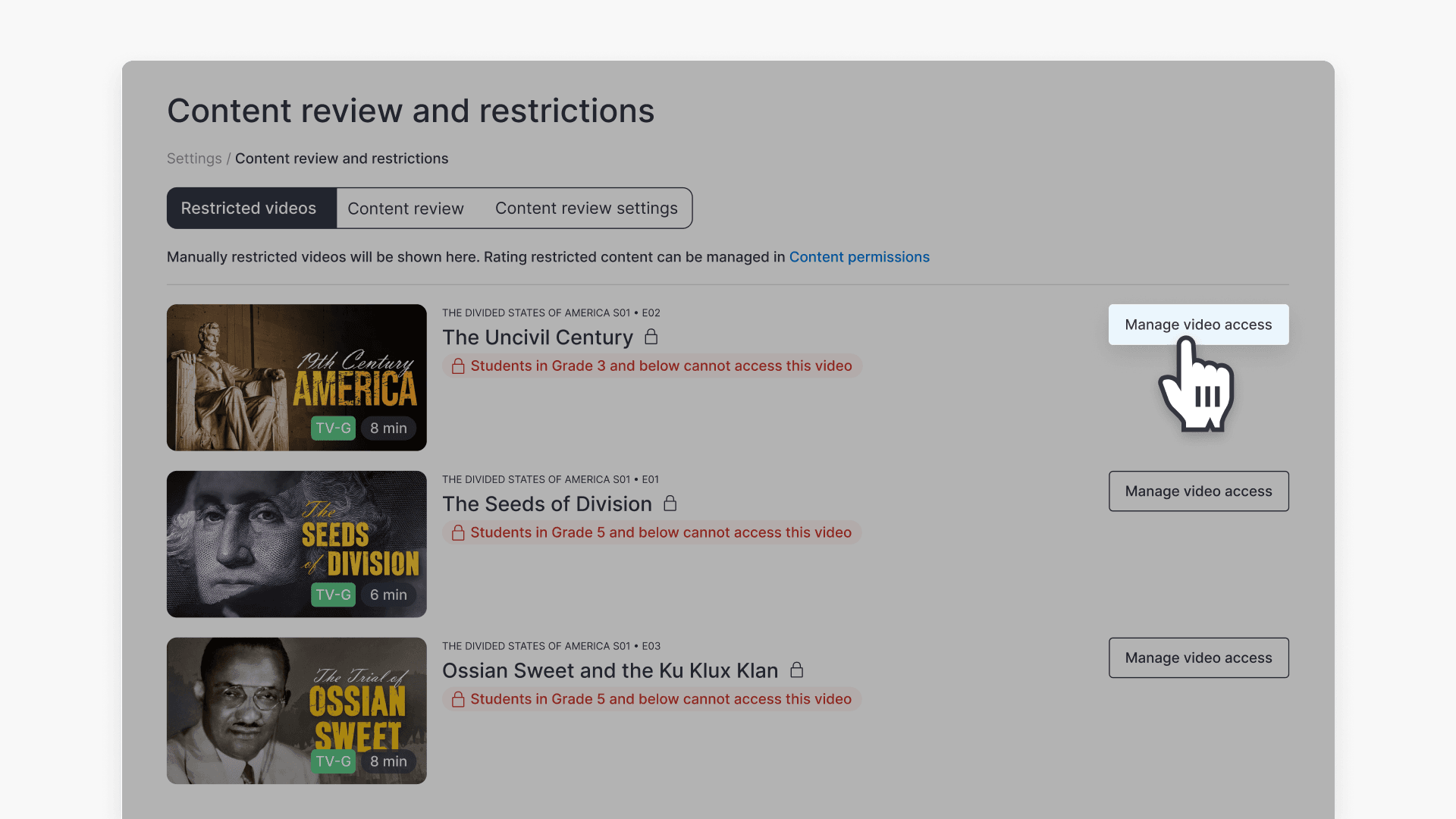
- Open Restricted videos to see all videos with restrictions applied.
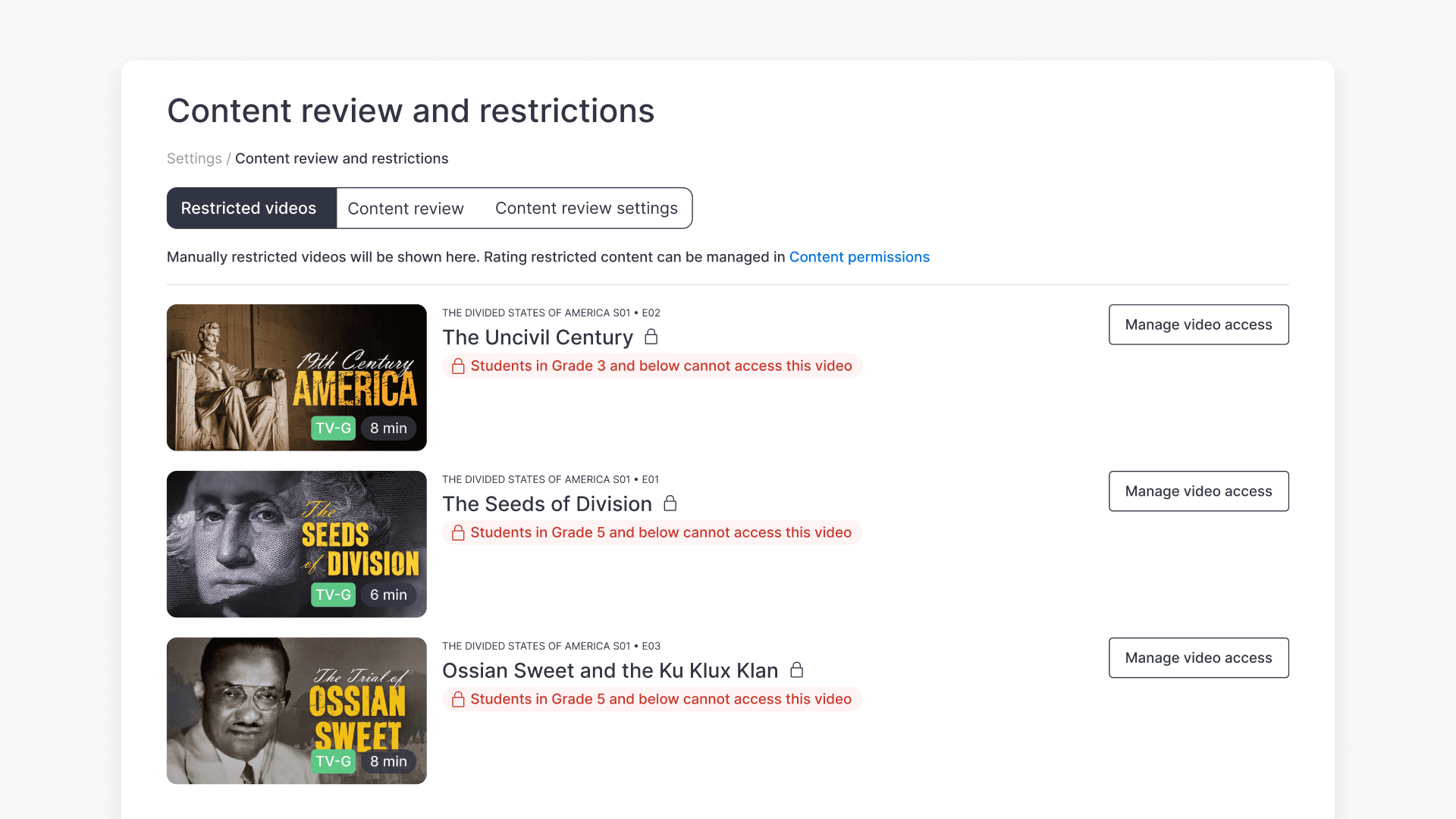
- Restricted videos display a padlock icon next to their title. Hover over the icon to view restriction details.
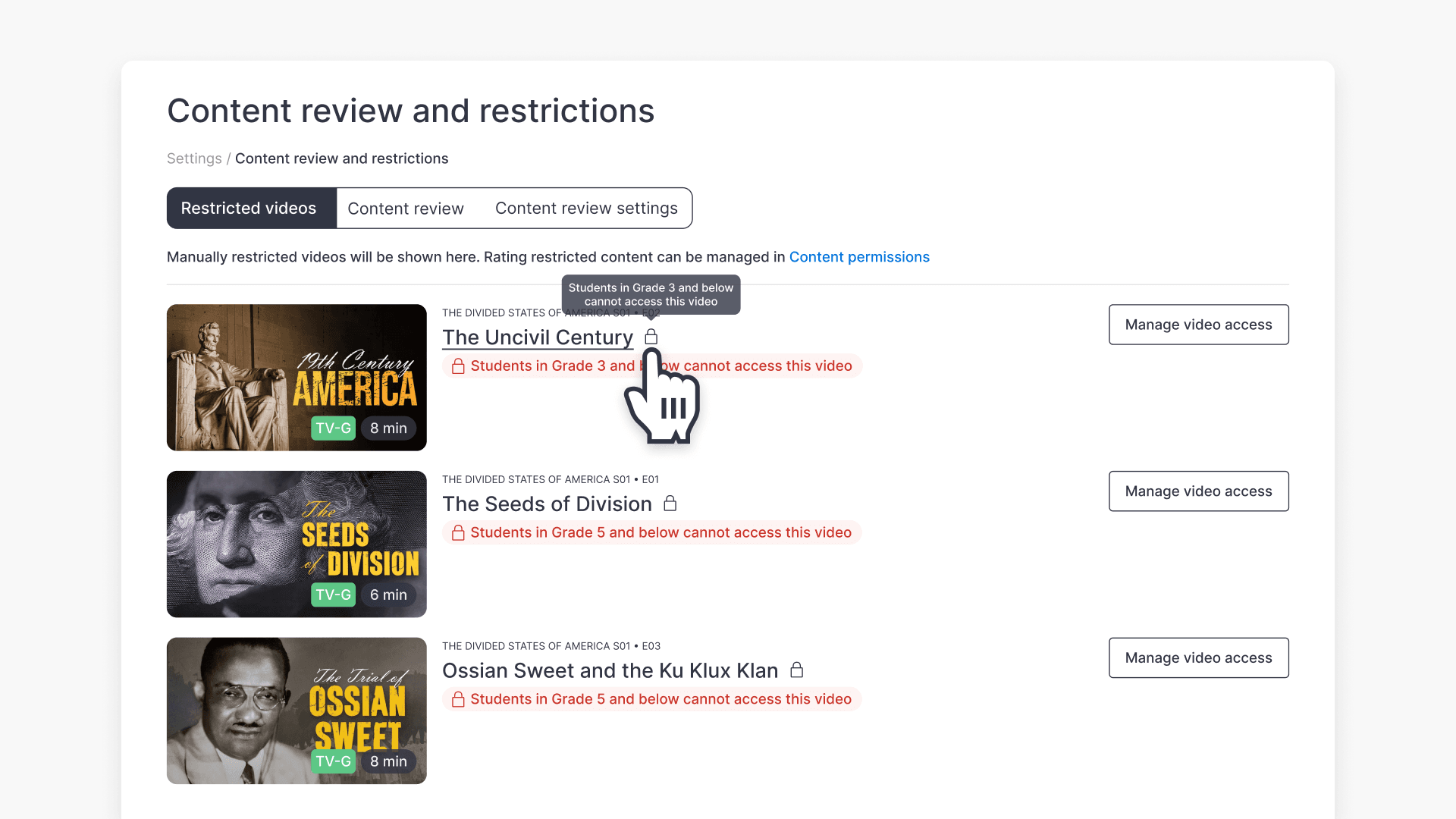
- Select Manage video access for any video.
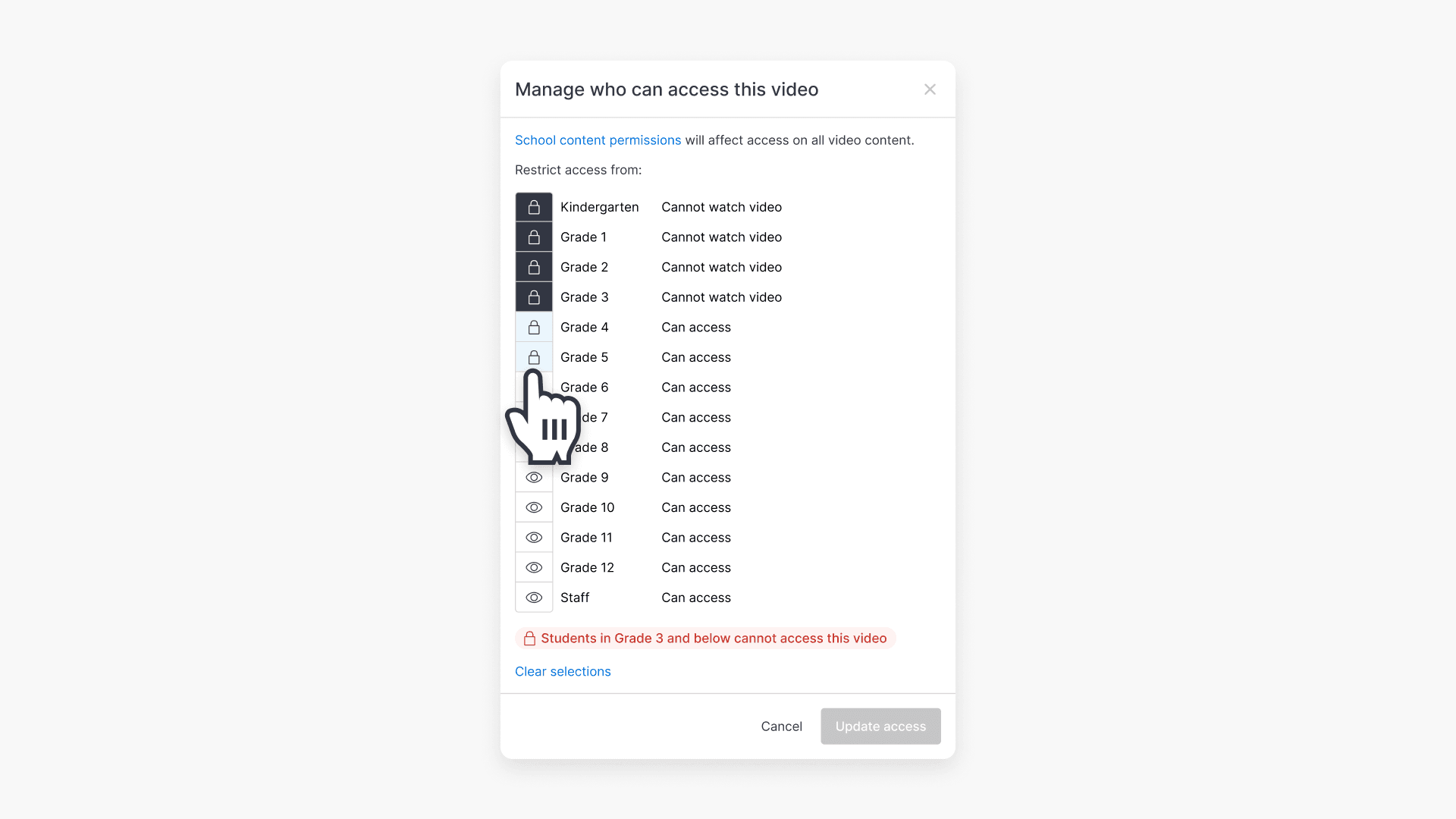
- Update the restrictions as needed. Your changes apply immediately.
Review video access
Use the Content Review tab to review newly added videos that are waiting for an Administrator decision.
- Open the Content review tab to browse videos pending review (often listed by date).
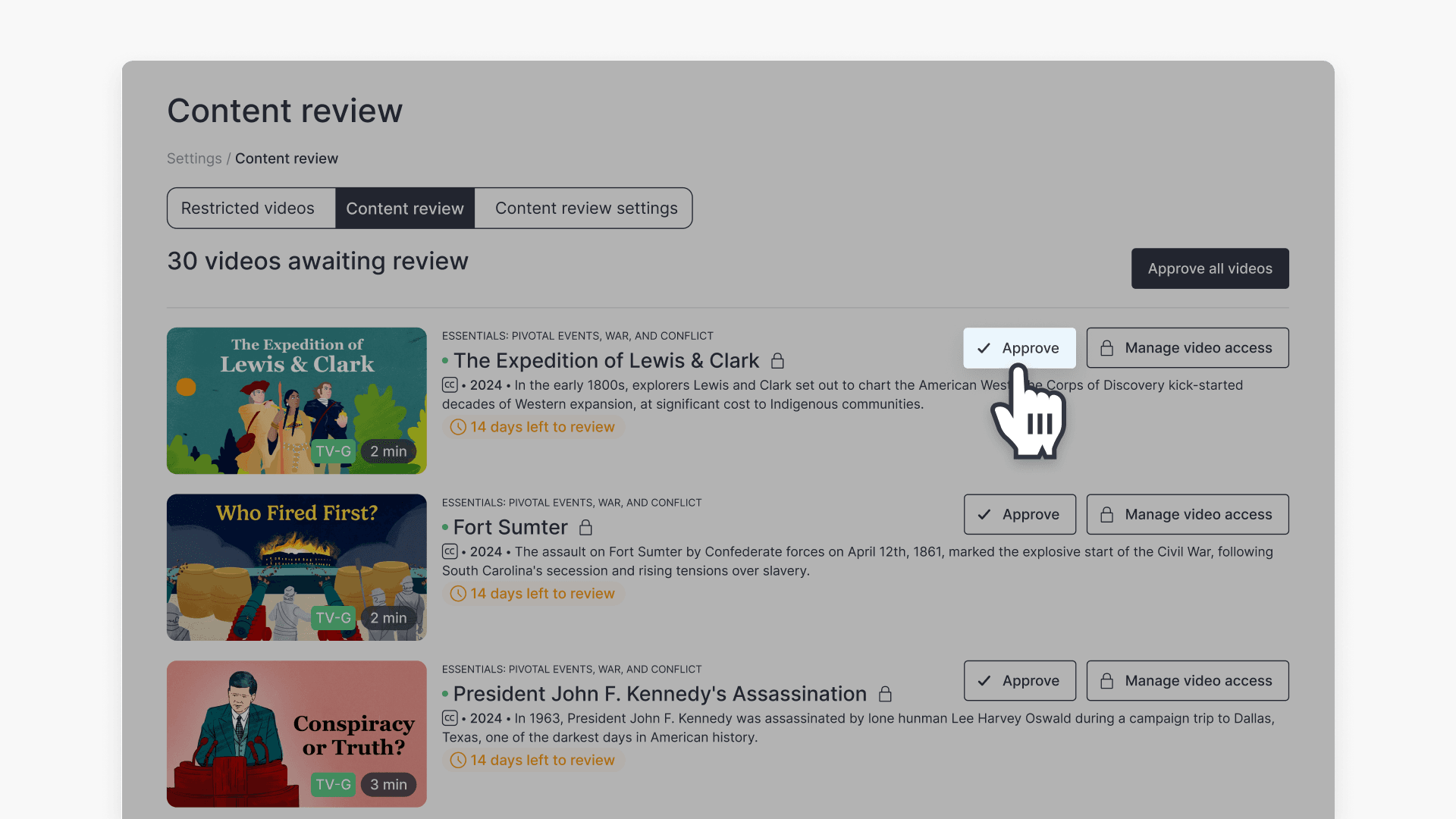
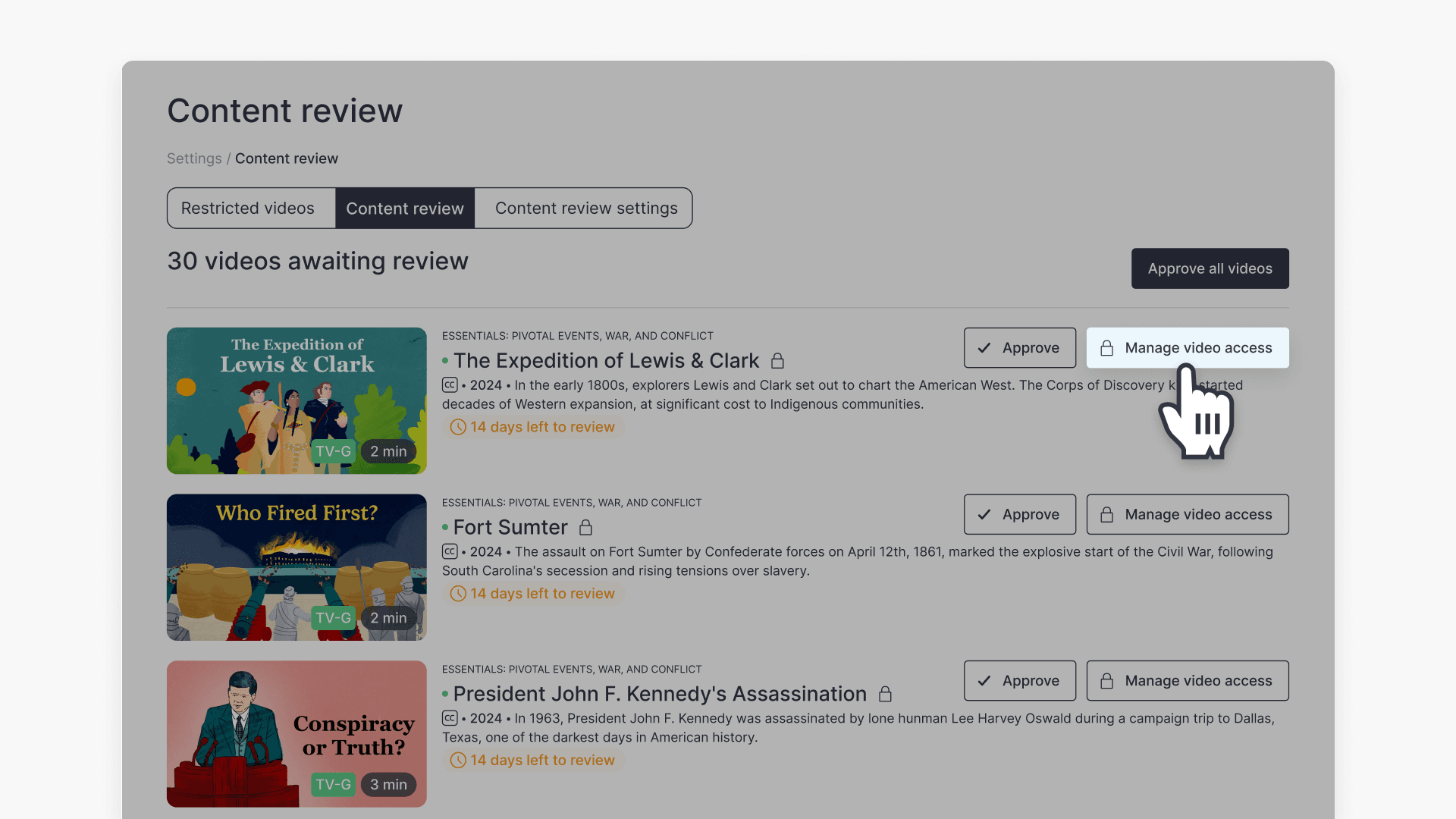
- For each video, choose one of the following actions:
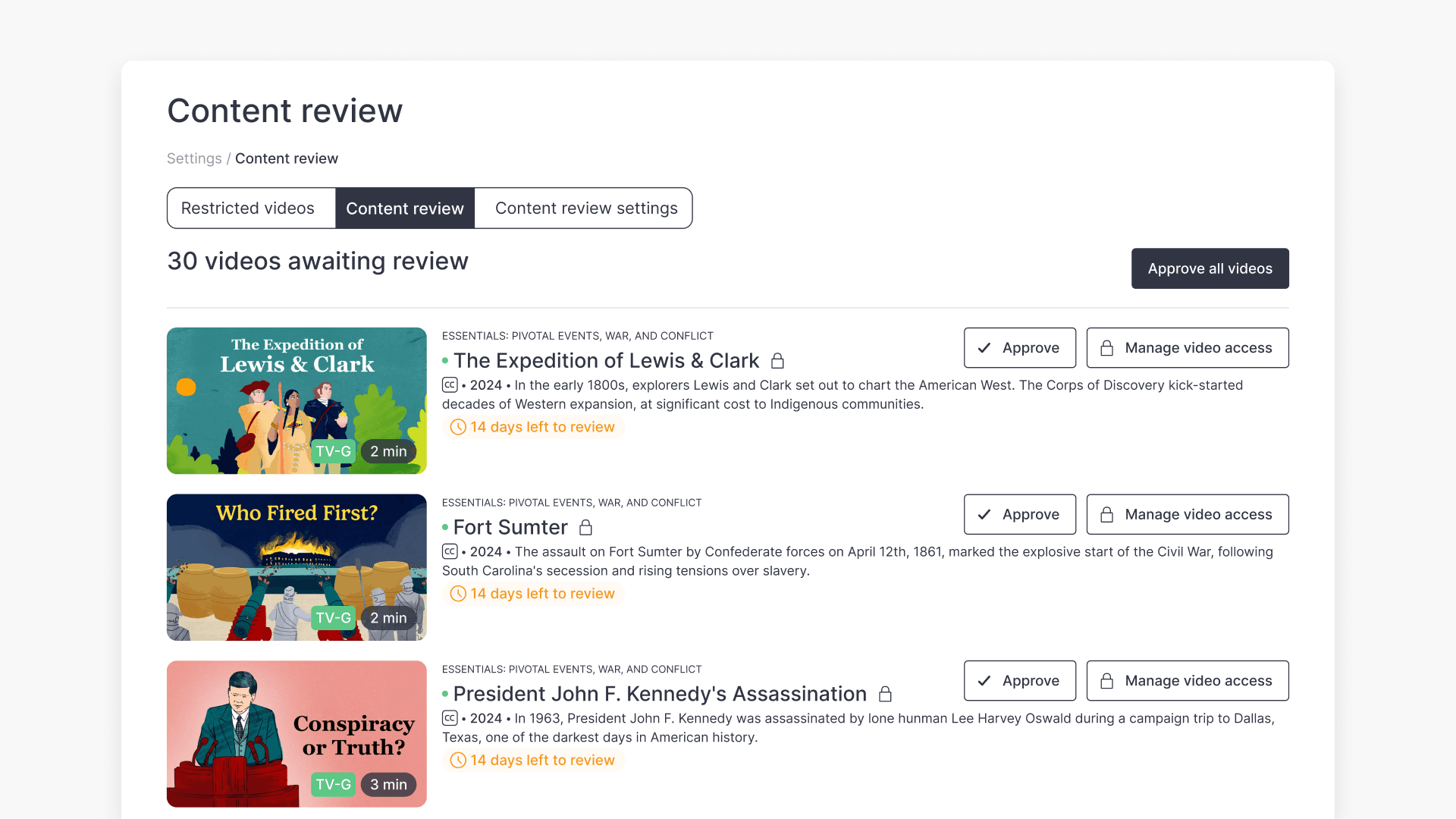
- Approve: Makes the video available in your libraries.
- Manage video access: Restricts who can view the video.
- Approve: Makes the video available in your libraries.
Restrictions by grade level or staff group
- When you open Manage video access, you can control who can view the video.
- To restrict access for grade groups, select the eye icon next to a grade group to change it into a padlock icon. This restricts video access for that grade and all lower grades.
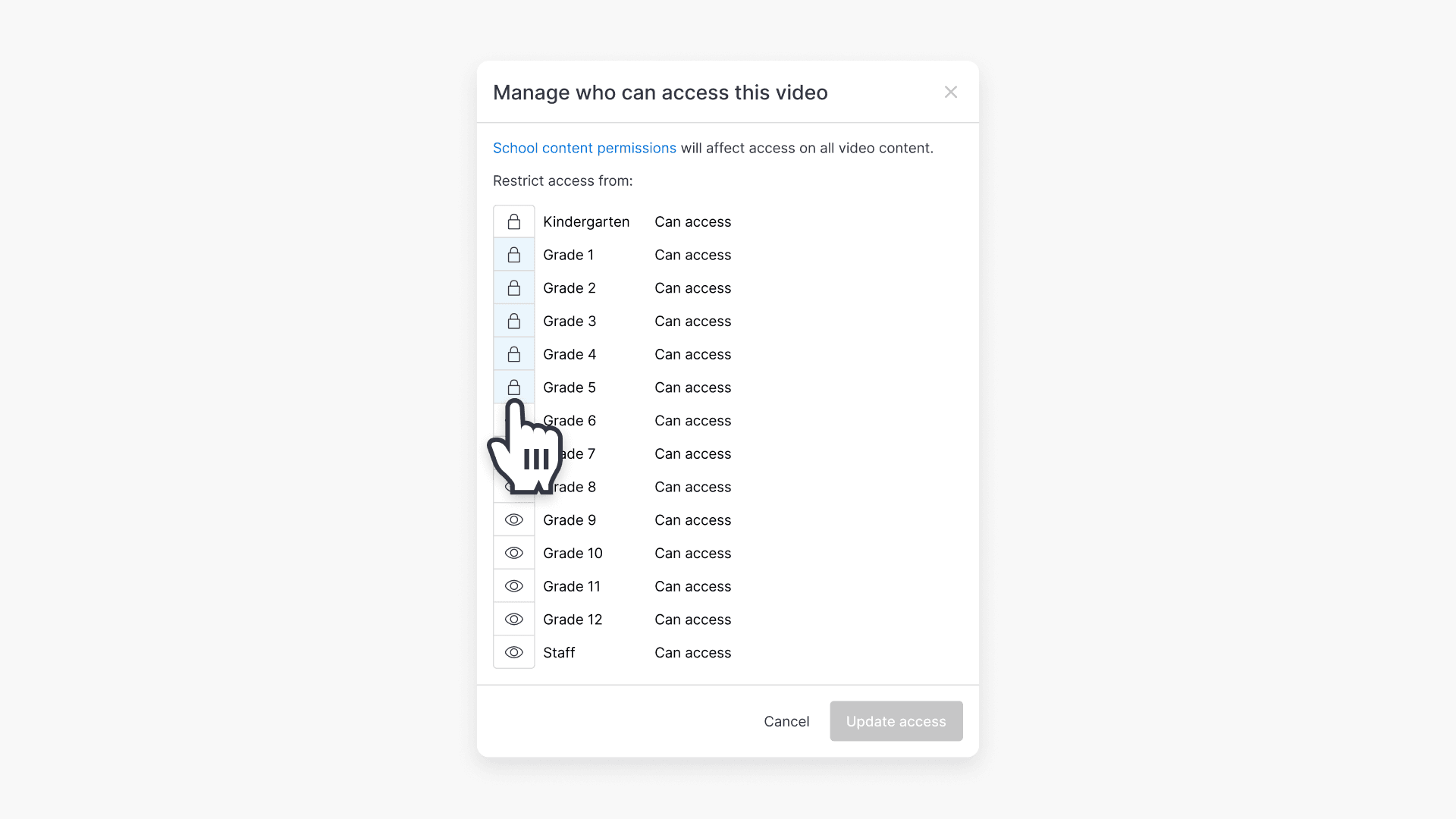
- To restrict a video for everyone, restrict the Staff group. This prevents access for both staff and students.
Approve all videos
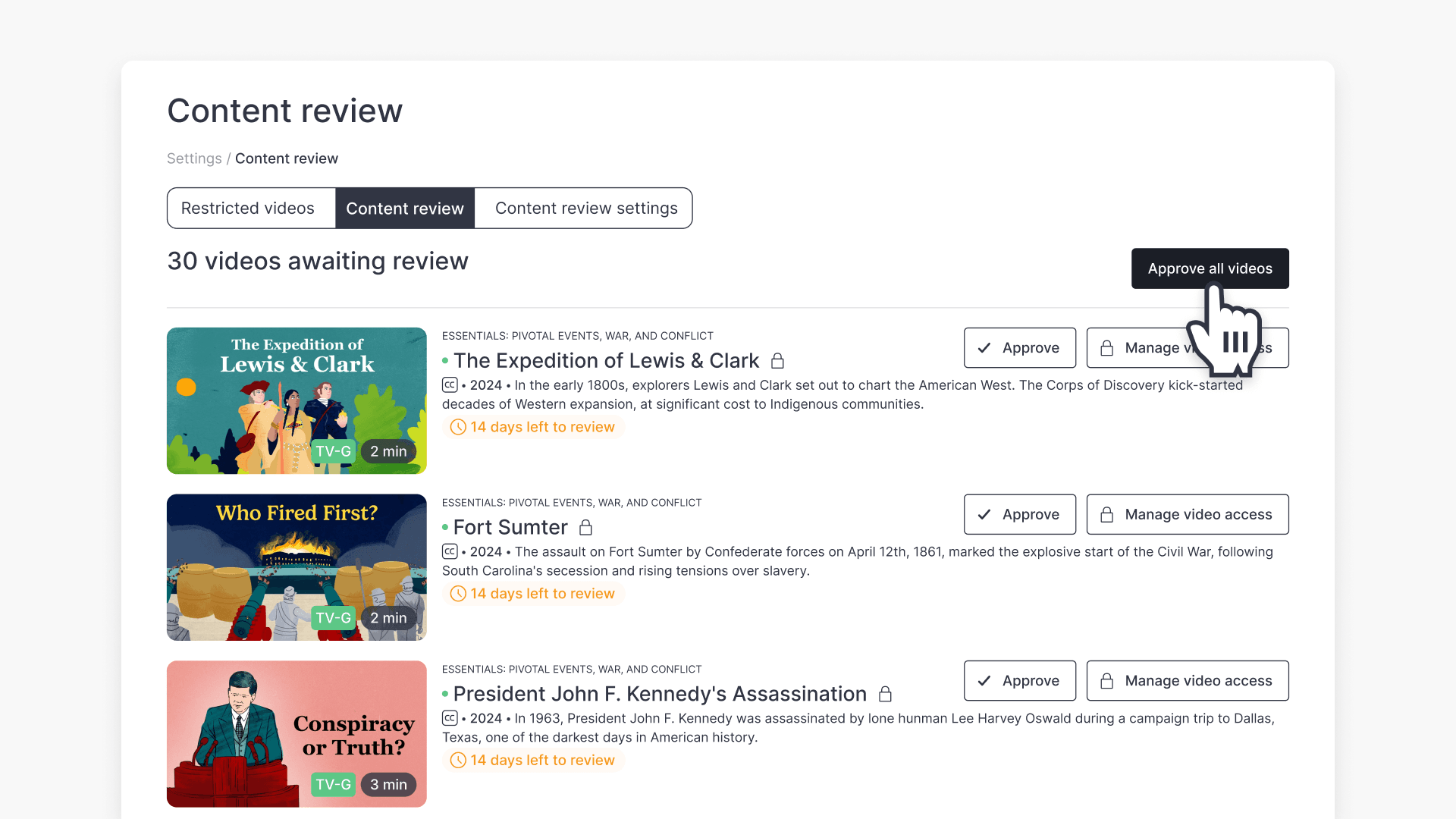
If all pending videos are suitable, select Approve all videos to add every video currently in Content Review to your library.
Enable Content Review and set a review period
Use the Content review settings tab to turn Content Review on or off and set how long admins have to review new videos.
- Open the Content review settings tab.
- Use the toggle to enable or disable Content Review.
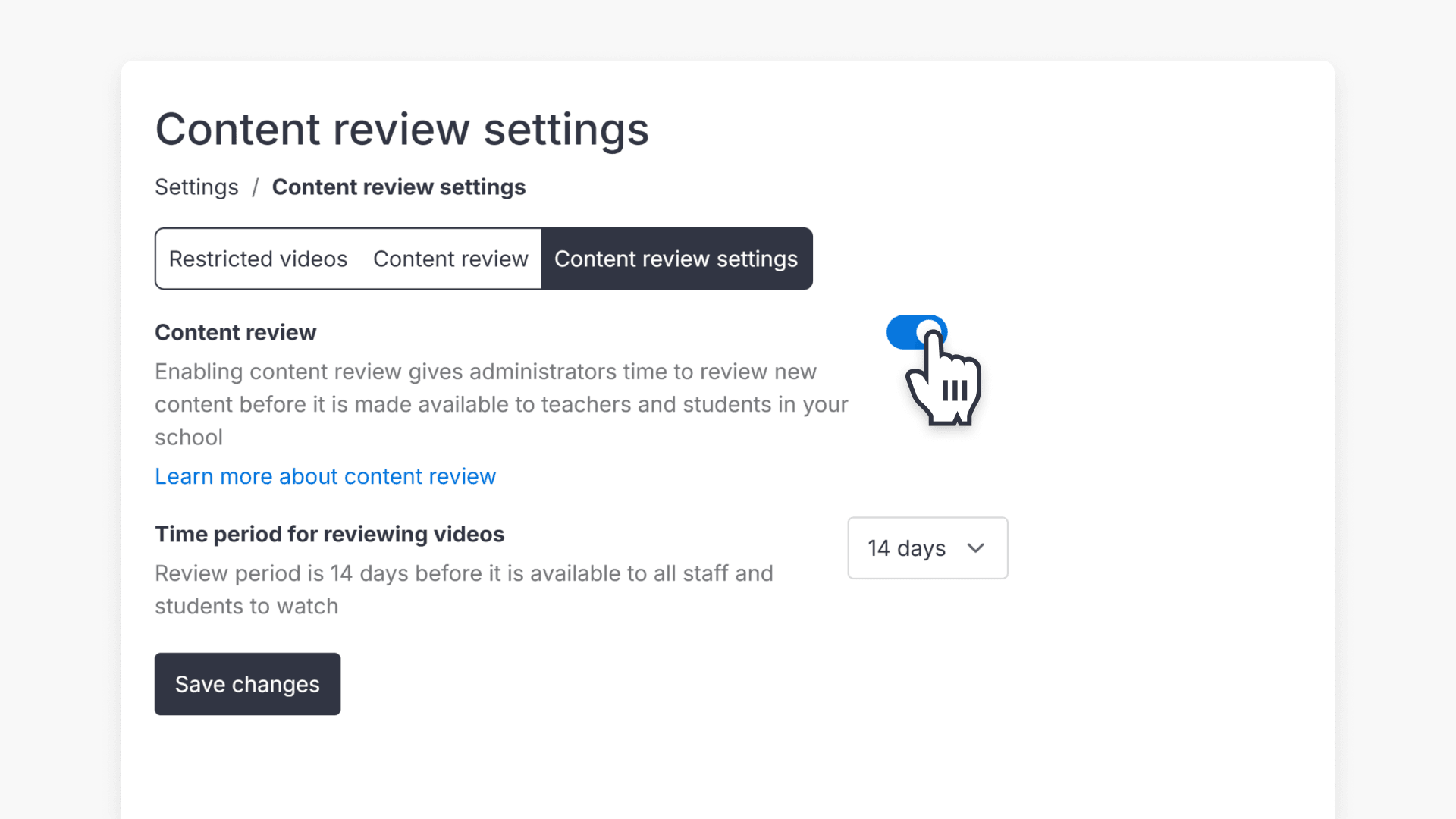
- If enabled, select a review period: 14, 21, or 30 days.
If you need more help enabling Content Review, see the related guide.
Do I have to use Content Review?
No. Content Review can be enabled or disabled in Content review settings.
- If enabled, administrators have the selected review period to approve or restrict new videos.
- If disabled, new content is added to your libraries immediately, with no review required.
Frequently asked questions
Get in touch
If you’re having trouble finding the right topics or videos, just reach out! Our team - 

 Akhil, Daniel, Jalaj, or any of us at ClickView - will be happy to help you get sorted.
Give feedback
Was this guide helpful?
Up Next

What are automated MARC records for ClickView libraries?
With automated MARC records, ClickView video metadata is updated automatically and reflected in supported library cataloguing and discovery services.