How to enable Content Review

Summary
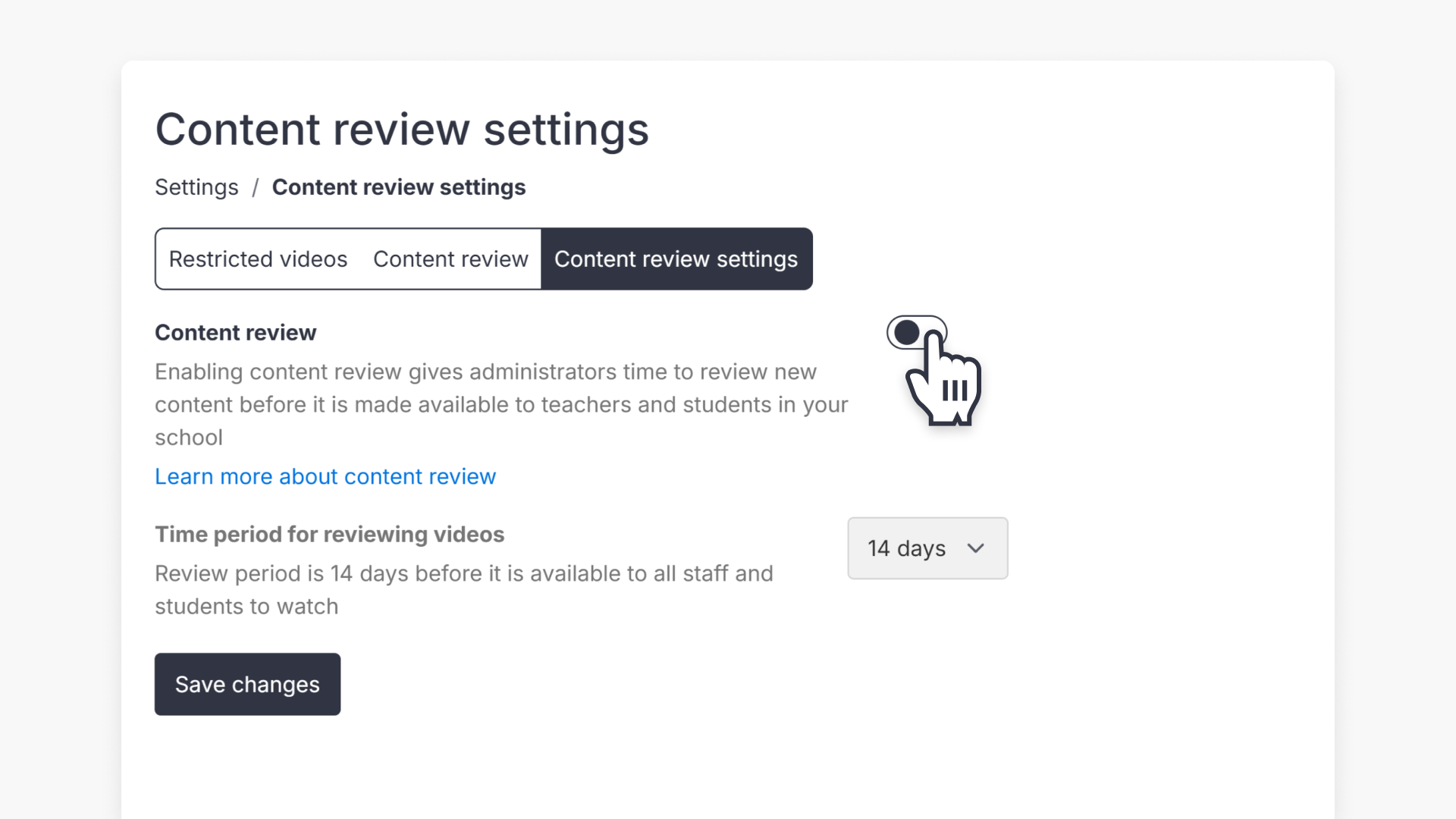
- Content Review allows ClickView Administrators to delay the availability of new videos to staff and students until they have been checked.
- Go to Settings to access review controls.
- Click Content Review and Restrictions to view the review panel.
- Tick Enable Content Review to turn on the feature.
- Untick Enable Content Review to turn it off.
- Videos automatically become available if no action is taken within the review period.
What is Content Review?
Content Review helps schools manage which videos become available to teachers and students. When the feature is enabled, newly added videos on ClickView are placed into a temporary review state. Once an admin approves the content, the videos become available to teachers and students. If no decision is made during the review period—typically 30 days—the videos will automatically be added to your libraries for access.
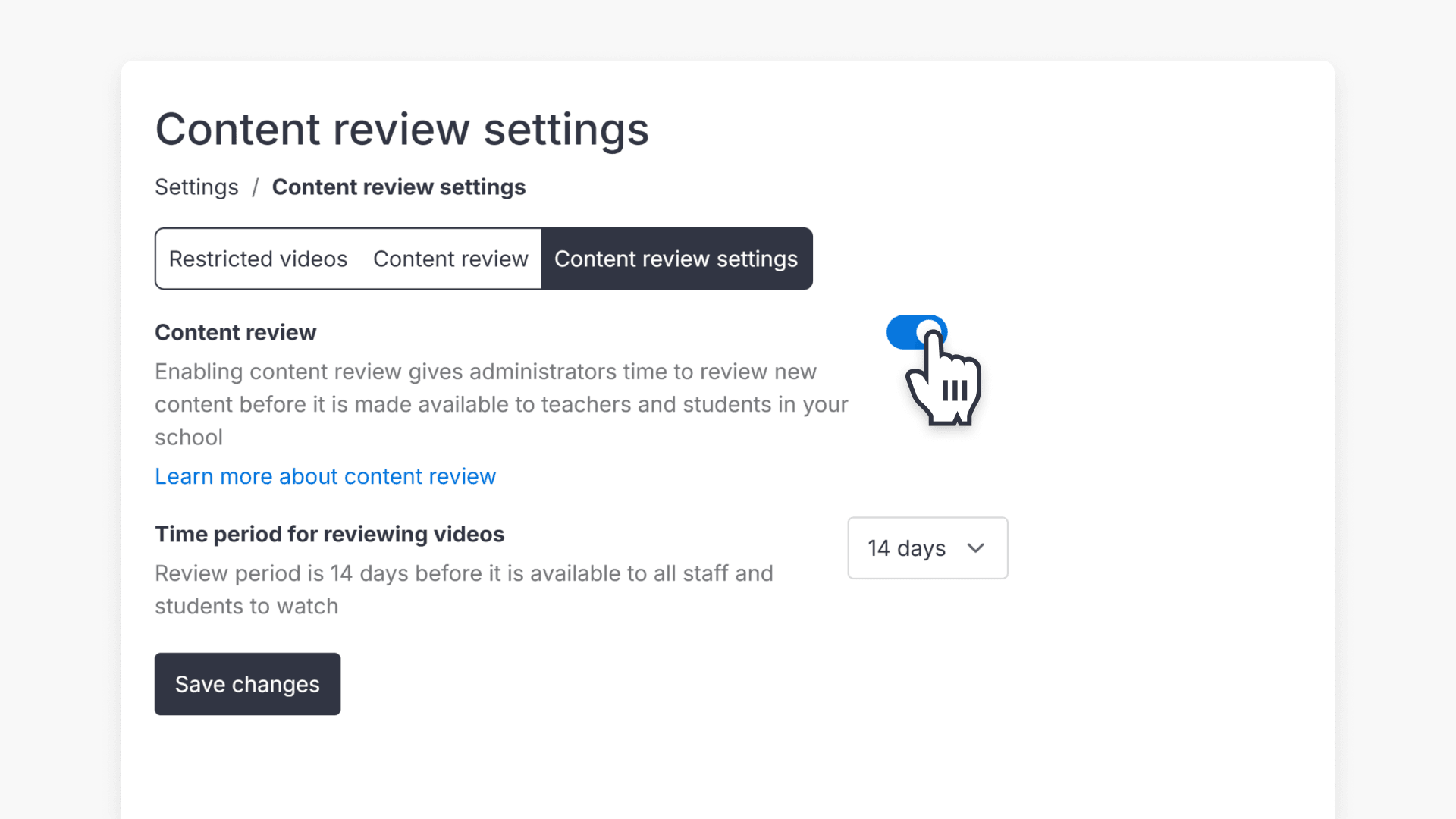
How to enable Content Review
- Go to Settings.
- Click Content Review and Restrictions.
- Toggle on Content Review to enable the feature.
How to disable Content Review
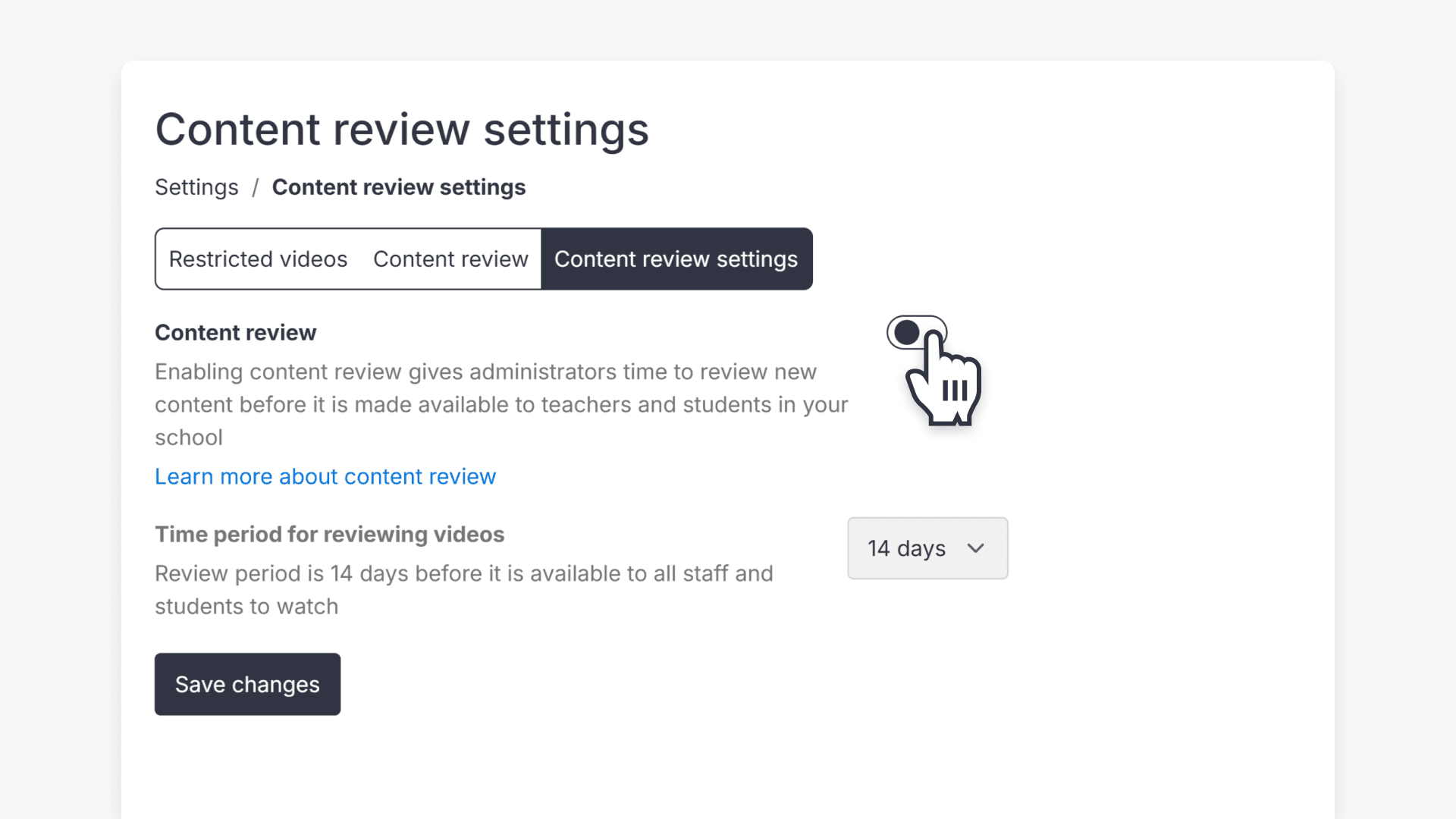
- Go to Settings.
- Click Content Review and Restrictions.
- Untoggle Content Review to switch off the feature.
How to review and approve new videos
If you have enabled Content Review in your ClickView settings, when new videos are added to ClickView, they will be placed into a temporary review state before staff and students can access the videos.
For further details on Content Review and its settings, refer to this guide.
Frequently asked questions
Get in touch
If you’re having trouble finding the right topics or videos, just reach out! Our team - 


 Andrew, Nisch, Janice, Pfreya, or any of us at ClickView - will be happy to help you get sorted.
Give feedback
Was this guide helpful?
Up Next

What are automated MARC records for ClickView libraries?
With automated MARC records, ClickView video metadata is updated automatically and reflected in supported library cataloguing and discovery services.