
Save time with the New User Manager
Published on 4 min read
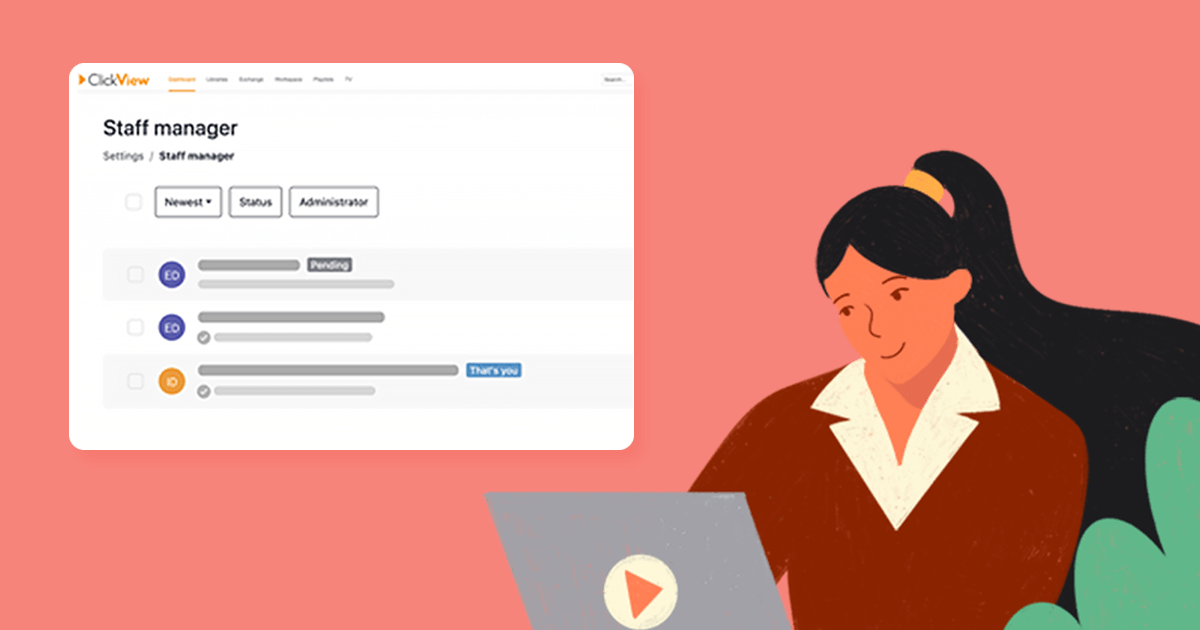
Great news! The new ClickView User Manager has just launched for your school
You asked and we listened. Managing staff and student accounts in ClickView is now quicker and easier than ever with the new release of User Manager.
The highlights
- Annual year group rollover in one click
- Bulk actions made simple
- Improved SSO management
- Added flexibility for password reset
Speedy year group rollover
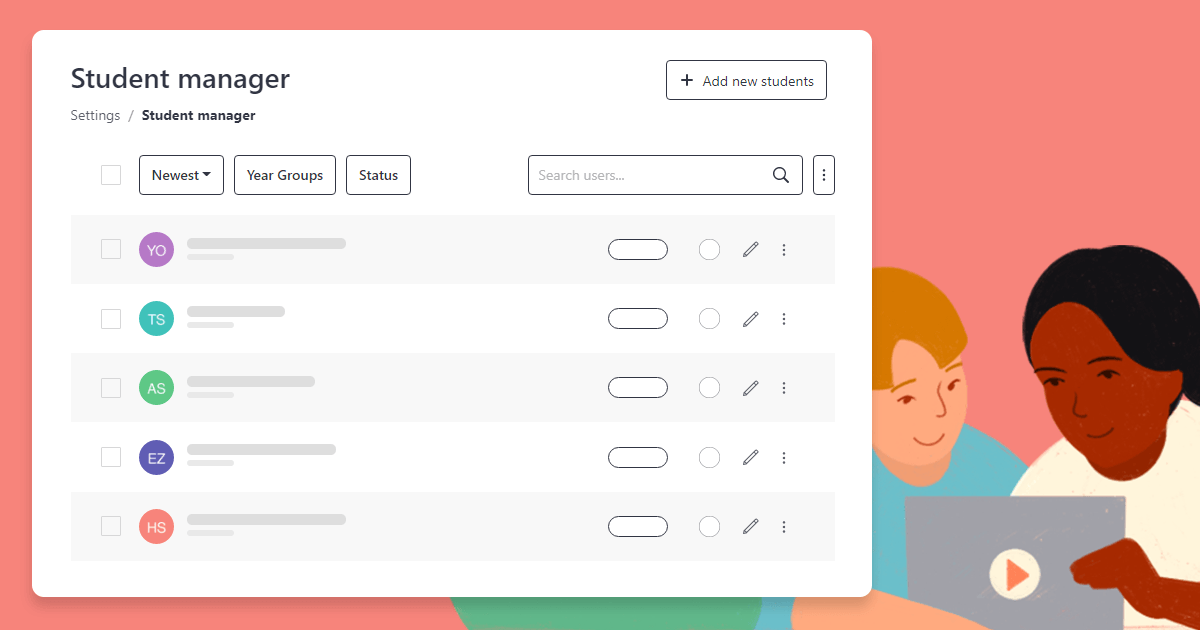
Annual year group rollover can now be completed in one click. Simply head to ‘User Management’ in ‘Settings’ and follow the steps from there. You can now select all users within a search, filter or choose to deselect all users. The checkboxes will now hold across pages, searches and the filters being changed.
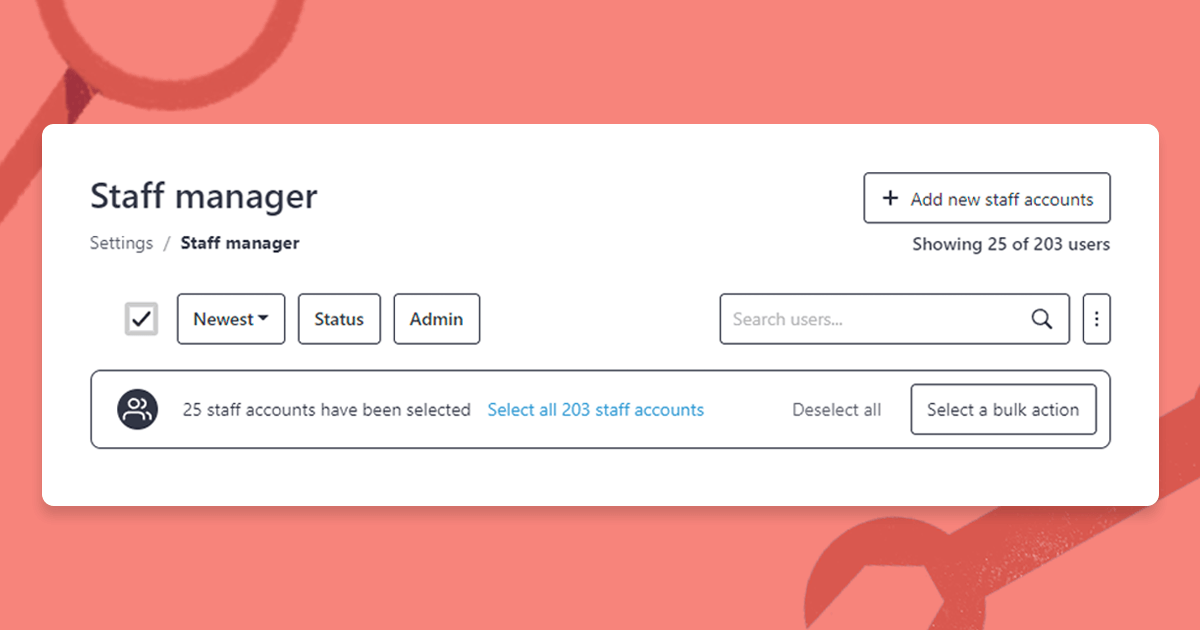
Bulk actions made simple
Brand new guide
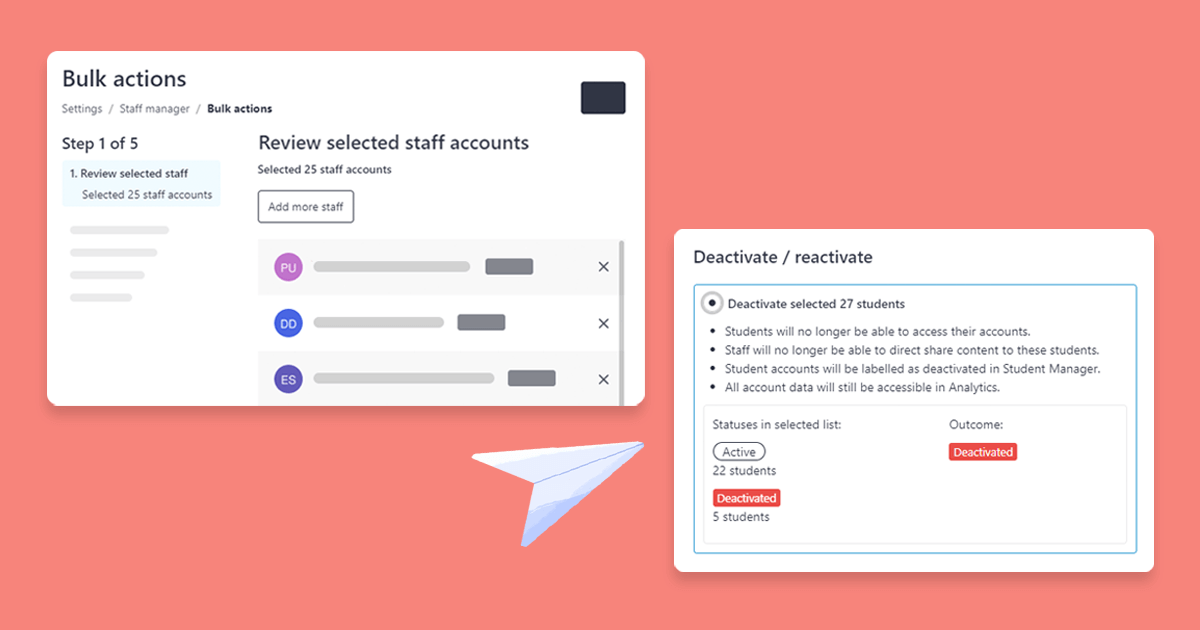
Bulk actions have been entirely overhauled. When you select an action, you will now see a detailed explanation of what this will do, including helpful warnings to prevent mistakes.
Supported bulk actions include:
- Deactivate/ reactivate
- Delete
- Change year group (for students only)
- Annual year group rollover (for students only)
- Add to classroom (for students only)
- Reset password (for students only)
- Send a “password reset” email (for staff only)
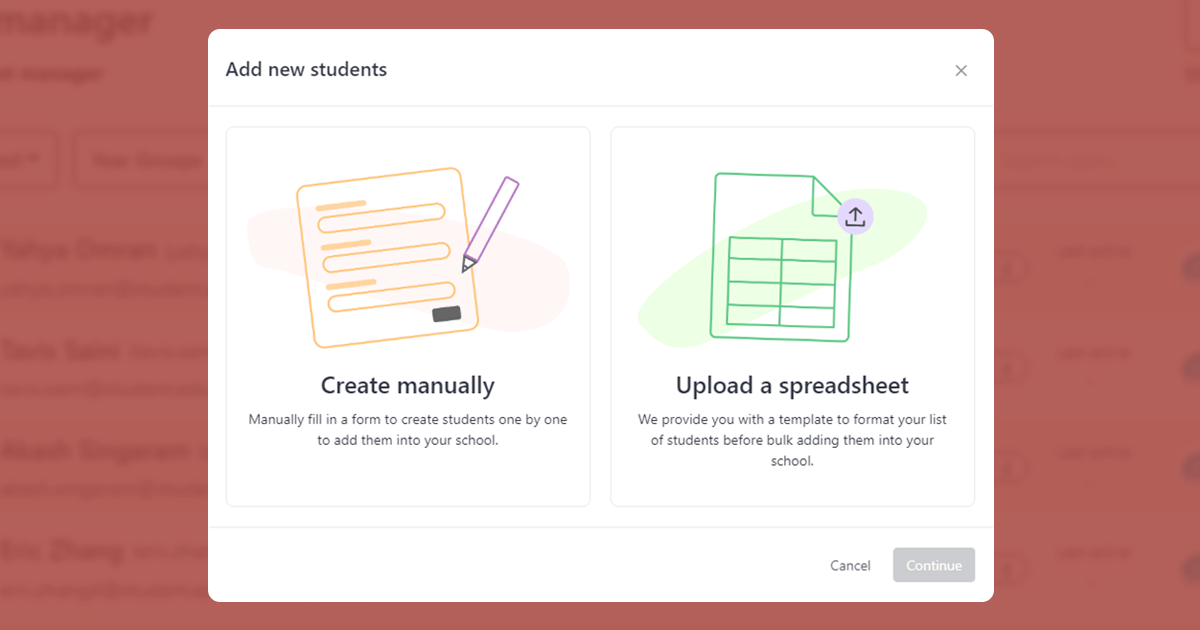
Bulk user upload
This highly-requested feature gives ClickView admins the tools to achieve bulk user uploads independently. You can now choose to ‘create users manually or ’upload a spreadsheet’ – no waiting required! You can also remove users from your bulk upload straight from the interface. Plus to avoid filling up your email inbox, we’ve compacted the confirmation emails so you’ll now receive one email with all the user details.
New status page and email report
When you complete a bulk action, a status page will let you know if your action succeeded or if any issues occurred along the way. You’ll also receive an email containing a full report of the action you performed.
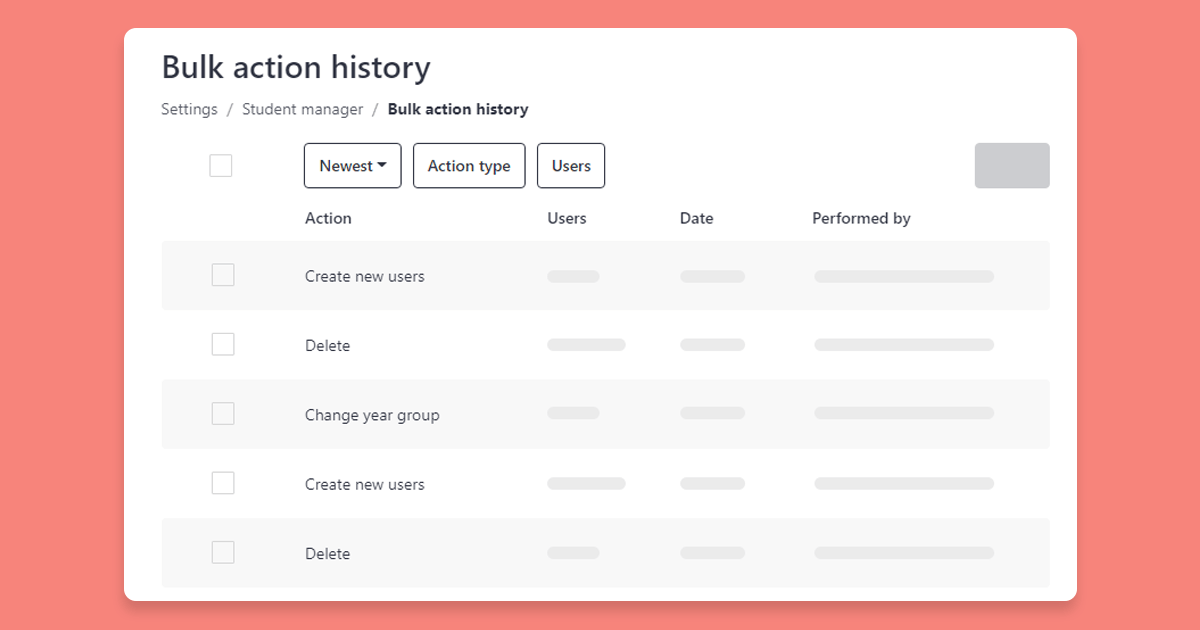
Bulk actions history
A report of the bulk action will be added to a new page in User Manager: ‘Bulk actions history’. This will allow you to see a full history of all bulk actions that have been performed in your school, including actions performed by the ClickView team.
Improved SSO management
To help minimise chances of human error or unwanted changes, our team have updated the form for editing SSO users. This means the fields managed by the user’s SSO IDP are disabled, for example, ‘year group’ is disabled for every student who signs in with SSO.
Improved warning messages
You may also notice improvements to the warning messages that appear when a bulk action is attempted for SSO users. Plus the ‘change student password’ action will include a warning if a student signs in using SSO, as their SSO password cannot be changed in the User Manager.
See how students and staff sign in at a glance
Staff and students who sign in through an SSO IDP will also appear in User Manager with a new icon, representing how they log in to ClickView.
New password features
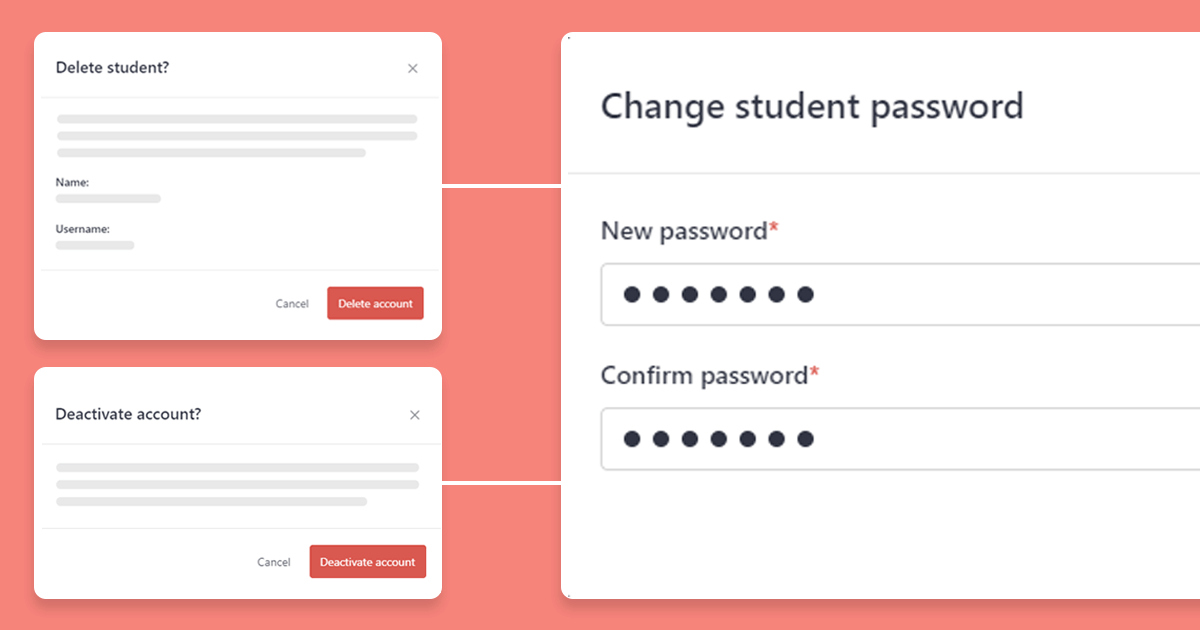
Great news: You can now change student passwords instantly in User Manager. We’ve also added a toggle for revealing and hiding passwords which are helpful when creating a student account or resetting their password.
New option for ‘change password on next login’
After changing a student’s password, you can now opt for students to change their password on the next login. This will now be set as the default with the option to uncheck it.
- It is now easier to see verified email addresses for staff and students. Email addresses will now be marked with a grey checkmark or will show ‘no email’ where the email should be.
- You will also notice new headers and popups all designed to make user management as easy as possible.
But wait, there’s more
Our team are always working hard behind the scenes to build the best experience possible for you. Here are a few small improvements we hope will make your experience in User Manager even easier.
- It is now easier to see verified email addresses for staff and students. Email addresses will now be marked with a grey checkmark or will show ‘no email’ where the email should be.
Have you tried the new User Manager?
We’d love to hear your feedback and ideas on how we can keep improving.
Share to

Joe Pour
briefcase iconChief Product Officer
Experienced product leader with a strong background in engineering and building innovative products at scale.
Other posts

Want more content like this?
Subscribe for blog updates, monthly video releases, trending topics, and exclusive content delivered straight to your inbox.