How to share a video to Microsoft Teams
Last updated by
2 min readClickViewJanuary 30, 2026
Summary
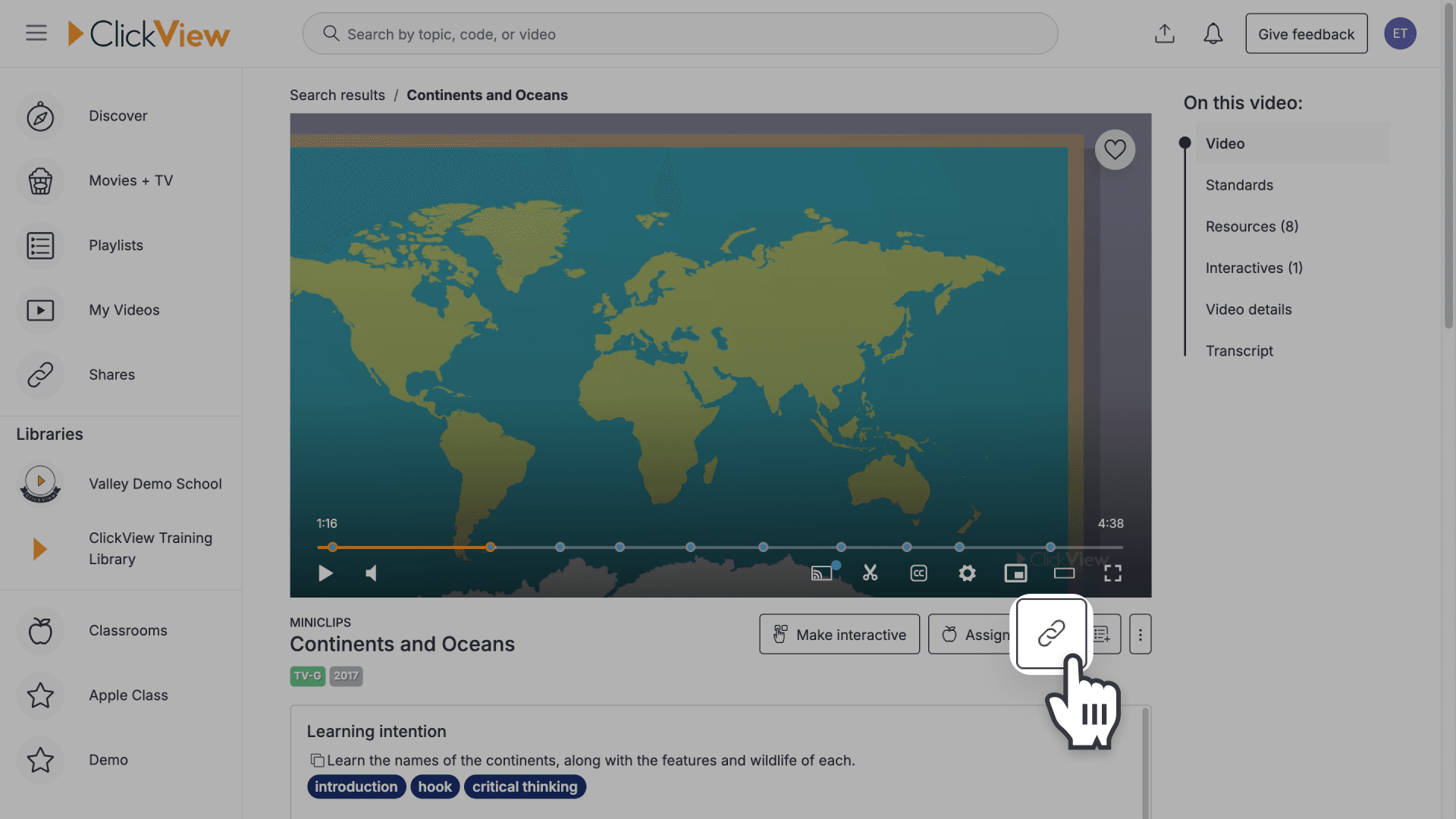
- Find the video you want to share and click Share below the video player.
- Select the Microsoft Teams icon to open the Teams sharing window.
- In “Share to”, choose the person or group you want to send the link to.
- Optional: add a message in “Say something about this”.
- Select “Share” to send the ClickView video link in Microsoft Teams.
Steps to share a video using Teams
ClickView’s integration with Microsoft Teams allows teachers to share educational videos directly to their Teams classwork, making it easy for students to access lesson resources in one place.
- Locate the ClickView video you want to share and click the ‘Share’ button below the video player.
- Click the Microsoft Teams icon at the bottom right of the Share link popup.
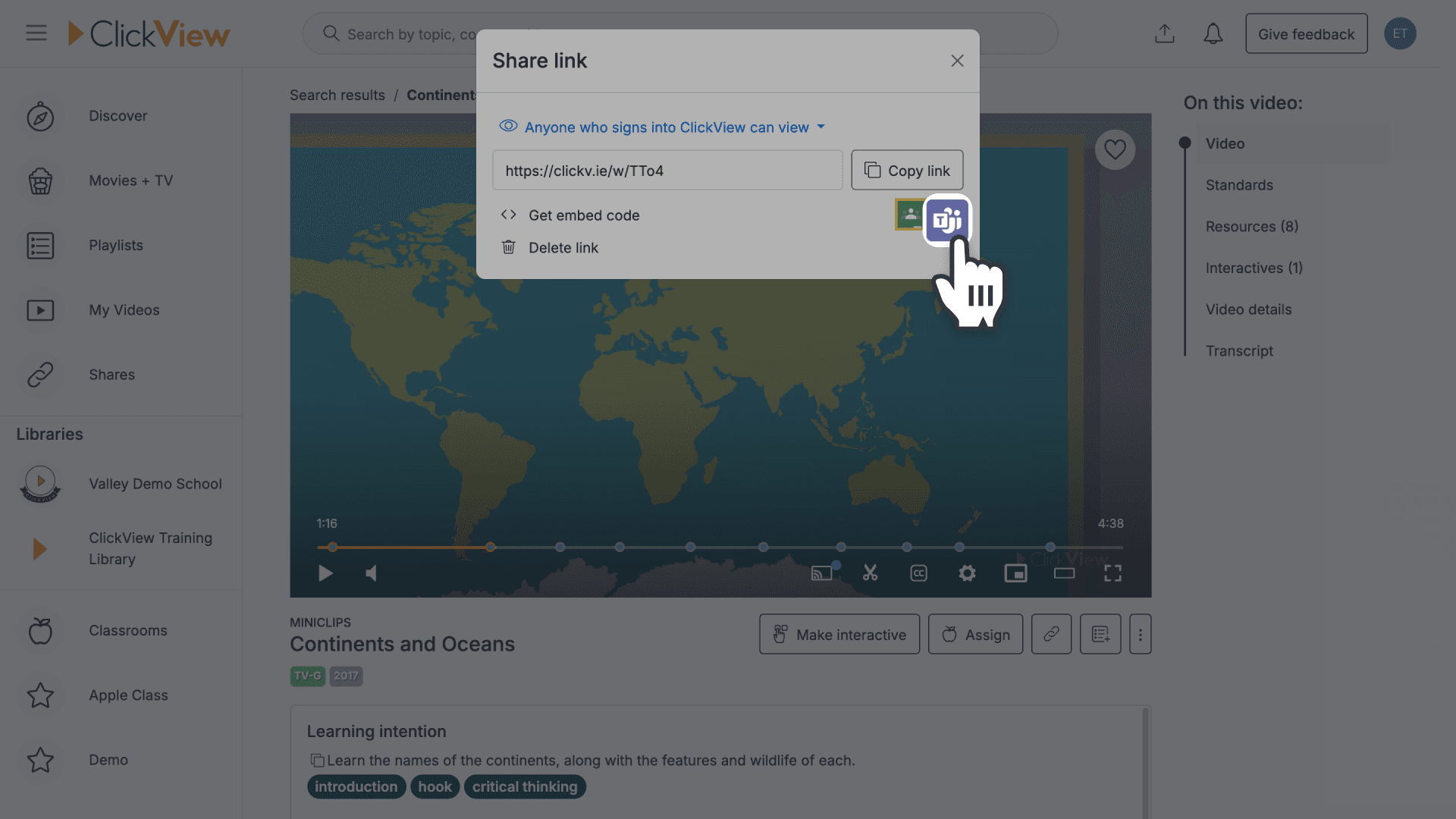
- If you can’t see the Microsoft Teams icon in the Share link popup, please ask your ClickView Administrator to first enable ClickView integrations.
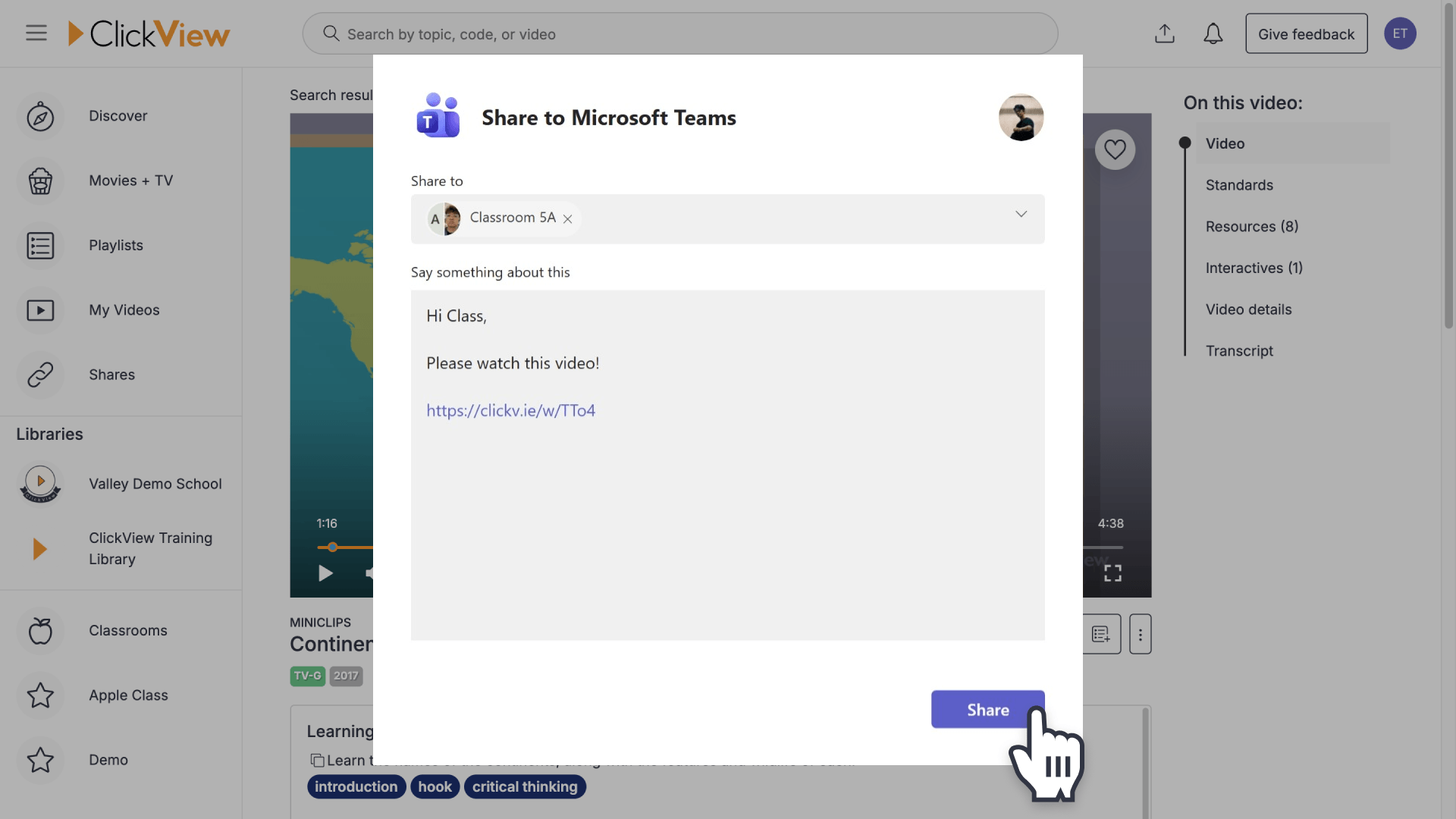
- In the ‘Share to’ text field, enter the individual or group to receive your video. You can add extra information in the ‘Say something about this’ textbox. The video link is added automatically.
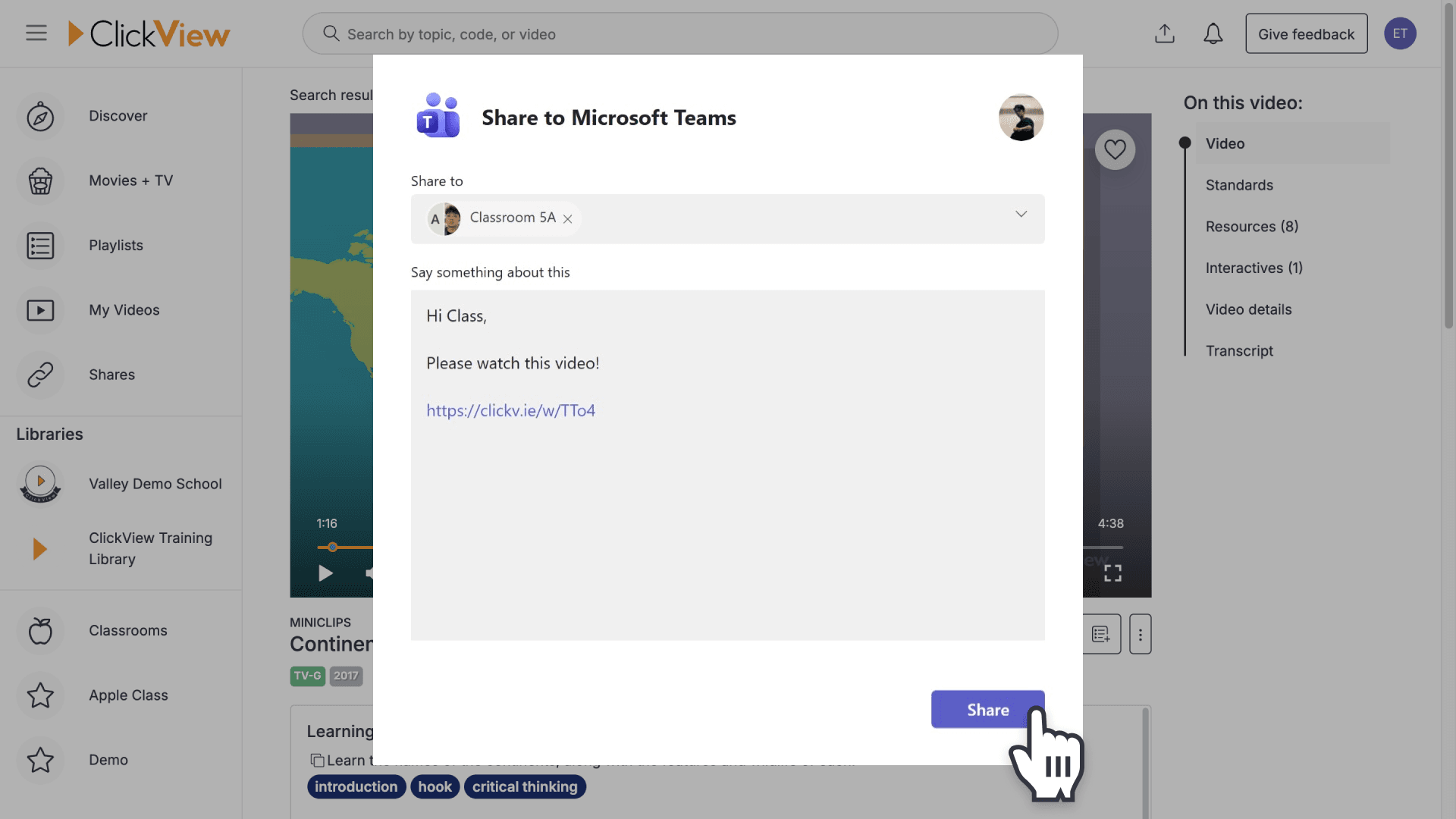
- When all fields are filled, click the ‘Share’ button to send the video directly to your chosen audience.
- The video link is now shared and ready for your students or colleagues to view.
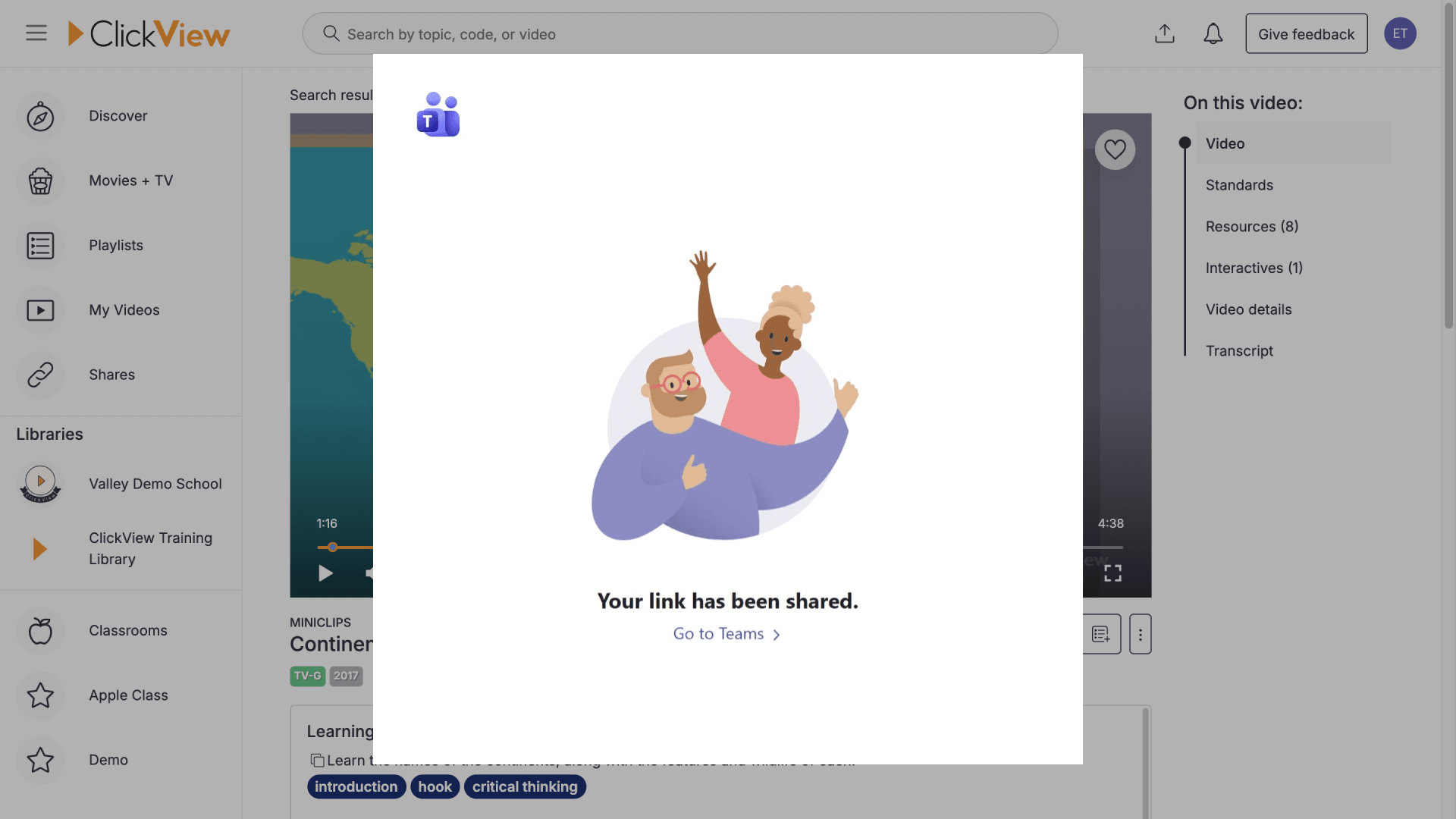
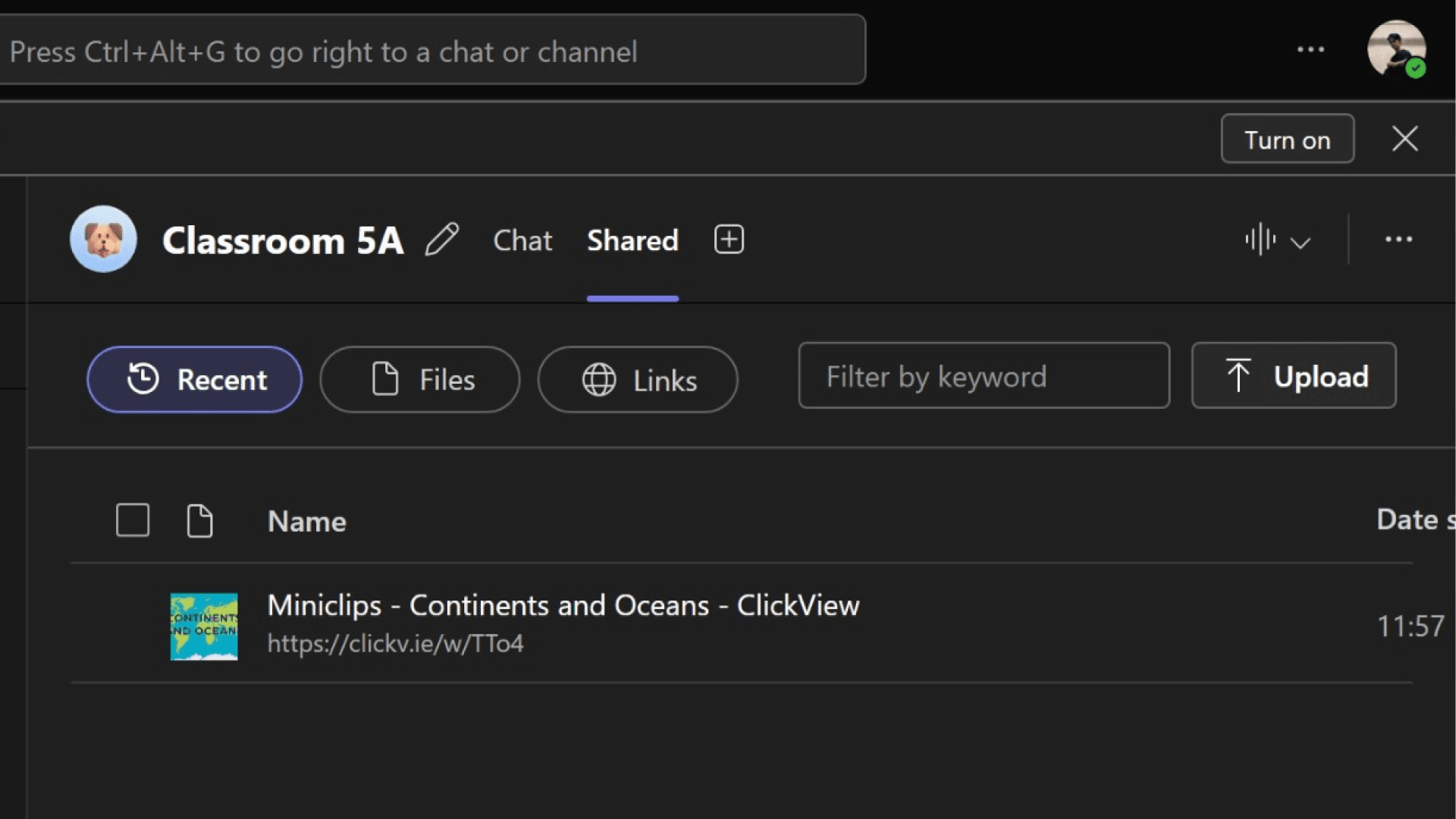
- Recipients will see the video link under the ‘Shared’ tab in the Teams channel.
Frequently asked questions
Recipients will see the ClickView link in the Teams conversation thread (the Posts area) for the chat or channel you shared it to.
Yes. In Share to, search for and select a channel or team (if available), or choose a person/group chat to send it directly.
They may need to sign in to ClickView (or have access to the video based on your school’s permissions). If access is restricted, share a version they can view or ask your administrator to confirm permissions.
Once posted to Teams, manage it from Teams like any other message (for example, delete or edit the post if Teams allows it). If you need to stop access to the link itself, delete or disable the share link from ClickView.
Get in touch
If you’re having trouble finding the right topics or videos, just reach out! Our team - 

 Akhil, Daniel, Jalaj, or any of us at ClickView - will be happy to help you get sorted.
Give feedback
Was this guide helpful?
Up Next
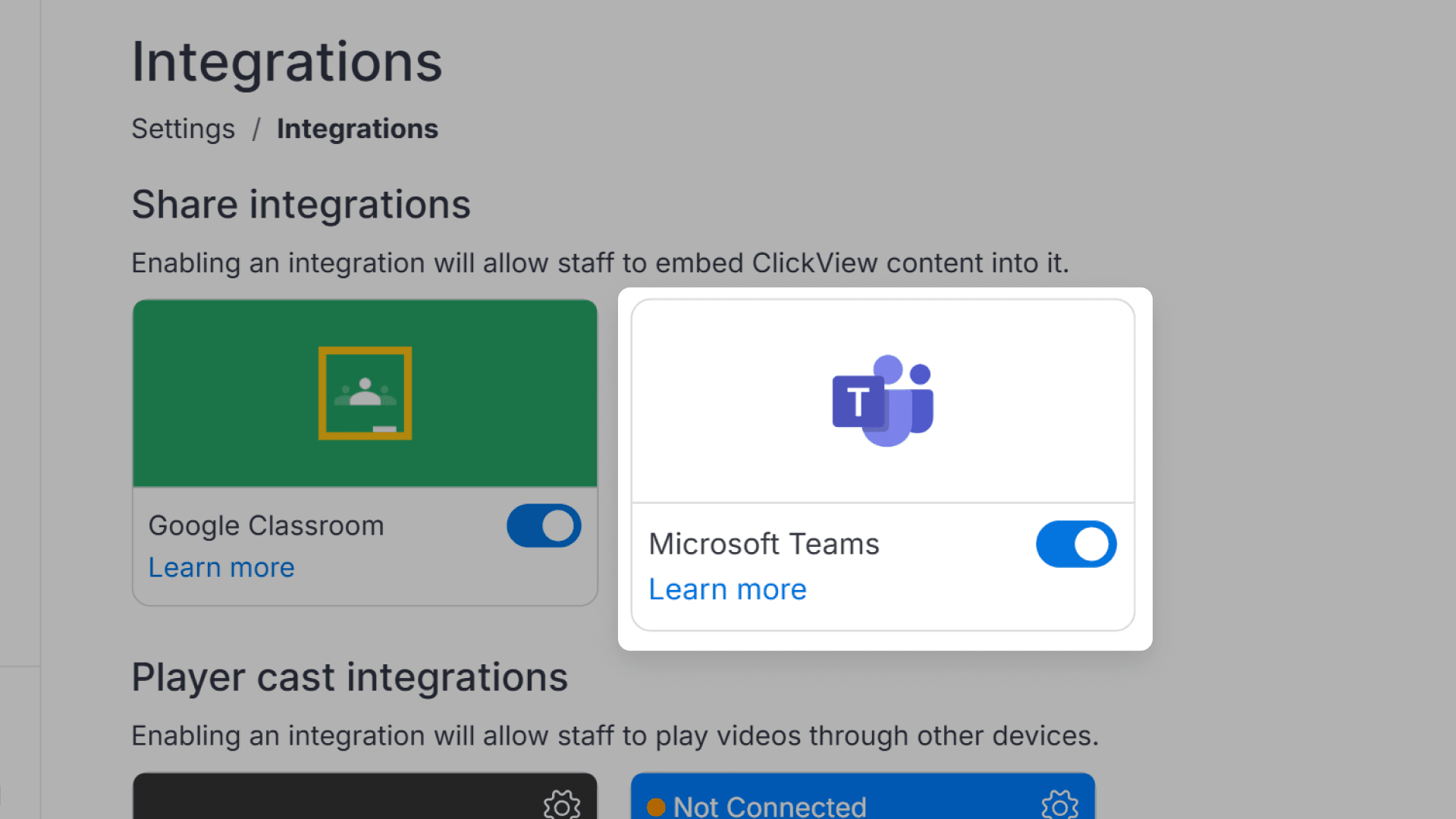
How to enable the Microsoft Teams and Google Classroom integrations
This article explains how administrators can enable the Microsoft Teams and Google Classroom integrations within ClickView. Step-by-step instructions show how to access the necessary settings, toggle the feature, and share educational video content with your classes.