Embed videos with the ClickView app in Microsoft Teams
In this article
Last updated by
2 min readClickViewJanuary 30, 2026

Summary
- Install the ClickView app from Apps in Microsoft Teams.
- Sign in to ClickView in Teams and confirm the correct region.
- Embed a video in a chat using the + (Add) button in the message tools.
- Add a video as a tab using the + icon in the tab area.
- Adjust options like grade level, video size, and autoplay before embedding.
star icon
Quick tip
What options can I change when embedding a video in Teams?
When you embed a ClickView video in Microsoft Teams, you can adjust options in the embed pop-up, including grade level, video size, and autoplay.
Install the ClickView app
- Open Microsoft Teams.
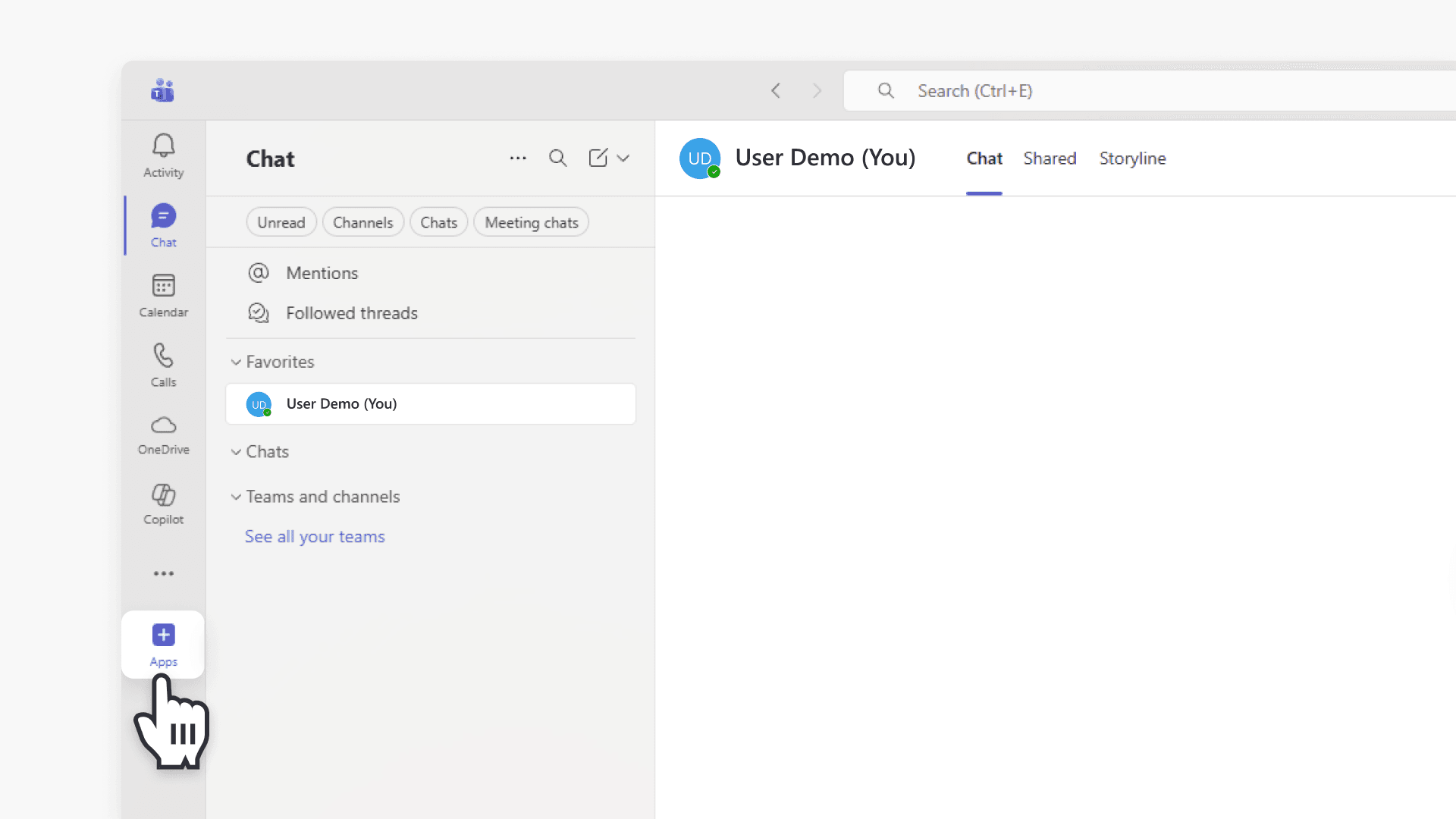
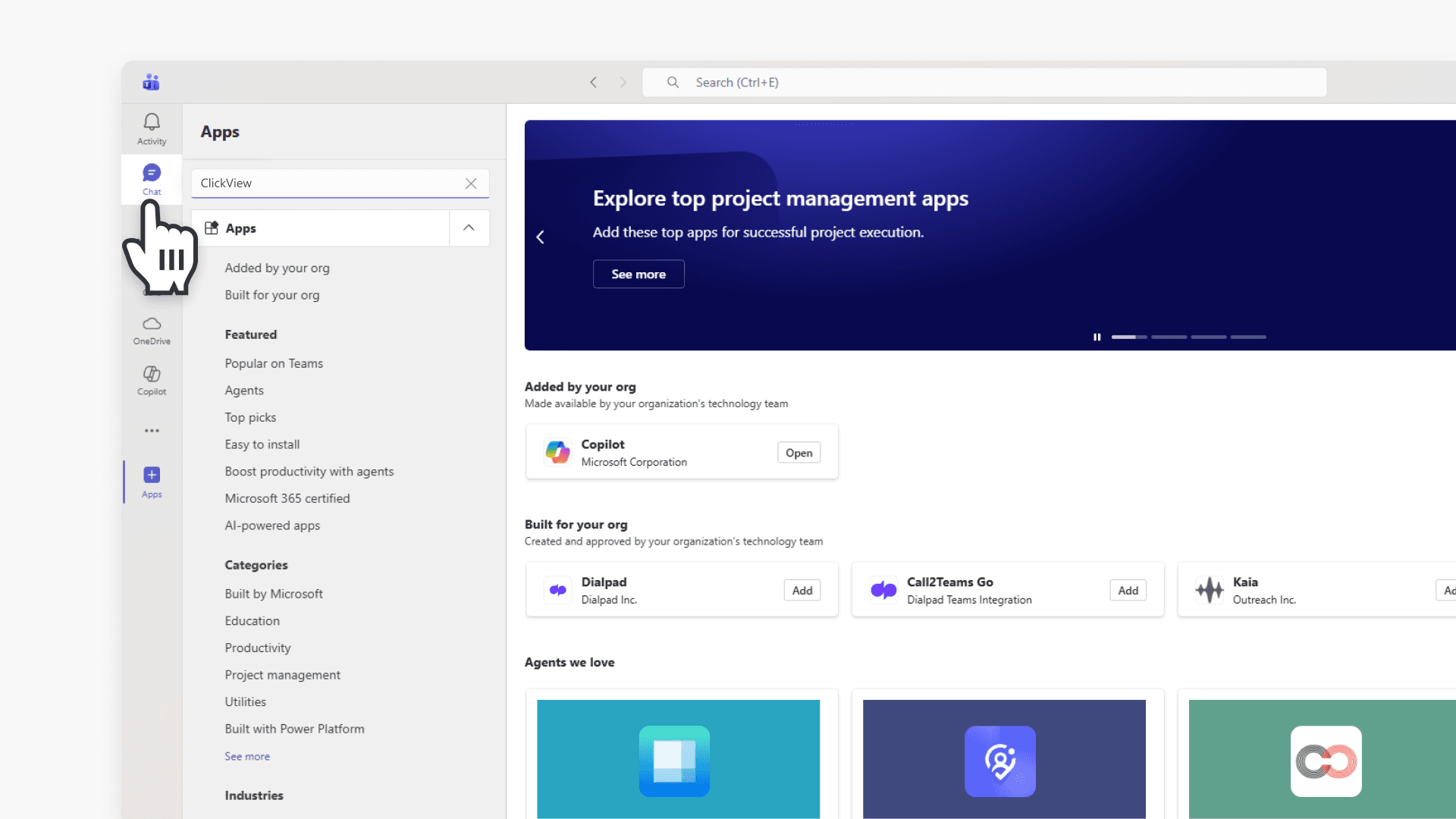
- Select Apps in the bottom left corner.
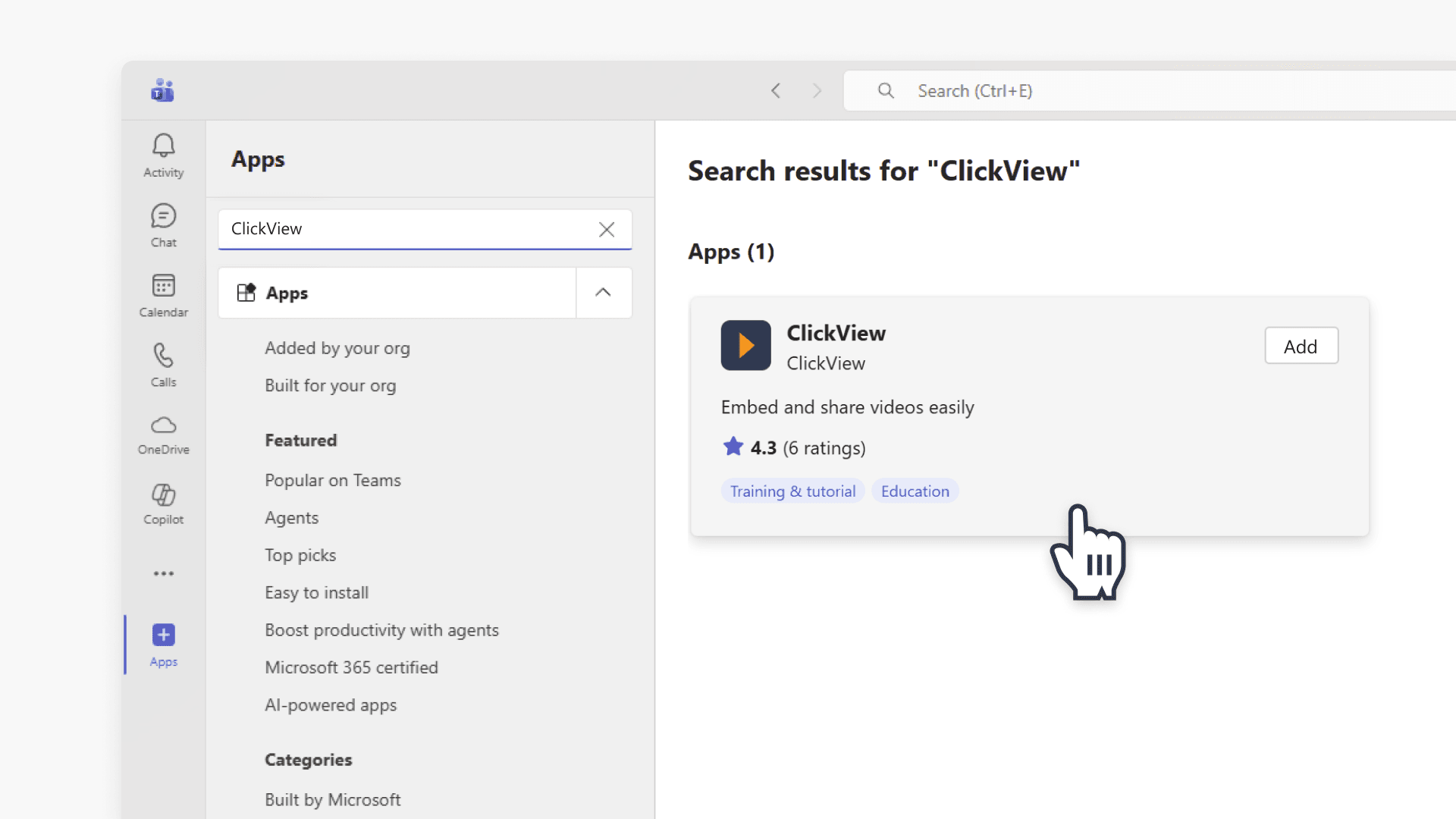
- Search for ClickView, then select the ClickView (Training + tutorial) tile.
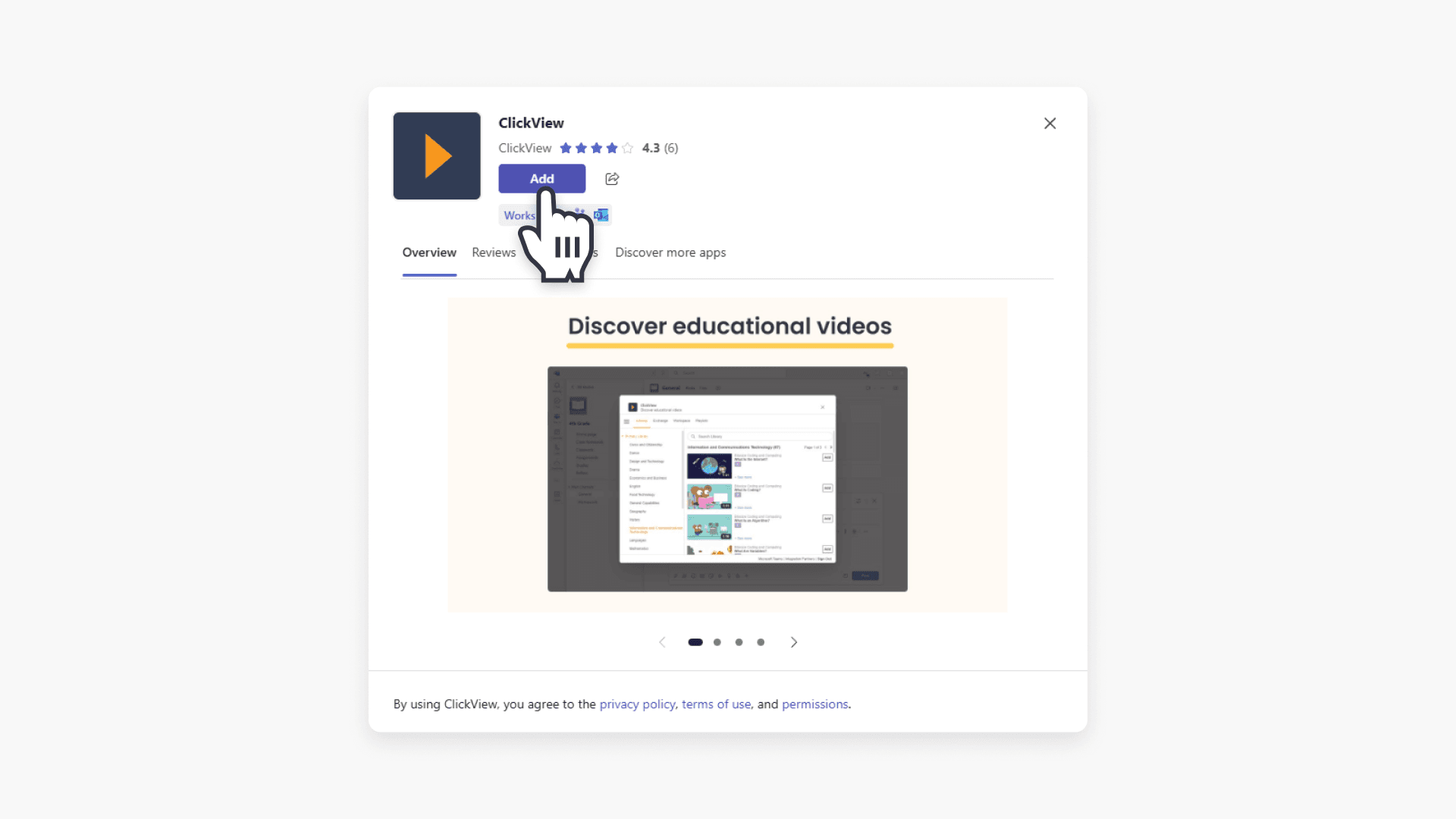
- Select Add.
Embed ClickView videos in a chat
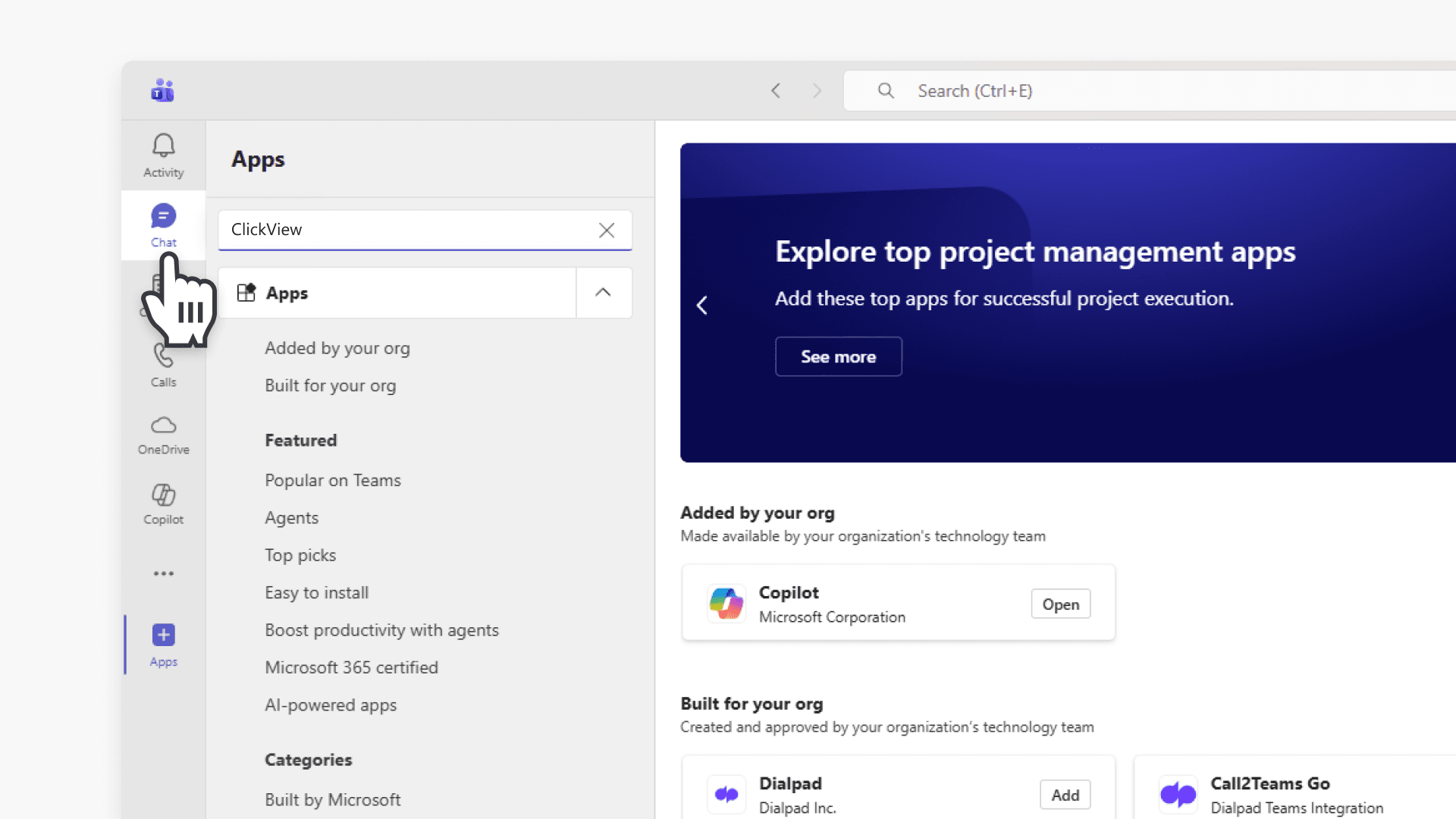
- Select the Chat icon.
- In the chat, select the + button (Add) next to the formatting tools.
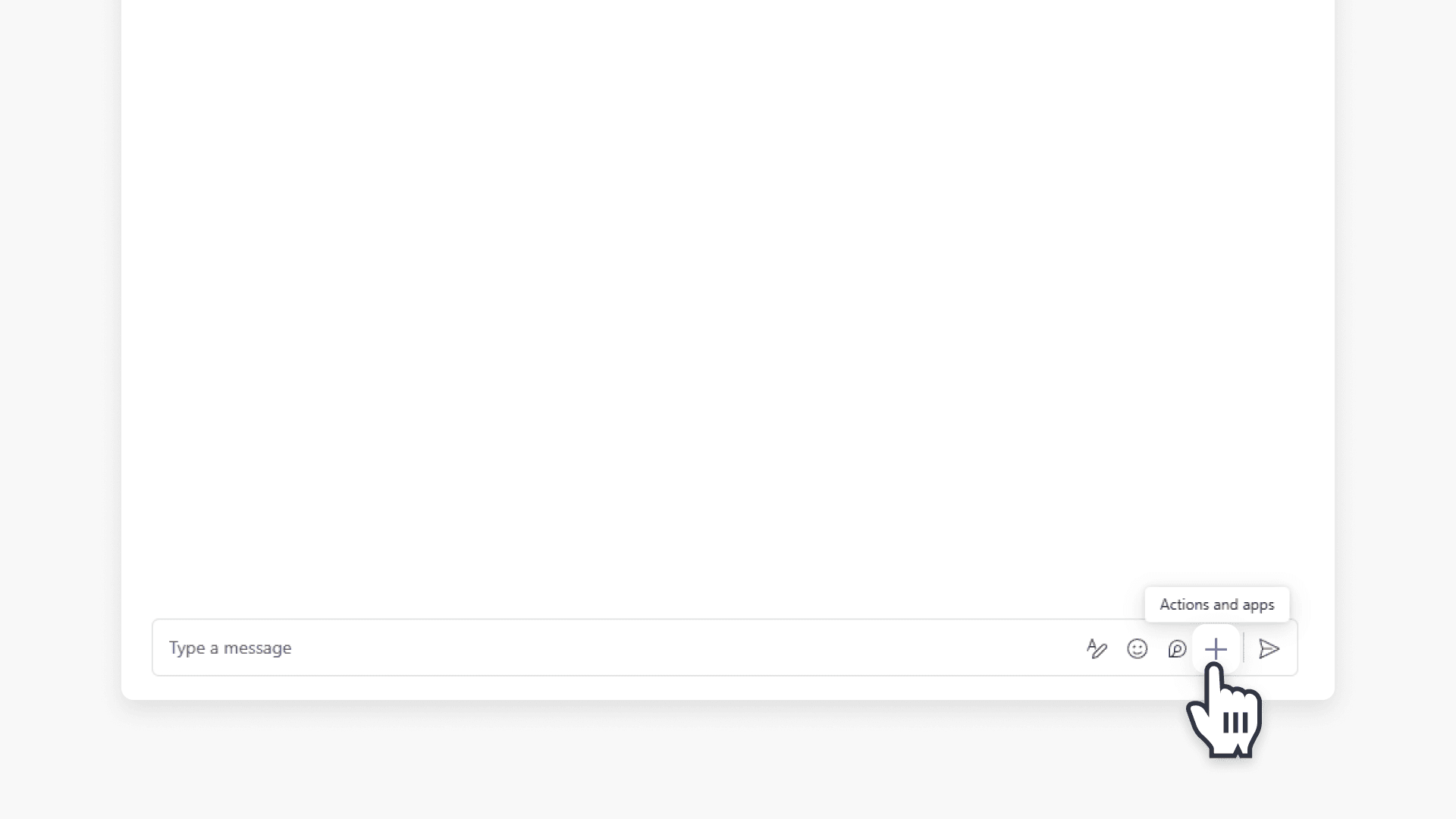
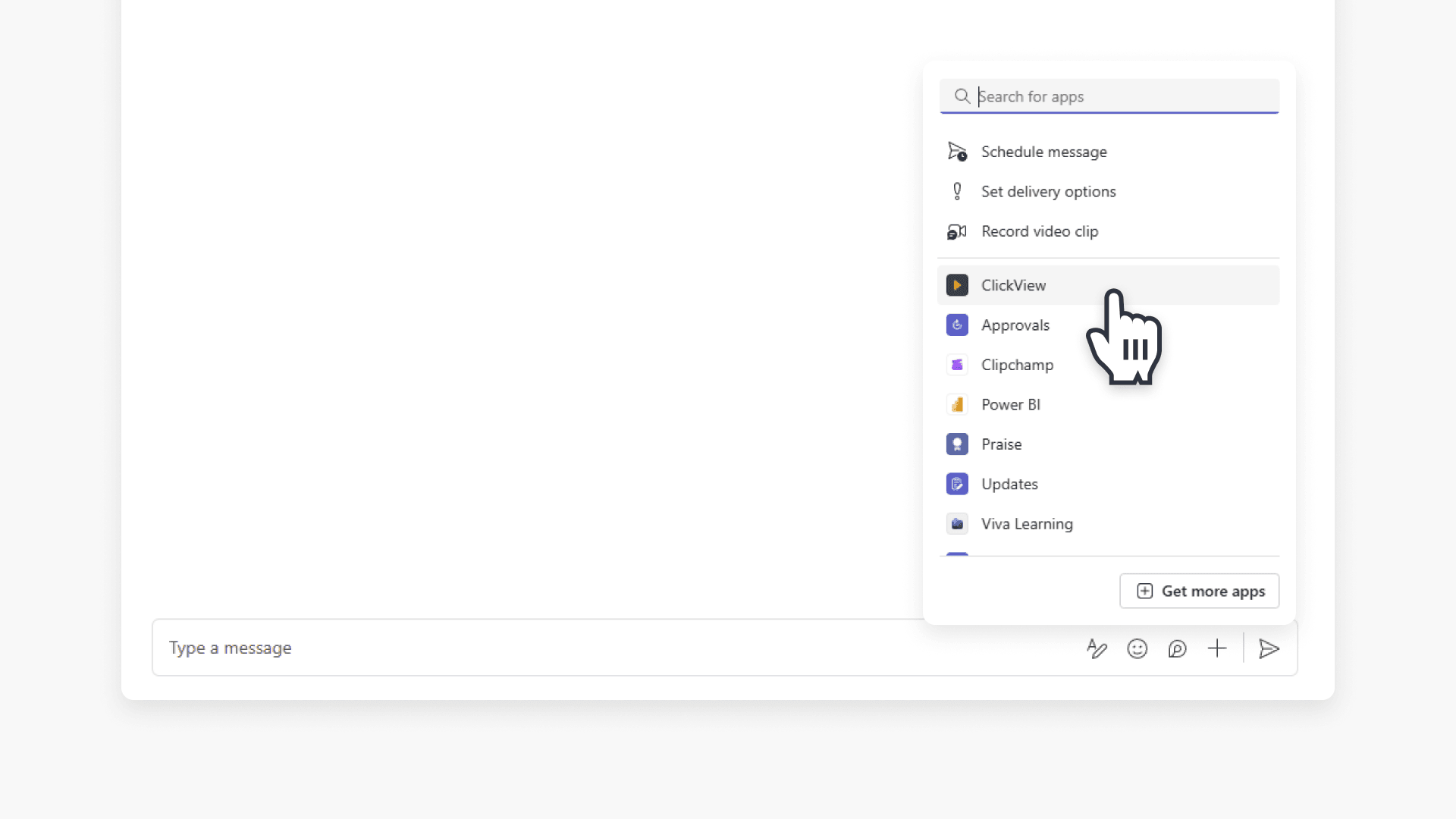
- Search for and select the ClickView app.
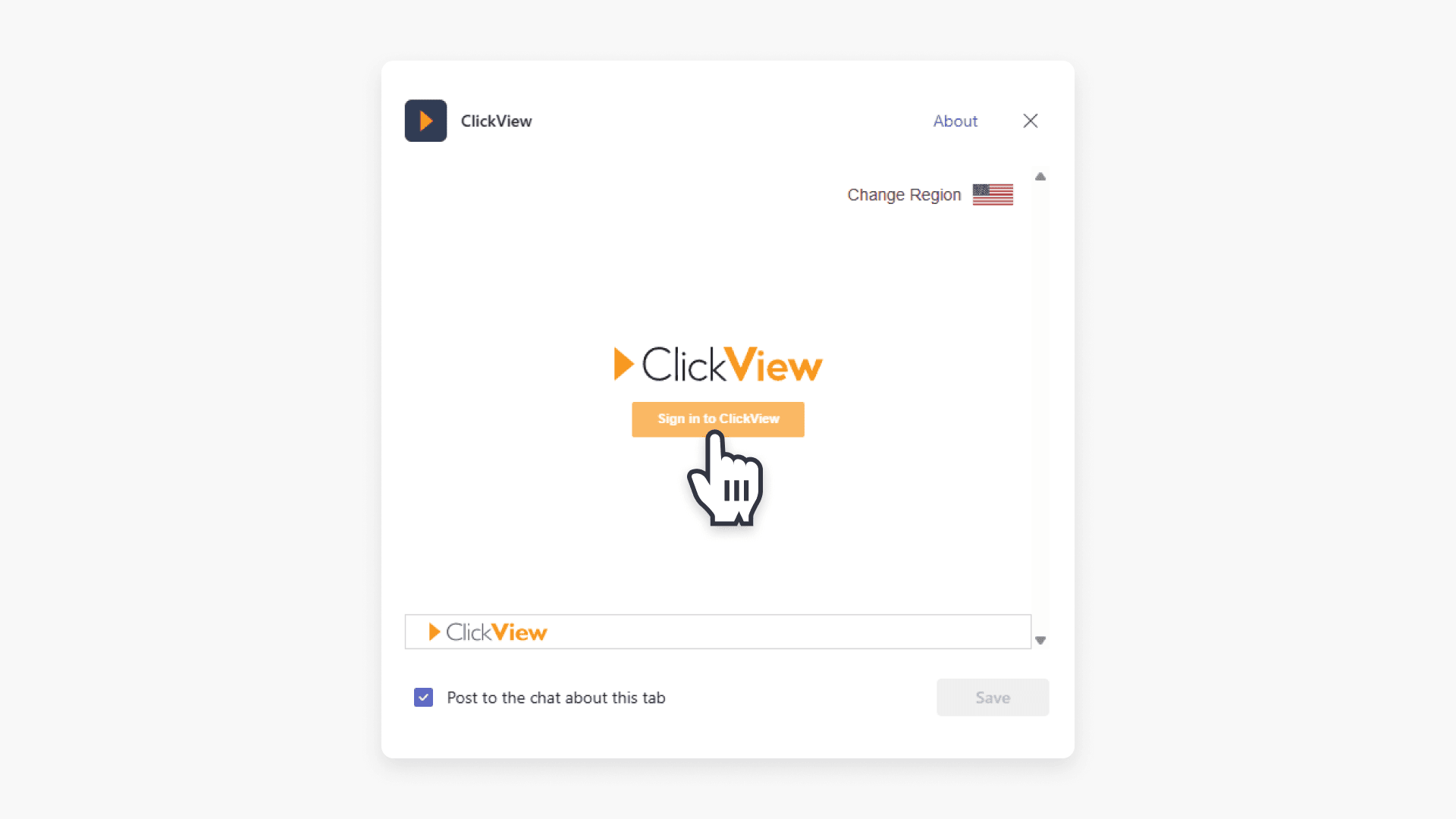
- When prompted, sign in to ClickView and confirm the correct region is selected.
- Navigate to the video and select the video thumbnail.
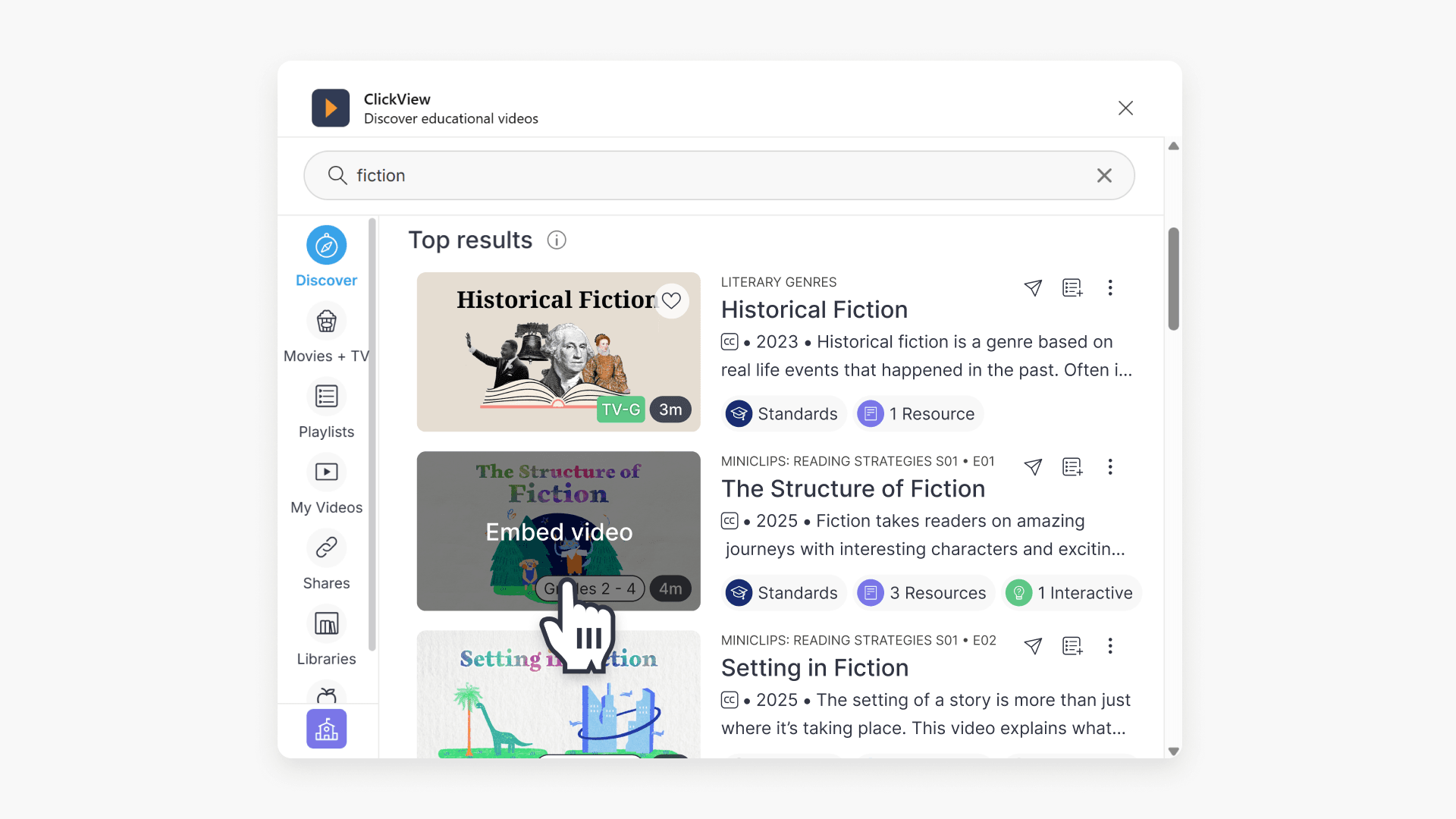
- In the Embed video pop-up, choose options such as grade level, video size, or autoplay, then select Embed.
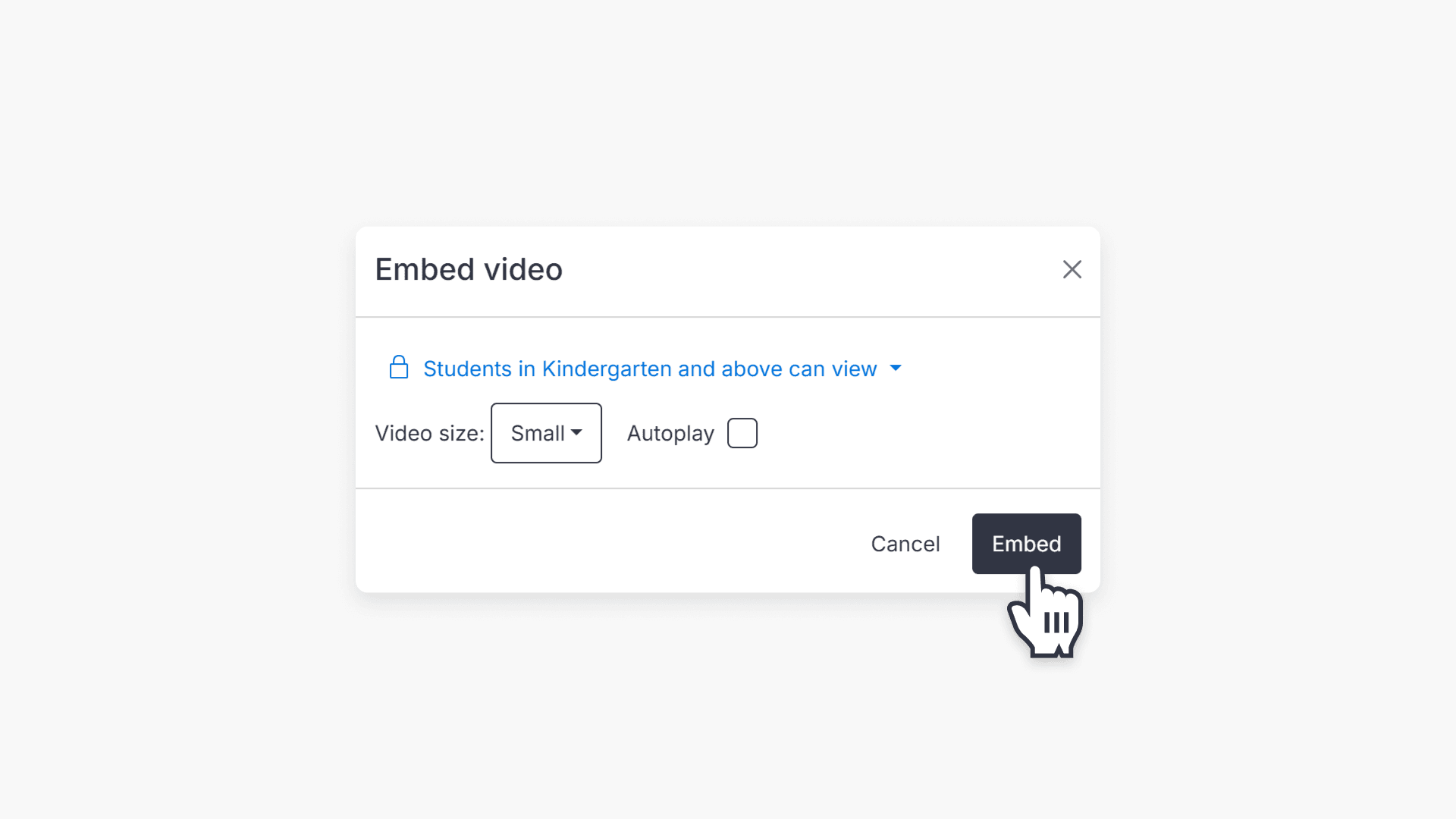
- The video will appear in your chat. Add a message if needed, then send.
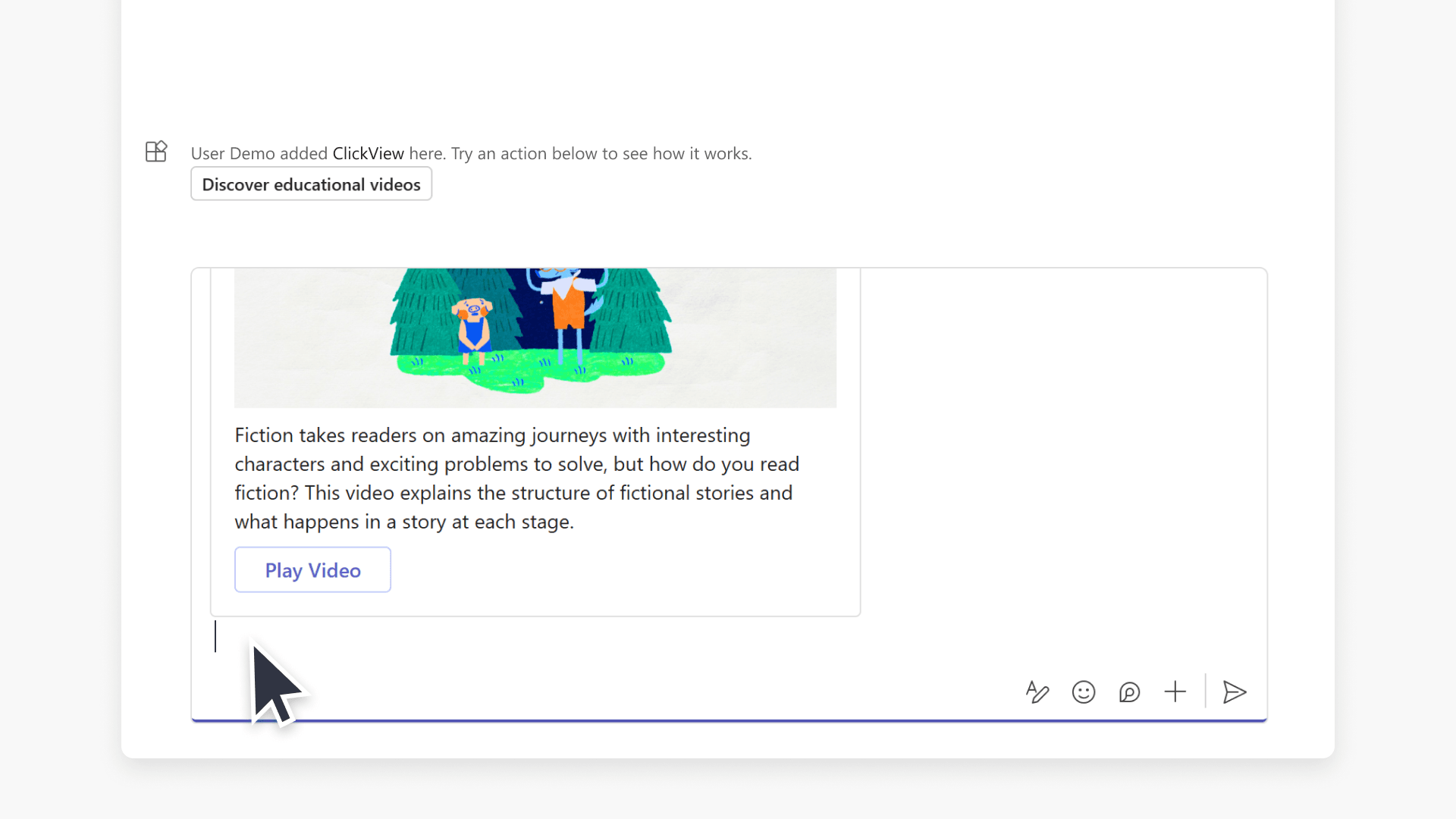
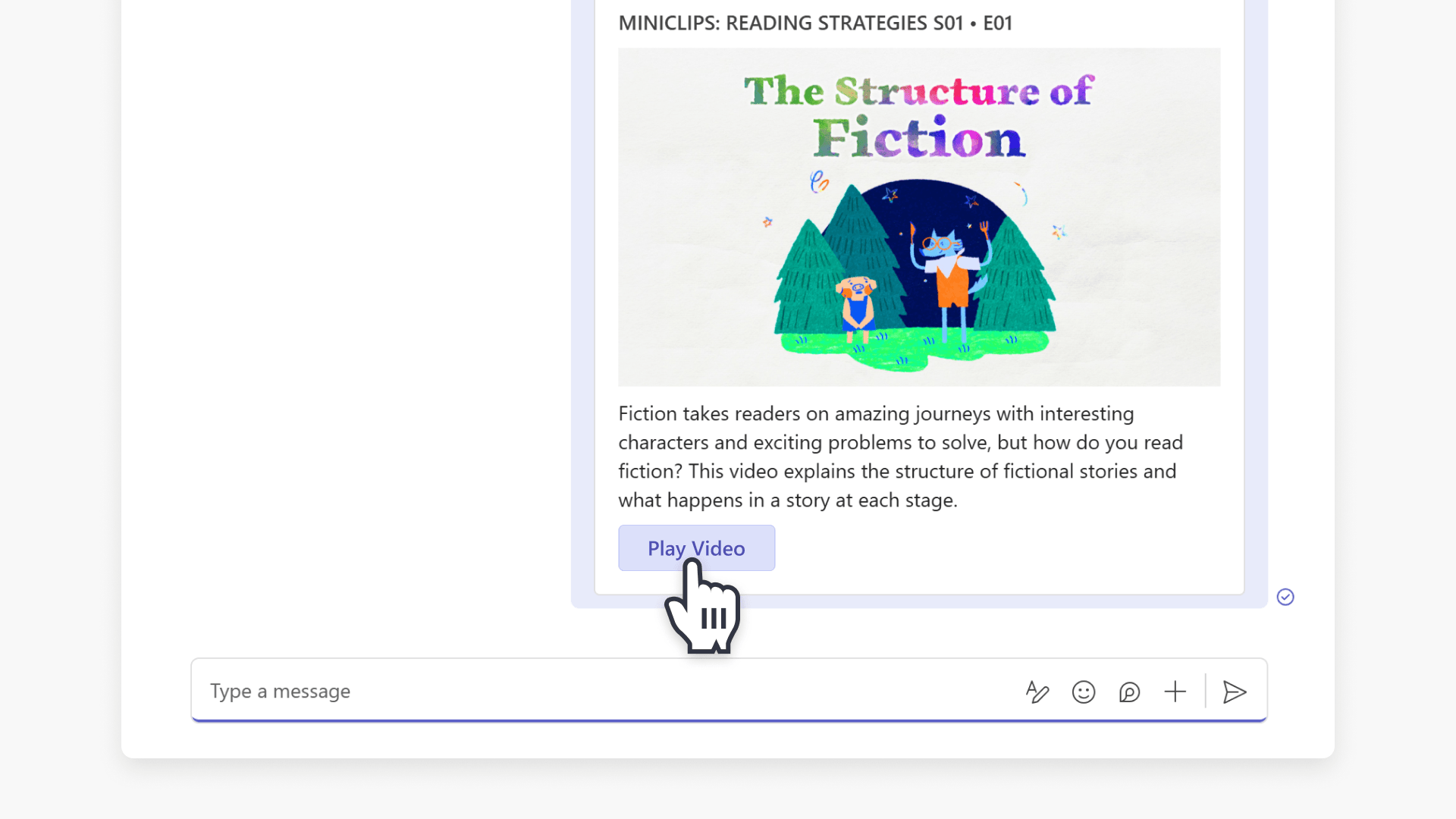
- Select Play Video to view the video.
Embed ClickView videos by adding a tab
- Select the Chat menu item.
- Open the relevant chat, then select the + icon in the tab area.
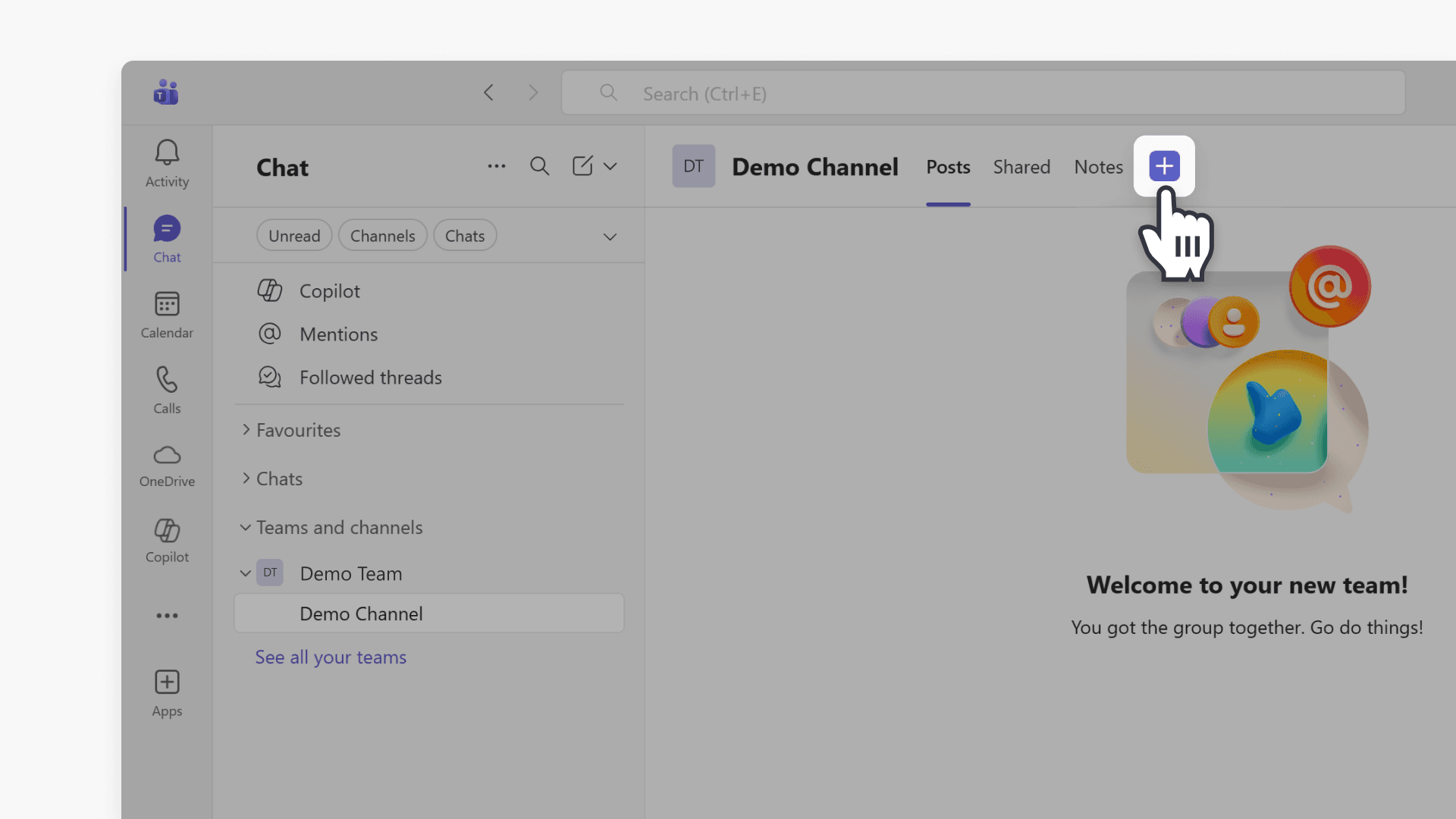
- Select Apps.
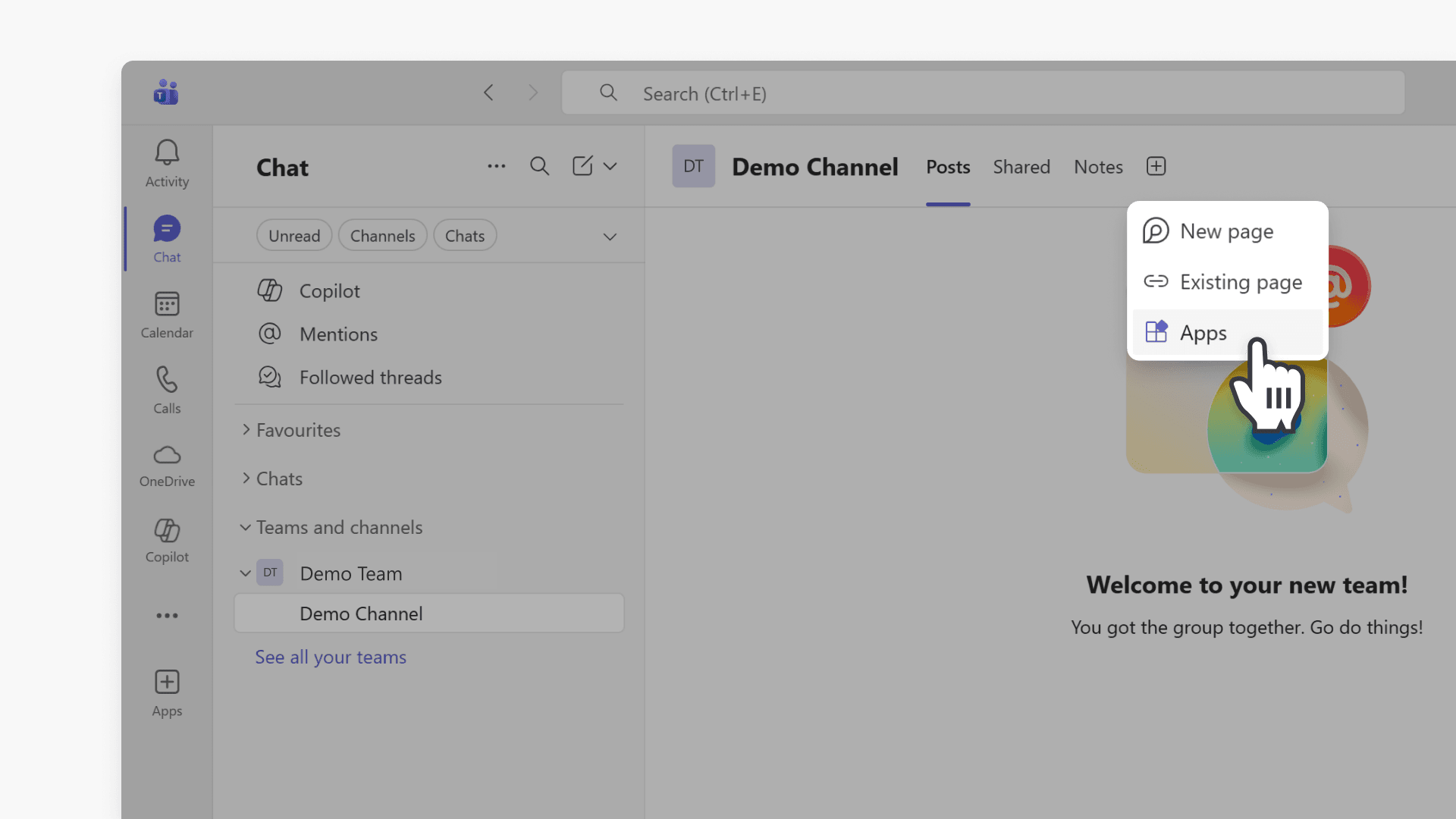
- Search for and select the ClickView app.
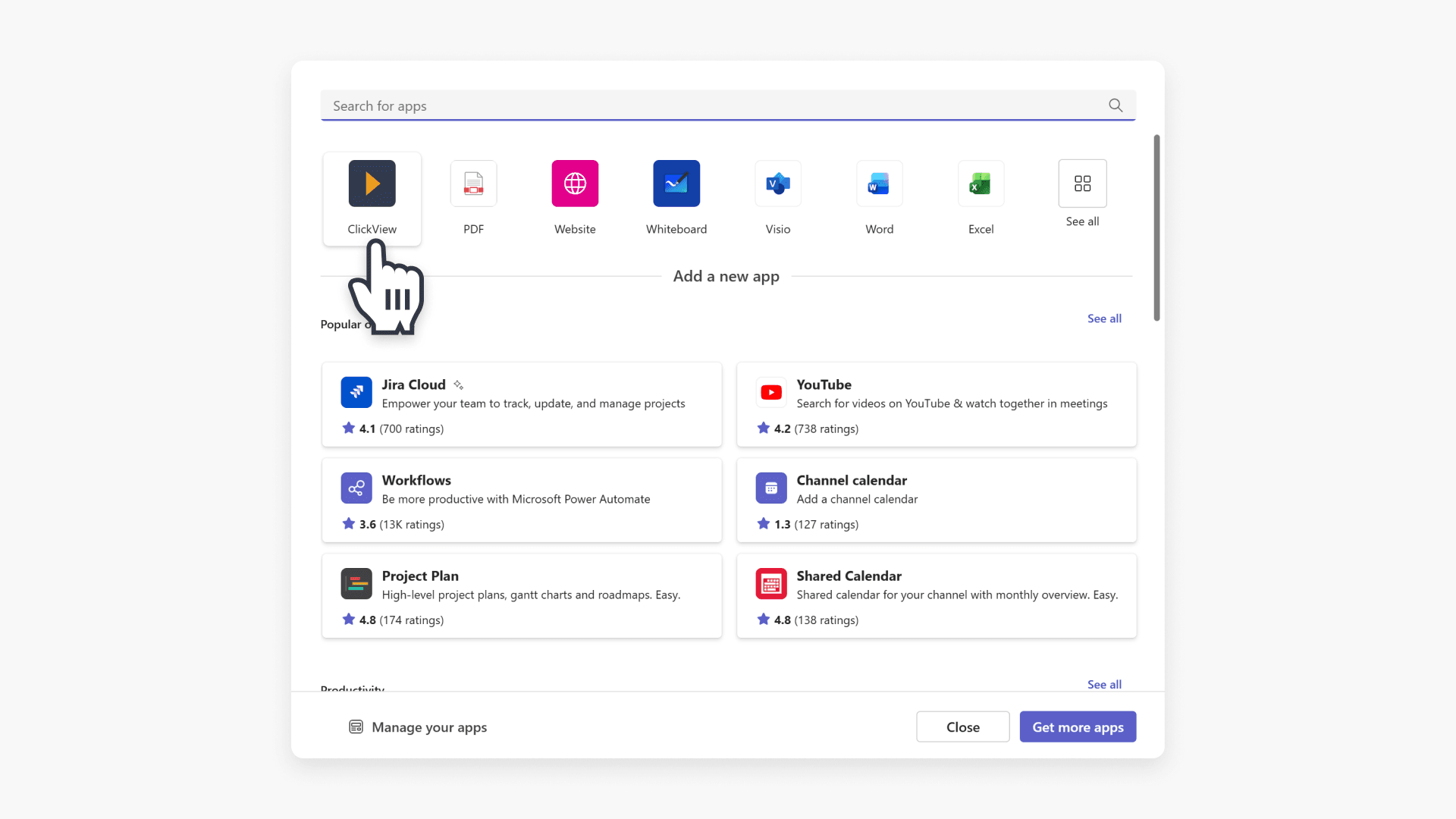
- When prompted, sign in to ClickView and confirm the correct region is selected.
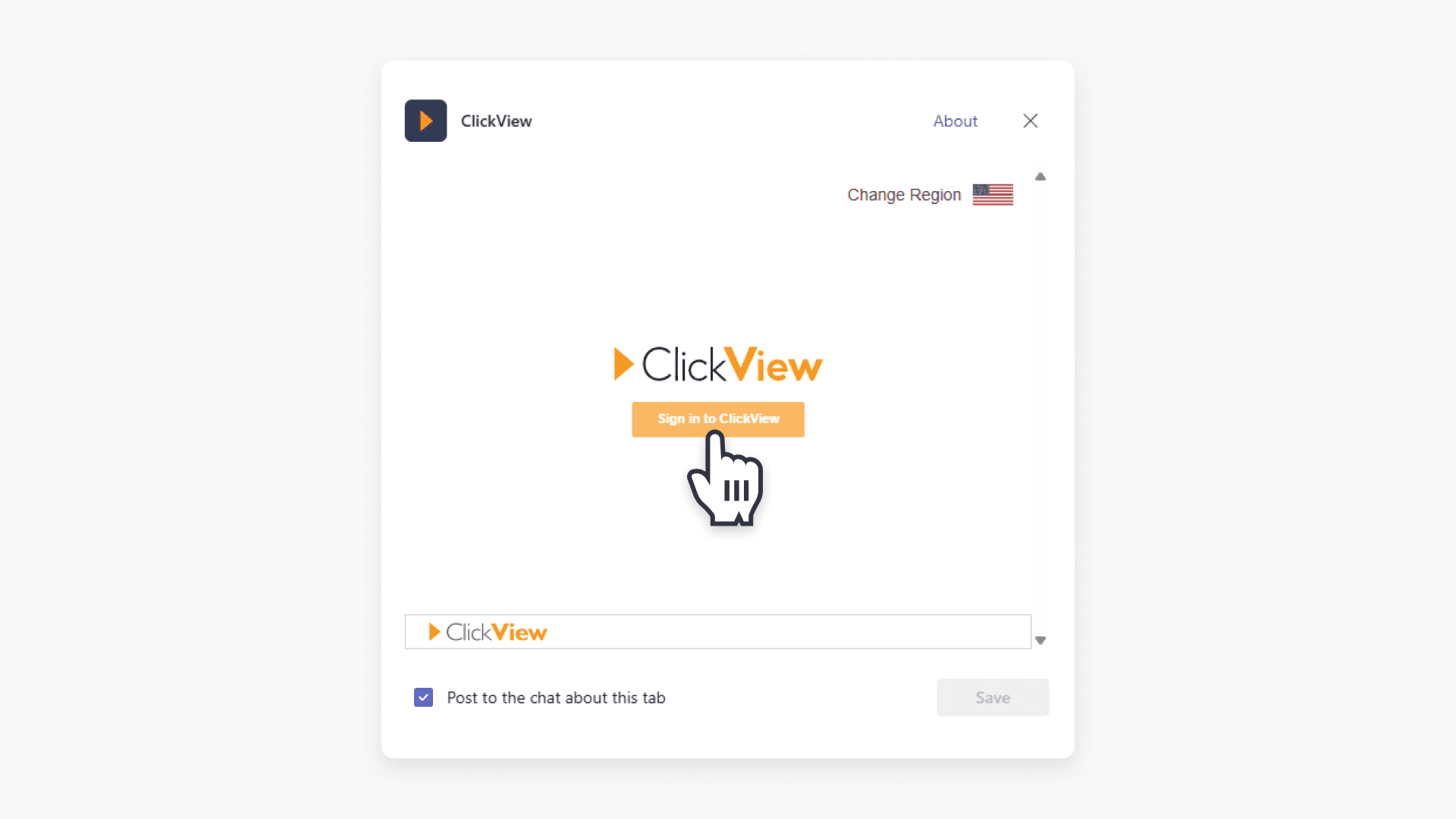
- Navigate to the video and select the video thumbnail.
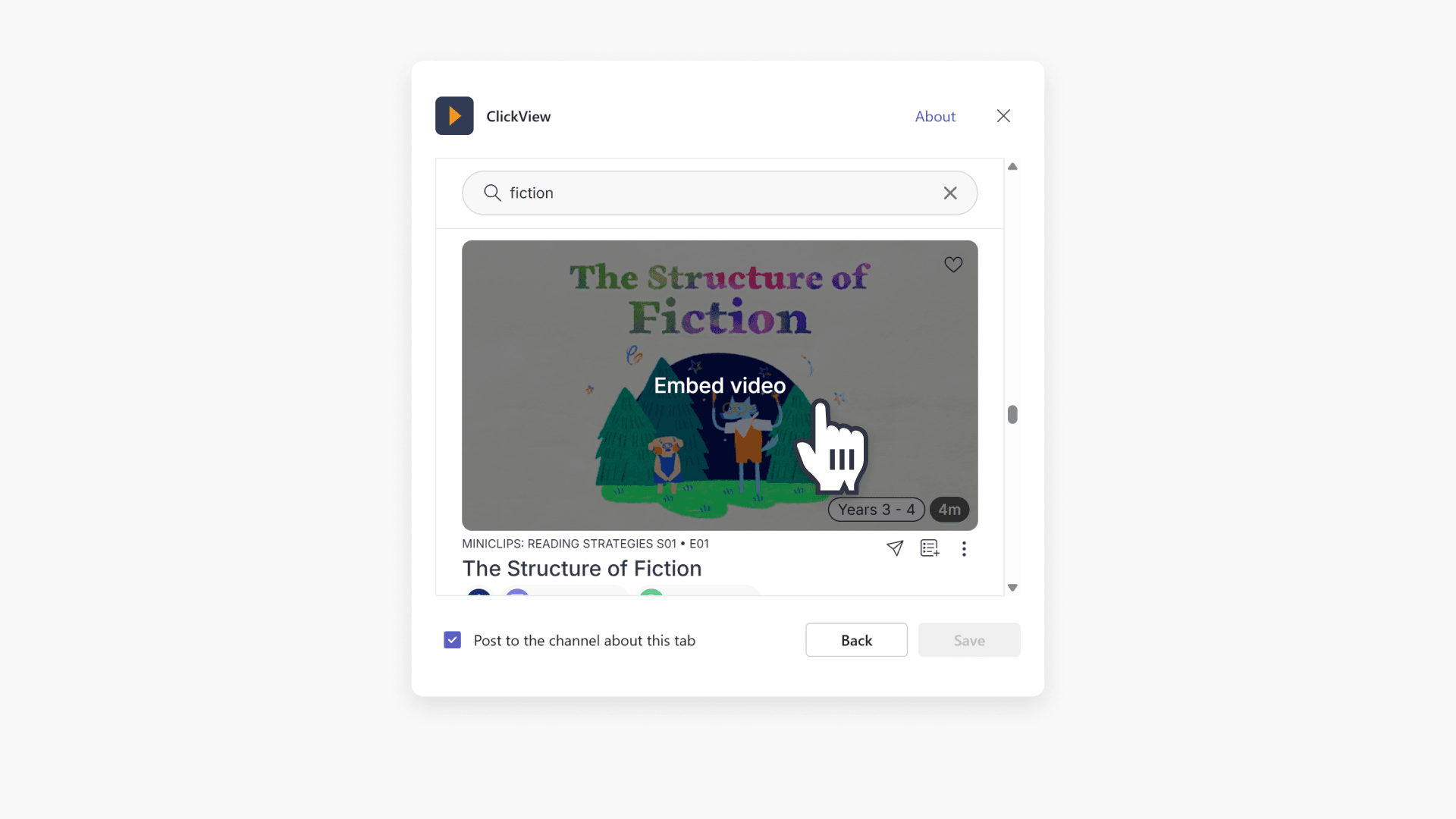
- In the embed pop-up, choose options such as grade level, video size, or autoplay, then select Embed.
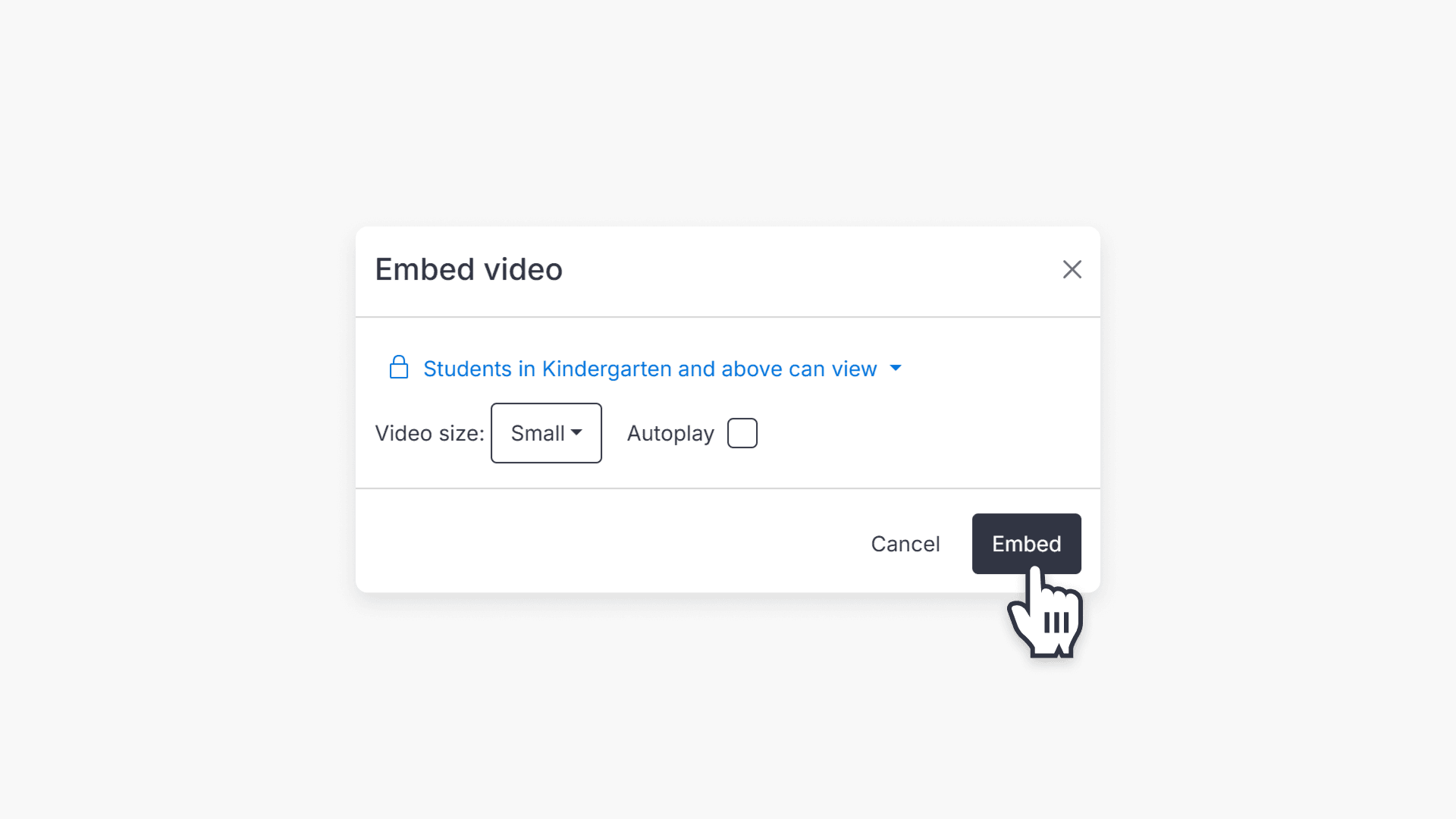
- Select Save.

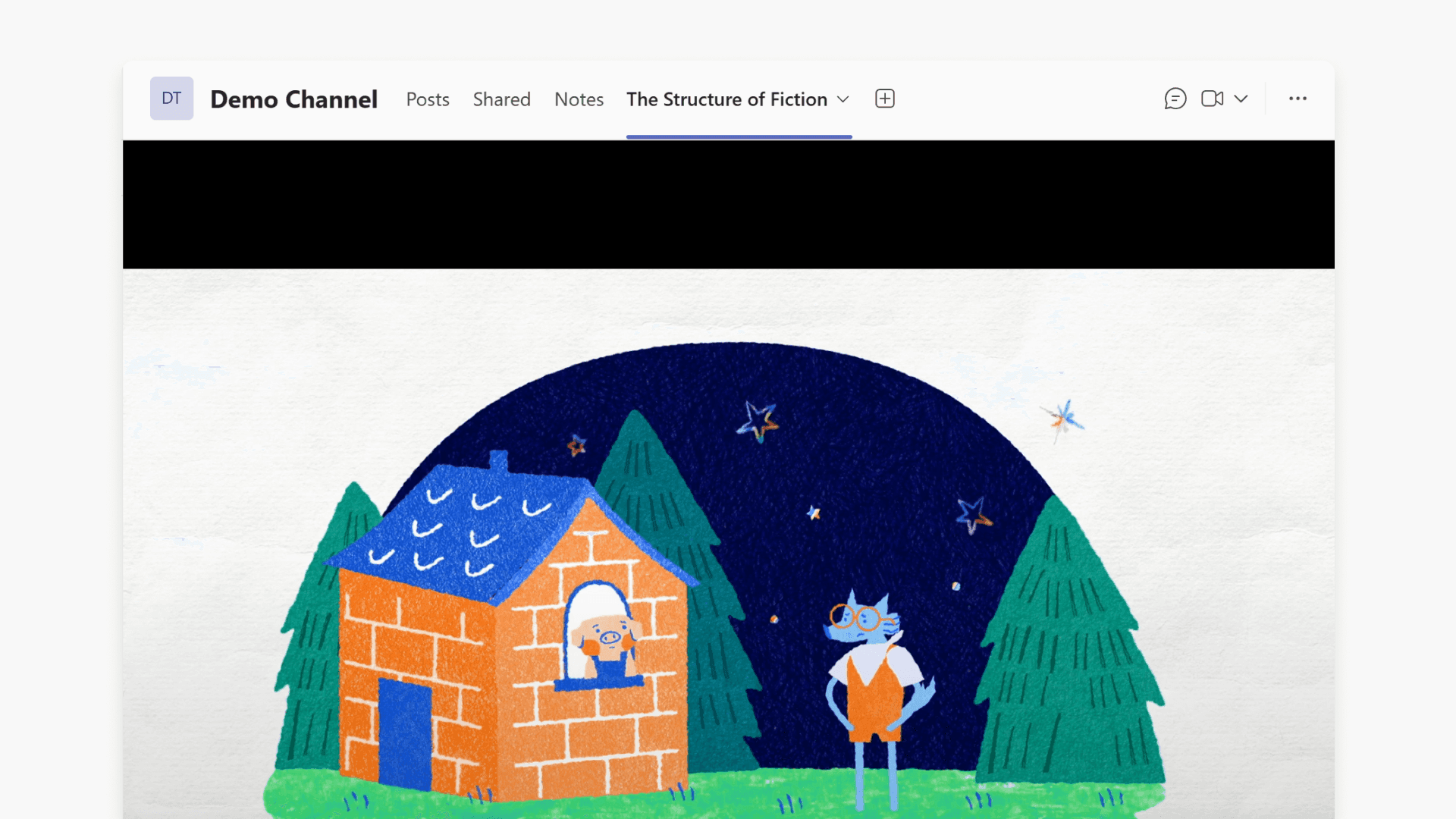
- The video will now appear as a tab in your chat window.
Frequently asked questions
Yes. You must sign in to ClickView within Teams and select the correct region before you can embed videos.
You can embed ClickView videos directly into chats or add them as dedicated tabs so they are easy to access during class discussions and instruction.
Get in touch
If you’re having trouble finding the right topics or videos, just reach out! Our team - 


 Andrew, Nisch, Janice, Pfreya, or any of us at ClickView - will be happy to help you get sorted.
Give feedback
Was this guide helpful?
Up Next
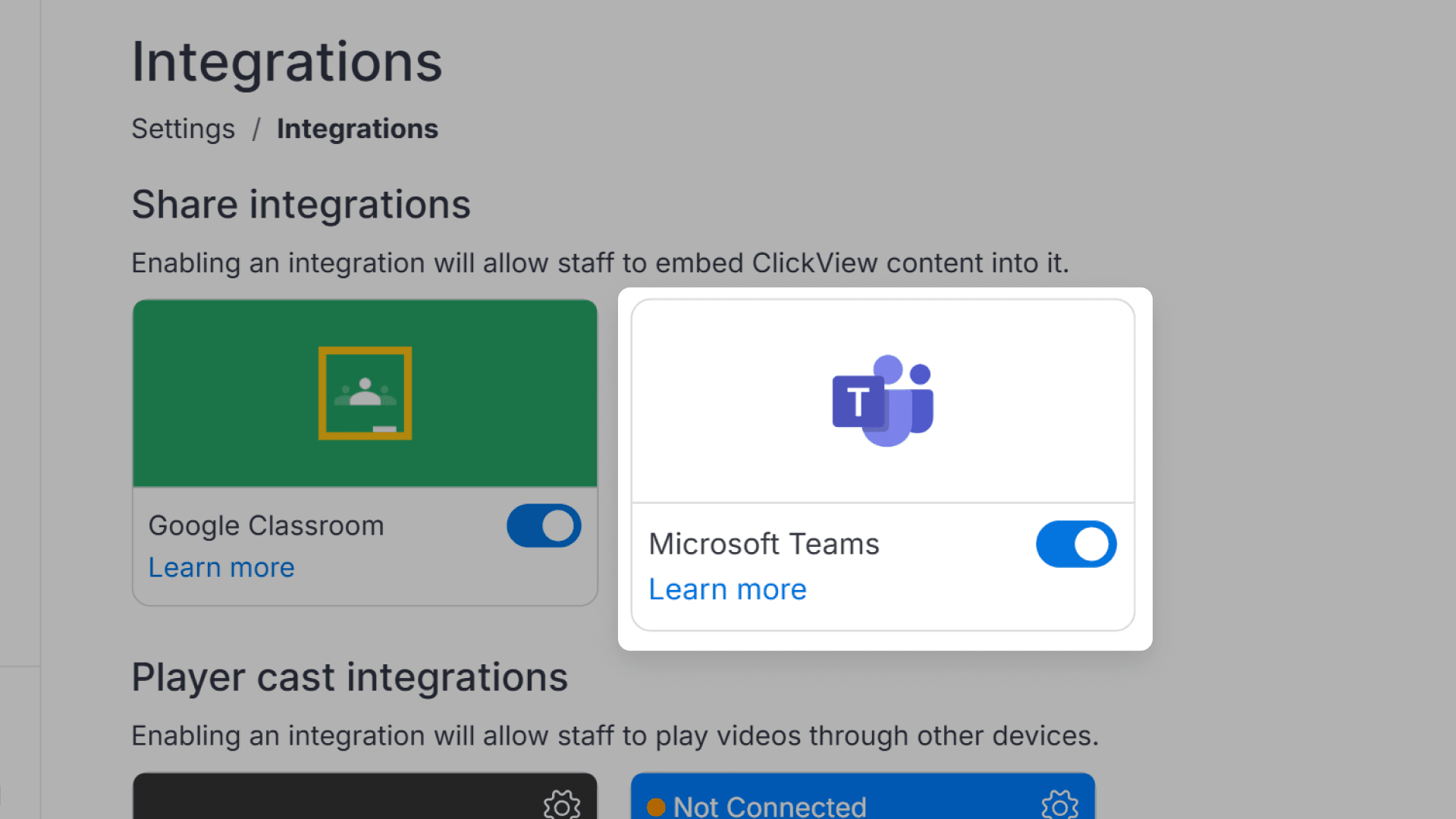
How to enable the Microsoft Teams and Google Classroom integrations
This article explains how administrators can enable the Microsoft Teams and Google Classroom integrations within ClickView. Step-by-step instructions show how to access the necessary settings, toggle the feature, and share educational video content with your classes.