Embed a ClickView video in Toddle

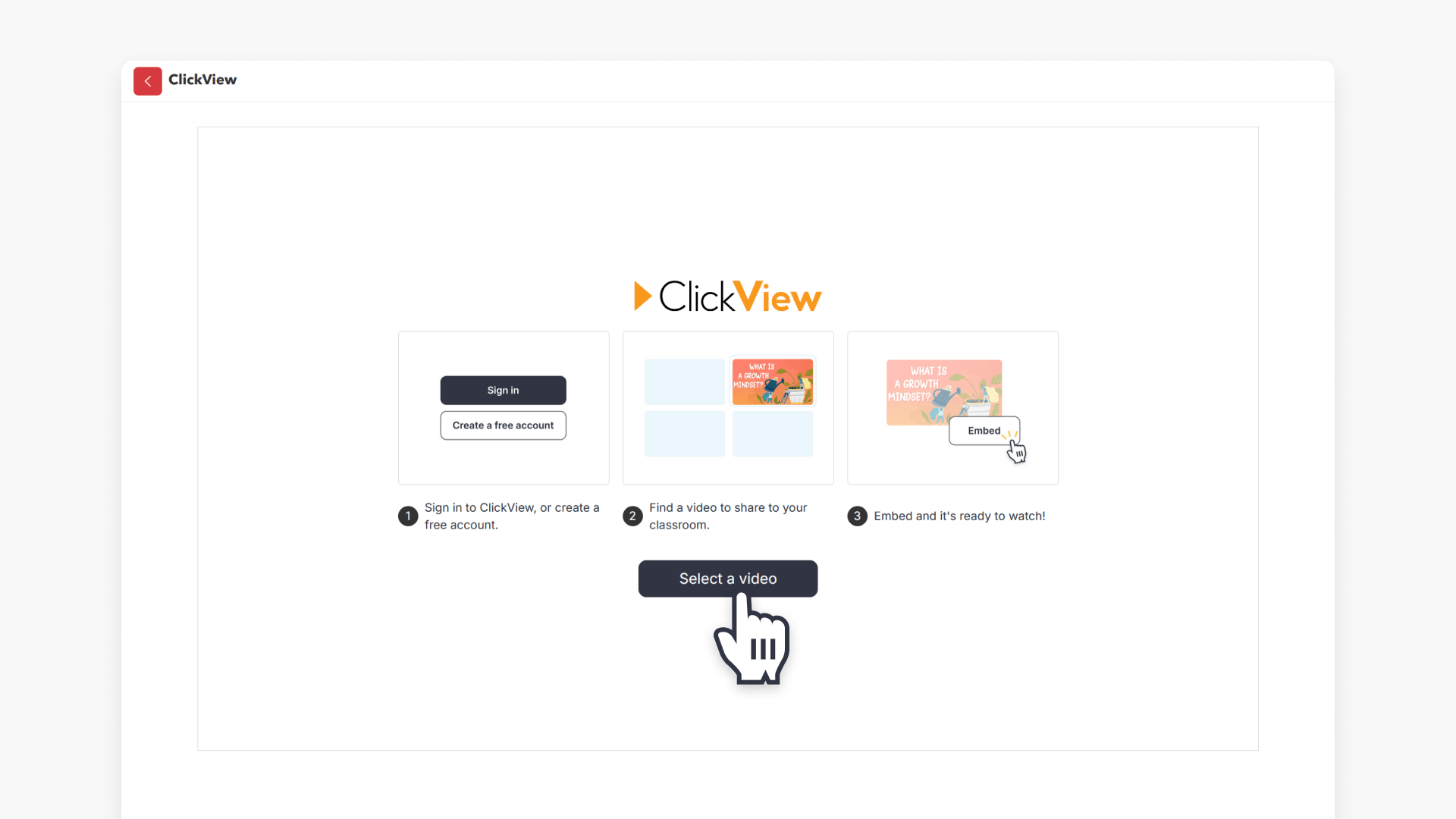
Summary
- Navigate to the admin portal from the Toddle Dashboard.
- Select ‘School setup’ then ‘LTI apps’ to add ClickView integration.
- Use ‘Client key’ and ‘Shared secret’ from ClickView for setup.
- In assignments, click ‘Add an external tool’ and select ‘ClickView’.
- Embed videos or interactive quizzes, then assign to students.
Set up the LTI integration in Toddle
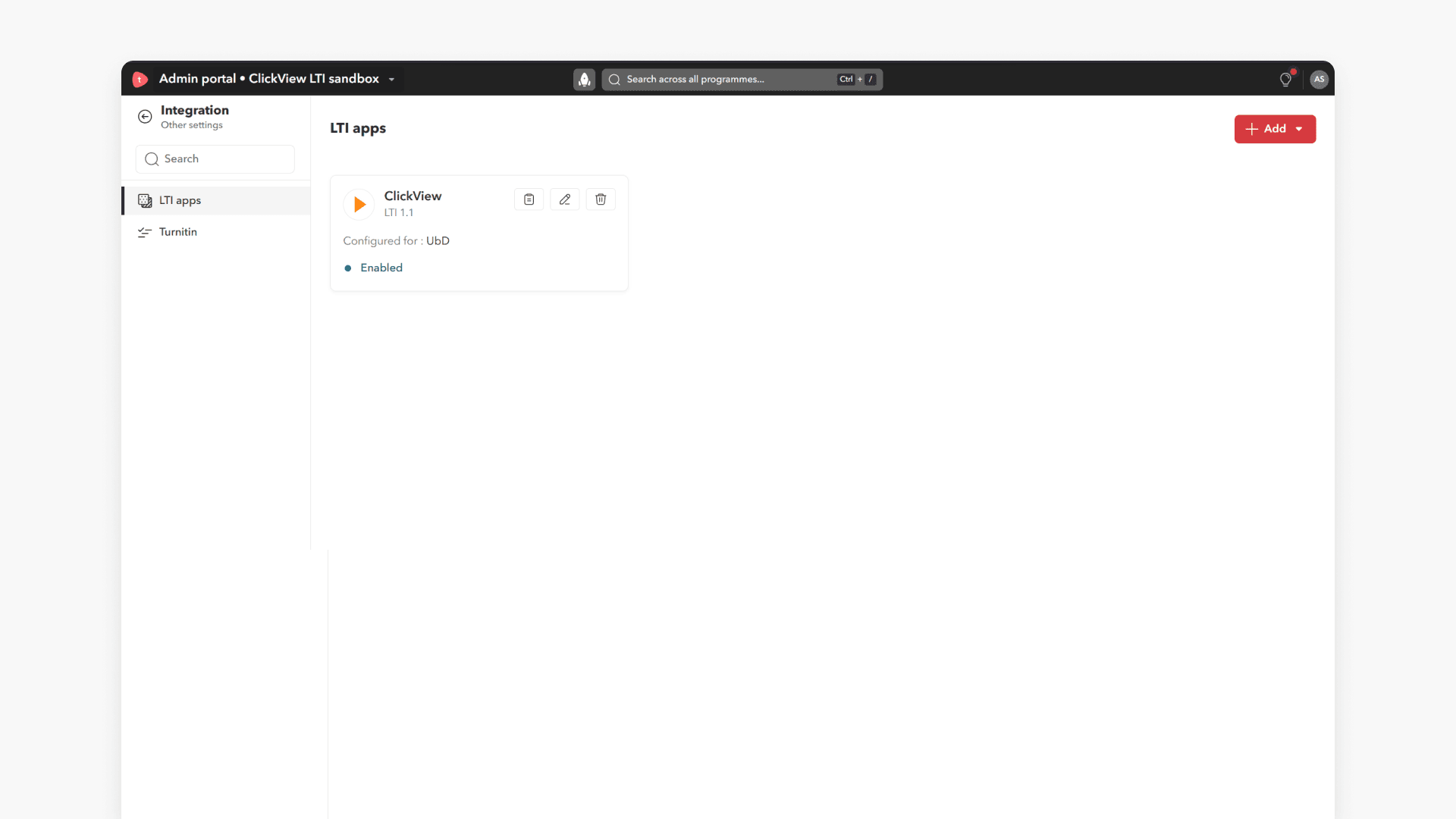
- From the Toddle Dashboard, navigate to the admin portal:
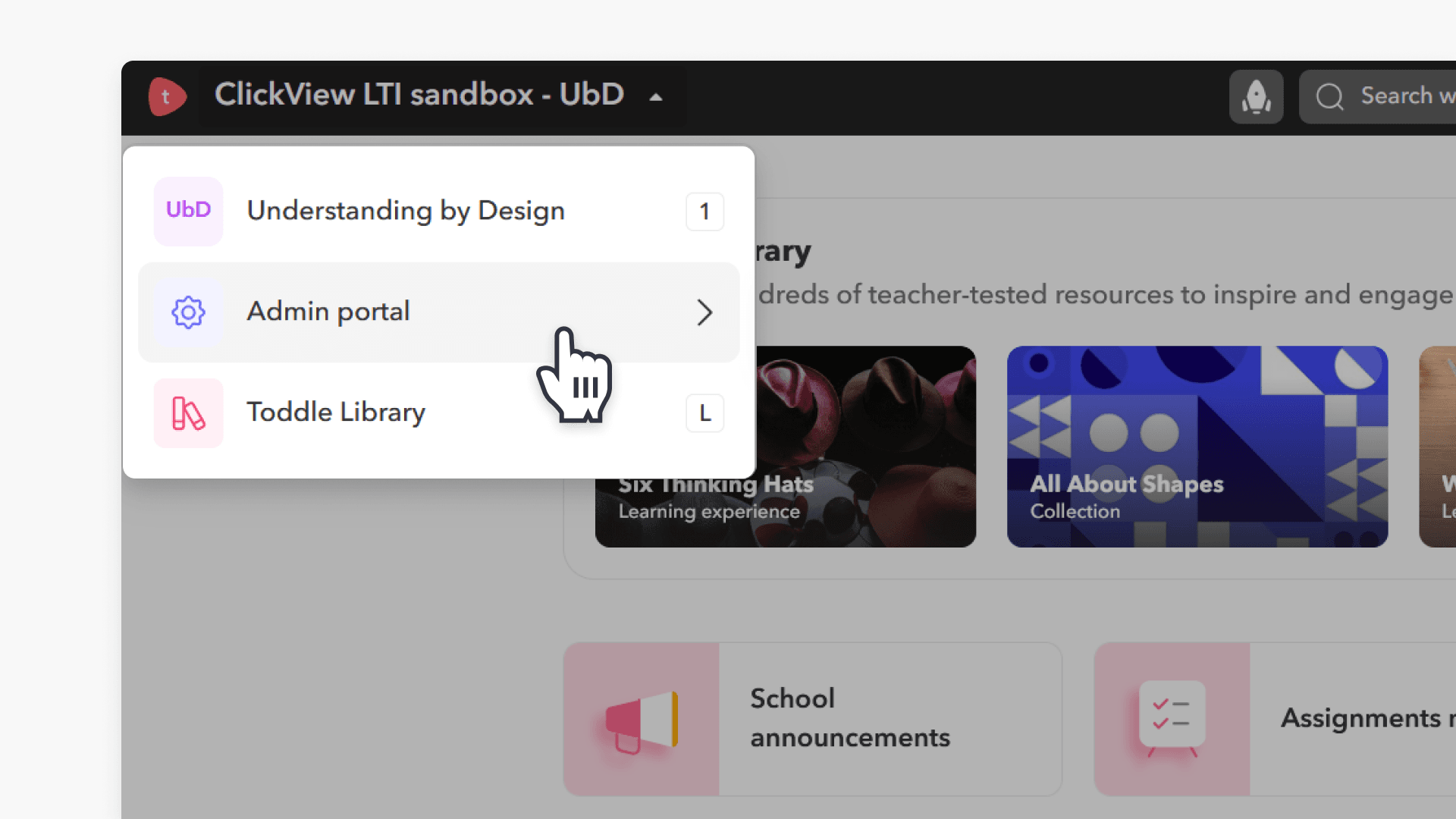
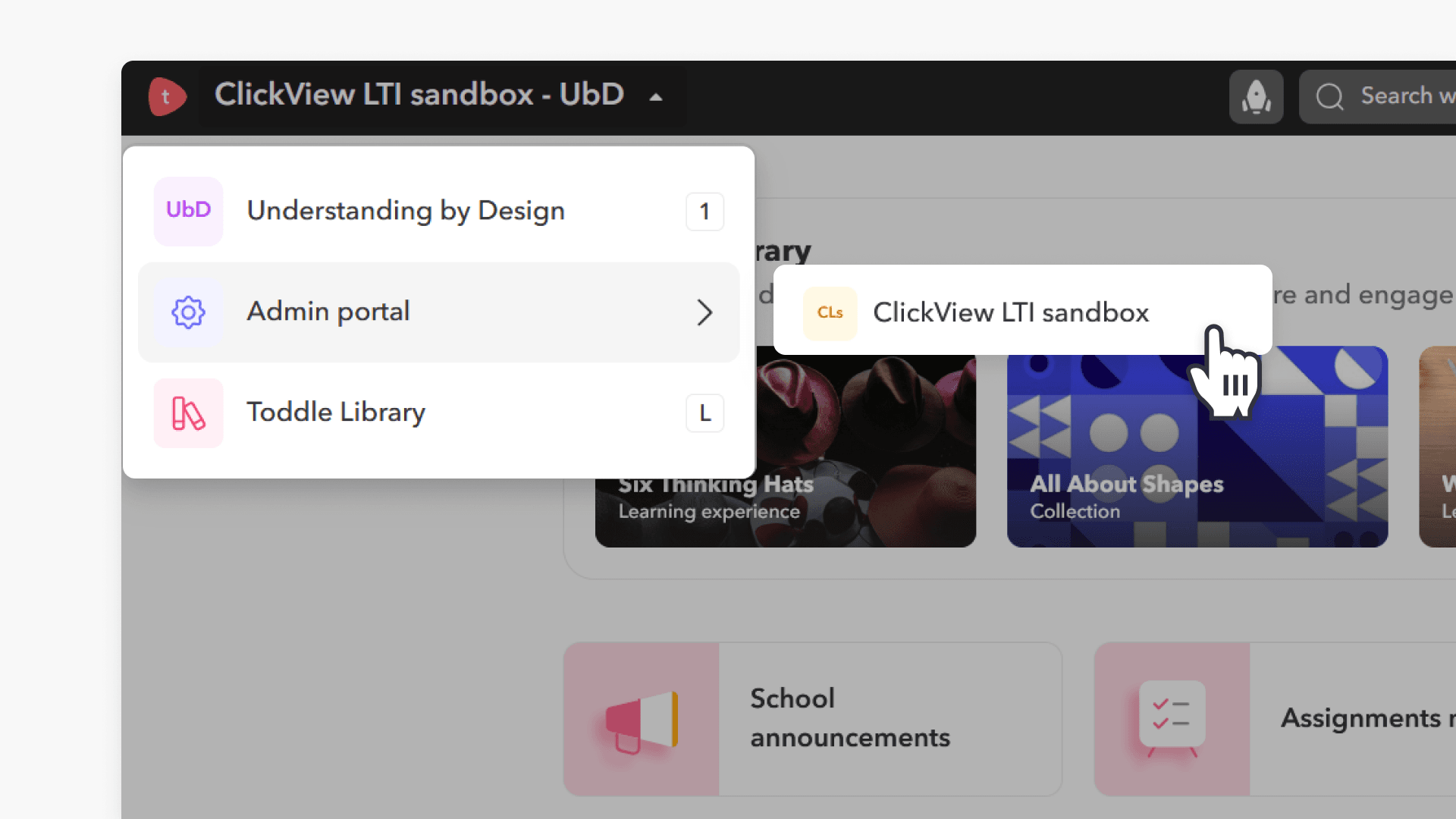
- Select ClickView LTI sandbox:
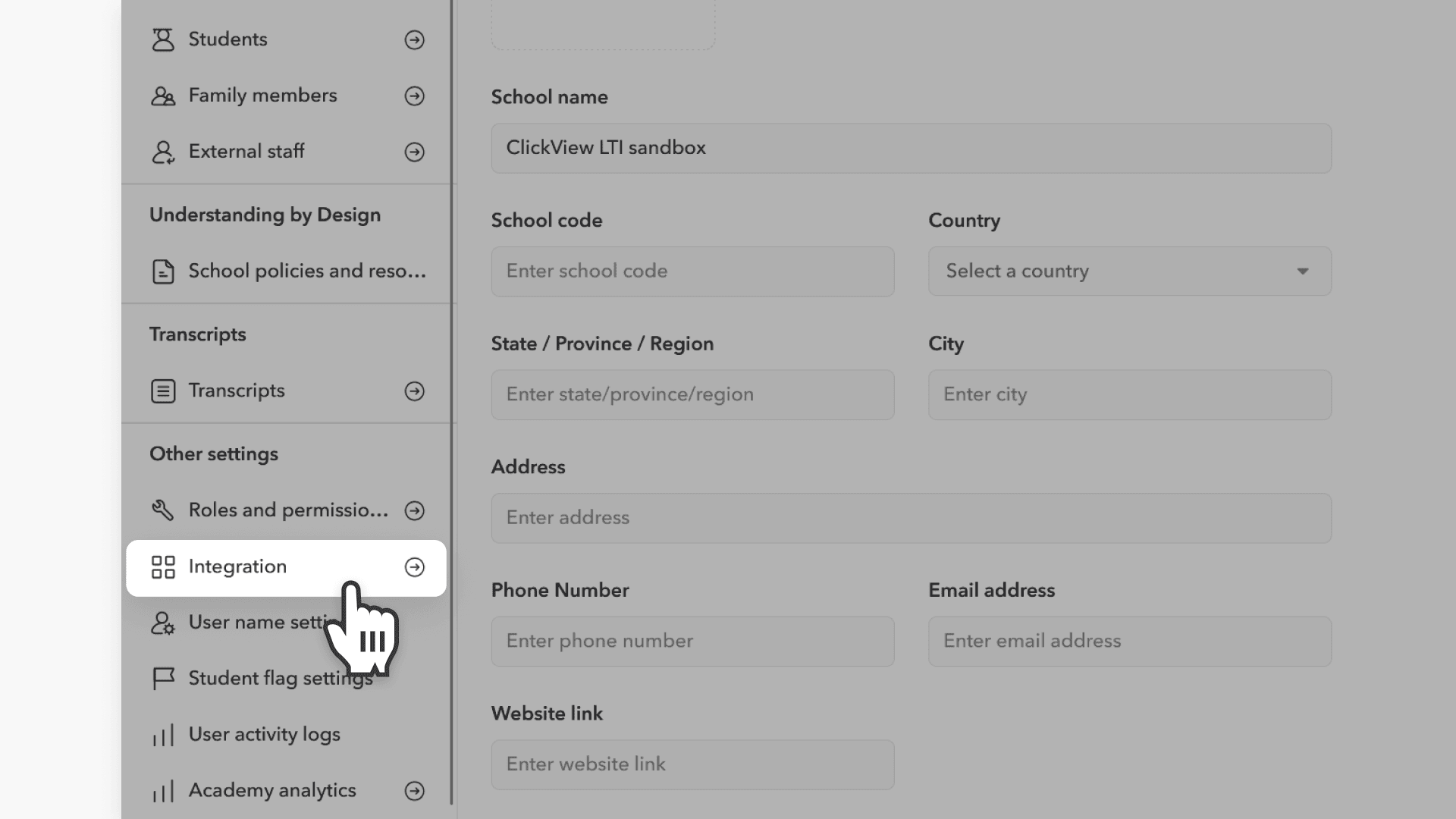
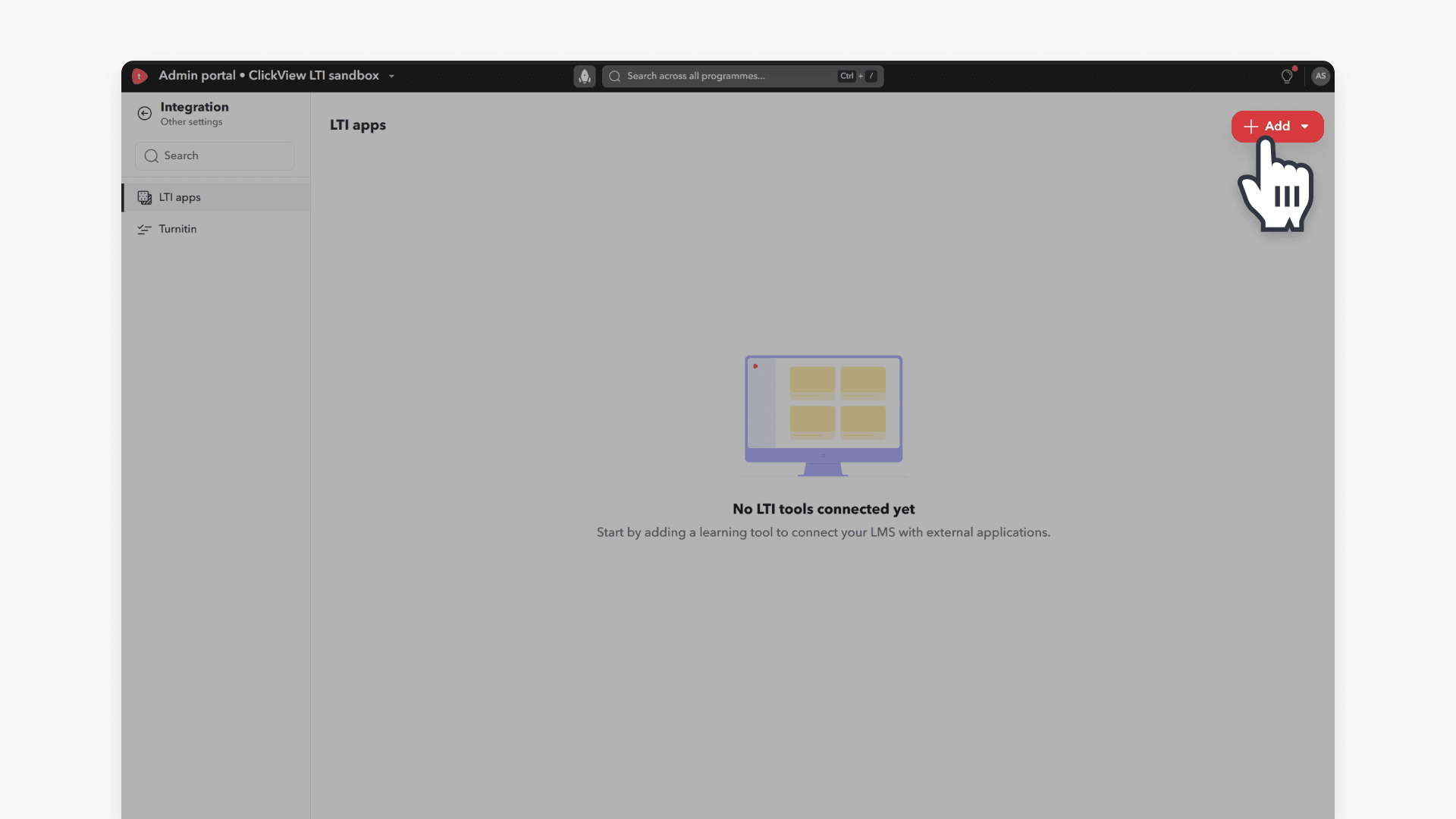
- Click Integrations in the left navigation bar:
- Click +Add:
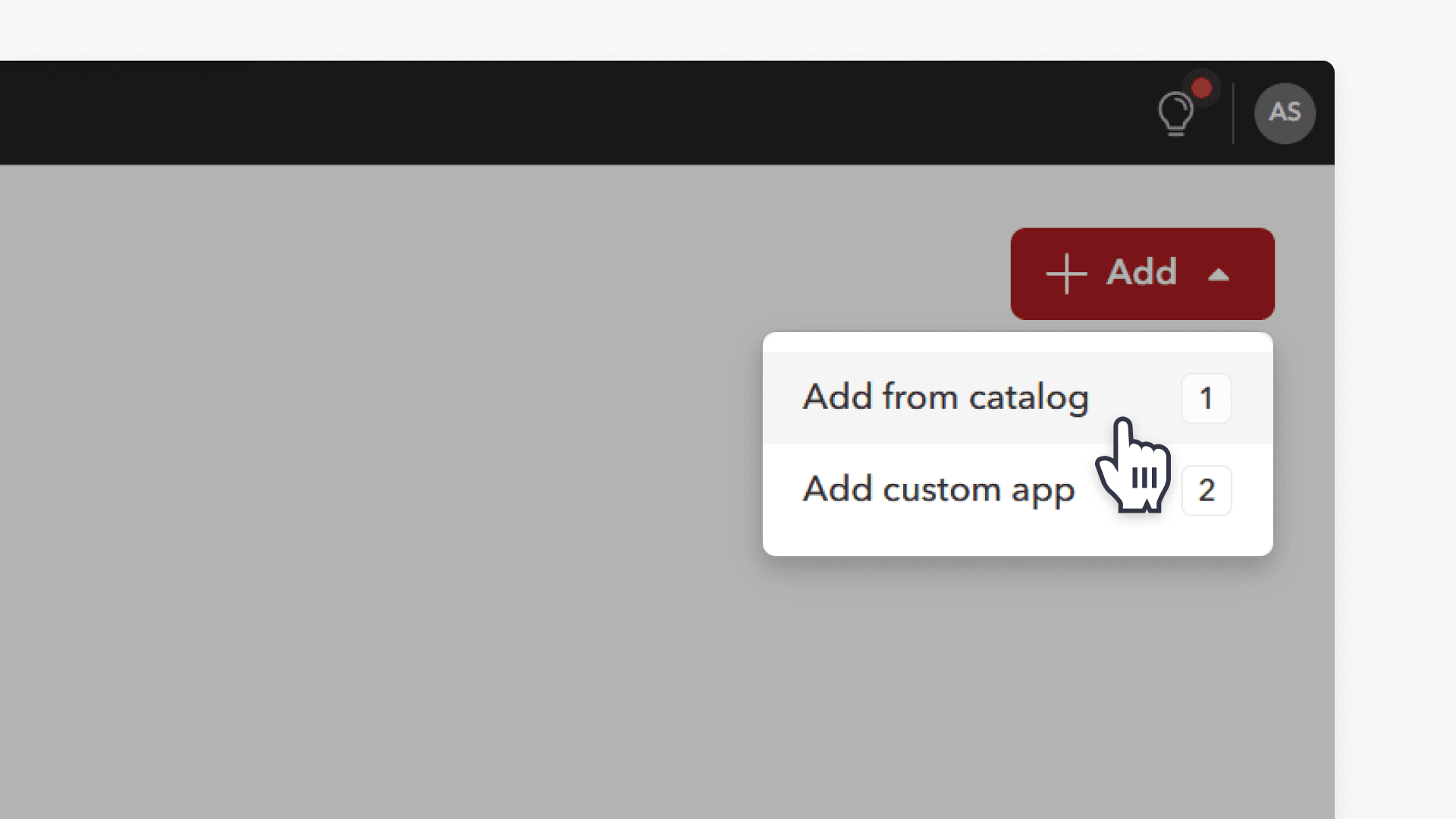
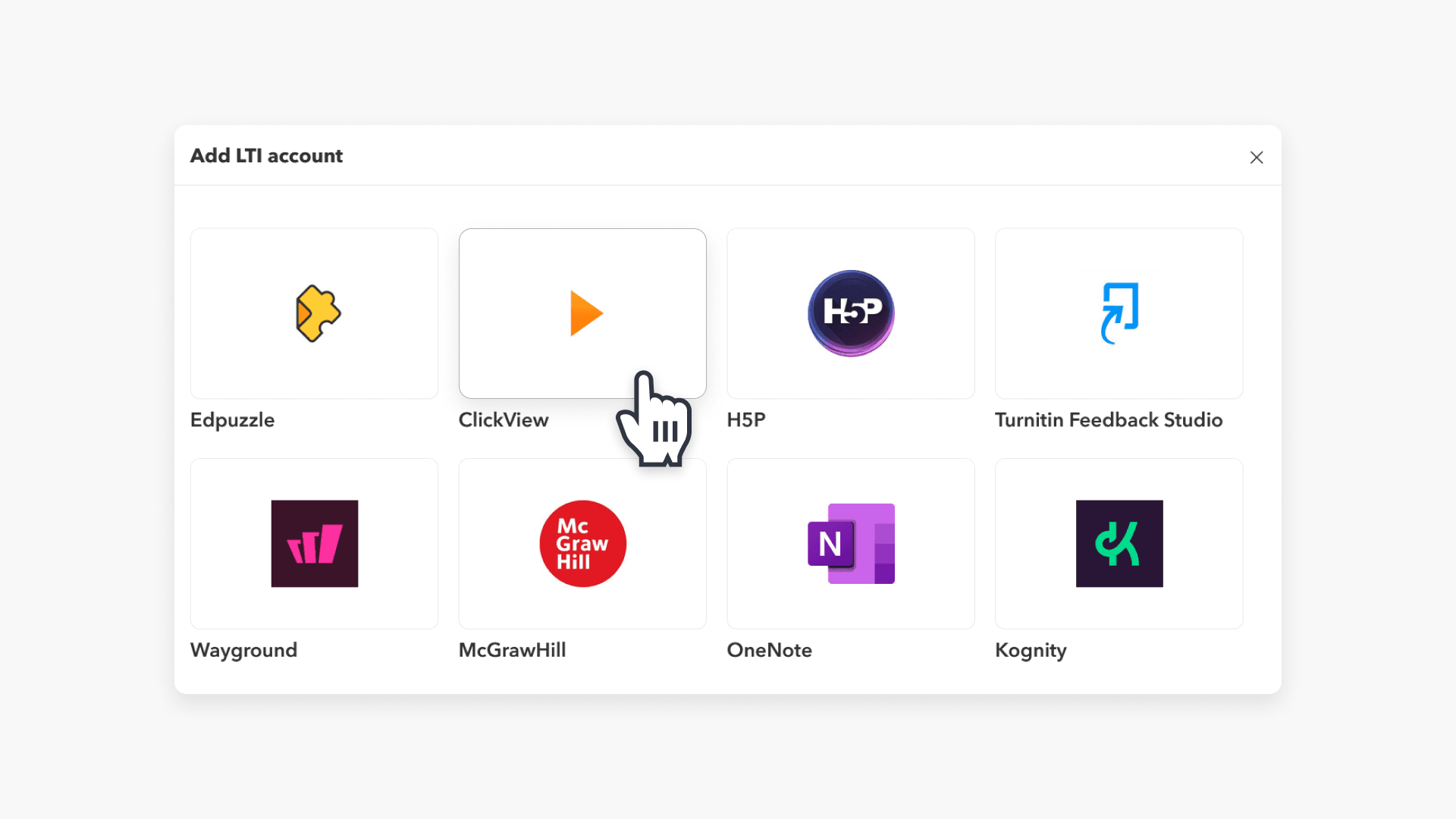
- Select Add from catalog. Select ClickView and set Version to 1.1:
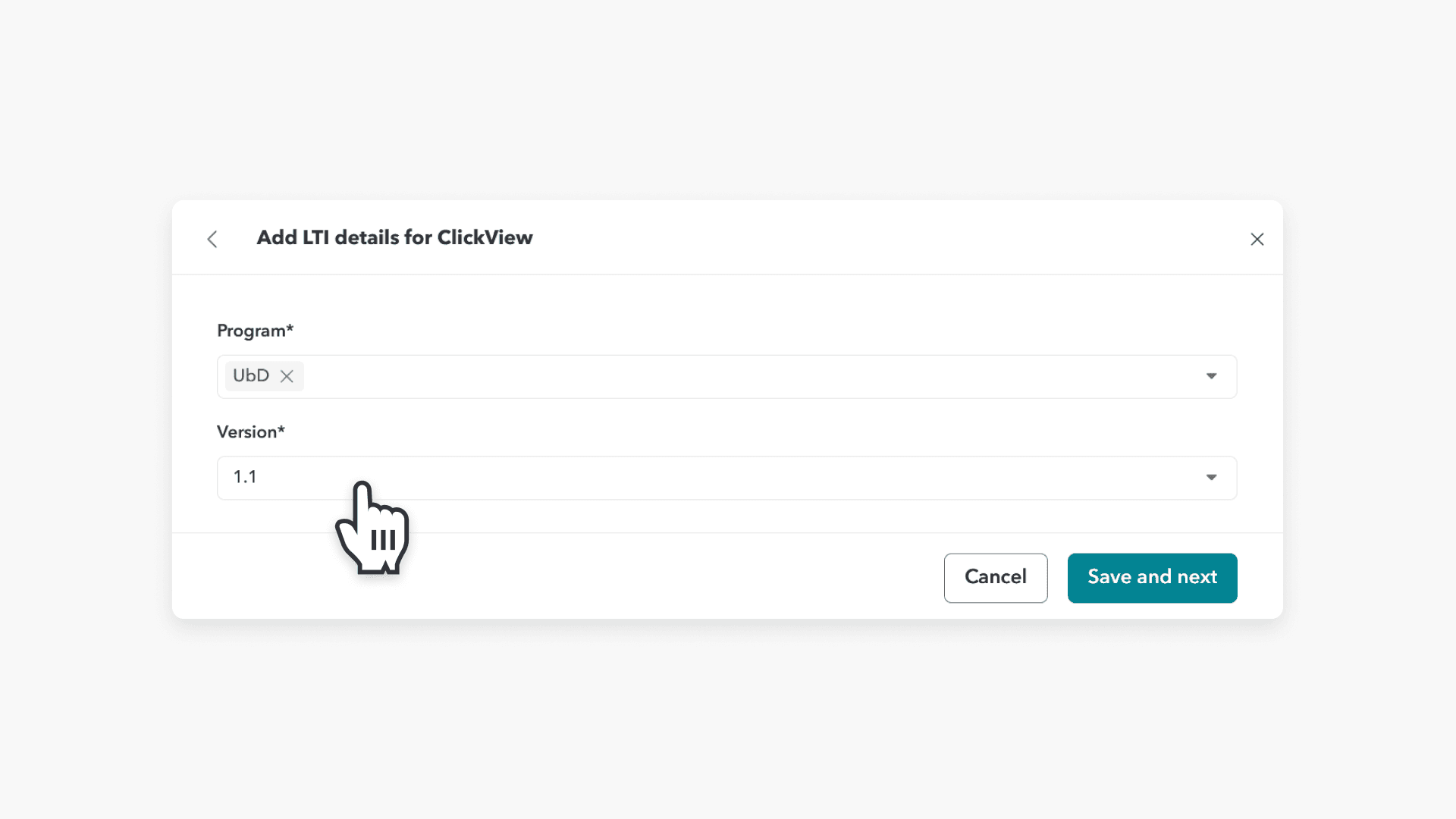
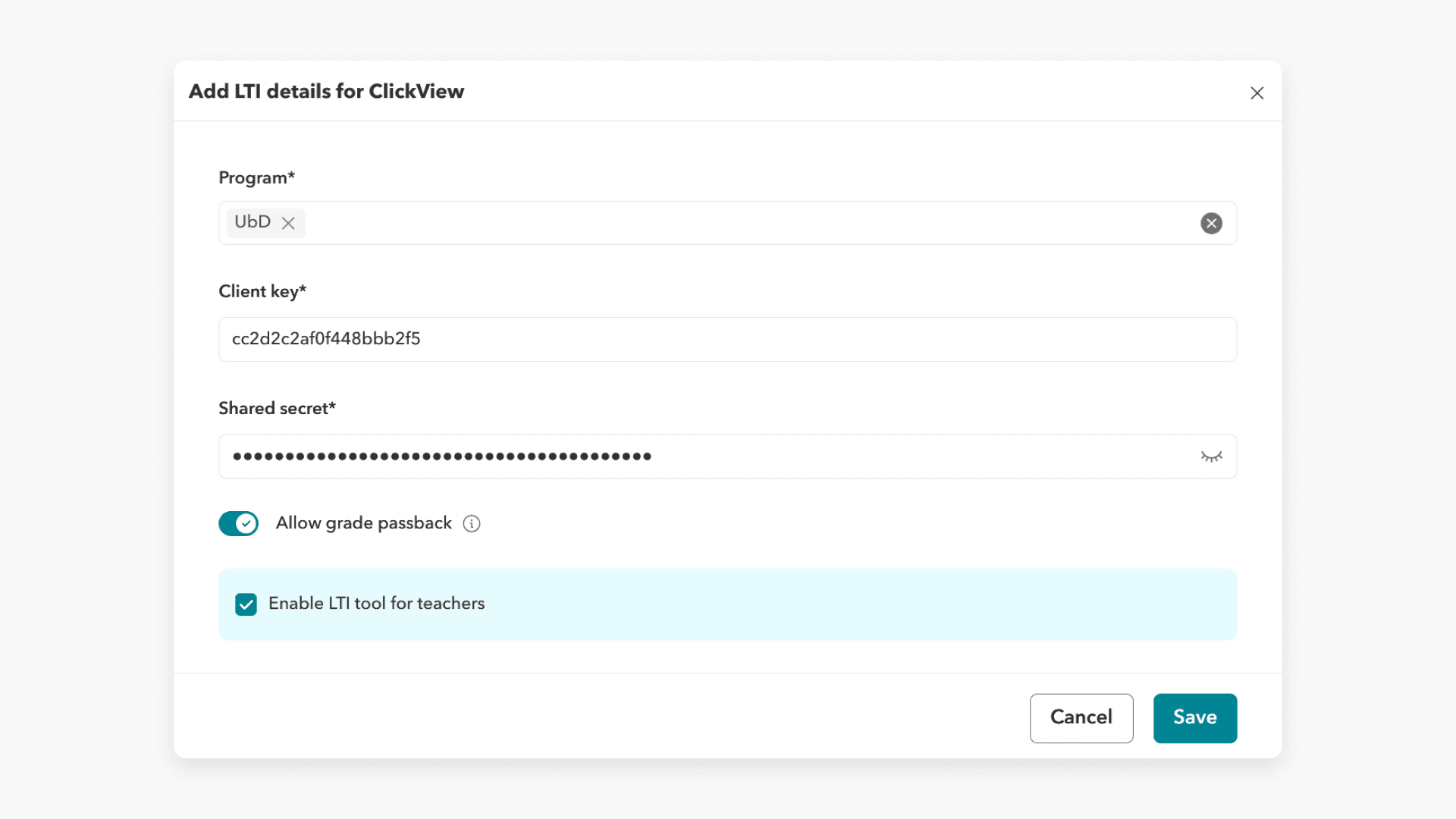
- Enter the Client key and Shared secret values from your ClickView account. See the Setting up LTI 1.1 guide for details.
- In the Program tab, select a curriculum and check Enable LTI tool for teachers.
Embed ClickView videos and interactive quizzes
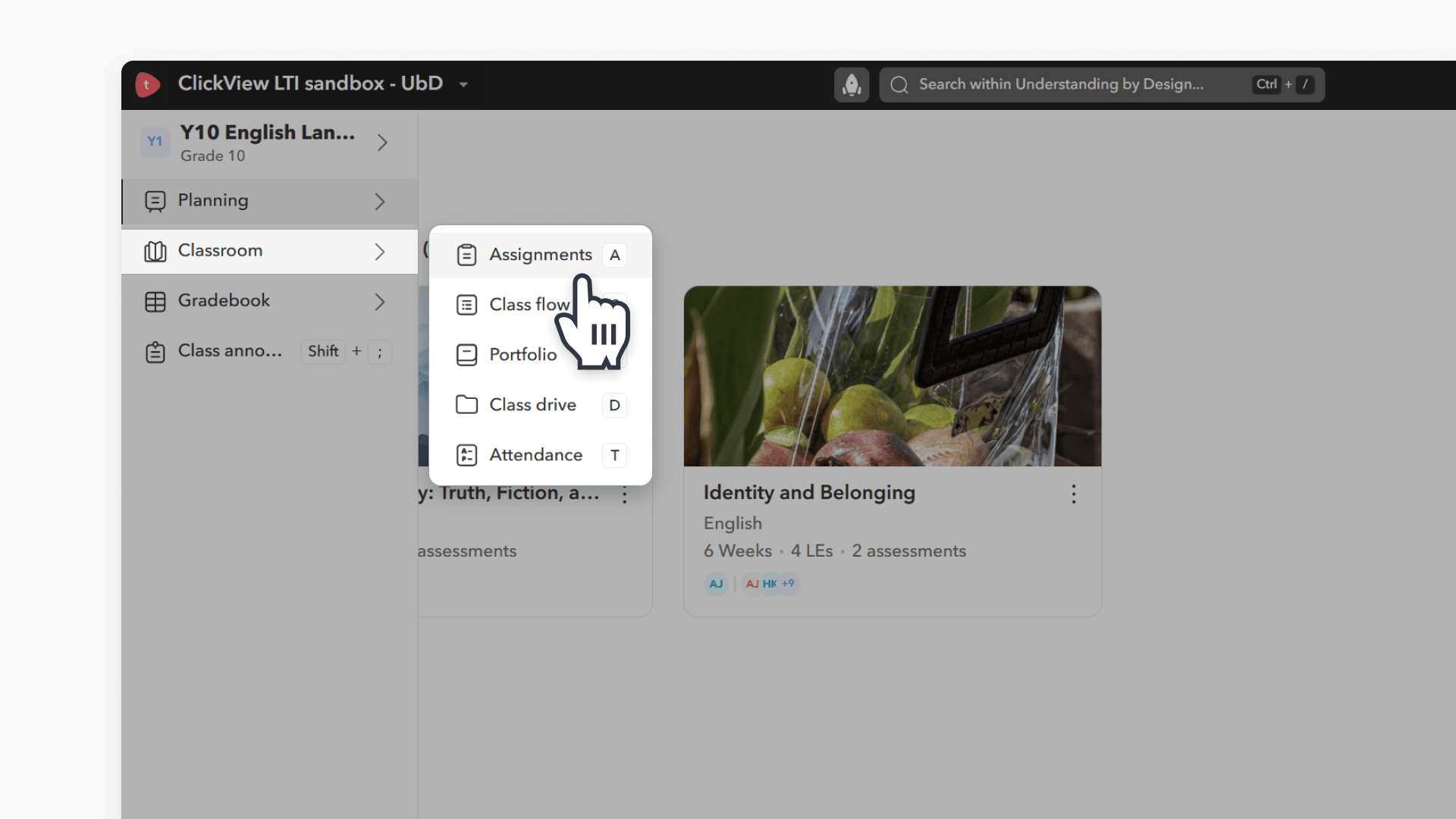
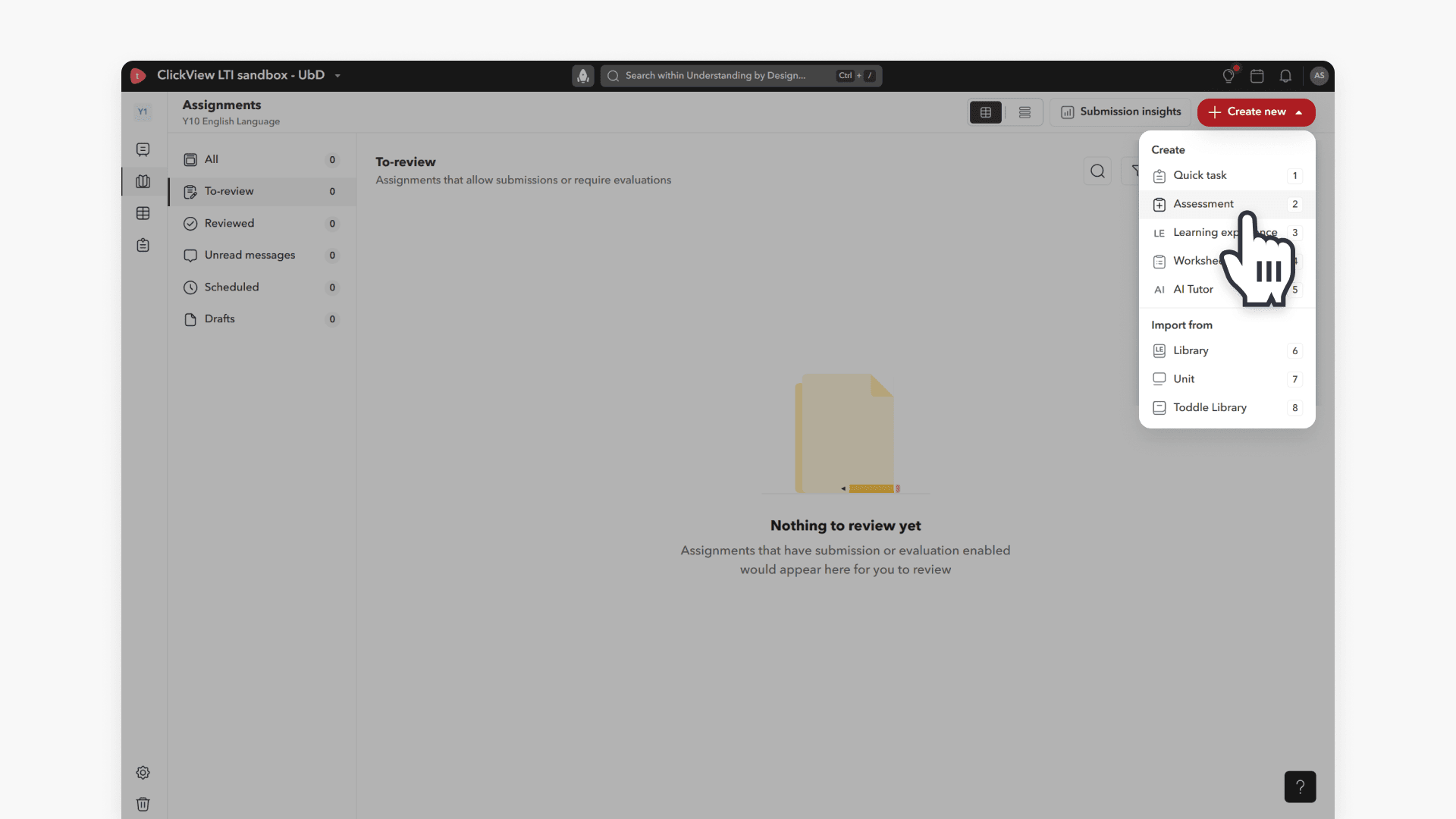
After integration is set up, educators can add ClickView resources to Toddle assignments as follows:
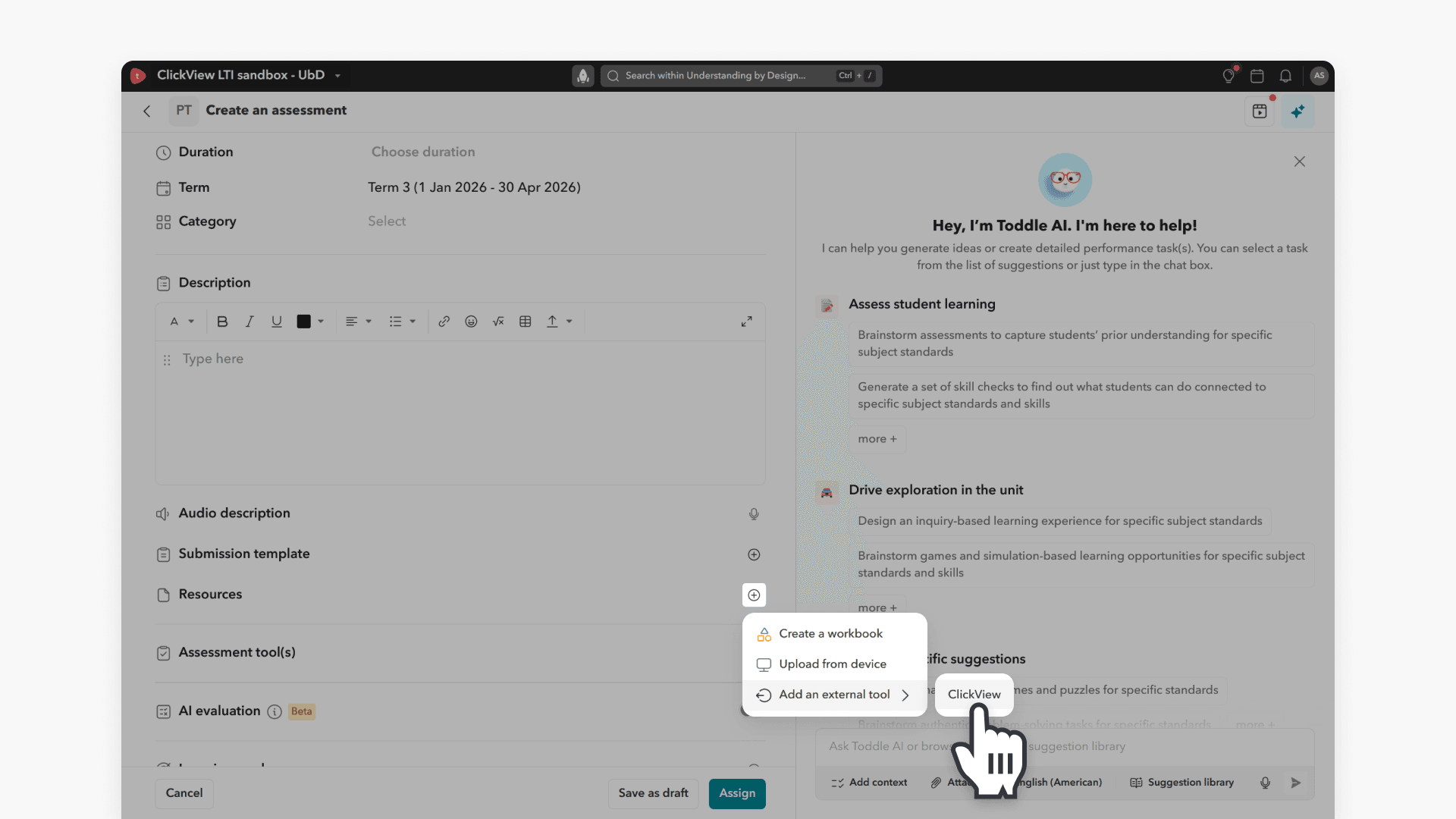
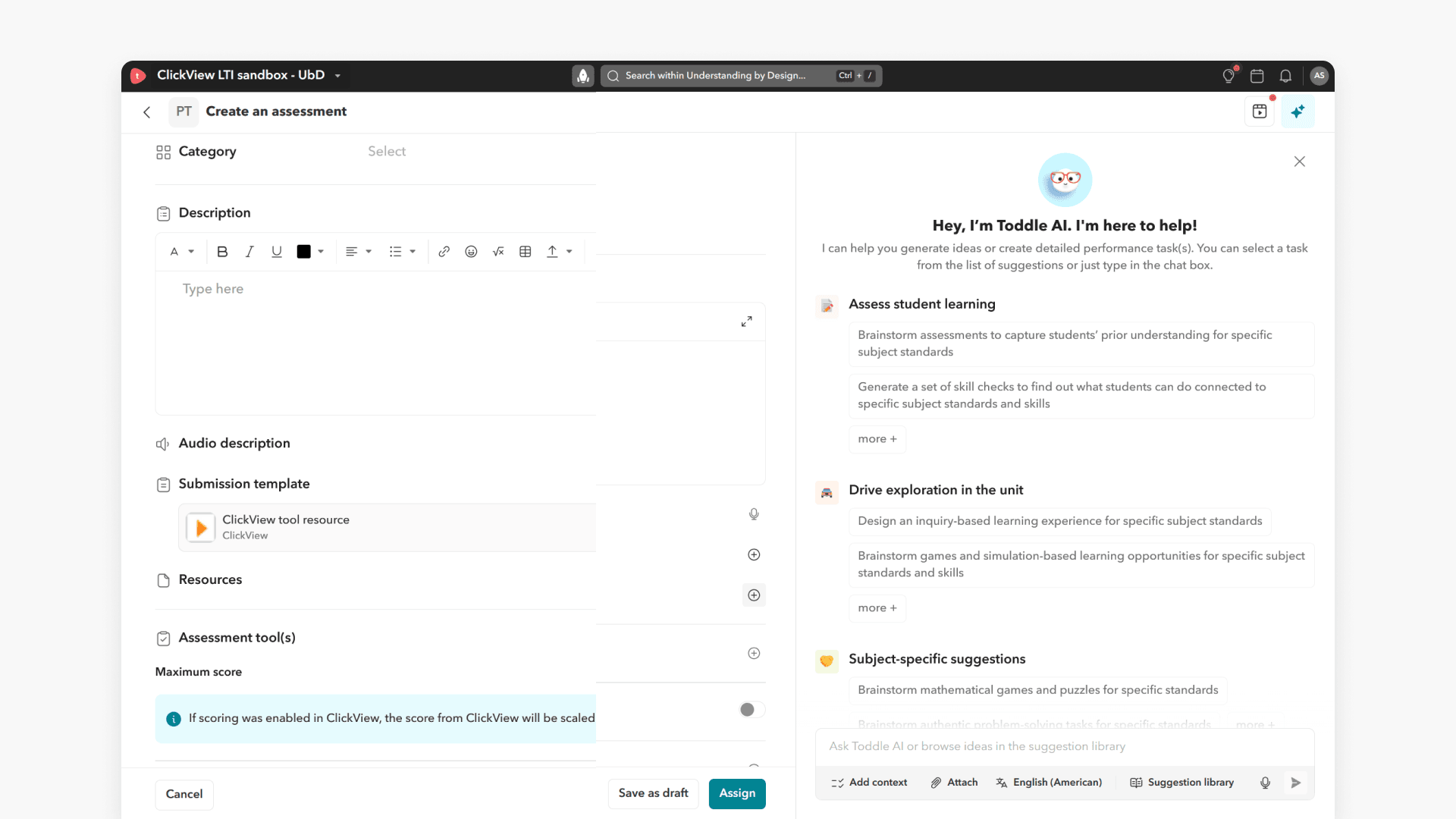
- Click Add an external tool in the Submission template and select ClickView.
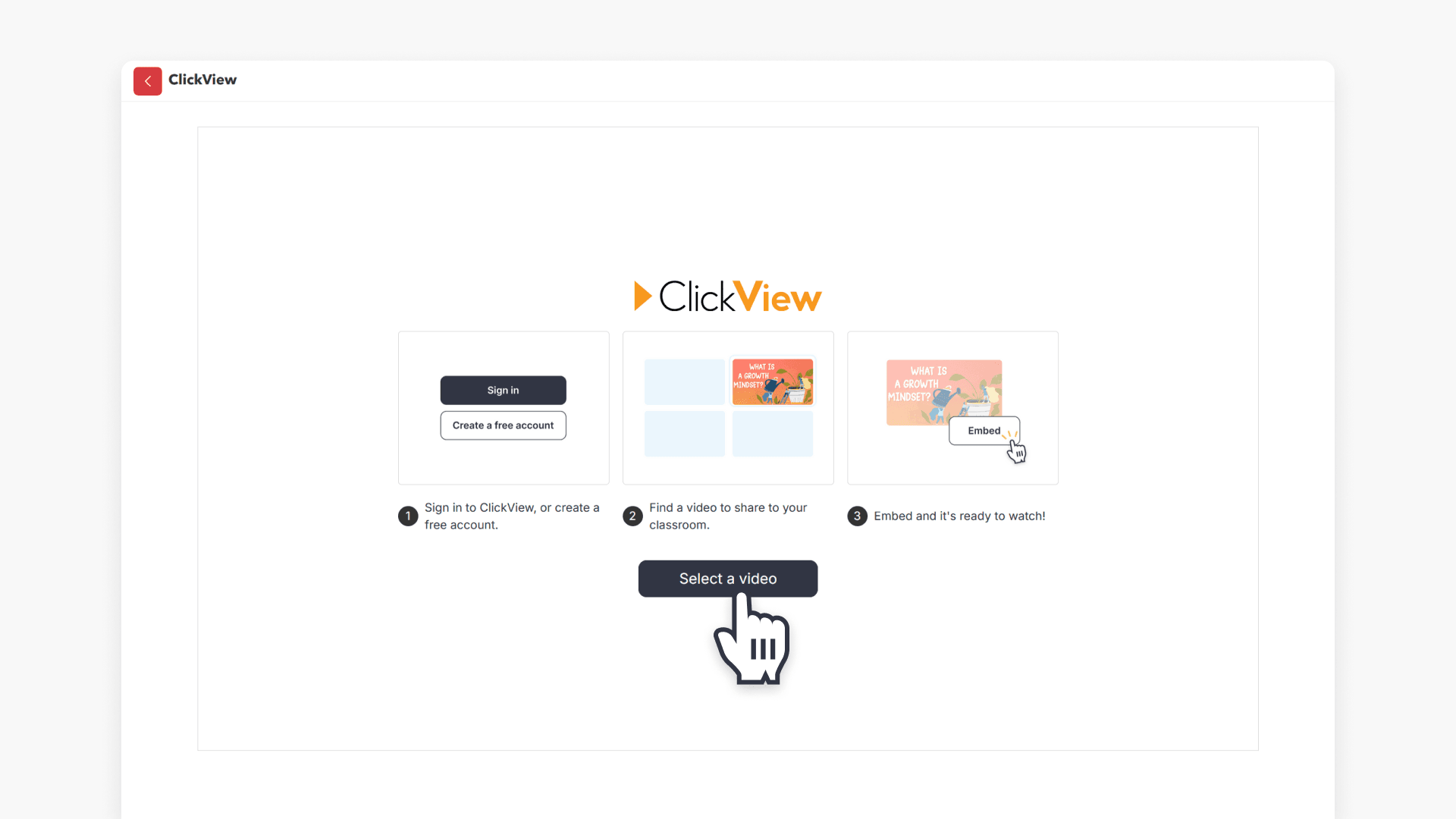
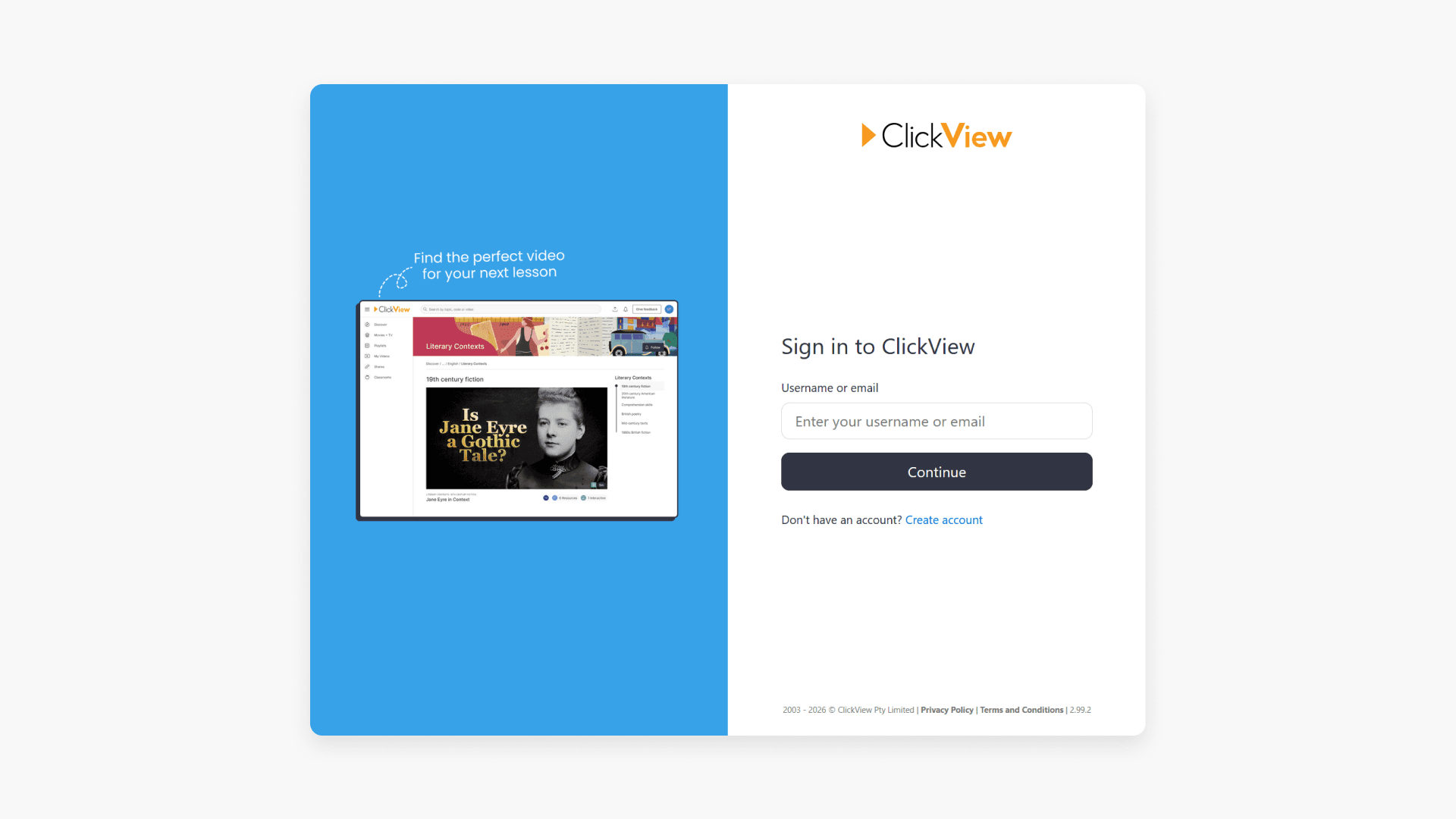
- Click Select a Video, and it will take you to the ClickView Sign in page.
- The ClickView library will open, allowing you to access all available videos.
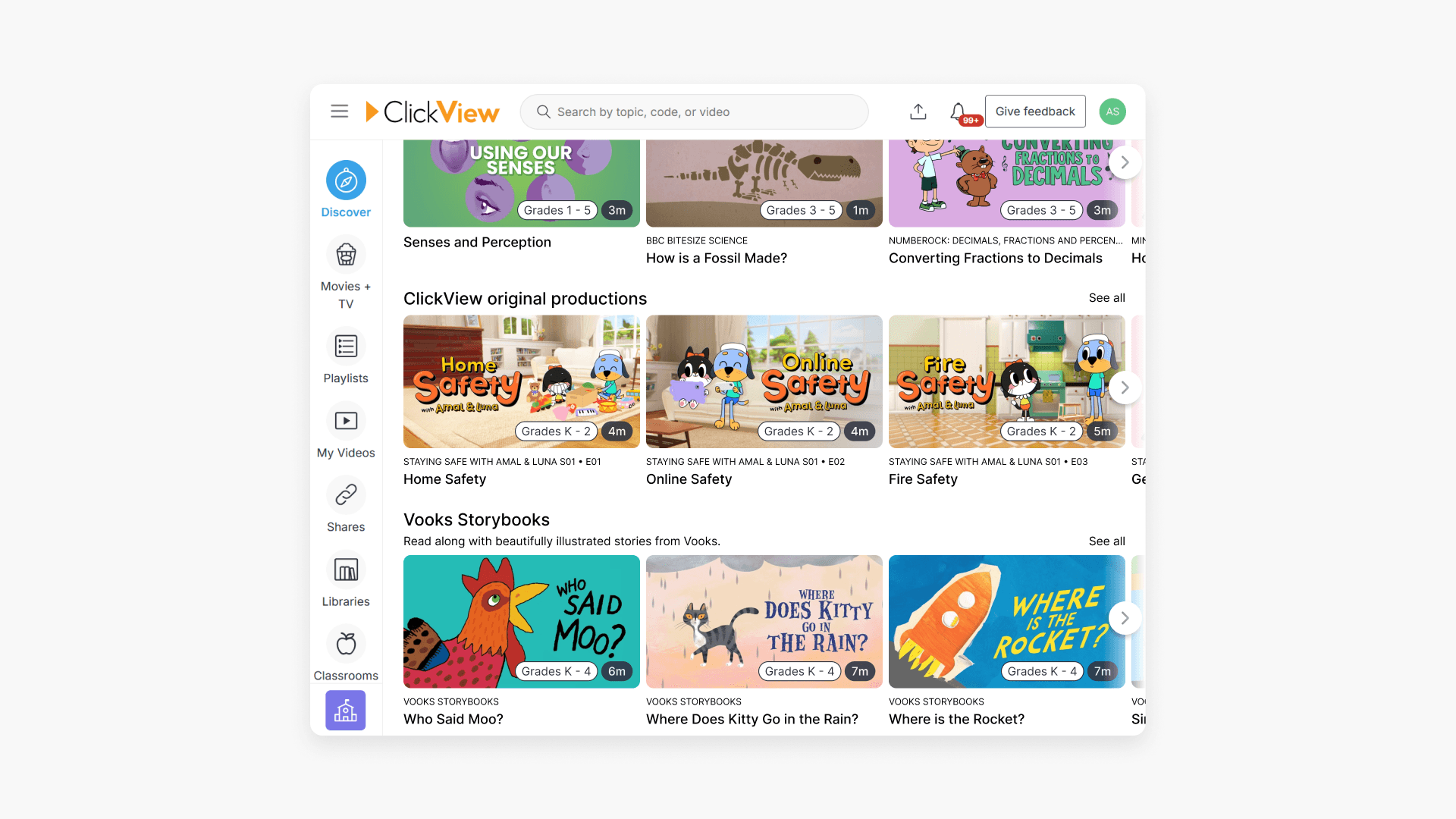
- Select the desired video for your assignment and click Embed video.
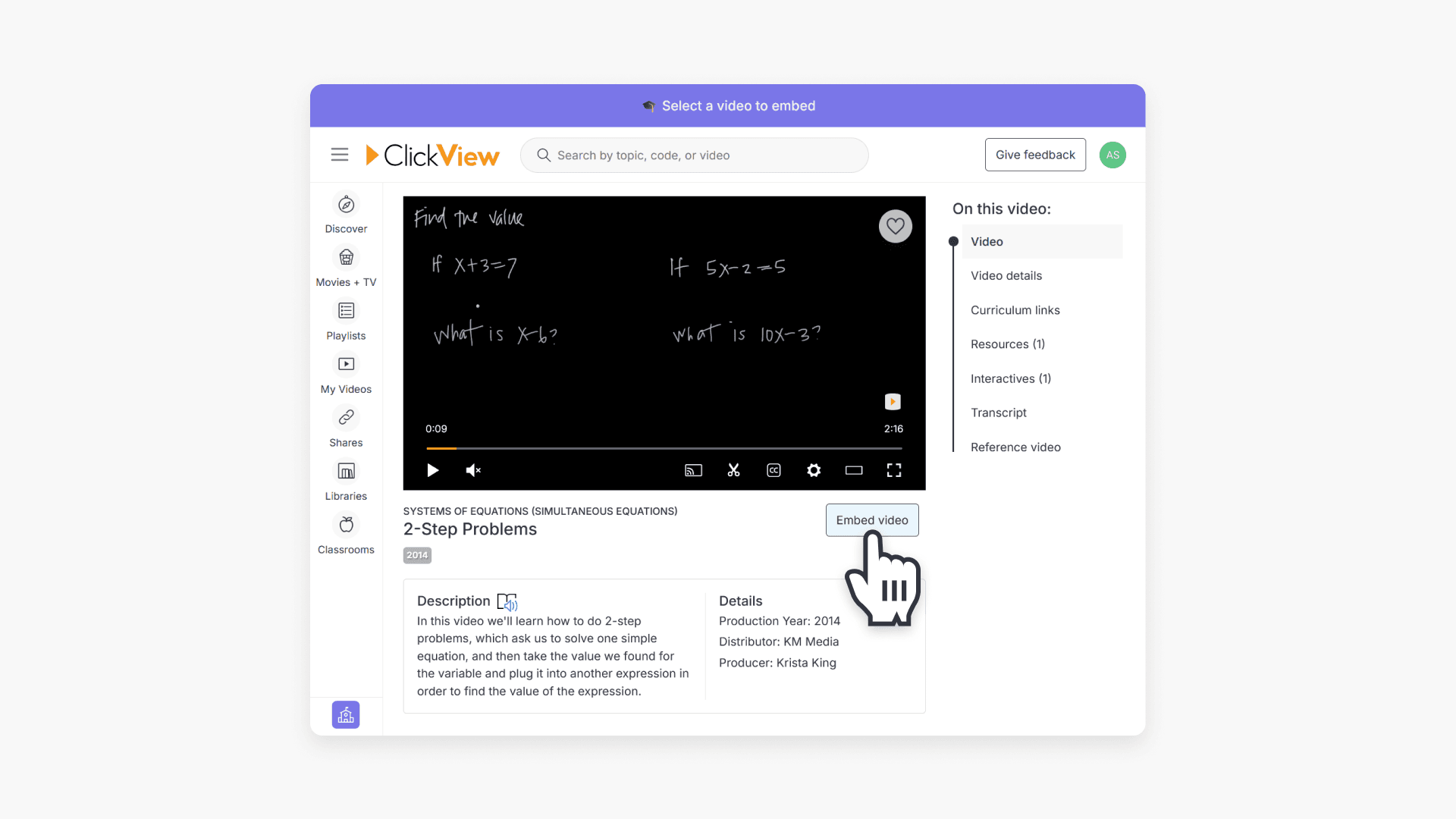
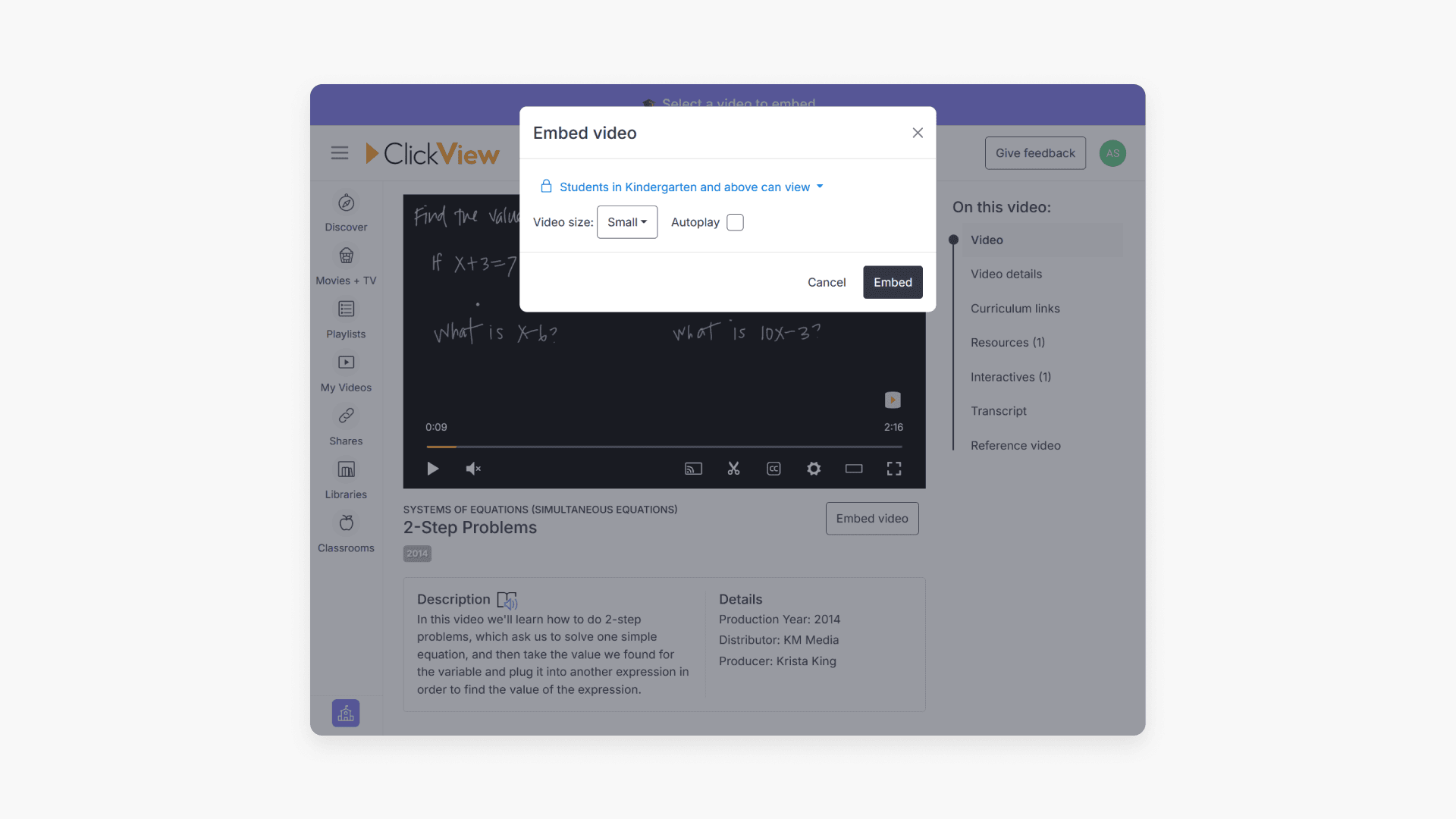
- In the pop-up window, you can adjust video size and autoplay settings, then click Embed.
- The embedded video appears within the submission template and can be edited or removed as needed. Click Assign to finalize.
Student interaction and grade passback
When teachers assign tasks with embedded ClickView videos or interactive quizzes, students can interact as follows:
- Students see the ClickView attachment in their assigned task and click Add response to begin.

- If the video contains embedded quizzes, students answer the questions as prompted.

- After finishing the video and quizzes, students review and submit their answers. They may continue watching before submitting.

- Students click Mark as done to indicate completion.
- Teachers view responses and scores using the All submissions tab.

- Grades from ClickView quizzes automatically scale to match the set maximum score. Teachers can give feedback and mark submissions as evaluated.
Frequently asked questions
Get in touch
If you’re having trouble finding the right topics or videos, just reach out! Our team - 

 Akhil, Daniel, Jalaj, or any of us at ClickView - will be happy to help you get sorted.
Give feedback
Was this guide helpful?
Up Next
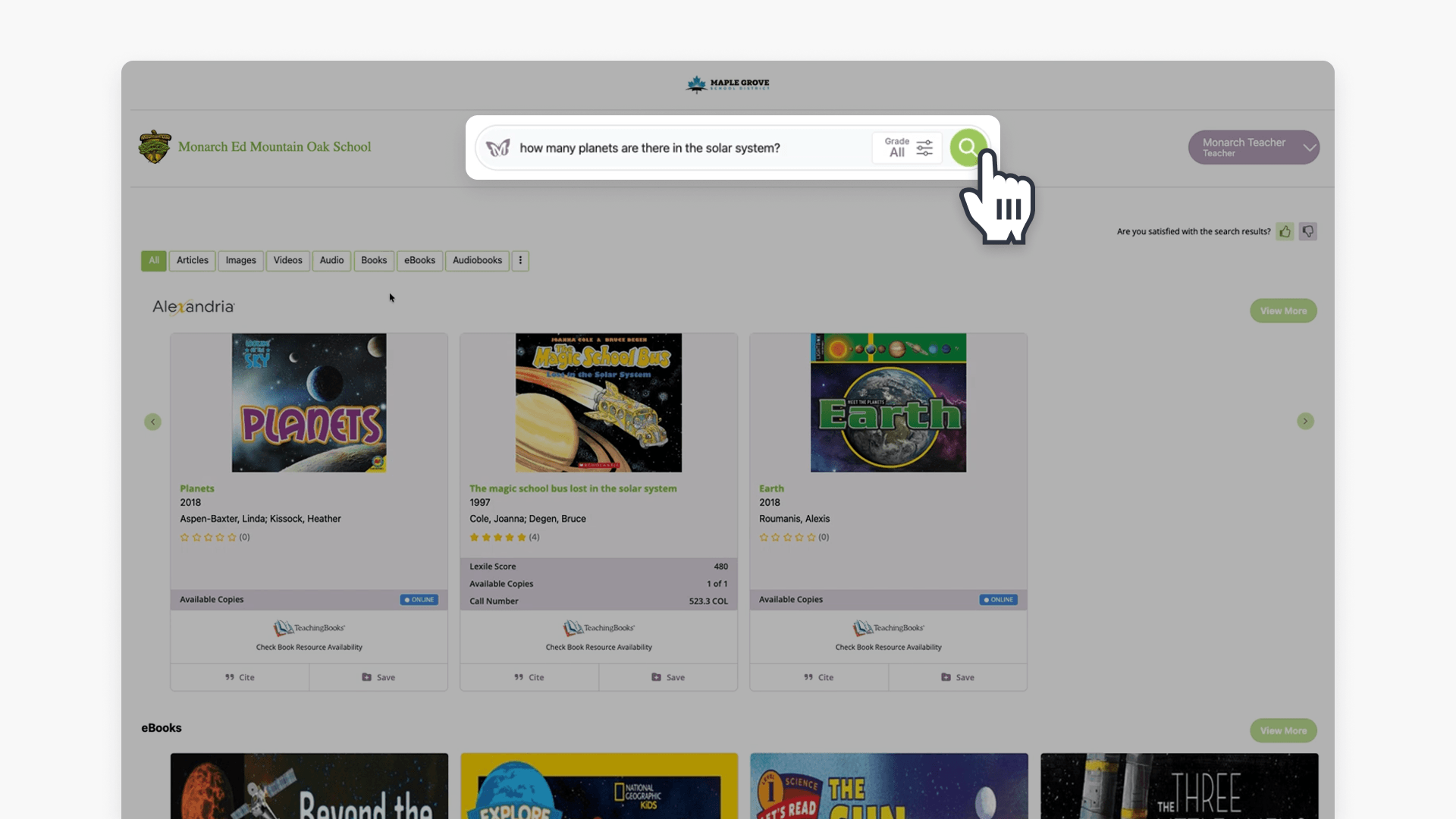
How to access ClickView videos in Monarch
Summary How do I find ClickView videos in Monarch? Search for a topic in Monarch Digital Content Discovery Engine and ClickView videos appear in the results alongside content from your other subscribed providers. Filter by format to narrow to ClickView content, then select a video to open it directly in ClickView with access to quizzes, […]