How to set up LTI integration v1.3

Summary
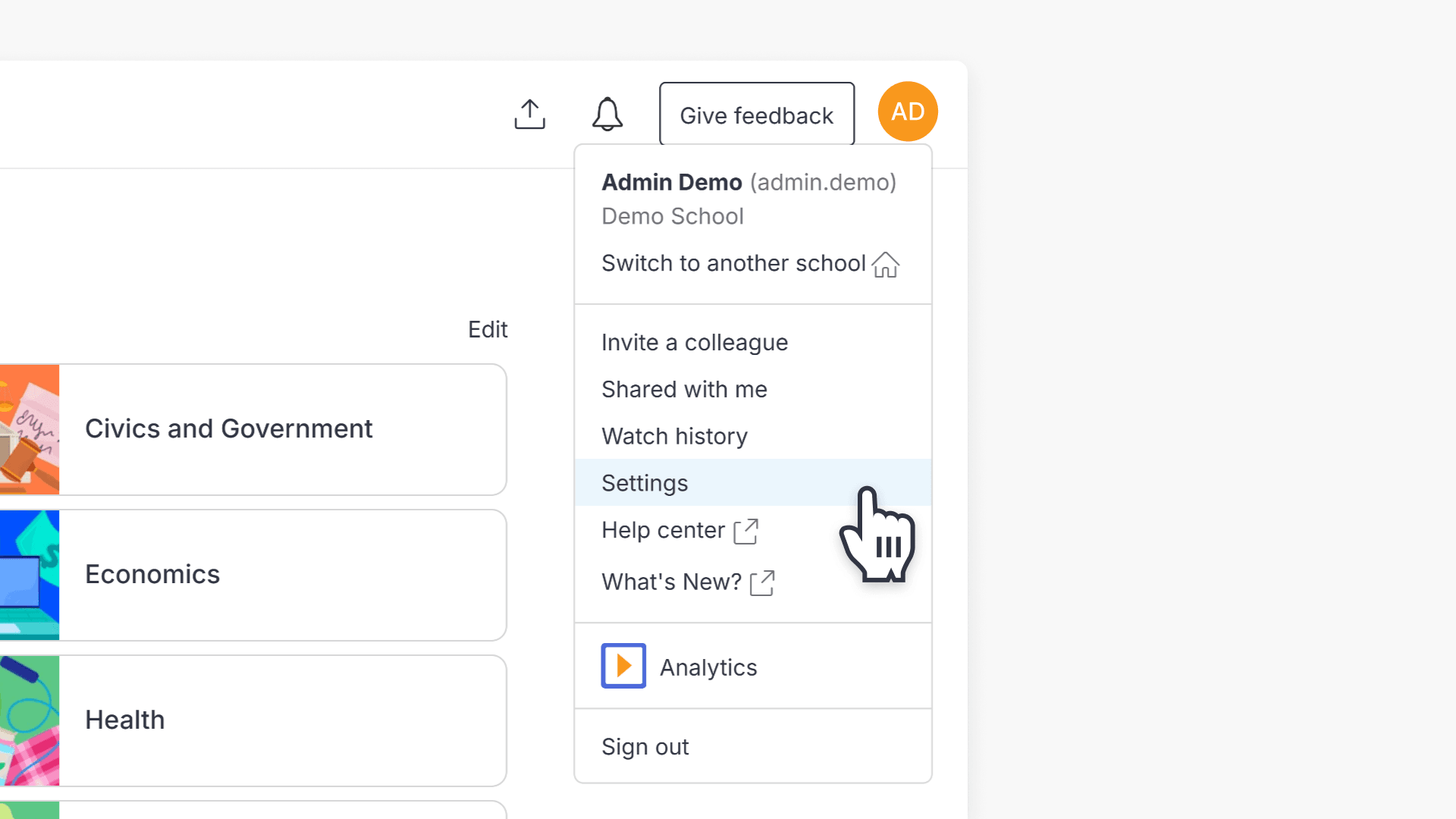
- Sign in with an admin account in ClickView.
- Go to Settings in the top right drop-down.
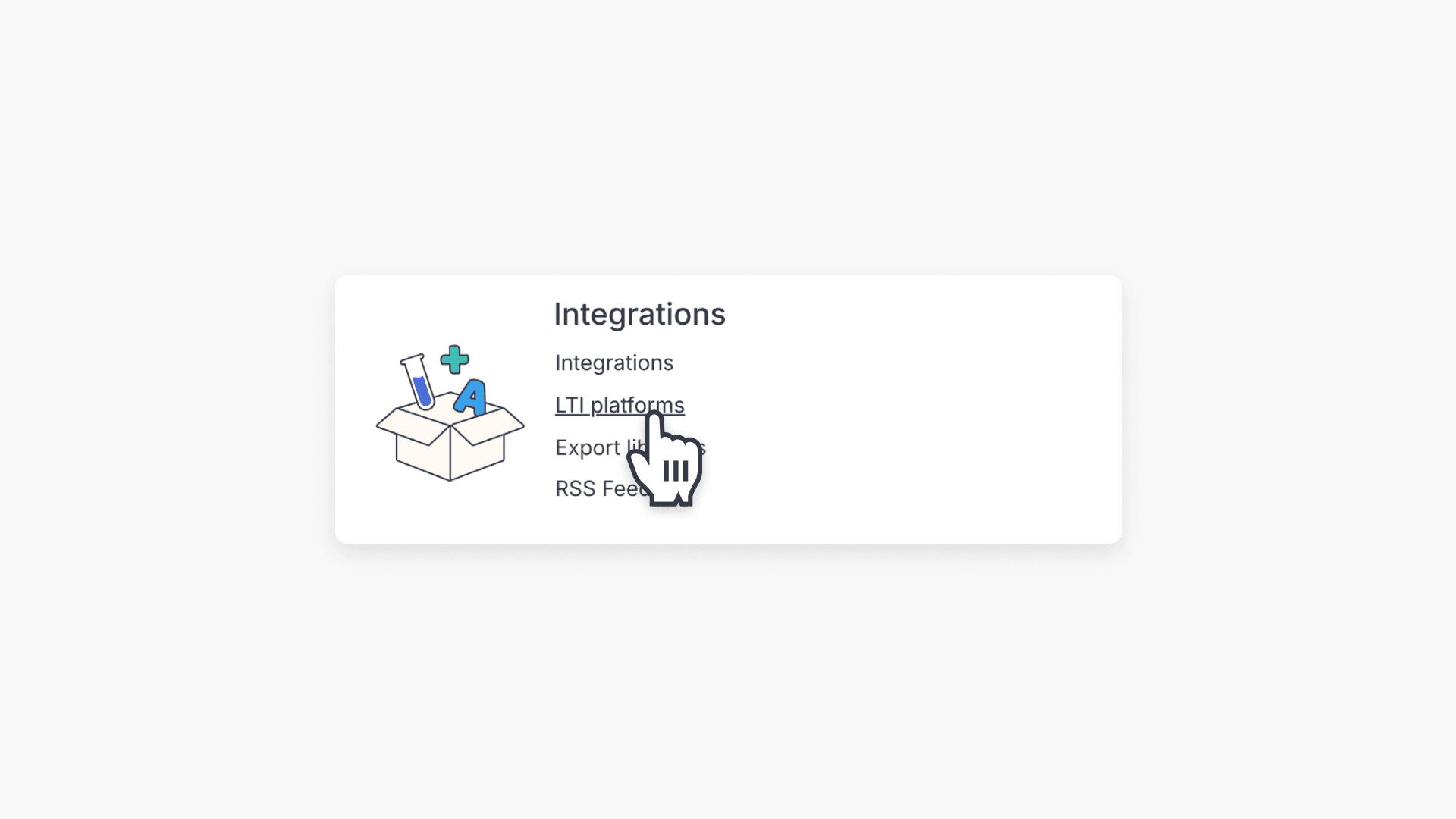
- Select Integrations & choose LTI platforms.
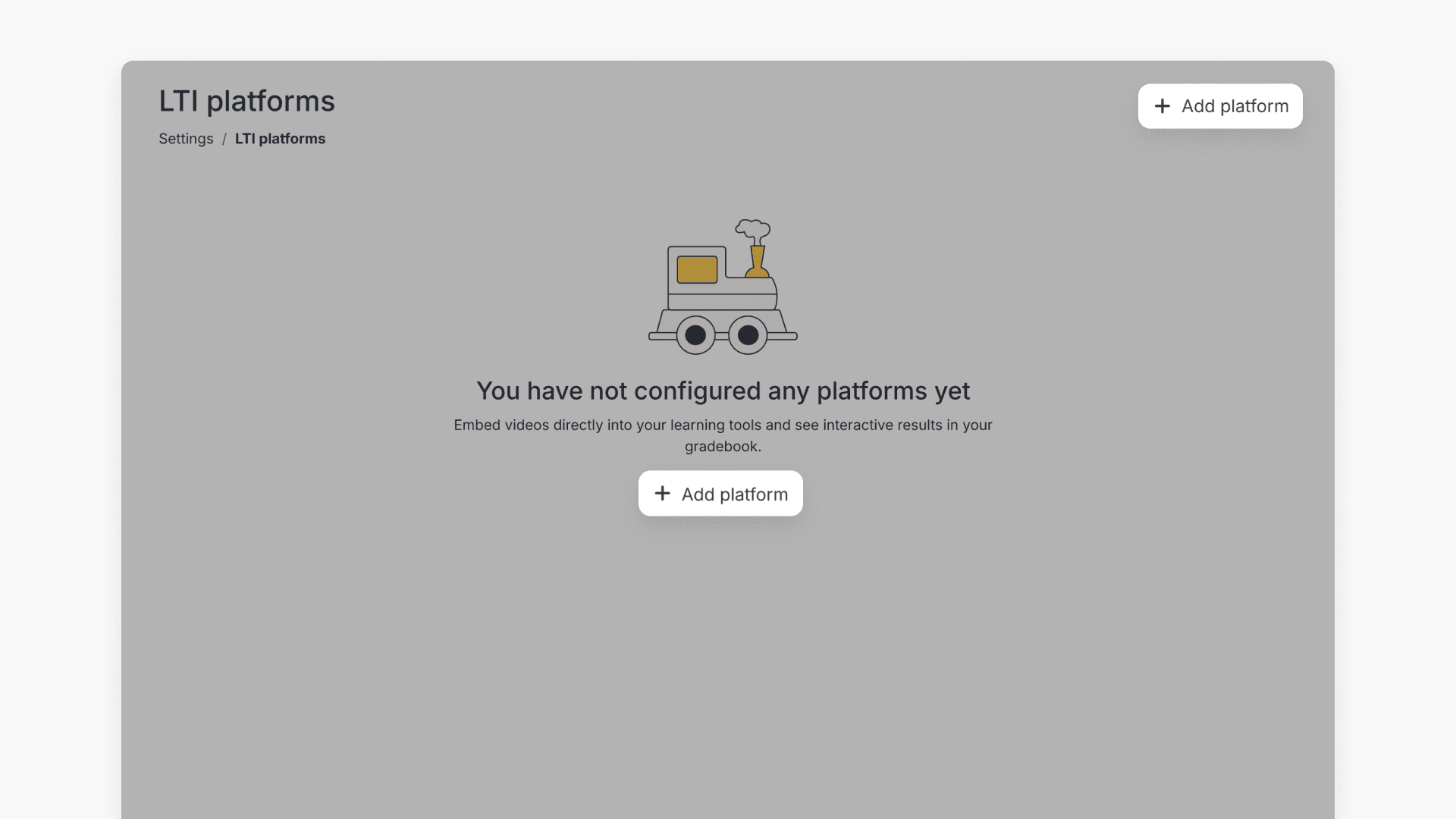
- Click ‘+ Add platform’ to start setup.
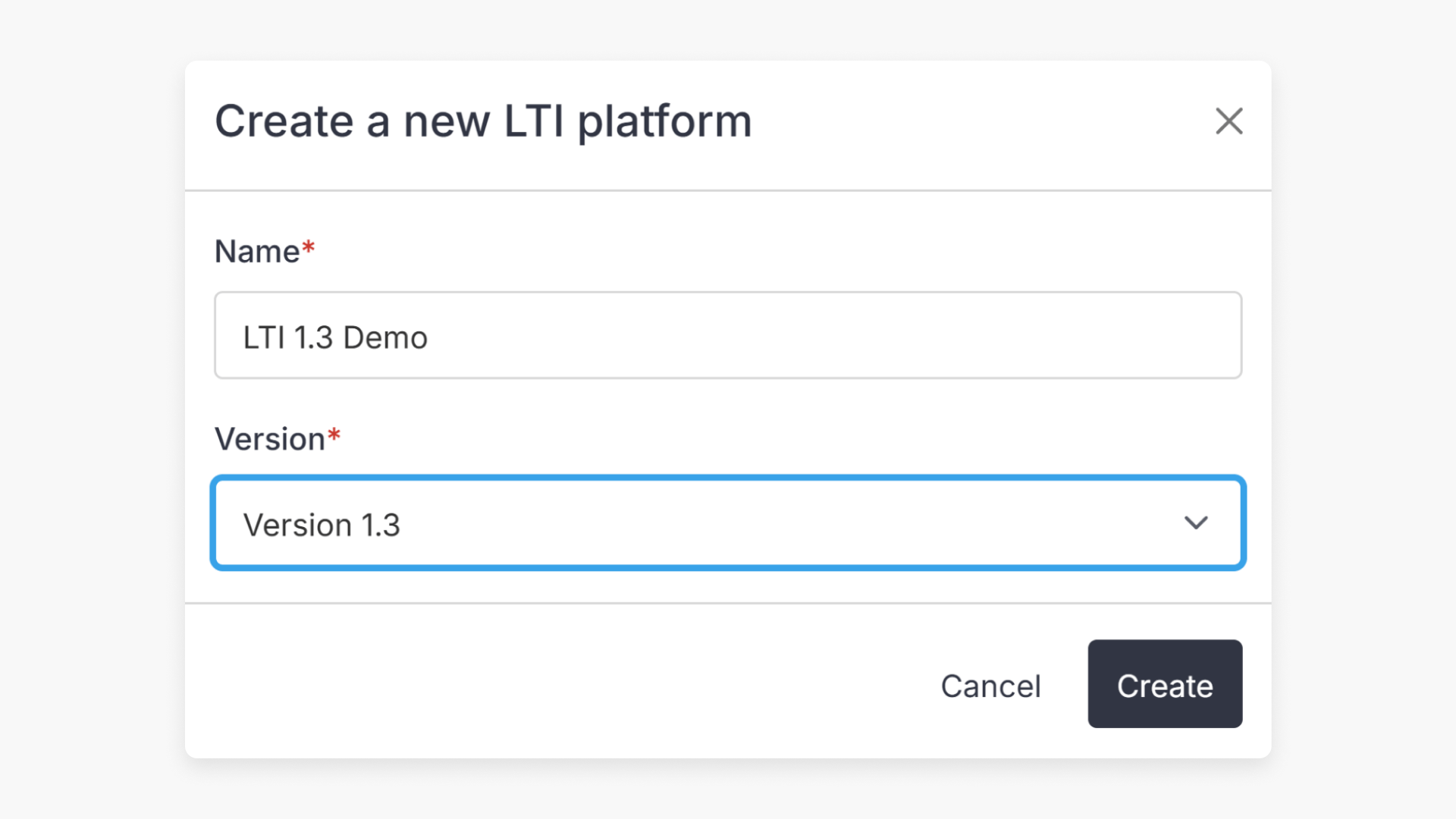
- Name the platform, select Version 1.3, and click Create.
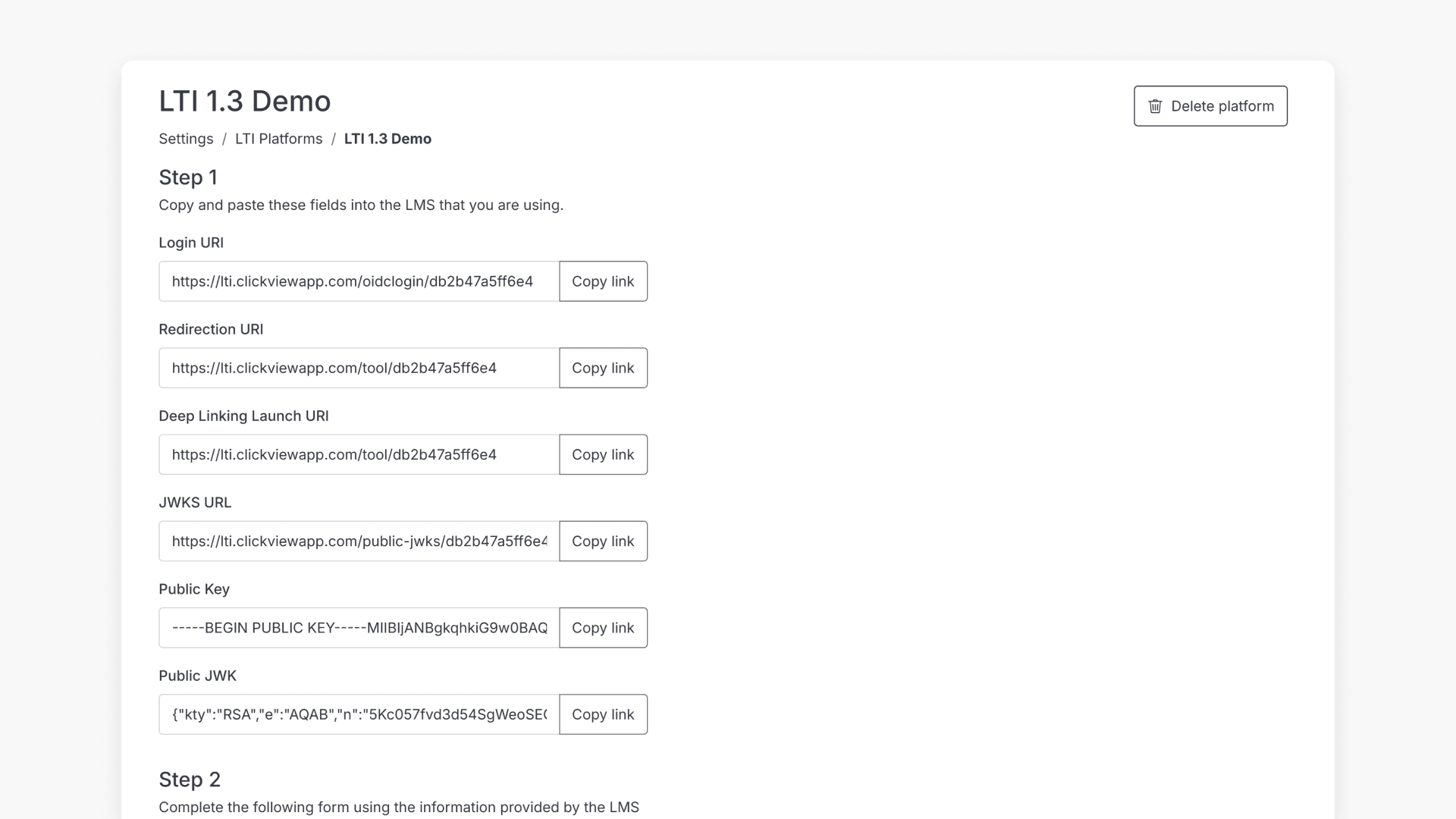
- Copy integration fields to your LMS.
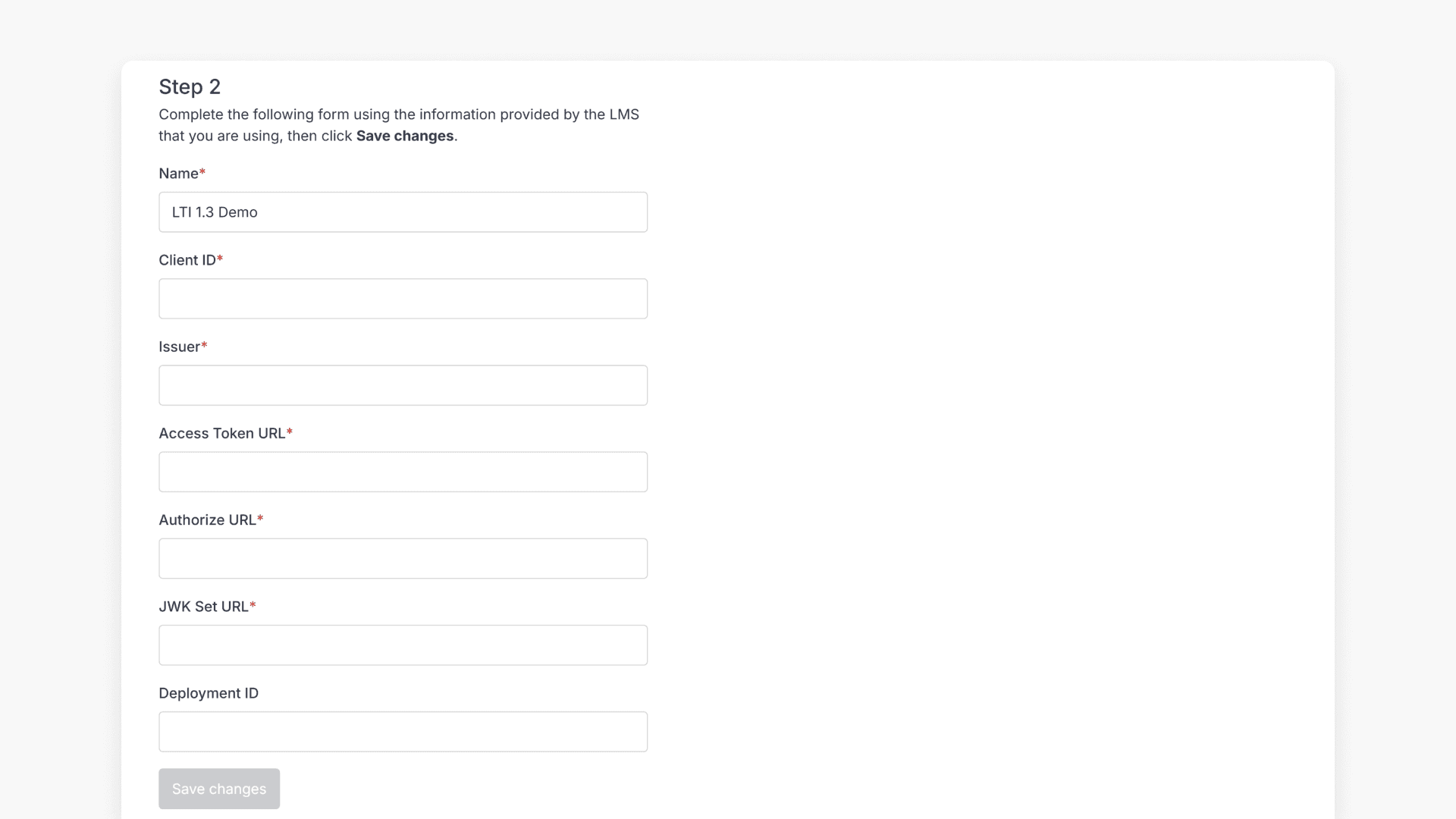
- Fill out remaining form details and click Save.
Steps to configure LTI in ClickView
What is LTI?
Learning Tools Interoperability (LTI) is an educational technology standard that enables learning platforms, such as learning management systems (LMS), to communicate with external tools. This allows educators and students to access course content and activities from other platforms without needing a separate sign-in.
ClickView and LTI standards
ClickView supports both LTI version 1.1 and 1.3 standards. This article explains how ClickView administrators can configure LTI version 1.3 for seamless integration.
How to set up LTI 1.3 integration
- Sign in to ClickView with your admin account. Click your name in the top right corner and select Settings from the drop-down menu.
- In Settings, go to Integrations and select LTI platforms.
Note: If the LTI option is not visible, contact Product Support to enable this feature. - Click + Add platform.
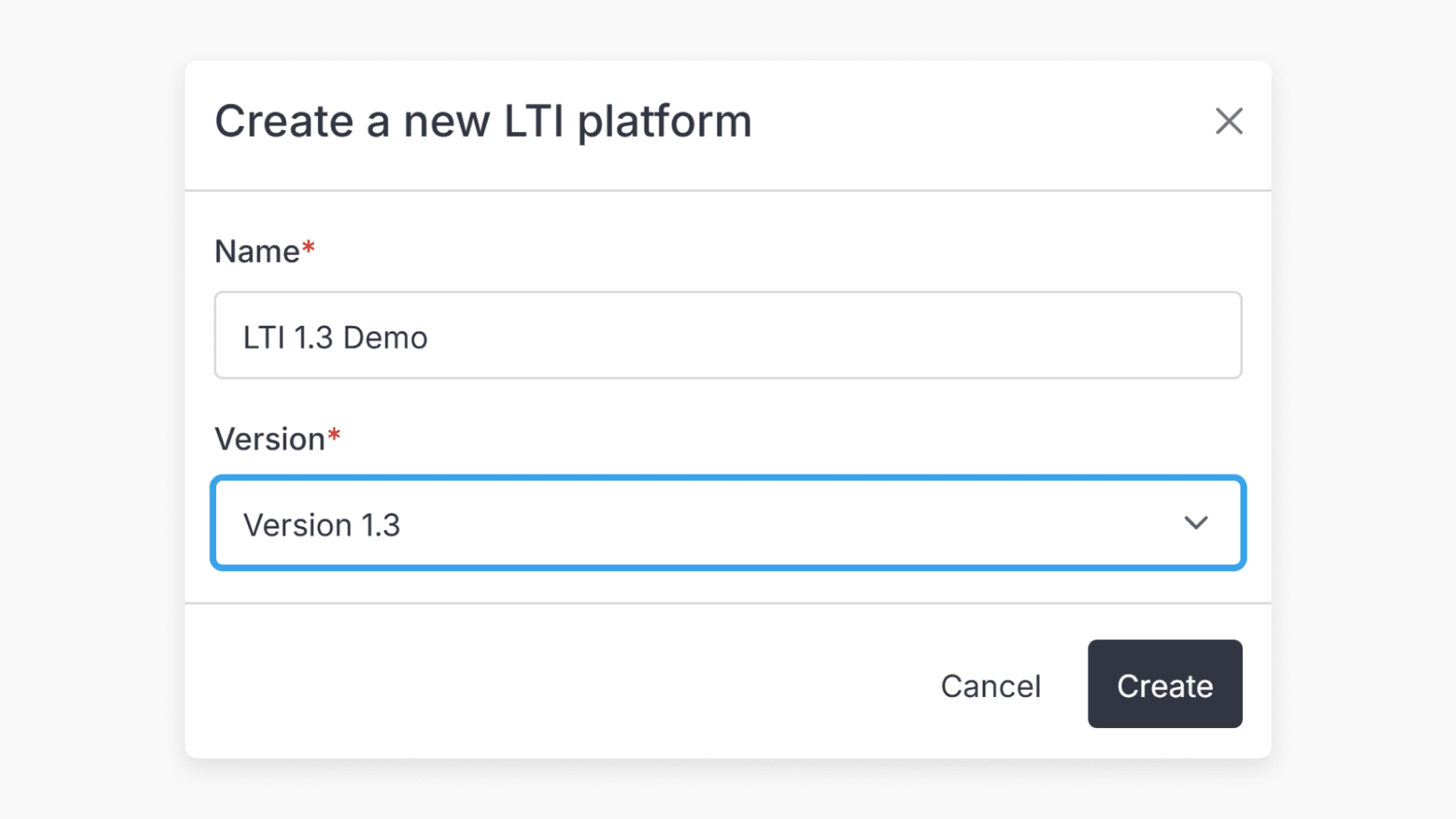
- Enter a name for your LTI platform, select Version 1.3, and click Create.
- In the Step 1 section, locate the integration fields: Login URI, Redirection URI, Deep Linking Launch URI, Public Key, and Public JWK. Copy these details into your LMS.
- Scroll to Step 2 and complete the form using information from your LMS. Click Save to finish setup.
For more information, see a current list of LTI-compliant learning management systems and platforms.
Frequently asked questions
Get in touch
If you’re having trouble finding the right topics or videos, just reach out! Our team - 

 Akhil, Daniel, Jalaj, or any of us at ClickView - will be happy to help you get sorted.
Give feedback
Was this guide helpful?
Up Next
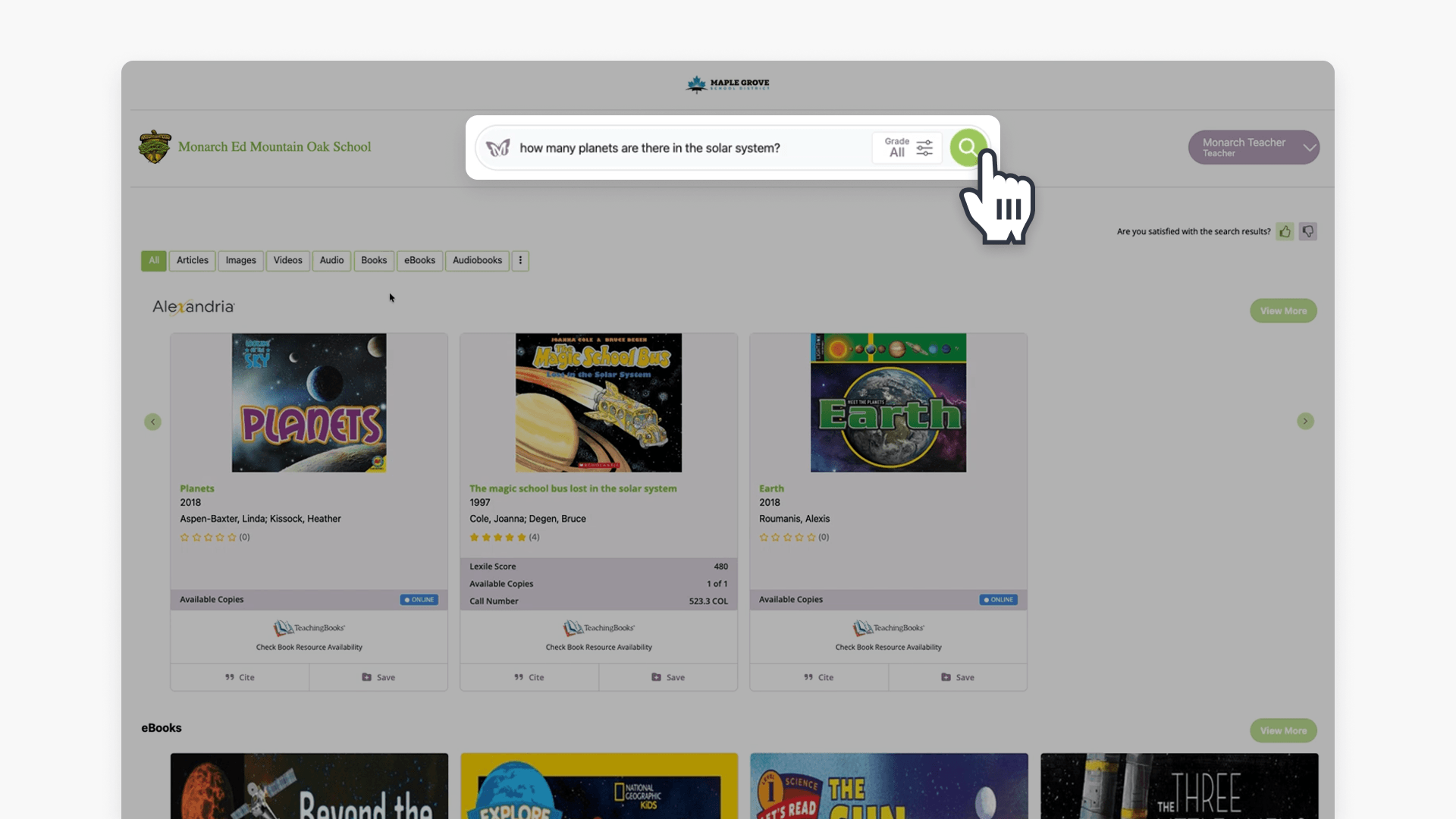
How to access ClickView videos in Monarch
Summary How do I find ClickView videos in Monarch? Search for a topic in Monarch Digital Content Discovery Engine and ClickView videos appear in the results alongside content from your other subscribed providers. Filter by format to narrow to ClickView content, then select a video to open it directly in ClickView with access to quizzes, […]