Set up LTI integration v1.1 with Moodle

Summary
- Contact Product Support to enable LTI in ClickView.
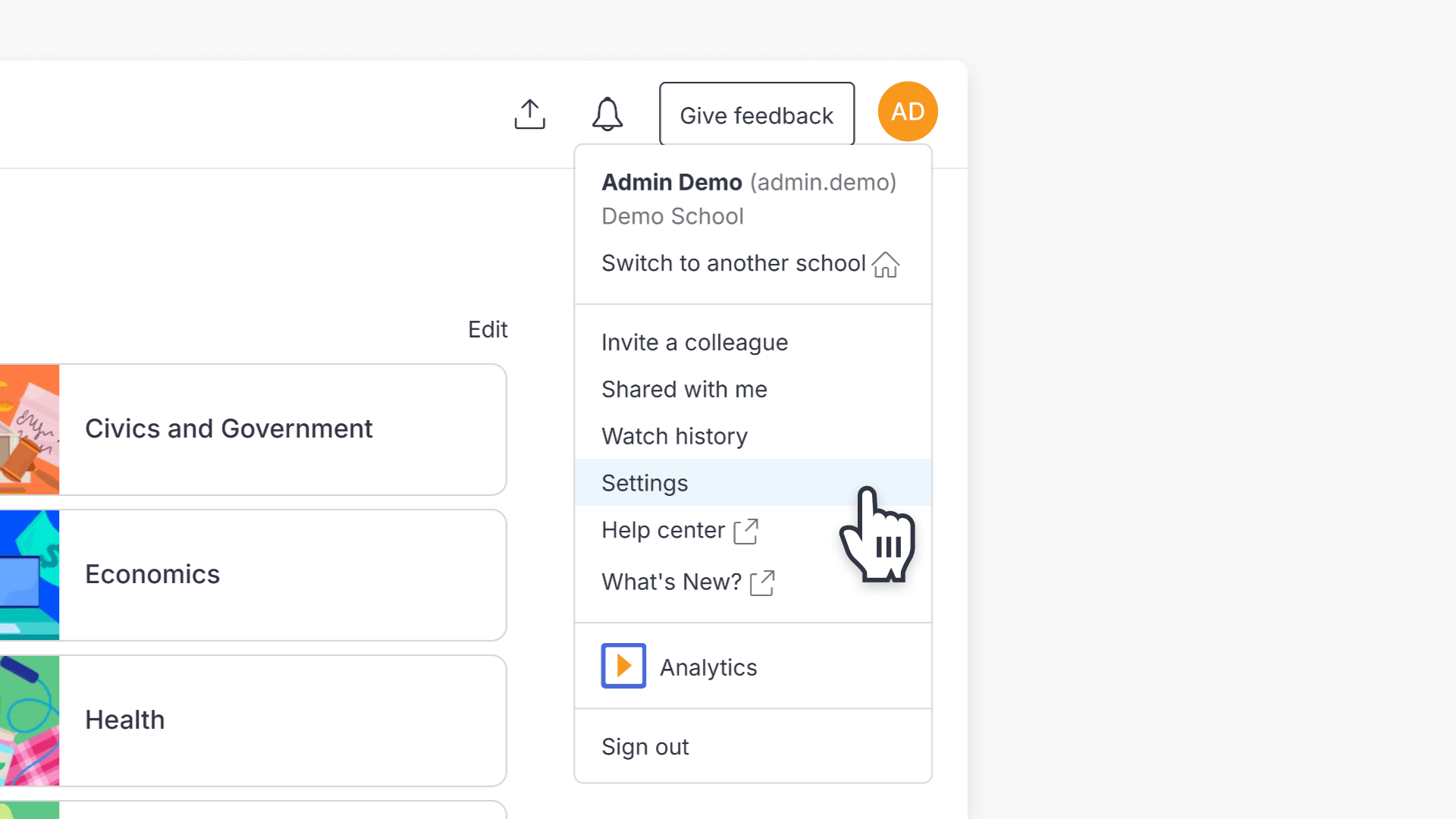
- Sign in to ClickView as an admin and go to ‘Settings’.
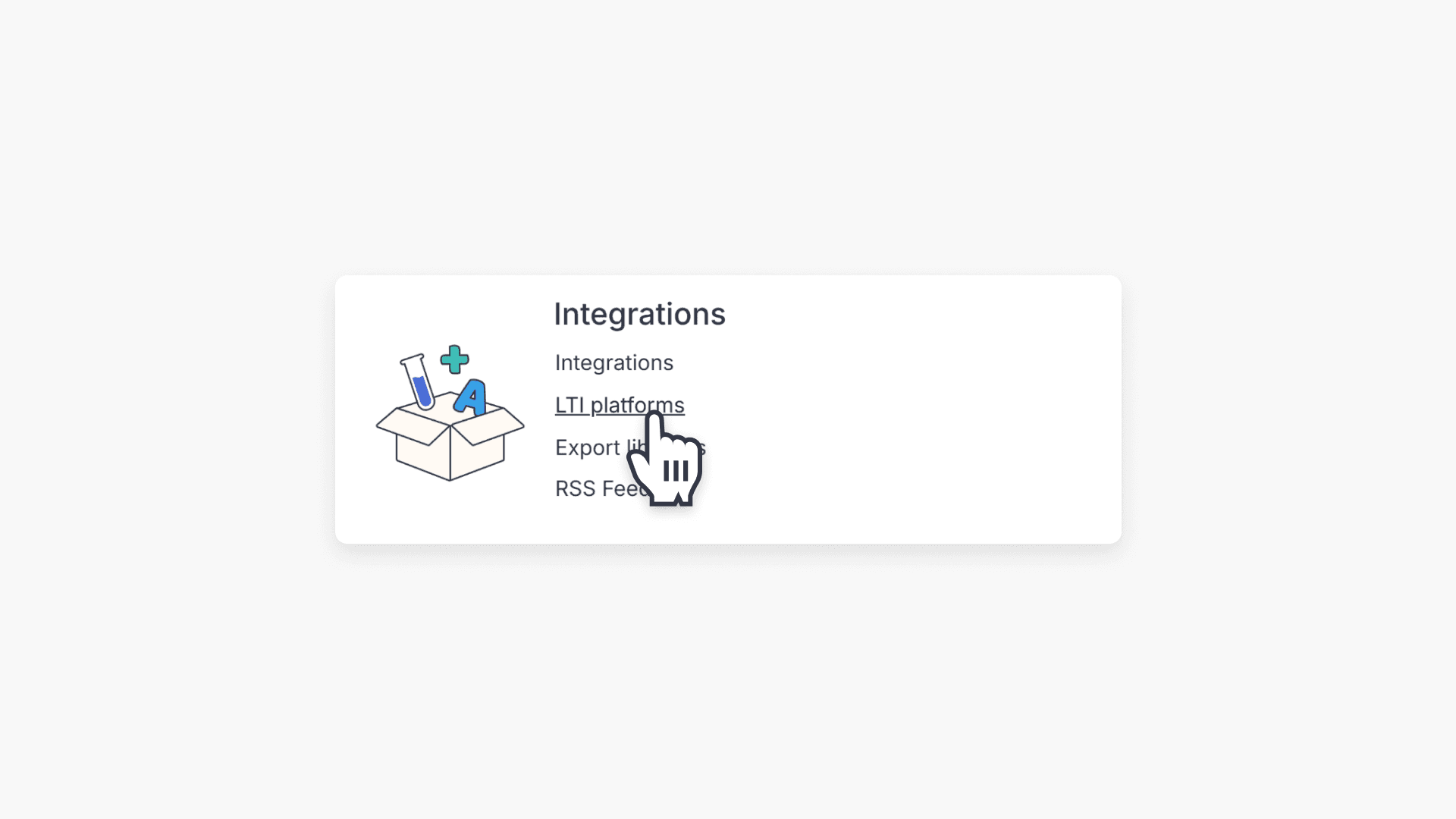
- Choose ‘Integrations’ then ‘LTI platforms’.
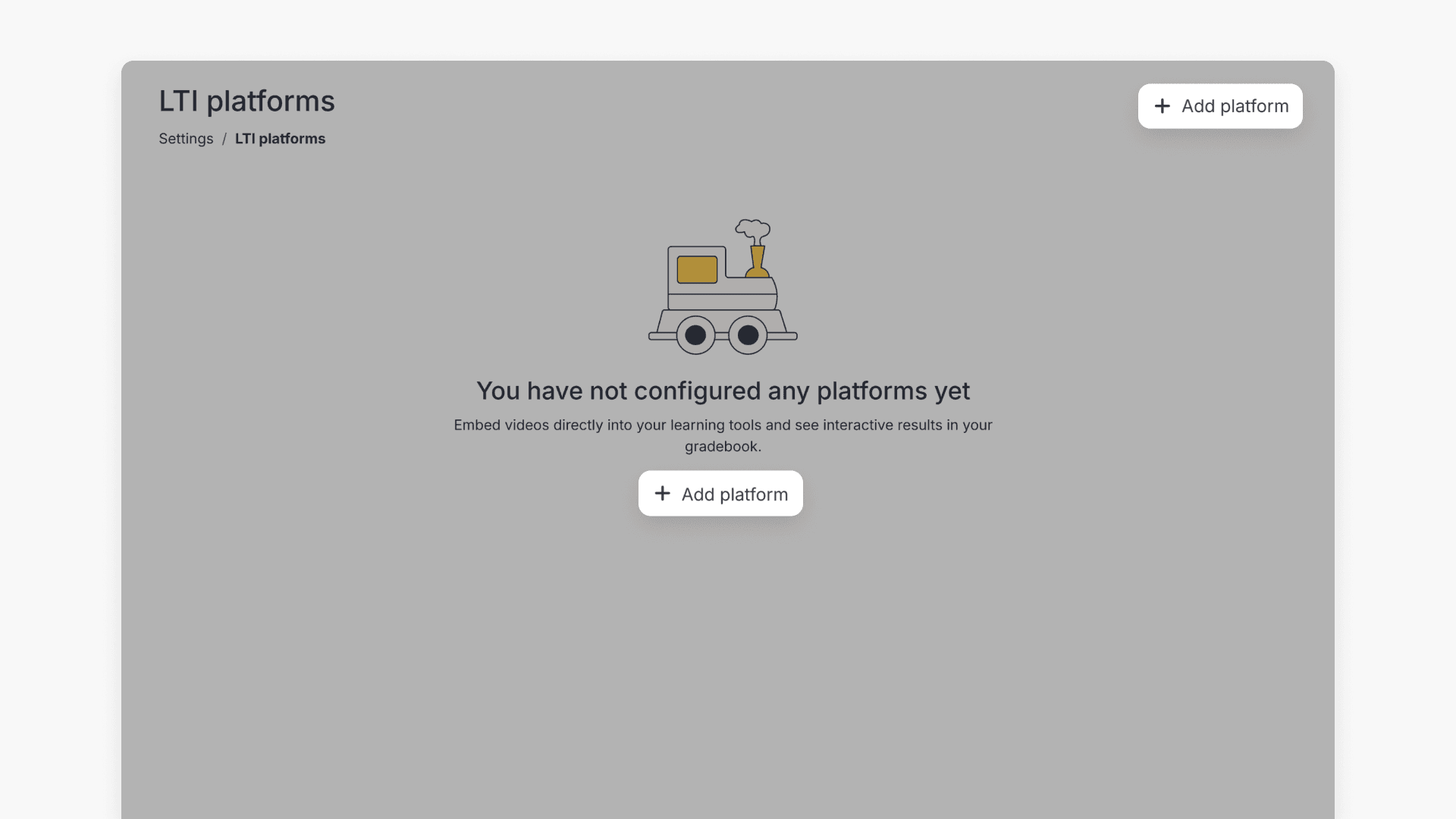
- Select ‘+ Add platform’ and choose ‘Version 1.1’.
- Use ClickView tool details to add and configure LTI in Moodle.
- Add videos to your Moodle course using the ClickView LTI 1.1 Tool.
What is LTI?
Learning Tools Interoperability (LTI) is an education technology standard that allows learning management systems to connect with third-party content, so students can access resources in one place without separate sign ins. ClickView supports both LTI v1.1 and v1.3 standards, making it simple to integrate videos and resources into platforms like Moodle.
How to enable LTI in ClickView
Before you start, contact Product Support to enable the LTI feature on your ClickView account.
Adding an LTI 1.1 platform in ClickView
- Sign in to ClickView as an admin and go to Settings.
- Under Integrations, select LTI platforms.
- Select + Add platform.
- Provide a name and select Version 1.1.
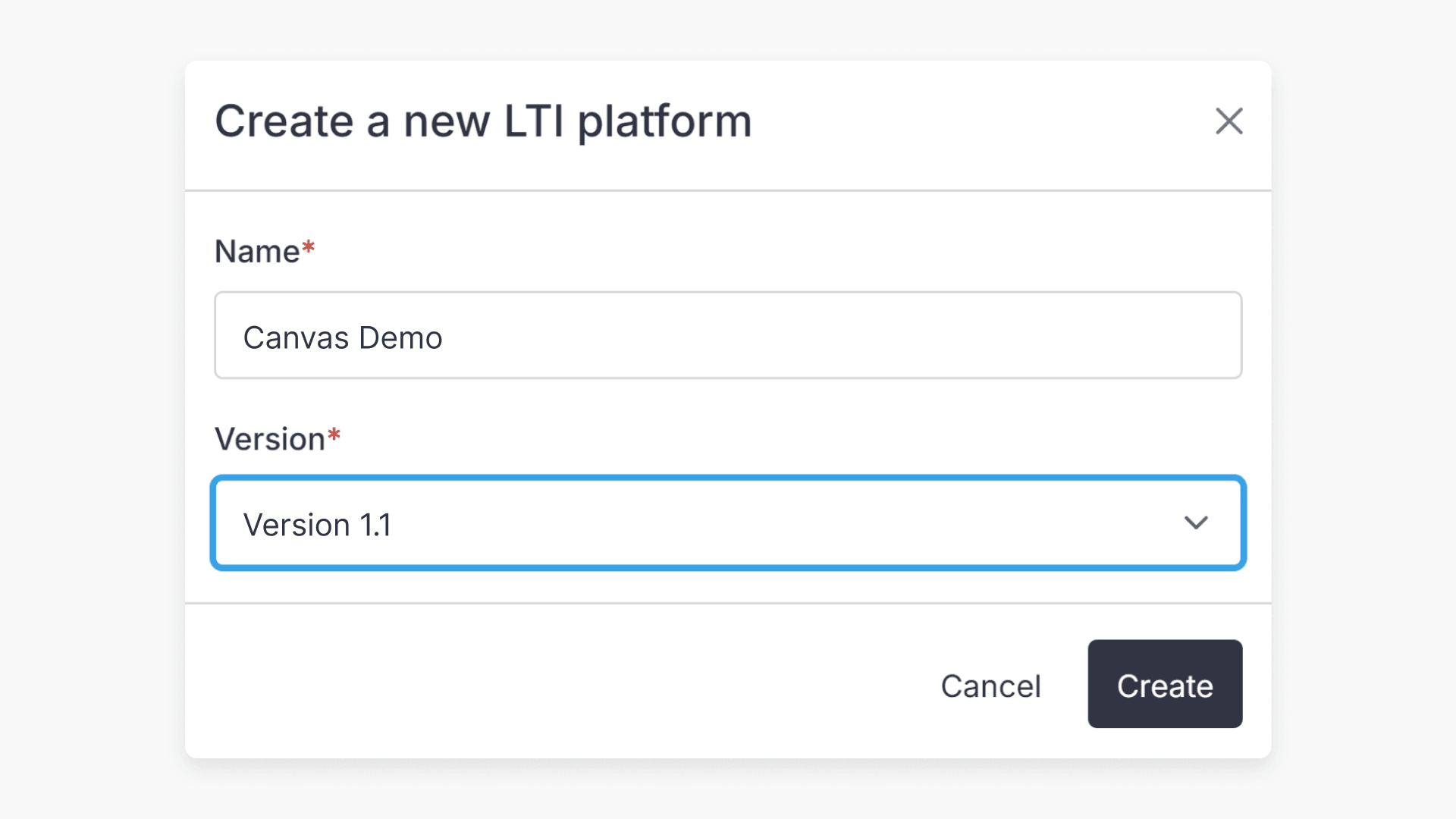
- Save and note the XML URL, Key, and Secret for Moodle configuration.

Configuring LTI 1.1 in Moodle
- Sign in as a Moodle administrator and go to Site Administration.

- Under Plugins, select Manage Tools.

- Copy the XML URL from ClickView and paste it in the Tool URL Field in Moodle, then select Add.


- Enter the Key and Secret from ClickView in the Consumer Key and Shared Secret fields, then save changes.
- The ClickView LTI 1.1 Tool will appear in your Moodle tools list.

How to add an LTI 1.1 link in Moodle
- In Moodle, navigate to a course, choose the cog in the top right, and turn editing on.

- Select Add an Activity or Resource under your chosen topic.

- Select External Tool from the popup, then Add.

- Name your activity, choose the ClickView LTI 1.1 Tool from the preconfigured menu, and select Save and Display.

- Select your video from the ClickView tool. Use the Add button to adjust video size or enable Autoplay if needed.

- When finished, you’ll see confirmation of the saved video.

- Students will now see the video when they access the External Tool Activity in Moodle.
Frequently asked questions
Get in touch
If you’re having trouble finding the right topics or videos, just reach out! Our team - 


 Andrew, Nisch, Janice, Pfreya, or any of us at ClickView - will be happy to help you get sorted.
Give feedback
Was this guide helpful?
Up Next
How to access ClickView videos in Monarch
Summary How do I find ClickView videos in Monarch? Search for a topic in Monarch Digital Content Discovery Engine and ClickView videos appear in the results alongside content from your other subscribed providers. Filter by format to narrow to ClickView content, then select a video to open it directly in ClickView with access to quizzes, […]