How to log in using Single Sign-On (SSO)
In this article
Last updated by
2 min readClickViewJanuary 30, 2026
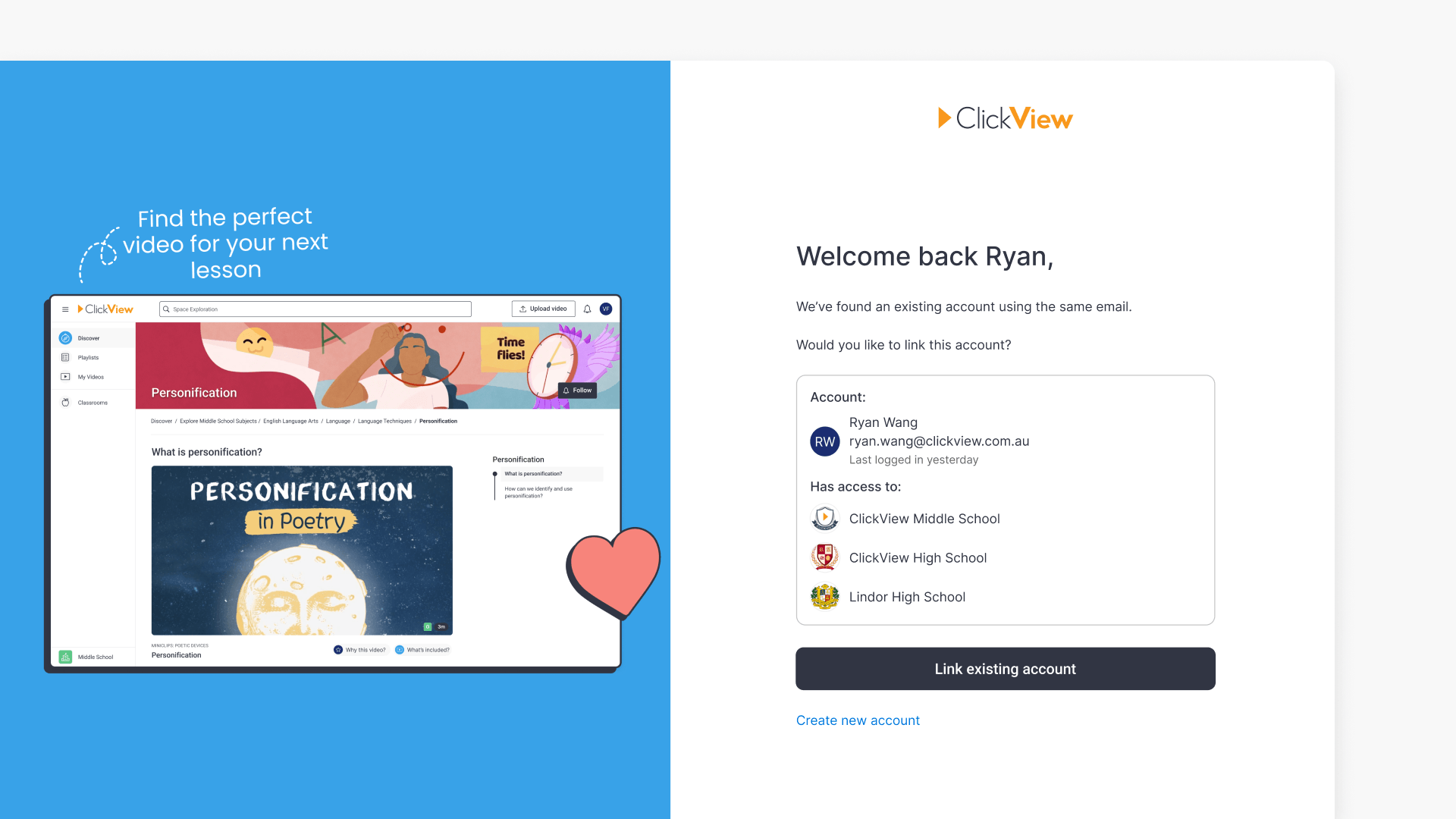
Summary
- Sign in with your email address and credentials.
- You will be prompted to link your account.
- Select the school you want to access.
- A 6-digit code is sent to your registered email address.
- Enter the code to link your SSO account.
- Your existing account data will be accessible.
star icon
Quick tip
Why am I asked to choose a school and enter a 6-digit code when I sign in with SSO?
This step confirms which school you want to access and verifies that you own the existing account tied to your email address. Selecting the correct school and entering the emailed code ensures your previous ClickView data is securely linked to your SSO account, rather than creating a duplicate account.
Steps to link your account
- Enter your email address and sign in with your credentials.
- You will be prompted to link your account if an existing account is present for your email address.
- A list of schools associated with your account will be presented.
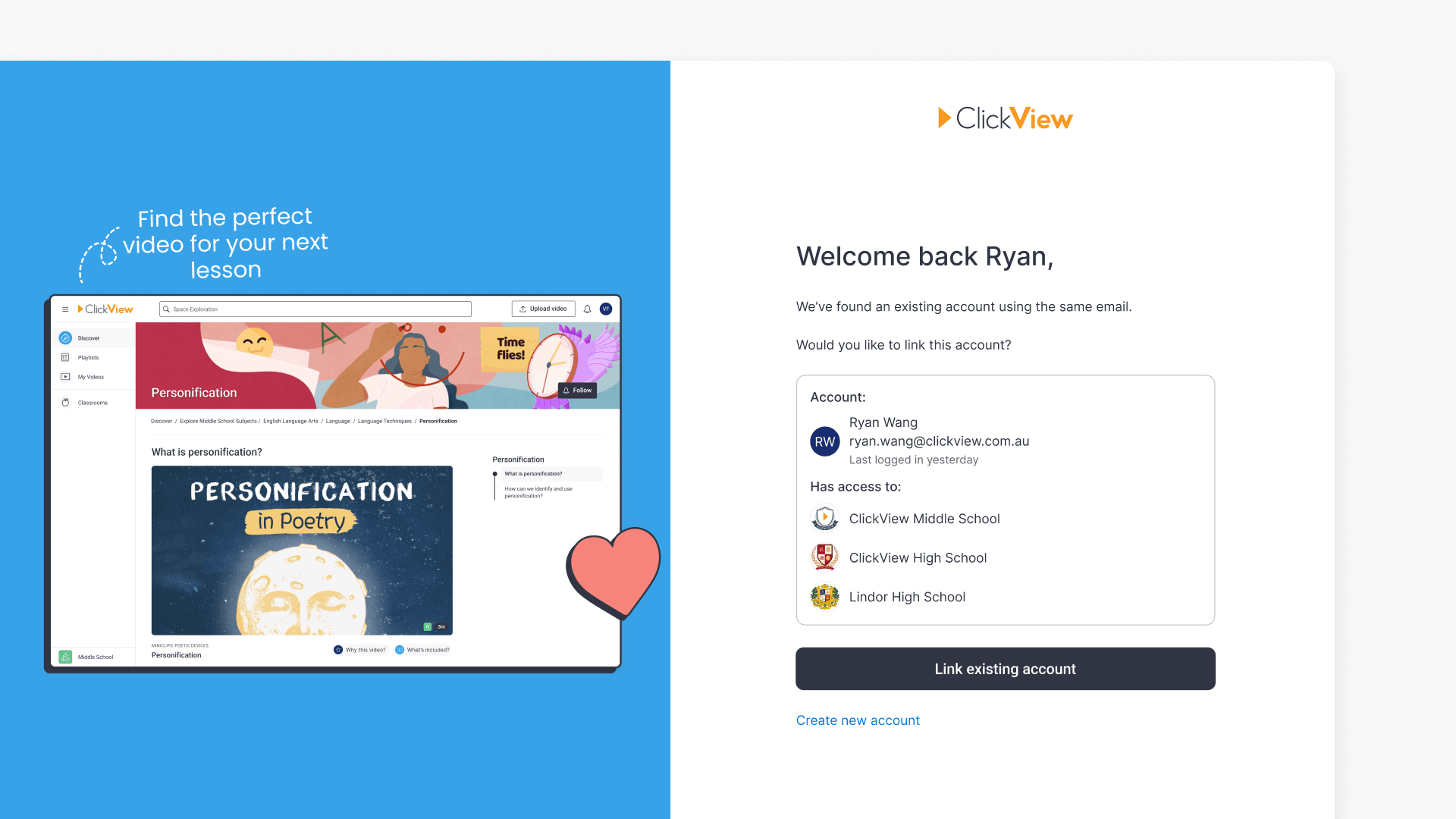
- Click on the school you wish to access.
- A 6-digit verification code will be sent to your registered email address.
- Enter the code in the prompt to complete account linking.
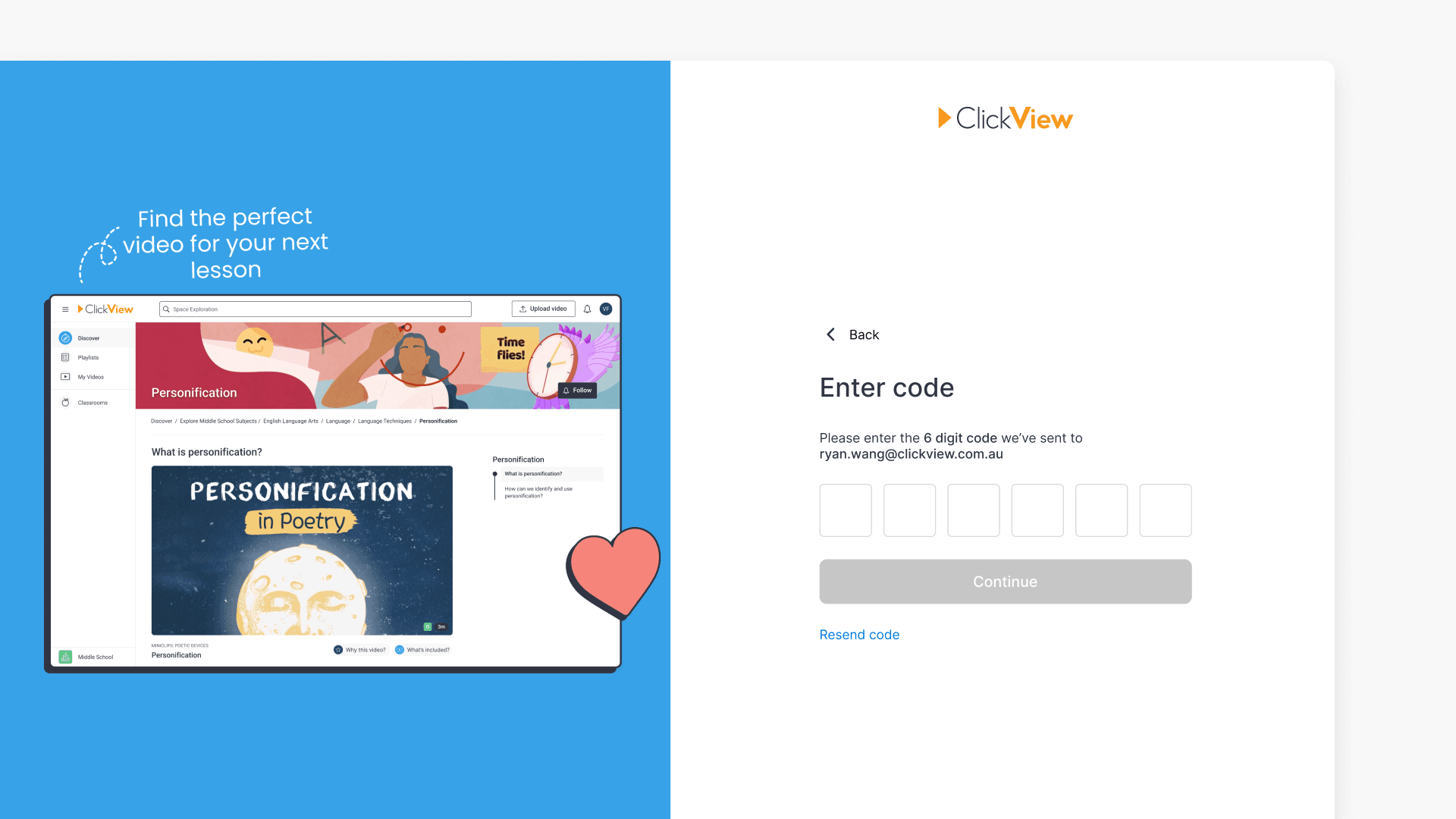
- Your previous account data will be linked and accessible from your SSO account.
If you do not want to link accounts
If you do not wish to link your account, or if you no longer have access to the email address of your previous account, you can opt to create a new account instead.
Frequently asked questions
All previously curated data from your old account will be linked to your SSO account and remain accessible.
You may choose to create a new account instead of linking an existing one if you do not wish to link accounts or do not have access to your previous account’s email address.
Get in touch
If you’re having trouble finding the right topics or videos, just reach out! Our team - 

 Akhil, Daniel, Jalaj, or any of us at ClickView - will be happy to help you get sorted.
Give feedback
Was this guide helpful?
Up Next
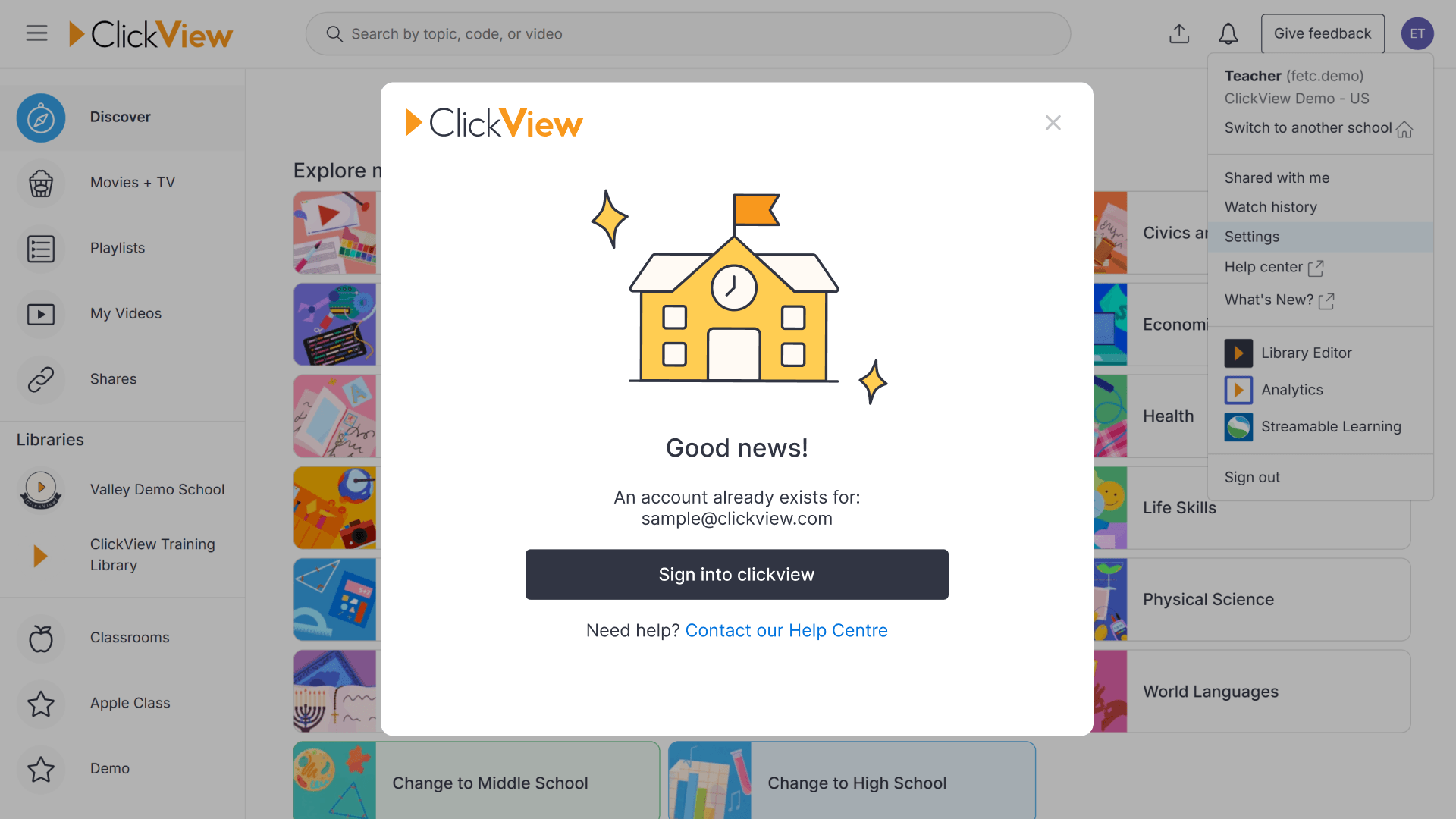
How to fix an email verification error
This article explains why email verification is necessary in ClickView, what happens when you try verifying a duplicate email, and clear steps for resolving related issues for both users and administrators.