How to check if Single Sign-On is enabled
In this article
Last updated by
2 min readClickViewFebruary 9, 2026
Summary
- Visit clickview.net/login and use ‘Sign in to ClickView.’
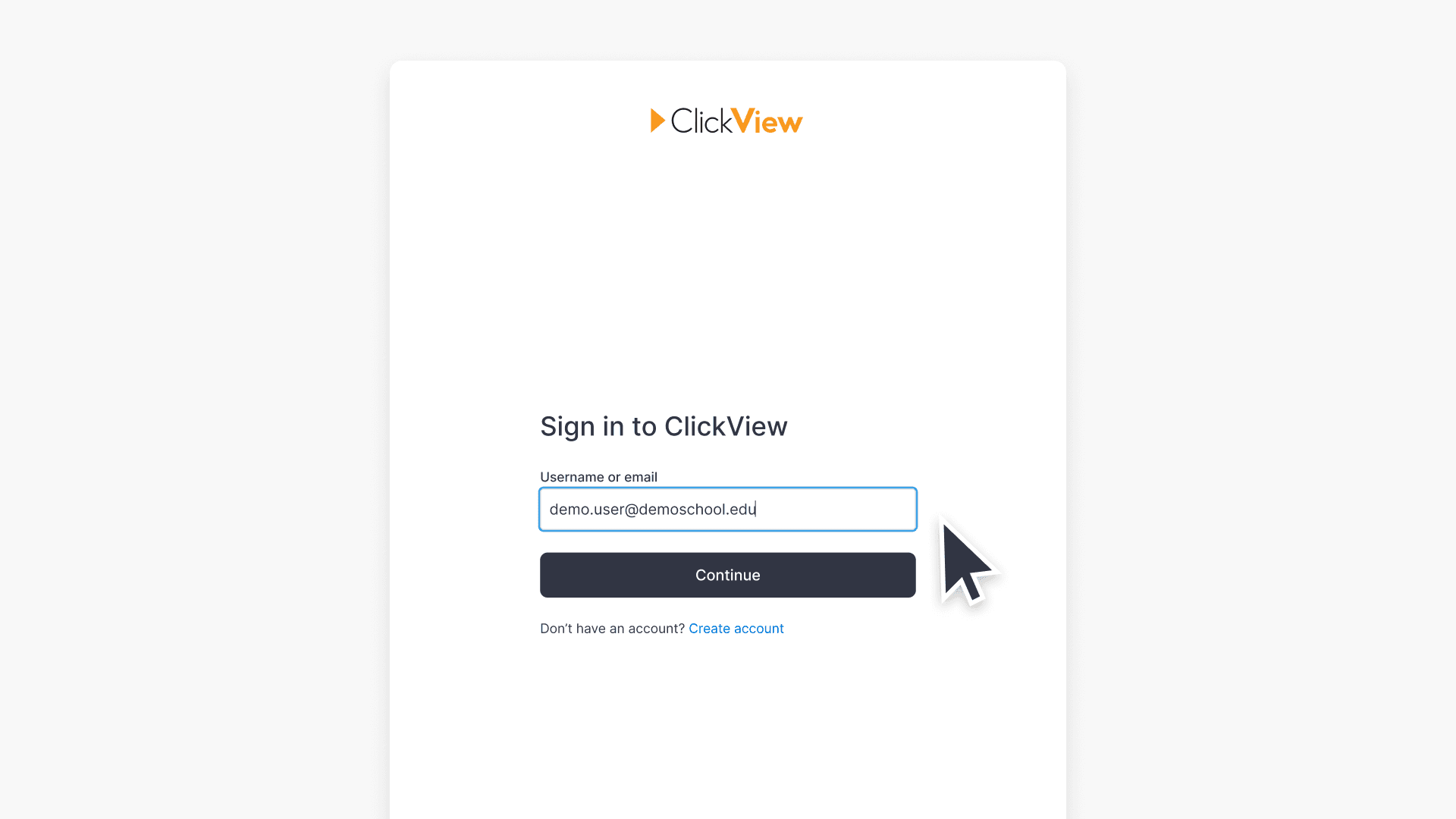
- Enter your email username and proceed by clicking next.
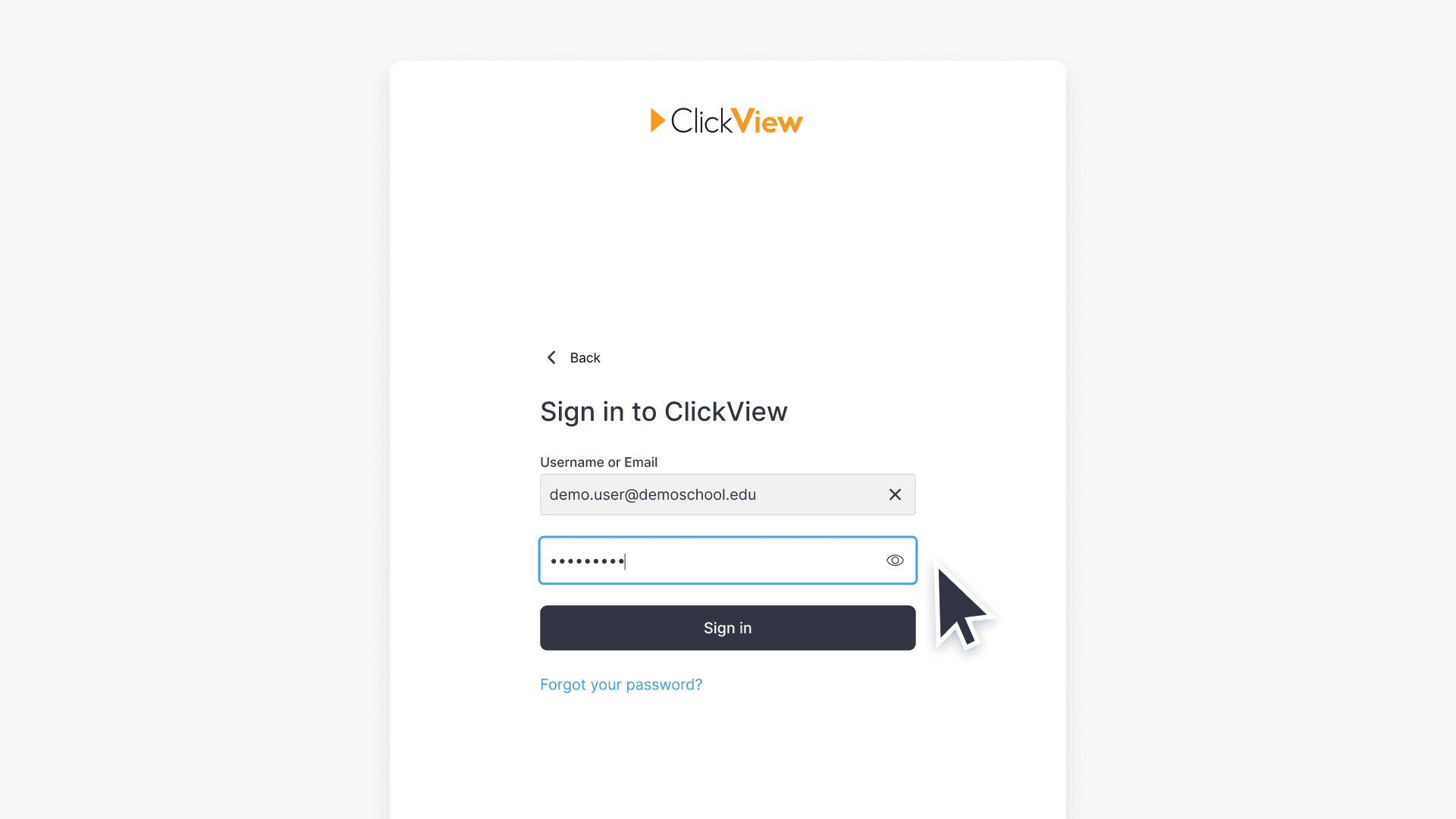
- If prompted for your password on the same page, SSO is not enabled.
- If redirected to another login page, SSO is enabled.
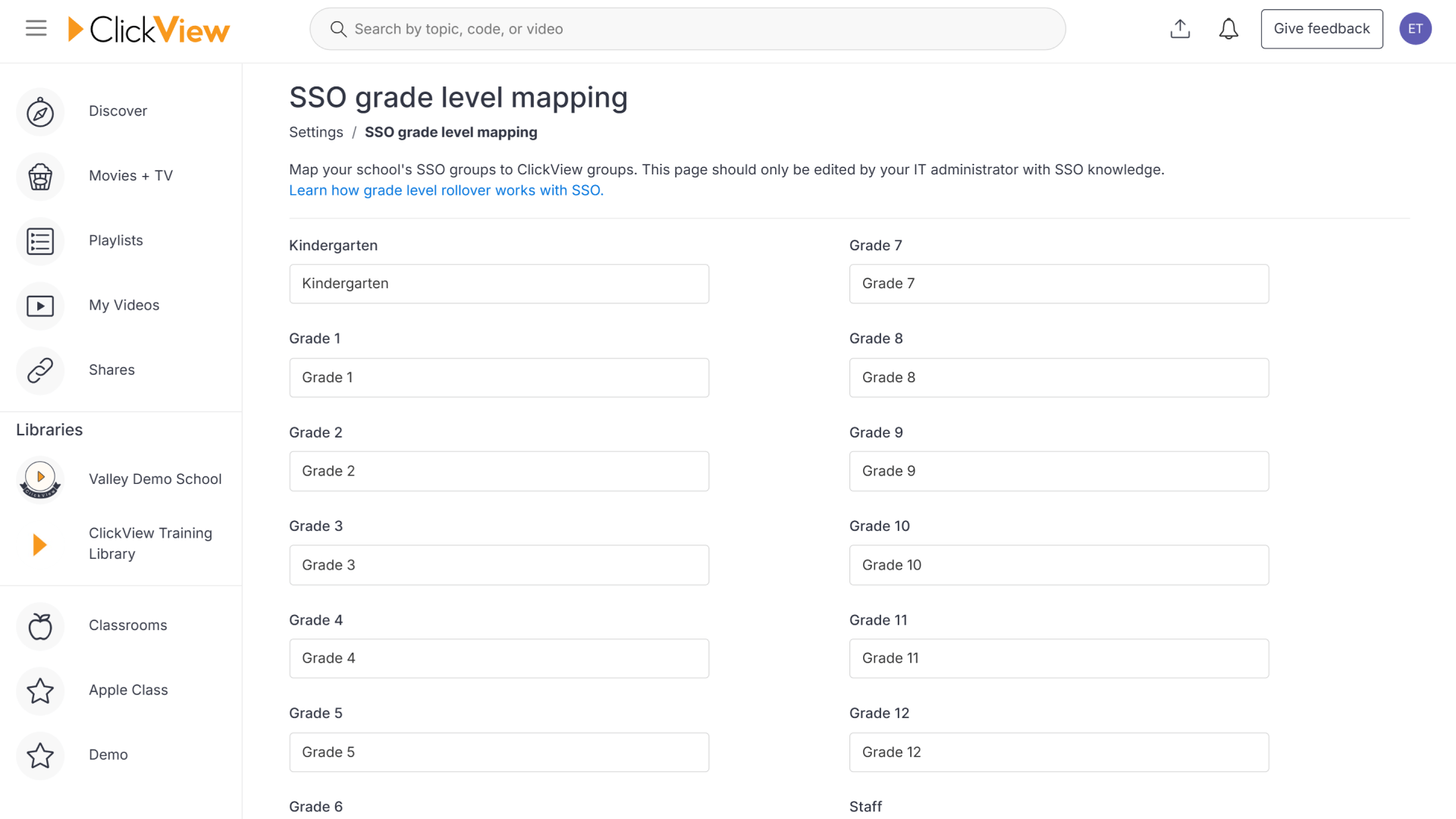
- Administrators can use ‘Settings’ in ClickView for another check.
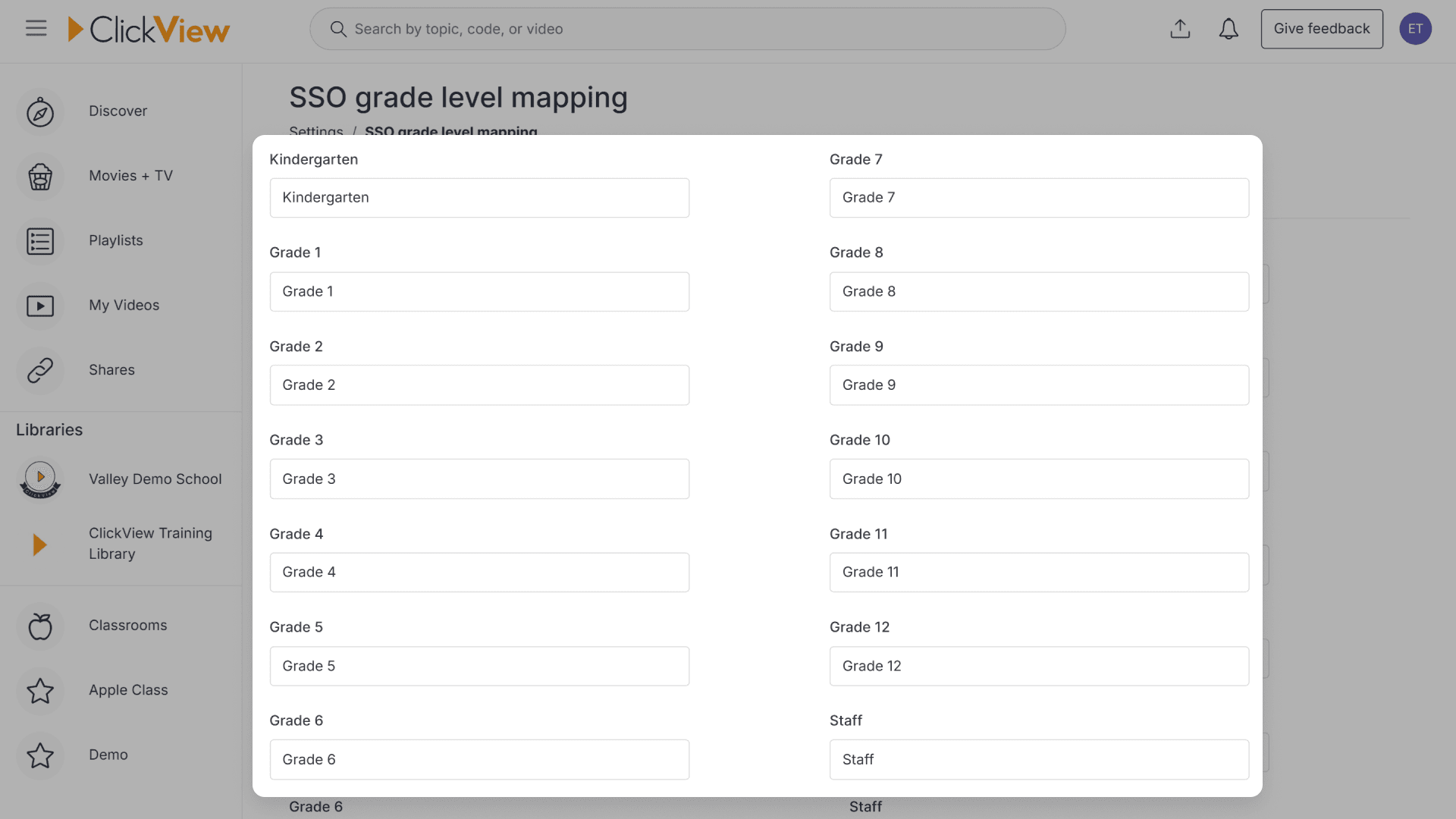
- In ‘SSO grade level mappings,’ blank fields mean SSO is not enabled.
- Filled fields in ‘SSO grade level mappings’ indicate SSO is enabled.
star icon
Quick tip
Why does ClickView sometimes ask for a password and other times redirect me to my school sign-in page?
This behavior depends on whether Single Sign-On is enabled for your school. When SSO is enabled, ClickView hands off authentication to your school’s identity provider, which causes the redirect. When SSO is not enabled, ClickView handles authentication directly and asks for your password on the initial sign-in screen.
Check Single Sign-On status
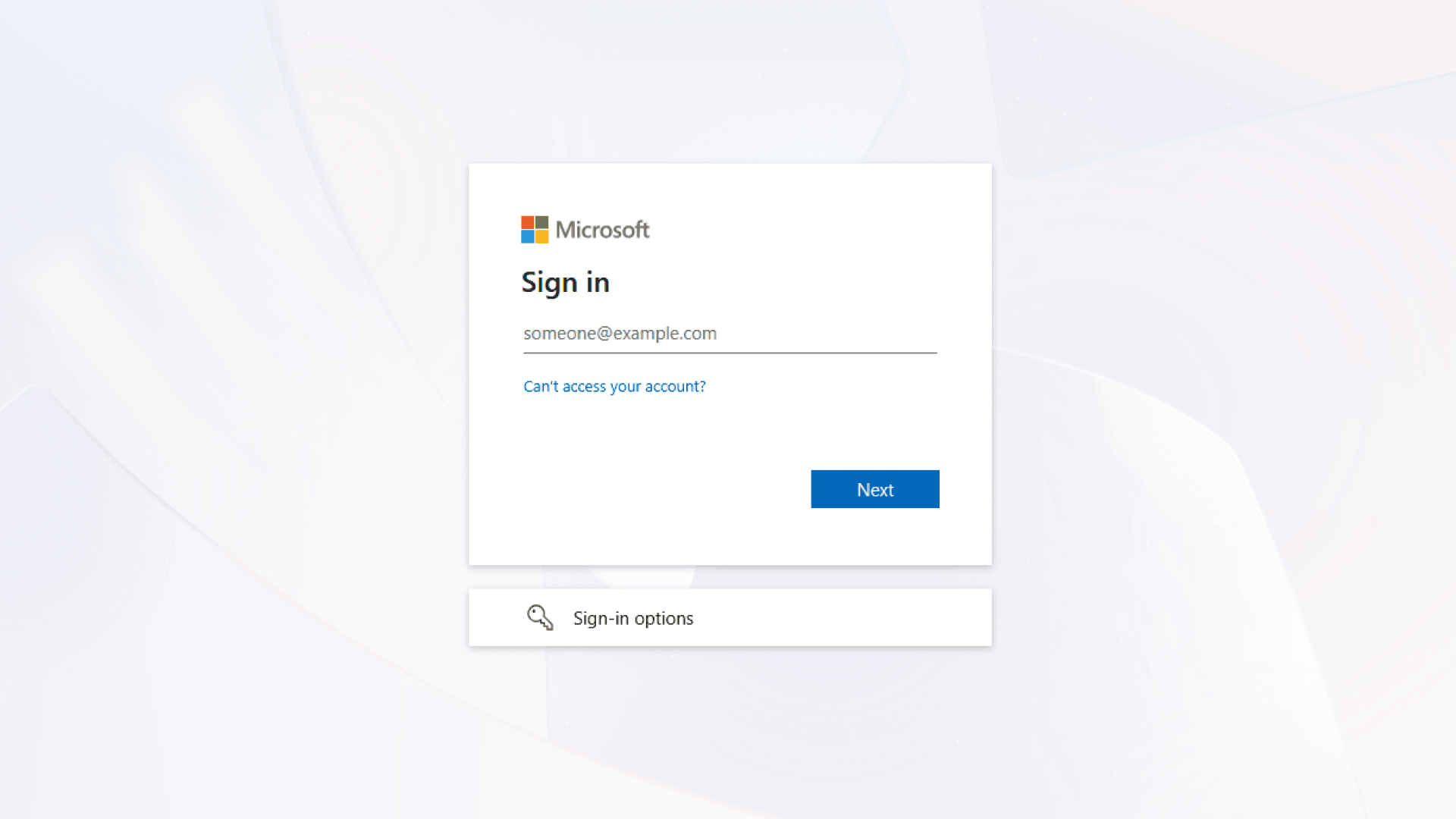
Check using the sign-in process
- Go to clickview.net/login and click ‘Sign in to ClickView’.
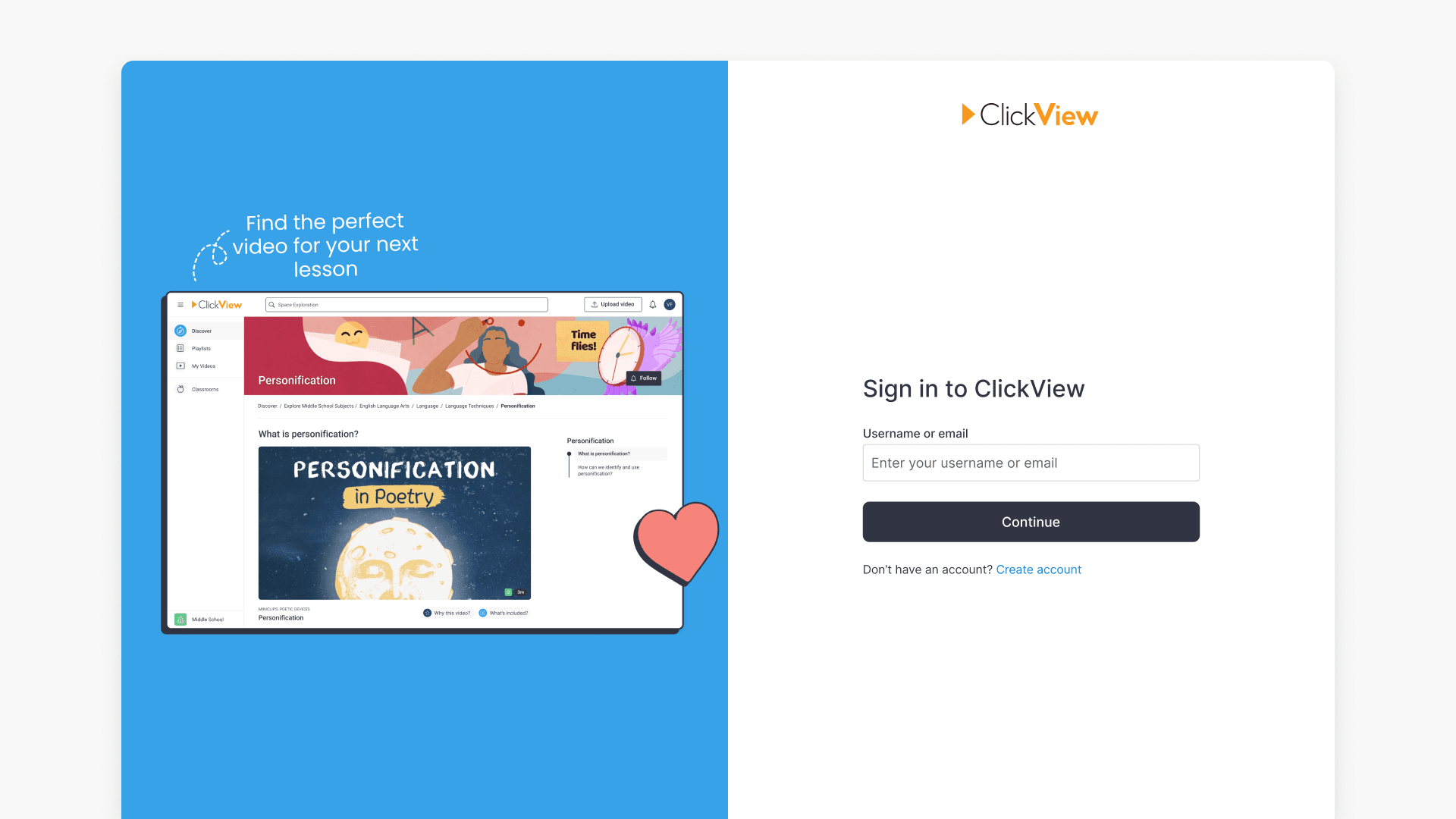
- Enter your email username and click next.
- If you are prompted to enter your password immediately on the same page, SSO is not enabled.
- If you are redirected to a different page to enter your credentials again, SSO is enabled.
Check using the settings menu (administrators only)
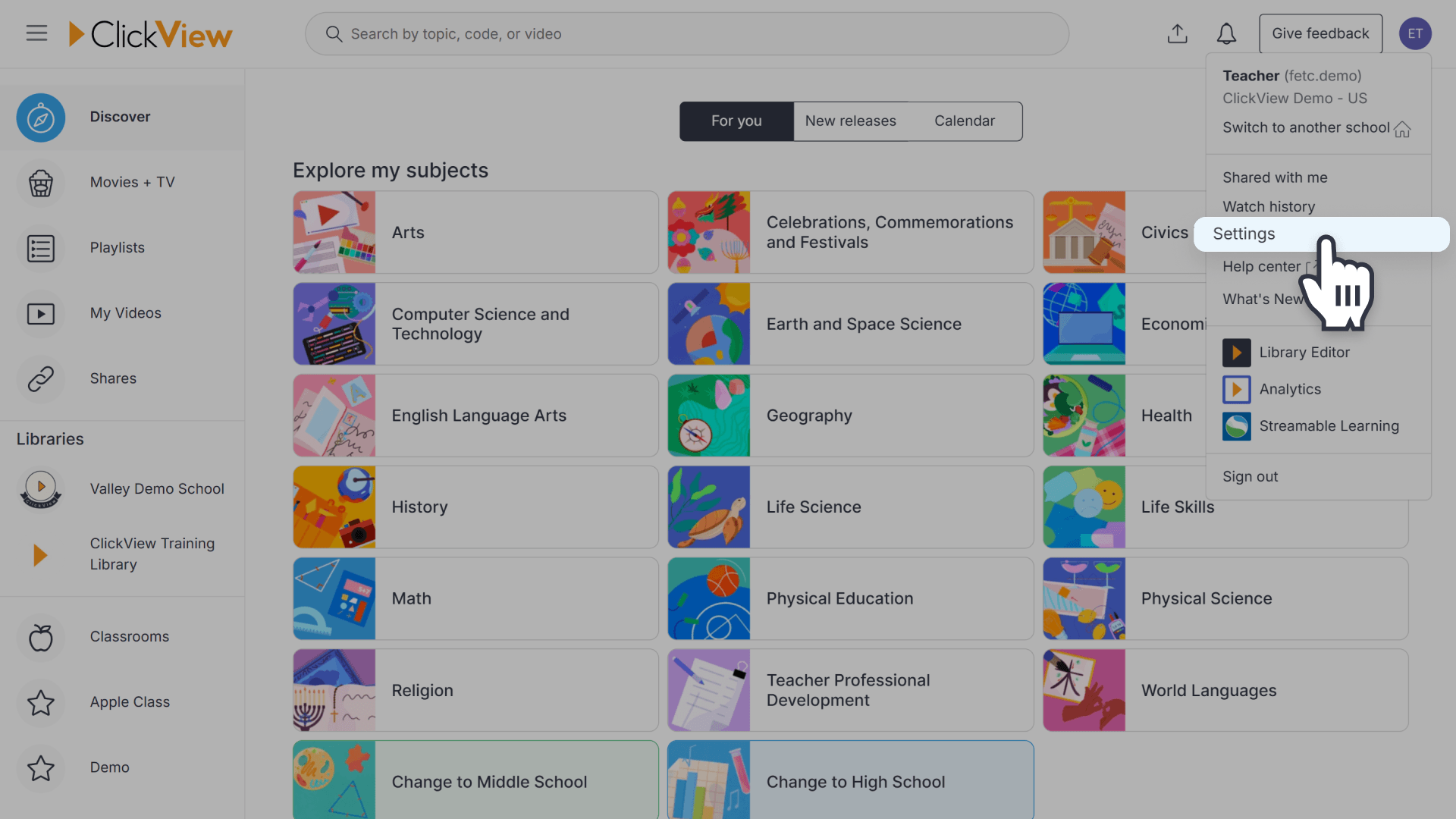
- Click your name in the top right corner and go to ‘Settings’.
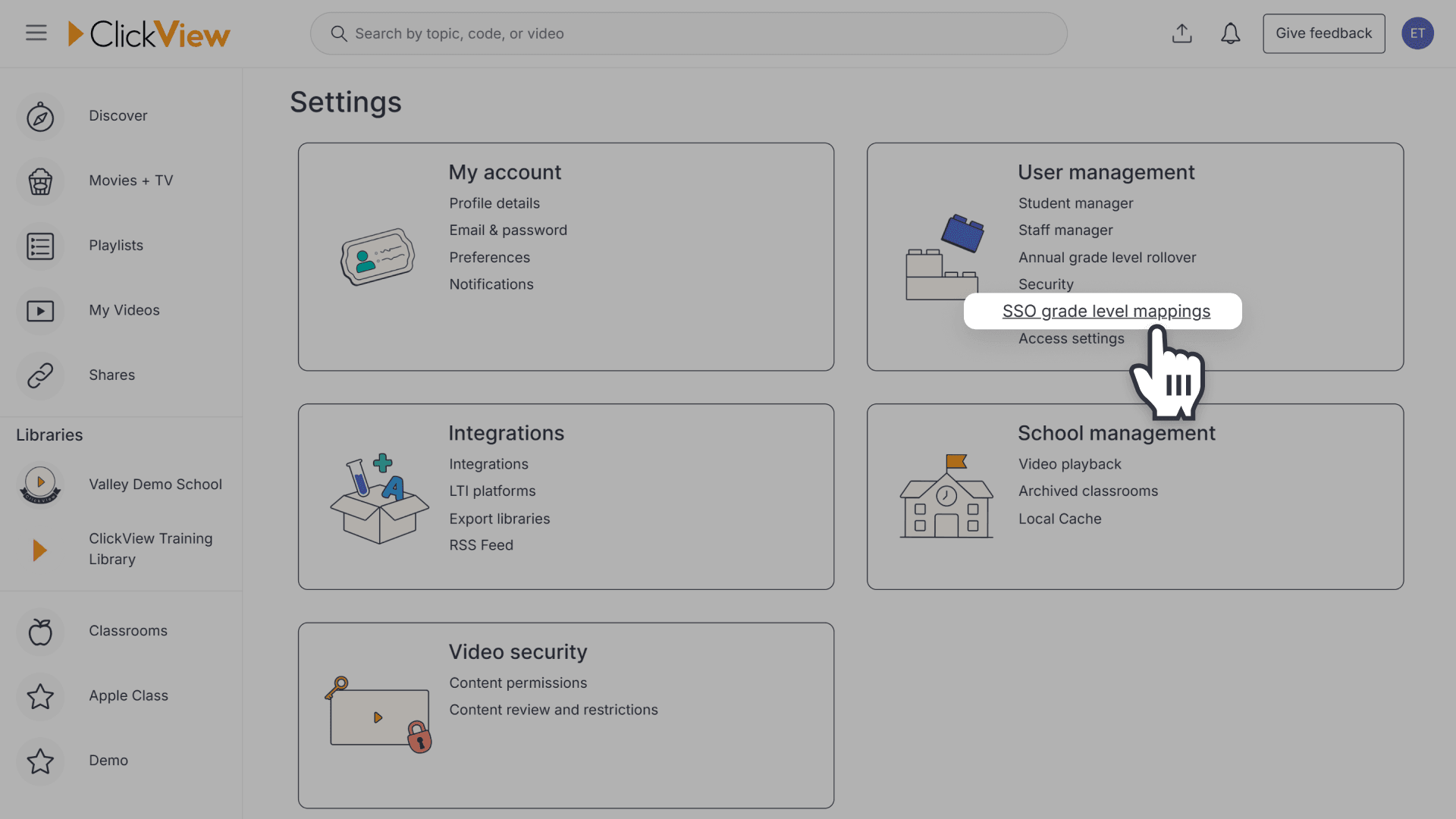
- On the right-hand side under User management, click ‘SSO grade level mappings’.
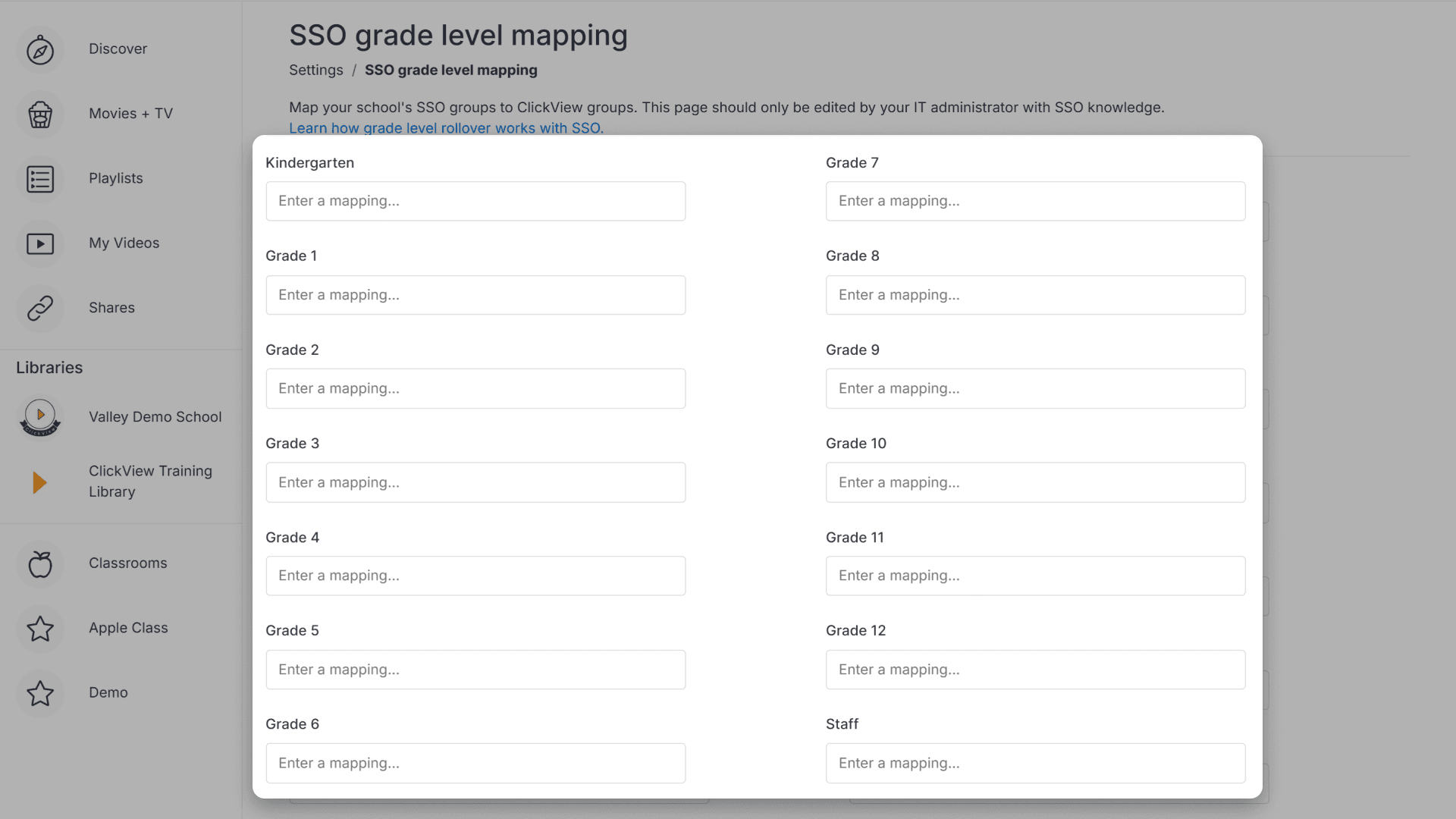
- If all fields are blank, SSO is not enabled. If any fields are filled out, SSO is enabled.
Frequently asked questions
Single Sign-On (SSO) allows users to access ClickView with their school credentials, streamlining the authentication process.
Only ClickView administrators can access the Settings menu and check SSO status via ‘SSO year level mappings.’
Yes. If SSO is enabled, you are redirected to a separate page for authentication instead of entering your password on the initial screen.
Get in touch
If you’re having trouble finding the right topics or videos, just reach out! Our team - 


 Andrew, Nisch, Janice, Pfreya, or any of us at ClickView - will be happy to help you get sorted.
Give feedback
Was this guide helpful?
Up Next
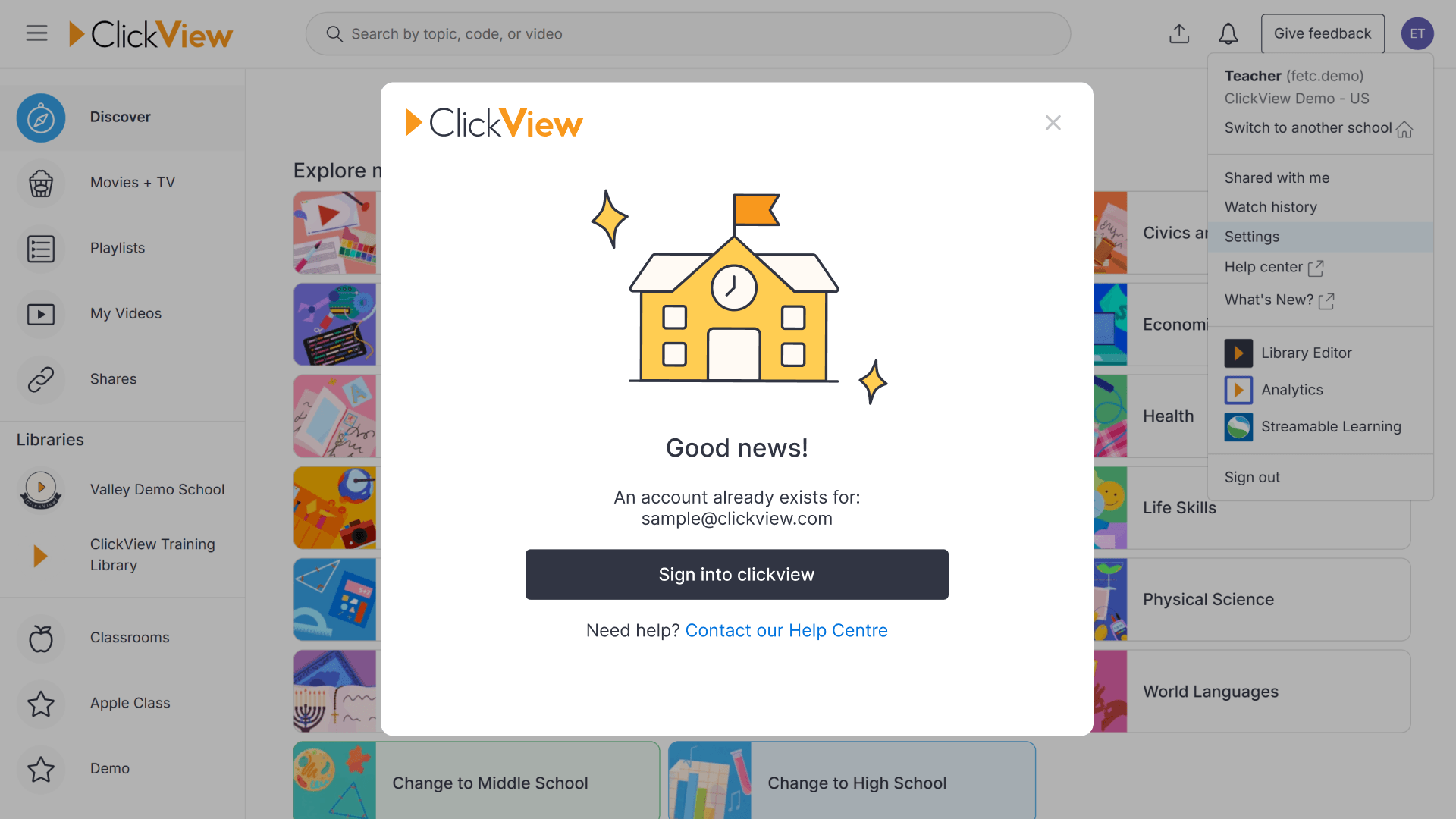
How to fix an email verification error
This article explains why email verification is necessary in ClickView, what happens when you try verifying a duplicate email, and clear steps for resolving related issues for both users and administrators.