How to export your library records

Summary
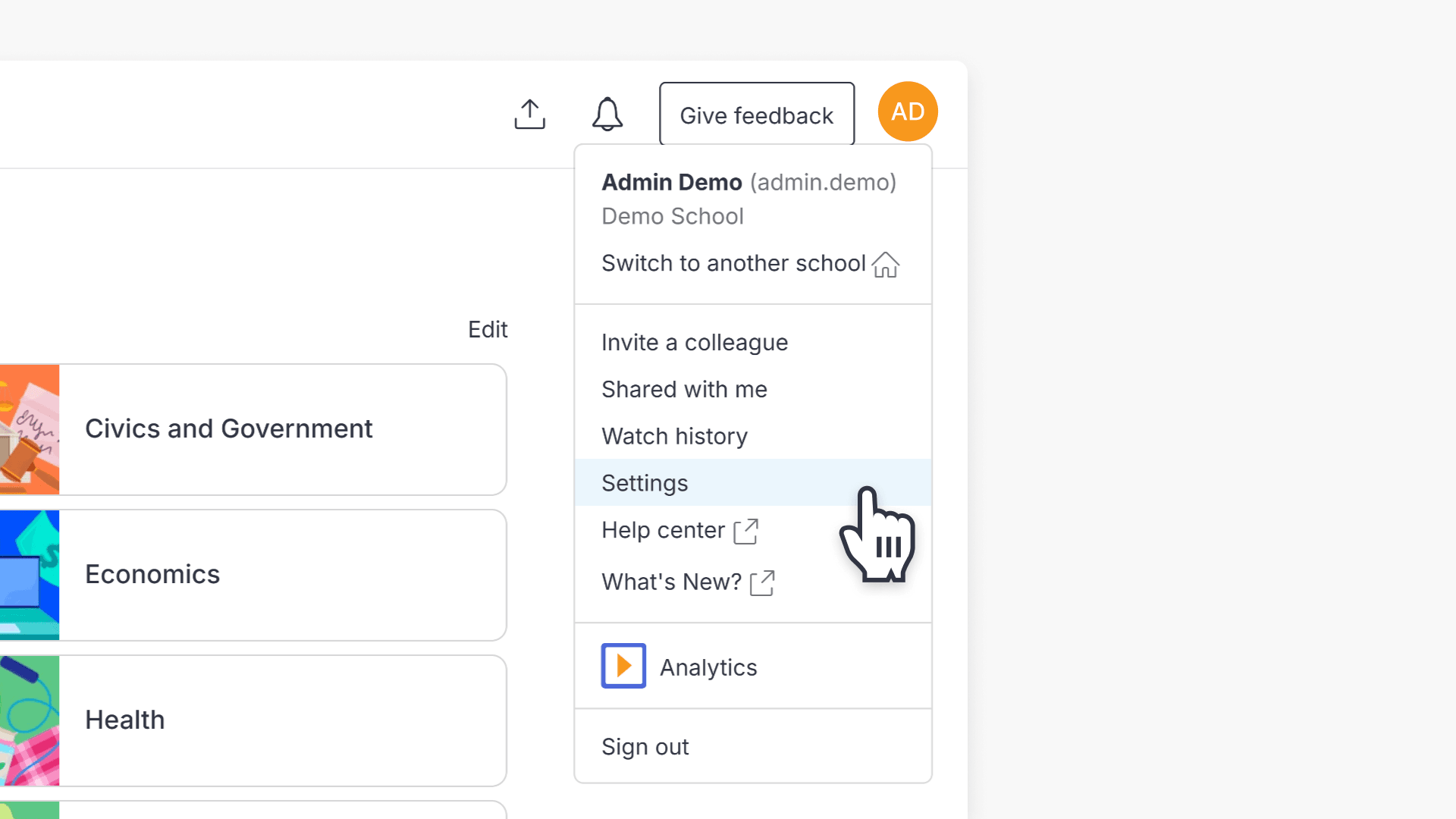
- Click on your initials and select ‘Settings’.
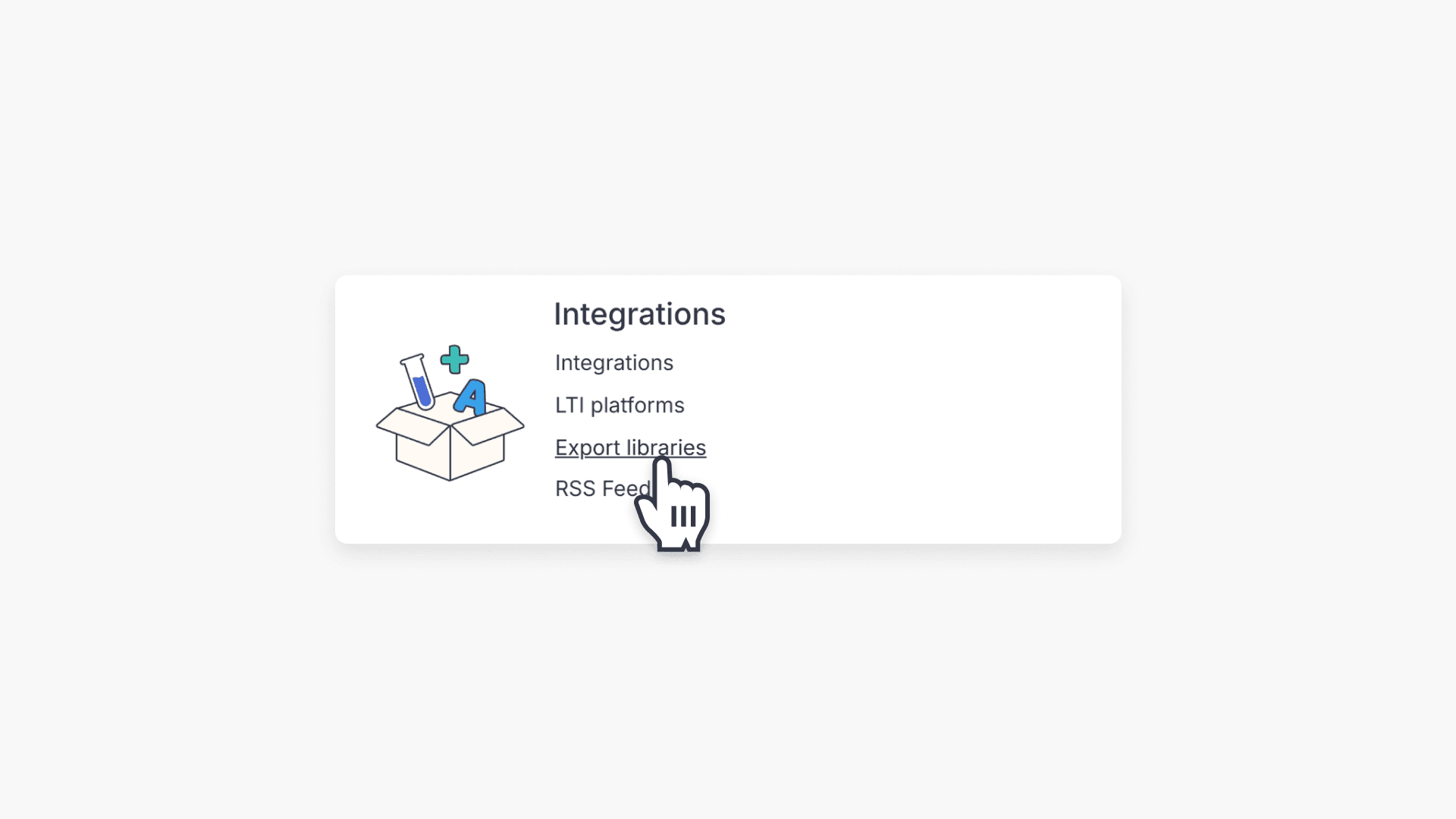
- Go to ‘Export Libraries’ under Integrations.
- Select libraries to export.
- Choose an export format (MARC, MARC XML, CSV, etc.).
- For MARC 21 V2, pick full export or export from a specific date.
- Click ‘Export libraries’ to receive your library export by email.
Exporting your library records
Administrators can export ClickView library records in various formats, making integration with library cataloguing systems easy. Supported formats include:
- MARC 21 V1
- MARC 21 V2
- MARC XML V1
- MARC XML V2
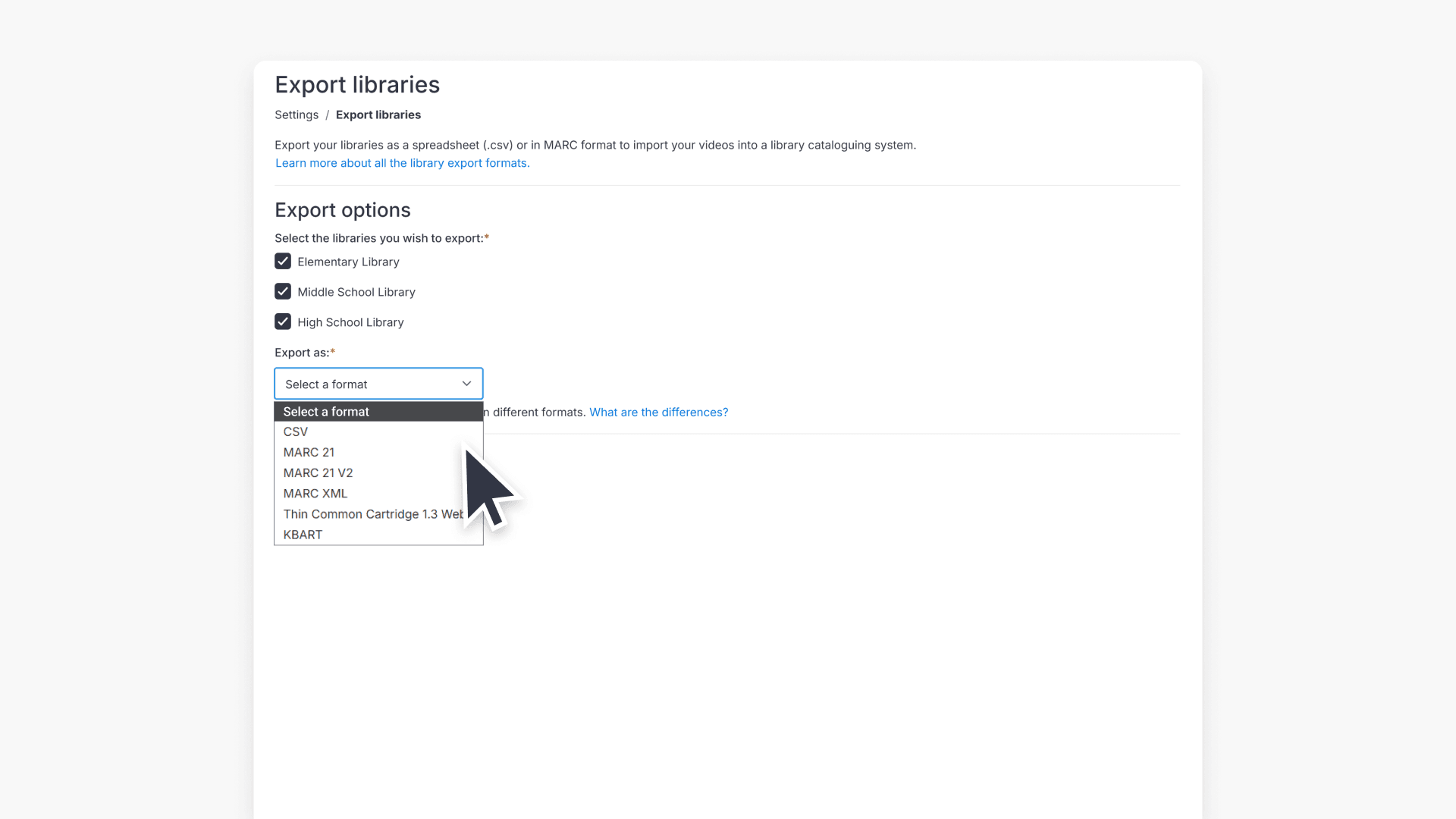
- CSV
- Thin Common Cartridge 1.3 Web (.imscc)
- KBART
- Sign in to ClickView as an administrator.
- Click on your initials in the top right and select Settings from the menu.
- In Settings, locate Export Libraries under the Integrations section.
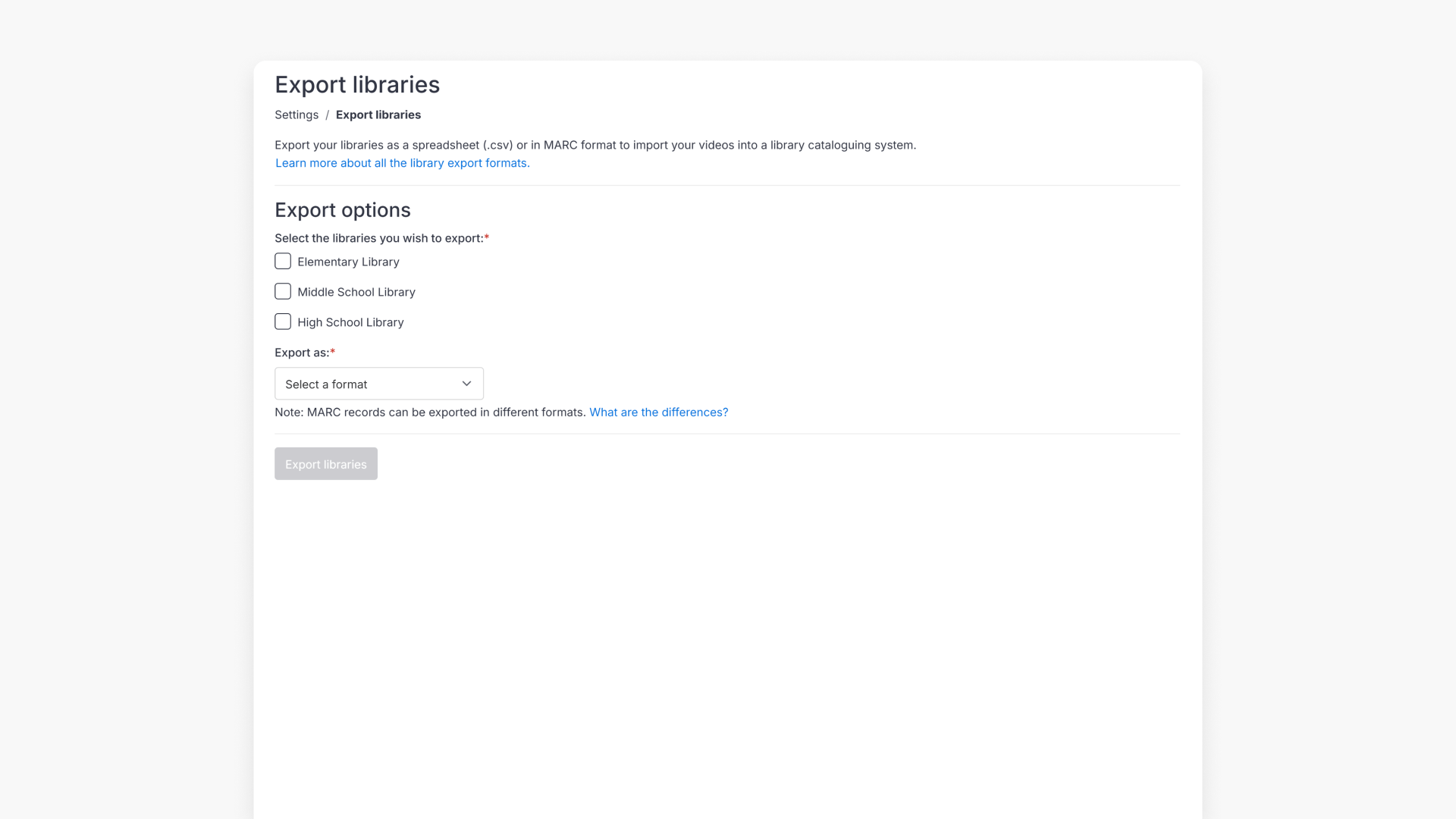
- Review the displayed list of libraries. Your custom video library and any supplemental libraries appear here.
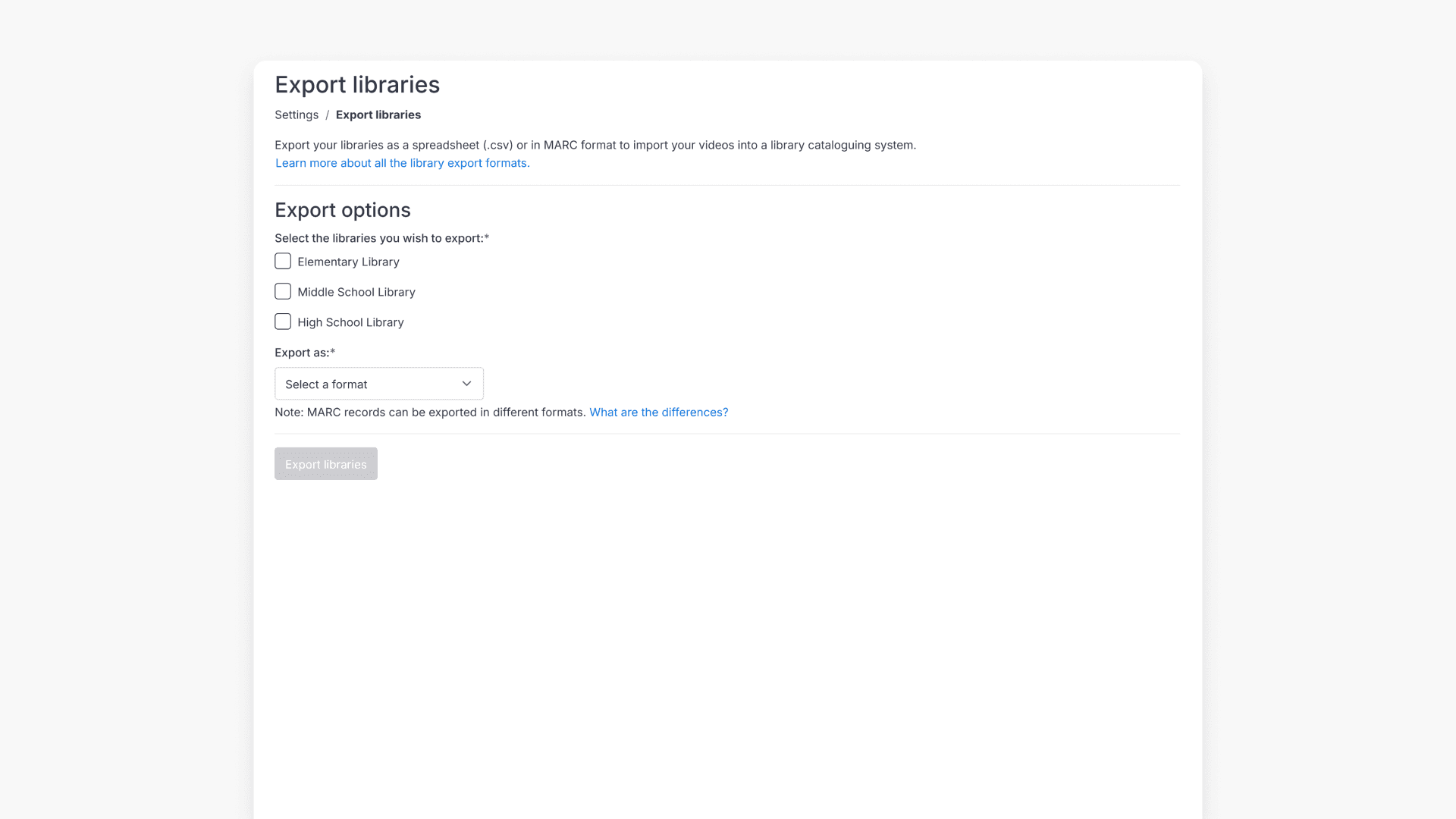
- Select the libraries you want to export.
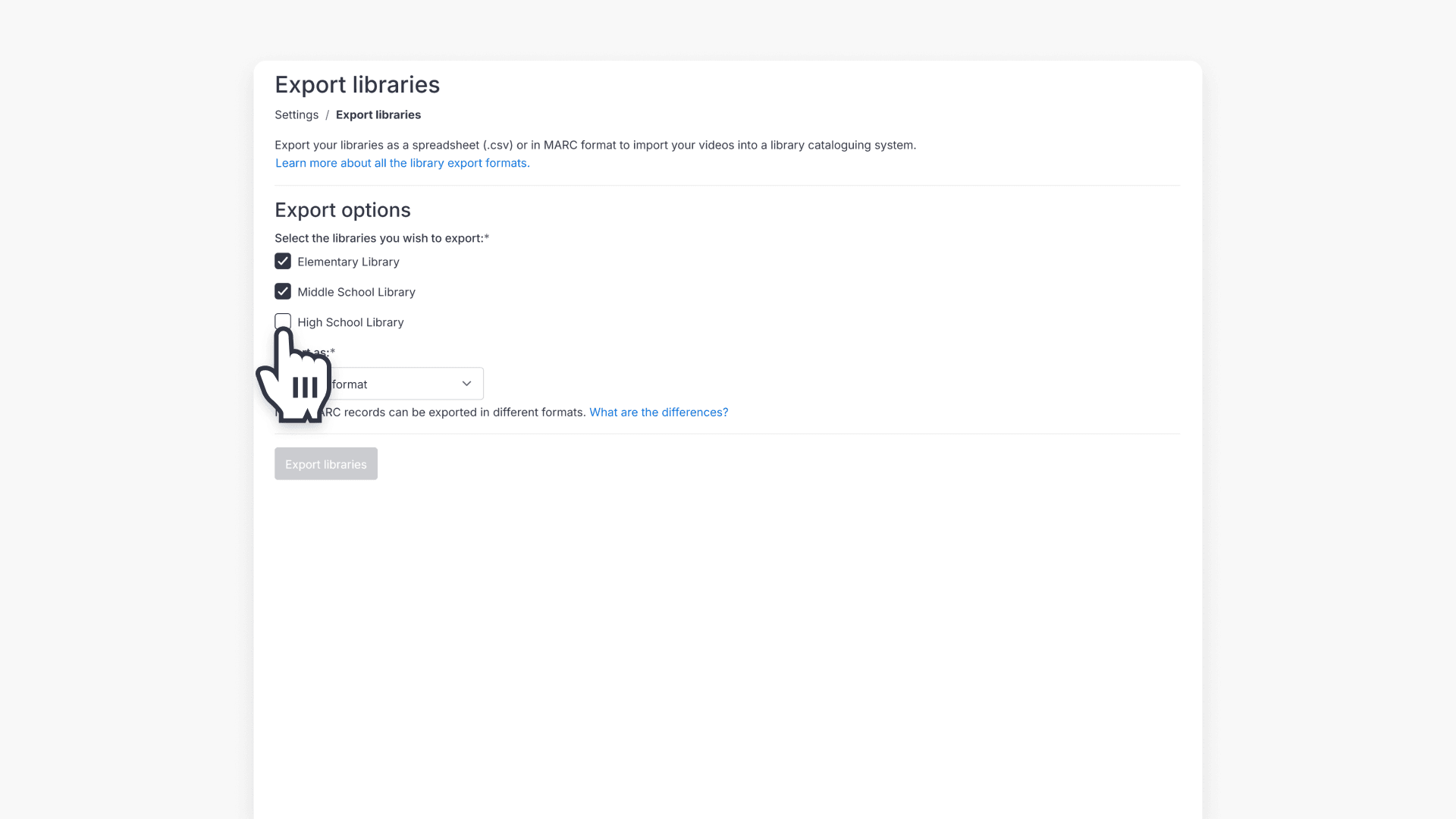
- Pick the export format you need:
- If you select MARC 21 V2, specify either a full export or export from a specific date.
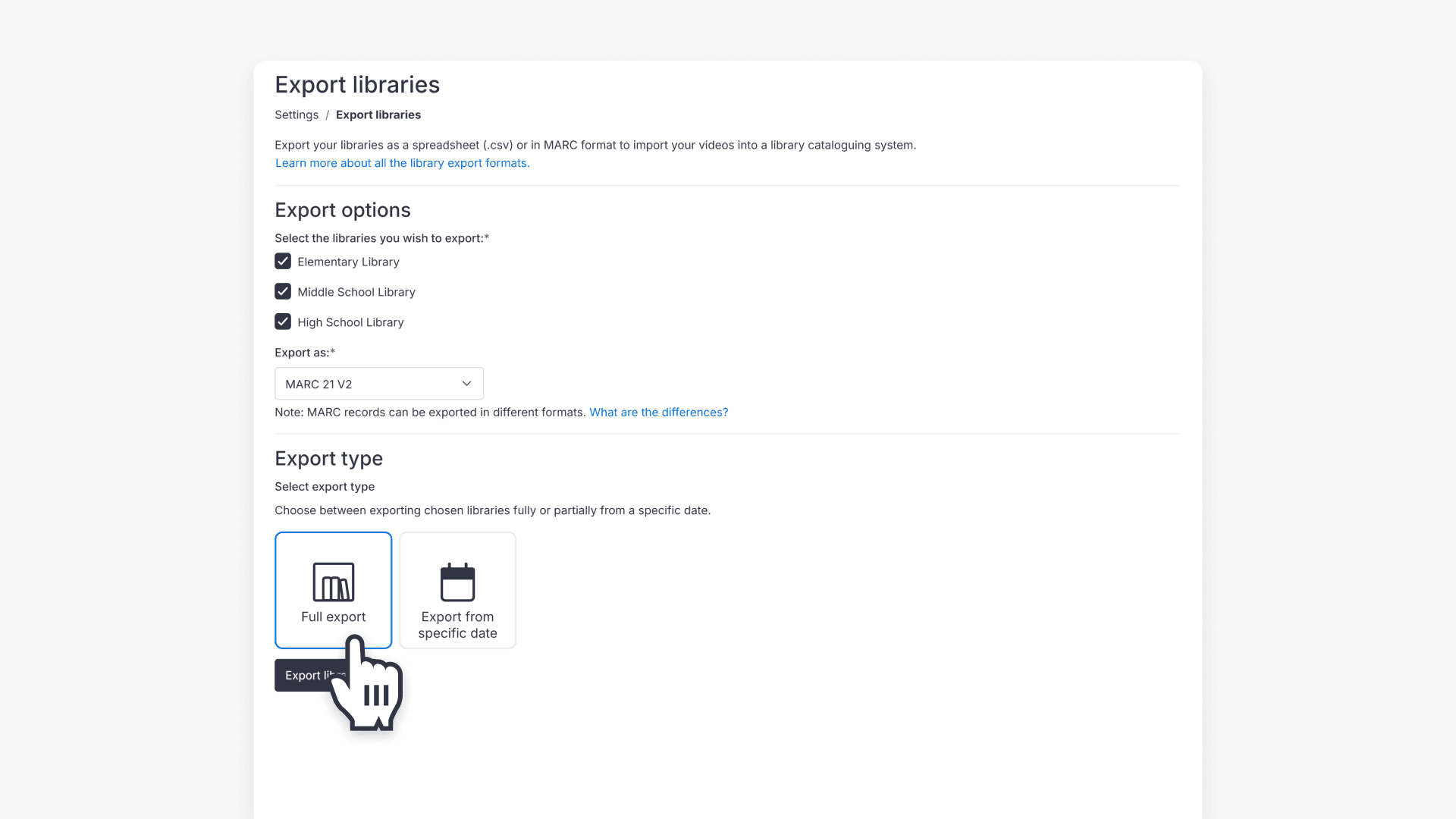
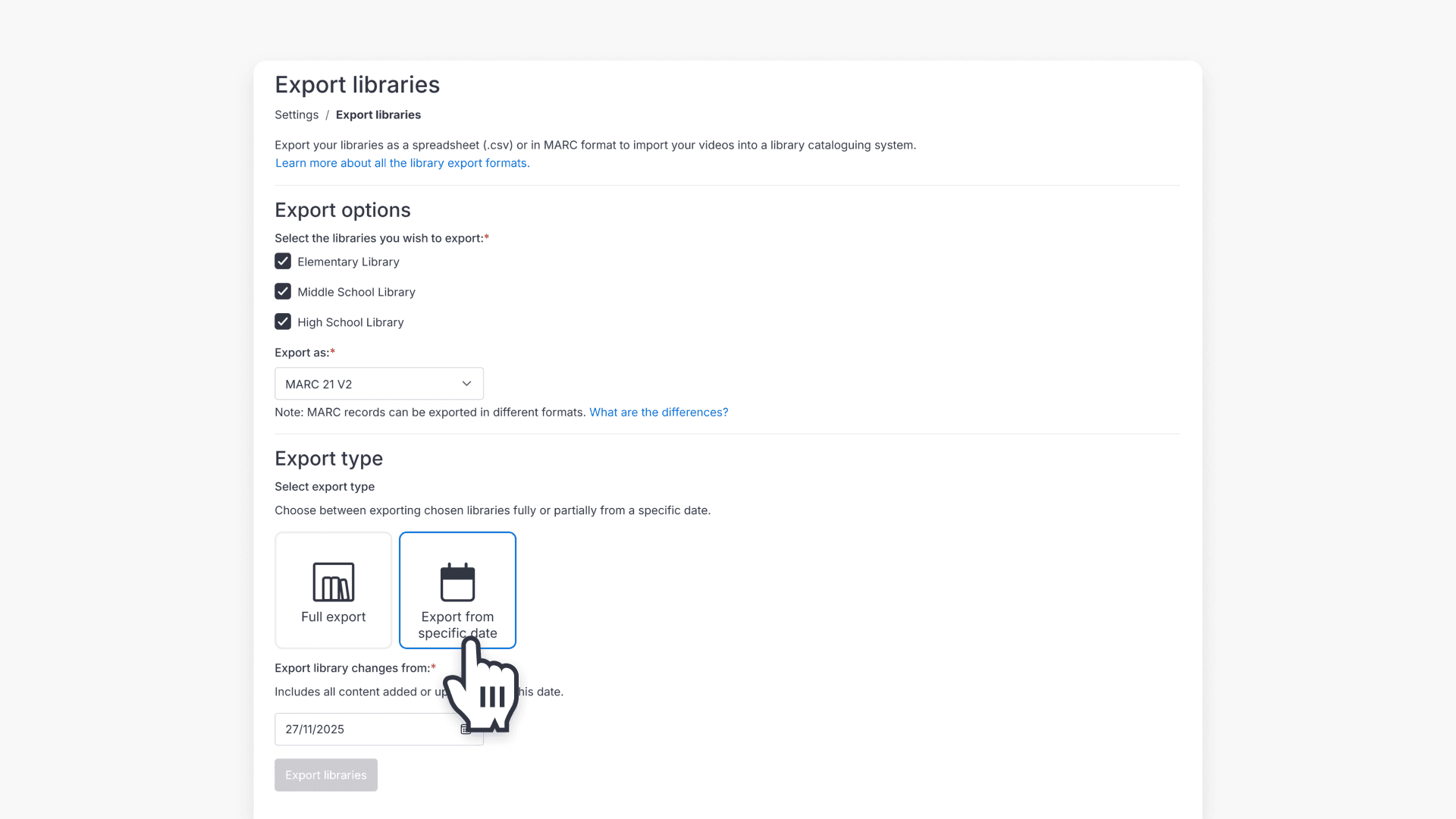
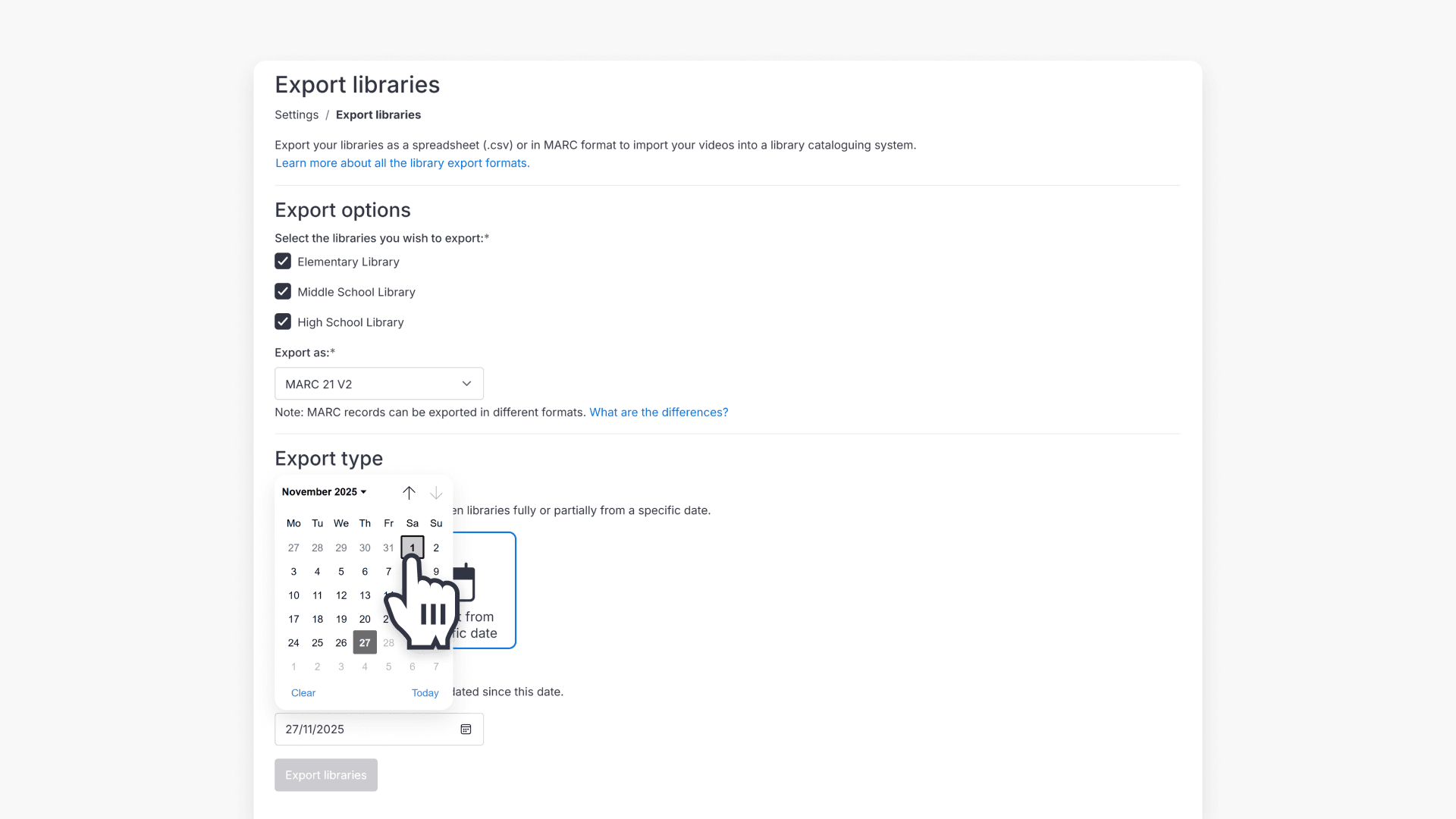
- Finish by clicking Export libraries. You will receive the exported records via email.
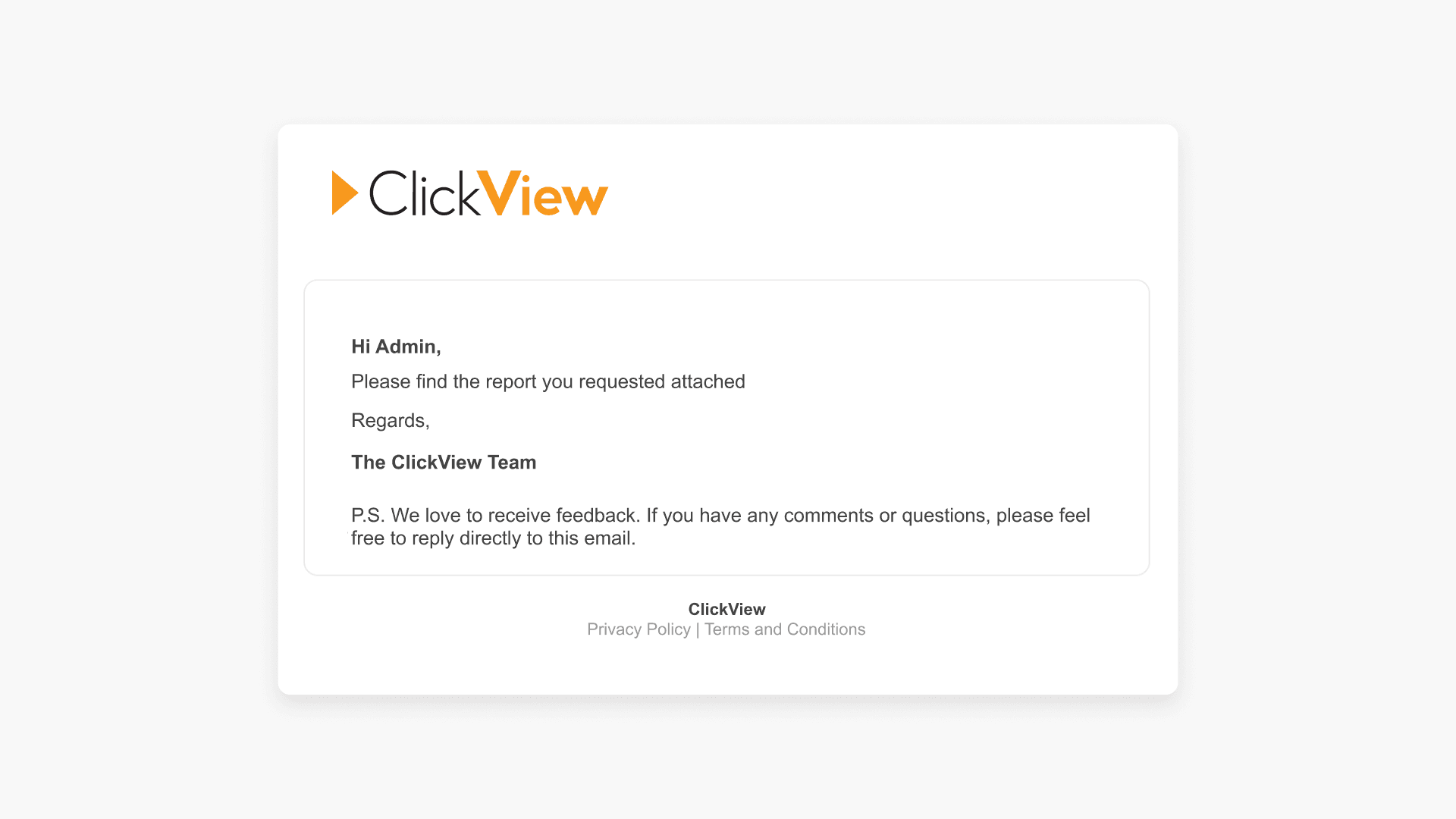
You can now integrate these exported files into your school’s library cataloguing system.
Note: MARC 21 V2 is custom for tertiary institutions. For standard use, choose MARC 21 or MARC XML formats. See Comparing MARC export record formats for more detail.
Frequently asked questions
Get in touch
If you’re having trouble finding the right topics or videos, just reach out! Our team - 

 Akhil, Daniel, Jalaj, or any of us at ClickView - will be happy to help you get sorted.
Give feedback
Was this guide helpful?
Up Next

What are automated MARC records for ClickView libraries?
With automated MARC records, ClickView video metadata is updated automatically and reflected in supported library cataloguing and discovery services.