How to assign a video


Summary
- How you assign a video depends on how your school is set up.
- If your school has rostering or classrooms already set up, assign to an existing classroom. Students sign in and see the video in their feed.
- If no classrooms are set up, use an Open Classroom, no prior setup required, and students can view video with a link or a join code without needing an account.
- Assigning keeps analytics separate by audience, so views from different classes aren’t mixed.
- After assigning, find video insights by navigating to the classroom or Open Classroom where you assigned the video.
What is assigning a video?
Assigning a video is the way to share a video specifically with students. Unlike a share link, which collects views from anyone who receives it and cannot be filtered, assigning a video keeps analytics separated based on who the video was assigned to. You can assign the same video to two different classes, and the results will be split between them.
Share links are permanent until deleted (and deleting a share link also deletes all its insights and analytics). Assigned videos are managed through Classrooms, where you can create as many assignments as needed and maintain a clear division of analytics.
Important notes:
- If a classroom has no students in it yet, a teacher or admin needs to add them first. Once added, students will be able to see all videos already assigned to that classroom.
- Assigned videos do not appear in the Shares list. They are found under Classrooms, either in the Assignments tab of the relevant classroom or under the Open classrooms tab.
Where to find the Assign option
On any video listing card in search results or browse pages, select the assign icon (🍎) on the right side of the card.

On the video player page, select the Assign button below the video player.


Steps
Prerequisites: A teacher or administrator account. For the “Select an existing classroom” path, at least one classroom must be set up in ClickView. If no classrooms exist, use the Open Classroom option instead.
1. Choose how you want to assign
After selecting Assign (US), a How do you want to share? modal appears with two options:
Create an Open classroom (New) — quickly share a video with any group of students. Students join with a code and don’t need an account.
Select an existing classroom (Recommended) — for schools with classes already set up, including rostered classes. Students sign in with their account and see the video in their feed.

Option A: Assign to an existing classroom
2. Select a classroom
The Assign to an existing classroom modal shows a list of your classrooms. Use the search bar to find a classroom, or scroll to select one. Select a classroom and click Next.
Optionally, click on Select groups or individual students to narrow down which students in the classroom receive the video.

3. Select groups or individual students (optional)
If you selected Select groups or individual students, tick the students or groups you want to include and click Next.

4. Add a message and confirm
A summary screen shows the classroom name and how many students can view the video. Optionally, tick Add a message for your students to leave instructions or a note. Select Assign to complete.

Result: A confirmation screen reads “Success! Assigned to students”. Students can now watch the video from their home page once they’ve signed in. Additional options are shown: Share link, QR code, Embed, and Integrations. You can also select Assign to another classroom or View assignment.

Students will see the assigned video in their feed on their Home page when they sign in.

Option B: Create an Open Classroom
Select Create an Open classroom to share a video without needing an existing classroom set up. This option is useful for groups of students that aren’t classified as a formal classroom — for example, all Year 7 classes, a maths club, or a whole school.
You’ll be prompted to name the Open Classroom and set student access options:
- Require students to sign in — gathers student views linked to their ClickView accounts
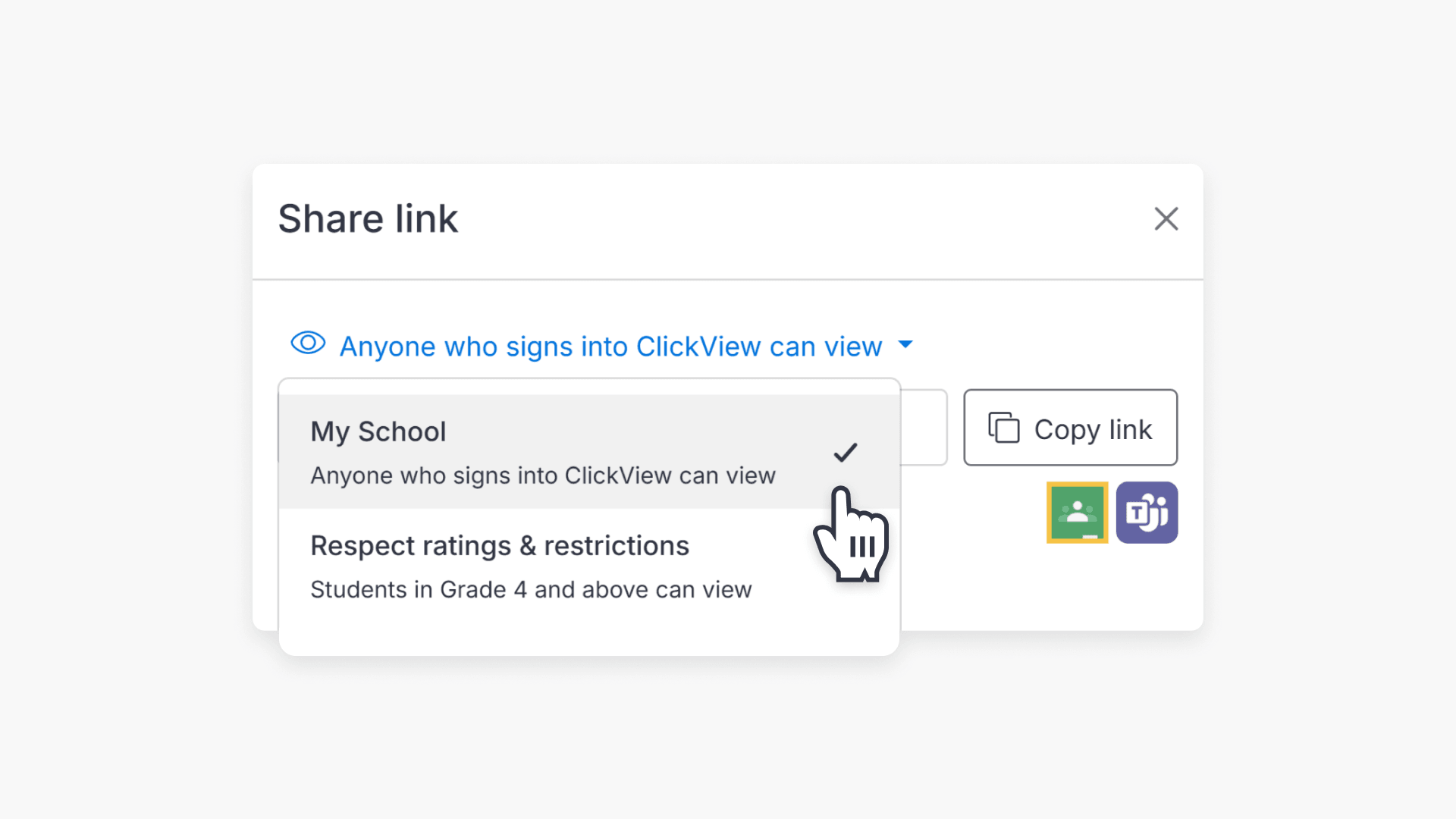
- Respect ratings and restrictions of video — applies content restrictions based on year level
Select Create Open classroom to complete.

For full details on using Open Classrooms, see Using Open Classrooms
Finding insights after assigning
Assigned to an existing classroom:
- Select Classrooms in the left navigation.
- Select the Classrooms tab and select the classroom the video was assigned to.
- The classroom page opens on the Assignments tab, showing all assigned videos with Views, Viewed by, Date shared, and Status.
- Select the video listing to open its insights.
- The Insights tab shows viewer data and class engagement. For interactive videos, additional tabs show Students, Questions, and Heatmap data.


Assigned to an Open Classroom:
- Select Classrooms in the left navigation.
- Select the Open classrooms tab.
- Find the Open classroom video that was assigned and select it.
- The insights page shows the same data as a standard classroom assignment.

Frequently asked questions
Get in touch
If you’re having trouble finding the right topics or videos, just reach out! Our team - 

 Akhil, Daniel, Jalaj, or any of us at ClickView - will be happy to help you get sorted.
Give feedback
Was this guide helpful?
Up Next
How to share restricted videos
This article explains how video restrictions work in ClickView and how educators can adjust privacy settings when sharing content with students. Learn how ratings, manual overrides, and privacy settings impact access.