How to share restricted videos

Summary
- Students can access videos matching their year group’s rating allowance.
- If a video exceeds allowed ratings, it will not appear to students in search or browsing.
- The Manage Video Access feature can restrict access regardless of ratings.
- Sharing via a direct link may override existing restrictions.
- “Respect Ratings & Restrictions” keeps school policies active when sharing.
- Switching to “My School” allows broader access, bypassing restrictions.
Understanding video restrictions and access
ClickView provides tools to control student video access and privacy when sharing educational content. Understanding these controls ensures safe and targeted video distribution in your school community.
Before adjusting privacy settings, review how ClickView regulates student access:
Rating-based restrictions
- Students can only view videos within their year group’s maximum rating allowance.
- Videos exceeding year-appropriate ratings will not be displayed to students in search results or when browsing ClickView.
Manage Video Access overrides ratings
- The Manage Video Access feature lets educators manually restrict specific videos.
- Manual restrictions block videos even if students’ year ratings allow viewing.
Link sharing can override restrictions
- Sharing a video via direct link can override both rating-based and Manage Video Access restrictions.
- Student access to shared videos depends on the selected privacy setting.
Adjusting privacy settings when sharing a video
ClickView allows educators to set privacy controls when sharing videos:


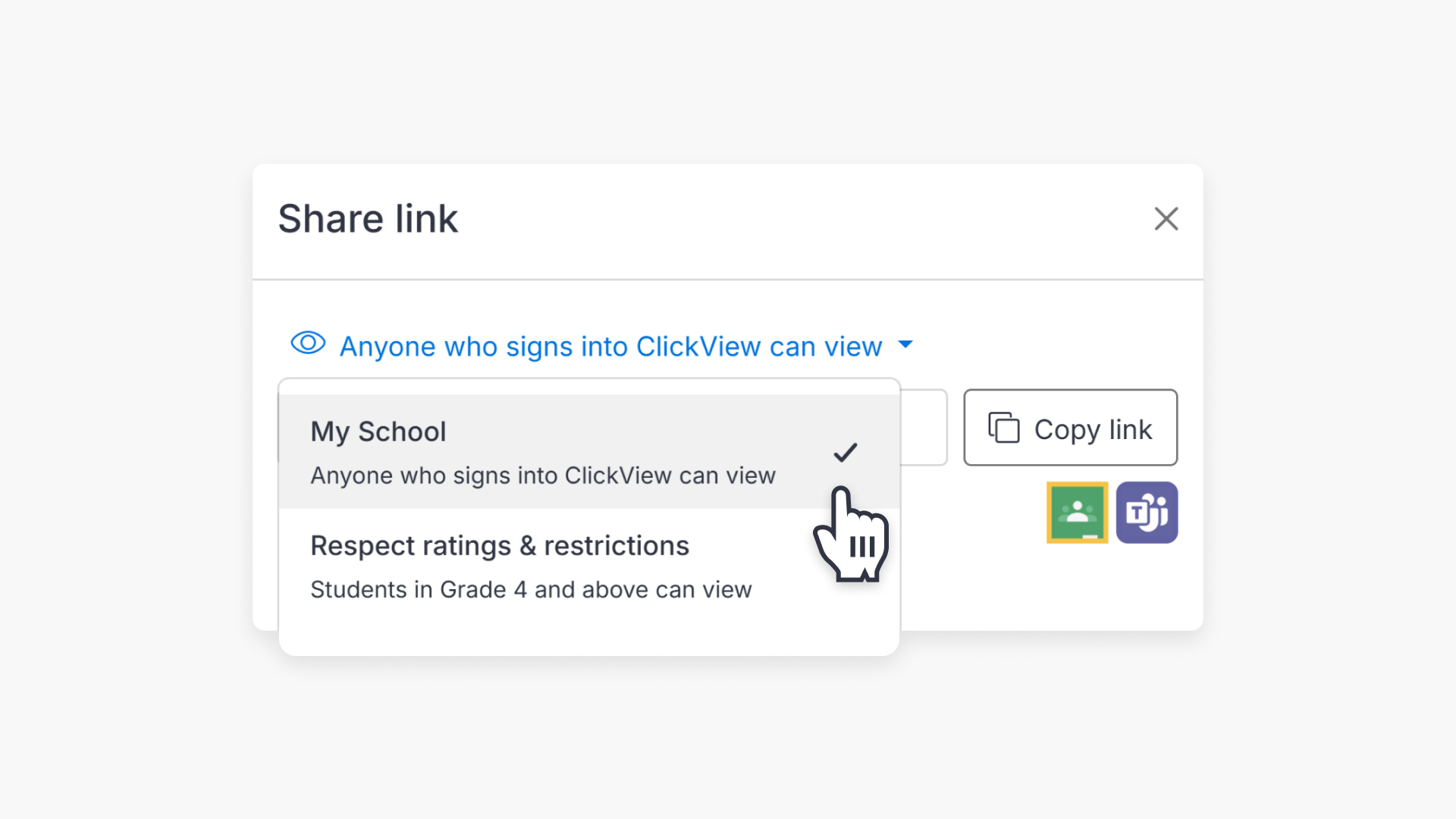
Respect ratings & restrictions (default setting)
- Videos shared using this setting adhere to both the content’s rating and any manual access restrictions.
- Only students who meet the year-group rating can access the video.
- Students restricted through Manage Video Access will still be unable to view it.
- This default setting ensures videos follow school content policies.

Bypass ratings: My School
- Switching the privacy setting to “My School” makes the shared video accessible to anyone signed in with a school account.
- This option bypasses all ratings and manual access restrictions.
- Students who are normally blocked can view the video.
This setting is best for educational content meant for all students. Use “My School” cautiously to ensure all shared materials are suitable for a broad audience.

Frequently asked questions
Get in touch
If you’re having trouble finding the right topics or videos, just reach out! Our team - 


 Andrew, Nisch, Janice, Pfreya, or any of us at ClickView - will be happy to help you get sorted.
Give feedback
Was this guide helpful?
Up Next

How to assign a video
Summary How do I assign a video to a classroom in ClickView? Depending on how your school is set up, you can assign a video to an existing classroom or create an Open Classroom. If your school has rostering or classrooms already set up, select an existing classroom, and students sign in and see the […]