How to set video rating permissions by year group
Last updated by
1 min readClickView1st February, 2026
Summary
- Only ClickView Administrators can change video rating settings.
- Go to ‘Settings’ and select ‘Content permissions’ under Video security.
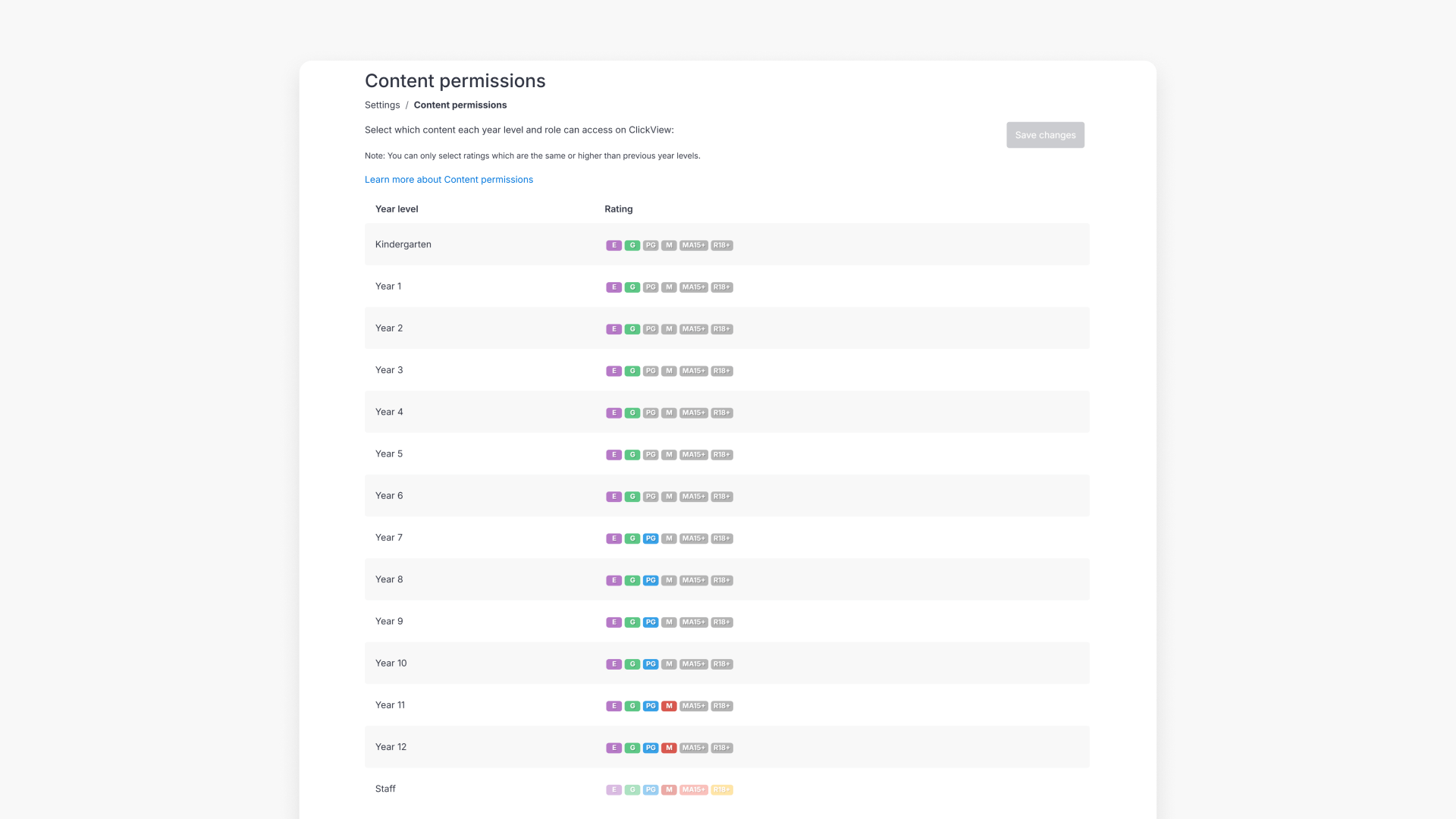
- Manage ratings for each year group; coloured icons indicate applied ratings.
- Settings apply to all students and staff in your institution.
Steps to manage video ratings by year
- Sign in to ClickView using an Administrator account.
- Click your profile in the top right corner and click on Settings.

- From the Settings screen, select Content permissions under the Video security group.

- Here, you can manage content permissions for each year group. The displayed rating is the maximum video rating allowed per year. As you apply ratings, the icons for each year will become coloured, providing a visual indicator of the permissions set.

- These permissions apply globally to all students and staff members at your school or multi-academy trust.
Frequently asked questions
Only ClickView Administrators can change these settings.
Yes, the settings apply globally to every student and staff member at your institution.
Get in touch
If you’re having trouble finding the right topics or videos, just reach out! Our team - 


 Andrew, Nisch, Janice, Pfreya, or any of us at ClickView - will be happy to help you get sorted.
Give feedback
Was this guide helpful?
Up Next

What are automated MARC records for ClickView libraries?
With automated MARC records, ClickView video metadata is updated automatically and reflected in supported library cataloguing and discovery services.